



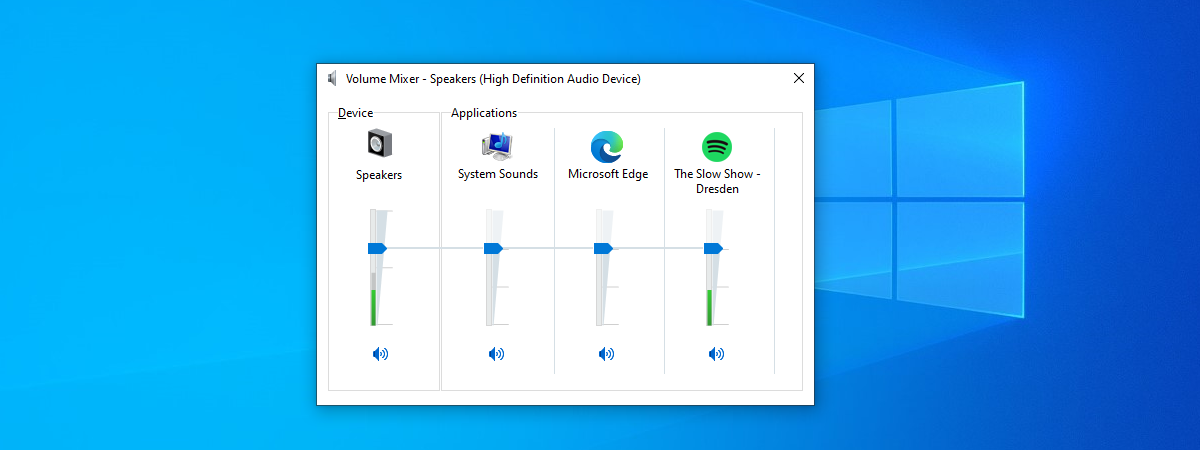
Are you wondering how to increase the volume on your laptop, desktop computer, or tablet in Windows 10 or Windows 11? Or perhaps you want to know how to turn the volume up on a computer with your keyboard, so you’re looking for the sound volume shortcut key on your PC? The volume control in Windows is an essential feature, regardless of the device you’re using. That is why Microsoft offers several built-in ways to control and adjust the sound volume in its operating systems. Read this guide to find out all about the different methods available, including the popular Windows Volume Mixer and keyboard volume control:
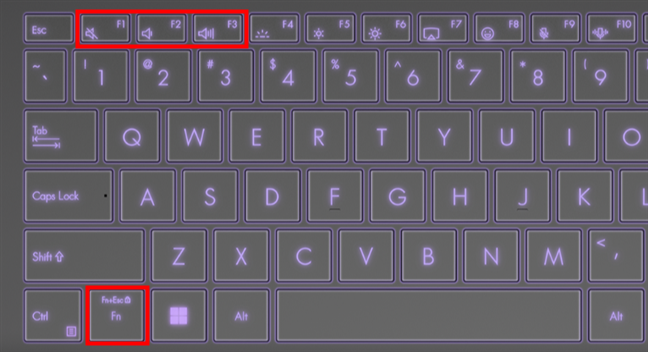
 How to turn the volume up or down on a laptop with the keyboard
Source: ASUS.
IMPORTANT: The keys you have to press to control the volume are different for every laptop, so study your keyboard carefully or read the user manual for your Windows laptop.
How to turn the volume up or down on a laptop with the keyboard
Source: ASUS.
IMPORTANT: The keys you have to press to control the volume are different for every laptop, so study your keyboard carefully or read the user manual for your Windows laptop.
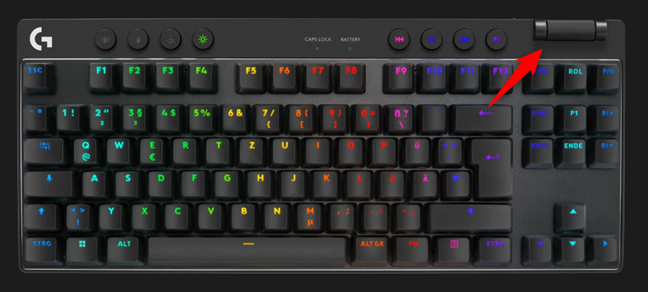
 Adjust the volume with your keyboard's volume wheel
Source: Logitech G.
Other desktop keyboards, like the Razer Ornata V3 in the next picture, may have separate multimedia keys to increase or lower the volume. Again, such keyboards allow you to adjust the volume without the Fn key. Such volume shortcut keys are simply not necessary on keyboards with dedicated sound buttons.
Adjust the volume with your keyboard's volume wheel
Source: Logitech G.
Other desktop keyboards, like the Razer Ornata V3 in the next picture, may have separate multimedia keys to increase or lower the volume. Again, such keyboards allow you to adjust the volume without the Fn key. Such volume shortcut keys are simply not necessary on keyboards with dedicated sound buttons.
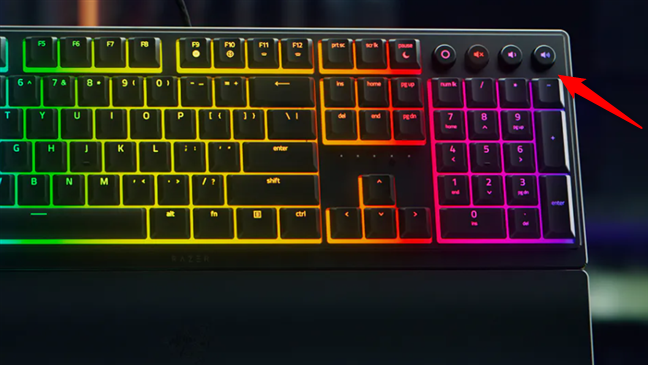
 Turn the volume up or down using the shortcut keys on your keyboard
Source: Razer.
NOTE: The keys you need to press to turn the volume up or down are different for every keyboard. Get familiar with yours to find the keys for controlling the sound volume.
Turn the volume up or down using the shortcut keys on your keyboard
Source: Razer.
NOTE: The keys you need to press to turn the volume up or down are different for every keyboard. Get familiar with yours to find the keys for controlling the sound volume.
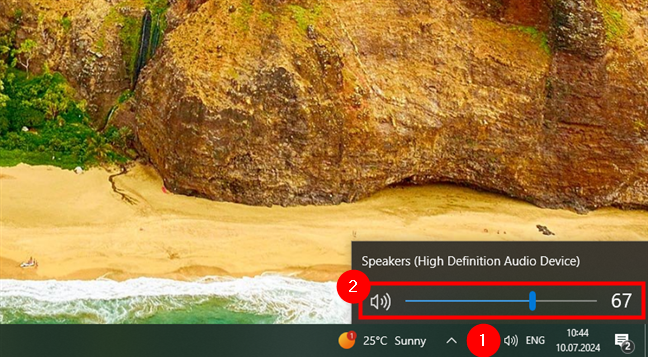
 The Windows 10 volume control slider
Clicking or tapping the speaker icon next to the slider mutes or unmutes the sound on your device.
The Windows 10 volume control slider
Clicking or tapping the speaker icon next to the slider mutes or unmutes the sound on your device.
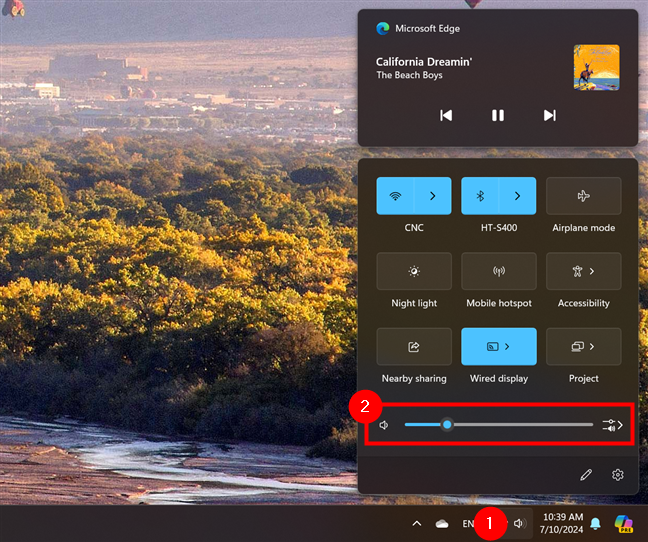
 The volume slider in Windows 11's system tray
Moreover, with a click or tap on the speaker symbol left of the volume bar, you can also toggle the audio on your device on or off.
The volume slider in Windows 11's system tray
Moreover, with a click or tap on the speaker symbol left of the volume bar, you can also toggle the audio on your device on or off.
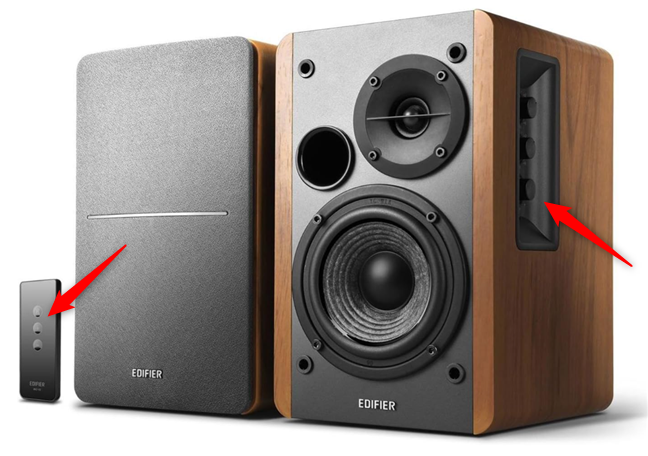
 The volume knob and the volume remote buttons on the Edifier R1280T speakers
Source: Amazon.
If you connect a Bluetooth speaker, like the Bose SoundLink Flex, to your Windows laptop or tablet, use the volume down and volume up keys on it to control how loud it is.
The volume knob and the volume remote buttons on the Edifier R1280T speakers
Source: Amazon.
If you connect a Bluetooth speaker, like the Bose SoundLink Flex, to your Windows laptop or tablet, use the volume down and volume up keys on it to control how loud it is.
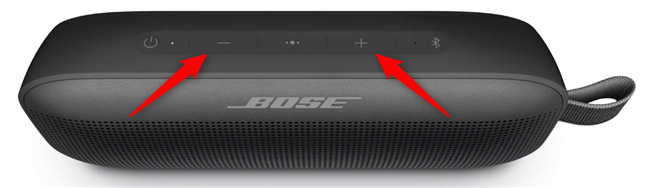
 The volume buttons on a Bose SoundLink Flex Bluetooth Speaker
Source: Amazon.
The volume buttons on a Bose SoundLink Flex Bluetooth Speaker
Source: Amazon.
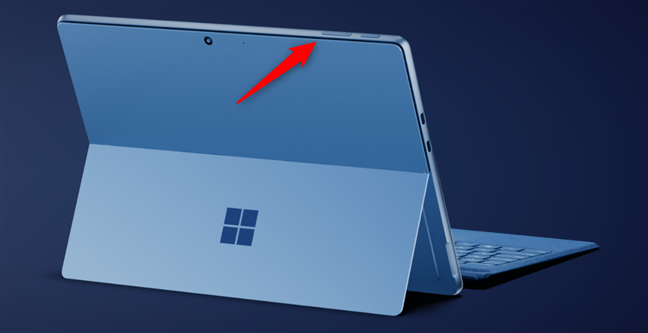
 The Volume buttons on a Microsoft Surface Pro 11th Edition
Source: Microsoft
TIP: If you often come across annoying websites that play sound or videos automatically, check out our guide on muting a tab in Chrome, Firefox, Edge, and Opera.
The Volume buttons on a Microsoft Surface Pro 11th Edition
Source: Microsoft
TIP: If you often come across annoying websites that play sound or videos automatically, check out our guide on muting a tab in Chrome, Firefox, Edge, and Opera.
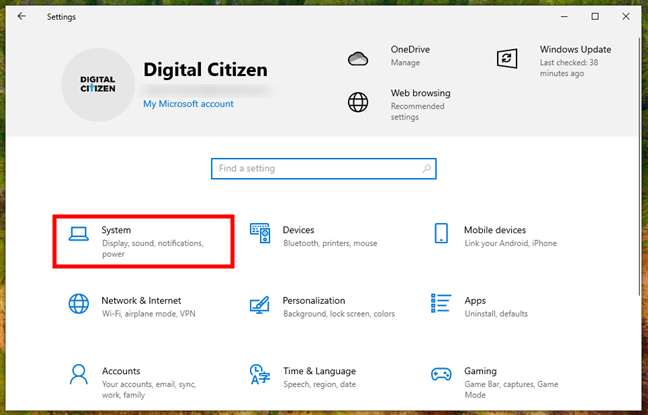
 Open Windows 10's Settings and go to System
In System, select Sound in the left sidebar.
Open Windows 10's Settings and go to System
In System, select Sound in the left sidebar.
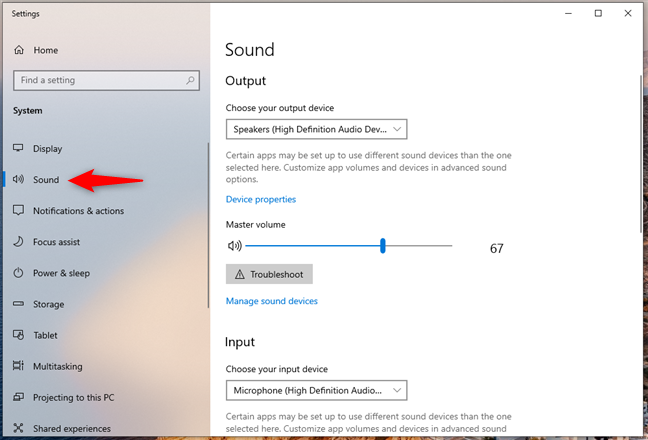
 Select Sound in the left sidebar
Alternatively, if you prefer a shorter way, you can instead right-click or press and hold the Volume icon in the system tray and choose Open Sound settings in the menu displayed.
Select Sound in the left sidebar
Alternatively, if you prefer a shorter way, you can instead right-click or press and hold the Volume icon in the system tray and choose Open Sound settings in the menu displayed.
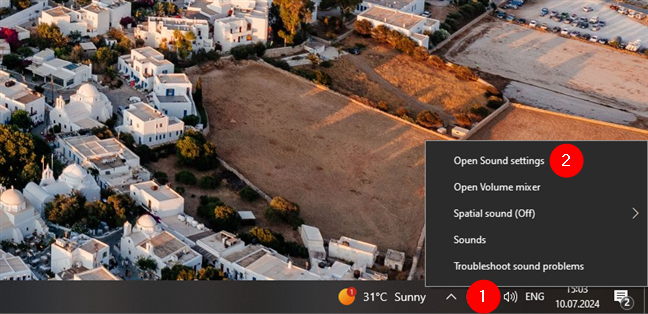
 Choose Open Sound settings
Then, regardless of how you got to the Sound page in Settings, you can use the Master volume slider on the right to decrease or increase the volume on your Windows 10 computer.
Choose Open Sound settings
Then, regardless of how you got to the Sound page in Settings, you can use the Master volume slider on the right to decrease or increase the volume on your Windows 10 computer.
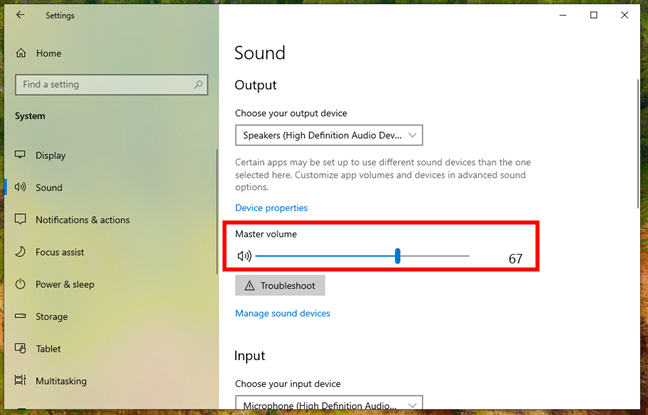 Use the Master volume slider to adjust the volume
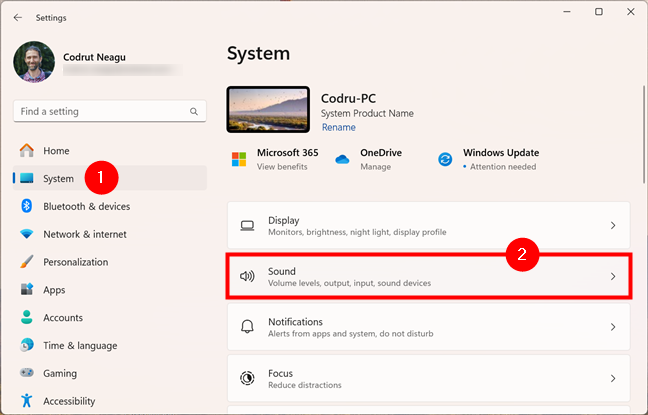 Open Windows 11's Settings and go to System > Sound
Alternatively, you can right-click or press and hold the speaker icon in the system tray and then choose Sound settings in the menu displayed.
Open Windows 11's Settings and go to System > Sound
Alternatively, you can right-click or press and hold the speaker icon in the system tray and then choose Sound settings in the menu displayed.
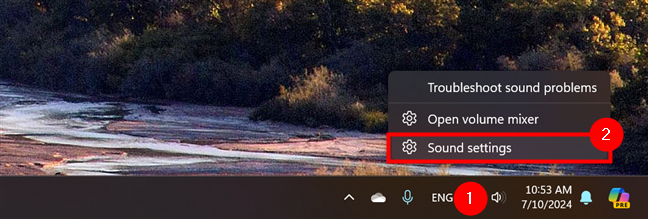
 Access the Sound settings from the system tray
Either way, once you get to the Sound section, you can use the Volume slider to turn down or turn up the volume on your Windows 11 device.
Access the Sound settings from the system tray
Either way, once you get to the Sound section, you can use the Volume slider to turn down or turn up the volume on your Windows 11 device.
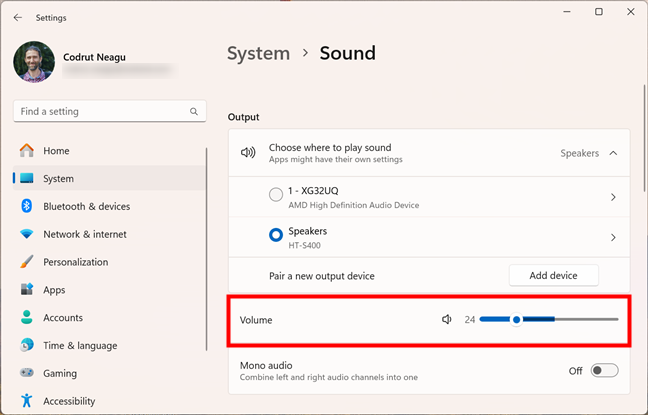 The volume control slider inside the Windows 11 Settings
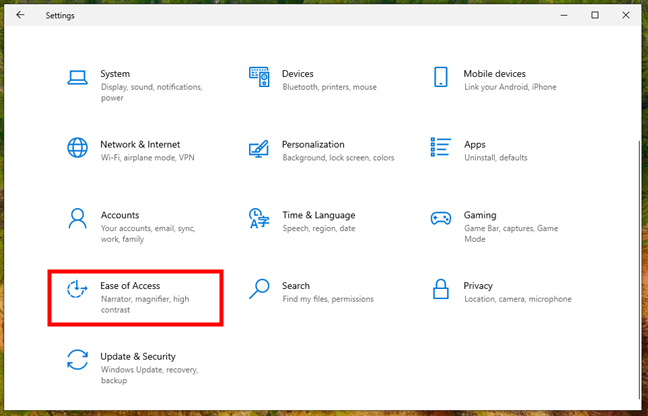
 Go to Ease of Access in the Windows 10 Settings
Select Audio in the left sidebar, and on the right, use the slider under “Make your device easier to hear” to turn the volume up or down.
Go to Ease of Access in the Windows 10 Settings
Select Audio in the left sidebar, and on the right, use the slider under “Make your device easier to hear” to turn the volume up or down.
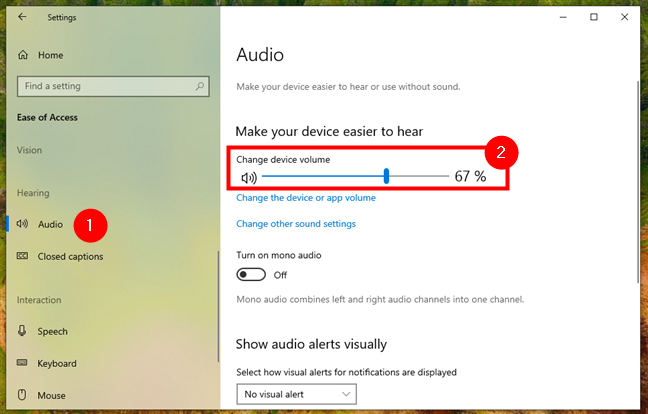
 Use the Change device volume slider to control the sound in Windows 10
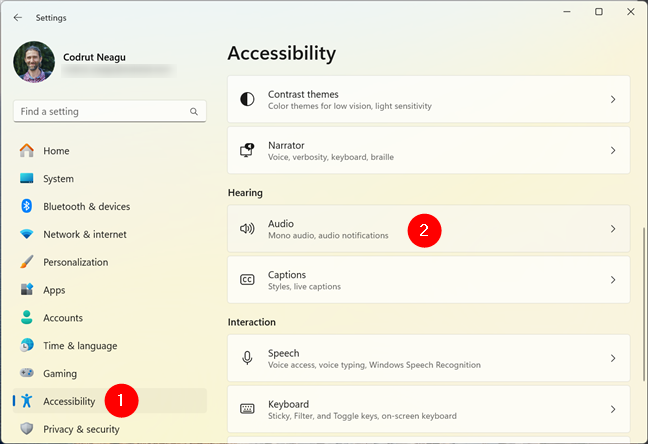
 Open Windows 11's Settings and go to Accessibility > Audio
Next, click or tap Sound under Related settings and you’ll be brought to the System > Sound page in the Settings app. There, you can control the volume on your Windows 11 computer using the Volume slider, just like I’ve shown you in this guide’s chapter 5.2. - How to increase or turn down the volume in Windows 11 using Settings.
Open Windows 11's Settings and go to Accessibility > Audio
Next, click or tap Sound under Related settings and you’ll be brought to the System > Sound page in the Settings app. There, you can control the volume on your Windows 11 computer using the Volume slider, just like I’ve shown you in this guide’s chapter 5.2. - How to increase or turn down the volume in Windows 11 using Settings.
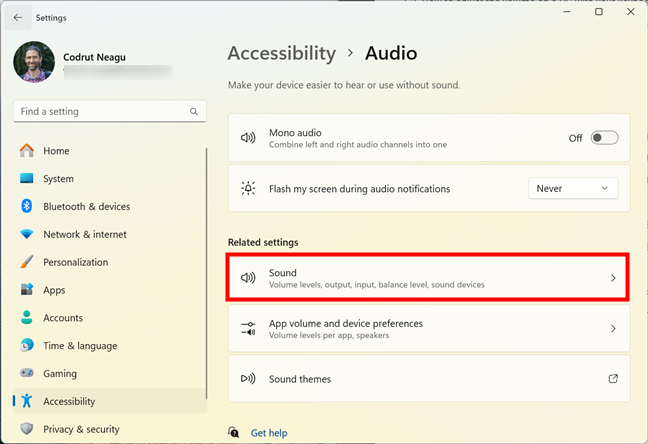 Click or tap Sound under Related settings
Alternatively, you can also click or tap the App volume and device preferences entry under Related settings. This will make Windows 11 take you to the Volume mixer settings page that I discuss in the next chapter of this guide. You can also use these options to increase or turn down the volume.
Click or tap Sound under Related settings
Alternatively, you can also click or tap the App volume and device preferences entry under Related settings. This will make Windows 11 take you to the Volume mixer settings page that I discuss in the next chapter of this guide. You can also use these options to increase or turn down the volume.
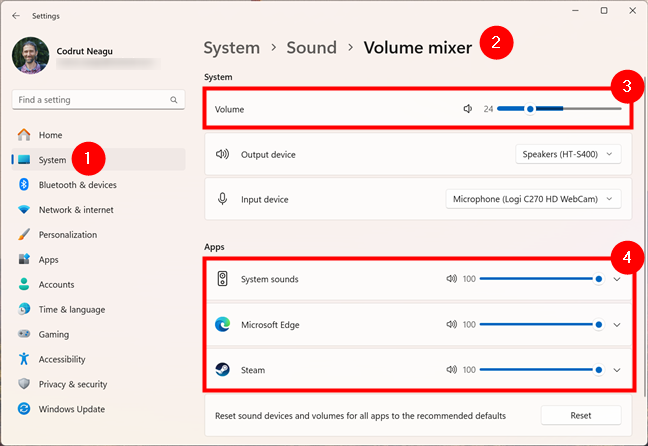
 The Windows 11 Volume Mixer
You can learn everything about it from our guide on the Windows 11 Volume Mixer.
The Windows 11 Volume Mixer
You can learn everything about it from our guide on the Windows 11 Volume Mixer.
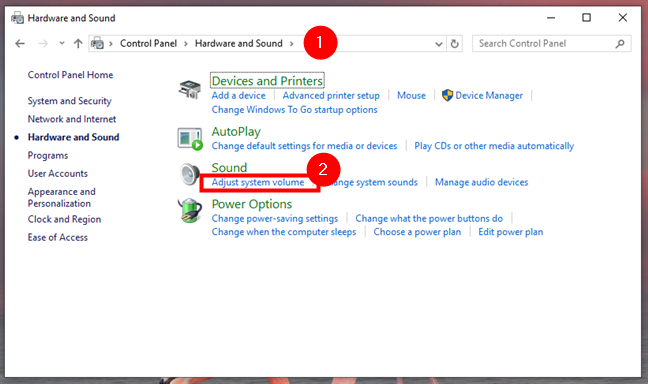
 Click on Adjust system volume in the Control Panel's Hardware and Sound tab
Alternatively, you can also easily access the Volume Mixer by right-clicking or pressing and holding the speaker icon in the system tray and then clicking or tapping the Open Volume mixer option.
Click on Adjust system volume in the Control Panel's Hardware and Sound tab
Alternatively, you can also easily access the Volume Mixer by right-clicking or pressing and holding the speaker icon in the system tray and then clicking or tapping the Open Volume mixer option.
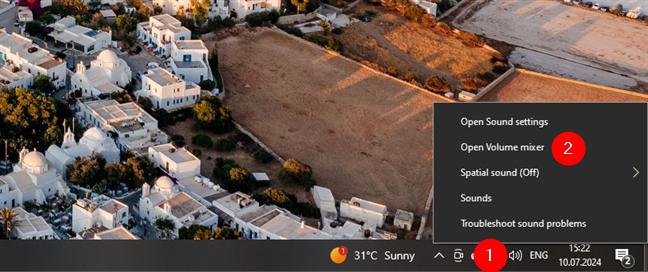
 Right-click the volume icon in the system tray and choose to Open Volume mixer
Use the Volume Mixer window that pops up to set the desired sound level for the speakers, system sounds, or any open Windows apps.
Right-click the volume icon in the system tray and choose to Open Volume mixer
Use the Volume Mixer window that pops up to set the desired sound level for the speakers, system sounds, or any open Windows apps.
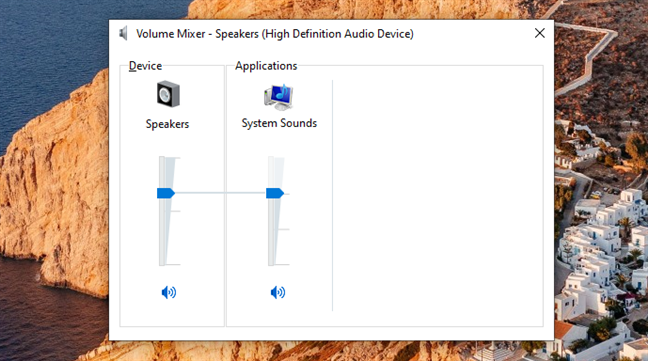
 The Volume Mixer in Windows 10
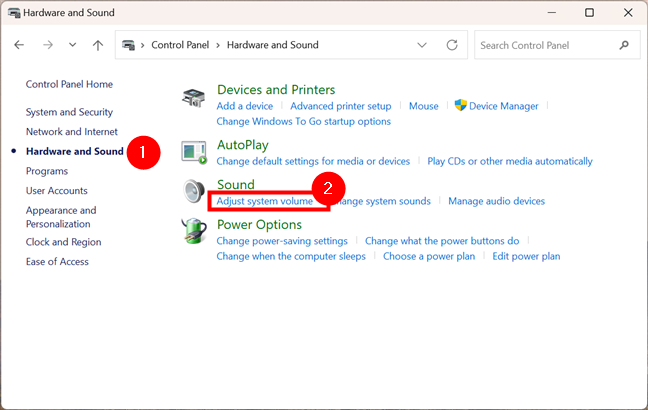
 Access Adjust system volume for the Volume Mixer window
This will open the Volume Mixer window, where you can adjust the sound levels for the speakers, system sounds, and any apps open on your Windows 11 computer.
Access Adjust system volume for the Volume Mixer window
This will open the Volume Mixer window, where you can adjust the sound levels for the speakers, system sounds, and any apps open on your Windows 11 computer.
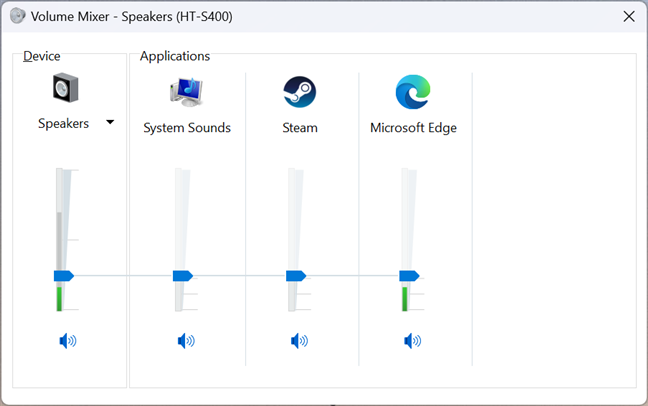
 The classic Volume Mixer in Windows 11
TIP: If you need more details on this timeless feature and how to get to it in Windows 11, check out our guide on accessing the old Volume Mixer in Windows 11.
The classic Volume Mixer in Windows 11
TIP: If you need more details on this timeless feature and how to get to it in Windows 11, check out our guide on accessing the old Volume Mixer in Windows 11.

 Volume and Volume Mixer shortcuts
Learn how to create your own shortcuts or download the ones we made for you by reading this article: Do you need a volume shortcut in Windows? We have two shortcuts for you!
Volume and Volume Mixer shortcuts
Learn how to create your own shortcuts or download the ones we made for you by reading this article: Do you need a volume shortcut in Windows? We have two shortcuts for you!
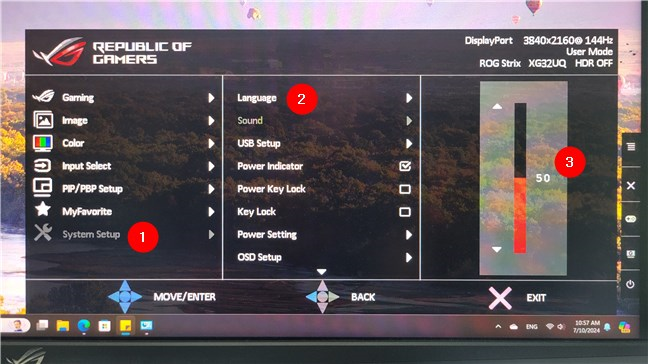
 Turn the volume up or down from your monitor's menus
Once you’ve found the sound settings, all that remains for you to do is use your monitor’s arrow buttons or the joystick to increase or decrease the volume.
Turn the volume up or down from your monitor's menus
Once you’ve found the sound settings, all that remains for you to do is use your monitor’s arrow buttons or the joystick to increase or decrease the volume.
1. Use the keyboard volume control on your PC or laptop
Depending on the keyboard available on your laptop or desktop computer, you have a variety of options for increasing or turning down the volume. Here are the most common:1.1. How to adjust the volume levels using keyboard shortcuts
If you’re looking for a keyboard shortcut for volume, Windows laptops have multimedia keys for controlling the sound. However, to use them, you have to hold down the Fn key on the keyboard and then press the key for the action you want to perform. Just check your laptop’s keyboard for any F keys (on the top row) displaying a speaker icon. For instance, on an ASUS Vivobook S 15 laptop, you have to simultaneously press the Fn + F3 keys to increase the volume. To turn down the volume, press the Fn + F2 keys at the same time. The mute volume keyboard shortcut is Fn + F1.1.2. How to adjust the volume on a PC with your keyboard (without the Fn key)
Desktop keyboards may use a similar combination of keys or have dedicated multimedia keys, like the Logitech G PRO X TKL keyboard in the image below. This keyboard and others like it have a volume wheel. Some have it in the top-right corner, others in the top-left. Depending on the make and model of your keyboard, you may also have an additional mute button that allows you to instantly silence your computer.2. Use the system tray controls to increase or turn down volume
While the system tray changes names based on the operating system you’re using (Notification area in Windows 10 or Quick Settings in Windows 11), it always includes a speaker icon that helps you control the volume. Here’s how to use it to turn your computer or laptop volume up or down:2.1. How to adjust the volume in Windows 10
If you’re using Windows 10, click or tap the speaker icon in the system tray to reveal a volume slider on top of it. Click or tap anywhere on the bar or drag the slider button to the desired position. As long as the slider is shown on your screen, you can also move the mouse anywhere, and scrolling adjusts the Windows 10 volume.2.2. How to adjust the volume levels in Windows 11
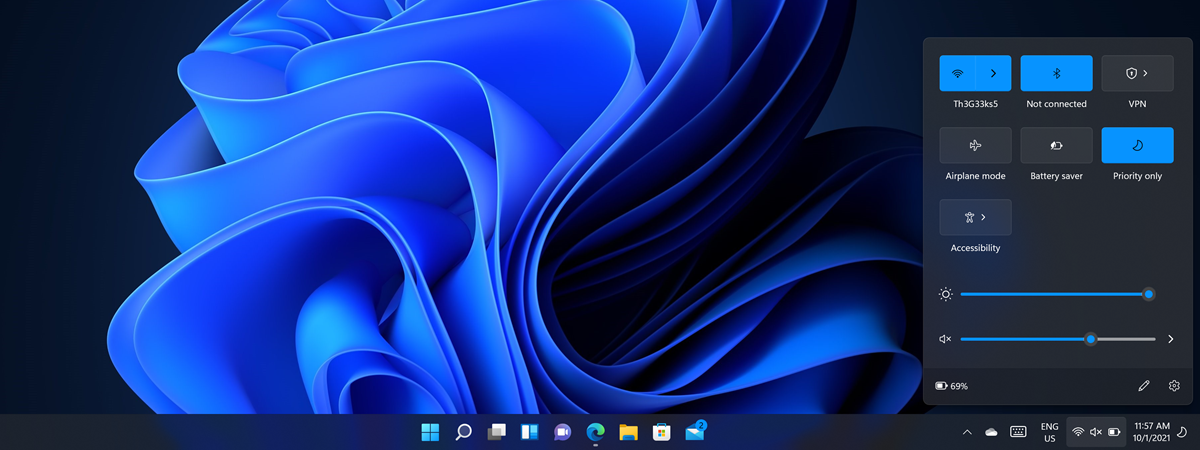
In Windows 11, clicking or tapping on the speaker icon (or on the adjacent network or battery icons) launches the Quick Settings, which include a volume slider at the bottom. Click or tap anywhere on the slider bar or drag the slider to change the volume. Alternatively, you can also hover the mouse over the slider bar while scrolling the mouse wheel to adjust the Windows 11 volume.3. Use the volume controls on your speakers
If you connect stereo speakers to your Windows 10 or Windows 11 computer, you can use their volume buttons to adjust the sound intensity. Depending on the speakers’ make and model, they may have a volume knob, dedicated volume buttons, or even a remote control that allows you to adjust the volume.4. Use the volume buttons on your tablet
If you have a Windows tablet, like the Surface Pro 11th Edition pictured in the next image, it should have dedicated physical buttons for changing the volume. The volume keys are usually placed on the edges of the device (check the tablet’s manual if you’re not sure where they are). You can use the available buttons to change the sound volume on your tablet to the level you prefer.5. Control the volume from the Settings app in Windows
Regardless of whether you’re working on Windows 10 or Windows 11, you can also use the Settings app for increasing or turning down the volume on your laptop or desktop computer. Here’s how:5.1. How to turn the volume up or down in Windows 10 using Settings
On Windows 10, launch the Settings app and click or tap System.5.2. How to increase or turn down the volume in Windows 11 using Settings
If you’re running Windows 11, open Settings, select System in the left sidebar, and click or tap Sound on the right.6. Decrease or increase the volume using the accessibility settings
Both Windows 10 and Windows 11 also let you control the volume from their accessibility options. This is how it all works:6.1. How to decrease or increase the volume in Windows 10 from the Ease of Access settings
If you’re using Windows 10, open the Settings app (Win + I) and head to Ease of Access.6.2. How to control the volume in Windows 11 from the Accessibility settings
In Windows 11, open the Settings app (Win + I), select Accessibility in the left sidebar, and click or tap Audio on the right.7. Use the Volume mixer options in Windows 11
Windows 11 introduced a new Volume Mixer, integrated with the Settings app. It’s found under System > Sound > Volume mixer. Opening it reveals a volume slider that controls the sound on your device.8. Use the classic Volume Mixer in Windows
The classic Volume Mixer in Windows 10 and Windows 11 allows users to change the audio volume for the entire system or only for certain apps. Here’s how to get to it:8.1. How to control the volume in Windows 10 using the classic Volume Mixer
To access the old Volume Mixer, open the Control Panel, and go to Hardware and Sound. Then, in the Sound section, click or tap the Adjust system volume link.8.2. How to control the volume in Windows 11 with the classic Volume Mixer
To access the traditional Volume Mixer in Windows 11, open the Control Panel and navigate to Hardware and Sound. Under the Sound section, click the Adjust system volume link.9. Create or download a Volume or a Volume Mixer shortcut for Windows
You can get shortcuts on your desktop to both Volume and the Volume Mixer and use them to control the volume in Windows 10 and Windows 11.10. Use the volume controls on your monitor
Last but not least, your computer monitor probably has volume controls available in its menus. The most common situations when you need to adjust the volume from your monitor’s menus are these:- You’re using a monitor with built-in speakers
- You connected your external speakers to the audio jack on your display, and the sound output is delivered via HDMI or DisplayPort

Discussion (21)
I have NONE of these options!! My volume won’t appear in the taskbar and whenever I tried to click the option for it to appear it was locked and wouldn’t let me click it, everything I’ve tried won’t work and I don’t know what to do.
Which version of Windows are you using?
FN +F2 to Lower the volume nd FN +F3 To Increase the volume just what I was looking for.
I like using the keyboard
Hi, initially my keyboard volume buttons are working but my cousin did something and after that its not working. But using Fn key it work, can you help me how to undo this? I am habitual to use keyboard button and now its kinda irritating me.
Man, I seldom to write to criticize anyone’s writing, but this whole article is such an exercise in platitude, that I feel compelled to do so – specially because it’s well positioned in Google’s results for the search category it proposes to serve (something in the likes of ‘Windows 10 volume shortcut keys’).
I mean, upon finding it, it looks like we’re about to discover some hidden shortcut and all we get is obvious choices anyone who’s used a computer for a week in their whole life knows!
Why didn’t you bother researching more, in order to find out if there is (and there actually are!) ways to create a shortcut key, is, honestly beyond me, and as such, this whole piece of sh… em, shenanigan, is quite misleading the way it is, IMHO.
I like the the icon bar use the best
Agreed, I came to this article expecting it to tell me how to map volume control to a normal full size keyboard…. waste of time telling me “use the volume control”
Prefer volume on keyboard.
I prefer the speaker icon.
You state “The second method involves opening the Volume Mixer that is accessible through the Control Panel.” You don’t have to go to control panel. Just R-click speaker icon and select Open Volume Mixer.
How do we keep the changes made in Volume Mixer to last more than a few minutes before being reset by the system (Windows 10)? Whenever I make changes, the PC changes them back (I reopened the Mixer just to check if they were put in, and they were, but it is still changing it pack to full volume for the System Sounds).
This the most asenine, useless article I have ever encountered. Get your shit together.
I understood that you don’t like us. But, can you share why? Why is this article useless? What were you expecting to get and you did not?
This was two years ago, but I stumbled upon it. The reason the article is terrible is because it outlines the most basic ways to control volume and it was clearly made as click bait. I bought a keyboard without multimedia keys and wanted to see if there were ways to control the volume without those keys. I saw this article and thought it may have a good answer. All the “options” that were explained were things that were extremely basic and wouldn’t help even the most basic of users. Why even list that you can control the volume on the speakers? That’s like saying you can control the flow of water through a tap by turning the faucet more. Face the facts, you created an article for clickbait and you should feel bad for doing that.
You name as one of the methods to literally turn the volume of the actual computer speakers down/up. Did you even look at your own article’s title before you write it?
It’s like telling us: if you wanna turn the volume down, just turn it down! Duh!!
exactly!!!!
I agree with you!
Thanks so much
My volume slider won’t open.
use this
%windir%System32SndVol.exe -f 49825268
set shortcut in desktop as ctrl + – key (minus key)
pops up volume button anywhere you are