



File Explorer is one of the most used apps in Windows 10 and Windows 11. Whether you need to open, copy, delete, or move files, there is always one thing you have to do first: open the File Explorer. So, I thought it would be an excellent idea to write this roundup article, showing all the ways to open File Explorer in Windows 10 and Windows 11. They involve everything from using search to pressing keyboard shortcuts, running commands, using speech with artificial intelligence, etc. Let’s get started:
NOTE: This guide covers Windows 10 or Windows 11. If you don’t know your Windows version, read this tutorial: How to tell what Windows I have (11 ways).
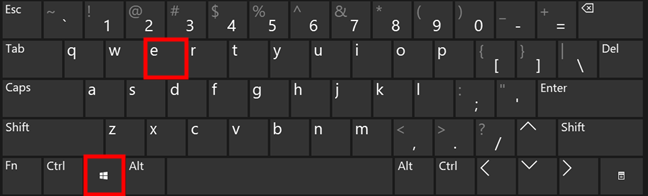
 The keyboard shortcut to open File Explorer is Win + E
As soon as you press these keys, the File Explorer starts.
The keyboard shortcut to open File Explorer is Win + E
As soon as you press these keys, the File Explorer starts.
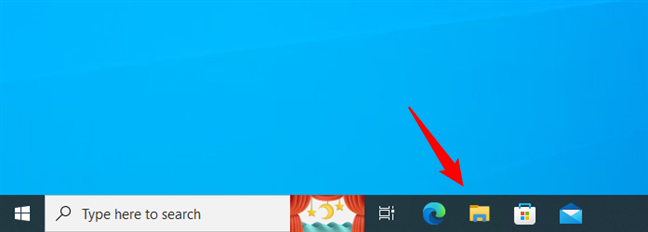
 Use the File Explorer shortcut on Windows 10's taskbar
In Windows 11, the default location of the File Explorer icon is in the middle of the taskbar.
Use the File Explorer shortcut on Windows 10's taskbar
In Windows 11, the default location of the File Explorer icon is in the middle of the taskbar.
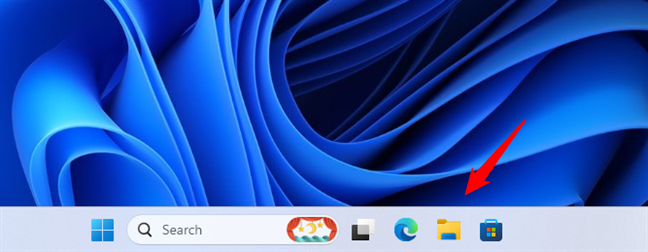
 Use the File Explorer shortcut on Windows 11's taskbar
Click the File Explorer icon, and Windows will open its file manager immediately.
Use the File Explorer shortcut on Windows 11's taskbar
Click the File Explorer icon, and Windows will open its file manager immediately.
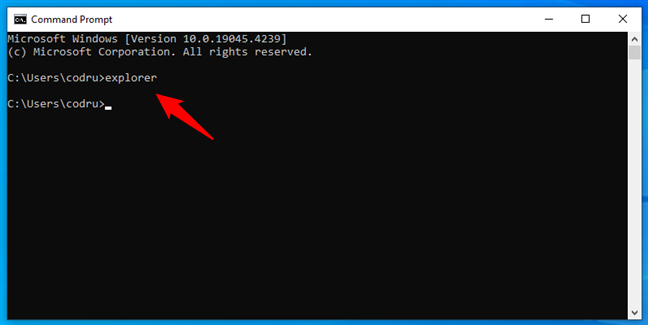
 How to open File Explorer from CMD
TIP: If you prefer, you can also use Command Prompt or PowerShell inside the Windows Terminal.
How to open File Explorer from CMD
TIP: If you prefer, you can also use Command Prompt or PowerShell inside the Windows Terminal.
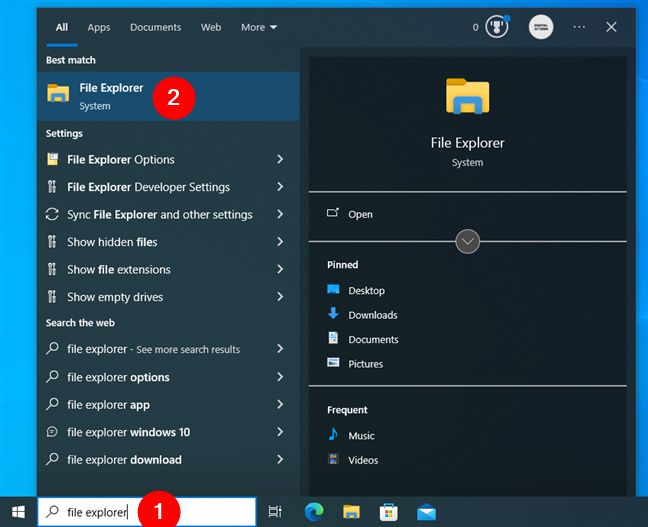
 How to open File Explorer in Windows 10 using search
If you’re using Windows 11, click or tap inside the search field on the taskbar and type:
How to open File Explorer in Windows 10 using search
If you’re using Windows 11, click or tap inside the search field on the taskbar and type:
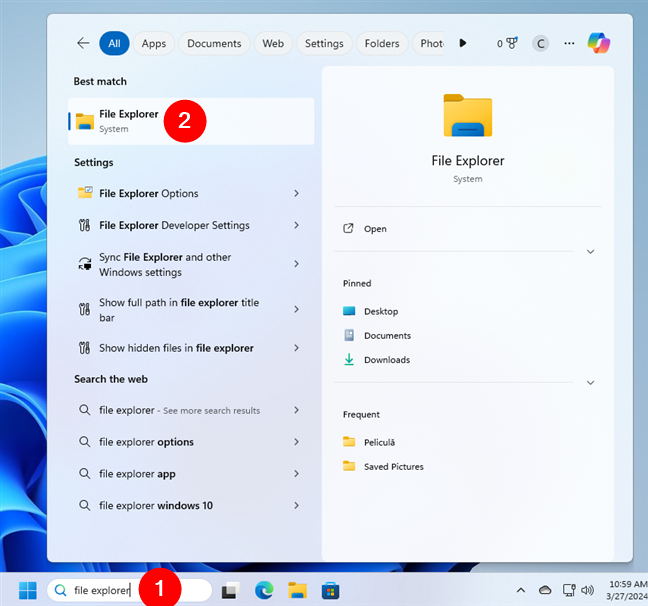
 How to open File Explorer in Windows 11 using search
The File Explorer will open immediately.
How to open File Explorer in Windows 11 using search
The File Explorer will open immediately.
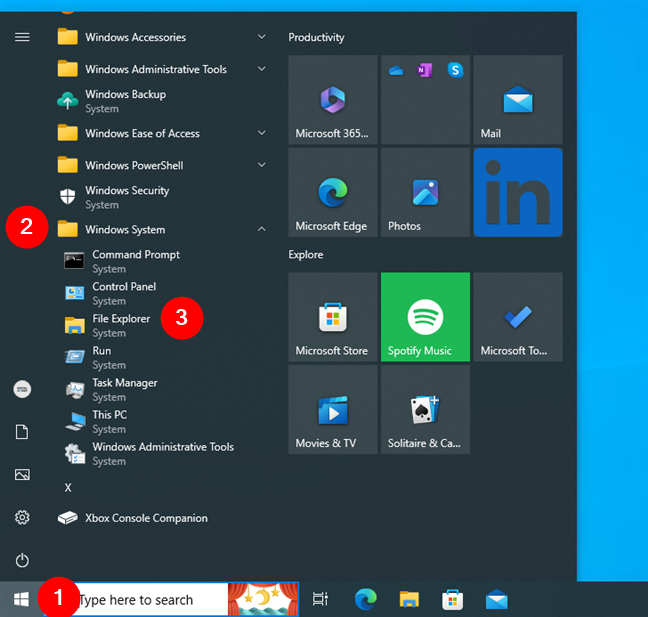
 How to open File Explorer from the Windows 10 Start Menu
In Windows 11, it’s even easier as this operating system comes with a File Explorer shortcut pinned to the Start Menu by default. Simply open the Start Menu and click or tap the File Explorer shortcut in the Pinned list.
How to open File Explorer from the Windows 10 Start Menu
In Windows 11, it’s even easier as this operating system comes with a File Explorer shortcut pinned to the Start Menu by default. Simply open the Start Menu and click or tap the File Explorer shortcut in the Pinned list.
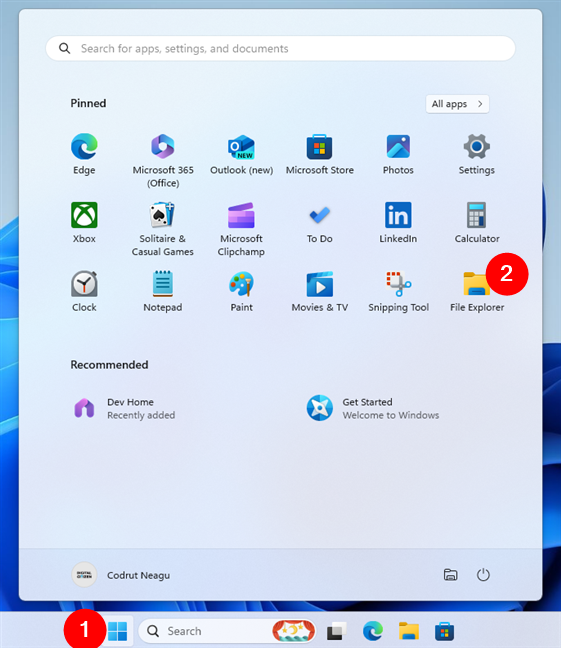
 How to open File Explorer in Windows 11 from the Start Menu Pinned list
Alternatively, you can also open the File Explorer in Windows 11 from the Start Menu All apps list. To access it, open Start Menu, click or tap All apps and scroll down to the apps that start with the letter F.
How to open File Explorer in Windows 11 from the Start Menu Pinned list
Alternatively, you can also open the File Explorer in Windows 11 from the Start Menu All apps list. To access it, open Start Menu, click or tap All apps and scroll down to the apps that start with the letter F.
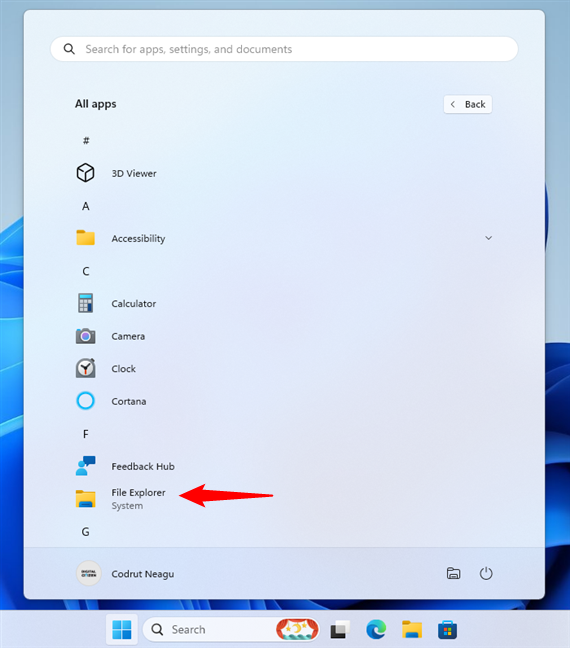
 How to open File Explorer using its Start Menu shortcut in Windows 11
TIP: If you’re new to Windows 11, here’s more information on how to use the Windows 11 Start Menu.
How to open File Explorer using its Start Menu shortcut in Windows 11
TIP: If you’re new to Windows 11, here’s more information on how to use the Windows 11 Start Menu.
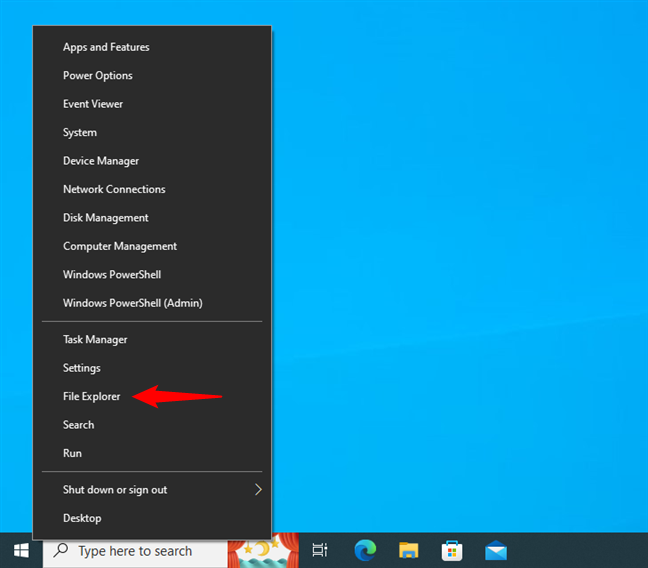
 Open File Explorer using its WinX shortcut in Windows 10
And here’s what you’ll get in Windows 11:
Open File Explorer using its WinX shortcut in Windows 10
And here’s what you’ll get in Windows 11:
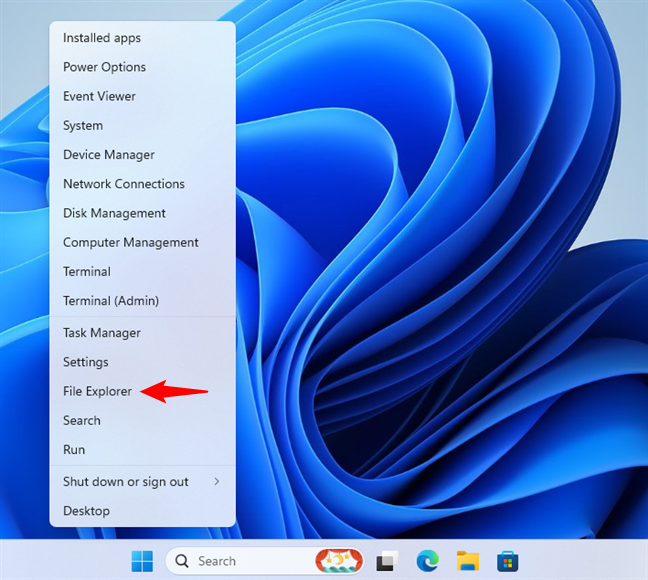
 Open File Explorer using its WinX shortcut in Windows 11
Click the File Explorer option in the WinX menu, and the file manager opens immediately.
Open File Explorer using its WinX shortcut in Windows 11
Click the File Explorer option in the WinX menu, and the file manager opens immediately.
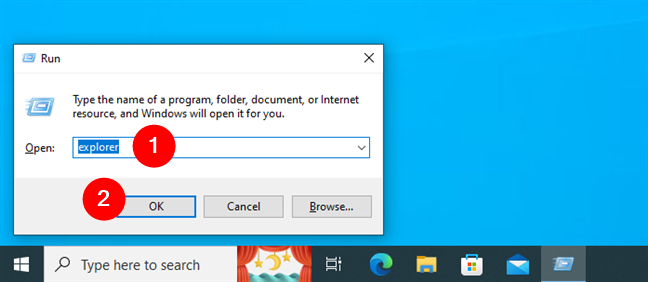
 Open File Explorer from the Run window
The File Explorer app will open on your Windows computer as soon as you do that.
Open File Explorer from the Run window
The File Explorer app will open on your Windows computer as soon as you do that.
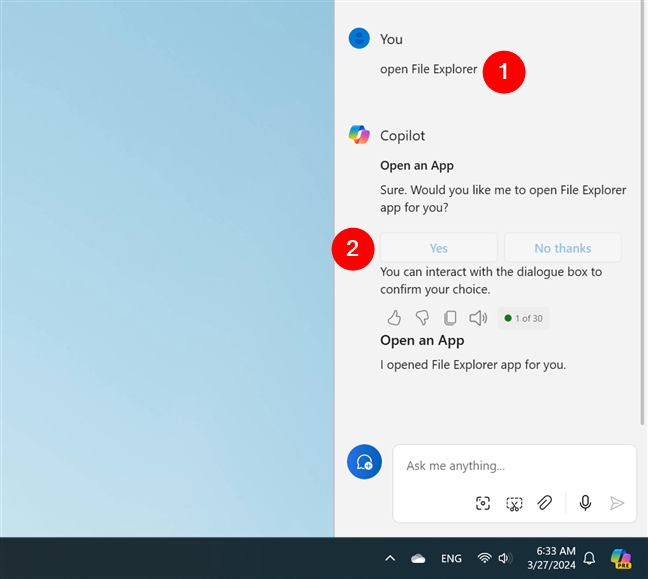
 How to open File Explorer using the Copilot
TIP: If you’d like to know more about Microsoft’s AI companion, here’s How to use the Copilot in Windows 11.
How to open File Explorer using the Copilot
TIP: If you’d like to know more about Microsoft’s AI companion, here’s How to use the Copilot in Windows 11.
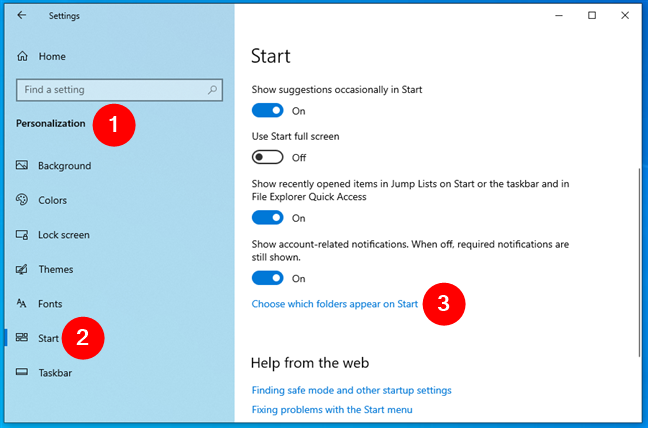
 Go to Settings > Personalization > Start and click Choose which folders appear on Start
This opens a new settings page with a list of options. On it, turn the File Explorer switch on.
Go to Settings > Personalization > Start and click Choose which folders appear on Start
This opens a new settings page with a list of options. On it, turn the File Explorer switch on.
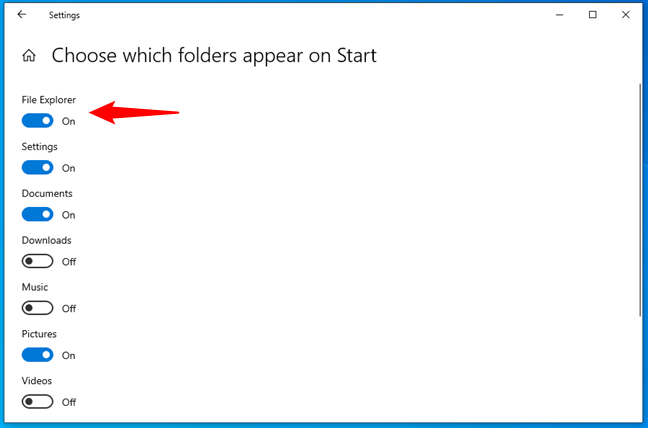 Enable the File Explorer switch
You’ll then get a File Explorer icon on the left side of the Start Menu, above the Power and Settings buttons. Click or tap on it to open File Explorer in Windows 10.
Enable the File Explorer switch
You’ll then get a File Explorer icon on the left side of the Start Menu, above the Power and Settings buttons. Click or tap on it to open File Explorer in Windows 10.
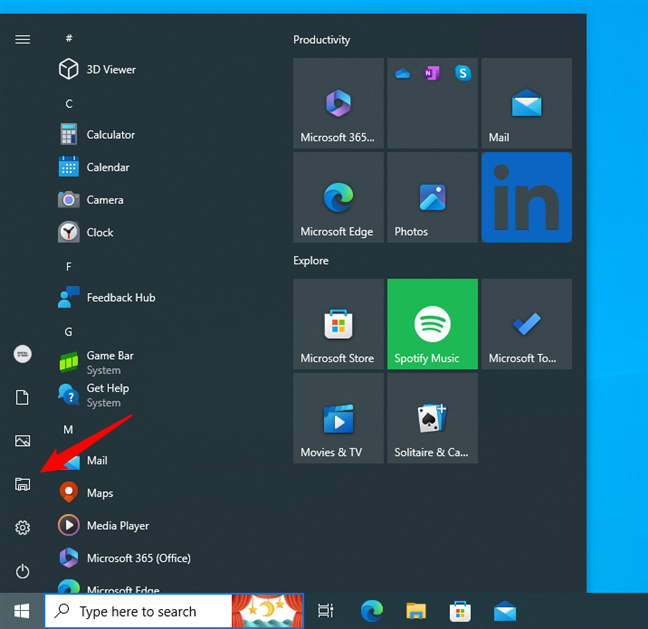
 How to open File Explorer in Windows 10 using its Start Menu button
TIP: For detailed instructions on customizing all the other Start Menu buttons, check out How to add or remove Windows 10 Start Menu folders.
How to open File Explorer in Windows 10 using its Start Menu button
TIP: For detailed instructions on customizing all the other Start Menu buttons, check out How to add or remove Windows 10 Start Menu folders.
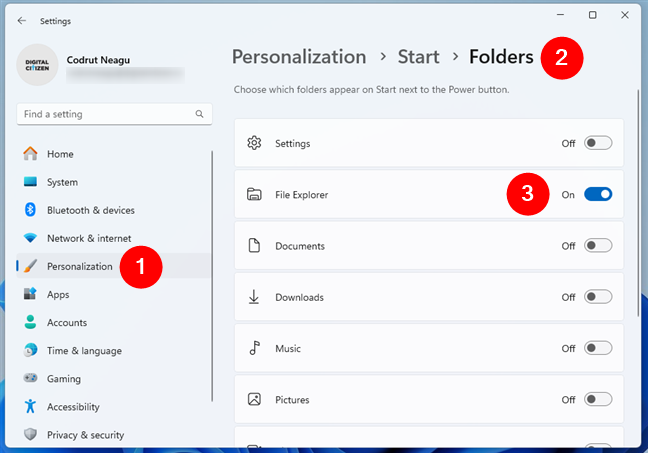
 How to add a File Explorer button to the Start Menu in Windows 11
Windows 11 will then add a dedicated File Explorer icon to the left of the Power button in the Start Menu. From now on, you can use it to launch File Explorer quickly.
How to add a File Explorer button to the Start Menu in Windows 11
Windows 11 will then add a dedicated File Explorer icon to the left of the Power button in the Start Menu. From now on, you can use it to launch File Explorer quickly.
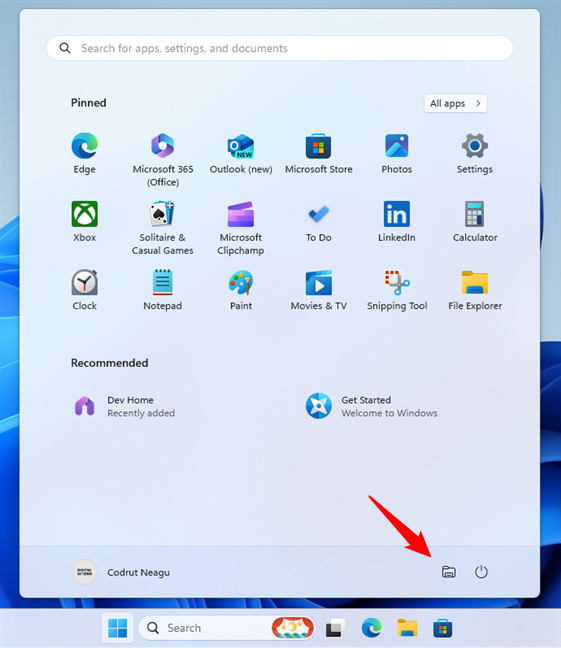 How to open File Explorer in Windows 11 using its button from the Start Menu
TIP: If you want to configure the buttons shown in your Start Menu further, read this guide: 4 ways to customize and improve the Start Menu in Windows 11.
How to open File Explorer in Windows 11 using its button from the Start Menu
TIP: If you want to configure the buttons shown in your Start Menu further, read this guide: 4 ways to customize and improve the Start Menu in Windows 11.
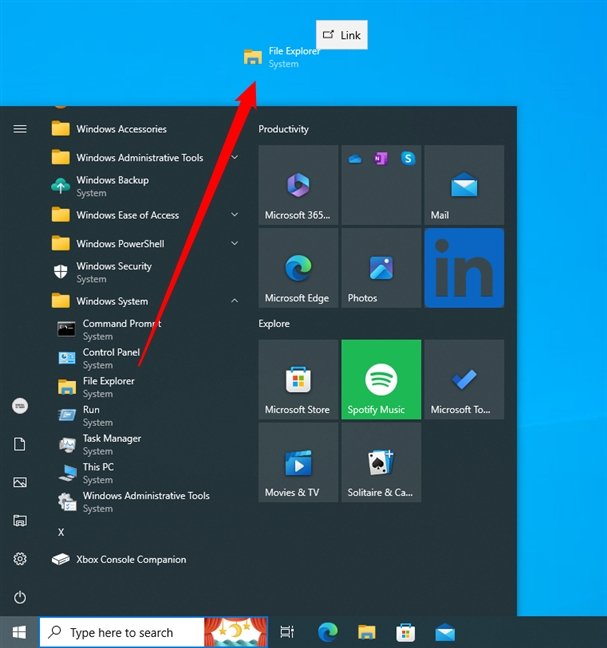
 File Explorer shortcut pinned to the desktop of Windows 10
The same goes for Windows 11 too.
File Explorer shortcut pinned to the desktop of Windows 10
The same goes for Windows 11 too.
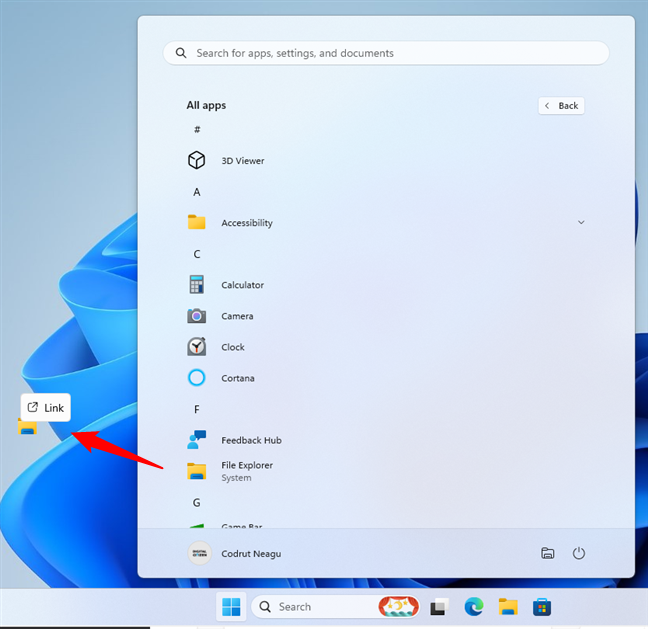 File Explorer shortcut pinned to the desktop on Windows 11
Alternatively, you can manually create a File Explorer shortcut. In either Windows 10 or Windows 11, right-click where you want the File Explorer shortcut, go to New > Shortcut, and follow the steps of the Create Shortcut wizard. The only essential thing in this process is to input the command…
File Explorer shortcut pinned to the desktop on Windows 11
Alternatively, you can manually create a File Explorer shortcut. In either Windows 10 or Windows 11, right-click where you want the File Explorer shortcut, go to New > Shortcut, and follow the steps of the Create Shortcut wizard. The only essential thing in this process is to input the command…
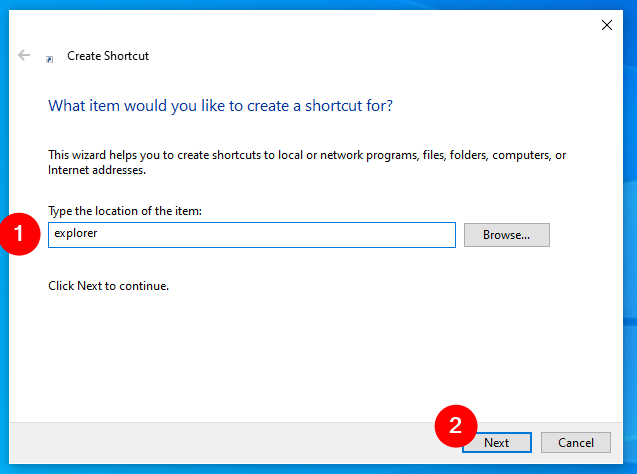
 Type explorer in the shortcut's target
You can then use the new shortcut to launch the File Explorer whenever you need it quickly.
Type explorer in the shortcut's target
You can then use the new shortcut to launch the File Explorer whenever you need it quickly.
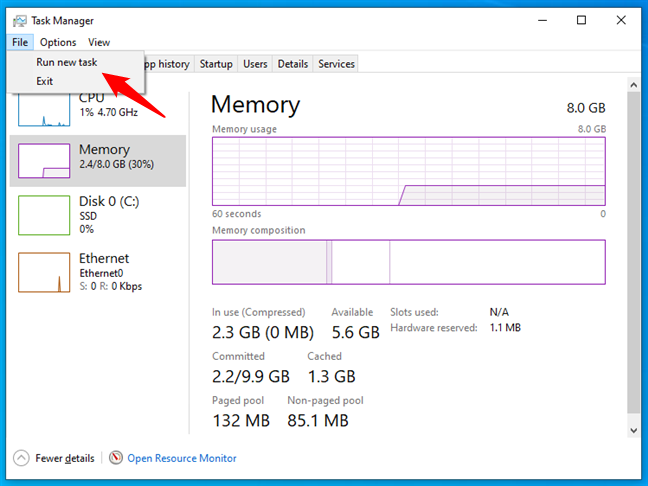
 Run new task in Task Manager
In the Create new task window, type:
Run new task in Task Manager
In the Create new task window, type:
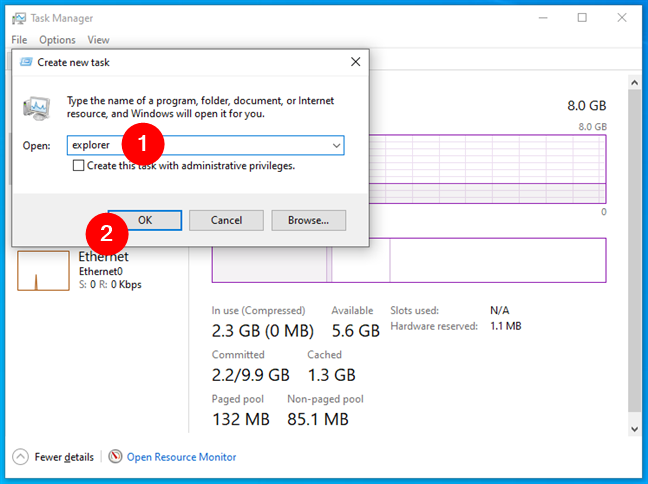
 How to open File Explorer using Task Manager
File Explorer will launch in an instant.
How to open File Explorer using Task Manager
File Explorer will launch in an instant.
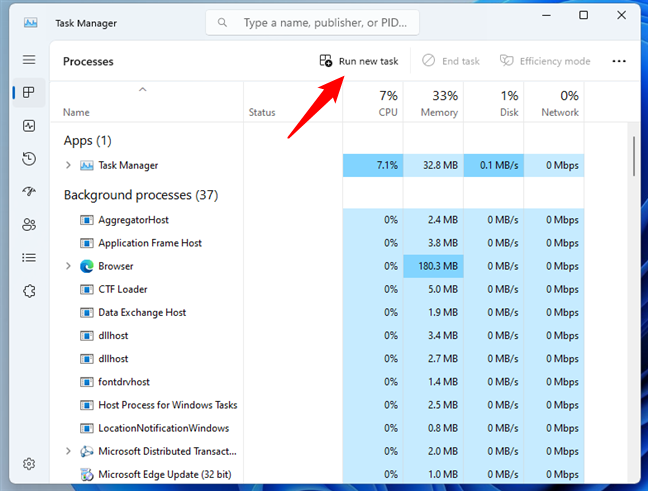
 Run new task in Windows 11's Task Manager
In the Open field from the Create new task window, input this command:
Run new task in Windows 11's Task Manager
In the Open field from the Create new task window, input this command:
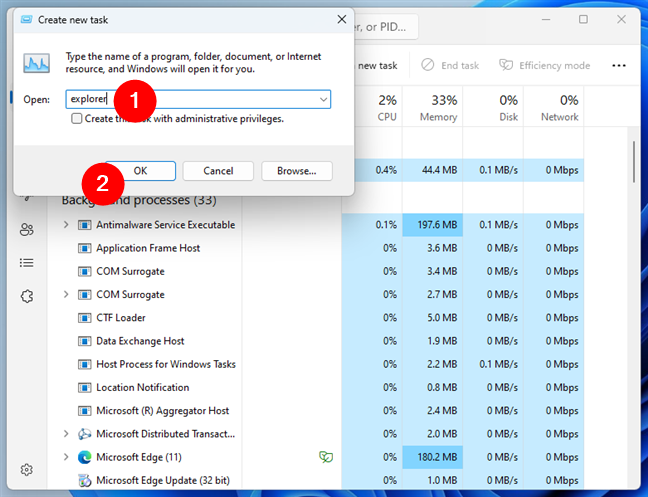
 How to run File Explorer from Windows 11's Task Manager
Windows 11 will then immediately start File Explorer.
How to run File Explorer from Windows 11's Task Manager
Windows 11 will then immediately start File Explorer.
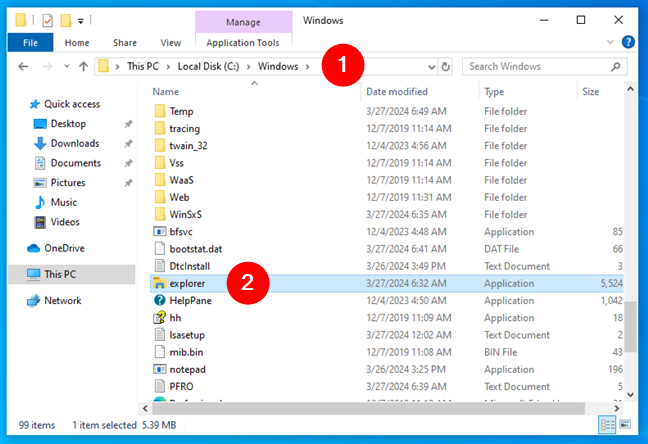
 Where is File Explorer? Open it by running explorer.exe
TIP: In the path above, I used an environment variable so that the path works no matter on which partition you install Windows.
Where is File Explorer? Open it by running explorer.exe
TIP: In the path above, I used an environment variable so that the path works no matter on which partition you install Windows.
1. Use the Win + E keyboard shortcut to open File Explorer
The keyboard offers fast shortcuts for launching all kinds of things, including File Explorer. The keyboard shortcut to open File Explorer in either Windows 10 or Windows 11 is:Windows + E
2. Click the File Explorer icon on the taskbar
Windows operating systems include a File Explorer shortcut on the taskbar by default. To open it, you just have to click the File Explorer icon, which looks like a folder. In Windows 10, the taskbar is left-aligned, and the File Explorer shortcut is located next to Microsoft Edge.3. Open File Explorer from CMD (Command Prompt, PowerShell, Terminal)
You can also open File Explorer from any command-line environment you prefer. Start by opening Command Prompt or PowerShell. Then, regardless of whether you’re using Windows 10 or Windows 11, run the following command to open File Explorer:explorer
4. Find and open File Explorer with search
If you’re using Windows 10, click or tap the taskbar search box next to the Start button to type the words:file explorer
Once the search results are in, press Enter or select the File Explorer result to open it.
file explorer
After the search results are loaded, press Enter or click the File Explorer result.
5. Open File Explorer using its Start Menu shortcut
If you have a Windows 10 computer, you can launch the File Explorer using its Start Menu shortcut. Open the Start Menu and scroll the list of apps until you reach the folder called Windows System. Inside it, you’ll find a File Explorer shortcut. Click or tap it, and the file manager will start.6. Use the WinX menu to open File Explorer
Regardless of whether you’re using Windows 10 or Windows 11, press Win + X on your keyboard or right-click the Start button to open the WinX menu. This menu includes a File Explorer shortcut. This is what it looks like in Windows 10:7. Launch File Explorer from the Run window
Another method for opening File Explorer is to use the good old Run window. In either Windows 10 or Windows 11, launch Run using the Win + R keyboard shortcut and input this simple command:explorer
Then, press Enter on your keyboard or click/tap the OK button.
8. Ask the Copilot to open File Explorer
If you have the Copilot on your Windows 10 or Windows 11 device, you can also ask it to open File Explorer. Open the Copilot and, in its text field or using voice, ask it to…Open File Explorer
Confirm that you want to open File Explorer by clicking or tapping the Yes button in the AI prompt, and the Copilot will launch the file manager.
9. Add and use a File Explorer icon on the Start Menu
Another way to open File Explorer in Windows 10 or Windows 11 is to add its button in the Start Menu. This is how you do that:9.1. Get a File Explorer button in the Start Menu on Windows 10
If you’re using Windows 10, open the Settings app (Win + I) and navigate to Personalization > Start. Then, click or tap the “Choose which folders appear on Start” link on the right.9.2. Get a File Explorer button in the Start Menu on Windows 11
On a Windows 11 computer, launch the Settings app (Win + I) and navigate to Personalization > Start > Folders. Then, enable the File Explorer switch on the right.10. Create your own shortcut to open File Explorer
Moreover, you can always make a shortcut to File Explorer. If you’re using Windows 10, an easy way to do it is to drag and drop the File Explorer shortcut from the Start Menu onto your desktop or in any other folder you prefer.explorer
…when the wizard asks you about “[...] the location of the item”:
11. Open File Explorer using Task Manager
Another way to open File Explorer is to use Task Manager. Launch Task Manager - whether you’re using Windows 10 or 11, a quick way to do it is to use this keyboard shortcut:Ctrl + Shift + Esc
Once you’ve opened it, follow these steps:
11.1. Run File Explorer from Windows 10’s Task Manager
If you are using Windows 10 and the Task Manager opens up in its compact view mode, click or tap More details, then open the File menu, and click or tap on Run new task.explorer
…and click OK or press Enter on your keyboard.
11.2. Run File Explorer from Windows 11’s Task Manager
If you have Windows 11 on your computer, click or tap Run new task in the top-right area of the Task Manager.explorer
Then, click OK or press Enter on your keyboard.
12. Start File Explorer by running explorer.exe
Last but not least, you should know that both Windows 10 and Windows 11 store the executable file for File Explorer in the standard Windows folder. Although redundant, you can also open File Explorer by navigating to your Windows folder and double-clicking the explorer.exe file. But who knows, maybe you need to add its path to a script you’re creating: 🙂%WINDIR%\explorer.exe

Discussion (22)
What a hell explanation that no way to see a proper result for win 7!..
You have plenty of methods and screenshots for opening Windows Explorer in Windows 7 in our guide. Can you please read our article for real?
Hi
I have a question please.
Can File Explorer be made to search ‘via/within’ a shortcut? ie like we have Search in all Sub-folders, do we have Search in all Shortcuts?
Eg:
– I have a folder called Folder_A which contains only one thing; a shortcut to a different folder called Folder_B. In Folder_B there exists a file called test.txt.
– I open Folder_A and search for test.txt. Result: No files found.
My question: Is there some setting or option to cause the search to find the file by continuing the search ‘via’ the shortcut to Folder_B?
Thanks a lot in advance
Assaf
Windows 10, 64 bit.
(I tried searching online for the answer but was swamped by pages suggesting useful File Explorer Shortcuts.)
This is pretty sweet, thanks. I just came here for Windows key shortcut but all of these were pretty informative and it’s a good thing to know if you’re in a pinch.
IDIOT Microsoft had to change the name from Windows Explorer to File Explorer just to confuse people!!
In my Task manager isn’t any “run new task” as you suggested
windows 10
So, in Windows 10, is File Explorer the same as Windows Explorer?
Thank you very much for your time on this, it really helped me out! Cheers.
Excellent !!!
I’m glad that you found it useful.
In the last method, W+R and typing Explorer does not work. But clicking the Browse key does.
Thanks, Win + E is super useful.
None of this helps. I can find file explorer and click on it, Then nothing happens. It used to work, now it doesn’t. Something has screwed it up. I blame Microsoft.
Everything works here as described, and on every machine I’ve used since.
I suggest you are being precipitous in your judgement.
Thanks, author.
Or you can just hit Start + E for short
#’s 6 & 7 Gave me the clue I needed for the syntax that I have been using since Win95 Thank you !:
[There is a space after the ‘explorer.exe’ & ‘/e,’]
Create the “File Explorer” shortcut on the desktop.
Right click and open the properties, in the Target you should see something like: %windir%explorer.exe
Change it to: %windir%explorer.exe /e,
[My current setting is: %windir%explorer.exe /e, H: ]
After this is applied you can pin it to task bar or start.
You can also make any number of different instances that are necessary, just change the description in the “Comment” box and when you hover the mouse the text will appear.
I am convinced that “file explorer” is a figment of somebody`s imagination. Has anybody ever found it?
Worked just fine for me
None of this worked. Still will not open so cannot access any of my files from Windows 7….. hate, hate, hate this new system. Nothing works at all…
The sub menu when you right mouse click comes up as a skinny box with nothing in it
bad bad
Solves nothing. The file explorer in Windows 10 does not do (a) what you expect or (b) what you request. And how about the literally dozens of times when “The app did not start.”?
I am still trying to find out if File Explorer is the same thing as Windows Explorer. I can’t see a way to “open” anything, or “start” anything, let alone perfpome the action that should correct the problem I have in WORD, whereby I have to type the title of the doc I am trying to save 2 times as it will disappear the first time, reverting back to the original name New Word Document,.