



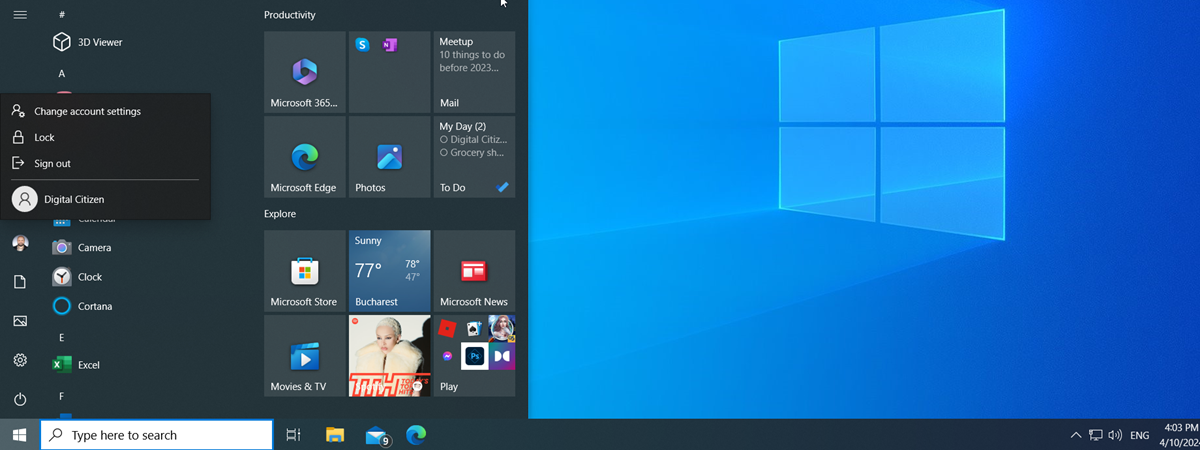
People often share their computers and devices with others. Whether your little brother or sister or one of your grandparents wants to experience the world of technology, they could cause problems with your PC or your important data because they are unfamiliar with using Windows. That is why Windows 10 allows you to create separate accounts for every user, each with their own files, settings, and apps. If your computer or device has multiple user accounts on it, here's how to switch users in Windows 10:
IMPORTANT: Before continuing with this guide, I want to explain something important: When you switch the user in Windows 10, the user account you previously used is still signed in. If the new user shuts down the computer, the work of the initial user might get lost because that user may not have saved its data or closed its running apps. Also, the apps opened by the first user continue to run in the background, using precious hardware resources. Therefore, I recommend you use Sign Out instead of the Switch user option from Windows 10. This ensures that the initial user is logged off and all their apps are closed, freeing up resources. Having said that, if you still prefer to use Switch user instead of Sign Out > Switch user > Sign in, keep reading this guide.

 Welcome to the Windows 10 Lock Screen
Windows 10 shows you the user accounts on your computer in the bottom left corner of the Login screen. Select the user you want to access by clicking or tapping their name.
Welcome to the Windows 10 Lock Screen
Windows 10 shows you the user accounts on your computer in the bottom left corner of the Login screen. Select the user you want to access by clicking or tapping their name.
 Change the user from the Login screen
By default, Windows 10 requests the last sign-in method used for the selected account: the password, PIN, picture password, etc. Enter the requested information to sign in to Windows 10.
Change the user from the Login screen
By default, Windows 10 requests the last sign-in method used for the selected account: the password, PIN, picture password, etc. Enter the requested information to sign in to Windows 10.
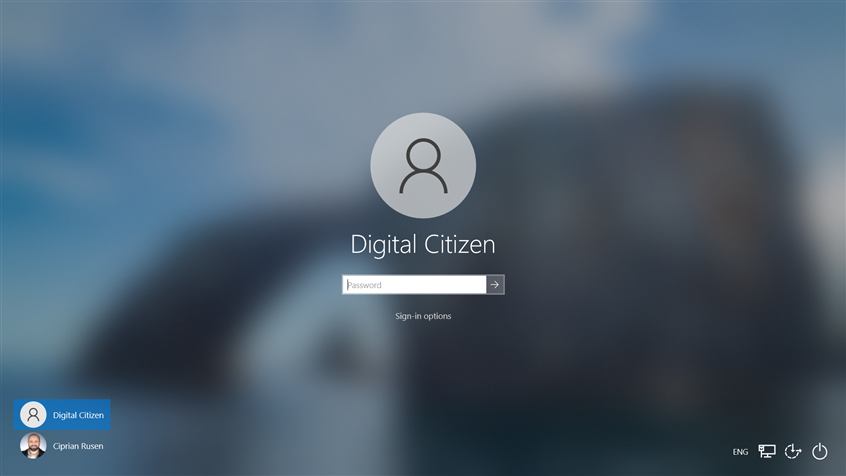 Enter the sign in information of the new user
IMPORTANT: If Facial recognition (Windows Hello) is enabled, Windows 10 may automatically log you in with your default account when it detects your face. If this happens and prevents you from switching users, make sure you disable or block the camera, then try again.
If you need to change the sign-in method, click or tap the Sign-in options link, and then choose the method you want to use. After that, enter the necessary information to sign in with the user account you’ve selected.
Enter the sign in information of the new user
IMPORTANT: If Facial recognition (Windows Hello) is enabled, Windows 10 may automatically log you in with your default account when it detects your face. If this happens and prevents you from switching users, make sure you disable or block the camera, then try again.
If you need to change the sign-in method, click or tap the Sign-in options link, and then choose the method you want to use. After that, enter the necessary information to sign in with the user account you’ve selected.
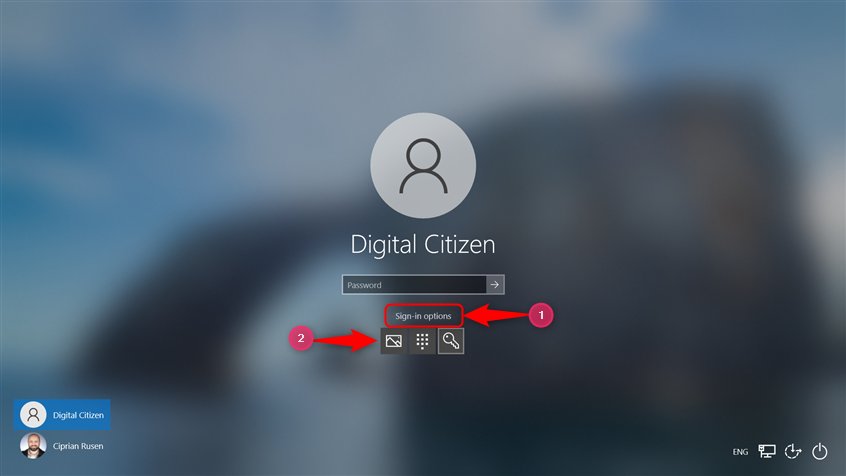 How to switch between sign-in options
After successfully signing in, Windows 10 shows you the desktop, and you can start using your PC.
TIP: If you use a long password to sign in to Windows 10, you can set a short PIN and use it instead for faster logins. Here’s how to create and log in to Windows 10 with a PIN.
How to switch between sign-in options
After successfully signing in, Windows 10 shows you the desktop, and you can start using your PC.
TIP: If you use a long password to sign in to Windows 10, you can set a short PIN and use it instead for faster logins. Here’s how to create and log in to Windows 10 with a PIN.
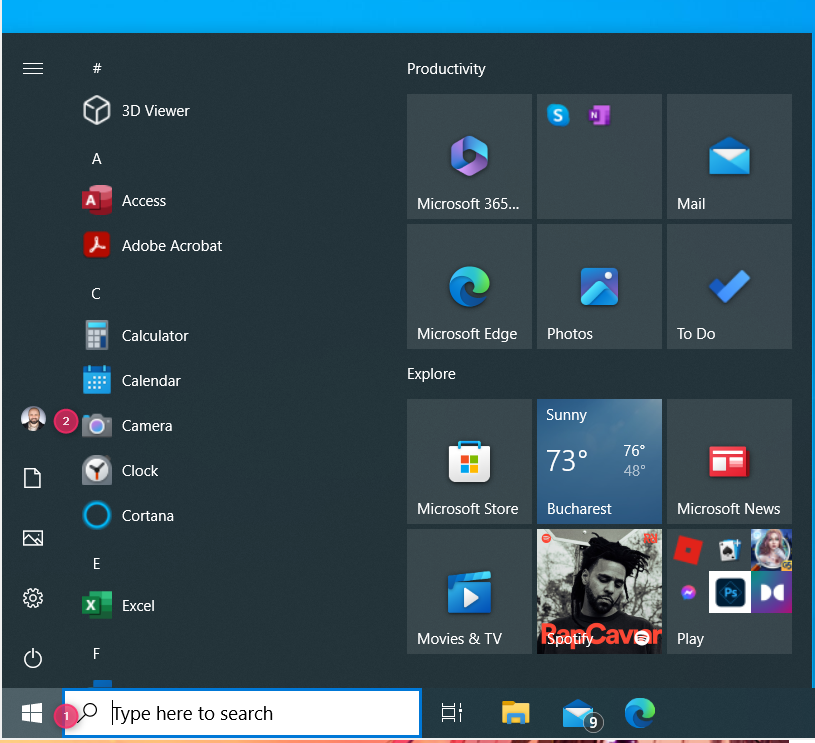
 Open the Start Menu and click on your user icon
A small menu pops up next to your user icon. Select the user you want to switch to. In my case, it is named Digital Citizen. There will be other users shown on your computer, and you can have more than one user listed here.
Open the Start Menu and click on your user icon
A small menu pops up next to your user icon. Select the user you want to switch to. In my case, it is named Digital Citizen. There will be other users shown on your computer, and you can have more than one user listed here.
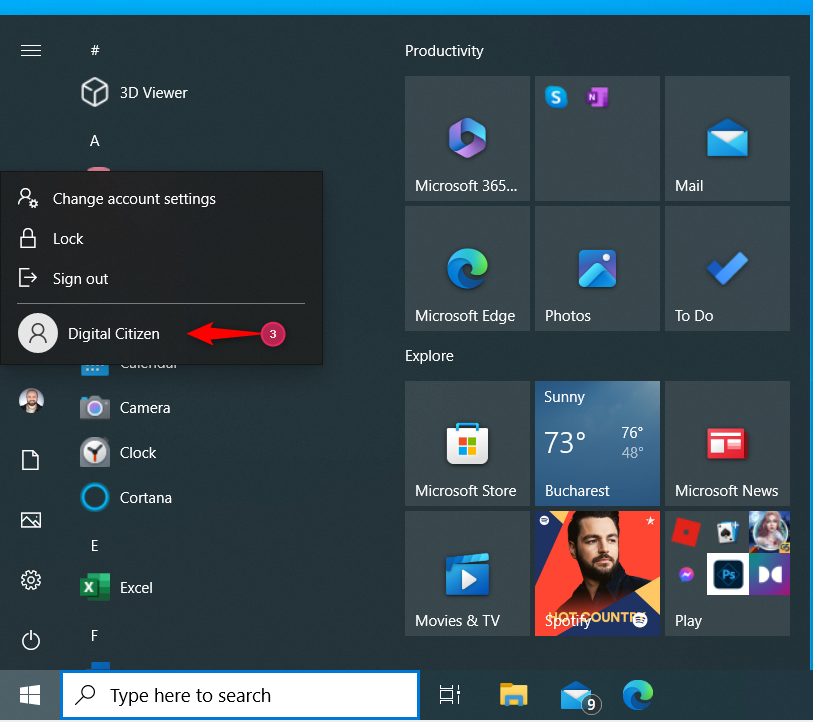
 Choose the user you want to switch to
This takes you to the Login screen, where the selected user is loaded. Enter the appropriate sign-in information, and you are logged into Windows 10 with that user.
Choose the user you want to switch to
This takes you to the Login screen, where the selected user is loaded. Enter the appropriate sign-in information, and you are logged into Windows 10 with that user.
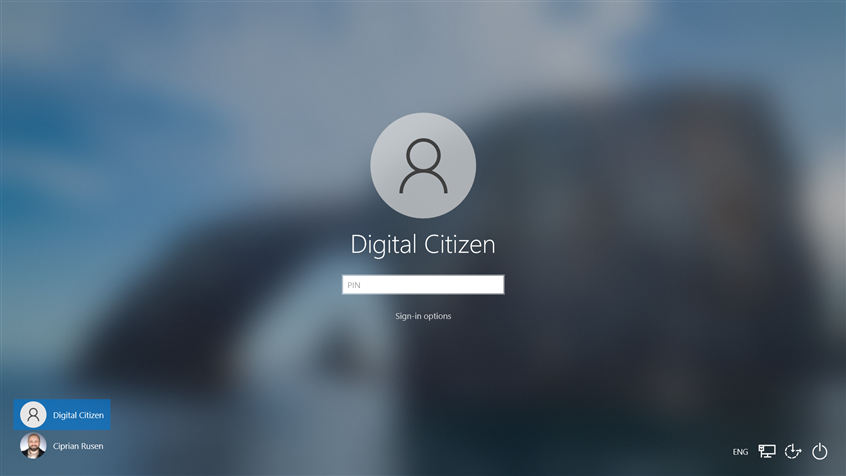 Login with the new user
NOTE: Remember that you can switch between sign-in options by clicking or tapping Sign-in options and selecting the one you want to use.
Login with the new user
NOTE: Remember that you can switch between sign-in options by clicking or tapping Sign-in options and selecting the one you want to use.
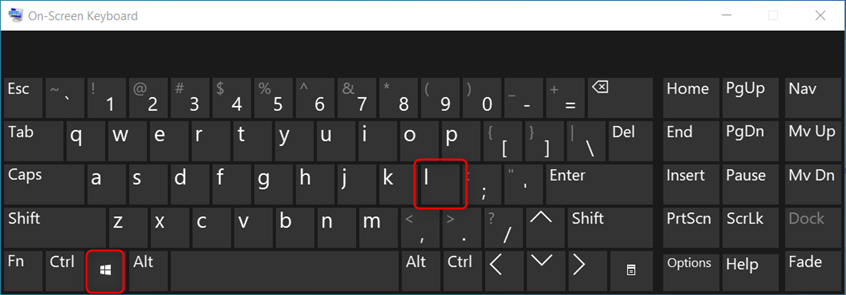
 Press Windows + L to lock your user and switch to a new one
When you press these keys, you are locked from your user account, and the Lock screen wallpaper is shown. Click or tap anywhere to see the Login screen and choose the account you want to switch to. Enter the necessary login information, and you’re done.🙂
TIP: If you find your user password too difficult to type or you need to change it for security reasons, here’s a detailed step-by-step guide on changing your Windows 10 user account password.
Press Windows + L to lock your user and switch to a new one
When you press these keys, you are locked from your user account, and the Lock screen wallpaper is shown. Click or tap anywhere to see the Login screen and choose the account you want to switch to. Enter the necessary login information, and you’re done.🙂
TIP: If you find your user password too difficult to type or you need to change it for security reasons, here’s a detailed step-by-step guide on changing your Windows 10 user account password.
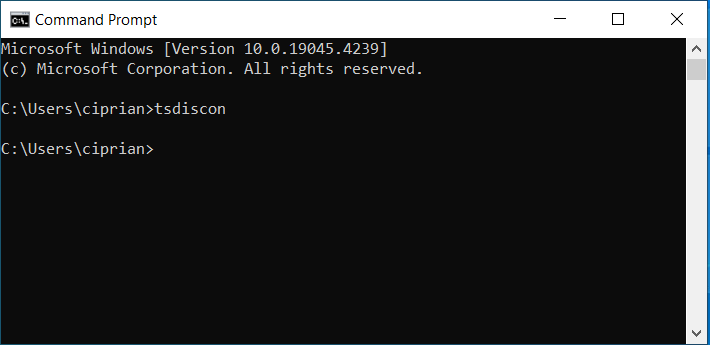
 Run tsdiscon in CMD, PowerShell, or Terminal
When you run tsdiscon, the current user is locked, and you see the Lock screen where you can change the user and log in with a new one. Note, however, that this method doesn't work in Windows 10 Home. When you try to run it on this edition of Windows 10, you receive an error message: “tsdiscon is not recognized as an internal or external command, operable program or batch file.” This command can be used only in Windows 10 Pro or other editions such as Windows 10 Enterprise.
Luckily, you can use another command that works in all editions of Windows 10:
Run tsdiscon in CMD, PowerShell, or Terminal
When you run tsdiscon, the current user is locked, and you see the Lock screen where you can change the user and log in with a new one. Note, however, that this method doesn't work in Windows 10 Home. When you try to run it on this edition of Windows 10, you receive an error message: “tsdiscon is not recognized as an internal or external command, operable program or batch file.” This command can be used only in Windows 10 Pro or other editions such as Windows 10 Enterprise.
Luckily, you can use another command that works in all editions of Windows 10:
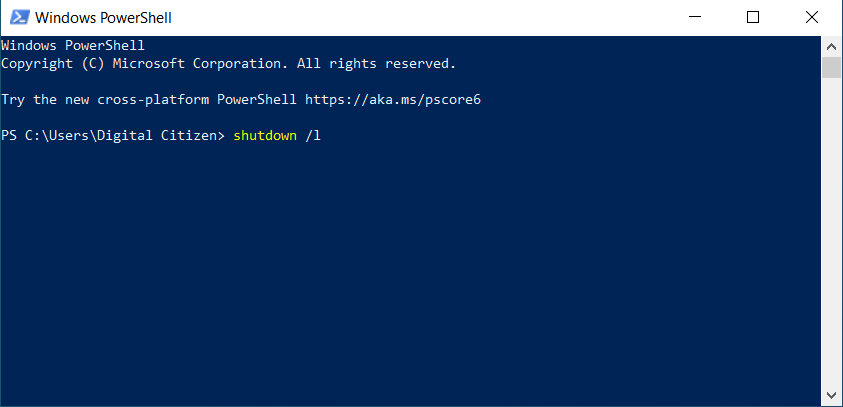
 Run shutdown / in CMD, PowerShell, or Terminal
The outcome of this command is slightly different: it signs you out from Windows 10 and then displays the Lock screen. On it, click, tap, or press a key on your keyboard and choose the user you want to switch to.
Run shutdown / in CMD, PowerShell, or Terminal
The outcome of this command is slightly different: it signs you out from Windows 10 and then displays the Lock screen. On it, click, tap, or press a key on your keyboard and choose the user you want to switch to.
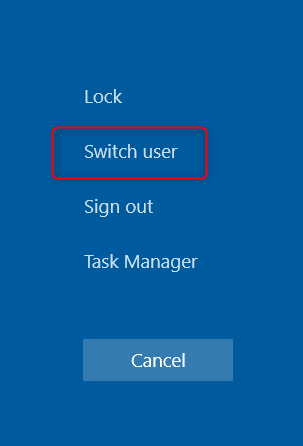
 Choose Switch user in the Ctrl Alt Delete screen
The Login screen is shown, and this is where you can select the user you want to switch to. Enter the appropriate login information, and you’re done.🙂
Choose Switch user in the Ctrl Alt Delete screen
The Login screen is shown, and this is where you can select the user you want to switch to. Enter the appropriate login information, and you’re done.🙂
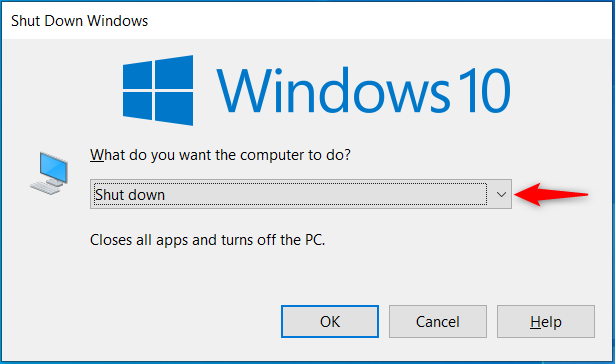
 The Shut Down Windows prompt
Choose Switch user in the list and click or tap OK.
The Shut Down Windows prompt
Choose Switch user in the list and click or tap OK.
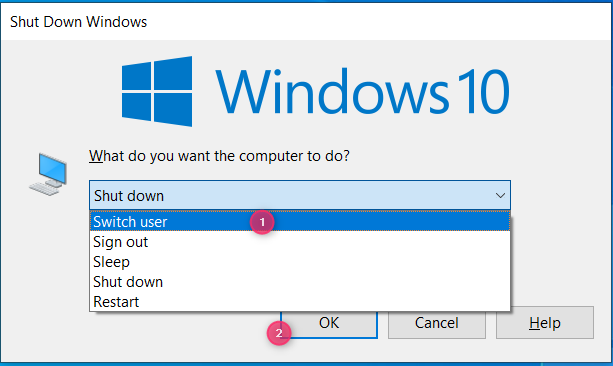
 Choose Switch user and press OK
You are taken to the Login screen to select the user you want to switch to.
TIP: If you need to change the permissions of a user account, here’s how to change an account to Administrator and back in Windows 10.
Choose Switch user and press OK
You are taken to the Login screen to select the user you want to switch to.
TIP: If you need to change the permissions of a user account, here’s how to change an account to Administrator and back in Windows 10.
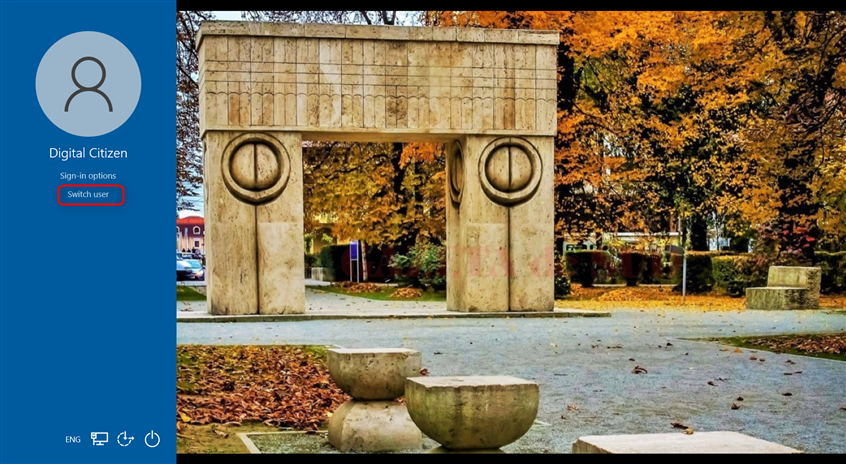
 Choose Switch User before entering the picture password
This displays a list of the existing user accounts on your Windows 10 computer or device. Click or tap the user that you want to switch to.
Choose Switch User before entering the picture password
This displays a list of the existing user accounts on your Windows 10 computer or device. Click or tap the user that you want to switch to.
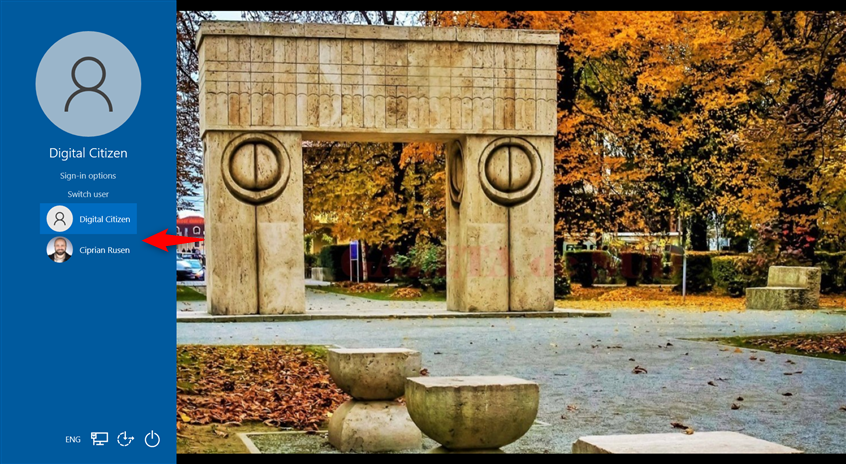 Choose another user account
Then, you are asked to enter the login details that were used previously for that account: the password, PIN, or picture password.
TIP: If you have too many user accounts on your Windows 10 computer, here’s how to remove an account from Windows.
Choose another user account
Then, you are asked to enter the login details that were used previously for that account: the password, PIN, or picture password.
TIP: If you have too many user accounts on your Windows 10 computer, here’s how to remove an account from Windows.
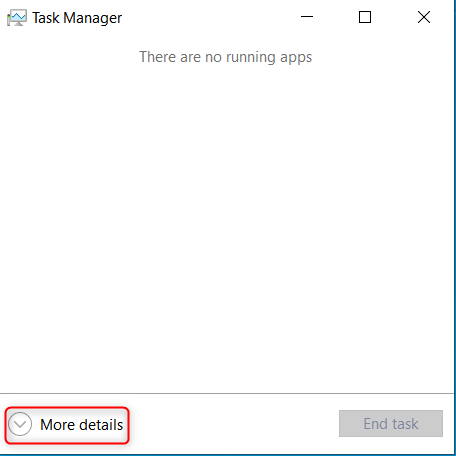
 Click or tap More details in Task Manager
Then, go to the Users tab and right-click (or press and hold) the user account you want to switch to. In the menu that pops up, choose Switch user account.
Click or tap More details in Task Manager
Then, go to the Users tab and right-click (or press and hold) the user account you want to switch to. In the menu that pops up, choose Switch user account.
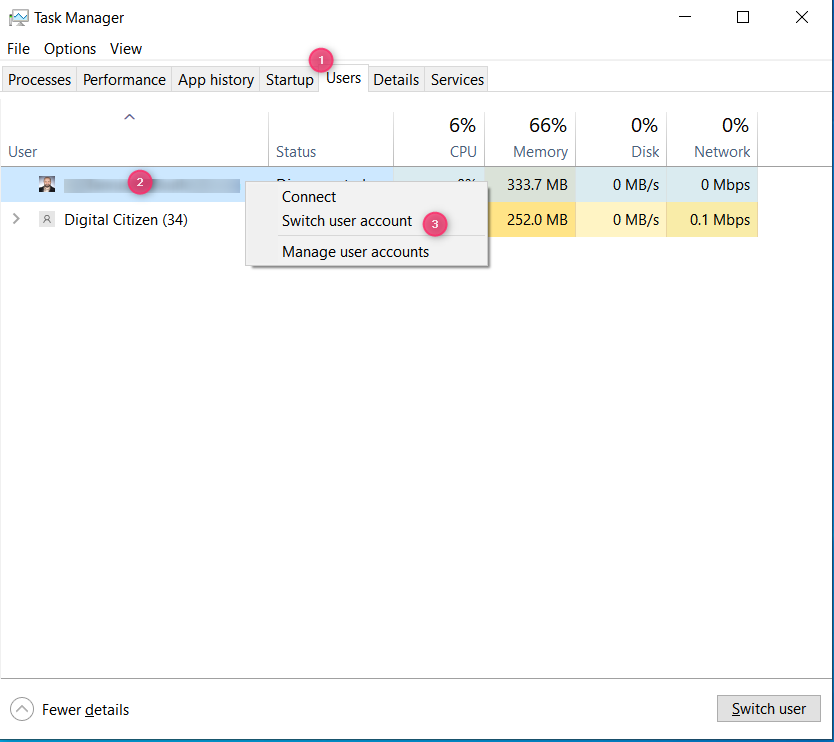
 Switch user account from Task Manager
If you don’t see another user account on this list, it’s because it didn’t sign in earlier to Windows 10. In this situation, you can right-click (or press and hold) on your user, choose Disconnect, and confirm your choice.
Switch user account from Task Manager
If you don’t see another user account on this list, it’s because it didn’t sign in earlier to Windows 10. In this situation, you can right-click (or press and hold) on your user, choose Disconnect, and confirm your choice.
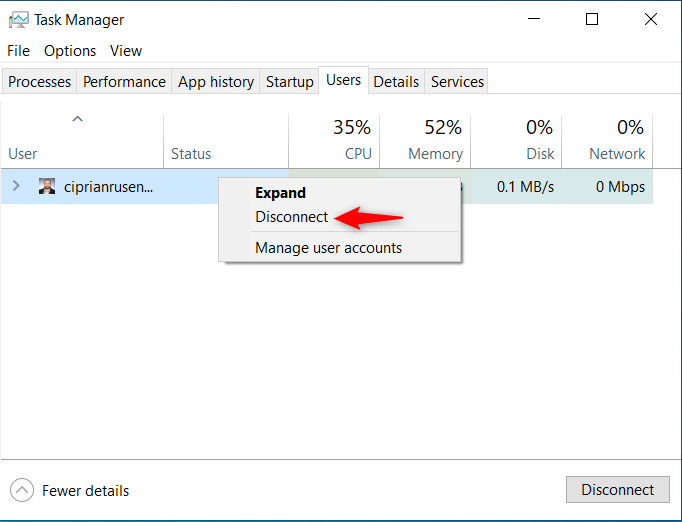
 Disconnect from the current user account
You then see the Lock screen. Click or tap on it, or press a key on your keyboard, and then choose the user you want to switch to.
TIP: If multiple people use your computer, and not everybody has their own user account, here’s how to create new Windows user accounts.
Disconnect from the current user account
You then see the Lock screen. Click or tap on it, or press a key on your keyboard, and then choose the user you want to switch to.
TIP: If multiple people use your computer, and not everybody has their own user account, here’s how to create new Windows user accounts.
1. How to switch the user in Windows 10 from the login screen
When you start your Windows 10 PC or laptop (it doesn't matter whether it's made by HP, Lenovo, Dell, ASUS, or some other manufacturer), the operating system takes some time to load and then displays the Lock screen. Click or tap anywhere on the Lock screen or press any key on the keyboard to see the Sign-in screen or the Login screen, as some people call it.2. How to switch the user in Windows 10 from the Start Menu
If you have already signed into Windows 10, you can change the user from the Start Menu. Open the Start Menu by pressing the Windows key on your keyboard or clicking/tapping the Windows icon on the taskbar. Then, click or tap your user account picture on the Start Menu's left bar.3. Switch the user in Windows 10 using a keyboard shortcut (Windows + L)
Some people are looking for a keyboard shortcut that helps them quickly switch users on their Windows 10 laptop or desktop computer. There are several shortcuts, and the easiest to use is this:Windows + L
4. How to switch the user in Windows 10 from the command line (CMD, PowerShell, or Windows Terminal)
If you need to work inside the Command Prompt, PowerShell, or Windows Terminal, there are two commands you can use. First, open CMD or the command-line app you prefer. Then type this command and press Enter to execute it:tsdiscon
shutdown /l
5. How to change the user in Windows 10 with CTRL + ALT + DEL
Another keyboard shortcut that you can use for switching users in Windows 10 is this:CTRL + ALT + DEL
Pressing these keys works only when you are already signed into Windows 10 with a user account. And when you press them, you see the Ctrl Alt Delete screen with the options below. Click or tap on Switch user.
6. How to switch the user in Windows 10 using ALT + F4
This method also works only if you are already logged in with a user account. First, go to the Windows 10 desktop and make sure all apps are minimized. Then press these keys on your keyboard:ALT + F4
You see the Shut Down Windows prompt, asking you to choose what you want the computer to do. Click or tap the drop-down list.
7. How to switch the user in Windows 10 while being asked for a picture password
If the most recent user account that has signed in to Windows 10 was using a picture password, when you are at the login screen, you see that user account and the picture they use as a password. Under the user account name, you have two links: one for accessing other sign-in options for the same user account and one for switching users. Click or tap Switch user.8. How to switch the user in Windows 10 from the Task Manager
This method is cumbersome to use, and it works only after you have signed in with all the user accounts you want to use. First, access the Task Manager (a quick way to do this is to press Ctrl+Shift+Esc on your keyboard), and if it opens in its compact view, click or tap More details.

Discussion (28)
When I turn on my laptop it boots straight to a user account how do I get to the administrator account without logging on to the user account.
Thanks
How can I use a different display profile?
For Example, PowerPoint uses Duplicate Screen
On another program, it uses Extend Display.
I created a different user and set it for a duplicate display The Main User Administrator as Extend Display. I want separate display profiles for the different programs we have at our church
I have deleted my user account from my computer manager and forgot to enable administrator, so I could not log on my pc. Now how can I log in my pc as administrator?
How about the built-in Administrator account? How do you login, and what is the initial password? This account does not appear in any users list.
Here is the answer: the built-in Administrator account must be activated before first use. This makes it appear in all the Users lists in Windows.
One way to activate it is to use one of the Windows tweaks programs that you can download for free. My favorite is Winaero Tweaker. Search for Users in the tweaker and click the second icon found.
Once the built-in Administrator account is active, you must create a password for it, so you can access or login to it when necessary. To do this, while still logged in to the activated account, go to Windows Settings (Start > gear icon (second from bottom) > Accounts > Add or change the password. If you keep your computer at home securely, you can enter a simple password. Otherwise, enter one that others are not likely to guess and make a permanent note of it somewhere secure away from your computer.
Now you can use commands such as “runas” that ask for the Administrator password!
That information is correct. 😉
After a forced windows update, I have no switch user capability and can only login as local administrator.
All these techniques are very cool if other usernames appear. What if no usernames appear (all are enabled and have passwords)?
Already tried:
Windows Registry Editor Version 5.00
[HKEY_LOCAL_MACHINESOFTWAREMicrosoftWindowsCurrentVersionAuthenticationLogonUIUserSwitch]
“Enabled”=dword:00000001
“UserSID”=””
Also, this is Windows 10 Home Edition so I have no lusrmgr.msc.
This occurred either after a Windows update or the occasional “black screen” where the computer is humming away but non-responsive and you have to turn off power and restart.
It is hard to modify user account settings if you can’t login.
This is the only way to successfully login to the non-administrator account and I can’t do much (but it works — launches a new window):
C:WindowsSystem32>runas /user:hal17hal cmd.exe
Enter the password for hal17hal:
Attempting to start cmd.exe as user “hal17hal” …
C:WindowsSystem32>
You may need to repair Windows 10, so that it works normally again, using that admin account that still works: How to reset Windows 10 to its factory defaults and keep your files.
Is there a way to switch by hitting the avatar and don’t having to also hit one useless login button because the accounts are not password protected and this is useless? I suspect knowing the Microsoft genius that there isn’t.
Hi at work another staff member needs to leave themselves logged on and keep documents open whilst someone works in their place on the PC during their lunch break. They select switch user and insist the next person selects switch user after them rather than just logging off. Is this necessary or is it the case that if the first user has selected ‘switch user’ then so long as they have saved their files before switching user , their work will be safe when they return and log in again – regardless of what the next person on the PC does?
You are correct. There is no need to Switch User. If everyone closes their files and apps and Logs Off, it is actually better, because Windows uses fewer resources for one user than for multiple users switching back and forth.
Very straight forward explanations. Thanks. Now why does Outlook fail in Windows 10?
I set up a user account for my wife. But when I am at the initial login screen her account does not show in the bottom left corner as it does in the examples above. Can you help? [email protected]
I used to be user 4 and for some reason I am user 5 now, but cannot find anywhere to change back to user 4! I read through the article but I do not have any options, it only shows user 5.
When you say alternate users appear in the bottom left. There is nothing in the bottom left of my screen… now what
Do you have other user accounts on your machine?
Thank you, so simply!
This doesn’t work for me. When I click on the start the menu has nothing in it about users. No place to switch.
Switching user account from mine, only reveals (on the power icon) Restart or Shutdown.
Windows 10 Sucks Big Time. I hate it. No guest user account. No way to log off without shutting down and no way to switch from one user account to another. Windows 10 is for nerdy computer bastards.
You can make your own Guest account in Settings, as a family member or Other. True, Windows sucks, but mostly because it is unnecessarily hard to use. Search enough and you can find info on the Web, like this article, which is excellent.
My husband updated his computer to windows 10. Prior to the update he was using windows 8. On windows 8 he had created two user accounts, one for me and one for him. When he upgraded to windows 10 the two accounts remained. On Christmas day he opened the computer, switched users to me, I logged in and synced to itunes, then I shut it down. Today, he opened up his laptop and his account was gone. What happened to his account and how do we get it back? He needs his laptop so any help ASAP would be great.
I have just upgraded on my pc and to switch user I just hold down alt, ctrl & del . It then gives you a list of options including switch user.
The article says: “By default, Windows 10 will load the account of the last user logged.”
This is a very irritating setup. How can I switch it off?
Thanks in advance.
I have a problem but don’t know how to solve it
I am suing the window 7 Ultimate 32 bit.
in previous, I have both the administrator and user when I log in laptop, but I have disable the administrators in last week, now I enable it but can not.
it show below sentence “the following error occurred while attempting to save properties for use Administrator : Access is denied”, when clear the check account is disable.
Pls advise & help me to enable the previous administrator when I start my laptop.
Thank you in advance.
I have the “free” version of Windows 10 and have myself as administrator. My grandson needs the computer for his homework. Windows 10 will build the user but will not allow anyone to signin but me. I have tried several methods and one even says Windows 10 doesn’t allow more than one user to signin to the computer. Shall I just back out of Windows 10?
When using picture login, there is no list of other users on the main screen anymore. You have to go through hoops to get that list by changing sign in options (STUPID). List of users should be there, but not, thanks to Microsoft