In Windows 10, knowing how to run programs as administrator is very important. By default, apps and games in Windows 10 run without administrator permissions, to prevent unauthorized changes to your system. However, there are times when some programs require administrator permissions to work properly or to run specific commands. Windows 10 offers you the ability to run programs as admin without having to disable anything. Here are all the methods to use "Run as administrator" on any desktop app in Windows 10:
First things first: About UAC and Run as administrator
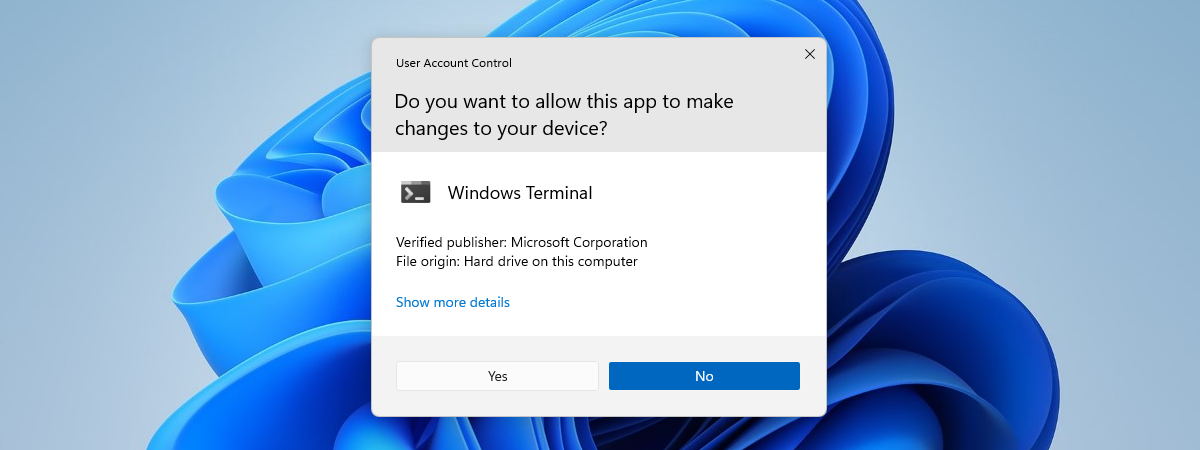
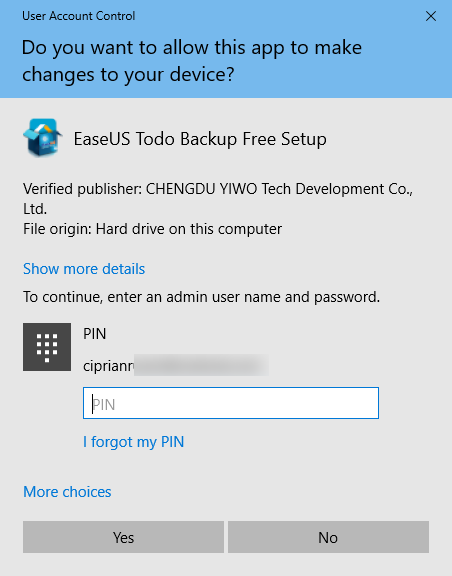
In early versions of Windows, applications had system-wide privileges, which was a security risk. All of Microsoft's operating systems from Windows Vista onward, including Windows 10, include UAC or User Account Control, a security feature that prevents unauthorized changes to the operating system. Trying to run an application as administrator is one of the changes that require administrative privileges. Before the selected program is launched, a UAC prompt is triggered, asking for permission. If you run the application from an account without administrator permissions, the UAC prompt asks you to enter an administrator password. Without the admin password, the program does not launch.
The UAC window
In Windows 10, you can only run a program with administrator permissions if it is a desktop app. Some of these applications, like security software, cannot run correctly without having administrative permissions. Windows apps that are installed from the Microsoft Store cannot be run with administrative privileges in Windows 10. Furthermore, they have the same level of permissions as a normal user account, so they are not allowed to make changes to advanced system settings or the Windows Registry.
You can learn more about the difference between desktop apps and UWP apps and figure out which ones you can "Run as administrator" by reading What is a Windows app? How is it different from a desktop app or a program?.
1. Run a program as admin from the contextual menu of its Start Menu shortcut or tile
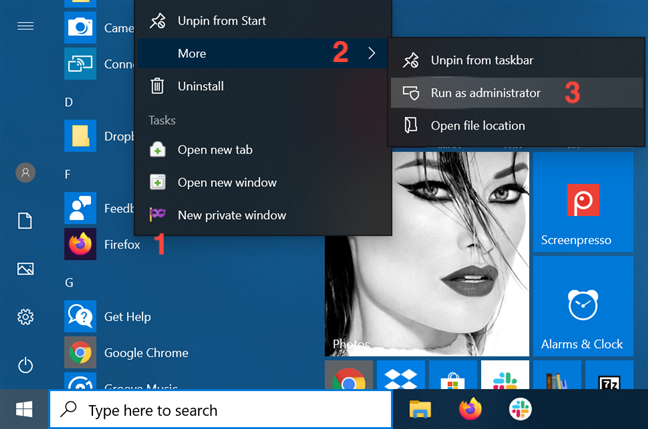
In Windows 10, you can launch a program with administrative permissions by using the contextual menu of its Start Menu shortcut. First, open the Start Menu. Then, find the shortcut of the program you want to launch in the All apps list, and right-click or press-and-hold on it to open a contextual menu. Click, tap, or hover over the More option, and then click or tap on "Run as administrator."
Choose Run as administrator from the shortcut's contextual menu
If you have a tile for your desktop app available in the Start Menu, right-click or press-and-hold on it to open a contextual menu. Access More and then click or tap on "Run as administrator."
2. Run as administrator using "Ctrl + Shift + Click" on its Start Menu shortcut or tile
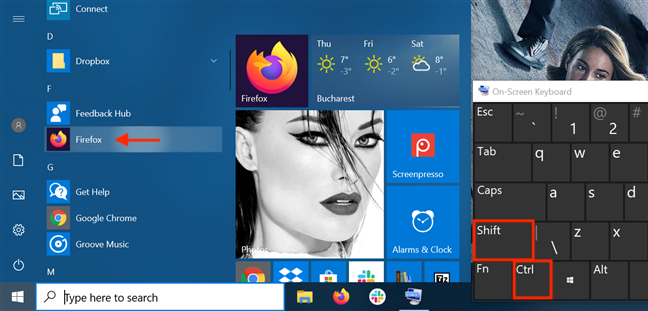
Open the Start Menu and locate the shortcut of the program you want to launch as administrator. Hold down both the Ctrl and the Shift keys on your keyboard and then click or tap on that program's shortcut.
Use Ctrl + Shift + Click/Tap on the Start Menu shortcut
You can also use the "Ctrl + Shift + Click/Tap" shortcut on an app's Start Menu tile to run it with administrator permissions in Windows 10.
During our tests, this method did not work every time, so if that is the case for you, either try again or consider running the app as administrator another way.
3. Run a program as administrator from its desktop shortcut
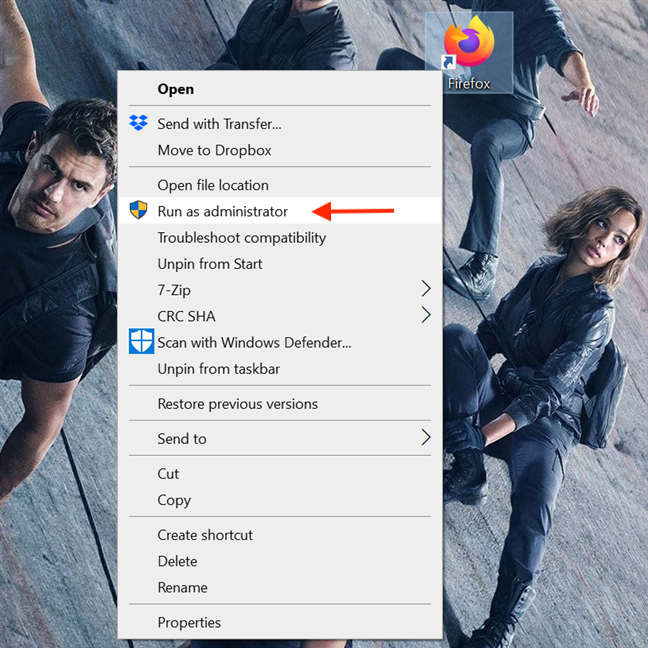
Find the desktop shortcut for the program you want to run as admin or create one yourself. Then, right-click or press-and-hold on it to open a contextual menu. Click or tap on the "Run as administrator" option.
Press Run as administrator from the contextual menu
4. Run a desktop app as administrator from its taskbar shortcut
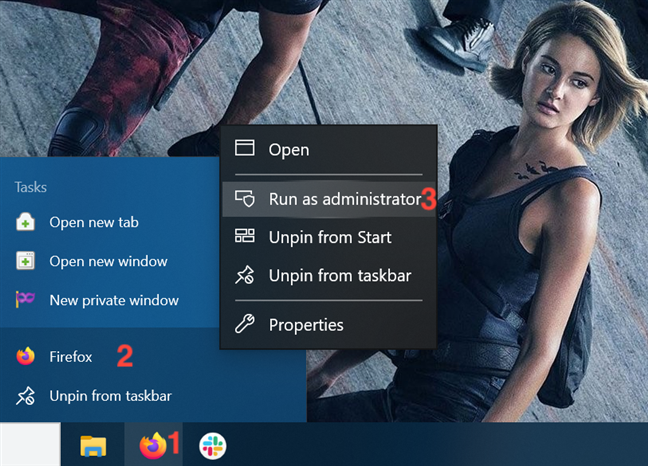
In Windows 10, you can also run a desktop app with administrator permissions from its taskbar shortcut. Right-click or press-and-hold on the shortcut, and then right-click or press-and-hold again on the program's name. Then, from the menu that opens, choose "Run as administrator."
Use the taskbar shortcut to run a program as administrator
You can also use the "Ctrl + Shift + Click/Tap" shortcut on an app's taskbar shortcut to run it with administrator permissions in Windows 10.
5. Run a program as administrator from its right-click menu
Although easier to find, shortcuts are not the only way to run a program as administrator in Windows 10. You can perform the same action from the main executable file's contextual menu.
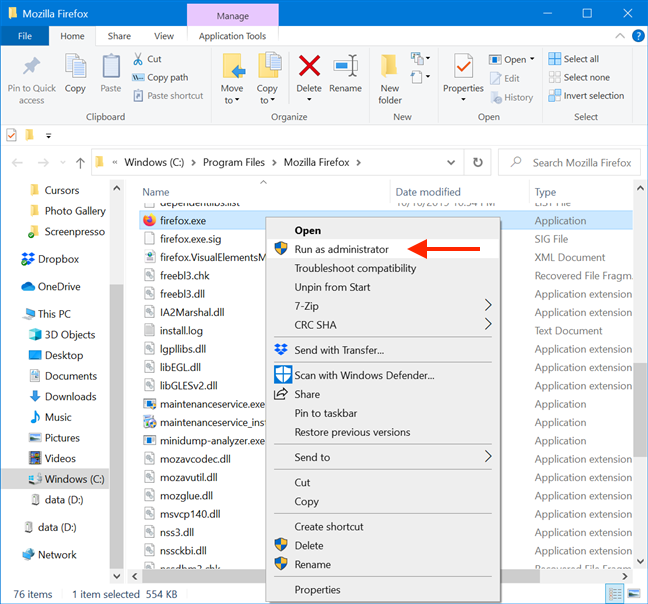
Open File Explorer and find the desktop app's executable. Right-click or press-and-hold on it to open the contextual menu, and then click or tap on "Run as administrator."
Click or tap on Run as administrator
6. Use "Run as administrator" from File Explorer's ribbon
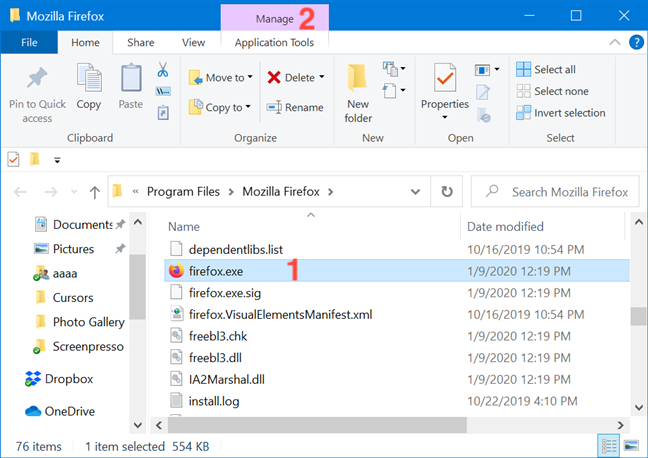
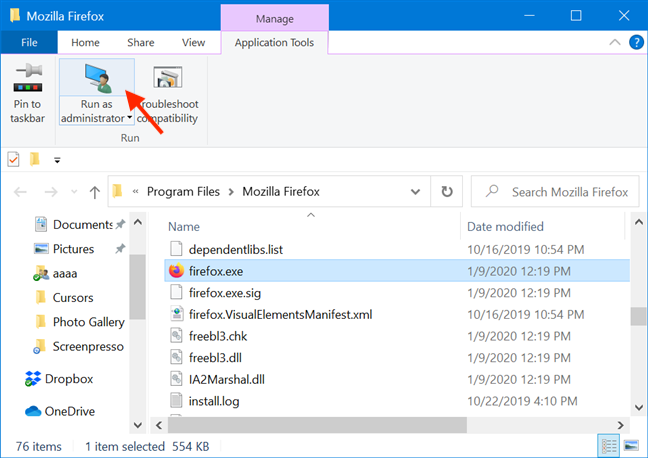
Find the program's main executable in File Explorer. Select it, and then click or tap on the Manage tab from the ribbon.
Select the file and access Manage
The option you need is displayed in the Run section of Application Tools. Click or tap on the upper half of the "Run as administrator" button to give the selected app admin permissions.
Press the upper half of the button Run as administrator
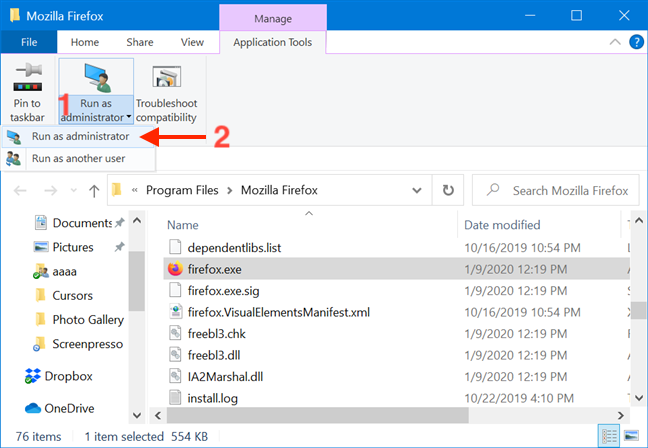
As an alternative, you can also press the lower half of the "Run as administrator" button and then click or tap on the "Run as administrator" option from the drop-down menu.
Press Run as administrator from the drop-down menu
7. Run a desktop app as admin from the Search window
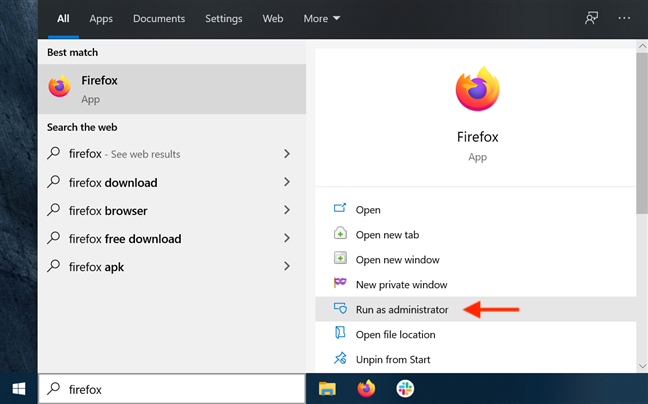
In the taskbar search field, type in the name of the program that needs to run with administrator permissions. Then, click or tap on the "Run as administrator" option displayed on the right side of the Search window.
Press Run as administrator
Obviously, when you see the UAC prompt asking for permission to run the app as admin, click or tap Yes.
8. Run a program as administrator using "Ctrl + Shift + Enter" on its taskbar search result
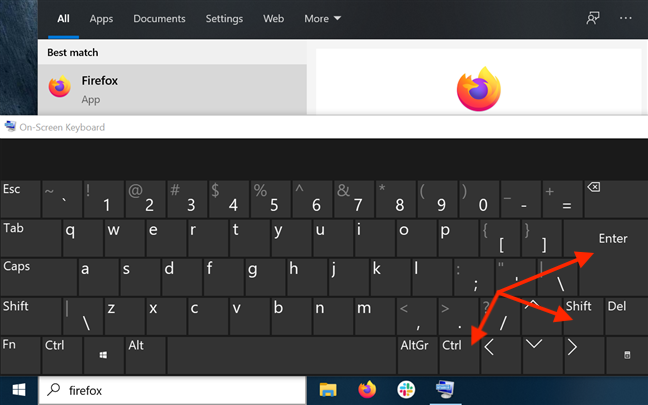
Type the name of the program in your taskbar's search field. If there are multiple results, use the arrow keys on your keyboard to highlight the program you want to run as administrator. Then, simultaneously press the Ctrl + Shift + Enter keys on your keyboard.
Use Ctrl + Shift + Enter on the highlighted search result
9. Run a program as administrator from the Run window
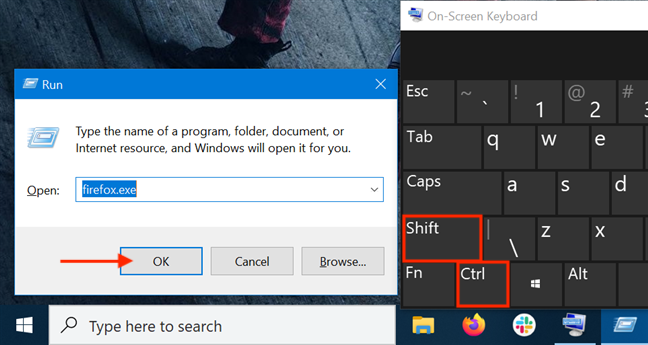
Open the Run window and type in the name of the executable for the program you want to run as administrator. Then hold down the Ctrl and Shift keys on your keyboard and click or tap on OK.
Use Ctrl + Shift + Click/Tap on the OK button
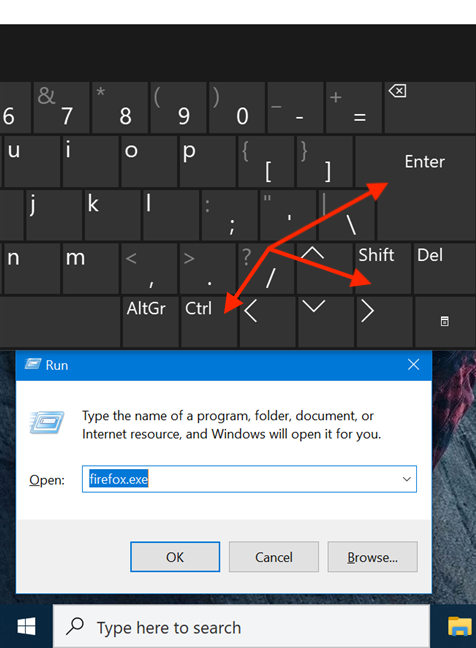
Alternatively, after typing in the name of the program's main executable, press the Ctrl + Shift + Enter keys on your keyboard at the same time.
Use Ctrl + Shift + Enter on the Run window
10. Run as admin from the Task Manager
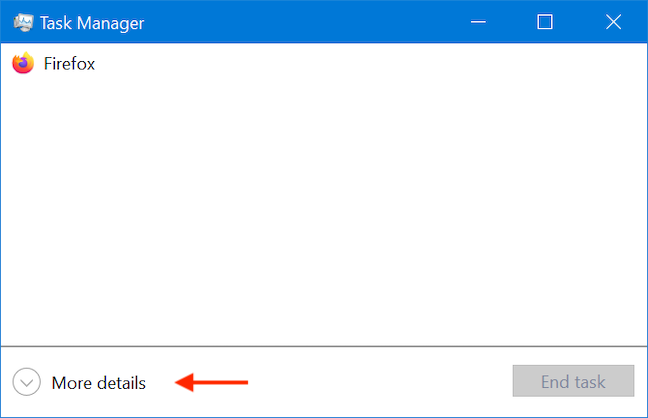
Another way to launch a program as administrator in Windows 10 is to start it using the Task Manager. To begin, open the Task Manager. Then, if it opens up in its compact view, click or tap on the More details button.
Click or tap on More details
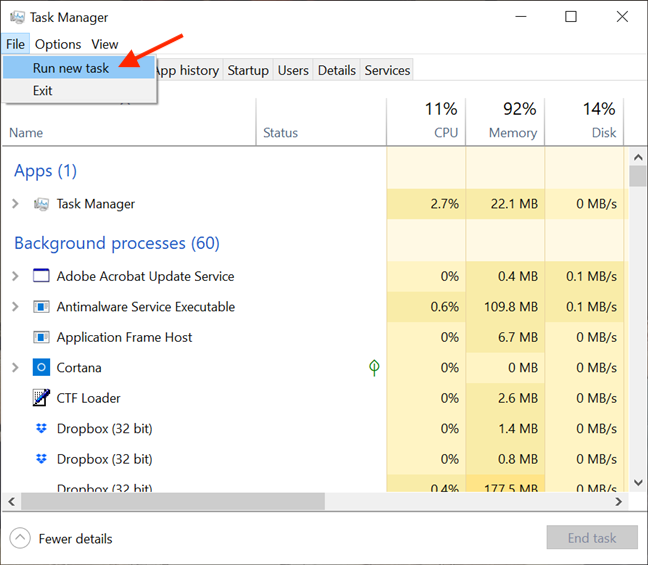
In the expanded Task Manager, open the File menu and click or tap on "Run new task."
Access Run new task from the File menu
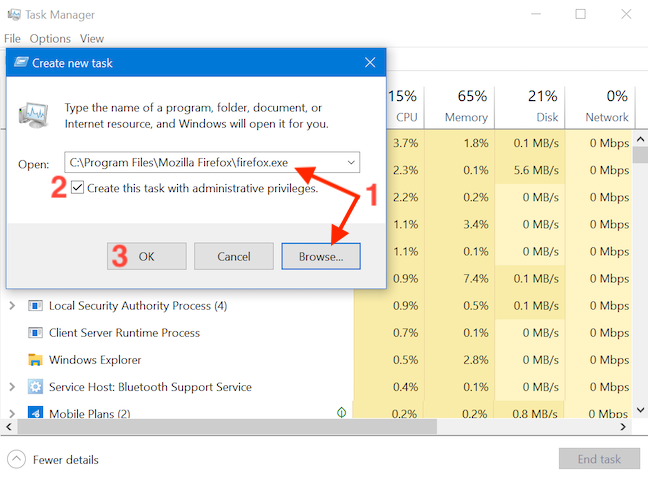
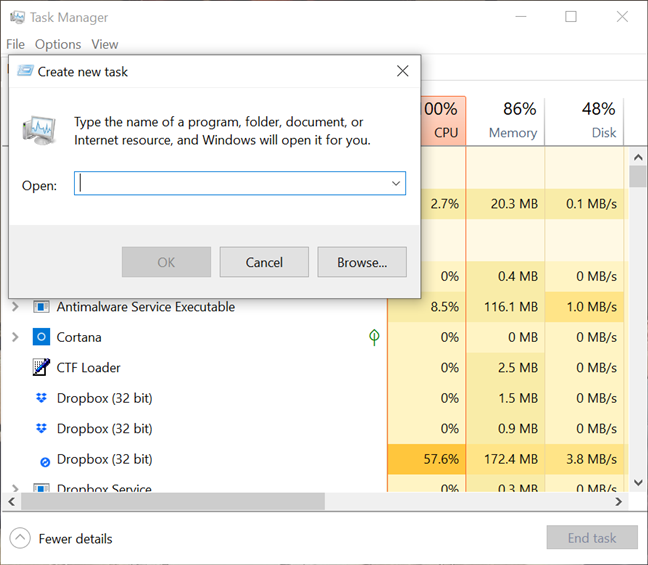
This opens the "Create new task" window. You can use its Open field to enter the path to the program you want to launch as administrator, or you can click or tap on Browse to navigate to it. Then, make sure to check the "Create this task with administrative privileges." option and click or tap on OK.
Remember to check the box before hitting OK
TIP: An advantage of using this method to launch programs as administrator is that you skip the UAC part of the process. That is because the app automatically inherits the permissions of the Task Manager - in our case, administrator permissions - so all you have to do is check the box to enable the option, as seen above. The option is missing if you only have standard user permissions on the device.
Enabling administrative privileges is unavailable without an admin account
11. Run a desktop app as admin using the RunAs command in Command Prompt (CMD) or PowerShell
If the command line is your favorite way of asking your computer to do what you want, you can also access Command Prompt or PowerShell to run a program as administrator. Enter the following command in the CMD or PowerShell window, adjusting it to fit your needs:
runas /user:"your_computer_name\administrator_name" "C:\path\program.exe"
Replace your_computer_name with your computer's name, administrator_name with the name of a user account that is an administrator on your system, and C:\path\program.exe with the complete path to the program that you want to run as administrator.
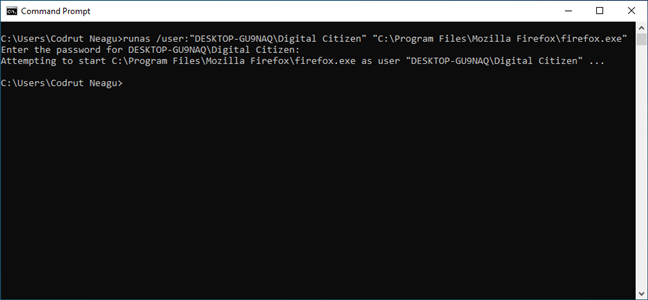
As seen in the image below, if you enter the command correctly, you are also asked to enter the administrator's password. Then, press Enter on your keyboard once again.
Run a program as administrator from CMD
TIP: Using this method to launch programs as administrators, you skip the UAC part of the process.
12. Always run a program with administrator permissions
To avoid constantly having to use the methods illustrated above on desktop apps accessed on a regular basis, you can set a program to always run with administrator permissions.
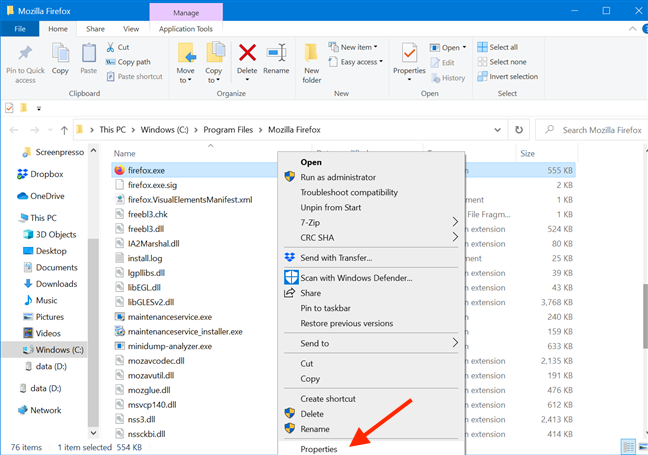
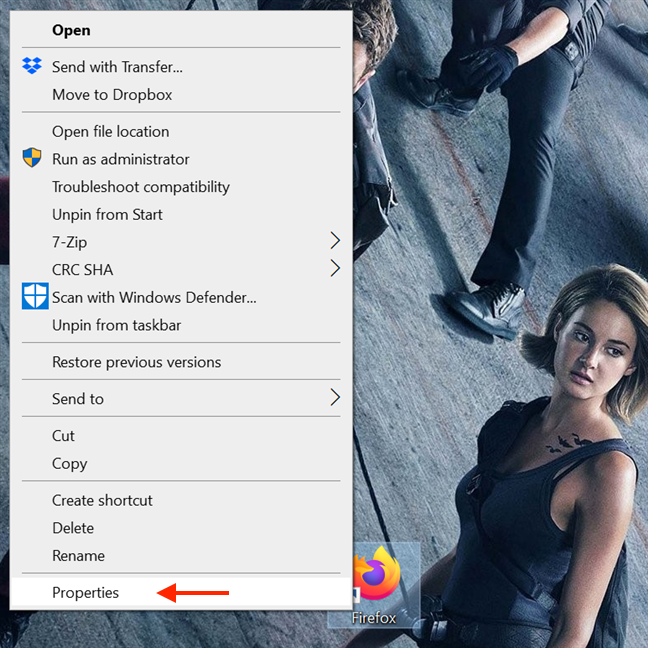
First, open File Explorer and find the main executable of the program you want to run. Right-click or press and hold on it to open the contextual menu. Then, click or tap on Properties.
Access Properties
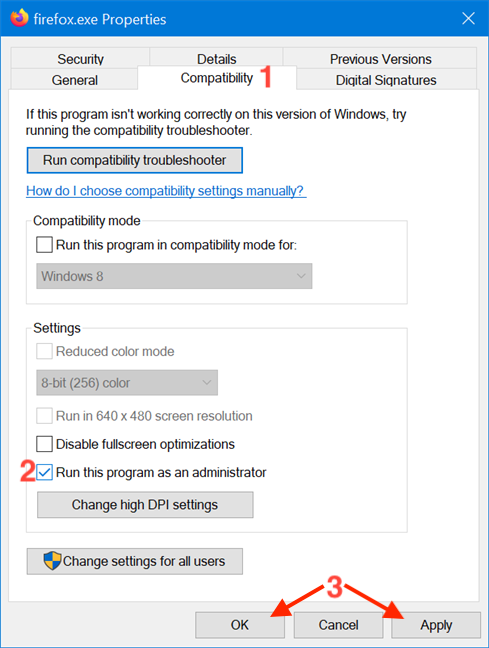
In the Properties window, go to the Compatibility tab. At the bottom of the window, check the box next to the "Run this program as an administrator" option, and then click or tap on Apply or OK.
Enable the option to run as admin and apply the changes
This setting is applied, and, from now on, the program always runs with administrator permissions. Follow the same steps if you want to disable the option. You can also edit the Properties of a program's shortcut to avoid tampering with its main executable. To begin, right-click or press-and-hold on a program's shortcut to access its contextual menu, and click or tap on Properties.
Access Properties
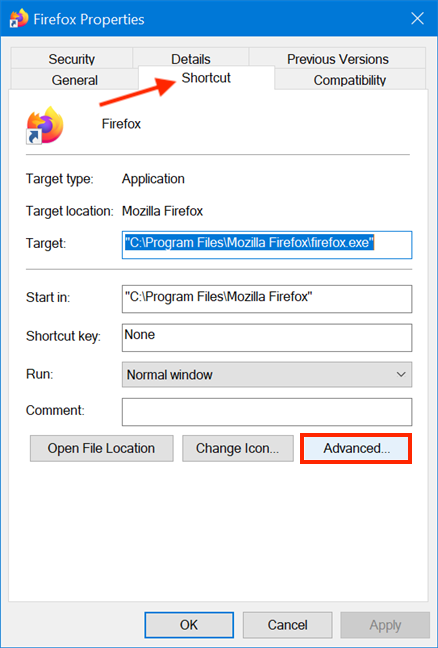
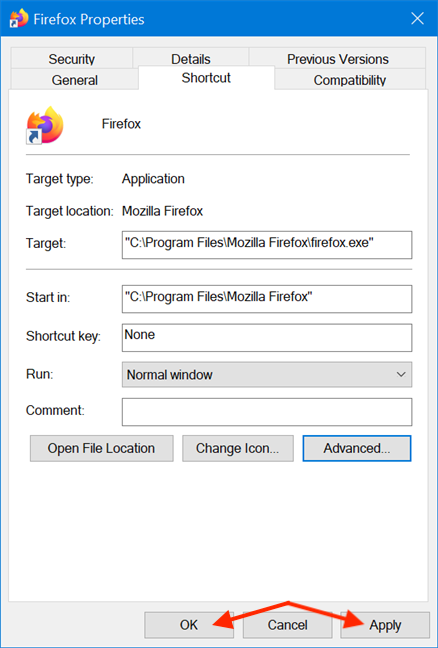
Then, in the shortcut's Properties window, select the Shortcut tab. Click or tap on the Advanced button to open Advanced Properties.
Access Advanced Properties
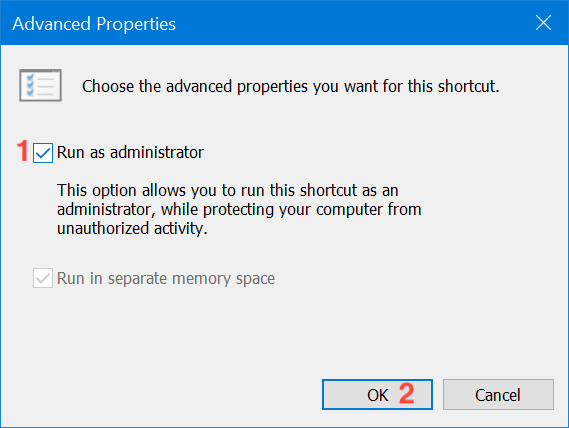
In the Advanced Properties window, check the box next to "Run as administrator" and then click or tap OK.
Check the box and press on OK
Finally, you are returned to the Properties window, where you have to click or tap on OK or Apply, and you are done.
Press OK or Apply to save the changes
The settings are applied, and your program works with administrative permissions as long as you open it using the same shortcut. When you use the methods in this section, the UAC prompts you as soon as you try to launch the app.
13. Run a program with administrator permissions and without a UAC prompt
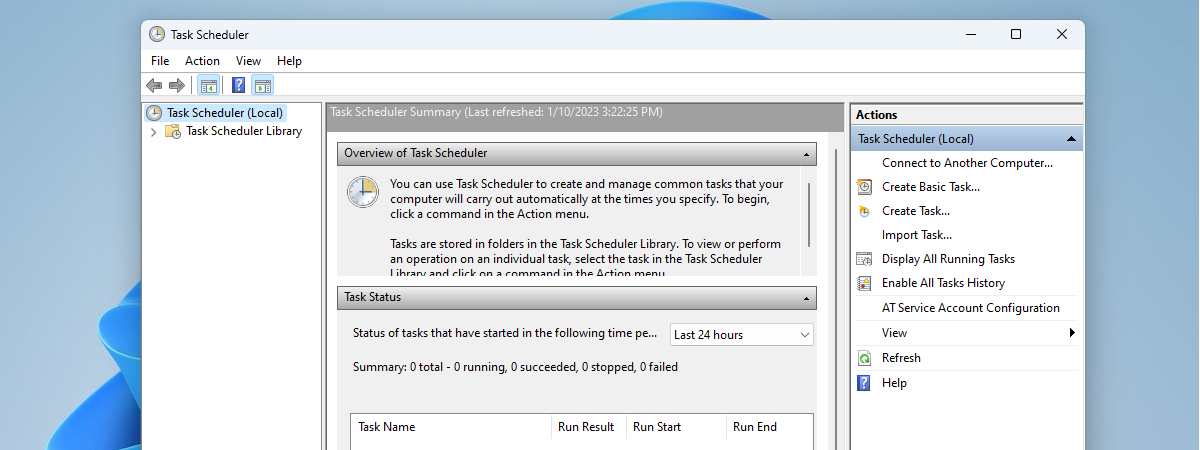
Using the Task Scheduler, you can run a program as administrator without being prompted by the UAC (User Account Control) every time. It is simple, and you don't have to disable UAC, thus compromising Windows 10's security. We put together a detailed step by step guide to help you: Use the Windows Task Scheduler to run apps without UAC prompts and admin rights.
Which method(s) do you plan to use?
In Windows 10, there are fewer apps that need to run with administrator permissions than in older versions of Windows. However, a few legitimate programs still require elevated privileges. The main thing to remember is that even if you are logged in with an administrator account, you regularly run apps as a standard user. This means that if you need to run a program that requires administrator permissions, you can just use one of the methods described above and then approve it in the UAC prompt. Which of the method(s) illustrated do you plan to use? Did you already use some of them? Let us know in a comment.
Hello! Maybe I miss, but I need 1 more way.
How to Run a program as administrator using Ctrl + Alt + (F), without mouse, only global keyboard shortcut key? For example, with mentioned combination, I start TextPad, but it is not in administrator mode. If I click same shortcut with mouse is ok. Shortcuts Advanced Settings, Run As Administrator is checked. Directly on TextPad.exe file, there is no settings for this. How to solve this?
anonimus ·
Great recap!
Mike ·
This is insane. 13 ways?
Friggen bananas
This is another reason why Windows is an over engineered mess.
You think having 13 ways to do something enhances software?
It does not
It creates fatigue and frustration.
Keep it simple.
EndWhile ·
Loved this article. I knew most of them but it was cool seeing them all together and realizing how these guys at MS have done an impressive job to facilitate people the usage of NTFS permission system.
By the way, you don’t need to specify the machine name on “runas”
Johan99 ·
Thanks for your tips.
Ron mvp ·
8a. Create a shortcut to the program
right click, select properties
In Shortcut tab, click Advanced button
turn on “Run As admin” check box
When you double click on the shortcut, it will take you directly to the UAC prompt.
10. Run Dialog
Windows 10 Version 1803 (April 2018 Update) has added the shortcut. Enter a program name, hold as your press OK or
Tell Me ·
Great article. Any advice on running method 8 in command prompt? I’m working on an automated software install and trying to figure out how to get step 8 in command prompt so I can inject it through a batch file.
marni ·
advice wouldn’t work for me. This glitch is reason #237,368 why i hate windows.
Andreas Spitzlberg ·
Bad guide.
Ciprian Adrian Rusen ·
Why is it bad? What is missing?
Suan Hang ·
Is there an on board-option to configure a selection of applications to run as administrator from a limited user account, as well as the tool Runasrob from robotronic.de?
Thank you
Anonymous ·
Is it alright to run a program with the ‘run as administrator’ option even if it already runs automatically in elevated mode? BTW great tutorial.
Ciprian Adrian Rusen ·
If a program already runs in elevated mode, there's no need to "run as administrator". Once it receives its admin permissions, it's not like it loses them or something like that.
corneliu apostol ·
i try to delete an obsolete shortcut on the desktop, i deleted the .exe file, the shortcut in the folder and the folder, all using “as an administrator” but now i have not an .exe file or any option in right click drop!
Anonymous ·
Nice. thanks for your help sir.
Conor Dines ·
I have completed all of these when trying to open a game (Rome:Total War, old but gold) that I have been playing often before. It comes up with the UAC asking if I want to allow the program to make changes to my computer, I say yes, then nothing. I have used all variations mentioned above and still the same occurs….. any ideas? help!
U ·
F**** click-bait. Says it is how to do it for Windows 7 on Google. F****
Ciprian Adrian Rusen ·
This guide works for all versions of Windows, including Windows 7. Please read and apply.
Sohil R. Memon ·
Thanks for the awesome ways to run programs with an administrator privileges.
Aslam ·
Very Nice
Thank you so much.
podfish ·
I’ve just had Win7 inflicted on me at work, and I don’t have administrator privileges. So suddenly I have a big interest in things like browser plugins to do things like manage my podcast subscriptions. Pandora is a lot more interesting now that I can’t install any music player.
I’d love to see an article about how to live without admin privilege – what utilities and apps are available for us crippled users!
Ciprian Adrian Rusen ·
The big problem is – you cannot really install an application if you don’t have admin privileges. If the admins of your company’s network prohibit it, you are stuck with the default applications. All you can do is use web applications which do not get installed on your local computer but are ran in your browser. 🙁
AnKUR ·
nice tutorial , i came to find mistake but couldnt
























Discussion (24)
That was a great summary! Thanks, very useful.
Hello! Maybe I miss, but I need 1 more way.
How to Run a program as administrator using Ctrl + Alt + (F), without mouse, only global keyboard shortcut key? For example, with mentioned combination, I start TextPad, but it is not in administrator mode. If I click same shortcut with mouse is ok. Shortcuts Advanced Settings, Run As Administrator is checked. Directly on TextPad.exe file, there is no settings for this. How to solve this?
Great recap!
This is insane. 13 ways?
Friggen bananas
This is another reason why Windows is an over engineered mess.
You think having 13 ways to do something enhances software?
It does not
It creates fatigue and frustration.
Keep it simple.
Loved this article. I knew most of them but it was cool seeing them all together and realizing how these guys at MS have done an impressive job to facilitate people the usage of NTFS permission system.
By the way, you don’t need to specify the machine name on “runas”
Thanks for your tips.
8a. Create a shortcut to the program
right click, select properties
In Shortcut tab, click Advanced button
turn on “Run As admin” check box
When you double click on the shortcut, it will take you directly to the UAC prompt.
10. Run Dialog shortcut. Enter a program name, hold as your press OK or
Windows 10 Version 1803 (April 2018 Update) has added the
Great article. Any advice on running method 8 in command prompt? I’m working on an automated software install and trying to figure out how to get step 8 in command prompt so I can inject it through a batch file.
advice wouldn’t work for me. This glitch is reason #237,368 why i hate windows.
Bad guide.
Why is it bad? What is missing?
Is there an on board-option to configure a selection of applications to run as administrator from a limited user account, as well as the tool Runasrob from robotronic.de?
Thank you
Is it alright to run a program with the ‘run as administrator’ option even if it already runs automatically in elevated mode? BTW great tutorial.
If a program already runs in elevated mode, there's no need to "run as administrator". Once it receives its admin permissions, it's not like it loses them or something like that.
i try to delete an obsolete shortcut on the desktop, i deleted the .exe file, the shortcut in the folder and the folder, all using “as an administrator” but now i have not an .exe file or any option in right click drop!
Nice. thanks for your help sir.
I have completed all of these when trying to open a game (Rome:Total War, old but gold) that I have been playing often before. It comes up with the UAC asking if I want to allow the program to make changes to my computer, I say yes, then nothing. I have used all variations mentioned above and still the same occurs….. any ideas? help!
F**** click-bait. Says it is how to do it for Windows 7 on Google. F****
This guide works for all versions of Windows, including Windows 7. Please read and apply.
Thanks for the awesome ways to run programs with an administrator privileges.
Very Nice
Thank you so much.
I’ve just had Win7 inflicted on me at work, and I don’t have administrator privileges. So suddenly I have a big interest in things like browser plugins to do things like manage my podcast subscriptions. Pandora is a lot more interesting now that I can’t install any music player.
I’d love to see an article about how to live without admin privilege – what utilities and apps are available for us crippled users!
The big problem is – you cannot really install an application if you don’t have admin privileges. If the admins of your company’s network prohibit it, you are stuck with the default applications. All you can do is use web applications which do not get installed on your local computer but are ran in your browser. 🙁
nice tutorial , i came to find mistake but couldnt
also it was great reading 🙂