Do you want to make your PC sleep or shut down at a particular time every day? Or maybe you want your PC to start playing a motivational video each time you start it or when it is 12 o'clock? If you wished for a way to program your PC to do certain things at certain times, you should read this article, as we are going to cover some of Task Scheduler's advanced features: creating advanced tasks, setting up their triggers, actions and security options. They are powerful when you want to be in control of your system and the tasks it is running. So be prepared for an extensive range of choices which allow you to set up every possible detail related to scheduled tasks. Let's get started:
NOTE: This guide applies to Windows 10, Windows 7 and Windows 8.1. To illustrate the things you can do with Task Scheduler, we are going to create an advanced task that shuts down the PC every day at 11:00 PM.
How to create an advanced task in Windows
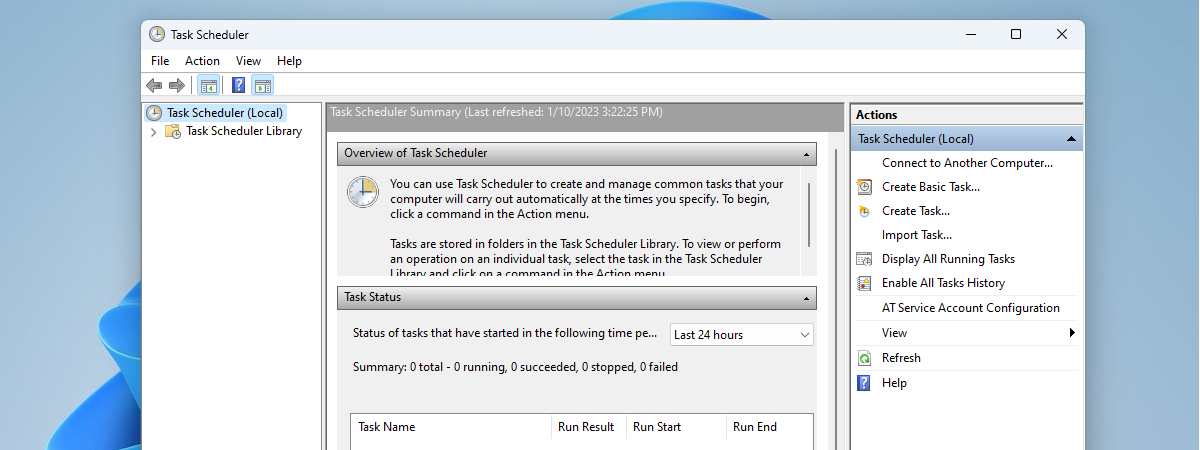
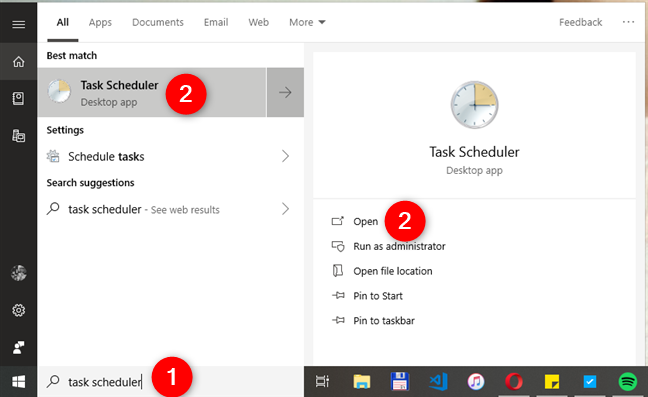
Start by opening the Task Scheduler. If you do not know how to do this, you should read this article: 9 ways to start the Task Scheduler in Windows (all versions). If you do not have time to read that guide too, know that a fast way to open the Task Scheduler, in any Windows version, is to use the search: search for "task scheduler" and click or tap the appropriate search result.
Searching for Task Scheduler in Windows 10
Also, if you have never worked with the Task Scheduler before, it might be a good idea to familiarize yourself a bit with it. For that, read this: How to create basic tasks with Task Scheduler, in 5 steps.
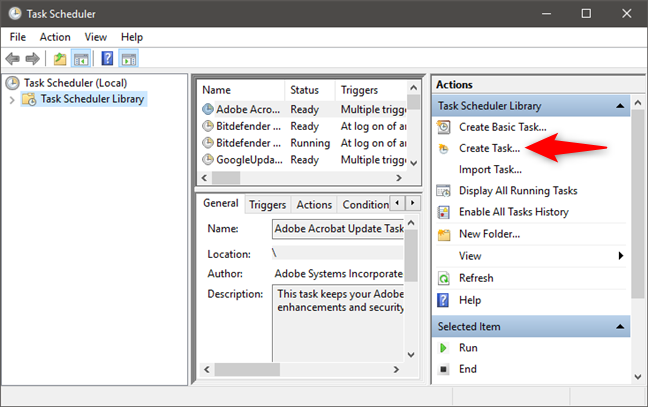
Now let's get to business: to create a new task, in the Task Scheduler window, go to the Actions panel and, on its right side, click or tap "Create Task."
Starting the Create Task wizard in Task Scheduler
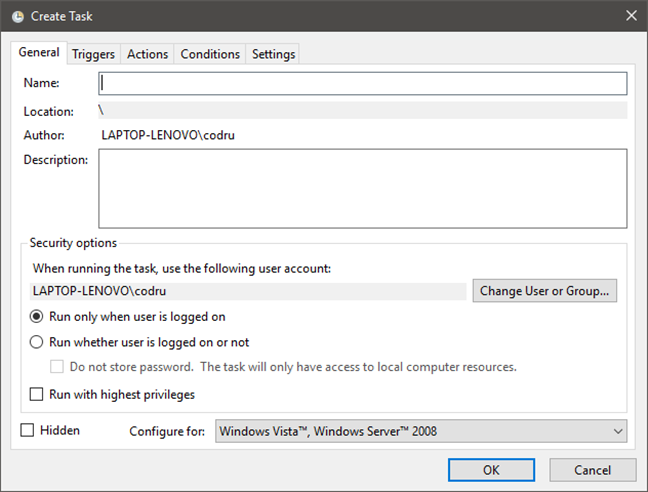
The wizard that starts lets you set up every detail about your new task, starting with its name and continuing with setting one or multiple triggers, actions, establishing conditions for running the task and so on.
The Create Task wizard from Task Scheduler
Let's see how it works:
How to set the name, description & security options of a task
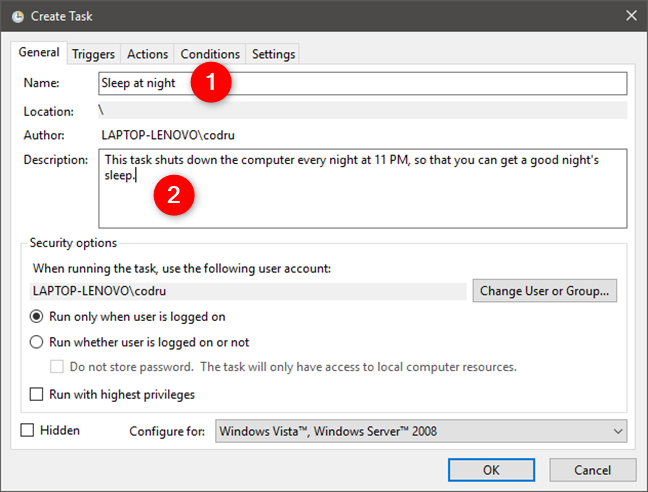
The first tab of the "Create Task" wizard is named General, and it is the place where you can set the name of the task and its description. Because we want to create a task that shuts down our PC every night, we are going to name it "Sleep at night."
Choosing a name and a description for the task
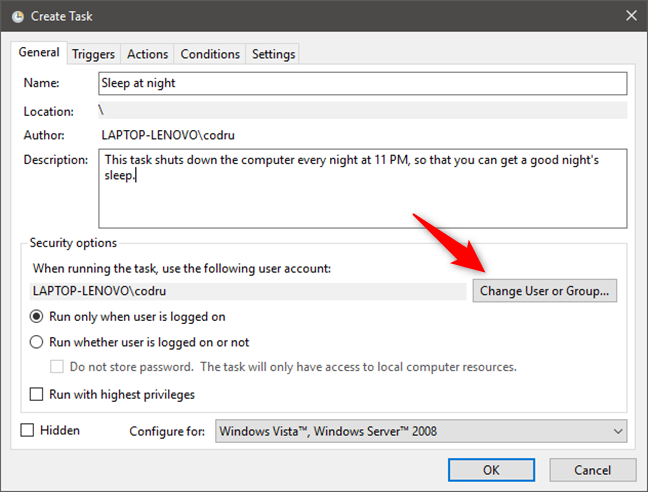
The General tab also lets you configure additional "Security options" related to the user account and privileges used to run the task that you are creating. By default, the user account that is used for running the task is the one you use for creating the task. If you want to make use of another user account when running the task, click or tap the "Change User or Group" button and select another.
Changing the user account that is used to run the task
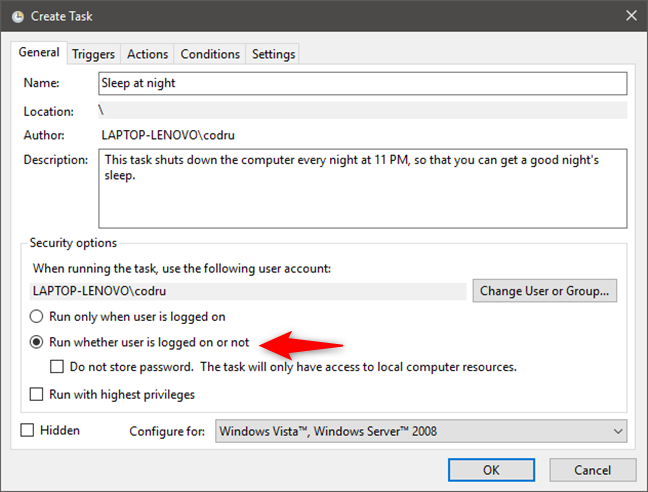
You can choose to run the task only when the user is logged on or run it even if he or she is not logged on. In our case, it does not matter if the user is logged on or not, as we want to create a task that shuts down the computer.
Choosing whether the task is run only when the user is logged on or not
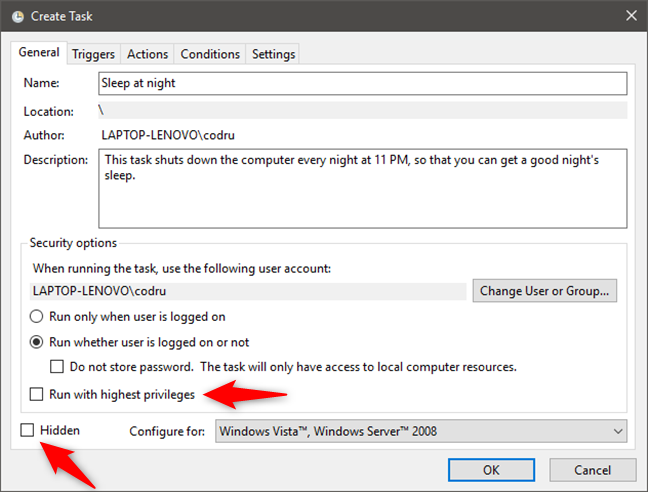
If your task needs administrator permissions, do not forget to check the "Run with highest privileges" checkbox. Then, check the Hidden option if you do not want the task to be visible. This means that the logged on user is not notified when the task is started or ended. We are not going to do that because we want the user to be able to stop the shutdown procedure if he or she wants to use the PC further in the night. 🙂
Selecting to run the task with higher privileges
That is all there is regarding general settings. Let's go to the Triggers tab.
How to set the triggers of a task in Task Scheduler
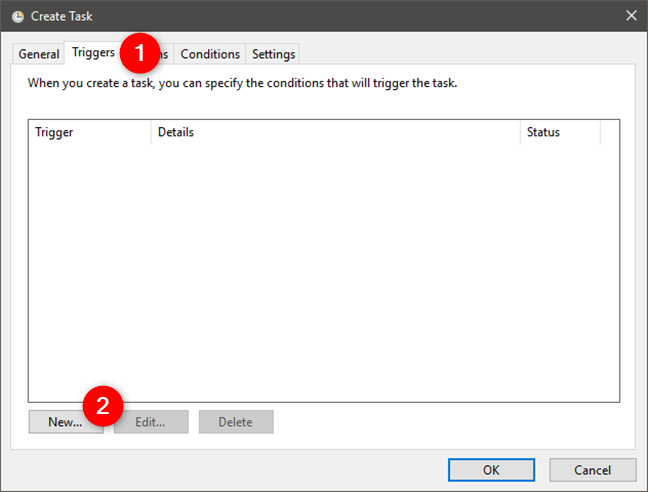
The Triggers tab lets you set multiple triggers. To add a new trigger, click or tap the New button, from the bottom of the window.
Creating a new trigger in Task Scheduler
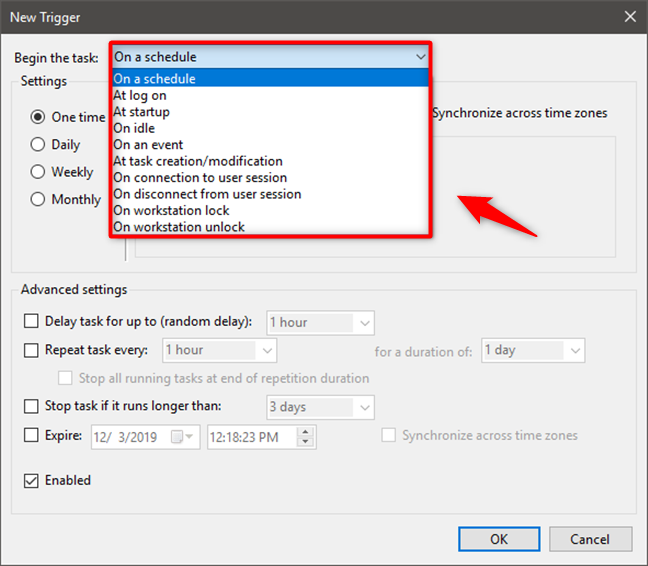
The first trigger setting is to select when to begin the task. Click or tap the "Begin the task" drop-down box and choose one of the available options.
Choosing when to start the task in Task Scheduler
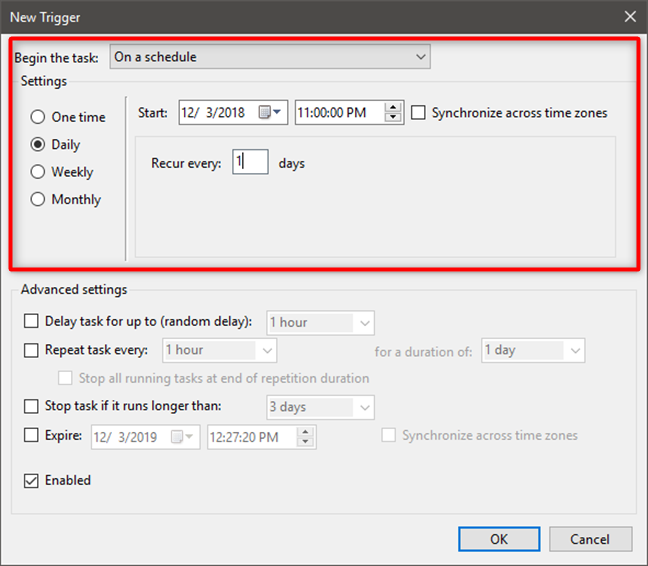
For our shutdown task, we must choose "On a schedule" and set the task to run Daily, at 11 PM.
Running a task on a schedule
We have already talked about some of the other triggers available, in this tutorial: How to create basic tasks with Task Scheduler, in 5 steps. However, there are a few additional triggers compared to the Create Basic Task wizard, such as: "At task creation/modification,""On connection to user session," "On disconnect from user session," "On workstation lock" and "On workstation unlock." Based on the option you chose, you are required to set different things in the Settings pane, but the Advanced settings that are available remain the same no matter what trigger you choose.
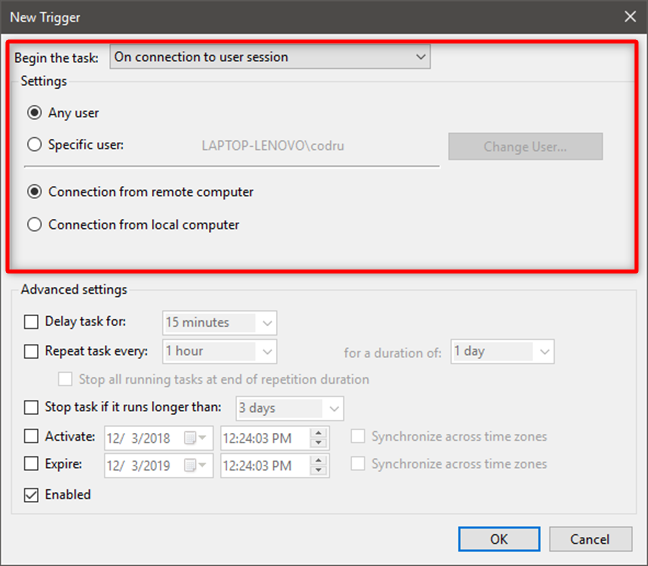
For the triggers named "On connection to user session" and "On disconnect from user session" you can make the following settings:
Establish if "connection to user session" refers to any user or a specific user. For the latter, the default is the current user. However, you can click or tap Change User and choose another user.
Establish if connection refers to a connection from a remote or a local computer.
Running a task on connection to user session
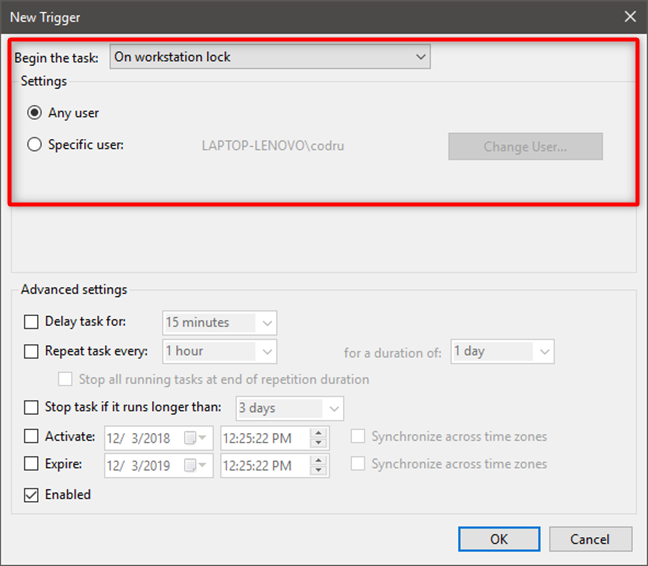
For the "On workstation lock" and "On workstation unlock" triggers you only have to set if this refers to any user or a specific user. By default, the specific user is the current one. You can click or tap "Change User" to select another user account.
Running a task on workstation lock
How to set the advanced settings for the triggers of a task
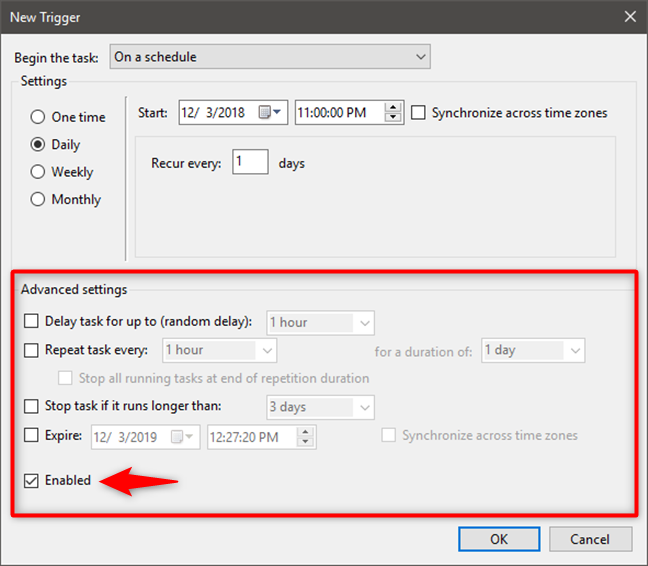
The available Advanced settings are the same for all triggers. For each available option, you must first check the corresponding box to see the list of similar choices. You can make the following settings:
Delay a task for a certain time: 30 seconds, 1 minute, 15 minutes, 30 minutes, 1 hour, 8 hours or 1 day;
Choose the time interval after which the task is repeated (5, 10, 15, 30 minutes or 1 hour) and the duration of the repeat (15 or 30 minutes, 1 or 12 hours, 1 day or indefinitely);
If your task, for some reason, might run longer than the period you specify you can choose to have it stopped automatically;
You can set an activation and expiration date and time. This means the dates between which your task is going to be run when the trigger that you specify is met;
You can enable or disable the task.
For the daily PC shutdown task that we are creating, we do not need any of these advanced settings: all we have to do is making sure that the task is Enabled.
Configuring the advanced settings of a trigger
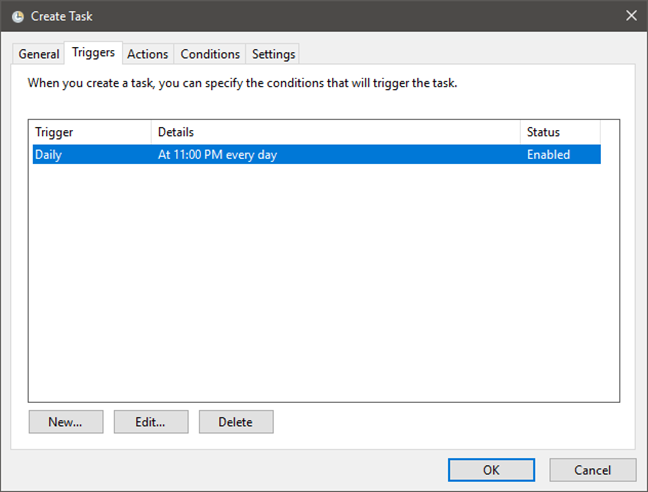
Click or tap OK when you have finished with the settings for this trigger. Your new trigger is displayed in the list of triggers. You can either create a new one or select an already created trigger to edit it or delete it.
The list of triggers for the task
How to set the actions of a task, in Task Scheduler
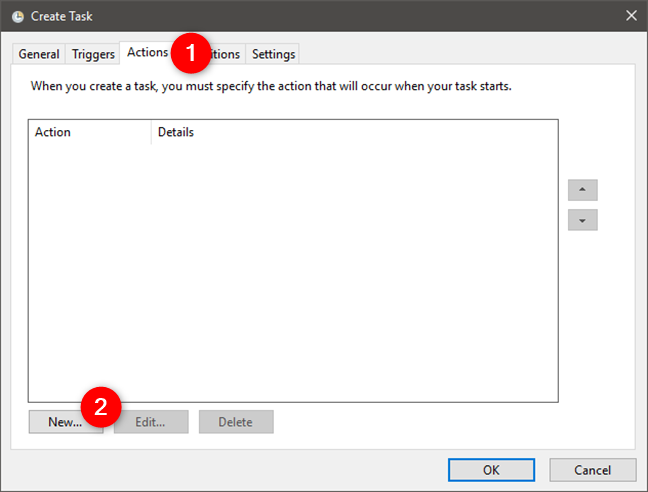
You can assign multiple actions to a task. To do this, go to the Actions tab and click or tap the New button.
Creating a new action for the scheduled task
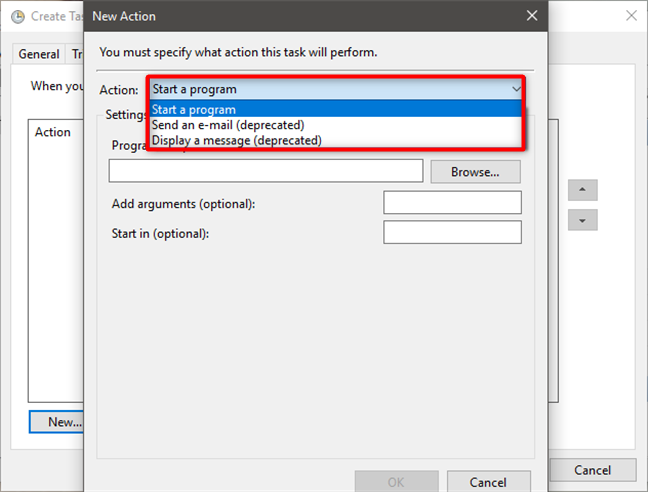
Choose one of the actions that the task must perform by clicking or tapping the Action drop-down box. You can select from: starting a program, sending an e-mail or displaying a message.
Choosing the action that the task is running
If you choose to start a program, click or tap the Browse button to choose the application to be started. Then, if needed, complete the optional fields called Arguments and Start in.
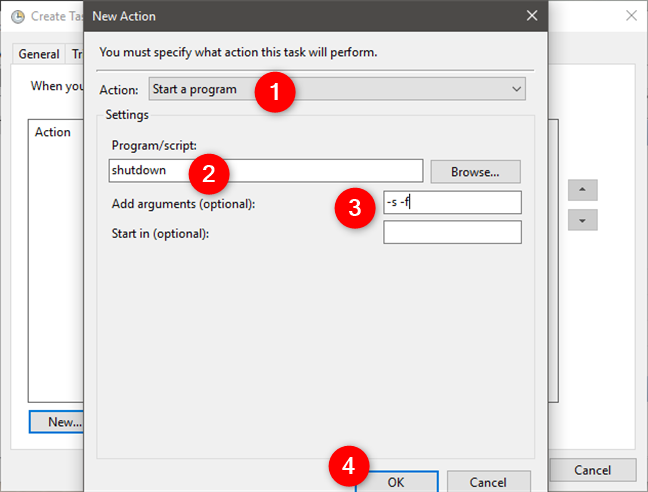
For our shutdown task, we must choose "Start a program." Then, we have to enter the shutdown command in the Program/script field. For this command to work, we also have to input the right arguments so, in the "Add arguments" field we are going to type -s and -f. The -s argument tells the computer that we want it to shut down, not reboot or sleep, and the -f argument tells it that we want to force apps to close at shutdown.
Configuring an action for shutting down a Windows PC
NOTE: If what you want is not to run a program but to send an email, you have to complete the fields From and To, set a subject, write the email text, add any attachments and specify the SMTP server (found in the properties of your email account). For displaying a message, you have to specify the title and the message. Remember that in Windows 10 and 8.1, the "Send an e-mail" and "Display a message" tasks are deprecated - meaning that these actions cannot be performed in these Windows versions.
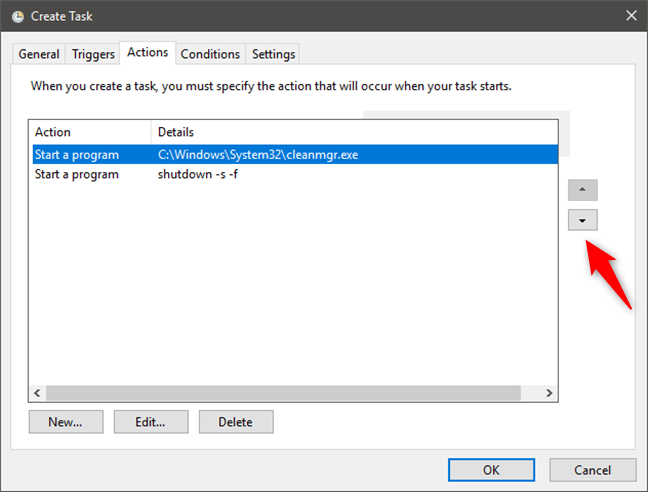
As we have mentioned previously, you can create multiple actions for a task. For example, you can create a task that runs Disk Cleanup and only then shuts down your computer. You can change the order of the actions by clicking or tapping the buttons found on the right-hand side of the actions list.
The list of actions of a task
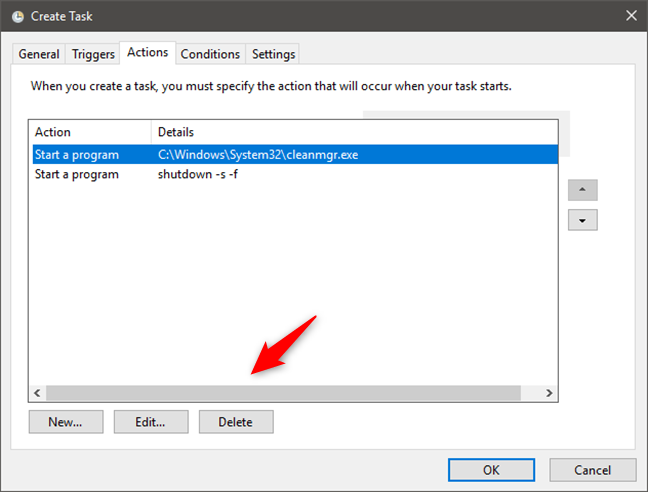
To modify an action, select it and click or tap Edit. To remove it, click or tap Delete.
Editing or deleting an action
How to set up the task conditions in Task Scheduler
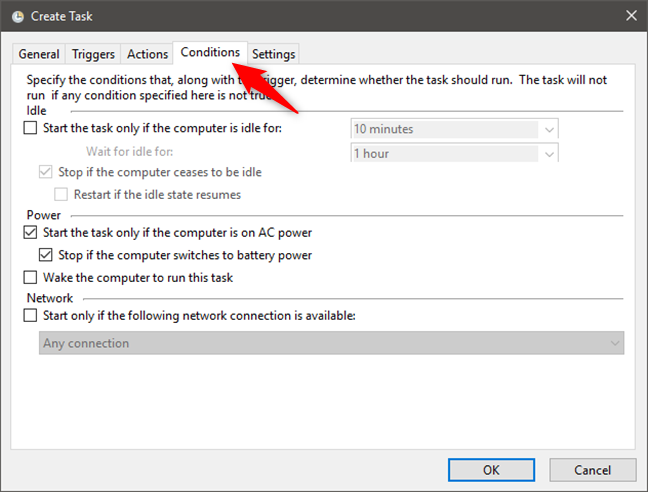
Apart from the trigger, you can specify several conditions for when the task is run based on the idle time that has passed, whether the computer is on AC power or a specific network is available. To set them, click or tap the Conditions tab. Note that if you want to create a shutdown task just like we did, you do not need to configure any of these conditions.
The Conditions tab from the Create Task wizard
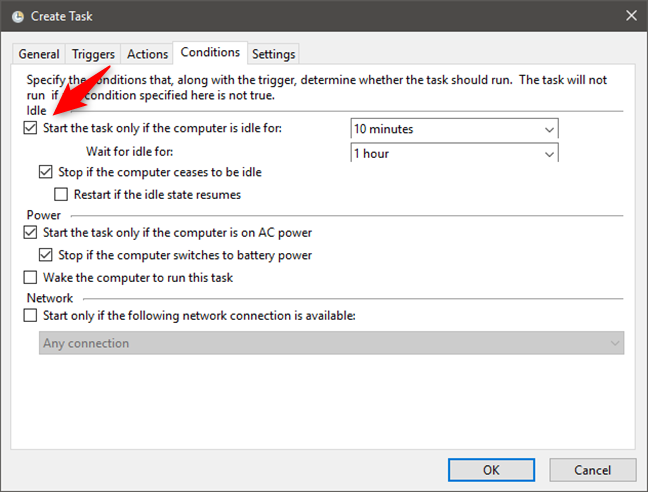
If you want the task not to interfere with your work, you can set it to run only when the computer is idle. Check the box that says "Start the task only if the computer is idle for" and choose one of the available periods. From the time you have set the task to start, you can choose to wait for the computer to switch into an idle state for a certain period or you can select "Don't wait for idle." When the computer is no longer in an idle state, you can decide to stop the task or restart it if the idle state resumes. As an example, these idle options are useful when you know that your task might require many system resources to run. Setting them to run when your PC or device is idle means that you are not going to be bothered by programs working slowly because of this task eating up most of your computer's resources.
Choosing to start a task only if the PC is idle for a specified amount of time
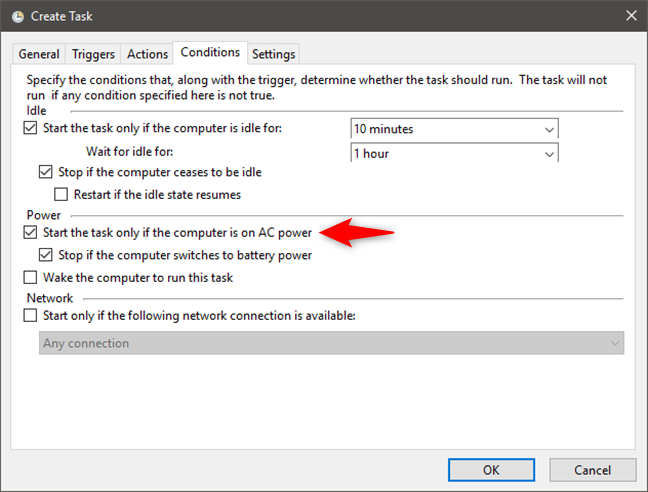
Since a task might run for a long time, the Task Scheduler allows you to set conditions for the task so that it starts only when the computer is on AC power, and to stop the task if you switch to battery power. If your computer is in sleep mode and it is the time to run the task, you can set the computer to wake up and run the task.
Choosing to start a task only if the PC is connected to AC power
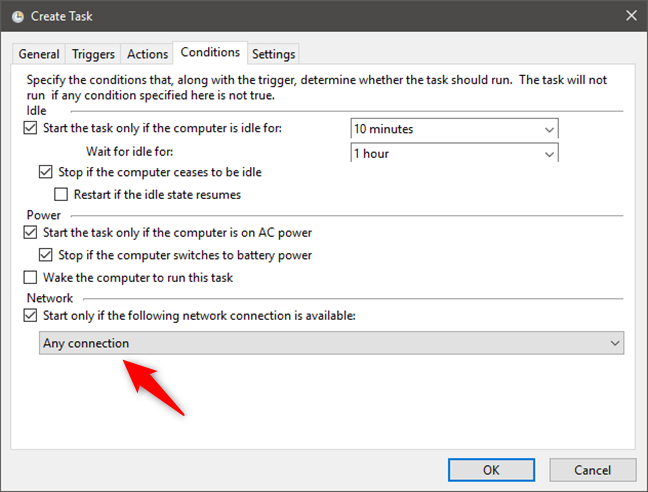
If you know that you need a specific network connection for running the task, check the box that says "Start only if the following network connection is available" and choose the connection that you are interested in.
Choosing to start a task only if specified network connections are available
How to set the failure behavior of a task
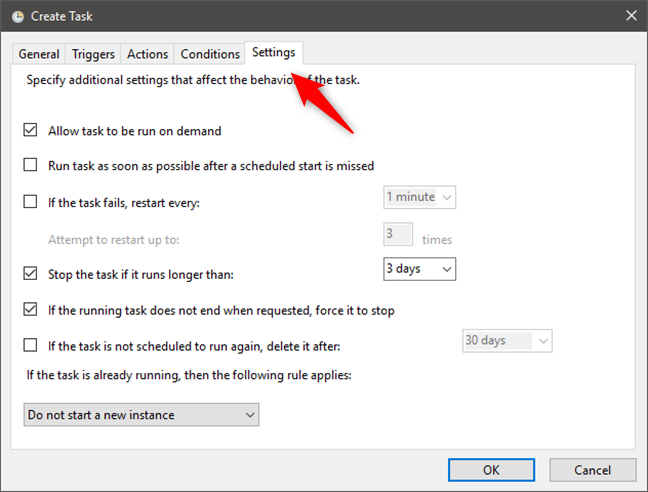
Task Scheduler allows you to make settings which come in handy in special situations such as the failure of the task or when the running task does not end when requested. Go to the Settings tab in the Create Task wizard.
The Settings tab of the Create Task wizard
You can make the following settings:
Allow the task to run on demand. Otherwise, it is only run when both the triggers and conditions are met.
If the task is based on a schedule which is missed, you can set the task to be run as soon as possible.
For the cases when the task fails, you can set it to be restarted every 1, 5, 10, 15, 30 minutes, or 1-2 hours. The restart can be attempted for the times that you set.
If you think that something has gone wrong with your task, and it runs longer than 1, 2, 4, 8, 12 hours, or 1-2 days, you can set it to stop.
If a task is not scheduled to run again, you can set your computer to automatically delete the task after 30, 90, 180, 365 days or immediately.
If the task is already running and the time comes for it to run again, you can choose one of the following options: "Do not start a new instance" (the first instance of the task continues to run), "Run a new instance in parallel" (the first task instance continues to run, and the new task instance also starts), "Queue a new instance" (the new tasks instance runs after the first task instance finished), and "Stop the existing instance" (the first task instance is stopped, and the new task instance is started).
When you have set everything as you wanted, press the OK button and the task is instantly created, and you can find it anytime you want in the Task Scheduler Library.
Do you use Task Scheduler to create advanced tasks?
As you can see, the Task Scheduler offers a considerable number of settings which help you create lots of advanced tasks. While not all options seem easy to understand at first, by carefully reading this article and experimenting on your own, you should quickly get the hang of it and gain more control over your computer. If you have any questions about the Task Scheduler, do not hesitate to ask in the comments sectionbelow.
Can I set up an action to “press the enter key”, then press it again in 0.75 seconds?
Doug ·
Is it possible to limit the number of instances that will start in parallel?
GB ·
If a task runs every day from 11:19 every hour for 1 day what does that actually mean?
Does it mean that the tasks starts at 11:19 each day until the end of the day, or does the 1 day means 24 hours, any therefore would complete at 11:19 to following day, but start again due to the fact it repeats every day?
Anonymous ·
1 day means 24 hours. Your second guess is correct.
Jesslyn ·
Advanced Tasks tutorial that doesn’t explain all the fields. Not good.
Shan ·
I have a number of schedules tasks which run every day. 2 of these jobs are import jobs and I want to pause/stop all other jobs from running whenever these 2 jobs have failed/unsuccessful as these jobs require data from the import.
Even if these 2 jobs fail, I receive an email to say these have been unsuccessful. However, the other tasks continue to run and I receive e-mails to say these have been successful even though the information these reports contain are wrong.
Is there any way to stop/pause tasks if they are dependent on another task?
A ·
I want play a song in wma, but I want the wma window not shown, or at least to close when done. But wma window opens and stays there.
LectorOcasional76 ·
Excelent explanation about Tasks. I’m wondering how the arguments must be declared in the specified field; For example, I created a task which starts a script “open cmd.exe” and I want use the following argument: echo “Hello World”, but, when the task is executed, it only opens the cmd.exe, but no arguments has shown on the screen.
What I’m doing wrong?
For the email thing, just use some kind of script that runs when the task is activated.
Bob Pfeiffer ·
Is there a way to run a task when a certain log file contains some keywords (like ‘ERROR’)?
SUE ·
Hi
i have task scheduler running on my computer running for hours sometimes and it really affects my CPU (i think this is the cause) i have never recreated these tasks (unknownly if i have). can i delete these tasks and start again as and when i realise i need certain ones, i dont know why they are running to be honest
secretary sue
Michael ·
Is there anyway to close a window once the task has been run without creating a batch file. I created a task that runs and at the end of the task I would like the window that opens to close automatically. Is there an augment that I can put in my scheduled task so that it does this. Please help
erfan ·
Hi
I want to run a batch file that includes a ‘myfile.exe’ and ‘text input file’ with the task scheduler in win7. But When the task scheduler execute , Run has been stopped and I face the following error in cmd:
‘myfile.exe’ is not recognized an internal or external command, operable program.
please help me
regard
Enrique ·
Hi
I have a question is possible do the next if i have a program and for some reason I close this for error show me a pop up ask me If i really want close the program?
Jones Acton III ·
I suggest an edit to the “The available Advanced settings” section that points out a user is not actually limited to the defaults (30 seconds, 1 minute, etc.) of the drop-down dialog’s list when setting a time delay for a given task’s trigger(s). When the “Delay task for:” box is checked, one may highlight the time selection displayed and change it to the desired number of minutes.
Deepak ·
thanks for sharing. i have question. what is maximium length of argument that can be passed to a program ?
Gayathri ·
I am trying to schedule a task to Google Analytic s report (url) download to a local folder. I have google analytics userID and passward to configure and download report. How can I do that. Can you please help with the steps/code for this please. please. please…
Manish ·
Hi,
I want that an excel file show as popup when I unlocks my computer, because everytime i unlock the computer, i have to update the excel file without delay.
Please help
john ·
When i try to save a new task it asks for account name and password.
I give the only account’s name from the control panel accounts page (which happens to be my email address) and is an administrator, and it says “specified account name not valid”
JP TARDIF ·
Hello Ciprian Adrian Rusen,
Is there a possibility to create a trigger that tells my program to start when a file is saved at a precise location? Because my program is dependent of another program run before by someone else.
Thanks
Ciprian Adrian Rusen ·
That requires some scripts, it is too advanced for a mere task scheduler.
ngd ·
On disconnect from user session with “only remote user” doesn’t work correctly on Windows 8.1. It works great on windows 7.
The event is fired on both local and remote disconnects
sumant ·
I want to start scheduled task after change in any file event happen. E.g. if i open any excel file made any change & save. I want start after close this file.
lisa ·
Hi,
I am trying to use task scheduler to play an audio clip (1min) once at a given time daily. I just wanted to check that this would be possible as I managed to set it up so that the clip was played at the requested time however I could not stop the clip from being played on repeat. If this is possible I would very much appreciate any advice on how I can get the task scheduler to achieve this.
Thank you.
jraju ·
Hi, what about arguments and parameters in the action schedule, that is when browsing target exe for a program. Would you elaborate on this aspect. Is it meant to trigger the inside exe, in the main exe, for ex. if a program has option 3 for user to select, would it be something to do with this?
Dale Corning ·
I have entered a program into the schedule to be run every day at 08:15. The program starts with reading an .ini file from it’s default directory. It can not find this file. The scheduler allows me to browse over to the file to execute it but the default directory is not changed. Is there a way of either changing the default directory or a defined place to store the .ini?
Tony ·
How do I change the password entered when the task schedule was first set up to a new one? (my organization requires passwords to be changed every 90 days)…the old one no longer works for my task and I need to change it to my new one. How do I do this?
Tia
Paul B ·
Hey, that was quick! thank you for the response.
Paul B ·
Hi Ciprian, thanks for the article – very helpful.
Can I use a variable instead of a username to allow another user to import a task without editing it? At the moment once they import the task it asks for the task author’s credentials.
Ciprian Adrian Rusen ·
I don’t think you can do that.
Joe Markakis ·
Thanks for your prompt reply Ciprian Adrian Rusen!
Joe Markakis ·
Hello, thanks a lot for providing this article. I’d like to ask…is it possible to schedule a task that will run a batch file whenever a specific program (.exe) is found to be running? Thanks again!
Ciprian Adrian Rusen ·
Great question! We don’t know the answer. We will try to investigate and, if we find something, we will come back with a tutorial on this subject.
Stoex ·
I’m using Task Scheduler to open a spreadsheet in MS Works. I know how to get this far and everything works.
I now want Task Scheduler to also print the spreadsheet, but cannot find the correct command/argument to include with the above opening. I have searched the internet & got countless dead end leads.
Tufail ·
Thanks for such a great article…
I need to run a bath script when the user login for first time only one time for the first login only. Right now script runs every time the user login and logof. how to stop the script when the user login for 2nd time.
How to accomplish this. i am really in trouble. plz help.
I want to use the Task Scheduler to open an Excel file. The Excel file contains a macro that automatically runs when the file is opened. At the end of the routine the macro saves the file and closes the Excel application using the following commands:
>ThisWorkbook.Save
>Application.Quit
When I open this excel file in a normal way, such as double-clicking on the file, the macro runs successfully and Excel closes. However, when I use the Task Scheduler to open the excel file, the Excel Application does not close when the routine is finished.
Note that I’ve tried using the Task Scheduler to open this Excel file on other computers that are running the 64 bit version of Windows 7 and it works flawlessly. I’m only having this issue on a computer that is running the 32 bit version. Any ideas?
Mike ·
Hello,
I’m trying to figure out to make task scheduler send an email when a specific task or tasks have not run in 24 hours and I’ve had no luck with it. Is this something can be done?
Atul Abrol ·
Hello –
Thanks a lot for your article .
Is it possible to use scheduler to –
Wake up my computer from sleep mode
Open my account on a website
Click a tab that says my ‘Calendar is upto date ‘
Ciprian Adrian Rusen ·
You need to make a script that opens your account on a website and clicks whatever you want. Then, make a task that runs the script.
Pete Brake ·
New to the scheduler. Trying to automate cleandisk. How do I program responding to Cleandisk prompt to delete files found?
Thanks.
Chaitanya K ·
I am working on Network i want to apply the EXE for few Systems (Required Systems) to Run the EXE.
Ramesh Sharma ·
What is the functionality of the option “Stop all running tasks at end of repetition duration” under the “Advanced setting” under “Trigger” tab.
Ramesh ·
Hi,
I have one task scheduler and i am getting the error like “Task Schedular are unable to process some application, error code is 267014”
Can any one help me to solve this problem.
Wendy ·
Florian,
I would suggest some further English language study. You need work on articles and past tense.
Ciprian Adrian Rusen ·
Wendy,
1. The name is Florina, not Florian. Shey’s lady, not a guy. 🙂
2. I have read the article and made many improvements to it. The quality should be improved now.
3. Thanks for the feedback.
Ciprian
Robert Oetzel ·
One job triggered by four events (logical conjunction)
Hi Florina,
thank you for this great article.
My case is: I have four jobs running parallel, all startet by 19:30,
and there is a fifth job, which should start after the other four have finished.
Now, I created events at the end of the four jobs, but I cannot
set up the fifth, to start on the end of ALL events (logical AND).
It starts on ANY event (logical OR).
Is there a chance ?
Kind Regards
Robert
Shan Leatherman ·
Yes. Since we’re moving to Office 10, its the computer we are using to convert all the 2003 Access programs to 2010 Access.
Shan leatherman ·
Great job on the documentation. I’m embarrassed to even ask this because the task scheduler seems so straight forward but I’m struggling to get an access program that has been running under os 2003 scheduler to run in Windows 7 task scheduler. The area I’m wondering about is the action tab. I browse to the Access program which resides on a different server to run a daily report. Each time I attempt to run I receive invalid directory despite my navigating directly to it. Any suggestions on anything else I could try? Thanks in advance for your help
Shan
Ciprian Adrian Rusen ·
Why don’t you try to create the task to run that program directly on the computer on which it resides?
This will eliminate complications with running a remote program, on another computer on the network.
Shan Leatherman ·
While your suggestion has merit, we currently have 18 schedule jobs that run various updates or reports daily in our 2003 scheduler. We really like the convenience of checking this separate computer set up specifically to run jobs and as a backup computer. We can see at a glance if there are any problems. If we moved all our scheduled jobs to the SERVER that houses the code we wouldn’t be as aware if problems arose and things weren’t running with out physically remoting into the server each day. We have logic to send messages if problems but sometimes you aren’t aware if other problems occur. Today we can quickly glance to see if something is hung or there was an issue. I tried copying the access program to the Windows 7 computer I’m trying to set up Scheduled tasks on to see if that would resolve it and got the error > %1 is not a valid win32 application. While the task scheduler seems to runs .exe and .bat files fine I’m wondering if its unable to run .accb Win 7 Access programs? Just doesn’t seem like it should be this difficult to set up.
Shan
Ciprian Adrian Rusen ·
Do you have Access installed on the Windows 7 computer where you are trying to run the program?
Tez ·
Hi Manuel.
I have set a task to run in my scheduler: I want it to open a text document each night to remind me to do something. I have experimented extensively with this and have had no joy – settings are as follows:
General: Name: Reminder
Location:
Author: Tez (<- Administrator Status)
Description: (blank)
Set to Run whether user is logged on or not
Run with Highest Privileges is ticked
Hidden is NOT ticked
Triggers: Set to run every day at 8:30 PM
Actions: Start a Program: c:windowssystem32notepad.exe
Added Argument: c:UsersTezDocumentsreminder.txt
Conditions: (None Set)
Settings: Allow task to be run on demand is ticked
Stop the task if it runs longer than: '3 days' is selected
Force to stop is ticked
If running, Do Not start a new instance is selected
Now, I have tried the actions line in a command prompt and they in fact start my reminder.txt - it appears in notepad on the desktop as I would like(which is the desired result!).
If I watch as the time trigger passes, refreshing the status shows that the task is "running" but no notepad appears and hence no reminder.
Task manager shows no instance of Notepad, even though Task Scheduler says it is currently "running"
- I can end the task and it changes back to ready. - Still no notepad appears! - If I then review tasks that have "run" in the last 24 hours, the report is blank.
Since the rminder is a one-line text document, I've even tried setting the task action to open a message, but that does not appear on the screen either
Any assistance would be helpful - this is doing my head in! - Task Scheduler under WinXPPro was o much simpler and reliable!
Paul ·
Change it to run with a user instead of “Set to Run whether user is logged on or not”. If you are telling to run with any user, it doesn’t know which user to display the window.
Will ·
Hi There,
Thanks for the article; I would like three programs to run automatically (and in a particular order) when a trigger is activated.
When the task is triggered, the first program on the list runs (as it should), but then nothing else happens. When I close the program that opened, the second program opens, and then nothing happens – the third program still has not run at this stage. Then, when I close the second program, the third opens. After closing the third program, nothing happens – the task has been completed… not exactly what I had in mind…
Is there a way to make all three programs open instantly, one after the other – all in the space of one second-or-so?
Thanks,
Will
manuel di luzio ·
Yes there is. You must make a .bat file (a simple .txt file saved as .bat in the name of the file, save as “all files” option) containing the instructions to open the programs such as this:
Then you schedule this file instead of the programs.
However, this will open all the 3 programs in the same moment, so you should insert between each row a command to delay the start of the next command (google it).








Discussion (58)
Can I set up an action to “press the enter key”, then press it again in 0.75 seconds?
Is it possible to limit the number of instances that will start in parallel?
If a task runs every day from 11:19 every hour for 1 day what does that actually mean?
Does it mean that the tasks starts at 11:19 each day until the end of the day, or does the 1 day means 24 hours, any therefore would complete at 11:19 to following day, but start again due to the fact it repeats every day?
1 day means 24 hours. Your second guess is correct.
Advanced Tasks tutorial that doesn’t explain all the fields. Not good.
I have a number of schedules tasks which run every day. 2 of these jobs are import jobs and I want to pause/stop all other jobs from running whenever these 2 jobs have failed/unsuccessful as these jobs require data from the import.
Even if these 2 jobs fail, I receive an email to say these have been unsuccessful. However, the other tasks continue to run and I receive e-mails to say these have been successful even though the information these reports contain are wrong.
Is there any way to stop/pause tasks if they are dependent on another task?
I want play a song in wma, but I want the wma window not shown, or at least to close when done. But wma window opens and stays there.
Excelent explanation about Tasks. I’m wondering how the arguments must be declared in the specified field; For example, I created a task which starts a script “open cmd.exe” and I want use the following argument: echo “Hello World”, but, when the task is executed, it only opens the cmd.exe, but no arguments has shown on the screen.
What I’m doing wrong?
hello.
how do you run bath file?
You double click on it.
There is a way around the deprecated parts.
For error messages: https://www.rjlsoftware.com/software/utility/mm_deluxe/
For the email thing, just use some kind of script that runs when the task is activated.
Is there a way to run a task when a certain log file contains some keywords (like ‘ERROR’)?
Hi
i have task scheduler running on my computer running for hours sometimes and it really affects my CPU (i think this is the cause) i have never recreated these tasks (unknownly if i have). can i delete these tasks and start again as and when i realise i need certain ones, i dont know why they are running to be honest
secretary sue
Is there anyway to close a window once the task has been run without creating a batch file. I created a task that runs and at the end of the task I would like the window that opens to close automatically. Is there an augment that I can put in my scheduled task so that it does this. Please help
Hi
I want to run a batch file that includes a ‘myfile.exe’ and ‘text input file’ with the task scheduler in win7. But When the task scheduler execute , Run has been stopped and I face the following error in cmd:
‘myfile.exe’ is not recognized an internal or external command, operable program.
please help me
regard
Hi
I have a question is possible do the next if i have a program and for some reason I close this for error show me a pop up ask me If i really want close the program?
I suggest an edit to the “The available Advanced settings” section that points out a user is not actually limited to the defaults (30 seconds, 1 minute, etc.) of the drop-down dialog’s list when setting a time delay for a given task’s trigger(s). When the “Delay task for:” box is checked, one may highlight the time selection displayed and change it to the desired number of minutes.
thanks for sharing. i have question. what is maximium length of argument that can be passed to a program ?
I am trying to schedule a task to Google Analytic s report (url) download to a local folder. I have google analytics userID and passward to configure and download report. How can I do that. Can you please help with the steps/code for this please. please. please…
Hi,
I want that an excel file show as popup when I unlocks my computer, because everytime i unlock the computer, i have to update the excel file without delay.
Please help
When i try to save a new task it asks for account name and password.
I give the only account’s name from the control panel accounts page (which happens to be my email address) and is an administrator, and it says “specified account name not valid”
Hello Ciprian Adrian Rusen,
Is there a possibility to create a trigger that tells my program to start when a file is saved at a precise location? Because my program is dependent of another program run before by someone else.
Thanks
That requires some scripts, it is too advanced for a mere task scheduler.
On disconnect from user session with “only remote user” doesn’t work correctly on Windows 8.1. It works great on windows 7.
The event is fired on both local and remote disconnects
I want to start scheduled task after change in any file event happen. E.g. if i open any excel file made any change & save. I want start after close this file.
Hi,
I am trying to use task scheduler to play an audio clip (1min) once at a given time daily. I just wanted to check that this would be possible as I managed to set it up so that the clip was played at the requested time however I could not stop the clip from being played on repeat. If this is possible I would very much appreciate any advice on how I can get the task scheduler to achieve this.
Thank you.
Hi, what about arguments and parameters in the action schedule, that is when browsing target exe for a program. Would you elaborate on this aspect. Is it meant to trigger the inside exe, in the main exe, for ex. if a program has option 3 for user to select, would it be something to do with this?
I have entered a program into the schedule to be run every day at 08:15. The program starts with reading an .ini file from it’s default directory. It can not find this file. The scheduler allows me to browse over to the file to execute it but the default directory is not changed. Is there a way of either changing the default directory or a defined place to store the .ini?
How do I change the password entered when the task schedule was first set up to a new one? (my organization requires passwords to be changed every 90 days)…the old one no longer works for my task and I need to change it to my new one. How do I do this?
Tia
Hey, that was quick! thank you for the response.
Hi Ciprian, thanks for the article – very helpful.
Can I use a variable instead of a username to allow another user to import a task without editing it? At the moment once they import the task it asks for the task author’s credentials.
I don’t think you can do that.
Thanks for your prompt reply Ciprian Adrian Rusen!
Hello, thanks a lot for providing this article. I’d like to ask…is it possible to schedule a task that will run a batch file whenever a specific program (.exe) is found to be running? Thanks again!
Great question! We don’t know the answer. We will try to investigate and, if we find something, we will come back with a tutorial on this subject.
I’m using Task Scheduler to open a spreadsheet in MS Works. I know how to get this far and everything works.
I now want Task Scheduler to also print the spreadsheet, but cannot find the correct command/argument to include with the above opening. I have searched the internet & got countless dead end leads.
Thanks for such a great article…
I need to run a bath script when the user login for first time only one time for the first login only. Right now script runs every time the user login and logof. how to stop the script when the user login for 2nd time.
How to accomplish this. i am really in trouble. plz help.
Hello, thanks for this site.
Can I schedule an external program call….ie. the action to be
http://www.mysite.com/directory/program.php
Many thanks,
Rick
Hello,
I want to use the Task Scheduler to open an Excel file. The Excel file contains a macro that automatically runs when the file is opened. At the end of the routine the macro saves the file and closes the Excel application using the following commands:
>ThisWorkbook.Save
>Application.Quit
When I open this excel file in a normal way, such as double-clicking on the file, the macro runs successfully and Excel closes. However, when I use the Task Scheduler to open the excel file, the Excel Application does not close when the routine is finished.
Note that I’ve tried using the Task Scheduler to open this Excel file on other computers that are running the 64 bit version of Windows 7 and it works flawlessly. I’m only having this issue on a computer that is running the 32 bit version. Any ideas?
Hello,
I’m trying to figure out to make task scheduler send an email when a specific task or tasks have not run in 24 hours and I’ve had no luck with it. Is this something can be done?
Hello –
Thanks a lot for your article .
Is it possible to use scheduler to –
Wake up my computer from sleep mode
Open my account on a website
Click a tab that says my ‘Calendar is upto date ‘
You need to make a script that opens your account on a website and clicks whatever you want. Then, make a task that runs the script.
New to the scheduler. Trying to automate cleandisk. How do I program responding to Cleandisk prompt to delete files found?
Thanks.
I am working on Network i want to apply the EXE for few Systems (Required Systems) to Run the EXE.
What is the functionality of the option “Stop all running tasks at end of repetition duration” under the “Advanced setting” under “Trigger” tab.
Hi,
I have one task scheduler and i am getting the error like “Task Schedular are unable to process some application, error code is 267014”
Can any one help me to solve this problem.
Florian,
I would suggest some further English language study. You need work on articles and past tense.
Wendy,
1. The name is Florina, not Florian. Shey’s lady, not a guy. 🙂
2. I have read the article and made many improvements to it. The quality should be improved now.
3. Thanks for the feedback.
Ciprian
One job triggered by four events (logical conjunction)
Hi Florina,
thank you for this great article.
My case is: I have four jobs running parallel, all startet by 19:30,
and there is a fifth job, which should start after the other four have finished.
Now, I created events at the end of the four jobs, but I cannot
set up the fifth, to start on the end of ALL events (logical AND).
It starts on ANY event (logical OR).
Is there a chance ?
Kind Regards
Robert
Yes. Since we’re moving to Office 10, its the computer we are using to convert all the 2003 Access programs to 2010 Access.
Great job on the documentation. I’m embarrassed to even ask this because the task scheduler seems so straight forward but I’m struggling to get an access program that has been running under os 2003 scheduler to run in Windows 7 task scheduler. The area I’m wondering about is the action tab. I browse to the Access program which resides on a different server to run a daily report. Each time I attempt to run I receive invalid directory despite my navigating directly to it. Any suggestions on anything else I could try? Thanks in advance for your help
Shan
Why don’t you try to create the task to run that program directly on the computer on which it resides?
This will eliminate complications with running a remote program, on another computer on the network.
While your suggestion has merit, we currently have 18 schedule jobs that run various updates or reports daily in our 2003 scheduler. We really like the convenience of checking this separate computer set up specifically to run jobs and as a backup computer. We can see at a glance if there are any problems. If we moved all our scheduled jobs to the SERVER that houses the code we wouldn’t be as aware if problems arose and things weren’t running with out physically remoting into the server each day. We have logic to send messages if problems but sometimes you aren’t aware if other problems occur. Today we can quickly glance to see if something is hung or there was an issue. I tried copying the access program to the Windows 7 computer I’m trying to set up Scheduled tasks on to see if that would resolve it and got the error > %1 is not a valid win32 application. While the task scheduler seems to runs .exe and .bat files fine I’m wondering if its unable to run .accb Win 7 Access programs? Just doesn’t seem like it should be this difficult to set up.
Shan
Do you have Access installed on the Windows 7 computer where you are trying to run the program?
Hi Manuel.
I have set a task to run in my scheduler: I want it to open a text document each night to remind me to do something. I have experimented extensively with this and have had no joy – settings are as follows:
General: Name: Reminder
Location:
Author: Tez (<- Administrator Status) Description: (blank) Set to Run whether user is logged on or not Run with Highest Privileges is ticked Hidden is NOT ticked Triggers: Set to run every day at 8:30 PM Actions: Start a Program: c:windowssystem32notepad.exe Added Argument: c:UsersTezDocumentsreminder.txt Conditions: (None Set) Settings: Allow task to be run on demand is ticked Stop the task if it runs longer than: '3 days' is selected Force to stop is ticked If running, Do Not start a new instance is selected Now, I have tried the actions line in a command prompt and they in fact start my reminder.txt - it appears in notepad on the desktop as I would like(which is the desired result!). If I watch as the time trigger passes, refreshing the status shows that the task is "running" but no notepad appears and hence no reminder. Task manager shows no instance of Notepad, even though Task Scheduler says it is currently "running" - I can end the task and it changes back to ready. - Still no notepad appears! - If I then review tasks that have "run" in the last 24 hours, the report is blank. Since the rminder is a one-line text document, I've even tried setting the task action to open a message, but that does not appear on the screen either Any assistance would be helpful - this is doing my head in! - Task Scheduler under WinXPPro was o much simpler and reliable!
Change it to run with a user instead of “Set to Run whether user is logged on or not”. If you are telling to run with any user, it doesn’t know which user to display the window.
Hi There,
Thanks for the article; I would like three programs to run automatically (and in a particular order) when a trigger is activated.
When the task is triggered, the first program on the list runs (as it should), but then nothing else happens. When I close the program that opened, the second program opens, and then nothing happens – the third program still has not run at this stage. Then, when I close the second program, the third opens. After closing the third program, nothing happens – the task has been completed… not exactly what I had in mind…
Is there a way to make all three programs open instantly, one after the other – all in the space of one second-or-so?
Thanks,
Will
Yes there is. You must make a .bat file (a simple .txt file saved as .bat in the name of the file, save as “all files” option) containing the instructions to open the programs such as this:
start C:etcetc.program1.exe
start C:etcetc.program1.exe
start C:etcetc.program1.exe
Then you schedule this file instead of the programs.
However, this will open all the 3 programs in the same moment, so you should insert between each row a command to delay the start of the next command (google it).
Bye,
manuel