You may know what the Task Scheduler is and what it does. Maybe you also know how to create new scheduled tasks. But what about managing the existing scheduled tasks? Do you know how to run or stop scheduled tasks manually? Do you know how to disable, delete, export or import some scheduled tasks? Read on and find out the essential seven things that you can do with existing tasks from the Task Scheduler in Windows:
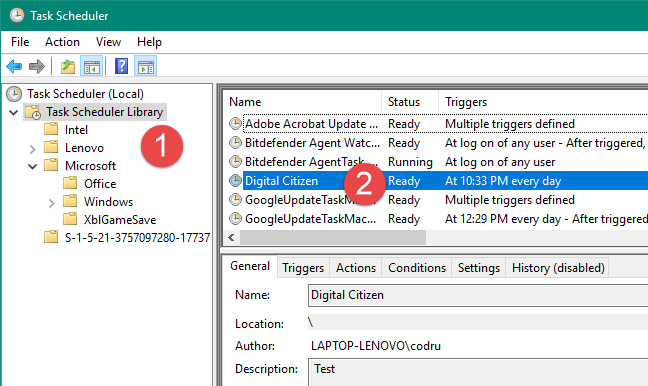
Task Scheduler allows you to run a task on demand, regardless of when it was set to run. Navigate through the folders of the Task Scheduler Library to find the task that you want to run.
Browsing the Task Scheduler Library
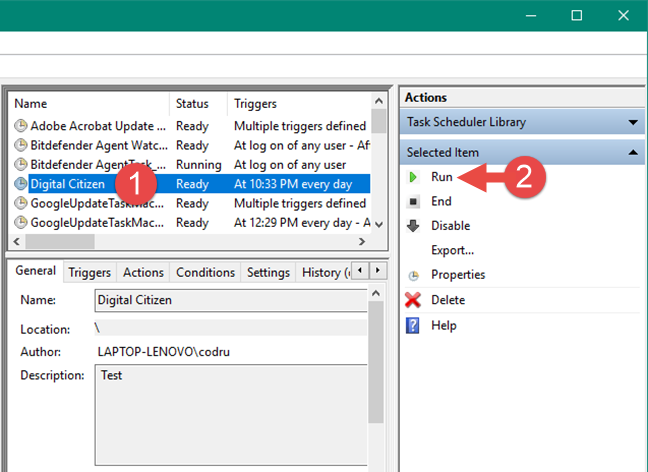
Select the task and, in the panel on the right, under Selected Item, click or tap Run.
Running the selected scheduled task
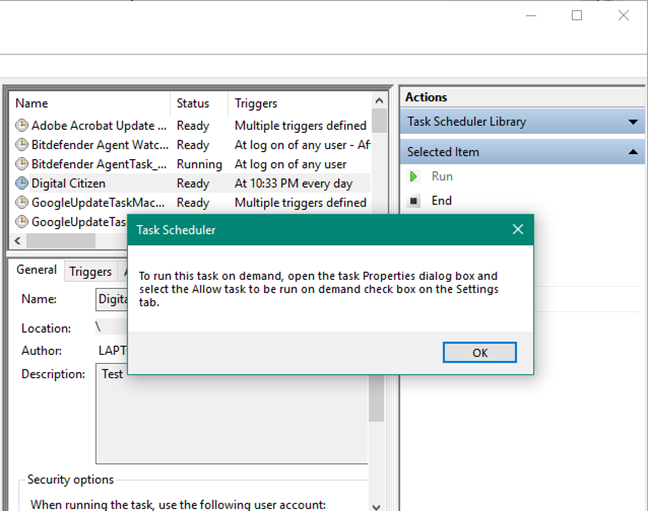
Note that you can run a task on demand only if it is enabled. If the task is disabled, the Run button is not visible. Also, the task cannot be run manually if the "Allow task to be run on demand" setting is not selected. In this case, the Run button is visible, but when you press it, you get a message like the one below: "To run this task on demand, open the task Properties dialog box and select the Allow task to be run on demand check box on the Settings tab."
The message you get when a task is not configured to run on demand
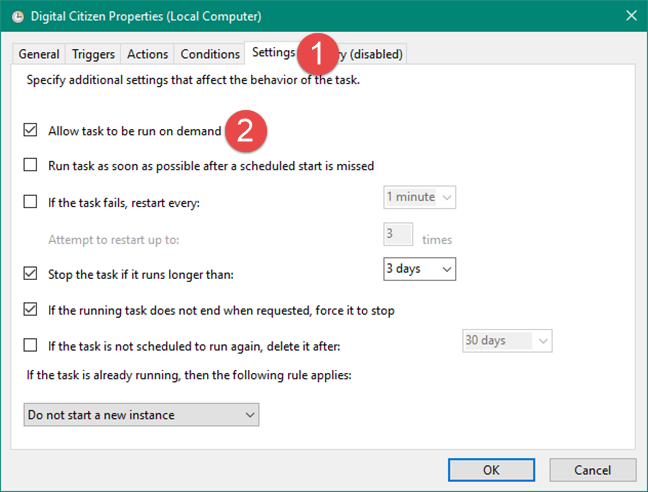
To run the task on demand, select it and click/tap Properties. Then, go to the Settings tab and check the "Allow task to be run on demand" checkbox.
Setting a scheduled task to allow the users to run it on demand
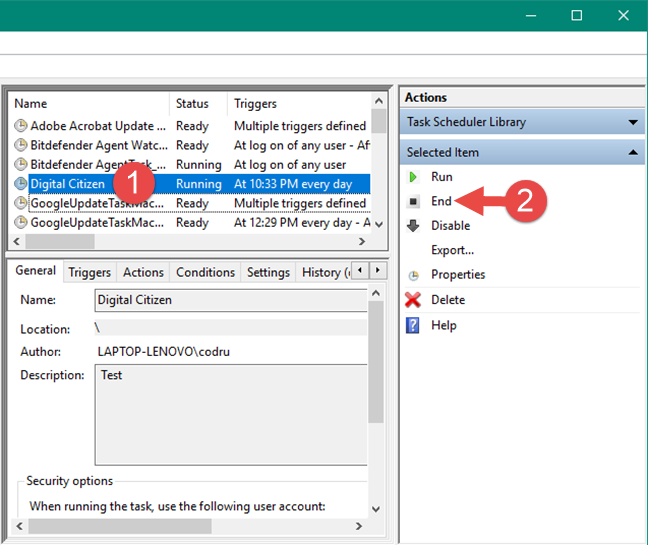
You can stop a running task from completing its actions by ending it. To do this, select the task and, under Selected Item, click or tap End.
Stopping a running scheduled task
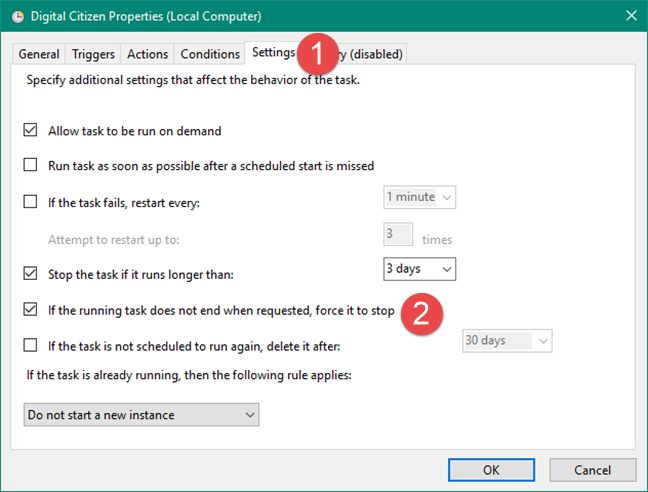
If your task has the option "If the running task does not stop when requested, force it to stop" enabled, the task is forced to end if it did not stop when you tried to end it. You can adjust this setting by editing the tasks' Properties: go to the Settings tab and check the box that says: "If the running task does not stop when requested, force it to stop."
Configuring the Task Scheduler to force a scheduled task to stop if it does not stop by request
3. Disable an existing task in Task Scheduler
To stop a task from running for a certain period, you can disable it. When a task is disabled, it is not run on schedule nor demand, but it remains in Task Library. Also, if it is running when you disable it, it keeps on running until it finishes its job.
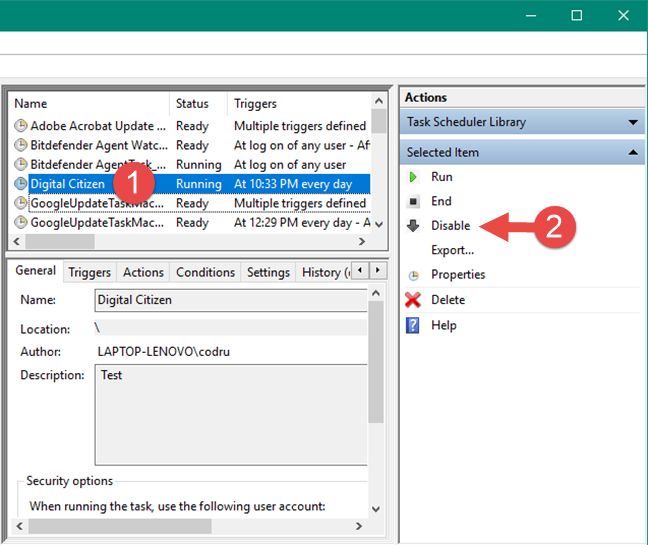
Select the task that you are interested in, and click or tap Disable in the Selected item panel.
Disabling a scheduled task
4. Enable an existing (disabled) task from the Task Scheduled
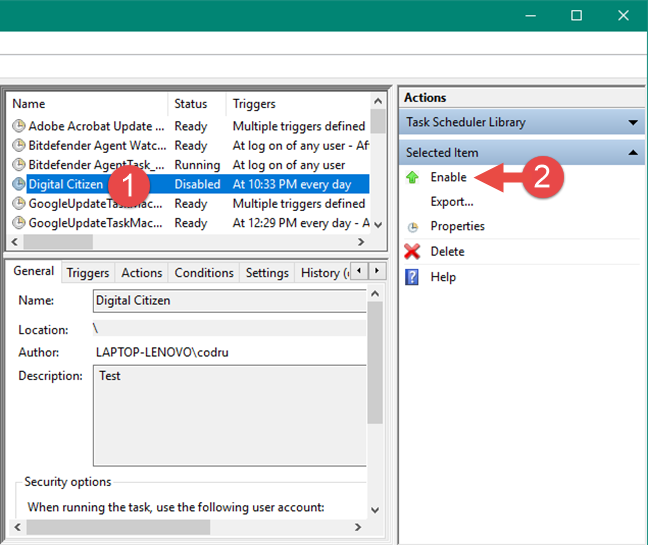
If a task is disabled, you can enable it. Once enabled, the task is run on schedule, and you can also run it on demand. Select the task that you want to enable and click or tap the Enable button in the Selected item panel.
Enabling a scheduled task
5. Delete an existing task from Task Scheduler
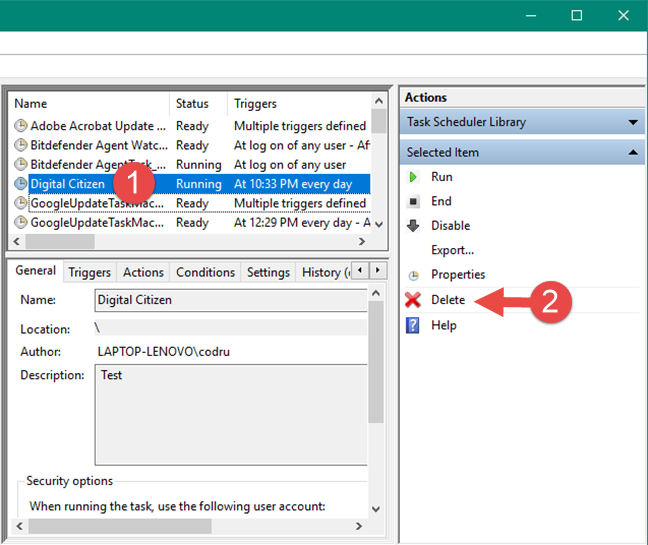
If you no longer want to run a task, you can delete it. This action completely removes the task from the Task Library. Pick the task to be deleted and, in the Selected Item click or tap Delete.
Deleting a scheduled task from the Task Scheduler
6. Export an existing task from the Task Scheduler
Task Scheduler allows you to export a task so it can be imported and used by other users or on other Windows computers.
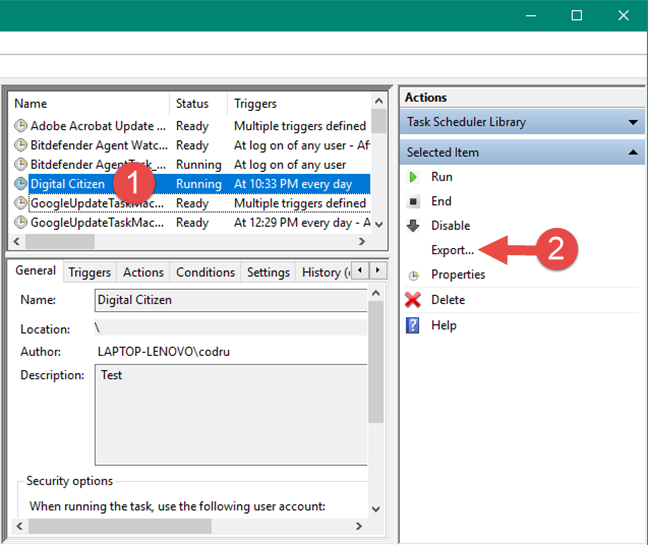
The task is exported into an XML file which contains all the properties of the task, triggers, actions, conditions, and settings. To export a task, select it and then click or tap the Export button.
Exporting a scheduled task as an XML file
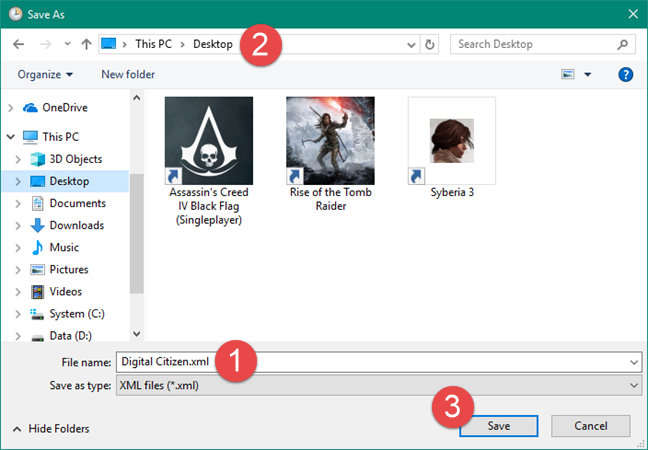
Type the name for your exported task and select the location where you would like it stored. Then, click or tap Save.
Saving an exported scheduled task as an XML file
7. Import an existing task
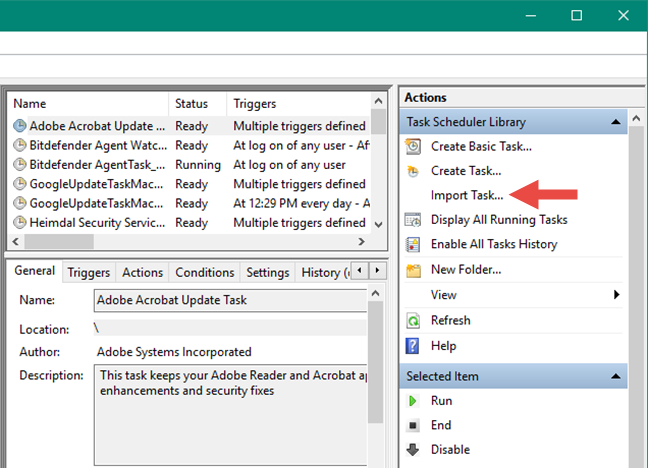
To import a task, you need to know the location of the XML file where the task was exported. Click or tap the Import task button in the Actions panel to import it.
Importing a scheduled task from an XML file
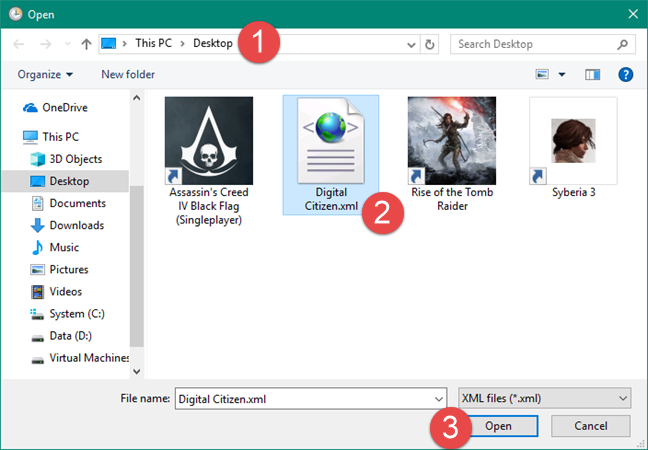
Select the XML file and click or tap Open.
Selecting the scheduled task XML file and opening it in Task Scheduler
The task is imported, and its properties are shown, allowing you to make additional changes, according to your preferences.
NOTE: The Task Scheduler does not offer an option to rename existing tasks. However, if you want to do so, you can use the Export and Import options to rename any of your scheduled tasks. For guidance on how to do that, read this article: How to rename a Windows task created with Task Scheduler.
Do you change existing tasks from the Task Scheduler often?
The Task Scheduler offers a wide variety of options for managing and editing tasks. Furthermore, if you are working with multiple devices, you might enjoy the option of exporting existing tasks and importing them on other devices. Are you changing existing tasks often, using the Task Scheduler? Use the comments section to share your thought experience with this tool.
I’ve navigated to the right part f the Task Scheduler without incident and changed the times the Update Orchestrator should run so that it won’t wake the machine in the middle of the night. But the changes can’t be saved, because SECURITY_LOCAL_SYSTEM_RID aka ‘User’ S-1-5-18 demands a password. I’ve called Microsoft about this and the ‘escalated’ support technician had no idea what I was talking about and blamed me for not having that password. Here’s what a responant on another forum discussion about this problem says: “S-1-5-18 is SECURITY_LOCAL_SYSTEM_RID (A special account used by the operating system) – see Well-known SIDs (Windows) It doesn’t have a password.
The C:WindowsSystem32TasksMicrosoftWindowsUpdateOrchestratorReboot object (on my PC) is owned by Administrators group with LOCAL SERVICE and Administrators having Read/Execute authority and SYSTEM having full control. You should be able to (and I can) change it if you are part of the Administrators group. You don’t need the built in Administrator.”
(https://www.tenforums.com/general-support/98857-windows-10-v1709-how-do-i-get-task-scheduler-credentials-work-2.html?s=1963043a8b936c76930f283468d9442e)
Well on my machine it DOES have a password, and changing user permissions to provide full control over Task Scheduler to the administrator accounts was blocked by the system.
So no changes possible to Update Orchestrator or any other task in Task Scheduler!
Charlie B ·
Very helpful and well documented. Thank you for providing this information and explaining it detail.
Anonymous ·
Glad to help. Do not hesitate to subscribe to our newsletter, for more useful content.
Edward L Muniz ·
Interested to know what happens if I disable a task that is running. I would like to keep the task from running on the next boot and would not like to stop the running task in the current session. Does disabling the task, if its status is “running,” end the task for the current session?
Eriksto909 ·
Microsoft should be working not on ugly metro crap features but improving outdated looking/functioning programs such as task scheduler for those of us that dig deeper into the OS. Don’t forget about us. Lets redesign it for Windows 10!
Nazar ·
I had the same issue. Looked in every folder for my task in the left panel. Then pushed refresh button at the right panel and fortunately my task appeared in middle area.
Chule ·
Found my task only by going to C:WindowsSystem32Tasks on Windows 7-64bit. Somehow this would not show up in the GUI tree. My task’s trigger was “Startup” so maybe that is a special case? What a pain!
BoogieWoogie ·
f***, Microsoft’s UI design for this feature is just appalling. The more features they add, the worse it gets…
Initially, you can see the tasks you created, in the Task Status pane, but you cannot edit them from that view.
So everyone manually searches through every one of the dozens of nodes and hundreds of tasks, to find their tasks, so they can edit them.
Wayne Tabor ·
I had the same issue reported by the others. The key issue here is where people are looking for the task. The Task Scheduler Library item is shown on the left pane. However when you select it, what you need to be looking for is the task list shown in the SECOND pane, upper sub-section. What makes this more confusing is that I and other people want to treat the first pane like the normal Windows File browser by clicking the arrow to expand Task Scheduler Library. At that point you only see other Folders such as Games, Microsoft, WMD, etc. You don’t see any actual tasks (like your self-created ones) in there. But again, the focus needs to be on the SECOND pane after selecting Task Scheduler Library in the first pane.
Corina ·
I did the same thing. Looked through every folder. The new tasks are in the very first folder in the Task Scheduler library (but you have to click on it to see the tasks you created.)
mlrodvog ·
This is WORTHLESS! It claims:
Navigate through the folders of the ‘Task Scheduler Library’ to find the task that you want to run
But WHERE ARE THE USER SCHEDULED TASKS???
I created one and it’s not visible.
I tried to create it again and I’m told it’s already created.
WHERE ARE THE USER SCHEDULED TASKS???
Ciprian Adrian Rusen ·
Simply click on the Task Scheduler Library, found in the left pane. There you should have a list of tasks, each having a column called Author – showing the user who created it.
If the task you created is not there, then browse through the other folders found under the Task Scheduler Library.
Be patient and look carefully. If the task was created without errors, it will be there, somewhere.











Discussion (12)
I’ve navigated to the right part f the Task Scheduler without incident and changed the times the Update Orchestrator should run so that it won’t wake the machine in the middle of the night. But the changes can’t be saved, because SECURITY_LOCAL_SYSTEM_RID aka ‘User’ S-1-5-18 demands a password. I’ve called Microsoft about this and the ‘escalated’ support technician had no idea what I was talking about and blamed me for not having that password. Here’s what a responant on another forum discussion about this problem says: “S-1-5-18 is SECURITY_LOCAL_SYSTEM_RID (A special account used by the operating system) – see Well-known SIDs (Windows) It doesn’t have a password.
The C:WindowsSystem32TasksMicrosoftWindowsUpdateOrchestratorReboot object (on my PC) is owned by Administrators group with LOCAL SERVICE and Administrators having Read/Execute authority and SYSTEM having full control. You should be able to (and I can) change it if you are part of the Administrators group. You don’t need the built in Administrator.”
(https://www.tenforums.com/general-support/98857-windows-10-v1709-how-do-i-get-task-scheduler-credentials-work-2.html?s=1963043a8b936c76930f283468d9442e)
Well on my machine it DOES have a password, and changing user permissions to provide full control over Task Scheduler to the administrator accounts was blocked by the system.
So no changes possible to Update Orchestrator or any other task in Task Scheduler!
Very helpful and well documented. Thank you for providing this information and explaining it detail.
Glad to help. Do not hesitate to subscribe to our newsletter, for more useful content.
Interested to know what happens if I disable a task that is running. I would like to keep the task from running on the next boot and would not like to stop the running task in the current session. Does disabling the task, if its status is “running,” end the task for the current session?
Microsoft should be working not on ugly metro crap features but improving outdated looking/functioning programs such as task scheduler for those of us that dig deeper into the OS. Don’t forget about us. Lets redesign it for Windows 10!
I had the same issue. Looked in every folder for my task in the left panel. Then pushed refresh button at the right panel and fortunately my task appeared in middle area.
Found my task only by going to C:WindowsSystem32Tasks on Windows 7-64bit. Somehow this would not show up in the GUI tree. My task’s trigger was “Startup” so maybe that is a special case? What a pain!
f***, Microsoft’s UI design for this feature is just appalling. The more features they add, the worse it gets…
Initially, you can see the tasks you created, in the Task Status pane, but you cannot edit them from that view.
So everyone manually searches through every one of the dozens of nodes and hundreds of tasks, to find their tasks, so they can edit them.
I had the same issue reported by the others. The key issue here is where people are looking for the task. The Task Scheduler Library item is shown on the left pane. However when you select it, what you need to be looking for is the task list shown in the SECOND pane, upper sub-section. What makes this more confusing is that I and other people want to treat the first pane like the normal Windows File browser by clicking the arrow to expand Task Scheduler Library. At that point you only see other Folders such as Games, Microsoft, WMD, etc. You don’t see any actual tasks (like your self-created ones) in there. But again, the focus needs to be on the SECOND pane after selecting Task Scheduler Library in the first pane.
I did the same thing. Looked through every folder. The new tasks are in the very first folder in the Task Scheduler library (but you have to click on it to see the tasks you created.)
This is WORTHLESS! It claims:
Navigate through the folders of the ‘Task Scheduler Library’ to find the task that you want to run
But WHERE ARE THE USER SCHEDULED TASKS???
I created one and it’s not visible.
I tried to create it again and I’m told it’s already created.
WHERE ARE THE USER SCHEDULED TASKS???
Simply click on the Task Scheduler Library, found in the left pane. There you should have a list of tasks, each having a column called Author – showing the user who created it.
If the task you created is not there, then browse through the other folders found under the Task Scheduler Library.
Be patient and look carefully. If the task was created without errors, it will be there, somewhere.