



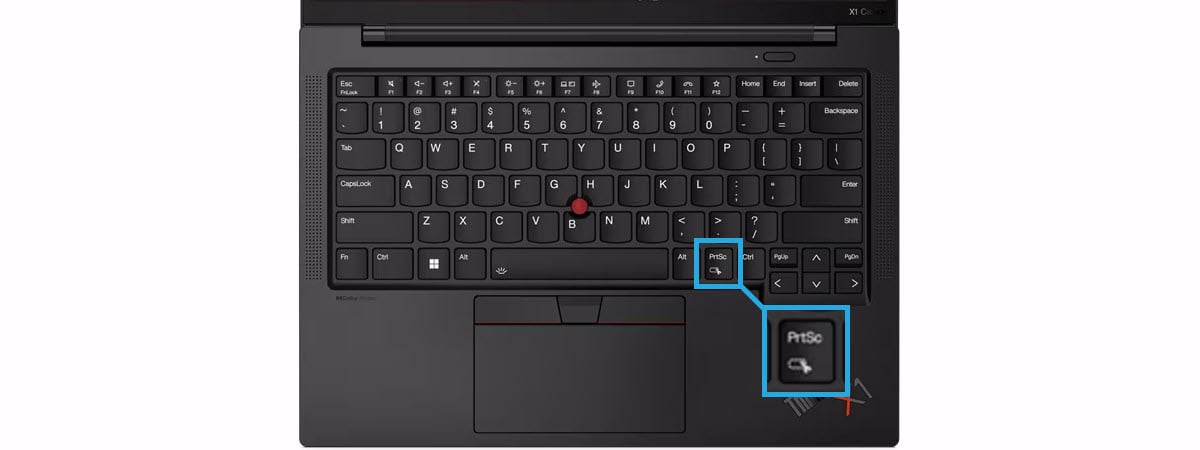
Do you use Windows 10 or Windows 11, and do you need to quickly take a screenshot? Do you have trouble finding the Print Screen key, or it’s not working, so you’re looking for a new Print Screen shortcut? Do you want to know how to take a screenshot of the active window instead of the whole screen? On the internet, there are numerous Windows screenshot apps, both paid and free. Still, before looking for such third-party apps, make sure you’re familiar with the whole range of screenshot options already available in Windows. Without further ado, here’s how to screenshot on Windows 10 and Windows 11:
 Windows screenshot shortcut: The Print Screen keyboard button
TIP: Depending on your keyboard’s make and model, the Print Screen key may not be marked as Print Screen. Instead, it may be indicated by abbreviations such as PrtScn, Print Scrn, Prnt Scrn, Prnt Scr, Prt Scrn, Prt Scr, Prt Sc, Pr Sc, or simply PS.
When using the Print Screen shortcut key, Windows 10 creates a screenshot of the whole screen and saves it to the clipboard. Next, open an image editing program like Paint and paste the picture from the clipboard. You can now save it as a file and do basic editing.
Windows screenshot shortcut: The Print Screen keyboard button
TIP: Depending on your keyboard’s make and model, the Print Screen key may not be marked as Print Screen. Instead, it may be indicated by abbreviations such as PrtScn, Print Scrn, Prnt Scrn, Prnt Scr, Prt Scrn, Prt Scr, Prt Sc, Pr Sc, or simply PS.
When using the Print Screen shortcut key, Windows 10 creates a screenshot of the whole screen and saves it to the clipboard. Next, open an image editing program like Paint and paste the picture from the clipboard. You can now save it as a file and do basic editing.
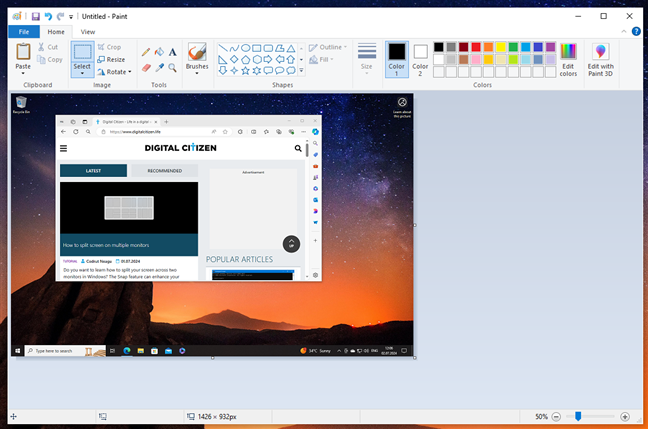
 Screenshot of the whole screen, pasted in Paint from Windows 10
Using the Print Screen key for taking screenshots works the same in Windows 11. Here, too, the operating system places the screenshot in the clipboard, and then you can paste it and work with it in any image editing app you prefer, including Paint.
Screenshot of the whole screen, pasted in Paint from Windows 10
Using the Print Screen key for taking screenshots works the same in Windows 11. Here, too, the operating system places the screenshot in the clipboard, and then you can paste it and work with it in any image editing app you prefer, including Paint.
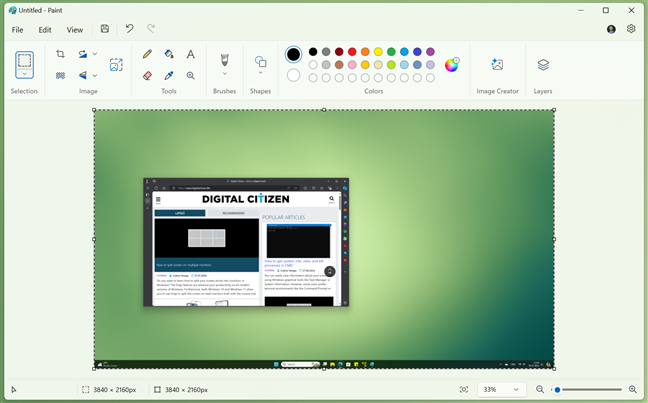
 A screenshot in Paint from Windows 11
Now that you know the most common way to screenshot in Windows operating systems, let’s check out the others, too. There’s more:
A screenshot in Paint from Windows 11
Now that you know the most common way to screenshot in Windows operating systems, let’s check out the others, too. There’s more:
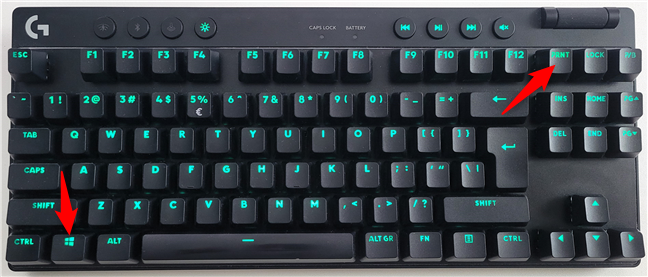 Using Windows + Print Screen to take a screenshot on Windows
When you screenshot on Windows 11 or Windows 10 using this method, the operating system saves the resulting image in a folder called Screenshots, found in your user’s Pictures folder. The usual path for your Windows screenshots looks like this:
Using Windows + Print Screen to take a screenshot on Windows
When you screenshot on Windows 11 or Windows 10 using this method, the operating system saves the resulting image in a folder called Screenshots, found in your user’s Pictures folder. The usual path for your Windows screenshots looks like this:
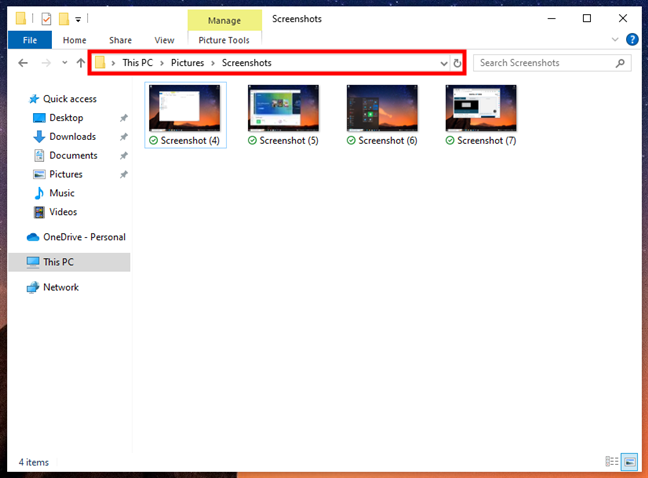
 Screenshots location in Windows 10
And here’s the Screenshots folder in Windows 11:
Screenshots location in Windows 10
And here’s the Screenshots folder in Windows 11:
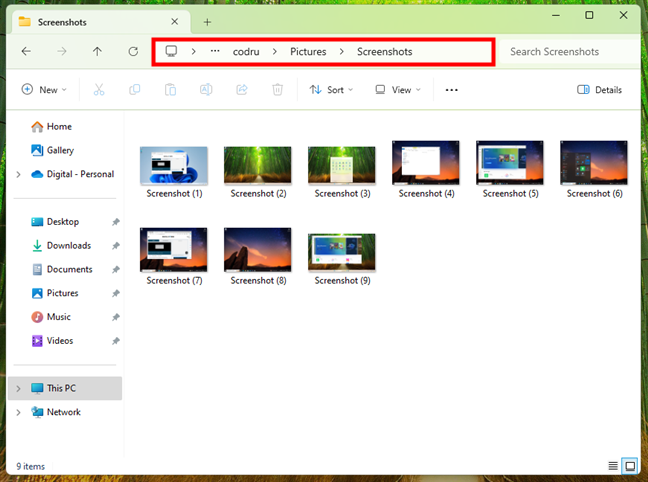
 Screenshots location in Windows 11
Both in Windows 11 and Windows 10, you can also see your screenshots using the Photos app by going to Folders > Pictures > Screenshots or Folders > OneDrive > Pictures > Screenshots, if you configured OneDrive to automatically back up your photos. Take a look at the next image to see where to find your screenshots in Windows 10’s Photos:
Screenshots location in Windows 11
Both in Windows 11 and Windows 10, you can also see your screenshots using the Photos app by going to Folders > Pictures > Screenshots or Folders > OneDrive > Pictures > Screenshots, if you configured OneDrive to automatically back up your photos. Take a look at the next image to see where to find your screenshots in Windows 10’s Photos:
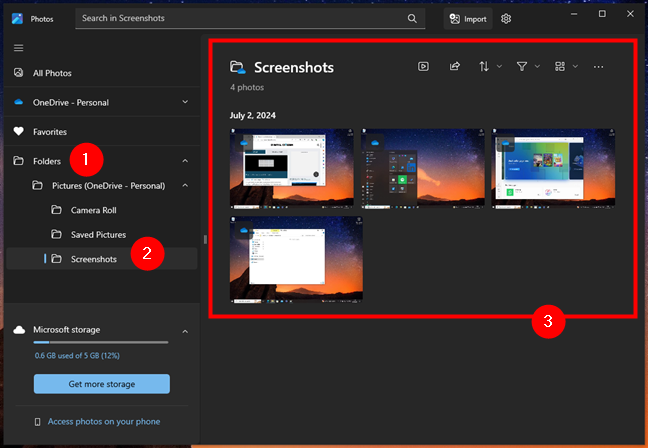
 Screenshots in Photos on Windows 10
And this is where you can access your screenshots in Windows 11’s Photos app:
Screenshots in Photos on Windows 10
And this is where you can access your screenshots in Windows 11’s Photos app:
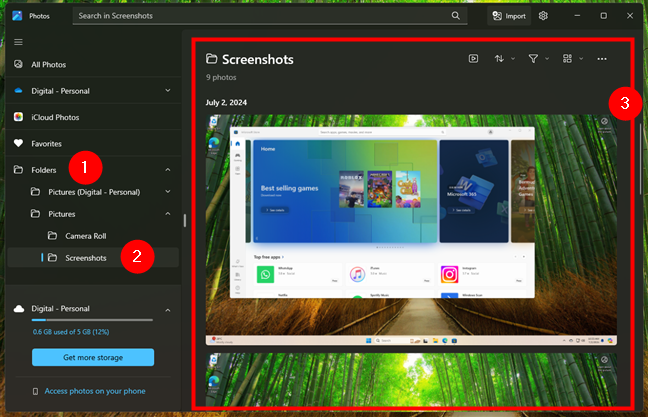
 Screenshots viewed in the Photos app from Windows 11
TIP: Besides creating a screenshot file, when using the Win + Print Screen shortcut, Windows operating systems also place a copy of the screenshot in the clipboard.
Screenshots viewed in the Photos app from Windows 11
TIP: Besides creating a screenshot file, when using the Win + Print Screen shortcut, Windows operating systems also place a copy of the screenshot in the clipboard.
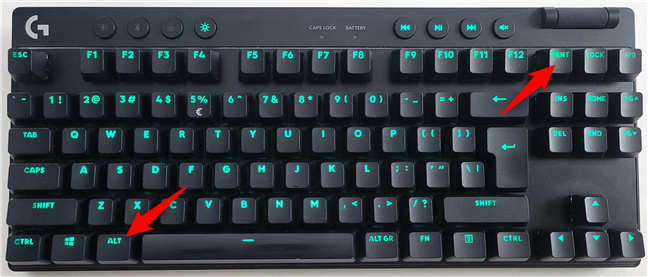 Windows screenshot shortcut for capturing the active window
The operating system saves the screenshot in the clipboard. Open Paint or any other photo editing app and paste the image, so that you can edit and save it to your Windows computer or device.
If you choose to work with Paint on your Windows 10 PC, you can either use the Ctrl + V shortcut or click/tap Paste in the top left corner to add the screenshot to the canvas you’re working on.
Windows screenshot shortcut for capturing the active window
The operating system saves the screenshot in the clipboard. Open Paint or any other photo editing app and paste the image, so that you can edit and save it to your Windows computer or device.
If you choose to work with Paint on your Windows 10 PC, you can either use the Ctrl + V shortcut or click/tap Paste in the top left corner to add the screenshot to the canvas you’re working on.
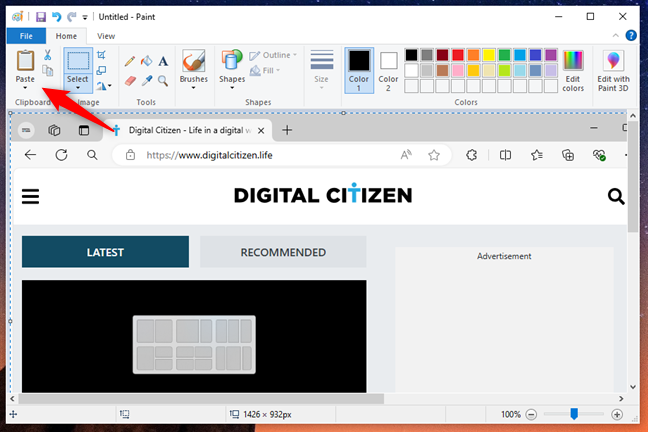
 Screenshot of an active window in Paint on Windows 10
The same applies to Windows 11: press Ctrl + V on your keyboard, or select Paste from the Edit menu in Paint, and the screenshot is added to the canvas.
Screenshot of an active window in Paint on Windows 10
The same applies to Windows 11: press Ctrl + V on your keyboard, or select Paste from the Edit menu in Paint, and the screenshot is added to the canvas.
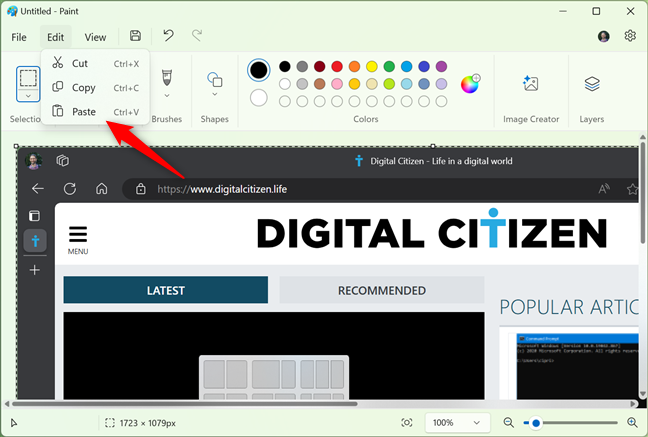
 Paste a screenshot of the active window in Paint for Windows 11
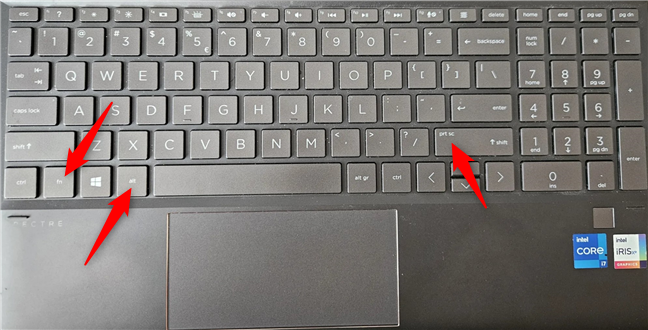
 Screenshot shortcut keys for keyboards with an Fn key
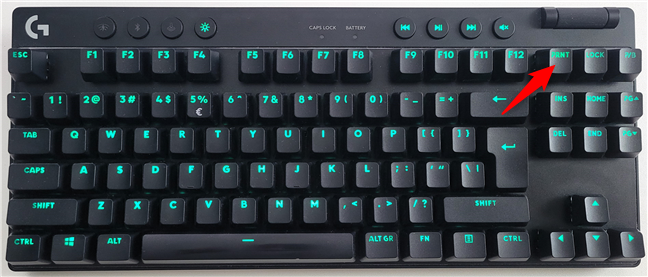
On some keyboards, the Print Screen button might not perform two or more actions. However, it will not work until you press the Fn lock key. The Fn key works on such keyboards as a lock for keys like the function and multimedia keys. For example, in the previous screenshot, you can see that my Right Shift key also acts as the Print Screen key.
If you have such a keyboard, press the Fn key to unlock the additional special functions of keys, and then use one of the screenshot shortcuts I described in this guide’s first chapters. They should work now.
Screenshot shortcut keys for keyboards with an Fn key
On some keyboards, the Print Screen button might not perform two or more actions. However, it will not work until you press the Fn lock key. The Fn key works on such keyboards as a lock for keys like the function and multimedia keys. For example, in the previous screenshot, you can see that my Right Shift key also acts as the Print Screen key.
If you have such a keyboard, press the Fn key to unlock the additional special functions of keys, and then use one of the screenshot shortcuts I described in this guide’s first chapters. They should work now.
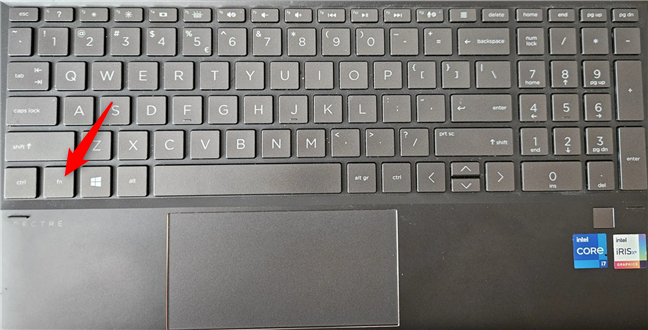 Fn (Function) key on a keyboard
On some Microsoft Surface tablets, you need to use different screenshot shortcuts because some Type Cover models don’t include a Print Screen button. Instead, Microsoft offers the following Surface-specific shortcuts for Windows 11 and Windows 10:
Fn (Function) key on a keyboard
On some Microsoft Surface tablets, you need to use different screenshot shortcuts because some Type Cover models don’t include a Print Screen button. Instead, Microsoft offers the following Surface-specific shortcuts for Windows 11 and Windows 10:
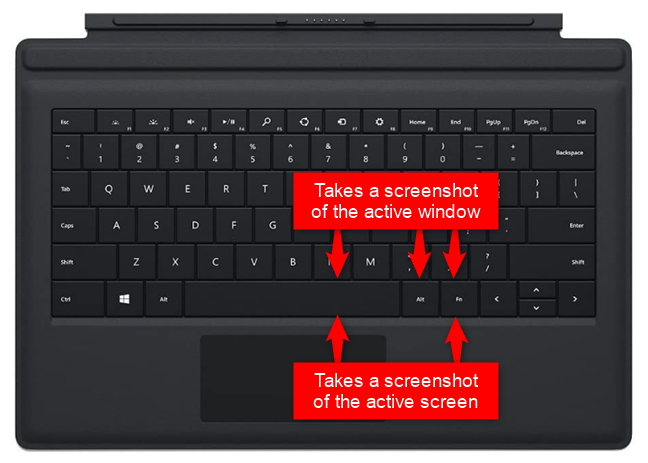
 Keyboard screenshot shortcut keys on a Surface Type Cover (1)
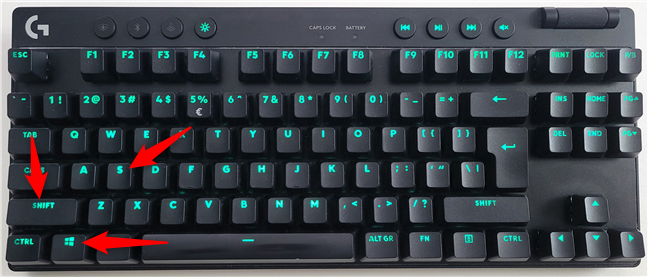 The Windows + Shift + S screenshot shortcut
Four options appear at the top of the screen: rectangular, free-form, window, and fullscreen. You must choose the one you prefer.
The Windows + Shift + S screenshot shortcut
Four options appear at the top of the screen: rectangular, free-form, window, and fullscreen. You must choose the one you prefer.
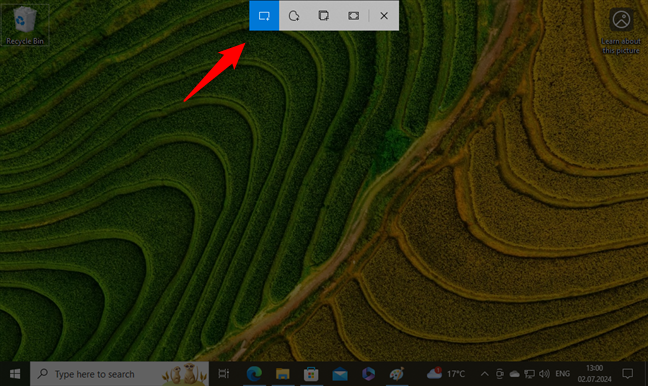
 Screenshotting in Windows 10 with Snip & Sketch
Then, you take the screenshot by dragging the cursor on the screen to select the area you want, just like I did in the next image, using a rectangular shape.
Screenshotting in Windows 10 with Snip & Sketch
Then, you take the screenshot by dragging the cursor on the screen to select the area you want, just like I did in the next image, using a rectangular shape.
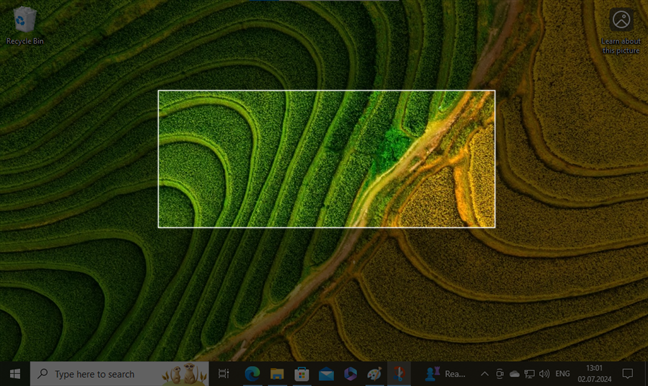 Selecting the area to screenshot
Once you’ve selected what to screenshot, the Snip & Sketch app saves the snip (screenshot) in the clipboard. You also get a notification in the bottom-right area of the screen. If you want, you can click or tap this notification to launch the Snip & Sketch app and do some editing on the screenshot.
Selecting the area to screenshot
Once you’ve selected what to screenshot, the Snip & Sketch app saves the snip (screenshot) in the clipboard. You also get a notification in the bottom-right area of the screen. If you want, you can click or tap this notification to launch the Snip & Sketch app and do some editing on the screenshot.
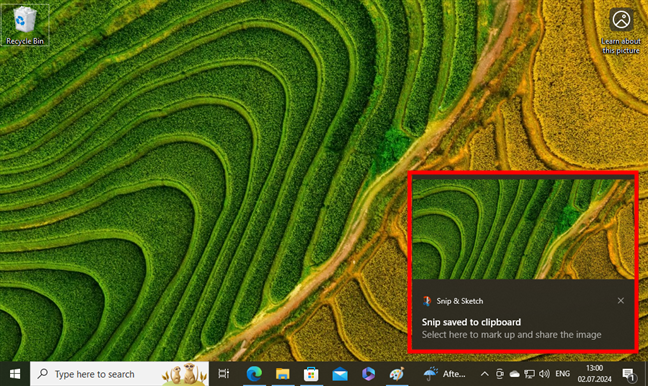 Snip saved to clipboard
This is what the Snip & Sketch app looks like when loading a screenshot you’ve taken using it.
Snip saved to clipboard
This is what the Snip & Sketch app looks like when loading a screenshot you’ve taken using it.
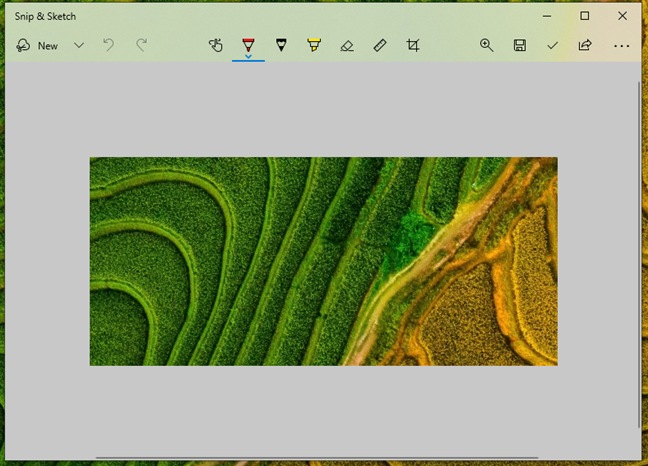
 A screenshot in Snip & Sketch
NOTE: While the old Snip & Sketch app is the default option in Windows 10, it’s no longer present in Windows 11, as Microsoft decided to replace it with another app called Snipping Tool.
A screenshot in Snip & Sketch
NOTE: While the old Snip & Sketch app is the default option in Windows 10, it’s no longer present in Windows 11, as Microsoft decided to replace it with another app called Snipping Tool.
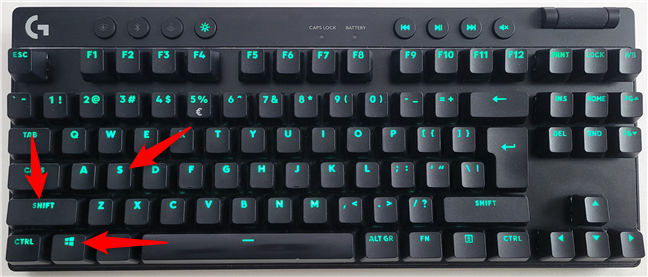 Using the Windows + Shift + S screenshot shortcut
When you screenshot with the Snipping Tool, Windows dims your screen, and you can press the left mouse button and drag the cursor to mark the area to capture. Then, release the mouse button. If you have a touchscreen, draw the area you want to screenshot using your finger (or pen).
Using the Windows + Shift + S screenshot shortcut
When you screenshot with the Snipping Tool, Windows dims your screen, and you can press the left mouse button and drag the cursor to mark the area to capture. Then, release the mouse button. If you have a touchscreen, draw the area you want to screenshot using your finger (or pen).
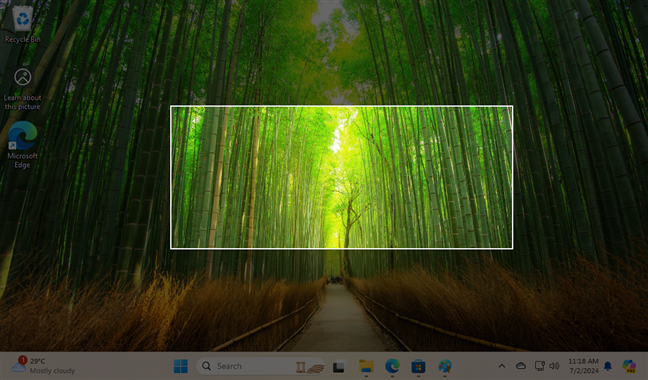
 Screenshot of a region in Windows 11
Windows 11 then saves the screenshot in its clipboard, and lets you know about it in a notification displayed in the bottom-right corner of the screen.
Screenshot of a region in Windows 11
Windows 11 then saves the screenshot in its clipboard, and lets you know about it in a notification displayed in the bottom-right corner of the screen.
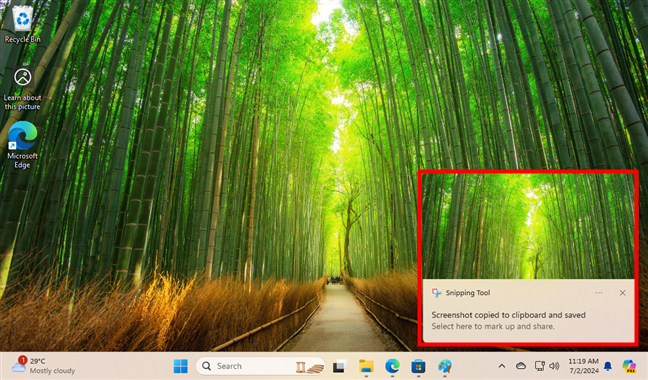 Screenshot copied to clipboard and saved
Clicking or tapping the notification shown earlier makes Windows 11 load the screenshot in the Snipping Tool app, where you can quickly edit it as you like.
Screenshot copied to clipboard and saved
Clicking or tapping the notification shown earlier makes Windows 11 load the screenshot in the Snipping Tool app, where you can quickly edit it as you like.
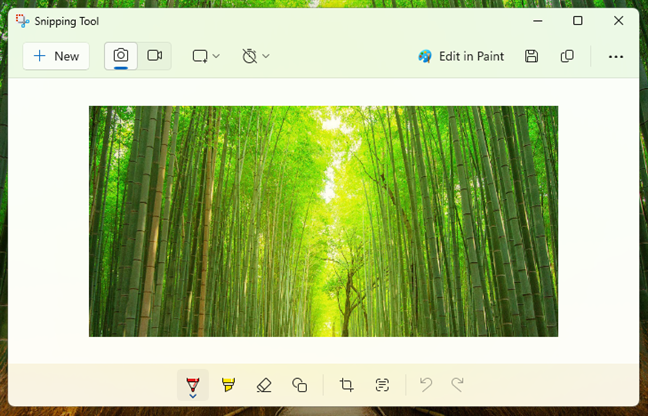
 A screenshot in Windows 11's Snipping Tool
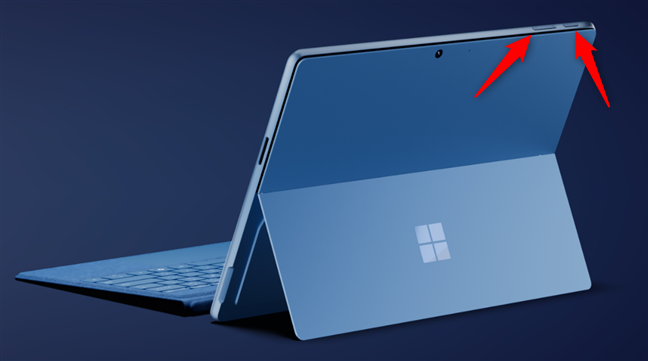
 Screenshot shortcut on a Microsoft Surface Pro 11th Edition
Image source: Microsoft
If you have a pen for your tablet, like a Surface Pen connected to your Surface Pro or a ThinkPad Pen Pro paired to your Lenovo ThinkPad X1, you may also be able to capture screenshots with it. In most cases, you can do so by double-pressing the top button. This action will take a screenshot and open it in a built-in application like Snip & Sketch or Snipping Tool, where you can edit and save it.
Screenshot shortcut on a Microsoft Surface Pro 11th Edition
Image source: Microsoft
If you have a pen for your tablet, like a Surface Pen connected to your Surface Pro or a ThinkPad Pen Pro paired to your Lenovo ThinkPad X1, you may also be able to capture screenshots with it. In most cases, you can do so by double-pressing the top button. This action will take a screenshot and open it in a built-in application like Snip & Sketch or Snipping Tool, where you can edit and save it.

 Double-click the top button of a Surface Pen to take a screenshot
Image source: Microsoft
Double-click the top button of a Surface Pen to take a screenshot
Image source: Microsoft
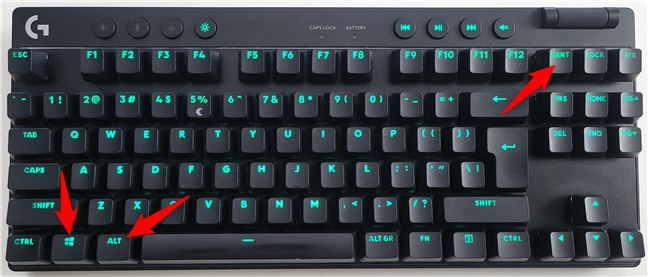 Screenshot shortcut keys: Win + Alt + Print Screen
When you do that, Windows automatically creates and saves a screenshot on your PC in the Captures subfolder found in your default Videos user folder. The screenshot’s file name includes the name of the game or app where you took it, as well as its date and time.
Screenshot shortcut keys: Win + Alt + Print Screen
When you do that, Windows automatically creates and saves a screenshot on your PC in the Captures subfolder found in your default Videos user folder. The screenshot’s file name includes the name of the game or app where you took it, as well as its date and time.
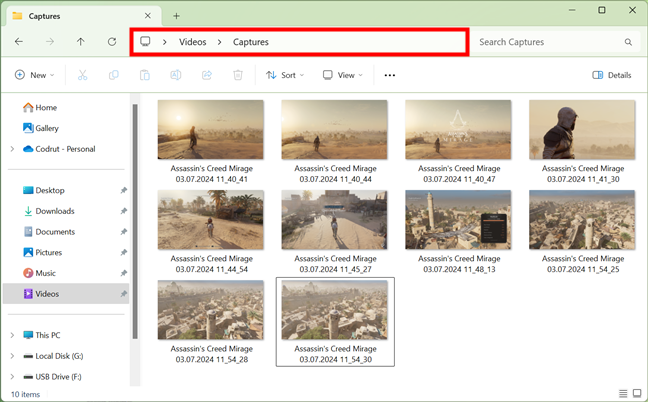
 Screenshots taken with Xbox Game Bar have unique names
NOTE: Instead of using the Windows + Alt + Print Screen shortcut, you can also bring up the Xbox Game Bar by pressing Windows + G and then clicking or tapping the Take screenshot button highlighted below.
Screenshots taken with Xbox Game Bar have unique names
NOTE: Instead of using the Windows + Alt + Print Screen shortcut, you can also bring up the Xbox Game Bar by pressing Windows + G and then clicking or tapping the Take screenshot button highlighted below.
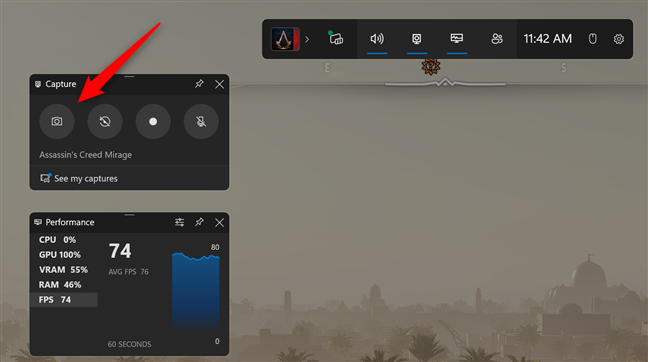
 The Take screenshot button from Windows 11's Xbox Game Bar
1. How to screenshot on Windows: Use the Print Screen shortcut key
The first method is also the most popular, as it’s been around for a very long time, since the earliest versions of Windows. Press the Print Screen button on your keyboard to take a screenshot on a PC running either Windows 10 or Windows 11. The button is usually located next to the F12 key. Alternatively, you can also use the CTRL + Print Screen screenshot shortcut.2. How to take a screenshot on a Windows PC: Use the Win + Print Screen shortcut
Do you want to take a screenshot of the whole screen and automatically save it as an image on your PC? You can do that using a simple Print Screen shortcut without having to resort to any other tools. To take a fullscreen screenshot on Windows 10 or Windows 11, simultaneously press Win + Print Screen on your keyboard.C:\Users\Your User Name\Pictures\Screenshots
The files are named Screenshot (number).png, where the number varies based on how many screenshots you have previously taken. This is what it looks like in Windows 10:
3. How to take a screenshot in Windows 10 or Windows 11: Press Alt + Print Screen to capture the active window
Whether you use Windows 11 or Windows 10, you can also take a screenshot of just the active window instead of your whole screen. Open the window that you want to capture and press the Alt + Print Screen keys on your keyboard.4. How to screenshot on a laptop or tablet (Dell, Surface, HP, and others)
The previous methods should work perfectly well on desktop computers running Windows and on standard keyboards. However, some unique situations can occur. If you have a Dell laptop, for example, a HP convertible, or any PC with a keyboard that includes an Fn key, then the Print Screen key might do other things too, besides taking screenshots. Therefore, when you press a screenshot shortcut that includes the Print Screen button, Windows might not capture your screen. So, instead, use one of the Print Screen shortcuts:- Fn + Print Screen - takes a screenshot of the whole screen and copies it to the clipboard. It is the equivalent of pressing the standard Print Screen key.
- Fn + Windows + Print Screen - captures a screenshot of the whole screen and saves it as a file on the hard drive without using any other tools. Windows stores the screenshot in the Screenshots subfolder of your Pictures folder. It is the same as pressing Windows + Print Screen on a standard keyboard.
- Fn + Alt + Print Screen - takes a screenshot of the active window. It is the equivalent of pressing Alt + Print Screen on a standard keyboard.
- Fn + Spacebar - this shortcut saves an image of your current screen to the clipboard, so that you can paste it into any application. It is the equivalent of pressing the standard Print Screen key.
- Fn + Alt + Spacebar - this shortcut saves a screenshot of the active window to the clipboard so that you can paste it into any app. It is the equivalent of pressing the Alt + Print Screen keyboard shortcut.
5. How to take a screenshot on Windows using the Windows + Shift + S keyboard shortcut
Windows 10 and Windows 11 also let you capture screenshots using the Windows + Shift + S shortcut. However, depending on which operating system you have on your computer, this keyboard shortcut triggers a different app. In Windows 10, you get Snip & Sketch, while in Windows 11, it opens the Snipping Tool. Here’s what happens in both cases:5.1. How to screenshot in Windows 10 with the Win + Shift + S shortcut
If you use Windows 10, pressing Windows + Shift + S on your keyboard allows you to take a screenshot using Snip & Sketch. If you’d like to learn in detail how it works, check out this guide: How to use Snip & Sketch to take screenshots in Windows 10. Still, in case you don’t have the time for that, here’s a short breakdown: Press Win + Shift + S on your keyboard.5.2. How to screenshot in Windows 11 with the Win + Shift + S shortcut
The Snipping Tool is a great desktop app for taking screenshots. It can create all kinds of screenshots, and you can also use it to do some light editing. If you want to know all the ins and outs of using this app to screenshot, read this guide we dedicated to it: How to use the Snipping Tool in Windows 11. If you don’t have the patience to read that right now, here are the basics you should know: Although you can choose to manually launch the Snipping Tool and only then use it to screenshot, the fastest way to work with it is to simultaneously press Windows + Shift + S on your keyboard.6. How to take a screenshot on a Microsoft Surface tablet (or other tablets)
On some Windows tablets, including Microsoft Surface models, it can be hard to guess how to take a screenshot. If you use your tablet without a keyboard attached, then the Print Screen key is also unavailable. The best solution to screenshot on Windows, in this case, is to use the hardware buttons available on your tablet. You can usually take full-screen screenshots on Windows tablets by simultaneously pressing the Power button and either the Volume Up or Volume Down button. You can then find that screenshot in your Pictures folder, in the Screenshots subfolder.7. How to screenshot on Windows using the Windows + Alt + Print Screen shortcut (Xbox Game Bar)
In either Windows 11 or Windows 10, you can also use the Xbox Game Bar to take screenshots of the active window. Although it’s a feature designed to use while playing games, you can also benefit from it when you’re not gaming. To capture the active window, which can be a game or not, press the Windows + Alt + Print Screen keys.

Discussion (98)
Thank you for this information,it helped me a lot!!????
Thank you so much! I have been looking for the shortcut to my Dell Vostro and it is in this article that I found it! Great article!
none of these are helpful what is prtc
windows key, shift, s
with dell windows 10
I like the snipping tool the most. No need to paste into paint and then cut out the part you need. Just use snip to get the relevant part only
We like it too. 😉
very useful site…Tq so much
i loved the second one.
Why do screenshots no longer go directly to the screenshot folder?
Now we have to copy them into paint?????
Good info
i used the snipping tool. thanks for the article, very helpful.
In windows 10,
window+shift+S
window+Alt+print screen
Snipping Tool finally brought me to make a screenshot on my old, old Lenovo.
Live and learn!
nice information and useful
Thanks for the Post. Windows + Shift +S is working good for my Windows 10 laptop!.
In Windows 10 for me works the best snip after key combination propose by your article win+shift+s
Excellent work
and certainly useful for me
there is no print screen key in my laptop nor fn
I can’t find a folder called Pictures in Win 10. There’s certainly no folder called Screenshots. I used the Windows key + PrtSc key. Can’t find it anywhere. 🙁
thank you!!!
Thank you for the solution.
I have a Dell laptop Latitude/E5400 and could not screen shot using Ctrl+print scrn for a long time but the solution was to use Fn+printscrn then paste in any ms word or paint and it worked. All these answers I got from google.
I am Kato David Year 3 student studying Bachelor of Information Technology at YMCA Comprehensive Institute Kampala Uganda
thank you
Appreciate the tip! I take it there’s no way to have the region method automatically save to a file like you can on macOS using Command – Shift – 4?
Hi southbysowhat – Thats exactly what i am looking for to. Did you find a keyboard short cut that saves a *portion* of the screen *directly* to a folder?. I don’t want to waste time opening apps to save data from the clipboard. Hopefully windows can do this with 1 keyboard shortcut (like on mac).
I want to take a screen shot on my PC Desktop (Windows 7) . I have a wireless keyboard with NO PRINT SCREEN button. Every instruction I can find includes a Print Screen button or keyboard shortcuts for Windows 10 only.
Is my Print Screen button disguised as something else – like one of the F buttons?
What keyboard do you have? What is the exact model?
Thank you! I had been looking for how to save a screen shot straight to hard drive – this was excellent!
In my PC Windows+prt sc takes a screenshot but don’t save it in pictures can anyone help
Digital Citizen is a very, very useful for every singe user of Computer on this Planet. The information that Digital Citizen provides pertaining to Computer….Hats Off..!! Keep it up..!!
Thank you very much for appreciating our work. 😉
This article was extremely useful. Very much appreciated, thanks.
Glad to help. Do not hesitate to subscribe to our newsletter for more useful tutorials.
This helped a whole lot. Thank you.
thanks for information
Thanks a Lot
This was SUPER helpful! Thank you so much! ☺
My screenshots don`t save in my pictures library. I can’t find them anywhere. I’ve looked in my screenshots folder (which wasn’t in the picture library. I had to search for it on my computer.) and it’s empty. I can’t find them anywhere, and I don’t know what to do to fix it. I already know my laptop is a dud. It was broken when I got it. But I really need those screenshots.
How exactly do you make those screenshots? Please describe the exact procedure that you perform.
I’ve been using Windows 10 with all updates current. At some recent point, the Win+Shift+S quit working. I only get a full gray screen. I used to get that if I had a tab open to something with sensitive data like my bank. If I closed such a tab, then it worked again. Now it never works. Snipping tool also used to work, but now also gives full gray screen. I can do a Fn+PrintScr and get the whole laptop screen, but really need something where I can select a portion of the screen. Any further ideas that you have tested? THANKS!!!
My old Dell Latitude 2110 has no PrtScn key! What combination of keys would be equivalent to PrtScn key?
thank you for this information.
These don’t work
this article was actually really helpful
thank you so much for clarifying in a tutorial way……
Thanks for your tutorials on how to capture screen shots. they are indeed wonderful and real. I have practiced them and they yielded result.
Thanks once more.
The Fn key advise was really helpfull for me. Thanks !!!
THANK YOU for such good information. Nothing was working on my computer till I kept reading and found the Fn+Windows+PrtScn that worked! I really appreciate it. None of the other websites above yours on the list covered it in such detail!! You saved my job application. 🙂
Excellent. Happy to help! 😉
This did not help me at all; very frustated!
What exactly is your problem?
I just wanted to save a few recipes from an online magazine with no printing option and the Windows + prt sc works for me but sadly I can not zoom in on the screenshot to read the instructions clearly. The magazine needs to be zoomed in on but then I end up with partial page. So annoying. Mostly commenting to say that the methods above work on Windows 10 for me. It did indeed save to a folder called screenshots in my pictures folder. fn + prt sc also works for copying to clipboard but I dislike having to paste into something else to save. Thank you for the tips.
Thanks! It was very useful
I am non technical. I tried all of the different combinations and non of them work. What could be wrong? I have a keyboard with CTR FN and ALT to left of space bar and ,ALT GR, and windows key to right of space bar. I also have PRT SCR over SUS RQ button above the = button. Can you help?
If you are running Windows on a Mac, there is obviously no PrtScn key unless you are using a USB or Bluetooth Windows keyboard with it.
On Macs, the Win+SHIFT+S command works very well, but it is Command+SHIFT+S on a Mac since the Command key serves as the Windows key.
Awesome Documentation on Screen Captures
Thanks the wind+prtsc worked for me am making use of a windows 10
None of the 8 ways worked on my Toshiba Satellite with Windows 10.
🙁
PicPick is free.
It accumulates the captures in to separate Tabs (which you can edit/annotate and save/name at your leisure).
I have mine set like this –
Ctrl K – to capture full screen
Alt K – to capture active window
PrntScrn (key) – To capture a region
(Since C Is reserved for the clipboard, I used K because I can remember Kapture as a misspell of Capture. At my age my memory needs all the help it can get)
I was thrilled when I read the shortcut “Win+Shift+S” would let me select an area of the screen to screenshot, similar to the “Cmd+Shift+4” behavior on OSX; OSX has always had the best screenshotting capabilities and it’s always been something Windows was missing.
Unfortunately, it simply does not work. I’m on Windows 10 (NOT Home), I have all the updates, but it’s just not a valid shortcut. Win+S brings up Cortana search, and Shift+Win+S does, as far as I can tell, simply nothing.
From what I’ve read the only method to select a specific area is using the “Snippet Tool”. Unfortunately, happen to open another application EVERY TIME I want to screenshot something just doesn’t work for me. The thing that makes the OSX shortcuts great is they just “work”. CMD+Shift+3 takes a screenshot of the entire page, and if you swap 3 for 4 it immediately gives you a selection cursor, and you select a specific area to capture. Either way, the screenshot is saved on your Desktop as “Screenshot [TIMESTAMP].png”. You can even change the default file name; mine, for instance, is “Nino’s Screengrab [Timestmap].png”. It’s amazing, and you can do it anywhere no matter what. Having to stop, open another program, take the screenshot, move it to where you want it, and close the program is just totally redundant.
Was the Win+Shift+S key WORKING for you at some point while writing this, in Windows 10? Did you have the Snippet Tool open when you did it? Perhaps it’s an application shortcut that works with that tool open? I’ve also read in a few places that it may be a “OneNote” shortcut, did you have that open (or even just the icon in your taskbar) at the time?
I’m assuming you didn’t just blindly post that screenshot without verifying it, and if it did work for you I would really like to understand the conditions that allowed it to. If you did have the Snippet Tool (or perhaps even OneNote) open, then that’s probably it… but if you’re sure that’s not the case, please let me know how I can duplicate this behavior.
If you could legitimately find a way, NATIVELY, to take a selected-area screenshot in Windows 10 without needing to open Snippet Tool or install other third party software, that alone would warrant its own article; you would be a hero to many Win10 users, especially developers who are constantly sending screenshots to show work samples without revealing source, and we’d all be eternally grateful. So yeah, figure out what you did to make it work and let us know!
I assure you that all methods were tested on two different computers, verified by a tech reviewer on a third computer and that they work as described. You don’t need to open anything except the Snipping Tool, when you want to use the Snipping Tool.
To me, it sounds that you have installed many apps that override these default keyboard shortcuts and that you may benefit from a Windows 10 reset, to take things from scratch.
I cannot take a screen shot of a game (Star Trek Online) screen using Windows 10 using any of these methods. Only a black screen is pasted onto the Paint pad.
The old simple method of hitting Print Screen was fine. Why does the captcha only feature an ad? where are the code letters?
I am able to take screenshot with tip#2
In the last sentence just below the picture of the 2nd option there is a slight but obvious grammatical error (‘can will’) although it makes little difference to comprehending what is being said, to many errors like this will cause readers to distrust the information.
Suggestion, provide an image of the print screen or windows ect. icon anytime its mentioned you’ll have to press the corresponding key. its an easy way to increase users quick and easy success which will in turn increase return users to your site while barely effecting your overhead if at all.
Hello,
Just to let some know if “alt” + “prt sc” does not work. My keyboard has a windows icon to the left of the “alt” key. This key pressed instead of “alt” with “prt sc” works for me.
Sorry to say but the “old way” for taking screen shots in Win7; Windows + S,
was much more convenient and user friendly.
Why it is not supported in Win10?
Why to make it so complicated, several clicks etc.
Is it possible to make it work like that? Or By using any other 2 keys, instead of several clics.
You can try Screenshot Captor (from Donation Coder), it is probably the most advanced screenshot management program you can find.
hey i can’t find print screen key on my key board
ugh!!! I am so sick of morons trying to sucker you into checking out their page and/or purchase some useless product! Given the title of this article, given the date it was created, the date of your post and other obvious factors the above comment is just that kind of BS!!!! I wouldnt click on that site, give a dime worth of my money, provide one bit of info (via some free reg BS) allow them to put a cookie or anything else on my machine!! take your crap scam comments to some loser sites…..i am sure you are very aware of their addresses, listed right along yours!!! Sorry hunny, errrr Monique (ya right), why the FK would you even come to an article such as this if you already had a program you use??? Answer: You wouldnt, if as you say you already have an app that is better than the built in options!!! Think hun, think!! uuummmm let me see, i have a program that i love, it does more annotating and other BS better than built in ones,,but I think i’ll just search for and read some articles on other options that don’t do what I need, dont annotate just to learn about some options that are useless to me. take your scam BS somewhere else idiot!
What are you talking about??? Monique wasn’t trying to “sucker” you into a product. I like this webpage because it gives me info I need. Why are you looking at this page if you don’t need to “search for and read some articles on other options that don’t do what I need, dont annotate just to learn about some options that are useless to [you]”??? I am here because I need to know how to screenshot while my teachers share a powerpoint with me. (My favorite technique is Win+PrtScr) If you think it’s a scam, then just ignore it…also they’re doing a great job in this site!!!
I have been able to use prt sc process for about five years on win 7, 8 and then 10. Copies to clipboard then open in paint, etc. Today, abruptly, this very handy facility has stopped working. Can use snipping tool but prefer the past system (quicker). Not h appy
Same here. The screenshot is working, because it’s saving to Dropbox, but it’s not copying to clipboard. I first noticed this yesterday, and have never had issues before…
Dropbox changes the default Windows action when taking screenshots. If you close the Dropbox app, everything should work correctly.
I tried all of the print screen tip and none of them work. So I have to resort to the “snip” tool. I have windows 8, so I don’t know what the issue is.
Are you using a laptop? If yes, press the Fn key in addition to the key combinations from the article.
If you have a full size wireless keyboard (Microsoft model 1014) like I do or if you have an “F Lock” key, turn the F lock off. Then your PrtScn and windows + PrtScn will work.
None of the ways outlined work on my non surface windows 8.1 tablet. There is no print screen button on my tablet keyboard. The surface windows key plus vol down does not work. Also the charms does not show a screen capture option, and snippets also do not work. Seems like the only way for me to get a print screen would be to hookup a actual physical keyboard.
Hi all,
I tried all the tips/shortcuts and none of them worked other than the Snipping Tool. Thank you for the help.
Much appreciated.
FN+Windows+Prt Scn works as well
Thank you!! Tried all of the above and nothing worked except the snip tool which can be limiting at times. This worked perfectly.
Thanx nakia , yours is correct and worked on my laptop !
I get frustrated because 1. I’m old and wasn’t raised with computers like the younger generation, and 2. my medications make me forget a lot of things! Your tips here make it so easy for me because you actually SHOW me what to look for next. Thank you!
yes snipping tool is great way im trying to taking screenshot with this methods is good i want to do this in screenshot mac
I have a Lenovo PC and Windows 8.1, sometimes I can take a screen shot using windows key + print screen key and other times it will not work, just send me back to the front screen. Any suggestions please as to a better more reliable way to print the screen?
One more is there…
Ctrl+PrtSrn also work.
My screenshot is technically “working”, but its not capturing the right screen. Rather than screen capping the program I have open, it’s taking pics of my desktop. Is there a setting I need to change somewhere to get it to capture what I’m currently viewing, not the icons on my desktop?
Perhaps you’ve used an external screen recently perhaps there was an error in the process somehow resulting in screen controls being glitchy
I have tried every single method advised to take a screenshot on my computer and, either it won’t do it or it isn’t saving automatically as it should. Any advice?
Great post, mate. Just what I have been looking for. The Windows + Prntscr shortcut does the job. Thanks a lot 🙂
How I missed this tutorial?
Missed a couple of this triks
Thanks
Anybody know how to take a screenshot of an application running in full screen mode on Windows 8.1?
This article shares several methods for doing that. Please read it.
The PrtScr button does not do anything at all. And there is no screenshots folder located in the picture library.
probably you must toggle the F Lock key . . . ???
I would suggest toggling the F Lock key as Ton said and try the Win+PrtScr one…If you have OneDrive, then it will give you a notification when you screenshot
Thank you very much for great teaching…
Everyone will be benefited from this lesson.
Thanks a lot ….Really needed that tip
My PrtSc key is no longer working. I used to just press it and it would automatically take an image and all of a sudden it has stopped working.
Any idea on how to fix this?
lenovo yoga pro 2
windows 8.1
Cheers!
Thanks, the tip for creating a screenshot on a surface tablet was really helpfull to me!