




If you have used computers for a while, then you know what Copy and Paste are, and you may have also heard about the clipboard. Do you know what the clipboard is or that you can sync it on your devices? Do you want to learn how to work with it and find out what it can do? What about the differences between the clipboard in Windows and the clipboard in Android or iPhone? If you would like to know more about the clipboard, read on:
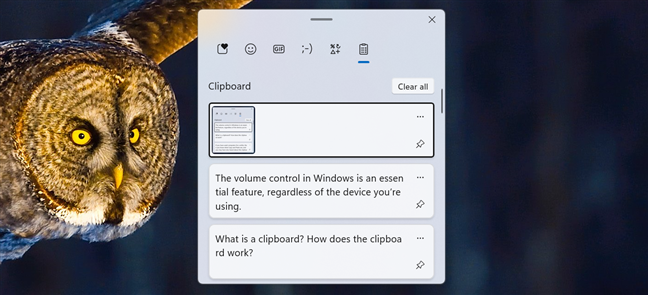
 The clipboard is a memory area where content is stored temporarily
When you copy data into the clipboard, you can paste it elsewhere, either within the same application from which you copied it, or in a different one, as long as it knows how to work with that type of data. Essentially, the clipboard stores information that you copy from one place to use in another. So why is it called a clipboard? Well, the term clipboard comes from the physical object called clipboard. You know, that thing that you’re using to hold papers. Just like a physical clipboard, where you hold paper sheets, the clipboard on your computer or mobile device can keep the data you copy (text, links, images, etc.) temporarily, until you need them elsewhere.
The clipboard is a memory area where content is stored temporarily
When you copy data into the clipboard, you can paste it elsewhere, either within the same application from which you copied it, or in a different one, as long as it knows how to work with that type of data. Essentially, the clipboard stores information that you copy from one place to use in another. So why is it called a clipboard? Well, the term clipboard comes from the physical object called clipboard. You know, that thing that you’re using to hold papers. Just like a physical clipboard, where you hold paper sheets, the clipboard on your computer or mobile device can keep the data you copy (text, links, images, etc.) temporarily, until you need them elsewhere.

 A clipboard in computing is like a physical clipboard turned virtual
Source: Pixabay
Some operating systems also support clipboard synchronization across multiple devices using cloud storage, allowing you to copy items from one device and paste them onto another. I’ll give you some further details on this neat feature later in the article.
A clipboard in computing is like a physical clipboard turned virtual
Source: Pixabay
Some operating systems also support clipboard synchronization across multiple devices using cloud storage, allowing you to copy items from one device and paste them onto another. I’ll give you some further details on this neat feature later in the article.
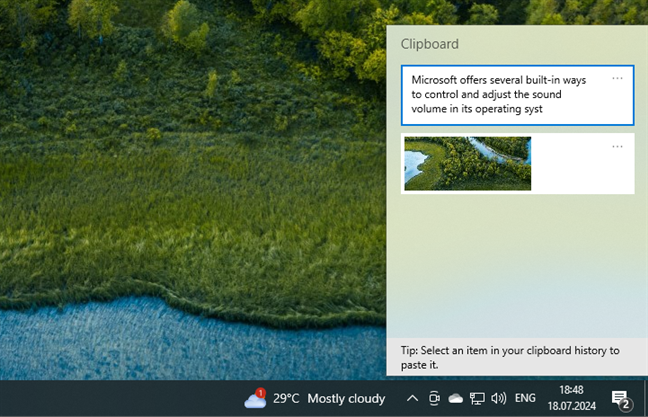
 The Clipboard from Windows 10
Pasting the contents of the clipboard depends on where you perform the paste. For example, if you are working with text, you can paste text only in apps and programs that work with text. Following the same rule, you can paste images only in apps and programs that work with images, and so on.
The Clipboard from Windows 10
Pasting the contents of the clipboard depends on where you perform the paste. For example, if you are working with text, you can paste text only in apps and programs that work with text. Following the same rule, you can paste images only in apps and programs that work with images, and so on.
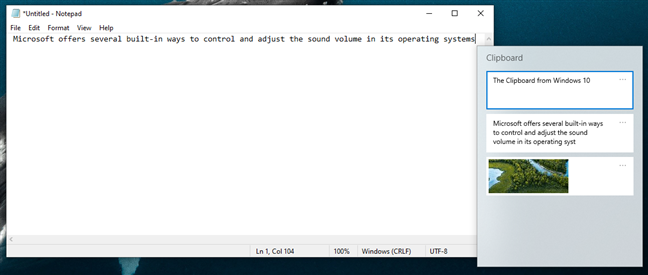
 Paste content from the clipboard in the apps that support that type of content
If the content of the clipboard cannot be pasted where you want it to, nothing happens, but the data in the clipboard remains intact.
Paste content from the clipboard in the apps that support that type of content
If the content of the clipboard cannot be pasted where you want it to, nothing happens, but the data in the clipboard remains intact.
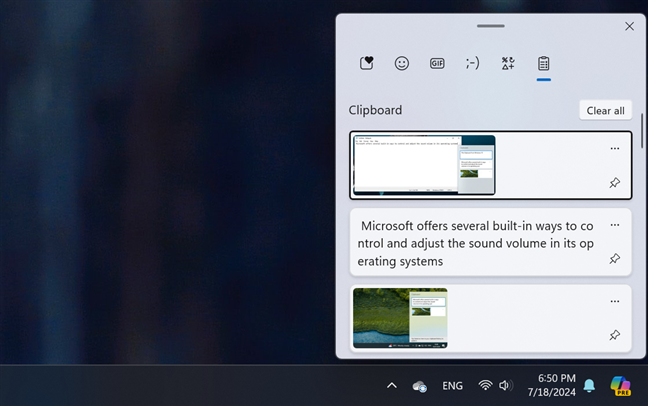
 The Clipboard window from Windows 11
Even more than that, these two operating systems from Microsoft can also sync clipboard items to your other Windows 10 and Windows 11 devices using the cloud, but only as long as those items are made of text. This feature may be already enabled on your Windows PC but you may need to also configure it on your Android devices.
The Clipboard window from Windows 11
Even more than that, these two operating systems from Microsoft can also sync clipboard items to your other Windows 10 and Windows 11 devices using the cloud, but only as long as those items are made of text. This feature may be already enabled on your Windows PC but you may need to also configure it on your Android devices.
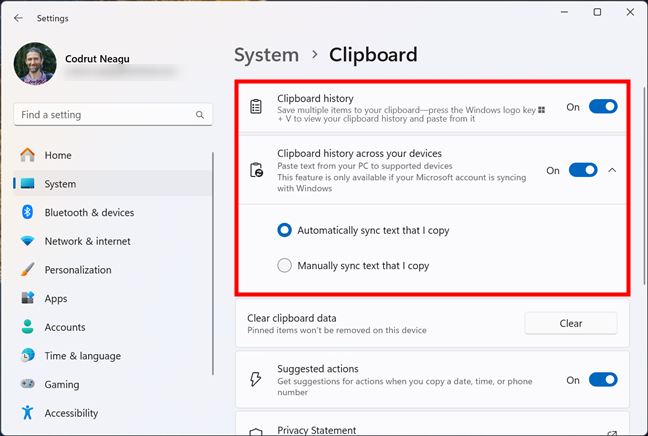
 The Clipboard history and syncing features in Windows 11
Although I find these features useful and productive, some people might not like them. Fortunately, Windows lets you enable or disable the Clipboard history and the syncing options with just two switches. If you want to see exactly how, and you’re using Windows 10, read How to enable or turn off clipboard history and syncing in Windows 10. In case you’re using Windows 11, you’ll find all the details here: How to enable or turn off clipboard history and syncing in Windows 11.
The Clipboard history and syncing features in Windows 11
Although I find these features useful and productive, some people might not like them. Fortunately, Windows lets you enable or disable the Clipboard history and the syncing options with just two switches. If you want to see exactly how, and you’re using Windows 10, read How to enable or turn off clipboard history and syncing in Windows 10. In case you’re using Windows 11, you’ll find all the details here: How to enable or turn off clipboard history and syncing in Windows 11.
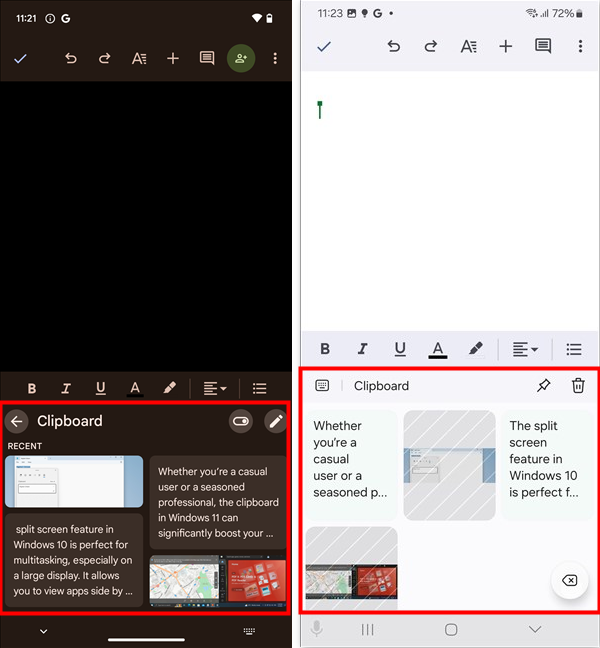
 The Android clipboard in Google Gboard and Samsung Keyboard
Syncing the clipboard between your Android devices and your Windows computers is also feasible if you’re OK with using Microsoft’s SwiftKey AI Keyboard on your Android phone or tablet. Alternatively, if you have a Samsung Galaxy smartphone or tablet, you could also use the Phone Link app on Windows to enable the cross copy/paste features between your computer and your mobile device. In case these are things you want, check out these guides depending on what Windows you have on your computer: How to sync the Windows 10 clipboard with other PCs and Android phones or How to sync the Windows 11 clipboard with other PCs and Android phones.
The Android clipboard in Google Gboard and Samsung Keyboard
Syncing the clipboard between your Android devices and your Windows computers is also feasible if you’re OK with using Microsoft’s SwiftKey AI Keyboard on your Android phone or tablet. Alternatively, if you have a Samsung Galaxy smartphone or tablet, you could also use the Phone Link app on Windows to enable the cross copy/paste features between your computer and your mobile device. In case these are things you want, check out these guides depending on what Windows you have on your computer: How to sync the Windows 10 clipboard with other PCs and Android phones or How to sync the Windows 11 clipboard with other PCs and Android phones.
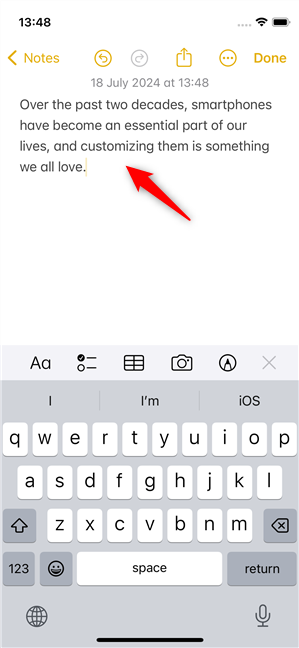
 The iPhone clipboard can store only one item
Unfortunately, on these devices and in these operating systems, there are no built-in tools to let you see the contents of the clipboard or store multiple items in it. However, the good news is that iPhones, iPads, and Mac computers include a feature called Universal Clipboard. It allows you to copy and paste items across your Apple devices, like from one iPhone to another, or to your iPad or Mac, as long as they’re near. If you’re curious to learn more, check out this guide: How to use the clipboard on an iPhone.
The iPhone clipboard can store only one item
Unfortunately, on these devices and in these operating systems, there are no built-in tools to let you see the contents of the clipboard or store multiple items in it. However, the good news is that iPhones, iPads, and Mac computers include a feature called Universal Clipboard. It allows you to copy and paste items across your Apple devices, like from one iPhone to another, or to your iPad or Mac, as long as they’re near. If you’re curious to learn more, check out this guide: How to use the clipboard on an iPhone.
What is a clipboard when referring to computers, phones, and tablets?
The clipboard is an essential feature across modern computing devices. Whether you’re using a computer, phone, or tablet, the clipboard is a special location in your device’s memory that is used as a temporary storage area for any information you copy. All computer operating systems, including Windows 10, Windows 11, macOS, and Linux, have a clipboard. Similarly, all mobile devices, regardless of whether you’re thinking about phones and tablets running Android, iPhones running iOS, or iPads with iPadOS operating systems, have a clipboard.What can you copy and paste from the clipboard?
You can use the clipboard to copy just about anything you can select: text, links, images, files, or other types of information.What happens when something is stored in a clipboard?
When you copy or cut something in Windows, that something goes into the clipboard. Afterward, when you copy or cut something else, two things can happen, depending on your device and operating system: the newly copied data is added to the clipboard content, or the new data replaces the previous content of the clipboard. Read the next sections of this article to learn more.How does the clipboard work in Windows?
When you copy or cut something in Windows 10 or Windows 11, that piece of information can be saved to the clipboard together with all the previous clipboard items. Everything you save in your clipboard is available to paste and can be synchronized on your other Windows computers and even on your Android devices. This is possible thanks to a Windows feature called the Clipboard history, which saves all the items that you copy, not just the last one. Depending on what Windows operating system you have on your computer, check out this guide to learn how to open and use the clipboard in Windows 10 or this tutorial to see how to access and work with the clipboard in Windows 11.How does the clipboard work in Android?
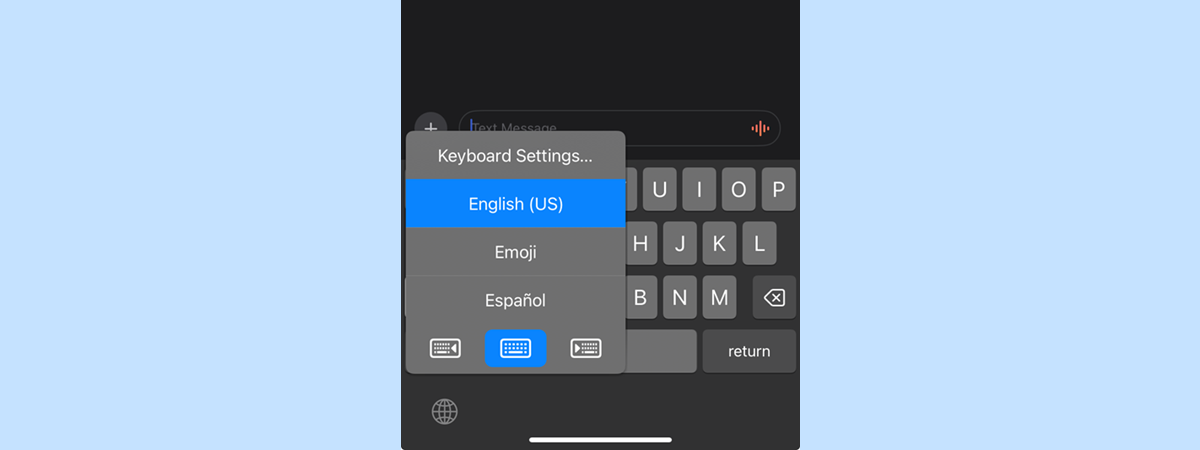
Android devices also come with a built-in clipboard. When you copy text, images, or other data on an Android phone or tablet, it is stored in the clipboard. However, unlike the one on Windows, the clipboard in Android is managed and can be accessed via keyboard apps such as Google Gboard or Samsung Keyboard.How does the clipboard work on an iPhone, an iPad, or a Mac?
If you use an iPhone, an iPad, or a Mac computer, the clipboard allows you to copy and paste only one item at a time. The content of the clipboard is overwritten each time you copy or cut something else. This happens because the operating systems on them (iOS, iPadOS, macOS) offer support just for a single clipboard transaction.
Discussion (24)
pllease restar clipboard window 10 please
I need to know HOW to access the clipboard and this article did not answer that.
Please read it carefully, and the links we recommend.
yes excellent
I just want to open clipboard and use my history. When I open history it shows clips but will not open to be used.
but where can i find it
I still don’t know where to find the clipboard on my computer. I have windows 7.
Please read our article to its end.
My computer just did the update, and before, the screenshots were always saved in the “Screenshots” folder, I had renewed that link several times. I do not know why with EVERY freaking update, they get rid of the Screenshots being automatically saved. So tired of that sh*t. But now the stupid clipboard history… seems like a wonderful IDEA…. until now, because now you have to TURN IT ON to work!! But am I told this prior?? NO…. grrr… Just lost a bunch of pictures because I NEEDED to watch my Niece (who is like a daughter) graduate online because there were not enough tickets for all of her family she wanted to invite (and there is only 6 of us!) But I thought you know what? I can get those shots right from my computer with screenshots… NOPE! Can’t get none of the history AT ALL because it wasn’t ON…. that is the NEW default OFF. And once again, the set up I did to save all screenshots in the SCREENSHOT folder is GONE again. grrr I’m like surely there is history SOMEWHERE??? I wish it was more like android and give me three little dots where I could select an image saved in screenshots for the last 8 screenshots or copy and paste items I created. That would be even MORE convenient.
I appreciate your explanation of what Clipboard is, however, I am just trying to find my screenshots. I see no clipboard icon on the desktop, nor clipboard info in settings. I am using Windows 10Pro 2018.
Very useful answer, especially if the programs are Microsoft or not
You have been an enormous help to me!!! Thank you soooo much
Happy to help. 😉 Do not hesitate to subscribe to our newsletter, for more useful content.
Where do I find the clipboard?
As mentioned in this article, you cannot find the clipboard in windows. I was able to find what I’d saved to clipboard by opening Word and pasting. Then I saved that with a new extension that gave me a file I could open in Photoshop. Hope this helps you.
Not simple enough
How do you get to the ‘clipboard’? I have a Windows 10 fujitsu laptop, and I don’t understand how to get to the clipboard.
when i tried to go shapeshifter-malwarebytes would not let me open it. still cannot find anything as i hardly use usoft for anything.
The information given about how to find and use clipboard was very interesting, easy to follow, and definitely will be loading the suggested software.
Glad to help. Thanks for the comment.
Where do I find the clipboard on my laptop?
Thankyou so much for your excellent simply written article on locating and using a Clipboard.
Good Luck in whatever business and service that you provide.
You don,t appear to be the virus dropping pretending to help people and for that once again thanks.
You should have a ‘Donate’ badge when providing such good help so people can contribute financially for your assistance. .
I found this article very useful and deepen the human knowledge with technology, Whether it useful for daily basis work , the explanation is noble things for human to continue developing
What’s really needed is a way to *insert* additional data into the Windows clipboard.
For instance if you wanted to copy two folders of music in different places on your drive to your iPod, you would have to start 2 simultaneous data transfers, which is something that is ugly and inefficient, and that results in a performance hit. Multiply it by tens of files spread out across different albums/folders, and the speed will just slow to a ridiculous crawl, adding up to half an hour to the transfer time – especially if you’re using an old SD card.
Either that, or sit there and copy a new song over after each one is completed
Honestly just abysmally bad architecturing by Microsoft.