Hidden WiFi networks do not broadcast their names, so they are not visible in the list of wireless networks that Windows 10 displays. However, that does not mean that you cannot connect to a hidden WiFi: you can, but you have to know its name, password and other security information. Here are three different ways to connect to hidden Wi-Fi networks, on laptops, tablets and hybrid devices with Windows 10:
What you must know about the hidden Wi-Fi network
When you connect to a wireless network that broadcasts its name and is visible in the list of available networks, much of the network configuration is done automatically. All you have to do is enter a password or press the WPS button on the router. However, when you connect to a hidden wireless network, you must know its security information. You have to enter all the details manually:
The name or SSID (Service Set Identifier) of the hidden wireless network
The password used by the wireless network
The type of encryption (or security) used by the Wi-Fi network. If the network uses WEP, note the WEP key. If it is using WPA-PSK or WPA2-PSK, note the Pre-shared key. If it is not using any security, you only need the SSID.
You can find all this information from the owner of the Wi-Fi network, the IT administrator (if you are in a business environment) or from your wireless router if you are at home. You can also follow the recommendations from this guide: How to find hidden wireless networks (SSIDs) in your area, in Windows. Before trying to connect, make sure that you are in the range of the hidden wireless network.
Method 1: Connect to a hidden wireless network using the networks list from the system tray
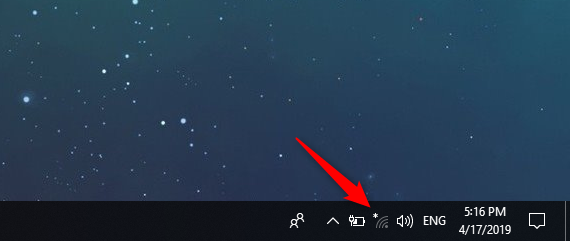
First of all, open the list of available Wi-Fi networks, by clicking or tapping the Wi-Fi icon from the system tray (the bottom-right corner of the desktop). If you do not see this icon, read this tutorial to bring it back: How to set the icons shown on the Windows 10 taskbar, in the system tray.
The networks icon from the Windows 10 system tray
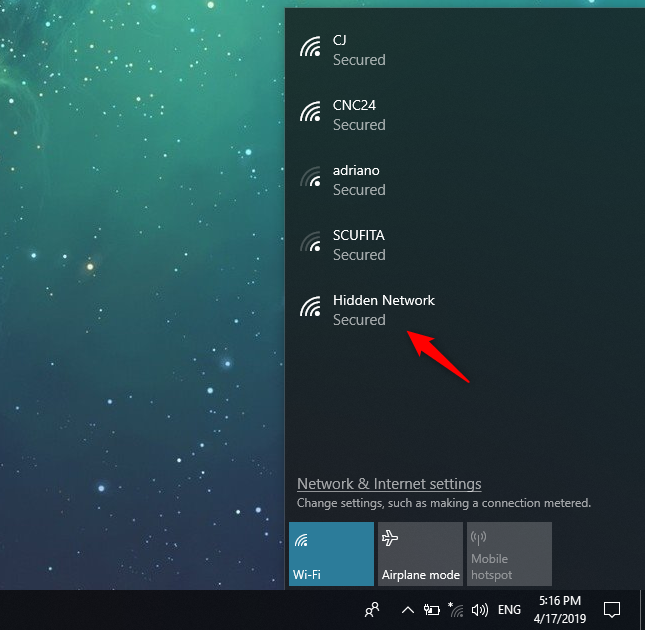
Windows 10 displays all the wireless networks in your area. Scroll through the list until you reach the bottom. That's where you see a Wi-Fi network called Hidden Network. Click or tap this entry.
Clicking the Hidden Network from the networks list shown by Windows 10
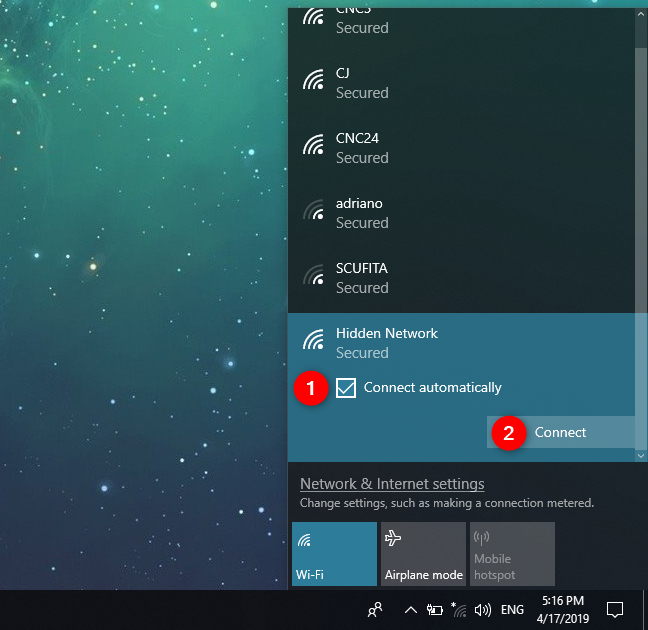
Tick the "Connect automatically" option and then press Connect.
The option to connect automatically to the hidden network
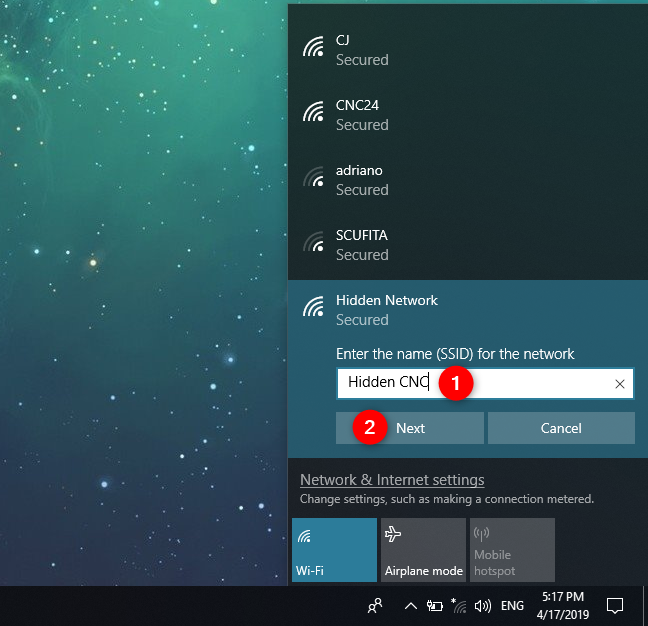
You are now asked to enter the name of the hidden wireless network. Type it and press Next.
Entering the SSID of the hidden WiFi network
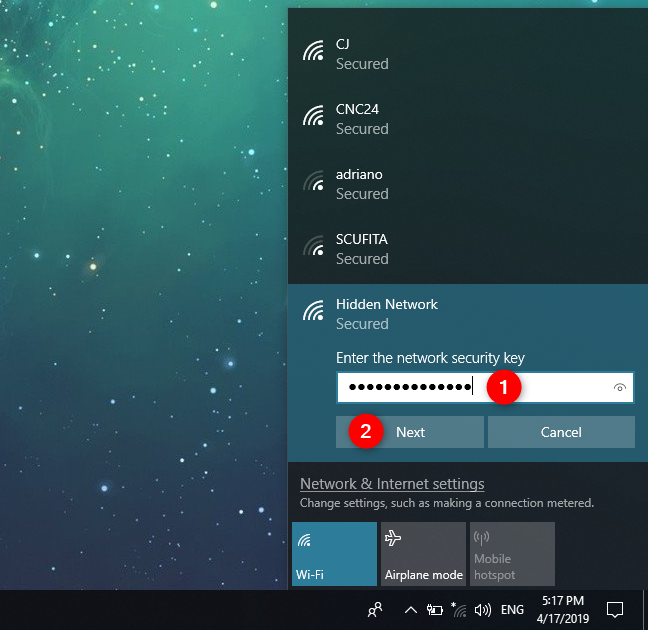
When you are asked to enter the password (or security key) of the hidden network, type it and press Next.
Entering the network security key
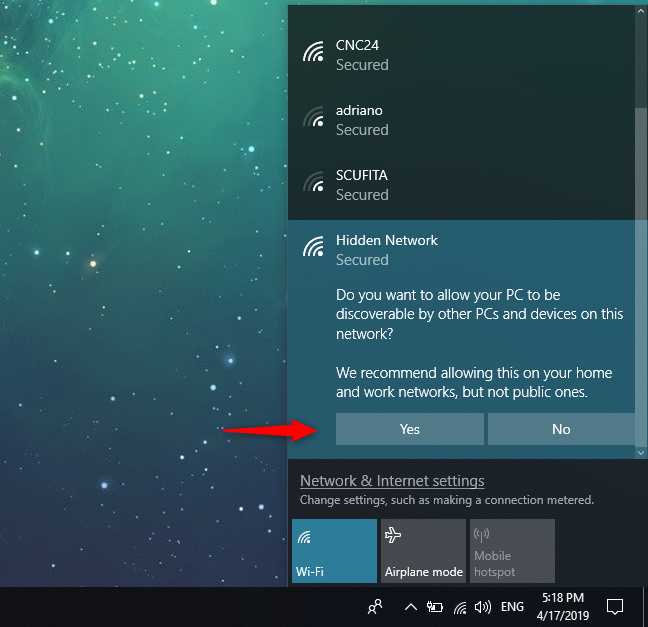
Windows 10 spends a few seconds and tries to connect to the hidden Wi-Fi network. If everything went well, you are asked whether you want to allow your PC to be discoverable on this network. Choose Yes or No, depending on what you want. This choice sets the network location or profile and your network sharing settings. If you want to know more and understand this choice, read: What are network locations in Windows?.
Choosing whether the network is public or private
You are now connected to the hidden wireless network.
Method 2: Connect to a hidden wireless network using the Settings app
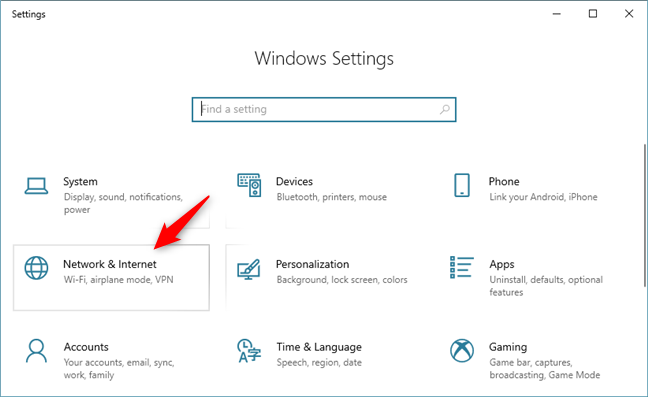
The Settings app offers us another method to connect to hidden wireless networks. The first step is to open the Settings and then the Network & Internet category.
Windows 10 Settings
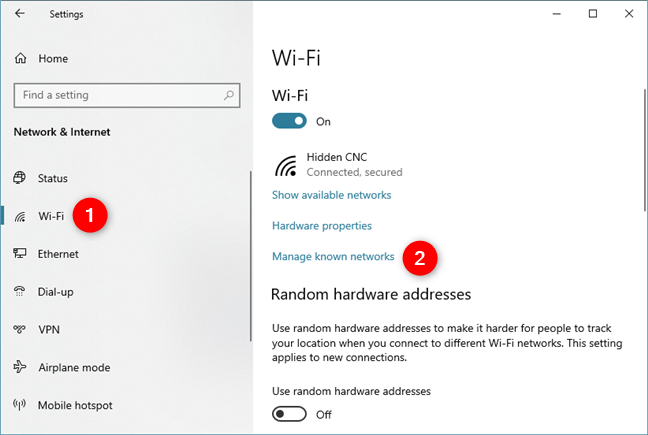
Select Wi-Fi on the left side of the window, and click or tap "Manage known networks" on the right side.
Manage known networks in Windows 10
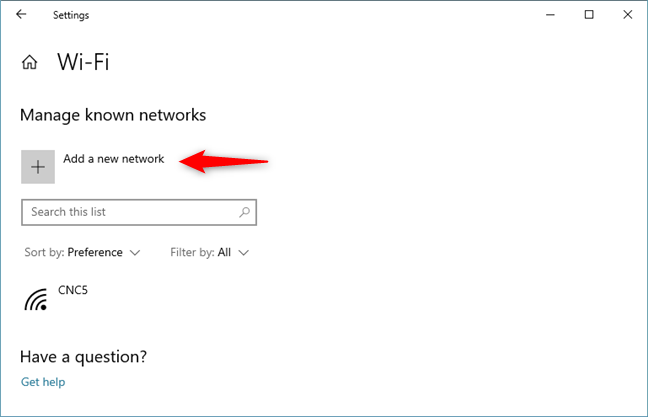
On the "Manage known networks" page, click or tap the "+ Add a network" button.
Adding a new network
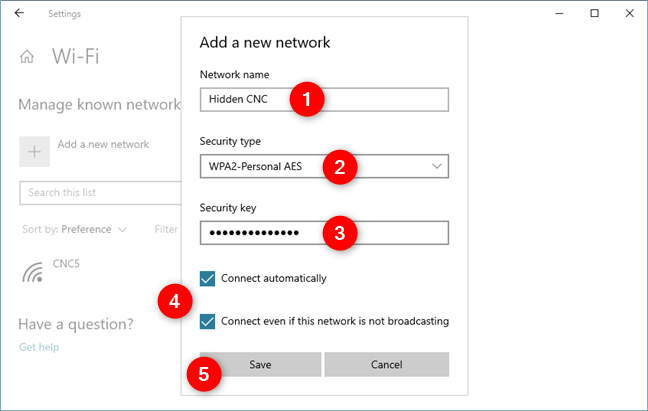
Enter the security information for the hidden wireless network, as follows:
Enter the SSID or the name of the hidden network, in the Network name field.
In the Security type field choose the type of security used by the hidden network. Some routers may name this authentication method. Depending on the security type you choose, Windows 10 may or may not ask you also to specify an encryption type.
In the Security key field, enter the password used by the hidden WiFi.
To connect to the hidden network automatically, check the box that says "Connect automatically."
If you want, you can also check the box that says "Connect even if the network is not broadcasting." This makes Windows 10 search for the hidden network every time it is not connected to a network, even if the hidden network is not in your area. However, it may put your privacy at risk because skilled professionals can intercept this search for the hidden network. It also uses battery power while the search is on, if your device runs on batteries.
When done completing everything, click or tap Save.
Entering the details of the hidden wireless network in Windows 10
Once you save the new wireless network, Windows 10 tries to connect to it automatically. If you entered its details correctly, you should connect in no time.
Method 3: Connect to a hidden wireless network using the Control Panel and the "Set Up a Connection or Network" wizard
If the options shown in the first two methods are not found on your Windows 10 laptop or tablet, then you might be using an older version of Windows 10. If you do not know which, read What version, edition, and type of Windows 10 do I have installed?
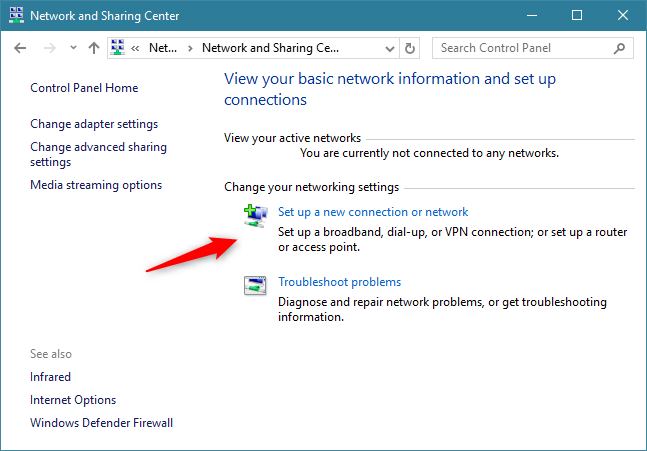
In this case, you need to try this method instead: open the Control Panel and go to "Network and Internet -> Network and Sharing Center." There, click or tap the link that says: "Set up a new connection or network."
Set up a new connection or network
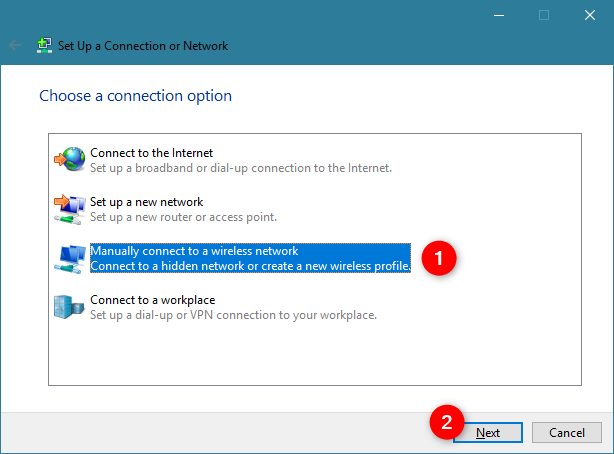
The "Set Up a Connection or Network" wizard is started. Choose "Manually connect to a wireless network" and click or tap Next.
Manually connect to a wireless network
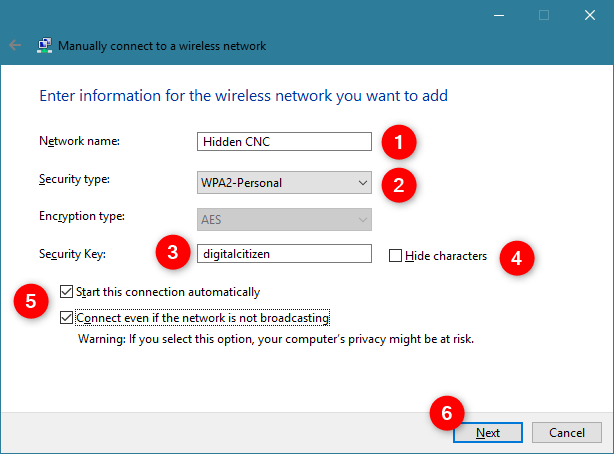
Enter the security information for your WiFi network in the appropriate fields, as follows:
Enter the SSID or the name of the network, in the Network name field.
In the Security type field choose the type of security used by the hidden wireless network. Some routers may name this authentication method. Depending on the security type you choose, Windows 10 may or may not ask you to specify an encryption type.
In the Security key field, enter the password used by the hidden WiFi.
If you do not want others to see the password you type, check the box that says "Hide characters."
To connect to this network automatically, check the box that says "Start this connection automatically."
If you want, you can also check the box that says "Connect even if the network is not broadcasting." This makes Windows 10 search for the hidden network every time it is not connected to a network, even if the hidden network is not in your area. This may put your privacy at risk because skilled professionals can intercept this search for the hidden network.
When done completing everything, click Next.
Entering the details of the hidden wireless network
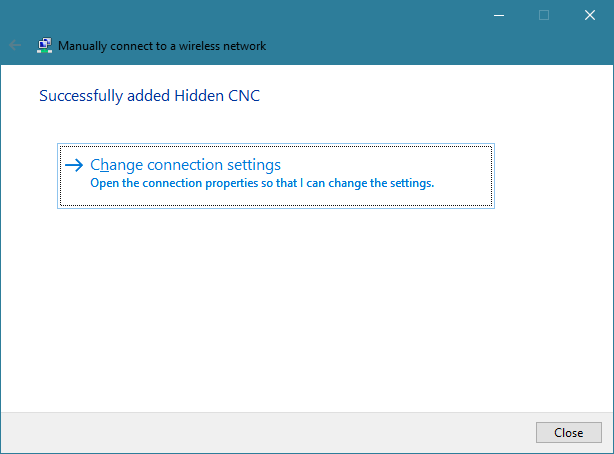
Windows 10 notifies you that it has successfully added the wireless network. Click Close and you are done.
The hidden wireless network has been added
If you are in the range of the hidden wireless network, Windows 10 automatically connects to it.
Why do you use hidden WiFi?
As you have seen from this tutorial, the procedure for connecting to a hidden network is a bit more complex than the simple process of connecting to WiFi networks that broadcast their name. Also, using a hidden wireless network does not make you more secure. Therefore, before closing this article, we would like to know why you use hidden wireless networks, and where. Is it at home or at work? Comment below and let's discuss.
PC can see my hidden network but can’t share network
Anon ·
If it was a hidden network, it should not show up at all in the wifi list. A network with an SSID labeled “Hidden Network” is NOT a hidden network.
J Carter ·
The Hidden Network show maximum connectivity on the icon and the “Connect” box is always checked. It cannot remain unchecked because it recycles as soon as a different network is selected. Returning to the Hidden Network icon always shows the check mark has been reinserted. Since I have no knowledge of the identification code or password, further identification is impossible.
Mark ·
I wireless Wi-Fi really sucks at my house but for some reason when we go into our bedroom we have full service on a hidden network why
friend ·
somebody has put a wireless listening or video device in your bedroom.
Not Given ·
I is a hidden network at home to help prevent being hacked
L. Josserand ·
Yes, I believe that the only reasons for making a Wi-Fi network “hidden” would be security-related, such as making unauthorized access to your network that much more difficult. But keep in mind that just being in range to scan the SSID of a network is not by itself sufficient to gain access. Assuming that your Wi-Fi network uses a password security option, then in addition to knowing the SSID any would-be intruder must also discover the password you assigned in order to actually gain access. So I would think that a well-chosen and well-secured password for your network is probably a more important security factor, versus just making the network “hidden”.
Marion (Belle )Straker ·
I do not know if it is how the issue began but windows 10 did a large upgrade several months ago.
Since then I keep losing my internet connection anywhere from 2 – 8 hours after opening.
The message I get when trying to restart the internet is “windows cant connect to the hidden network.
I did not sign up for or to my knowledge I didnt do anything to have a hidden network.
I have paid over $400.00 at best buy trying to fix it. I have had my isp come in three different times. Nothing helps.
I bought a contract with Geek Squad and they say they will give me a discount to bring it in again.
I need to know HOW and why I would have a hidden network..
I am just very frustrated.
Thank you.
L. Josserand ·
You should not need to “sign up for” or “pay $400” to have (or not have) a Hidden WI-FI network. In this context ‘Hidden’ just means that your Wi-Fi network is configured NOT to regularly broadcast its SSID (or network name). The Wi-Fi Hidden/not-Hidden value is just a setting within the definition of your Wi-Fi network and it can easily be changed. The default value is typically that of not-Hidden, and this will cause your Wi-Fi network to periodically broadcast (or announce) its SSID to network users in range, thus indicating its current availability. A Hidden Wi-Fi network can be thought of as being similar in concept to ‘unlisted’ telephone numbers, or perhaps website addresses/URLs on the so-called ‘dark web’. These are normally accessible only by those who already know (by other means) the SSID, unlisted telephone number, or web address/URL in question.
sutfuf ·
So convoluted. Mac OS and Linux have no issues connecting to hidden wifi. (After adding, just click the network from the list and it connects.) Win10 is a pain. “Hidden” what the? Why doesn’t it just come up with it’s name in the list _after_ I add it? I hate windows, and this is why. It’s not intuitive.
Ivan ·
my xps13 laptop does not connect automatically to the hidden network. If i am using the wifi and shut down my laptop, i have to re enter the SSID and password if i startup my laptop again. Additionally, everytime i manually reconnect, the SSID has an incremental number beside it.
My iphones automatically connects to the wifi even when i reconnect to it.
CAn you advise why my laptop wont automatically connect everytime i am in range of my home hidden wifi?
Thanks
Dary ·
My router is capable of broadcasting multiple access points. Opening up all of them look the wifi networks list very long. Scrolling and finding the one I like to connect is painful process, hence hiding the access points.
Robert ·
I believe I read somewhere that not broadcasting disables WPS. I want WPS disabled on all of my network devices.
Thomas ·
If I use a TKIP+AES Key for WPA2-Personal. It does not work. Windows 10 works only with AES key…what a pity.. WIndows 7 works for TKIP+AES.
fedelyn gayo ·
HI, I CANNOT CONNECT TO A WIRELESS NETWORK BECAUSE EVEN IF I TURN THE BUTTON TO “ON” IT, IT WILL NOT AND WILL BE GOING BACK TO “OFF” POSITION..
darkhorse ·
It seems a known problem with Windows 10 + hidden SSID.
Conclusion is: If SSID is left open (broadcast) then Windows 10 is able to connect, but if it is hidden Windows 10 is unable to connect.
Windows 8 did not have such problem.
darkhorse ·
Same experience as Paul above.
Windows 10 can’t connect to a hidden SSID. Tried restarting the WiFi Access Point etc, no luck. Seems like a Windows 10 bug or feature.
Paul ·
These directions may work for those rare times when a person is setting up a brand new router, and have not ever connected to it, and then begin the initial set-up using these instructions. However, for the vast majority of the time, users have already connected to the router, and are trying to add security by disabling the SSID from broadcasting, just as I did. Now, after disabling the SSID from broadcasting, I followed these instructions, and it all went as described, until I got to the last screen-shot (successfully added), where mine instead says “A network called (my networks name) already exists.” When I click on the selection “Use existing network” that window closes and I’m looking at the Network and Sharing page (which says currently not connected to any networks), and still no internet connection. I ran connection troubleshoot: Nope! Even re-booted my computer: Nadda! Help?
Paul ·
Follow up from Paul: I renamed the router and changed the password, rebooted the router and logged off. I again removed the Ethernet from my laptop, restarted it, and then followed your instructions here to the letter, and it all went just as yours did: I got the “successfully added” but with everything on, and no troubleshooting errors, I still have no internet connection. There is a list of all the other networks available in this apartment complex, but mine does not show in the list (as it should be) and I get “Not connected – Connections are available.” So, from my experiment, it is not possible to connect a Win 10 to a hidden SSID. I went in to the router settings, unhid the SSID (selected NO on the Hide SSID option), restarted Win 10, it discovered and listed the newly named router, I ticked the “connect automatically” and it logged in easily.


















Discussion (19)
PC can see my hidden network but can’t share network
If it was a hidden network, it should not show up at all in the wifi list. A network with an SSID labeled “Hidden Network” is NOT a hidden network.
The Hidden Network show maximum connectivity on the icon and the “Connect” box is always checked. It cannot remain unchecked because it recycles as soon as a different network is selected. Returning to the Hidden Network icon always shows the check mark has been reinserted. Since I have no knowledge of the identification code or password, further identification is impossible.
I wireless Wi-Fi really sucks at my house but for some reason when we go into our bedroom we have full service on a hidden network why
somebody has put a wireless listening or video device in your bedroom.
I is a hidden network at home to help prevent being hacked
Yes, I believe that the only reasons for making a Wi-Fi network “hidden” would be security-related, such as making unauthorized access to your network that much more difficult. But keep in mind that just being in range to scan the SSID of a network is not by itself sufficient to gain access. Assuming that your Wi-Fi network uses a password security option, then in addition to knowing the SSID any would-be intruder must also discover the password you assigned in order to actually gain access. So I would think that a well-chosen and well-secured password for your network is probably a more important security factor, versus just making the network “hidden”.
I do not know if it is how the issue began but windows 10 did a large upgrade several months ago.
Since then I keep losing my internet connection anywhere from 2 – 8 hours after opening.
The message I get when trying to restart the internet is “windows cant connect to the hidden network.
I did not sign up for or to my knowledge I didnt do anything to have a hidden network.
I have paid over $400.00 at best buy trying to fix it. I have had my isp come in three different times. Nothing helps.
I bought a contract with Geek Squad and they say they will give me a discount to bring it in again.
I need to know HOW and why I would have a hidden network..
I am just very frustrated.
Thank you.
You should not need to “sign up for” or “pay $400” to have (or not have) a Hidden WI-FI network. In this context ‘Hidden’ just means that your Wi-Fi network is configured NOT to regularly broadcast its SSID (or network name). The Wi-Fi Hidden/not-Hidden value is just a setting within the definition of your Wi-Fi network and it can easily be changed. The default value is typically that of not-Hidden, and this will cause your Wi-Fi network to periodically broadcast (or announce) its SSID to network users in range, thus indicating its current availability. A Hidden Wi-Fi network can be thought of as being similar in concept to ‘unlisted’ telephone numbers, or perhaps website addresses/URLs on the so-called ‘dark web’. These are normally accessible only by those who already know (by other means) the SSID, unlisted telephone number, or web address/URL in question.
So convoluted. Mac OS and Linux have no issues connecting to hidden wifi. (After adding, just click the network from the list and it connects.) Win10 is a pain. “Hidden” what the? Why doesn’t it just come up with it’s name in the list _after_ I add it? I hate windows, and this is why. It’s not intuitive.
my xps13 laptop does not connect automatically to the hidden network. If i am using the wifi and shut down my laptop, i have to re enter the SSID and password if i startup my laptop again. Additionally, everytime i manually reconnect, the SSID has an incremental number beside it.
My iphones automatically connects to the wifi even when i reconnect to it.
CAn you advise why my laptop wont automatically connect everytime i am in range of my home hidden wifi?
Thanks
My router is capable of broadcasting multiple access points. Opening up all of them look the wifi networks list very long. Scrolling and finding the one I like to connect is painful process, hence hiding the access points.
I believe I read somewhere that not broadcasting disables WPS. I want WPS disabled on all of my network devices.
If I use a TKIP+AES Key for WPA2-Personal. It does not work. Windows 10 works only with AES key…what a pity.. WIndows 7 works for TKIP+AES.
HI, I CANNOT CONNECT TO A WIRELESS NETWORK BECAUSE EVEN IF I TURN THE BUTTON TO “ON” IT, IT WILL NOT AND WILL BE GOING BACK TO “OFF” POSITION..
It seems a known problem with Windows 10 + hidden SSID.
See Microsoft answers
https://answers.microsoft.com/en-us/windows/forum/windows_10-networking/cannot-connect-to-a-hidden-wireless-network-after/11582ca6-2082-4565-8b88-4194df1ae0ca
Conclusion is: If SSID is left open (broadcast) then Windows 10 is able to connect, but if it is hidden Windows 10 is unable to connect.
Windows 8 did not have such problem.
Same experience as Paul above.
Windows 10 can’t connect to a hidden SSID. Tried restarting the WiFi Access Point etc, no luck. Seems like a Windows 10 bug or feature.
These directions may work for those rare times when a person is setting up a brand new router, and have not ever connected to it, and then begin the initial set-up using these instructions. However, for the vast majority of the time, users have already connected to the router, and are trying to add security by disabling the SSID from broadcasting, just as I did. Now, after disabling the SSID from broadcasting, I followed these instructions, and it all went as described, until I got to the last screen-shot (successfully added), where mine instead says “A network called (my networks name) already exists.” When I click on the selection “Use existing network” that window closes and I’m looking at the Network and Sharing page (which says currently not connected to any networks), and still no internet connection. I ran connection troubleshoot: Nope! Even re-booted my computer: Nadda! Help?
Follow up from Paul: I renamed the router and changed the password, rebooted the router and logged off. I again removed the Ethernet from my laptop, restarted it, and then followed your instructions here to the letter, and it all went just as yours did: I got the “successfully added” but with everything on, and no troubleshooting errors, I still have no internet connection. There is a list of all the other networks available in this apartment complex, but mine does not show in the list (as it should be) and I get “Not connected – Connections are available.” So, from my experiment, it is not possible to connect a Win 10 to a hidden SSID. I went in to the router settings, unhid the SSID (selected NO on the Hide SSID option), restarted Win 10, it discovered and listed the newly named router, I ticked the “connect automatically” and it logged in easily.