When you connect to a wireless network in Windows 10, the operating system creates a profile for that connection, in which it stores information like the network name (or SSID), the password, and the type of encryption that it uses. When you travel a lot, Windows 10 may end up storing lots of WiFi networks, so that it can easily connect to them the next time you are in the same area(s). However, some wireless networks may change their settings, and you cannot connect using their old profile stored by Windows 10. Here is how to solve this problem and forget a network in Windows 10:
Method 1. How to forget a network in Windows 10, using the Wi-Fi menu from the system tray
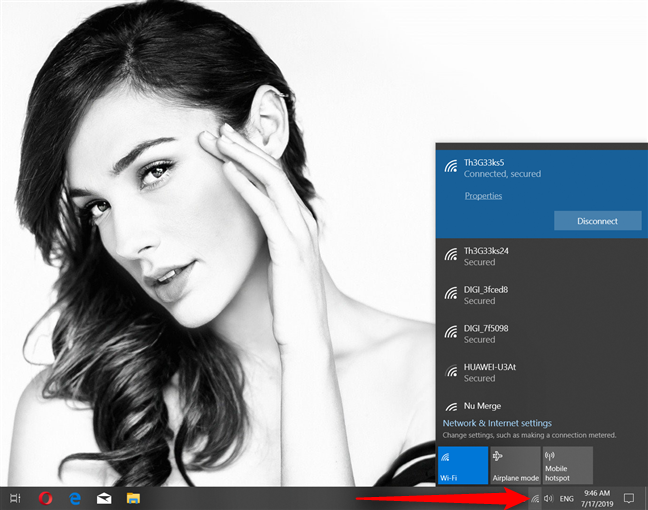
If the wireless network that you want to forget is in your area, and your Windows 10 laptop or tablet displays it as a network you can connect to, click or tap the Wi-Fi button from the bottom-right corner of the taskbar. This opens the list of networks available in your area.
Windows 10, showing the wireless networks in your area
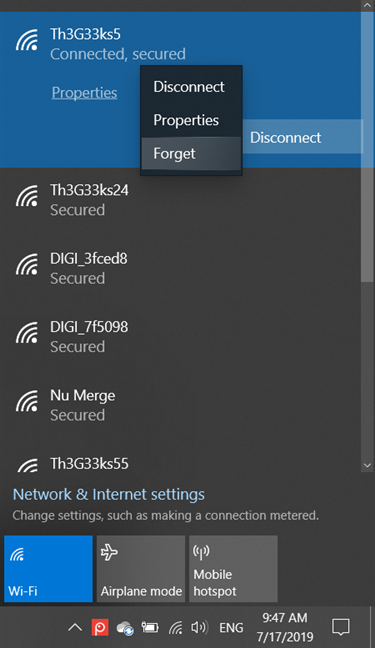
In the list of available wireless networks, locate the one that you want to forget. It can also be the wireless network that you are connected to. Right-click (or press-and-hold) on the name of the network that you want to remove. In the contextual menu that is shown, choose the Forget option.
Right-click and forget a WiFi network in Windows 10
That network is immediately removed from Windows 10, and the operating system no longer knows how to connect to it. To connect again to the network that you removed, read: How to connect to WiFi from Windows 10.
Method 2. How to forget a network in Windows 10, from the Settings app
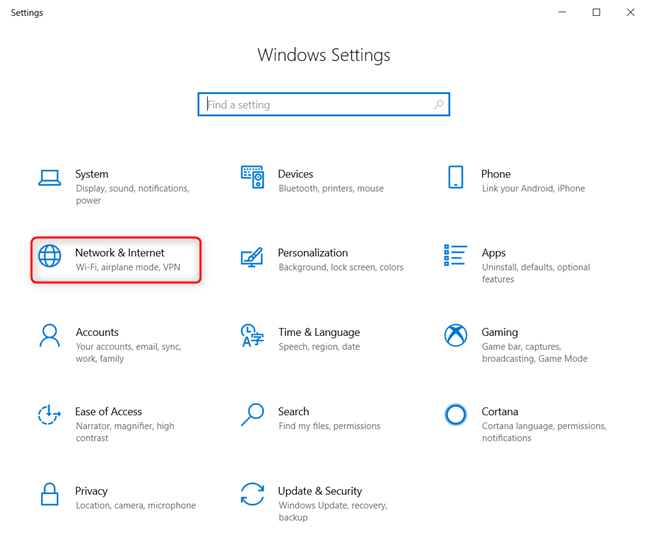
Another way to forget a WiFi network in Windows 10 involves using the Settings app. Open the Settings by clicking on its shortcut from the Start Menu or by pressing the Windows + I keys on the keyboard. Inside the Settings app, go to "Network & Internet."
Windows 10 Settings - Go to Network & Internet
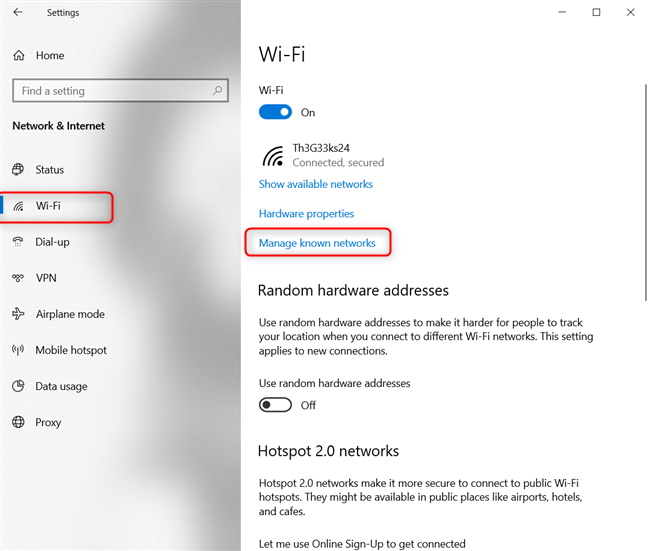
In the column on the left, go to Wi-Fi, and on the right, click or tap "Manage known networks."
Manage known networks in Windows 10
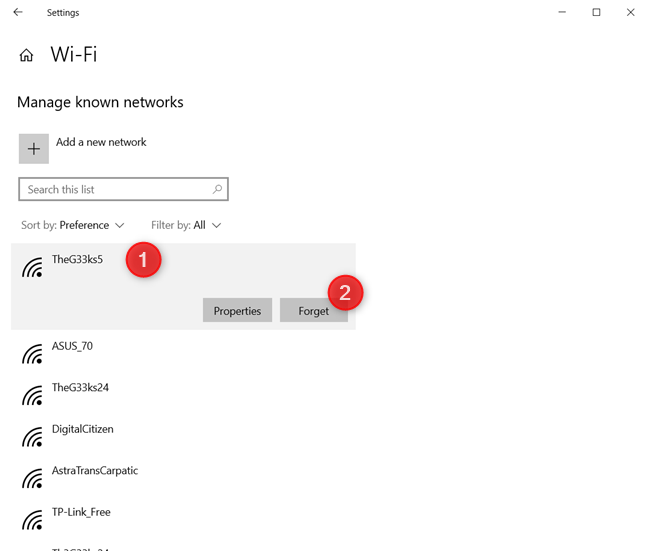
Now you can manage all the networks that are known to Windows 10. You can see the complete list of all the WiFi networks that Windows 10 has stored to help you quickly reconnect to them, when you are in their area of coverage. Scroll through the list to find the wireless network that you want to delete or forget. If the list is too long, you can also search for that network by entering its name (or just a part of it) in the "Search this list" field. Once you find the WiFi network that you want to forget, click or tap on its name, and then on the Forget button.
Forget a wireless network in Windows 10
Windows 10 immediately removes the wireless network from the list of known networks. If there are other networks that you want Windows 10 to forget, repeat this procedure. When you are done, close the Settings app.
Method 3. How to forget a network in Windows 10, using PowerShell or Command Prompt
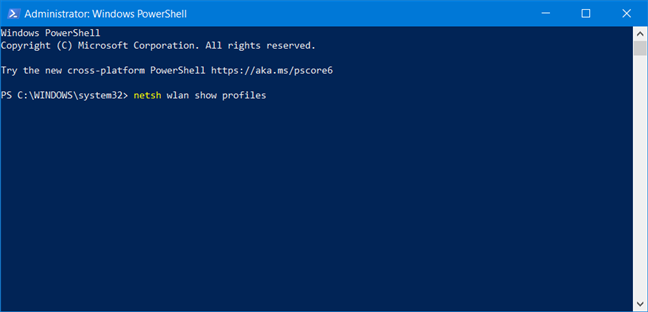
You can also remove a wireless network profile stored by Windows 10 using commands in Command Prompt or PowerShell. Run PowerShell as administrator (or the Command Prompt) and type the following command: netsh wlan show profiles.
Show all network profiles in PowerShell
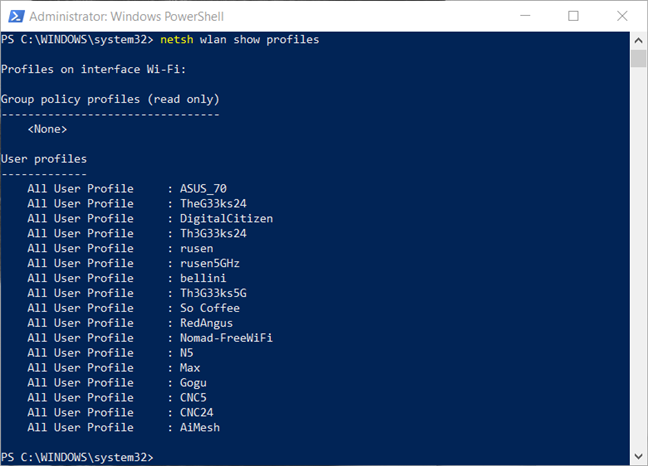
The command displays all the wireless network profiles stored by Windows 10. The list can be long if you have connected to many WiFi networks.
View all the network profiles in PowerShell
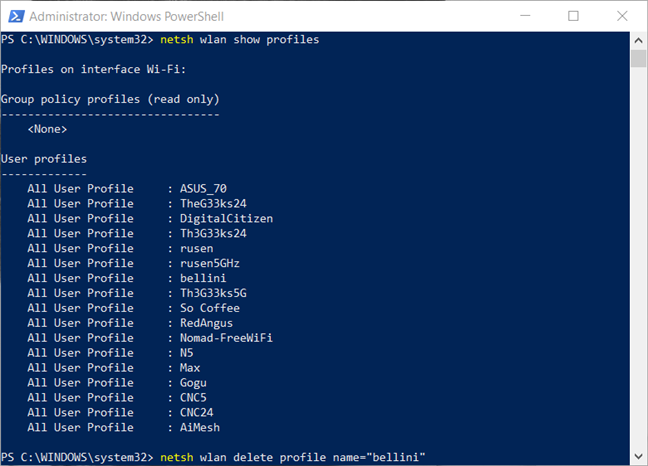
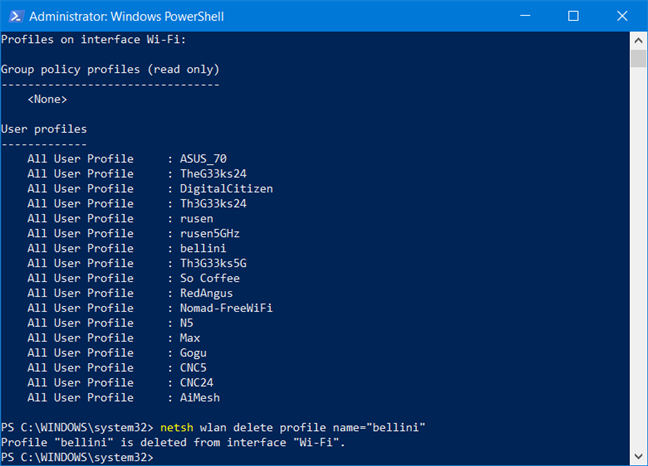
Identify the name of the wireless network profile that you want to remove, and then type the following command to remove it: netsh wlan delete profile name="WiFi network name"
Delete a network profile from PowerShell
You should replace "WiFi network name" with the actual name of the network that you want to remove from Windows 10. Do not forget to press Enter, so that the command is executed. In an instant, Windows 10 tells you that the network profile is deleted from the Wi-Fi interface.
The network profile was deleted from Windows 10
Feeling geeky, aren't you? 🙂
Method 4. How to forget all networks in Windows 10
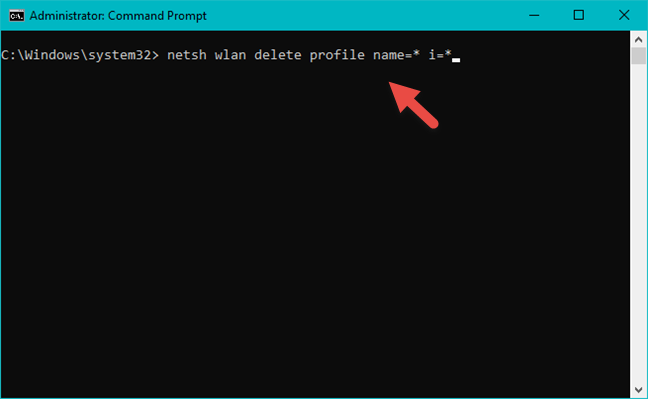
In some situations, you may want to remove all the wireless network profiles known by your Windows 10 laptop or device. Luckily, you do not have to remove each network profile one by one. That would be awful. Instead, all you have to do is open the Command Prompt or PowerShell as administrator. Then, type this command and press Enter: netsh wlan delete profile name=* i=*.
Delete all wireless networks using the Command Prompt
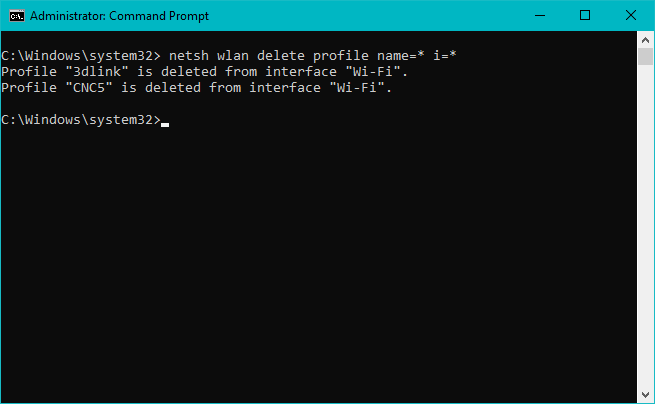
Windows 10 deletes all the network profiles that it knows, in an instant. If you are connected to a WiFi network, your computer or device disconnects from it. From now on, all the wireless networks are unknown to Windows 10.
All network profiles were deleted from the Command Prompt
NOTE: The netsh command has many other parameters besides the ones we discussed in this article. If you want to learn more about it, we recommend you to read: Netsh Commands for Wireless Local Area Network (WLAN).
IMPORTANT: Forgetting a network does not mean that Windows 10 is going to stop discovering it
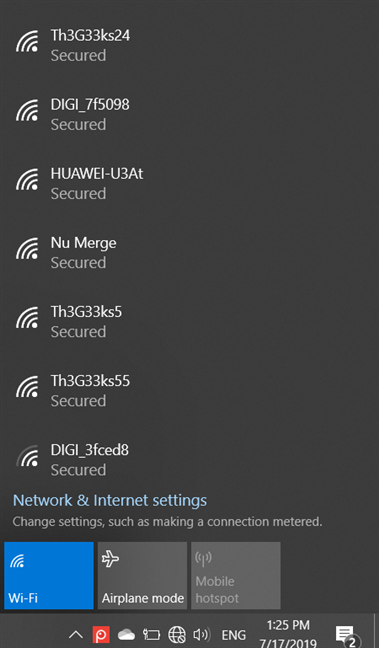
While updating this guide with new information and new screenshots, we noticed that some people believe that once you set Windows 10 to forget a network, that network is not going to show up in the list of available WiFi networks that you can connect to.
Windows 10 showing the WiFi networks in your area
That is not true. Forgetting a network means that Windows 10 stops storing its connection details, and it no longer automatically tries to connect to it, each time you are in its area of coverage. As long as the forgotten network is in your area, it is going to show up in the list of WiFi networks that Windows 10 can connect to.
Which method do you like best for removing a network in Windows 10?
These are the methods that we know for removing WiFi networks in Windows 10. We hope this guide is useful for you and, if you know other ways to delete network profiles in Windows 10, do not hesitate to share them with us, using the form below. We promise to update this article so that other people can also benefit from it.
The “forget” option never shows up anywhere-also- I do not want to get rid of “known” networks, only the long list of unknowns that reappear with check boxes checked. Have newly installed retail win 10, but have had this problem on other windows machines for a long time.
singh kanda ·
There is 1 issue, in my wifi showing different network and in wifi stting I cant find those network,
TomV ·
None of these worked for me. Big surprise.
Tonio ·
Thanks
WanWan ·
Thank you so much! Need to answer an online exam asap. This helps a lot!
Rober ·
What do you do for removing all cache data?, in Windows 10 i removed from registry,
Nerissa ·
When I right click only the connect option appears. When I run PowerShell the net work I want to delete doesn’t appear in the list.
Vadim Dmitriev ·
The problem is UNKNOWN networks!
Maripip ·
Thank you for the information – I’ve followed the instructions and in the cmd screen it says it’s been deleted and yet it is still showing in the wifi list on the task bar. Is there a way to remove it completely. Many thanks
José ·
You are right. Old networks continue showing even after being removed either through Setting or DOS command. Further, the last signal before removal still shows with the old strength, the Connect option is still available, but the Forget this network is not. On the other hand, new networks do not show.
A cockup up.
timkug ·
None of these work.
Mags ·
Thank you 🙂
Ciprian Adrian Rusen ·
You are welcome. Don’t hesitate to subscribe to our website and get daily tutorials.
Sud ·
The above guideline r very helpfull
Norman ·
I have the same experience Mike has — whether I forget through the GUI or delete the profile through the CLI, or both, when I try to connect again, Windows remembers the password. For a network which changes its password daily AND I made the mistake of unwittingly clicking the “Connect Automatically” button, I’m forever hosed!
Mike ·
this did not work, after forgetting it thru settings and also thru the cmds, it still remembered the password
John ·
I was having problems logging in to my home wifi. Thought it would be good idea to forget that network, turn wifi off on computer, turn it back on, search for available networks, thought I would still see my home wifi in the list, and thought I could re-connect to it. But it doesn’t work that way. How do I discover a wifi network I told Windows to forget?
n/a ·
This no longer works because of the latest Windows 10 update.
ljmuk ·
This does not work. It seems to work but when the computer is switched off, the next time you switch on, the removed networks are back on the list!
GrammyD ·
I don’t want my computer to be looking for any available networks, besides the one I am already connected to. I am on a PC that is in a static location. I don’t need any other networks. What setting do I turn off to make it stop looking?














Discussion (20)
The “forget” option never shows up anywhere-also- I do not want to get rid of “known” networks, only the long list of unknowns that reappear with check boxes checked. Have newly installed retail win 10, but have had this problem on other windows machines for a long time.
There is 1 issue, in my wifi showing different network and in wifi stting I cant find those network,
None of these worked for me. Big surprise.
Thanks
Thank you so much! Need to answer an online exam asap. This helps a lot!
What do you do for removing all cache data?, in Windows 10 i removed from registry,
When I right click only the connect option appears. When I run PowerShell the net work I want to delete doesn’t appear in the list.
The problem is UNKNOWN networks!
Thank you for the information – I’ve followed the instructions and in the cmd screen it says it’s been deleted and yet it is still showing in the wifi list on the task bar. Is there a way to remove it completely. Many thanks
You are right. Old networks continue showing even after being removed either through Setting or DOS command. Further, the last signal before removal still shows with the old strength, the Connect option is still available, but the Forget this network is not. On the other hand, new networks do not show.
A cockup up.
None of these work.
Thank you 🙂
You are welcome. Don’t hesitate to subscribe to our website and get daily tutorials.
The above guideline r very helpfull
I have the same experience Mike has — whether I forget through the GUI or delete the profile through the CLI, or both, when I try to connect again, Windows remembers the password. For a network which changes its password daily AND I made the mistake of unwittingly clicking the “Connect Automatically” button, I’m forever hosed!
this did not work, after forgetting it thru settings and also thru the cmds, it still remembered the password
I was having problems logging in to my home wifi. Thought it would be good idea to forget that network, turn wifi off on computer, turn it back on, search for available networks, thought I would still see my home wifi in the list, and thought I could re-connect to it. But it doesn’t work that way. How do I discover a wifi network I told Windows to forget?
This no longer works because of the latest Windows 10 update.
This does not work. It seems to work but when the computer is switched off, the next time you switch on, the removed networks are back on the list!
I don’t want my computer to be looking for any available networks, besides the one I am already connected to. I am on a PC that is in a static location. I don’t need any other networks. What setting do I turn off to make it stop looking?