




Wi-Fi 7 has arrived, and manufacturers are increasingly releasing routers and mesh Wi-Fi systems that bring this new standard into our homes and workplaces. For people needing wireless coverage in larger spaces, the ASUS ZenWiFi BQ16 is an intriguing option. This elegant mesh Wi-Fi system combines cutting-edge Wi-Fi 7 capabilities with powerful hardware and a long list of advanced features. It's designed to handle the ultra-fast internet connections that are gradually becoming available worldwide, and provide users with a fast network, both wired and wireless. Whether you're in the market for a high-performance mesh Wi-Fi system or simply curious about the benefits of Wi-Fi 7, read this review as I explore what the ASUS ZenWiFi BQ16 can and cannot do:
![Verdict]()


 ASUS ZenWiFi BQ16 comes in a beatiful large box
On the sides of the box, you can find plenty of technical information about this mesh Wi-Fi system. On the back, ASUS presents the product’s most important features, including its subscription-free network security tools. When you open the box, you immediately see the two mesh routers that make up this kit. The main unit has a sticker on it, giving you instructions on how to set it up. Since the two units are pre-configured to work together during their manufacturing process, it’s a good idea to follow ASUS’s recommendations, and not set them up in reverse order.
ASUS ZenWiFi BQ16 comes in a beatiful large box
On the sides of the box, you can find plenty of technical information about this mesh Wi-Fi system. On the back, ASUS presents the product’s most important features, including its subscription-free network security tools. When you open the box, you immediately see the two mesh routers that make up this kit. The main unit has a sticker on it, giving you instructions on how to set it up. Since the two units are pre-configured to work together during their manufacturing process, it’s a good idea to follow ASUS’s recommendations, and not set them up in reverse order.

 Unboxing the ASUS ZenWiFi BQ16
After you unpack everything, you’ll find the following items: the two units that make up the ASUS ZenWiFi BQ16 kit, their power adapters with two power plugs for each (the standard EU and the UK versions), a short CAT6 network cable, the warranty card, the quick setup guide, together with leaflets for troubleshooting and product safety information.
Unboxing the ASUS ZenWiFi BQ16
After you unpack everything, you’ll find the following items: the two units that make up the ASUS ZenWiFi BQ16 kit, their power adapters with two power plugs for each (the standard EU and the UK versions), a short CAT6 network cable, the warranty card, the quick setup guide, together with leaflets for troubleshooting and product safety information.

 There are many items inside this product's packaging
The unboxing experience for the ZenWiFi BQ16 is pleasant. ASUS is generous with the information it provides about this product and its many features, and it also gives you all the accessories you need to set up your mesh Wi-Fi network as quickly as possible.
There are many items inside this product's packaging
The unboxing experience for the ZenWiFi BQ16 is pleasant. ASUS is generous with the information it provides about this product and its many features, and it also gives you all the accessories you need to set up your mesh Wi-Fi network as quickly as possible.

 The main unit is labeled with a sticker
The ASUS ZenWiFi family name is discreetly printed on one side, alongside a futuristic ASUS logo that evokes Star Trek's aesthetic. Ventilation grids line both edges of the device, ensuring efficient cooling.
The main unit is labeled with a sticker
The ASUS ZenWiFi family name is discreetly printed on one side, alongside a futuristic ASUS logo that evokes Star Trek's aesthetic. Ventilation grids line both edges of the device, ensuring efficient cooling.

 The ASUS logo reminds me of Star Trek
The opposite side looks the same. However, it lacks any text or logo.
The ASUS logo reminds me of Star Trek
The opposite side looks the same. However, it lacks any text or logo.

 I think the ASUS ZenWiFi BQ16 is a good-looking networking device
The rear panel of each ASUS ZenWiFi BQ16 features, from right to left: a Power button, a Power port, a 10 Gbps WAN/LAN port, a 1 Gbps WAN/LAN port, a 10 Gbps LAN port, two 1 Gbps LAN ports, and a USB 3.2 Gen 1 port. Additional ventilation grids span the back panel for optimal airflow.
I think the ASUS ZenWiFi BQ16 is a good-looking networking device
The rear panel of each ASUS ZenWiFi BQ16 features, from right to left: a Power button, a Power port, a 10 Gbps WAN/LAN port, a 1 Gbps WAN/LAN port, a 10 Gbps LAN port, two 1 Gbps LAN ports, and a USB 3.2 Gen 1 port. Additional ventilation grids span the back panel for optimal airflow.

 The ports on the back of each ASUS ZenWiFi BQ16
On the bottom of the mesh router, there are four rubber feet for holding it into place, more ventilation grids, details about the URL for accessing the web admin interface, details for the default Wi-Fi name and connection password, the WPS button, and the Reset one.
The ports on the back of each ASUS ZenWiFi BQ16
On the bottom of the mesh router, there are four rubber feet for holding it into place, more ventilation grids, details about the URL for accessing the web admin interface, details for the default Wi-Fi name and connection password, the WPS button, and the Reset one.

 The WPS button is on the bottom
Hardware-wise, the ASUS ZenWiFi BQ16 is powerful, featuring a quad-core Broadcom BCM67263 - the world’s first system on a chip (SoC) with 4x4 MU-MIMO Wi-Fi 7 connectivity for routers, extenders, and access points. The device also includes 2 GB of RAM and 256 MB of storage for the firmware.
The WPS button is on the bottom
Hardware-wise, the ASUS ZenWiFi BQ16 is powerful, featuring a quad-core Broadcom BCM67263 - the world’s first system on a chip (SoC) with 4x4 MU-MIMO Wi-Fi 7 connectivity for routers, extenders, and access points. The device also includes 2 GB of RAM and 256 MB of storage for the firmware.

 ASUS ZenWiFi BQ16 has a quad-core Broadcom BCM67263 SoC
ASUS ZenWiFi BQ16 is a quad-band mesh Wi-Fi router with a maximum theoretical bandwidth of 24433 Mbps, split as follows:
ASUS ZenWiFi BQ16 has a quad-core Broadcom BCM67263 SoC
ASUS ZenWiFi BQ16 is a quad-band mesh Wi-Fi router with a maximum theoretical bandwidth of 24433 Mbps, split as follows:

 The maximum theoretical bandwidth
The ASUS ZenWiFi BQ16 uses by default one of its two 5 GHz bands as a dedicated backhaul. If you want to enhance performance, you can opt to use either the 6 GHz band for the backhaul or the 10 Gbps WAN port for ultra-fast Ethernet backhaul connectivity. Each unit houses twelve internal antennas that broadcast wireless signals using 4x4 MU-MIMO data streams. As you would expect from a Wi-Fi 7 mesh router, you get support for WPA3 password encryption, 160 MHz channel bandwidth for both 5 GHz bands, and 320 MHz channel bandwidth for the 6 GHz band.
These are the key design and technical highlights of the ASUS ZenWiFi BQ16, a premium mesh Wi-Fi system engineered to deliver exceptional performance. If you want even more technical information about this product and its features, check its official page: ASUS ZenWiFi BQ16.
The maximum theoretical bandwidth
The ASUS ZenWiFi BQ16 uses by default one of its two 5 GHz bands as a dedicated backhaul. If you want to enhance performance, you can opt to use either the 6 GHz band for the backhaul or the 10 Gbps WAN port for ultra-fast Ethernet backhaul connectivity. Each unit houses twelve internal antennas that broadcast wireless signals using 4x4 MU-MIMO data streams. As you would expect from a Wi-Fi 7 mesh router, you get support for WPA3 password encryption, 160 MHz channel bandwidth for both 5 GHz bands, and 320 MHz channel bandwidth for the 6 GHz band.
These are the key design and technical highlights of the ASUS ZenWiFi BQ16, a premium mesh Wi-Fi system engineered to deliver exceptional performance. If you want even more technical information about this product and its features, check its official page: ASUS ZenWiFi BQ16.

 Setting up the Broadcom BCM67263 is easy
The initial setup involves several mandatory steps, like setting up the administrator's user account and password, entering the configuration details necessary for connecting to the internet, setting up the Wi-Fi emitted by the ASUS ZenWiFi BQ16, and configuring a separate wireless network for Internet of Things (IoT) devices such as surveillance cameras, smart home sensors, and vacuum cleaners.
Setting up the Broadcom BCM67263 is easy
The initial setup involves several mandatory steps, like setting up the administrator's user account and password, entering the configuration details necessary for connecting to the internet, setting up the Wi-Fi emitted by the ASUS ZenWiFi BQ16, and configuring a separate wireless network for Internet of Things (IoT) devices such as surveillance cameras, smart home sensors, and vacuum cleaners.

 You can create a Wi-Fi for IoT devices
Towards the end of the setup wizard, you have to agree with the privacy terms for utilizing an ASUS router. Then, a summary of your settings is shown. If the internet connection is successfully established, the next step is a check for firmware updates.
During the quick setup process, the secondary unit is automatically detected and added to the mesh network. You don’t have to install it separately. However, after the initial setup is over, I recommend placing your ASUS ZenWiFi BQ16 units in the locations where you want to use them, starting all the units again, and once they’re all online, opening the admin interface, accessing AiMesh and clicking or tapping Optimization. This allows the system to analyze all performance parameters and adjust its settings for optimal coverage and throughput.
You can create a Wi-Fi for IoT devices
Towards the end of the setup wizard, you have to agree with the privacy terms for utilizing an ASUS router. Then, a summary of your settings is shown. If the internet connection is successfully established, the next step is a check for firmware updates.
During the quick setup process, the secondary unit is automatically detected and added to the mesh network. You don’t have to install it separately. However, after the initial setup is over, I recommend placing your ASUS ZenWiFi BQ16 units in the locations where you want to use them, starting all the units again, and once they’re all online, opening the admin interface, accessing AiMesh and clicking or tapping Optimization. This allows the system to analyze all performance parameters and adjust its settings for optimal coverage and throughput.

 Setting up AiMesh is recommended
While the administration user interface looks similar to the one of older ASUS routers and mesh Wi-Fi systems, the company has changed the way it is organized and how certain features are configured. The most significant changes are about how you create and manage your Wi-Fi networks. ASUS ZenWiFi BQ16 is a quad-band mesh Wi-Fi system, so you get four wireless bands that can be set up and used: one 2.4 GHz band, two 5 GHz bands, and one 6 GHz band. You can set up a different name and password for each of them or enable ASUS Smart Connect and manage them as one network with one set of settings.
Setting up AiMesh is recommended
While the administration user interface looks similar to the one of older ASUS routers and mesh Wi-Fi systems, the company has changed the way it is organized and how certain features are configured. The most significant changes are about how you create and manage your Wi-Fi networks. ASUS ZenWiFi BQ16 is a quad-band mesh Wi-Fi system, so you get four wireless bands that can be set up and used: one 2.4 GHz band, two 5 GHz bands, and one 6 GHz band. You can set up a different name and password for each of them or enable ASUS Smart Connect and manage them as one network with one set of settings.

 Configure your Wi-Fi from the Network section
The Network section allows you to configure each individual Wi-Fi frequency band. By default, the Wi-Fi 7 standard is enabled for all bands. However, if you encounter compatibility issues, you can disable it for one specific band or for all of them. You can also create guest networks with different settings, as well as specialized Wi-Fi networks for your children (with parental control safety filters activated), an IoT network, a VPN network or a special Multi-Link Operation (MLO) network.
Configure your Wi-Fi from the Network section
The Network section allows you to configure each individual Wi-Fi frequency band. By default, the Wi-Fi 7 standard is enabled for all bands. However, if you encounter compatibility issues, you can disable it for one specific band or for all of them. You can also create guest networks with different settings, as well as specialized Wi-Fi networks for your children (with parental control safety filters activated), an IoT network, a VPN network or a special Multi-Link Operation (MLO) network.

 Changing the settings for your Wi-Fi
MLO is a technology introduced by the Wi-Fi 7 standard, which allows client devices to connect to ASUS ZenWiFi BQ16 over multiple frequency bands simultaneously. This means that client devices can send data simultaneously using two radios at the same time or a single radio, depending on which works the best at the time of data transmission. This technology is especially useful in crowded networks with many connected devices, and it aims to reduce latency and improve data throughput.
Changing the settings for your Wi-Fi
MLO is a technology introduced by the Wi-Fi 7 standard, which allows client devices to connect to ASUS ZenWiFi BQ16 over multiple frequency bands simultaneously. This means that client devices can send data simultaneously using two radios at the same time or a single radio, depending on which works the best at the time of data transmission. This technology is especially useful in crowded networks with many connected devices, and it aims to reduce latency and improve data throughput.

 Wi-Fi 7 introduces Multi-Link Operation (MLO)
However, to benefit from MLO, you need devices compatible with the Wi-Fi 7 standard. Not many people have such devices, even if Windows 11 recently started offering full Wi-Fi 7 compatibility, with the launch of Windows 11 24H2 Update. If you don’t own compatible devices, you can still use the Wi-Fi 7 standard on the ASUS ZenWiFi BQ16, because it was designed to maintain full backward compatibility. However, your devices won't benefit from all the technologies and advancements included in Wi-Fi 7, and they will automatically be rolled back to an older Wi-Fi version compatible with the device(s) you’re using. For example, on my Samsung Galaxy S23 smartphone, all the frequency bands emitted by ASUS ZenWiFi BQ16 were identified as using either Wi-Fi 6 or Wi-Fi 6E, not Wi-Fi 7. It worked fine, but since it can’t use Wi-Fi 7, this specific device couldn’t benefit from Multi-Link Operation (MLO), for example.
Wi-Fi 7 introduces Multi-Link Operation (MLO)
However, to benefit from MLO, you need devices compatible with the Wi-Fi 7 standard. Not many people have such devices, even if Windows 11 recently started offering full Wi-Fi 7 compatibility, with the launch of Windows 11 24H2 Update. If you don’t own compatible devices, you can still use the Wi-Fi 7 standard on the ASUS ZenWiFi BQ16, because it was designed to maintain full backward compatibility. However, your devices won't benefit from all the technologies and advancements included in Wi-Fi 7, and they will automatically be rolled back to an older Wi-Fi version compatible with the device(s) you’re using. For example, on my Samsung Galaxy S23 smartphone, all the frequency bands emitted by ASUS ZenWiFi BQ16 were identified as using either Wi-Fi 6 or Wi-Fi 6E, not Wi-Fi 7. It worked fine, but since it can’t use Wi-Fi 7, this specific device couldn’t benefit from Multi-Link Operation (MLO), for example.

 Older devices can't use Wi-Fi 7
While testing this mesh Wi-Fi system, I didn't encounter any compatibility issues, and all my devices connected to the Wi-Fi without problems, even an old smart clock I'm using and a few smart plugs that can only connect through the 2.4 GHz band, using the Wi-Fi 4 standard.
As I mentioned earlier, the ASUS ZenWiFi BQ16 can also be set up and managed from the ASUS Router mobile app. The app is easy to use and gives you access to many settings and tools, which are logically organized in a friendly user interface. However, you can’t configure everything this mesh Wi-Fi system has to offer. To do that, you must access the web-based interface available on the ASUS ZenWiFi BQ16.
Older devices can't use Wi-Fi 7
While testing this mesh Wi-Fi system, I didn't encounter any compatibility issues, and all my devices connected to the Wi-Fi without problems, even an old smart clock I'm using and a few smart plugs that can only connect through the 2.4 GHz band, using the Wi-Fi 4 standard.
As I mentioned earlier, the ASUS ZenWiFi BQ16 can also be set up and managed from the ASUS Router mobile app. The app is easy to use and gives you access to many settings and tools, which are logically organized in a friendly user interface. However, you can’t configure everything this mesh Wi-Fi system has to offer. To do that, you must access the web-based interface available on the ASUS ZenWiFi BQ16.

 Setting up the mesh Wi-Fi system using the ASUS Router app
Both the ASUS Router app and the web admin interface offer excellent multilingual support. The user interface is available in twenty-five languages, and all settings are logically organized into sections.
If you need help understanding how to set things up, you can find links to ASUS Support and a database with Frequently Asked Questions (FAQ) at the bottom of the user interface.
Setting up the mesh Wi-Fi system using the ASUS Router app
Both the ASUS Router app and the web admin interface offer excellent multilingual support. The user interface is available in twenty-five languages, and all settings are logically organized into sections.
If you need help understanding how to set things up, you can find links to ASUS Support and a database with Frequently Asked Questions (FAQ) at the bottom of the user interface.

 The user interface is available in 25 languages
The user experience is pretty smooth, without connectivity and stability issues. And if you’ve used ASUS routers before, setting up and managing this mesh Wi-Fi system will feel familiar. However, the area where ASUS ZenWiFi BQ16 truly shines is the multitude of advanced tools and features it makes available through its firmware and mobile apps.
The user interface is available in 25 languages
The user experience is pretty smooth, without connectivity and stability issues. And if you’ve used ASUS routers before, setting up and managing this mesh Wi-Fi system will feel familiar. However, the area where ASUS ZenWiFi BQ16 truly shines is the multitude of advanced tools and features it makes available through its firmware and mobile apps.

 ASUS AiProtection secures your network
VPN is another major focus area for the ASUS ZenWiFi BQ16. You can set this mesh Wi-Fi system to use the following features:
ASUS AiProtection secures your network
VPN is another major focus area for the ASUS ZenWiFi BQ16. You can set this mesh Wi-Fi system to use the following features:

 ASUS ZenWiFi BQ16 has many VPN-related features
You also get the following advanced features:
ASUS ZenWiFi BQ16 has many VPN-related features
You also get the following advanced features:

 The wireless backhaul uses MLO
The features offered by ASUS ZenWiFi BQ16 are many, powerful, and useful. They can help with almost anything users may want, from securing their network and setting up VPN connections, to configuring their own network or cloud storage service.
That's it for my subjective experience when using the ASUS ZenWiFi BQ16. If you want to know more about its real-world performance, backed up by measurements and benchmarks, go to the next page of this review.
The wireless backhaul uses MLO
The features offered by ASUS ZenWiFi BQ16 are many, powerful, and useful. They can help with almost anything users may want, from securing their network and setting up VPN connections, to configuring their own network or cloud storage service.
That's it for my subjective experience when using the ASUS ZenWiFi BQ16. If you want to know more about its real-world performance, backed up by measurements and benchmarks, go to the next page of this review.
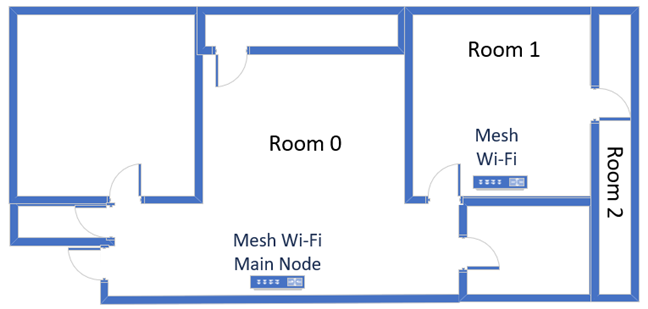
 The apartment where I tested ASUS ZenWiFi BQ16
I evaluated the quality of the wireless network through measurements made in three different places:
The apartment where I tested ASUS ZenWiFi BQ16
I evaluated the quality of the wireless network through measurements made in three different places:
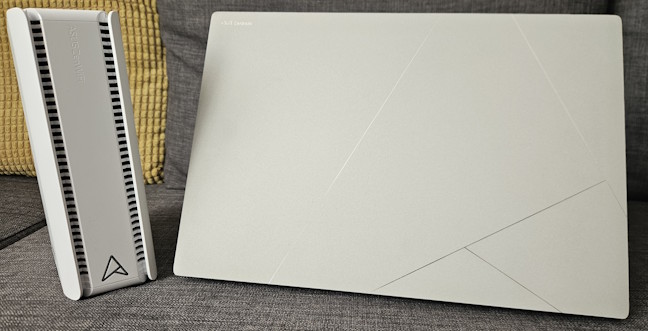
 I tested ASUS ZenWiFi BQ16 using an ASUS Zenbook S 16
Since this is the first Wi-Fi 7 mesh Wi-Fi system I’m testing, I couldn’t compare it with similar Wi-Fi 7 devices. So I chose to compare it with ASUS ROG Rapture GT-AXE11000, a powerful Wi-Fi 6E router, and TP-Link Deco XE75, a mesh Wi-Fi system offering Wi-Fi 6E connectivity. While these networking devices don’t compete directly, they have one thing in common: they offer Wi-Fi connectivity on the 6 GHz frequency band, alongside the traditional 2.4 GHz and 5 GHz.
Another reason I chose these devices is that we can understand whether Wi-Fi 7 offers meaningful benefits compared to previous standards like Wi-Fi 6 and Wi-Fi 6E. But enough context information, let’s start with the actual measurements:
I tested ASUS ZenWiFi BQ16 using an ASUS Zenbook S 16
Since this is the first Wi-Fi 7 mesh Wi-Fi system I’m testing, I couldn’t compare it with similar Wi-Fi 7 devices. So I chose to compare it with ASUS ROG Rapture GT-AXE11000, a powerful Wi-Fi 6E router, and TP-Link Deco XE75, a mesh Wi-Fi system offering Wi-Fi 6E connectivity. While these networking devices don’t compete directly, they have one thing in common: they offer Wi-Fi connectivity on the 6 GHz frequency band, alongside the traditional 2.4 GHz and 5 GHz.
Another reason I chose these devices is that we can understand whether Wi-Fi 7 offers meaningful benefits compared to previous standards like Wi-Fi 6 and Wi-Fi 6E. But enough context information, let’s start with the actual measurements:
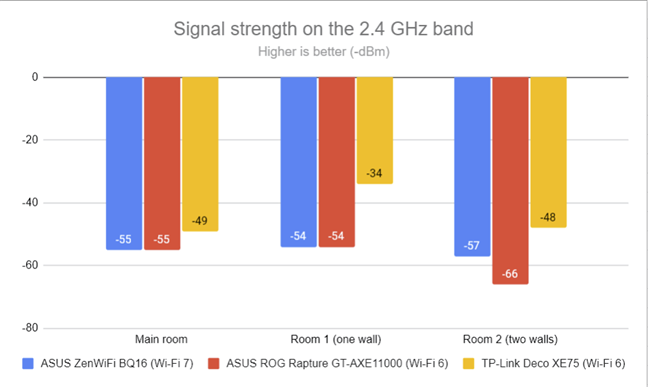
 The signal strength on the 2.4 GHz band
Next, I opened the SpeedTest website and ran its benchmark on my laptop, while connected to the 2.4 GHz frequency band. This test tells me how fast my internet connection is when using the ASUS ZenWiFi BQ16. As you can see below, I enjoyed download speeds over 218 Mbps everywhere in my apartment.
The signal strength on the 2.4 GHz band
Next, I opened the SpeedTest website and ran its benchmark on my laptop, while connected to the 2.4 GHz frequency band. This test tells me how fast my internet connection is when using the ASUS ZenWiFi BQ16. As you can see below, I enjoyed download speeds over 218 Mbps everywhere in my apartment.
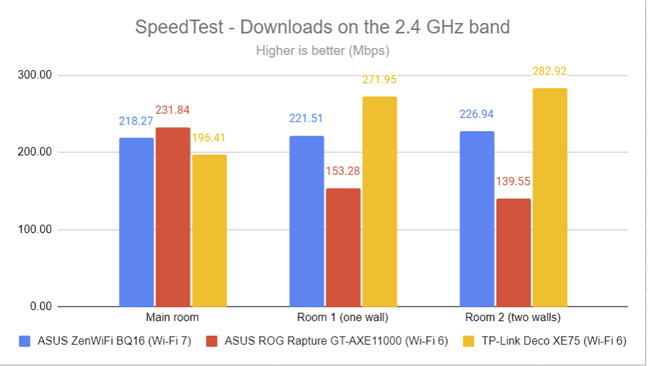
 SpeedTest - The download speed on 2.4 GHz
Uploads were not as fast, but their speed remained excellent in all rooms.
SpeedTest - The download speed on 2.4 GHz
Uploads were not as fast, but their speed remained excellent in all rooms.
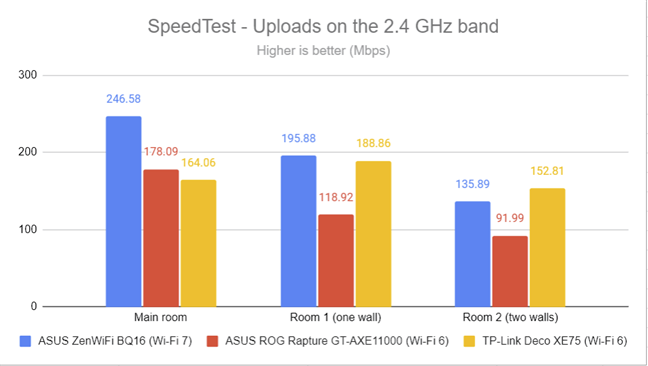 SpeedTest - The upload speed on 2.4 GHz
For the last set of measurements on the 2.4 GHz frequency band, I used the PassMark Performance test to transfer data between my laptop and a desktop PC connected to the ASUS ZenWiFi BQ16 using a 2.5 Gbps Ethernet connection. Download speeds were good, but not as fast as the ones on the other devices in my comparison. An important aspect I noticed during these measurements is that the network throughput on the 2.4 GHz band isn’t as stable as the one on other bands. It varies from slow speeds to fast ones, but it’s not very steady. This aspect is worth improving in future updates to the ASUS ZenWiFi BQ16, as it negatively affects the average speed you get when transferring data over the 2.4 GHz band.
SpeedTest - The upload speed on 2.4 GHz
For the last set of measurements on the 2.4 GHz frequency band, I used the PassMark Performance test to transfer data between my laptop and a desktop PC connected to the ASUS ZenWiFi BQ16 using a 2.5 Gbps Ethernet connection. Download speeds were good, but not as fast as the ones on the other devices in my comparison. An important aspect I noticed during these measurements is that the network throughput on the 2.4 GHz band isn’t as stable as the one on other bands. It varies from slow speeds to fast ones, but it’s not very steady. This aspect is worth improving in future updates to the ASUS ZenWiFi BQ16, as it negatively affects the average speed you get when transferring data over the 2.4 GHz band.
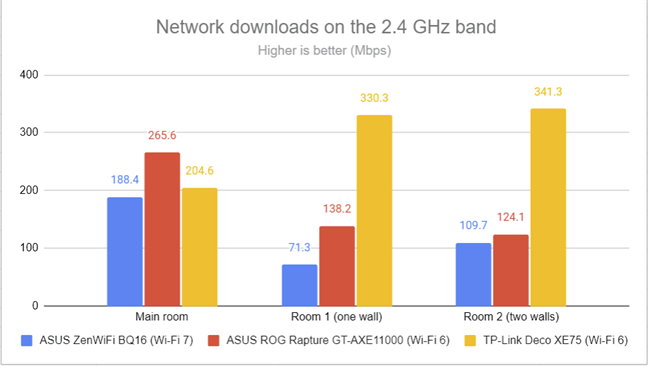 PassMark Performance - Wi-Fi download speed on 2.4 GHz
Uploads weren’t very fast either and suffered from the same issue.
PassMark Performance - Wi-Fi download speed on 2.4 GHz
Uploads weren’t very fast either and suffered from the same issue.
 PassMark Performance - Wi-Fi upload speed on 2.4 GHz
My testing revealed that ASUS ZenWiFi BQ16 delivers good signal quality on the 2.4 GHz frequency band, with fast internet connectivity. However, wireless transfers aren’t very steady, which lowers the average speed you get when transferring data from one device to another while connected to the 2.4 GHz band.
PassMark Performance - Wi-Fi upload speed on 2.4 GHz
My testing revealed that ASUS ZenWiFi BQ16 delivers good signal quality on the 2.4 GHz frequency band, with fast internet connectivity. However, wireless transfers aren’t very steady, which lowers the average speed you get when transferring data from one device to another while connected to the 2.4 GHz band.
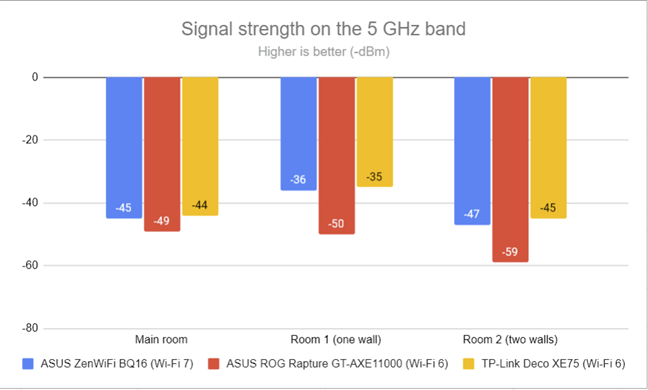
 The signal strength on the 5 GHz band
Unfortunately, my internet connection is limited at a maximum of 1 Gbps for downloads and to somewhere between 700 and 800 Mbps for uploads. ASUS ZenWiFi BQ16 is equipped with the ports and hardware necessary to use ultra-fast internet connections with speeds of 2.5 Gbps or even 10 Gbps. Unfortunately, such connections aren’t available in my area. Because of this, using the Wi-Fi 7 on the ASUS ZenWiFi BQ16 didn’t lead to significant speed improvements, because my internet connection acted as a bottleneck. Even so, ASUS ZenWiFi BQ16 showed its potential in SpeedTest by delivering download speeds over 820 Mbps everywhere in my apartment, a performance that wireless routers can’t match.
The signal strength on the 5 GHz band
Unfortunately, my internet connection is limited at a maximum of 1 Gbps for downloads and to somewhere between 700 and 800 Mbps for uploads. ASUS ZenWiFi BQ16 is equipped with the ports and hardware necessary to use ultra-fast internet connections with speeds of 2.5 Gbps or even 10 Gbps. Unfortunately, such connections aren’t available in my area. Because of this, using the Wi-Fi 7 on the ASUS ZenWiFi BQ16 didn’t lead to significant speed improvements, because my internet connection acted as a bottleneck. Even so, ASUS ZenWiFi BQ16 showed its potential in SpeedTest by delivering download speeds over 820 Mbps everywhere in my apartment, a performance that wireless routers can’t match.
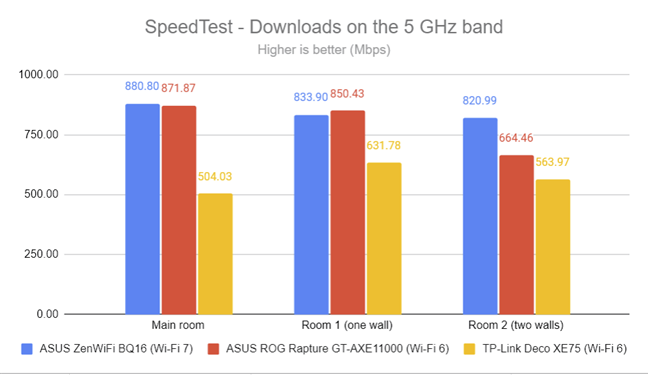
 SpeedTest - The download speed on 5 GHz
Uploads were very close to the 690 Mbps mark, and a tad slower than the ones on the other two devices included in this comparison.
SpeedTest - The download speed on 5 GHz
Uploads were very close to the 690 Mbps mark, and a tad slower than the ones on the other two devices included in this comparison.
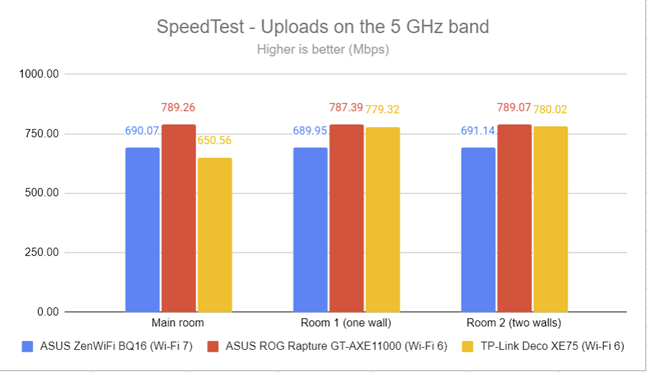
 SpeedTest - The upload speed on 5 GHz
I switched to PassMark Performance test and transferred data between my laptop and a desktop PC connected to the ASUS ZenWiFi BQ16 using a 2.5 Gbps Ethernet connection. This testing scenario is the only one where I could see a glimpse of the speed improvements delivered by Wi-Fi 7 over Wi-Fi 6. As you can see in the graphic below, ASUS ZenWiFi BQ16 delivered significantly faster downloads everywhere in my apartment. I suspect that having a 2.5 Gbps internet connection would have led to similar results in the measurements I made prior with SpeedTest.
SpeedTest - The upload speed on 5 GHz
I switched to PassMark Performance test and transferred data between my laptop and a desktop PC connected to the ASUS ZenWiFi BQ16 using a 2.5 Gbps Ethernet connection. This testing scenario is the only one where I could see a glimpse of the speed improvements delivered by Wi-Fi 7 over Wi-Fi 6. As you can see in the graphic below, ASUS ZenWiFi BQ16 delivered significantly faster downloads everywhere in my apartment. I suspect that having a 2.5 Gbps internet connection would have led to similar results in the measurements I made prior with SpeedTest.
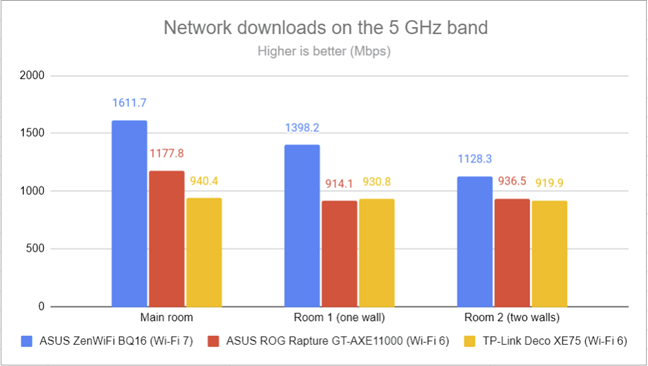 PassMark Performance - Wi-Fi download speed on 5 GHz
Upload speeds were similar, showcasing the potential speed uplift offered by Wi-Fi 7 over Wi-Fi 6. Another aspect that I appreciated was how stable network transfers were on the 5 GHz band, without huge differences between the lowest and highest speeds.
PassMark Performance - Wi-Fi download speed on 5 GHz
Upload speeds were similar, showcasing the potential speed uplift offered by Wi-Fi 7 over Wi-Fi 6. Another aspect that I appreciated was how stable network transfers were on the 5 GHz band, without huge differences between the lowest and highest speeds.
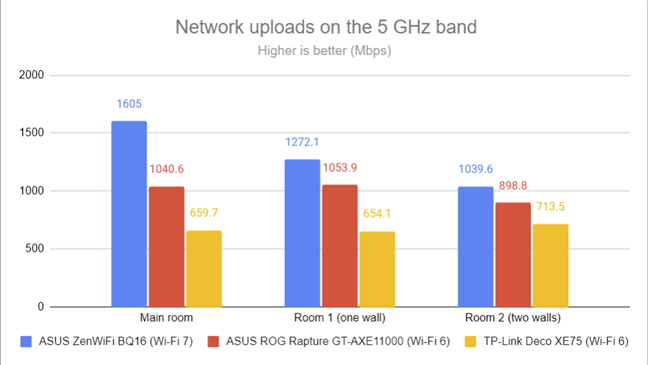
 PassMark Performance - Wi-Fi upload speed on 5 GHz
ASUS ZenWiFi BQ16 delivers excellent signal strength on the 5 GHz frequency band, while the Wi-Fi 7 standard helps it reach transfer speeds beyond 1.5 Gbps.
PassMark Performance - Wi-Fi upload speed on 5 GHz
ASUS ZenWiFi BQ16 delivers excellent signal strength on the 5 GHz frequency band, while the Wi-Fi 7 standard helps it reach transfer speeds beyond 1.5 Gbps.
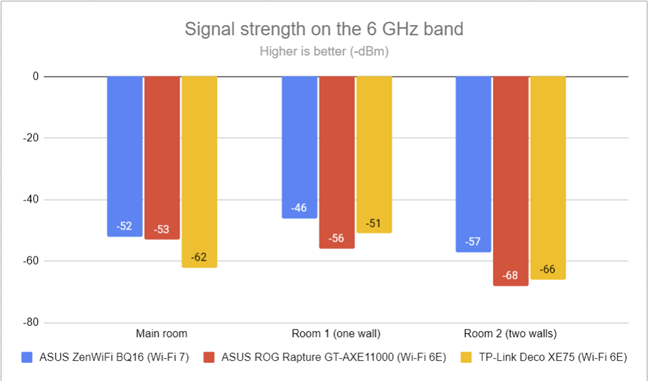
 The signal strength on the 6 GHz band
I moved on to SpeedTest, where my internet connection was again a major bottleneck. However, ASUS ZenWiFi BQ16 performed well and delivered fast downloads in all rooms.
The signal strength on the 6 GHz band
I moved on to SpeedTest, where my internet connection was again a major bottleneck. However, ASUS ZenWiFi BQ16 performed well and delivered fast downloads in all rooms.
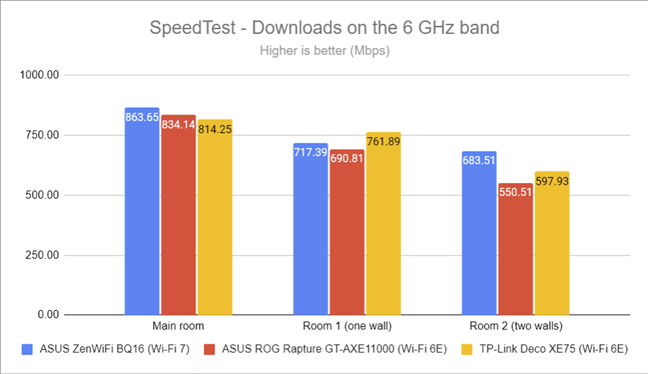
 SpeedTest - The download speed on 6 GHz
Upload speeds were slower, but also more constant through my apartment, with no significant speed drops between rooms.
SpeedTest - The download speed on 6 GHz
Upload speeds were slower, but also more constant through my apartment, with no significant speed drops between rooms.
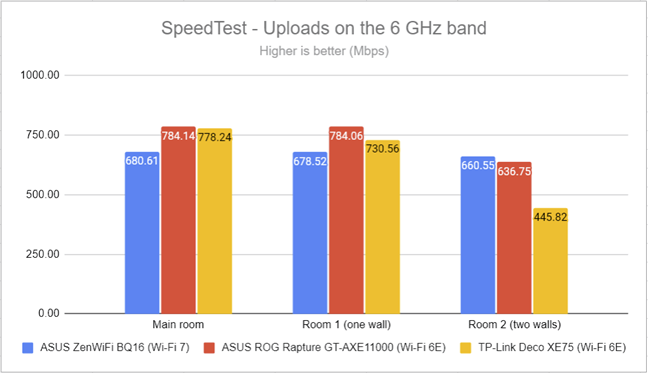 SpeedTest - The upload speed on 6 GHz
When running the PassMark Performance test, I was able to see some major speed gains delivered by the Wi-Fi 7 standard on ASUS ZenWiFi BQ16. In some rooms, ASUS ZenWiFi BQ16 was literally twice as fast as its competitors.
SpeedTest - The upload speed on 6 GHz
When running the PassMark Performance test, I was able to see some major speed gains delivered by the Wi-Fi 7 standard on ASUS ZenWiFi BQ16. In some rooms, ASUS ZenWiFi BQ16 was literally twice as fast as its competitors.
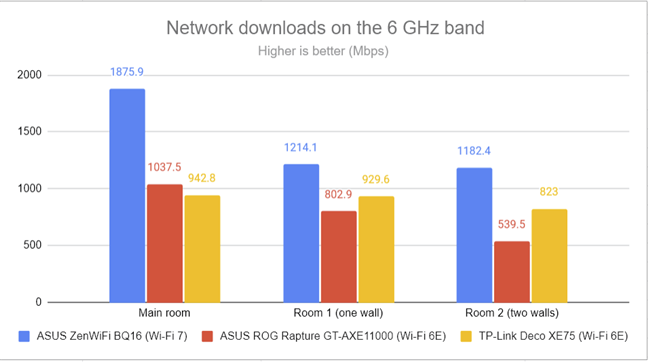
 PassMark Performance - Wi-Fi download speed on 6 GHz
Upload speeds were a tiny bit lower but remained at impressive levels throughout my entire apartment.
PassMark Performance - Wi-Fi download speed on 6 GHz
Upload speeds were a tiny bit lower but remained at impressive levels throughout my entire apartment.
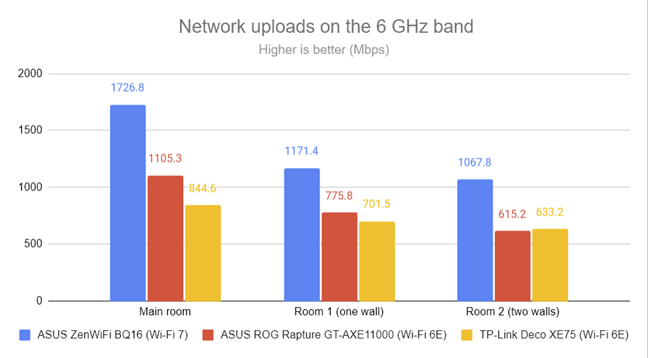
 PassMark Performance - Wi-Fi upload speed on 6 GHz
ASUS ZenWiFi BQ16 delivers excellent performance on the 6 GHz band. You get great signal strength, very fast data transfers, and steady data throughput without any major swings in speed.
PassMark Performance - Wi-Fi upload speed on 6 GHz
ASUS ZenWiFi BQ16 delivers excellent performance on the 6 GHz band. You get great signal strength, very fast data transfers, and steady data throughput without any major swings in speed.
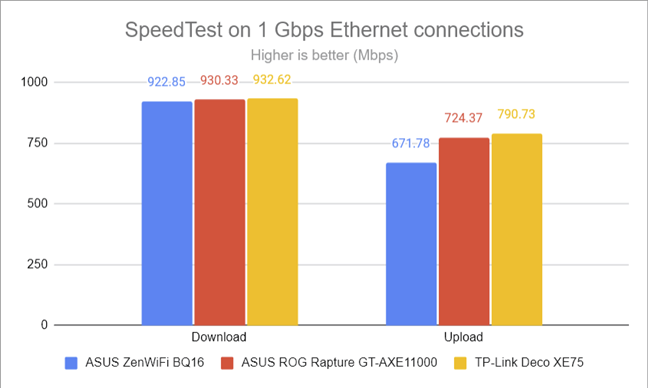
 SpeedTest on 1 Gbps Ethernet connections
Few mesh Wi-Fi systems offer a USB port. Luckily, ASUS ZenWiFi BQ16 packs a USB 3.2 Gen 1 port, which allows users to turn their units into a NAS (Network Attached Storage) by connecting a fast SSD to it. I did the same and then transferred some data to and from the SSD, over the network. I was stunned by how fast the USB port was on the ASUS ZenWiFi BQ16. Downloads reached a whopping 1658.65 Mbps.
SpeedTest on 1 Gbps Ethernet connections
Few mesh Wi-Fi systems offer a USB port. Luckily, ASUS ZenWiFi BQ16 packs a USB 3.2 Gen 1 port, which allows users to turn their units into a NAS (Network Attached Storage) by connecting a fast SSD to it. I did the same and then transferred some data to and from the SSD, over the network. I was stunned by how fast the USB port was on the ASUS ZenWiFi BQ16. Downloads reached a whopping 1658.65 Mbps.

 The speeds achieved through the USB port
NOTE: TP-Link Deco XE75 doesn’t have a USB port, and that’s why it doesn’t appear in the graphic above.
ASUS ZenWiFi BQ16 is a powerful mesh Wi-Fi system that offers fast Ethernet connectivity (including a 10 Gbps LAN port) and an ultra-fast USB 3.2 Gen 1 port that can be used to connect to the network all kinds of devices, from storage drives, to USB modems or printers.
The speeds achieved through the USB port
NOTE: TP-Link Deco XE75 doesn’t have a USB port, and that’s why it doesn’t appear in the graphic above.
ASUS ZenWiFi BQ16 is a powerful mesh Wi-Fi system that offers fast Ethernet connectivity (including a 10 Gbps LAN port) and an ultra-fast USB 3.2 Gen 1 port that can be used to connect to the network all kinds of devices, from storage drives, to USB modems or printers.
ASUS ZenWiFi BQ16: Who is it good for?
This mesh Wi-Fi system is a suitable choice for:- People with subscriptions to ultra-fast internet connections (2.5 Gbps and above, up to 10 Gbps)
- Users interested in future-proofing their network with Wi-Fi 7
- Large homes or business offices which need Wi-Fi coverage over larger areas
- Those who want a secure network with excellent antivirus and firewall protection
- Parents who require efficient parental controls for protecting their children
Pros and cons
Here are the things I like about the ASUS ZenWiFi BQ16:- Elegant design
- Wi-Fi 7 connectivity
- Superb performance on the 5 GHz and 6 GHz bands
- Able to use 2.5 Gbps and 10 Gbps internet connections
- Super fast USB 3.2 Gen 1 port
- Dual-WAN connectivity
- Tons of features: antivirus, firewall, VPN, parental controls, etc.
- It’s expensive
- Performance on the 2.4 GHz band could be improved
Verdict
ASUS ZenWiFi BQ16 is a powerful and future-proof mesh Wi-Fi system, with a premium price tag. It has an elegant design, as well as excellent hardware and performance, particularly on the 5 GHz and 6 GHz wireless frequency bands, where it achieved speeds well beyond the 1.5 Gbps in local network transfers. While it shows some inconsistency on the 2.4 GHz frequency band, its performance is outstanding, especially for users with ultra-fast internet plans. Whether you’re a tech enthusiast who wants to enjoy the benefits of Wi-Fi 7, a family needing fast Wi-Fi with reliable parental controls, or a small business owner requiring secure and low-latency networking, the ASUS ZenWiFi BQ16 provides a powerful, feature-rich solution built to handle your increasing demands.Unboxing the ASUS ZenWiFi BQ16
ASUS ZenWiFi BQ16 comes in a large blue cardboard box, featuring a picture of the product on the front cover, as well as a list of its most important features. As expected, ASUS prominently promotes its Wi-Fi 7 capabilities and the fact that it can work with super fast 10 Gbps internet connections.Hardware specifications and design
Each ASUS ZenWiFi BQ16 is a Wi-Fi 7 mesh router with a size of 214 x 174.2 x 72 mm or 8.42 x 6.85 x 2.83 inches, and a weight of 1341 grams or 47.3 oz. All units are white, with rounded corners, and the ASUS logo on the front. If you’re buying a kit of two units, the main one has a sticker informing you that you should install it first. Keep in mind ASUS also sells ZenWiFi BQ16 in one-unit versions.- 1376 Mbps for the Wi-Fi on the 2.4 GHz band
- 5764 Mbps for each of the two 5 GHz bands
- 11529 Mbps for the 6 GHz frequency band
Setting up and using the ASUS ZenWiFi BQ16
Although I haven’t tested a consumer mesh Wi-Fi product in many months, when installing the ASUS ZenWiFi BQ16, I noticed that things haven’t changed that much in the initial setup wizard. This mesh Wi-Fi system can be set up both from a laptop or PC, or a mobile device, using the ASUS Router app available for free for both iOS and Android. When setting them up, it is important to configure the main unit first and keep the secondary one in the same room.Advanced features
The firmware on the ASUS ZenWiFi BQ16 is complex and packs many advanced features that aim to please the most pretentious of users. These features are divided into many categories, and one of the most prominent is security. Here’s how ASUS ZenWiFi BQ16 can protect your network and the devices you connect to it:- AiProtection - helps protect your network from attacks, malicious sites, infected devices, and poorly configured settings. If you want to learn more about how it works, I recommend this article: ASUS AiProtection: On or Off? Enhance your router’s security!
- Parental Controls - efficient cloud-based parental controls, developed by ASUS and Trend Micro, alongside their AiProtection module. You can use them to set up filters for content that should be blocked and set time limits for accessing the internet. For more information on how they work, read this article: 7 ways in which ASUS Parental Controls protect your children.
-
- VPN Server - ZenWiFi BQ16 can be set to work as a VPN server for your network, using the PPTP, OpenVPN, IPSec, and WiredGuard VPN protocols.
- VPN Fusion - allows you to connect to multiple VPN servers simultaneously and assign client devices to different VPN tunnels.
- Instant Guard - a mobile app that helps smartphone users navigate the internet securely by establishing a VPN connection to their home network. The app is especially useful when using free public Wi-Fi networks, which tend to be insecure. For more details, read: How to configure and use Instant Guard on ASUS Wi-Fi routers.
- AiMesh - you can expand your network by adding other ZenWiFi BQ16 units or ASUS routers. When using the two-unit kit configuration, the system enables a dedicated backhaul powered by Wi-Fi 7's Multi-Link Operation technology. While the ZenWiFi BQ16 is backward compatible with existing ASUS networking equipment - allowing you to upgrade and extend your current network - older ASUS devices do not support Wi-Fi 7 features and capabilities.
- Adaptive QoS - an easy-to-use Quality of Service feature that allows you to prioritize the traffic you want to get more bandwidth: games, media streaming, work-from-home, learn-from-home, web surfing, etc.
- Traffic Analyzer - visual traffic statistics that clearly show how your network is used and by which devices.
- DDNS - allows you to connect to your mesh Wi-Fi from the internet, even if your internet provider assigns you a dynamic public IP address.
- Dual WAN - the ZenWiFi BQ16 supports simultaneous use of two internet connections. Your primary connection can utilize the high-speed 10 Gbps WAN port, while the secondary connection can be established through either the 1 Gbps WAN port or the USB port located on the rear.
- Amazon Alexa - you can integrate your network with Amazon Alexa and say things like “Alexa, ask ASUS ROUTER to upgrade the firmware” to perform different tasks.
- Network Tools - for analyzing the network and identifying what’s wrong. They are helpful when you need to troubleshoot problems.
- AiCloud 2.0 - you can attach USB storage devices and use them to create a cloud storage service for your network and devices.
- USB Application - you can connect USB storage devices, printers, or 4G/5G USB modems and set up services such as shared network storage, printing, or 4G/5G mobile internet connectivity. You can also connect a smartphone and use its internet connection as a backup for your entire network.
Wireless network performance
I tested ASUS ZenWiFi BQ16 in my two-bedroom apartment, which is quite small for a mesh Wi-Fi system as powerful as this one. However, the tests I’m using should give us a decent perspective on its performance. But before we jump in, here’s how I placed the two ZenWiFi BQ16 units in my apartment:- Room 0 or the Main room - I recorded the maximum speeds you get when no walls absorb the wireless signal in the room where the main unit is placed.
- Room 1 - one wall separates this room from the main unit, and this is where I placed the second unit.
- Room 2 - is separated from the main unit by two walls absorbing the wireless signal. Furthermore, the wall between Room 1 and Room 2 is twice as thick as the one between Room 0 and Room 1. As a result, Room 2 can be a difficult challenge for some routers, but it should be fine for a mesh Wi-Fi system.
How the ASUS ZenWiFi BQ16 performs on the 2.4 GHz band
I started by measuring the signal strength using NetSpot on the 2.4 GHz frequency band. ASUS ZenWiFi BQ16 was using the Wi-Fi 7 standard, while the ASUS ROG Rapture GT-AXE11000 router and the TP-Link Deco XE75 were using Wi-Fi 6. Below, you can see how the signal strength evolved in each room. As expected, ASUS ZenWiFi BQ16 didn’t have any issues delivering the good signal strength everywhere in my apartment.How the ASUS ZenWiFi BQ16 performs on the 5 GHz band
I moved on to the 5 GHz band and made the same measurements. On this frequency band, ASUS ZenWiFi BQ16 used the Wi-Fi 7 standard, while ASUS ROG Rapture GT-AXE11000 and TP-Link Deco XE75 used Wi-Fi 6. The signal strength measured with Netspot was excellent in all rooms in my apartment.How the ASUS ZenWiFi BQ16 performs on the 6 GHz band
It was time to move to the 6 GHz band and repeat my measurements. On this frequency band, ASUS ZenWiFi BQ16 used the Wi-Fi 7 standard, while ASUS ROG Rapture GT-AXE11000 and TP-Link Deco XE75 used Wi-Fi 6E. Remember that the 6 GHz frequency band is a common feature of the two standards. However, the Wi-Fi 7 should offer double the bandwidth available with Wi-Fi 6E. First, I measured the signal strength with Netspot. As you can see, ASUS ZenWiFi BQ16 outperformed the devices I compared it to, and delivered the best signal strength everywhere in my apartment.Wired network performance & USB port
Ethernet connectivity generally works at the speeds advertised by the manufacturer. And this is the case for ASUS ZenWiFi BQ16 too. When running SpeedTest on a desktop PC connected to ZenWiFi BQ16 via cable, the download speed reached 922.85 Mbps, which is close to the maximum potential of my internet connection. However, uploads were a bit slower than when using other routers and mesh Wi-Fi systems.
Discussion (0)
Be the first to comment.