



I haven’t tested a gaming router in a while, so when ASUS approached me to review its ROG STRIX GS-BE18000, I was eager to see how well it performs. Looking at its specifications and price, it’s clear we’re dealing with a powerful Wi-Fi 7 router, with a premium price and many, many features. But is it any good? And who should consider buying it? Read my review to find out:
![Verdict]()


 Unboxing the ASUS ROG STRIX GS-BE18000
On the back of the box, ASUS details this router’s most important characteristics for gamers, including its ultra-fast Wi-Fi 7 connectivity, its optimized acceleration for gaming, and its 2.5 Gbps LAN and WAN ports. 🙂 Inside the box, you find the following items: the router itself, its power adapter with plugs for the standard EU electrical networks and the UK (if you buy it from a European country), a braided network cable, the quick setup guide, the warranty, and other leaflets with information.
Unboxing the ASUS ROG STRIX GS-BE18000
On the back of the box, ASUS details this router’s most important characteristics for gamers, including its ultra-fast Wi-Fi 7 connectivity, its optimized acceleration for gaming, and its 2.5 Gbps LAN and WAN ports. 🙂 Inside the box, you find the following items: the router itself, its power adapter with plugs for the standard EU electrical networks and the UK (if you buy it from a European country), a braided network cable, the quick setup guide, the warranty, and other leaflets with information.
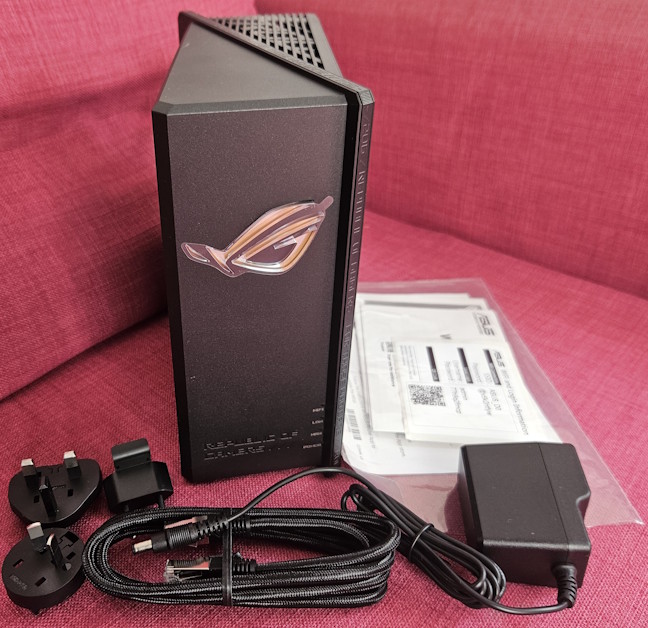
 All the items found inside the box
Overall, the unboxing experience is a pleasant one, making you feel that you just bought a powerful, premium router with tons of advanced features. Inside the box, you get all the accessories and information you need to set up your network.
All the items found inside the box
Overall, the unboxing experience is a pleasant one, making you feel that you just bought a powerful, premium router with tons of advanced features. Inside the box, you get all the accessories and information you need to set up your network.

 The Republic of Gamers branding is all over the router
On the back of the ASUS ROG STRIX GS-BE18000, you find the WPS button, one WAN port, and six LAN ports; two of each are considered gaming ports and get prioritized automatically. All of these ports work at 2.5 Gbps. Therefore, if you have a 2.5 Gbps internet connection, you can truly take advantage of it. You also get a USB 3.2 Gen 1 port, the power jack, and the Power button.
The Republic of Gamers branding is all over the router
On the back of the ASUS ROG STRIX GS-BE18000, you find the WPS button, one WAN port, and six LAN ports; two of each are considered gaming ports and get prioritized automatically. All of these ports work at 2.5 Gbps. Therefore, if you have a 2.5 Gbps internet connection, you can truly take advantage of it. You also get a USB 3.2 Gen 1 port, the power jack, and the Power button.
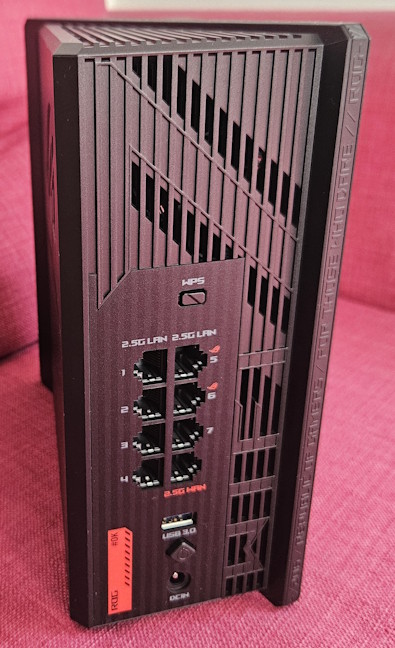
 All the ports on the back of the router
On the front, you see the Republic of Gamers logo, which lights up using RGB, alongside LEDs that signal the working status of the router. You can personalize the logo from the admin interface of the router and turn off the LEDs if you find them distracting. There’s also a Reset jack, but that one is hidden on the bottom of the ASUS ROG STRIX GS-BE18000. The router is relatively tall and lightweight, measuring 225 x 90 x 225 mm (8.86 x 3.54 x 8.86 inches) and weighing 927.5 grams (32.73 oz).
All the ports on the back of the router
On the front, you see the Republic of Gamers logo, which lights up using RGB, alongside LEDs that signal the working status of the router. You can personalize the logo from the admin interface of the router and turn off the LEDs if you find them distracting. There’s also a Reset jack, but that one is hidden on the bottom of the ASUS ROG STRIX GS-BE18000. The router is relatively tall and lightweight, measuring 225 x 90 x 225 mm (8.86 x 3.54 x 8.86 inches) and weighing 927.5 grams (32.73 oz).
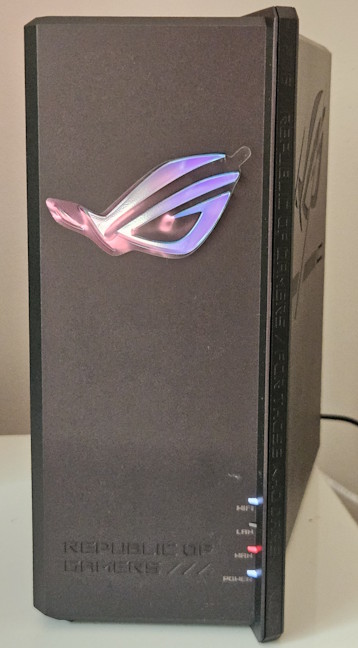
 The logo on the front uses RGB ligthing
Not only does the router have an aggressive look designed to appeal to gamers, but it also has some powerful hardware. A quad-core Broadcom BCM6766 processor powers this tri-band Wi-Fi 7 router, alongside 2 GB of DDR4 RAM and 256 MB of storage space for its firmware. It has eight internal antennas and supports wireless transfers with 4x4 MU-MIMO for the 5 GHz and 6 GHz bands, and 2x2 MU-MIMO for the 2.4 GHz frequency band. You rarely see so much power in a wireless router, and the total theoretical maximum bandwidth you get is: 11529 Mbps for the 6 GHz band, 5764 Mbps for the 5 GHz band, and 688 Mbps for the 2.4 GHz band. It also offers support for all the premium Wi-Fi 7 features you would expect: Multi-Link Operation (MLO), WPA3 password encryption, 320 MHz channel bandwidth, AiMesh, and more.
The logo on the front uses RGB ligthing
Not only does the router have an aggressive look designed to appeal to gamers, but it also has some powerful hardware. A quad-core Broadcom BCM6766 processor powers this tri-band Wi-Fi 7 router, alongside 2 GB of DDR4 RAM and 256 MB of storage space for its firmware. It has eight internal antennas and supports wireless transfers with 4x4 MU-MIMO for the 5 GHz and 6 GHz bands, and 2x2 MU-MIMO for the 2.4 GHz frequency band. You rarely see so much power in a wireless router, and the total theoretical maximum bandwidth you get is: 11529 Mbps for the 6 GHz band, 5764 Mbps for the 5 GHz band, and 688 Mbps for the 2.4 GHz band. It also offers support for all the premium Wi-Fi 7 features you would expect: Multi-Link Operation (MLO), WPA3 password encryption, 320 MHz channel bandwidth, AiMesh, and more.
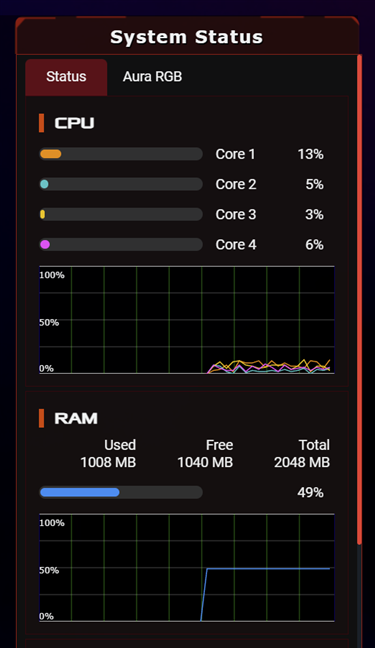
 ASUS ROG STRIX GS-BE18000 comes with a quad-core processor
These are the key design and technical highlights of the ASUS ROG STRIX GS-BE18000. It’s a premium Wi-Fi 7 gaming router with powerful hardware and impressive features. If you want even more technical information about this product, check its official page: ASUS ROG STRIX GS-BE18000.
ASUS ROG STRIX GS-BE18000 comes with a quad-core processor
These are the key design and technical highlights of the ASUS ROG STRIX GS-BE18000. It’s a premium Wi-Fi 7 gaming router with powerful hardware and impressive features. If you want even more technical information about this product, check its official page: ASUS ROG STRIX GS-BE18000.
 Republic of Gamers is everywhere
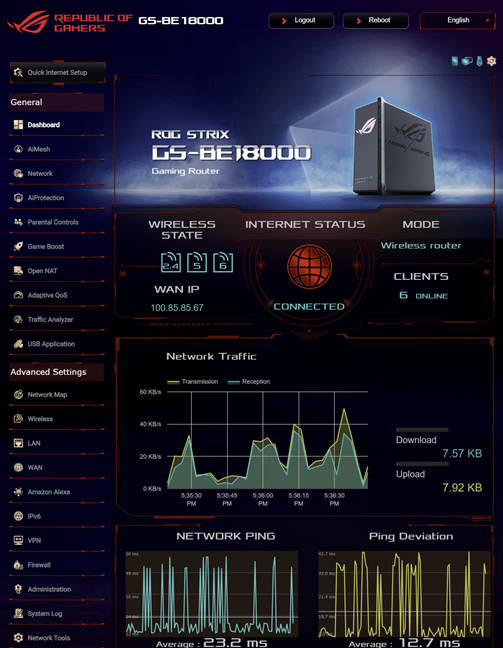
The user interface is available in twenty-five languages, with easy-to-access help documentation for those moments when you feel lost in the wealth of settings and tools available for configuration. Gamers get access to many goodies, some of which are promoted directly on the main Dashboard. They can customize the RGB lighting on the router and view the ping status for the servers hosting their favorite games.
Republic of Gamers is everywhere
The user interface is available in twenty-five languages, with easy-to-access help documentation for those moments when you feel lost in the wealth of settings and tools available for configuration. Gamers get access to many goodies, some of which are promoted directly on the main Dashboard. They can customize the RGB lighting on the router and view the ping status for the servers hosting their favorite games.

 Setting up the RGB lighting is easy
ASUS has added new Network settings, which allow users to create as many Wi-Fi networks as they need, including specialized networks with preconfigured parameters for gaming devices, VPN, IoT devices, or connecting devices used by children. You can also create Guest networks, so visitors can access the internet while remaining separate from your network.
Setting up the RGB lighting is easy
ASUS has added new Network settings, which allow users to create as many Wi-Fi networks as they need, including specialized networks with preconfigured parameters for gaming devices, VPN, IoT devices, or connecting devices used by children. You can also create Guest networks, so visitors can access the internet while remaining separate from your network.
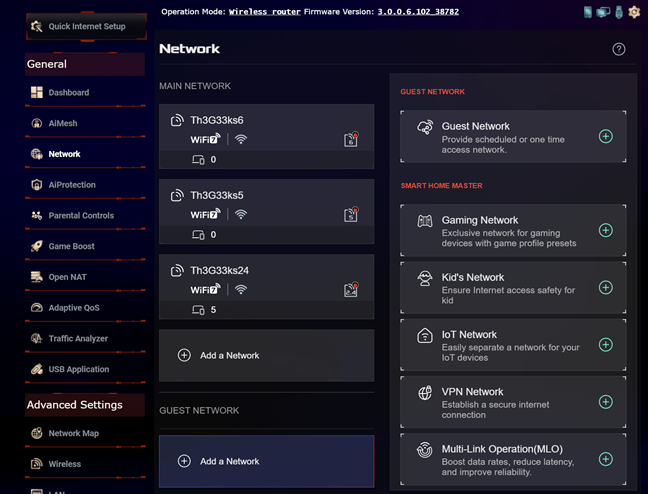
 Setting up the Wi-Fi is easier than ever
I like a lot of the changes ASUS made in its recent firmware. They improve the user experience and make it easier to manage the wealth of features found on the company’s routers, including the ROG STRIX GS-BE18000.
The ASUS Router app features a skin inspired by the Republic of Gamers brand. It’s user-friendly, available in multiple languages, and provides access to many features and settings, including Parental Controls and the security tools within the AiProtection module. But, like many other mobile apps for managing routers, it doesn’t offer access to all the options available on the ASUS ROG STRIX GS-BE18000. Therefore, for the best management experience, I recommend using a web browser on your laptop. 🙂
Setting up the Wi-Fi is easier than ever
I like a lot of the changes ASUS made in its recent firmware. They improve the user experience and make it easier to manage the wealth of features found on the company’s routers, including the ROG STRIX GS-BE18000.
The ASUS Router app features a skin inspired by the Republic of Gamers brand. It’s user-friendly, available in multiple languages, and provides access to many features and settings, including Parental Controls and the security tools within the AiProtection module. But, like many other mobile apps for managing routers, it doesn’t offer access to all the options available on the ASUS ROG STRIX GS-BE18000. Therefore, for the best management experience, I recommend using a web browser on your laptop. 🙂

 The ASUS Router app also features the Republic of Gamers branding
While testing the ASUS ROG STRIX GS-BE18000, I didn't encounter any bugs or compatibility issues, and all my devices connected to the Wi-Fi without problems. My user experience was very smooth, and I enjoyed one of the fastest Wi-Fi networks I’ve ever had, especially when using the 5 GHz wireless band. This router offers 4x4 MU-MIMO, which leads to a major speed and bandwidth improvement when compared to other routers. But more about that on the second page of this review. Meanwhile, let’s see the features and tools included on the ASUS ROG STRIX GS-BE18000:
The ASUS Router app also features the Republic of Gamers branding
While testing the ASUS ROG STRIX GS-BE18000, I didn't encounter any bugs or compatibility issues, and all my devices connected to the Wi-Fi without problems. My user experience was very smooth, and I enjoyed one of the fastest Wi-Fi networks I’ve ever had, especially when using the 5 GHz wireless band. This router offers 4x4 MU-MIMO, which leads to a major speed and bandwidth improvement when compared to other routers. But more about that on the second page of this review. Meanwhile, let’s see the features and tools included on the ASUS ROG STRIX GS-BE18000:

 Setting up Open NAT is easy
You also get access to these features:
Setting up Open NAT is easy
You also get access to these features:
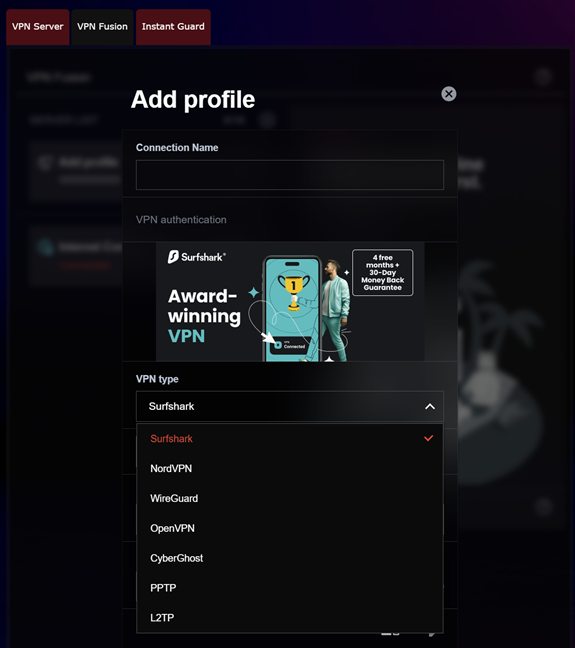
 You get tons of VPN functionality
This is a huge list of tools and features, isn’t it? Very few vendors offer as much as ASUS does, and if you want the most comprehensive feature set, the ROG STRIX GS-BE18000 is a great choice. Next, let’s examine its real-world performance, supported by measurements and benchmarks. Go to the next page of this review to learn more. 🙂
You get tons of VPN functionality
This is a huge list of tools and features, isn’t it? Very few vendors offer as much as ASUS does, and if you want the most comprehensive feature set, the ROG STRIX GS-BE18000 is a great choice. Next, let’s examine its real-world performance, supported by measurements and benchmarks. Go to the next page of this review to learn more. 🙂
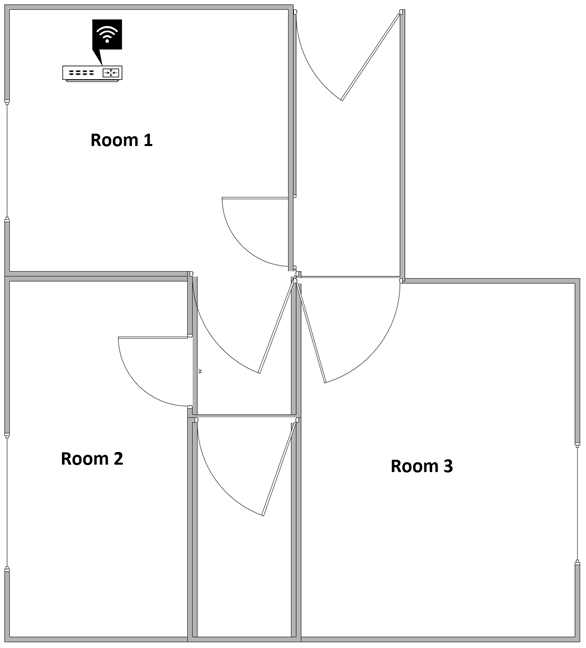
 The apartment where I've tested the router
I evaluated the quality of the wireless network managed by this gaming router through measurements made in three different places:
The apartment where I've tested the router
I evaluated the quality of the wireless network managed by this gaming router through measurements made in three different places:
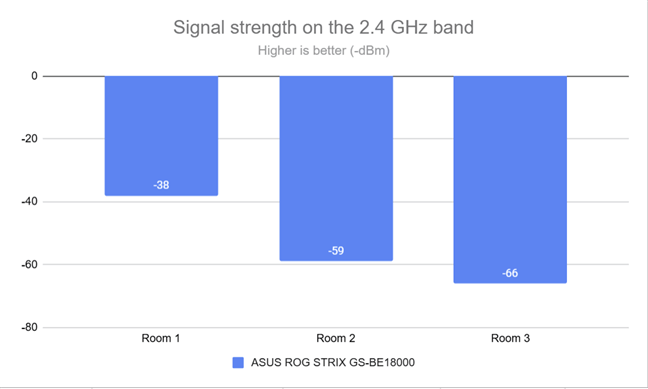
 The signal strength on the 2.4 GHz wireless band
Then, I ran SpeedTest to see how fast internet data transfers are on the 2.4 GHz wireless band. ASUS ROG STRIX GS-BE18000 offers wireless transfers using 2x2 MU-MIMO on this band, unlike the 4x4 MU-MIMO available on the other two bands. It also seems less optimized for speed on the 2.4 GHz, as evidenced by the results I measured. The download speeds were okay for most users, but other Wi-Fi 7 routers are faster.
The signal strength on the 2.4 GHz wireless band
Then, I ran SpeedTest to see how fast internet data transfers are on the 2.4 GHz wireless band. ASUS ROG STRIX GS-BE18000 offers wireless transfers using 2x2 MU-MIMO on this band, unlike the 4x4 MU-MIMO available on the other two bands. It also seems less optimized for speed on the 2.4 GHz, as evidenced by the results I measured. The download speeds were okay for most users, but other Wi-Fi 7 routers are faster.
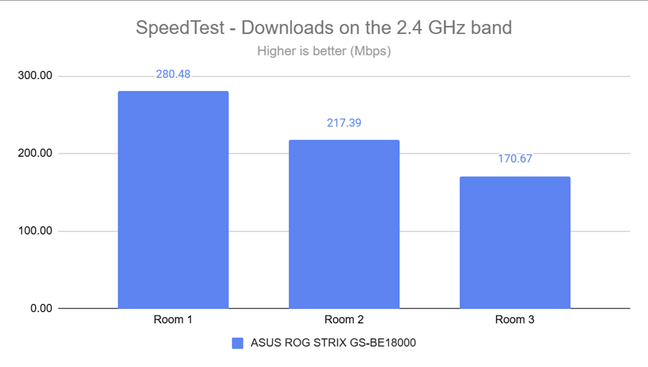
 The download speed in SpeedTest on the 2.4 GHz band
The upload speeds were a bit slower than the downloads, while remaining at a satisfactory level.
The download speed in SpeedTest on the 2.4 GHz band
The upload speeds were a bit slower than the downloads, while remaining at a satisfactory level.
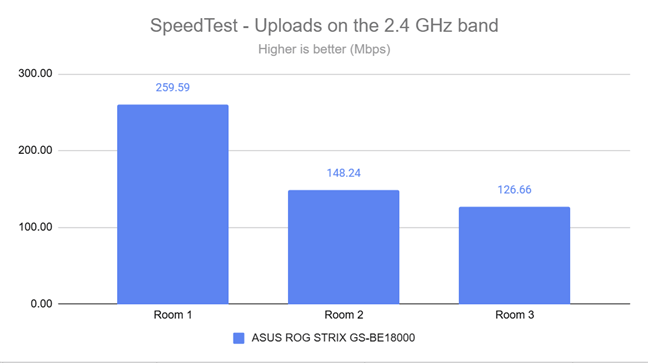
 The upload speed in SpeedTest on the 2.4 GHz band
I moved on to the PassMark Performance Test and transferred data between two computers connected to the network. One was the laptop I mentioned earlier, connected over Wi-Fi on the 2.4 GHz band, and the other was a desktop computer connected to the router through an Ethernet cable. This test measures the speeds when transferring data over your network. This time, the download speeds were even lower than those I got with SpeedTest.
The upload speed in SpeedTest on the 2.4 GHz band
I moved on to the PassMark Performance Test and transferred data between two computers connected to the network. One was the laptop I mentioned earlier, connected over Wi-Fi on the 2.4 GHz band, and the other was a desktop computer connected to the router through an Ethernet cable. This test measures the speeds when transferring data over your network. This time, the download speeds were even lower than those I got with SpeedTest.
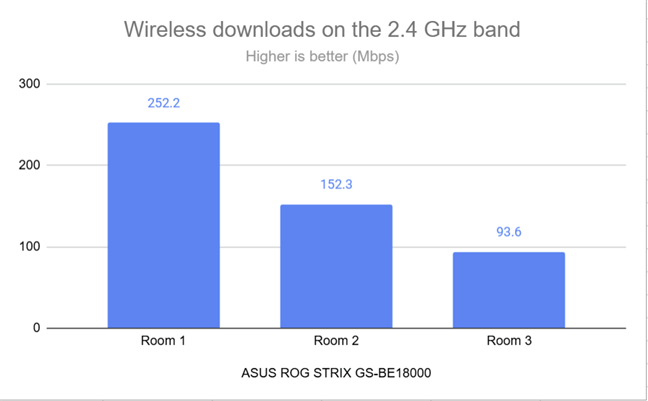
 Wireless downloads on the 2.4 GHz band
Uploads shared a similar story, and they were a bit slower than I would have liked, especially in Room 3.
Wireless downloads on the 2.4 GHz band
Uploads shared a similar story, and they were a bit slower than I would have liked, especially in Room 3.
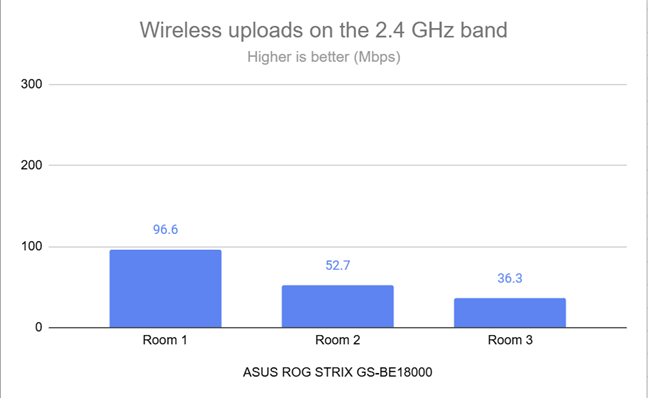
 Wireless uploads on the 2.4 GHz band
The performance of the ASUS ROG STRIX GS-BE18000 on the 2.4 GHz wireless band is OK, but lower than what you might expect from a premium gaming router. It’s comparable to mid-range Wi-Fi 7 routers. For most people, this won’t be an issue, but if you need excellent performance on this band, you may want to consider another router, like the ASUS RT-BE92U, which excels in this regard.
Wireless uploads on the 2.4 GHz band
The performance of the ASUS ROG STRIX GS-BE18000 on the 2.4 GHz wireless band is OK, but lower than what you might expect from a premium gaming router. It’s comparable to mid-range Wi-Fi 7 routers. For most people, this won’t be an issue, but if you need excellent performance on this band, you may want to consider another router, like the ASUS RT-BE92U, which excels in this regard.
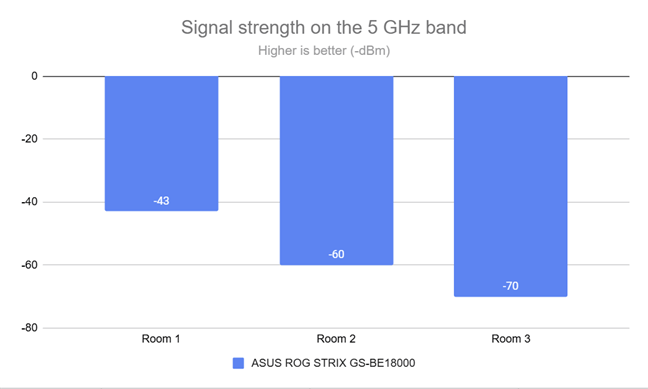 The signal strength on the 5 GHz wireless band
I was excited to test the Wi-Fi speed I had on this band, since this router is using 4x4 MU-MIMO for its data transfers. First, I used SpeedTest to determine the speed I could achieve over Wi-Fi when uploading and downloading data to and from the internet. My new internet connection allows a maximum speed of 1 Gbps (usually around 900 Mbps) for both downloads and uploads. As you can see, ASUS ROG STRIX GS-BE18000 had no problems in reaching a maximum download speed of 908.73 Mbps.
The signal strength on the 5 GHz wireless band
I was excited to test the Wi-Fi speed I had on this band, since this router is using 4x4 MU-MIMO for its data transfers. First, I used SpeedTest to determine the speed I could achieve over Wi-Fi when uploading and downloading data to and from the internet. My new internet connection allows a maximum speed of 1 Gbps (usually around 900 Mbps) for both downloads and uploads. As you can see, ASUS ROG STRIX GS-BE18000 had no problems in reaching a maximum download speed of 908.73 Mbps.
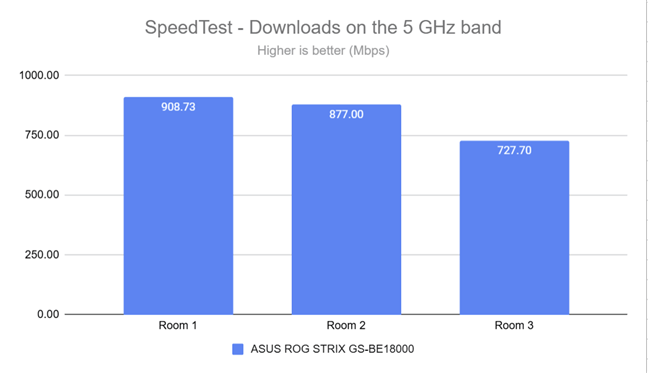
 The download speed in SpeedTest on the 5 GHz band
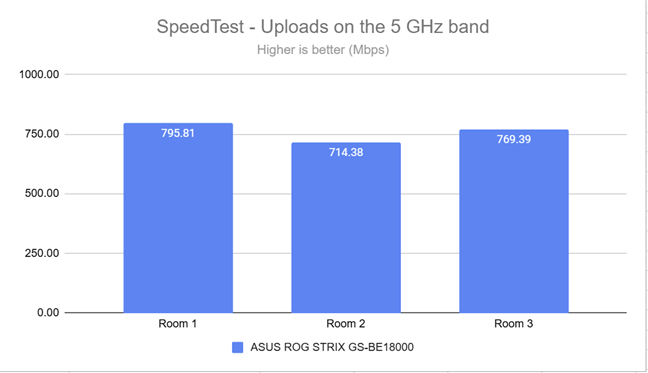
Uploads were fast too, but did not go above 800 Mbps.
The download speed in SpeedTest on the 5 GHz band
Uploads were fast too, but did not go above 800 Mbps.
 The upload speed in SpeedTest on the 5 GHz band
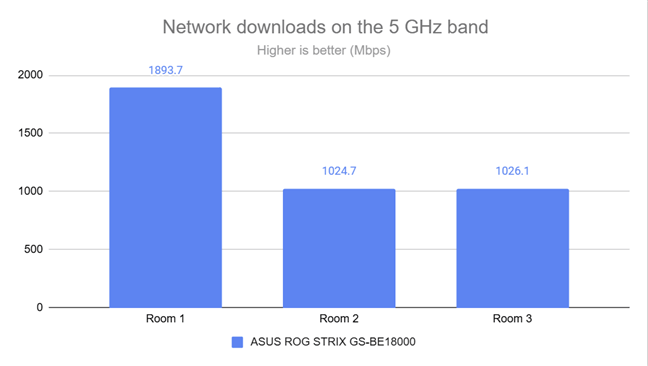
Running the PassMark Performance Test showed that the ASUS ROG STRIX GS-BE18000 can deliver Wi-Fi download speeds close to 2 Gbps in the room where it’s located and over 1 Gbps in the other two rooms of my apartment. An impressive level of performance.
The upload speed in SpeedTest on the 5 GHz band
Running the PassMark Performance Test showed that the ASUS ROG STRIX GS-BE18000 can deliver Wi-Fi download speeds close to 2 Gbps in the room where it’s located and over 1 Gbps in the other two rooms of my apartment. An impressive level of performance.
 Wireless downloads on the 5 GHz band
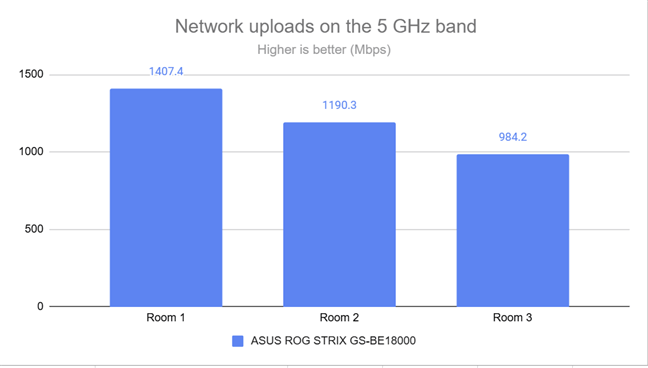
Upload speeds were also impressive, but not as fast as the downloads.
Wireless downloads on the 5 GHz band
Upload speeds were also impressive, but not as fast as the downloads.
 Wireless uploads on the 5 GHz band
The ASUS ROG STRIX GS-BE18000 offers excellent performance on the 5 GHz band, with speeds that can get very close to the 2 Gbps mark when downloading data over Wi-Fi. An excellent result!
Wireless uploads on the 5 GHz band
The ASUS ROG STRIX GS-BE18000 offers excellent performance on the 5 GHz band, with speeds that can get very close to the 2 Gbps mark when downloading data over Wi-Fi. An excellent result!
 The signal strength on the 6 GHz wireless band
Moving on to SpeedTest, the download speeds I measured were comparable to the 5 GHz band. In some rooms, they were a bit faster, while in others, a bit slower.
The signal strength on the 6 GHz wireless band
Moving on to SpeedTest, the download speeds I measured were comparable to the 5 GHz band. In some rooms, they were a bit faster, while in others, a bit slower.
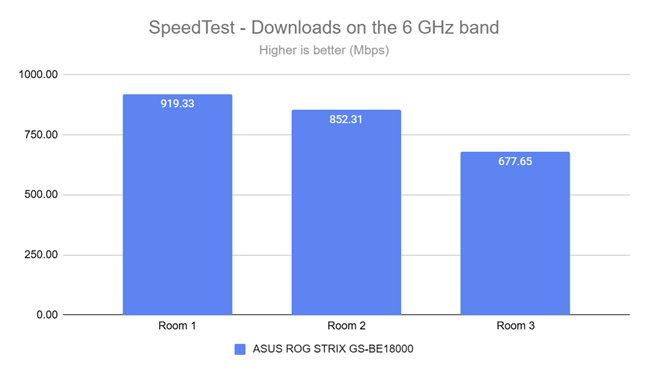 The download speed in SpeedTest on the 6 GHz band
Upload followed a similar trend: in some rooms, they were slightly faster than on the 5 GHz band, while in others, they were slightly slower.
The download speed in SpeedTest on the 6 GHz band
Upload followed a similar trend: in some rooms, they were slightly faster than on the 5 GHz band, while in others, they were slightly slower.
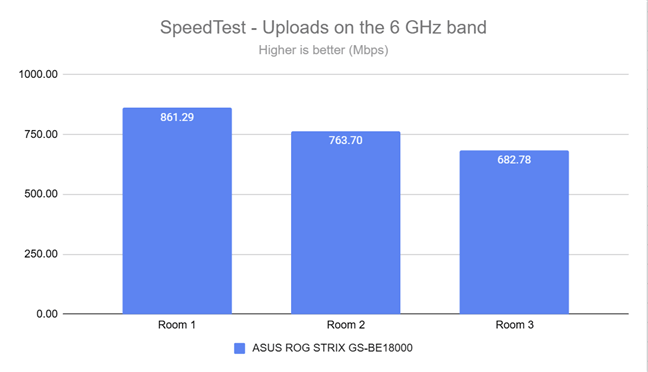
 The upload speed in SpeedTest on the 6 GHz band
When running the PassMark Performance Test, ASUS ROG STRIX GS-BE18000 went above the 1 Gbps mark only in the room where it was placed. Very good performance, but I expected a bit more.
The upload speed in SpeedTest on the 6 GHz band
When running the PassMark Performance Test, ASUS ROG STRIX GS-BE18000 went above the 1 Gbps mark only in the room where it was placed. Very good performance, but I expected a bit more.
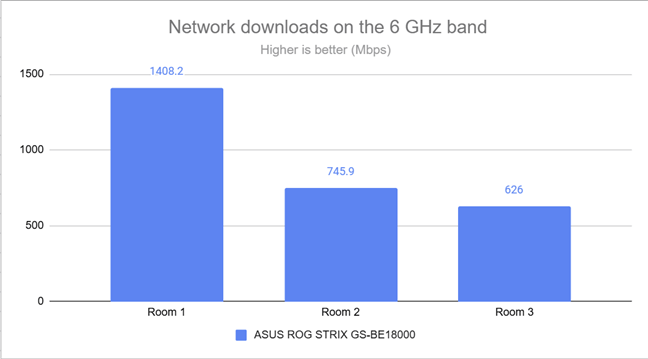
 Wireless downloads on the 6 GHz band
On the other hand, the upload speed was close to or above the 1 Gbps mark everywhere in my apartment.
Wireless downloads on the 6 GHz band
On the other hand, the upload speed was close to or above the 1 Gbps mark everywhere in my apartment.
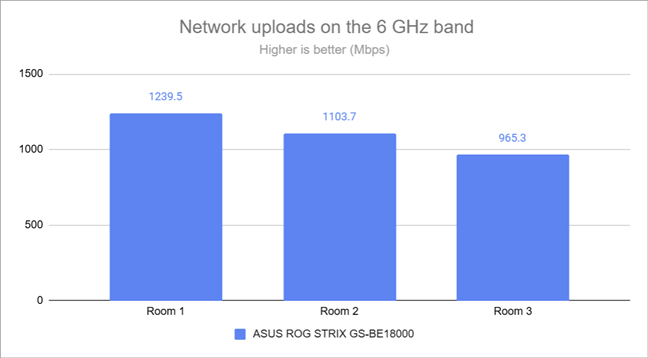
 Wireless uploads on the 6 GHz band
The ASUS ROG STRIX GS-BE18000 performs well on the 6 GHz frequency band. However, its performance is not as great as the one on the 5 GHz wireless band.
Wireless uploads on the 6 GHz band
The ASUS ROG STRIX GS-BE18000 performs well on the 6 GHz frequency band. However, its performance is not as great as the one on the 5 GHz wireless band.
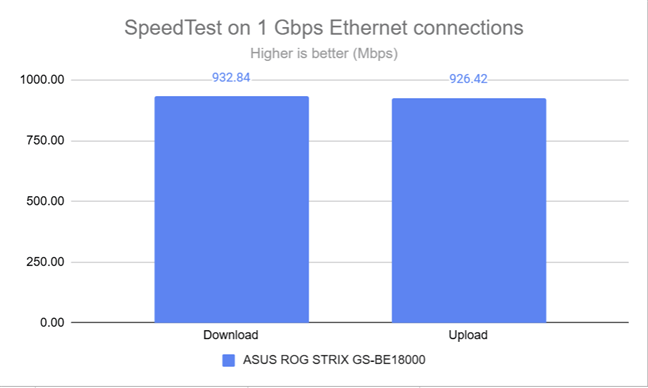
 SpeedTest on Ethernet connections
I also connected a portable SSD drive to the router and transferred data to and from it. I recorded 646.43 Mbps for the download speed, which is pretty good. It’s not the fastest I’ve seen, but fast enough to be useful for anyone who wants to turn their ASUS router into a NAS.
SpeedTest on Ethernet connections
I also connected a portable SSD drive to the router and transferred data to and from it. I recorded 646.43 Mbps for the download speed, which is pretty good. It’s not the fastest I’ve seen, but fast enough to be useful for anyone who wants to turn their ASUS router into a NAS.
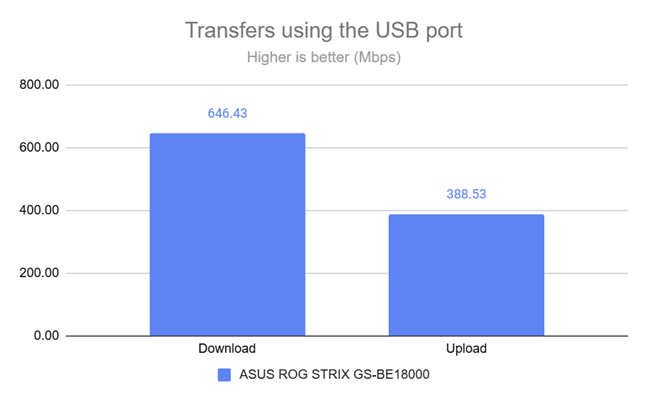 How fast the USB port is
As expected, the ASUS ROG STRIX GS-BE18000 has no trouble providing super-fast Ethernet connectivity. Its USB connectivity is relatively speedy, which should be useful for more advanced users who need to connect storage devices to their router.
How fast the USB port is
As expected, the ASUS ROG STRIX GS-BE18000 has no trouble providing super-fast Ethernet connectivity. Its USB connectivity is relatively speedy, which should be useful for more advanced users who need to connect storage devices to their router.
ASUS ROG STRIX GS-BE18000: Who is it good for?
This Wi-Fi7 router is a suitable choice for:- Internet connections up to 2.5 Gbps
- Users who need multiple LAN ports at 2.5 Gbps
- Home networks with a large number of devices
- Online gamers who want the best performance they can get
Pros and cons
Here are the things I like about the ASUS ROG STRIX GS-BE18000:- Works great with fast internet connections up to 2.5 Gbps
- Superb performance on the 5 GHz frequency band
- All LAN ports work at 2.5 Gbps
- Many gaming-specific features
- Excellent security tools and parental controls
- Advanced firmware that allows for tons of customization
- Fast USB port
- Performance on the 2.4 GHz band could be better
Verdict
I loved testing the ASUS ROG STRIX GS-BE18000. It’s a great router that offers excellent performance and is able to take full advantage of the improvements introduced by the Wi-Fi 7 standard. While its Republic of Gamers branding and features are aimed at gamers, this router is a great choice for anyone who uses a fast 1 Gbps or 2.5 Gbps internet connection, has many connected devices, and wants the best possible performance from a wireless router. And it’s not great just for Wi-Fi, it’s an excellent choice for those who need wired connectivity at 2.5 Gbps. While it doesn’t look like one, the ASUS ROG STRIX GS-BE18000 truly is a beast!Unboxing the ASUS ROG STRIX GS-BE18000
The ASUS ROG STRIX GS-BE18000 comes in a large, colored box, featuring the Republic of Gamers branding. On the top cover, you see a picture of the router, as well as information about some of its most important characteristics.Hardware specifications and design
The design of the GS-BE18000 is aimed at gamers who love the Republic of Gamers brand. Its body is made from lightweight plastic and features branding elements not only on the front of the router but also on the sides, alongside its ventilation grids.Setting up and using the ASUS ROG STRIX GS-BE18000
You can configure and manage the ASUS ROG STRIX GS-BE18000 either from your smartphone using the ASUS Router app or by connecting a laptop or PC to the router and navigating to asusrouter.com. The quick setup wizard is easy to follow, and it involves the same steps as all other wireless routers. When you’re done, you see a summary of your settings, and you can enter the admin user interface. As you can see, it uses a Republic of Gamers skin, and its homepage shares data about your network traffic, network ping, etc.ASUS ROG STRIX GS-BE18000 includes many advanced features
ASUS ROG STRIX GS-BE18000 is a premium gaming router, so it includes all the features developed by the company. First of all, we have many features aimed at gamers, starting with the Aura RGB lighting system. Gamers also get access to:- Open NAT - allows you to create port forwarding rules for popular online games like Call of Duty and League of Legends.
- Game Radar - check the ping reply for gaming servers worldwide for a predefined list of games that includes popular titles like Overwatch, World of Warcraft, or World of Tanks.
- Game Boost - a collection of tools for prioritizing gaming devices, including portable consoles and mobile phones.
- AiMesh - allows you to connect other ASUS routers and create a mesh Wi-Fi system with a larger coverage area. This is useful for multi-floor homes and large apartments, and it also works with older routers.
- AiProtection - includes a router security assessment tool, a malicious sites blocking tool, a two-way intrusion prevention system for blocking spam and network attacks, and infected device prevention and blocking.
- Parental Controls - allows you to set a schedule for children's devices and control how long they’re connected to the internet. You can also set content filters to prevent them from accessing inappropriate content for their age.
- Adaptive QoS - monitor how your internet bandwidth is used and set rules for prioritizing certain types of traffic in your network. For example, you could prioritize online gaming, work-from-home services, or media streaming.
- Traffic Analyzer - you can monitor outgoing and incoming traffic categorized by connection type (WAN, wired, and wireless) and see statistics for each device on your network and its internet connection usage.
- USB Applications - for connecting a USB hard drive, a network printer, an Android smartphone, or a 4G USB dongle for mobile tethering.
- DDNS - lets you connect to your router remotely from anywhere on the internet, even if your internet service provider assigns you a dynamic public IP address. The list of supported services is extensive (DynDNS, No-IP, TunnelBroker, etc.), and it also includes ASUS’s own free offer.
- Integration with Amazon Alexa, Google Assistant, and IFTTT - you can integrate your router with voice assistants and manage it through voice prompts. You can say things like “Alexa, ask ASUS ROUTER to upgrade the firmware” to perform different tasks. You can also use IFTTT to automate tasks that might otherwise be repetitive or unable to “talk to each other.”
- Network Tools - tools for analyzing the network and troubleshooting what’s wrong when the Wi-Fi or the router doesn’t work well.
- VPN - you can set your router to work as a VPN server using protocols like PPTP, OpenVPN, IPSec VPN, and WireGuard VPN. You can also use VPN Fusion to turn your network-connected devices into VPN-enabled clients without additional VPN software. ASUS has built into its firmware quick-setup wizards for popular VPN services like Surfshark, NordVPN, or CyberGhost. You also get Instant Guard to connect your mobile devices to the router through VPN, even when you’re away from your network.
Wireless network performance
I’m living in a new apartment with a layout similar to the one shown in the diagram below. I’ve placed the ASUS ROG STRIX GS-BE18000 in one of the rooms where I spend most of my time. However, it’s not an ideal location, and the Wi-Fi signal is usually weaker in Room 3. This is an intentional choice, as I want to test and see whether the routers I’m reviewing offer good signal strength, steady data transfers, and a wide wireless coverage.- Room 1 - I record the maximum speeds when no walls absorb the wireless signal in the room where the router is placed.
- Room 2 - is separated by one wall from the router, so the wireless signal and the Wi-Fi speed I get should be lower here.
- Room 3 - is positioned at a difficult angle for most wireless routers, and Wi-Fi performance tends to be lower, regardless of which router I’m using.
How the ASUS ROG STRIX GS-BE18000 performs on the 2.4 GHz band
As always, I started by measuring the signal strength using NetSpot on my laptop when connected to the Wi-Fi on the 2.4 GHz frequency band. The signal strength delivered by the ASUS ROG STRIX GS-BE18000 was good everywhere in my apartment.How the ASUS ROG STRIX GS-BE18000 performs on the 5 GHz band
I switched to the 5 GHz band and repeated the same measurements. The signal strength measured by NetSpot was good in all rooms.How the ASUS ROG STRIX GS-BE18000 performs on the 6 GHz band
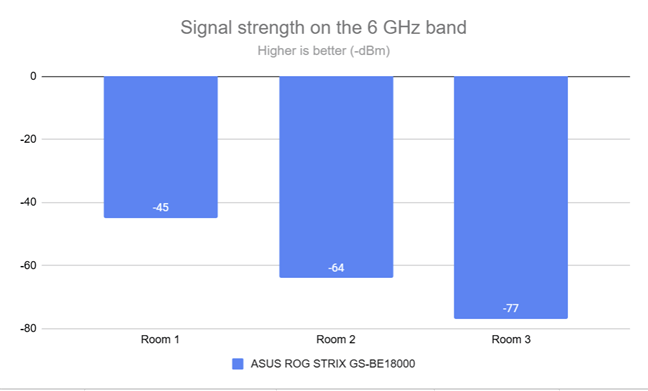
I finally got to the 6 GHz wireless band. The signal strength was okay, albeit a bit weaker than on the 5 GHz band.Wired network performance & USB port
For the final round of testing, I verified two things: the internet speed I got when connecting to the router using an Ethernet cable, and the data transfer speed through the USB port. My internet connection offers a maximum of 1 Gbps for both download and upload speeds. I ran a quick SpeedTest, and the ASUS ROG STRIX GS-BE18000 had no trouble getting past the 900 Mbps mark for both downloading and uploading data.

Discussion (0)
Be the first to comment.