




Smart homes are no longer a futuristic concept but a reality for many people worldwide. In a smart home, many devices require wireless connectivity on the 2.4 GHz frequency band: sensors, surveillance cameras, vacuum cleaners, air purifiers, smart bulbs, smart plugs, and so on. Having a router that offers more bandwidth to IoT devices is an excellent idea in this type of network. Unfortunately, not many routers prioritize this frequency band. The new ASUS RT-BE92U Wi-Fi 7 router does, however, offer a maximum theoretical bandwidth of 1032 Mbps just for the 2.4 GHz band. If you’re curious to know why this matters and how the ASUS RT-BE92U performs in real life, read this in-depth review:
![Verdict]()


 ASUS RT-BE92U arrives in a black cardboard box
On the back and the sides of the box, you find plenty of information about this product, its hardware specifications, and features. Another detail that I found interesting is that ASUS RT-BE92U has one 10 Gbps WAN port and four 2.5 Gbps LAN ports. This is the first router I’ve received for review to offer so many high-speed ports, and I was very curious to test it as soon as possible. When you open the box, you may notice a visual guide on extending the router's antennas to avoid breaking them. Pay attention to this information so that you don’t get into trouble when mounting the router in the location where you plan to use it.
ASUS RT-BE92U arrives in a black cardboard box
On the back and the sides of the box, you find plenty of information about this product, its hardware specifications, and features. Another detail that I found interesting is that ASUS RT-BE92U has one 10 Gbps WAN port and four 2.5 Gbps LAN ports. This is the first router I’ve received for review to offer so many high-speed ports, and I was very curious to test it as soon as possible. When you open the box, you may notice a visual guide on extending the router's antennas to avoid breaking them. Pay attention to this information so that you don’t get into trouble when mounting the router in the location where you plan to use it.

 Pay attention to how you should extend the antennas
When you unbox everything, you find the following items: the router itself, its power adapter with plugs for the standard EU electrical networks and the UK (if you buy it from a European country), a wall mounting kit, some screws, a network cable, the quick setup guide, mounting instructions, troubleshooting details, the warranty card, and other leaflets.
Pay attention to how you should extend the antennas
When you unbox everything, you find the following items: the router itself, its power adapter with plugs for the standard EU electrical networks and the UK (if you buy it from a European country), a wall mounting kit, some screws, a network cable, the quick setup guide, mounting instructions, troubleshooting details, the warranty card, and other leaflets.

 ASUS RT-BE92U bundles a wall mounting kit
I enjoyed unboxing the ASUS RT-BE92U. The company provides ample information about the product and its features and includes a wall mounting kit for flexible installation, which many users will appreciate.
ASUS RT-BE92U bundles a wall mounting kit
I enjoyed unboxing the ASUS RT-BE92U. The company provides ample information about the product and its features and includes a wall mounting kit for flexible installation, which many users will appreciate.

 ASUS RT-BE92U is a tall router
On the back of the ASUS RT-BE92U, you find the WPS button, the power jack, the Power button, the Reset button, a 10 Gbps WAN port, and four 2.5 Gbps LAN ports. The first LAN port can also be used for WAN connections. You also get one USB 3.2 Gen 1 port for connecting storage devices, printers, smartphones, or USB modems. If you look carefully, you also notice two holes towards the top, for mounting the router on walls.
ASUS RT-BE92U is a tall router
On the back of the ASUS RT-BE92U, you find the WPS button, the power jack, the Power button, the Reset button, a 10 Gbps WAN port, and four 2.5 Gbps LAN ports. The first LAN port can also be used for WAN connections. You also get one USB 3.2 Gen 1 port for connecting storage devices, printers, smartphones, or USB modems. If you look carefully, you also notice two holes towards the top, for mounting the router on walls.

 The ports on the back of the ASUS RT-BE92U
On the bottom of the router, there are two rubber feet, ventilation grids that help keep it cool, and stickers with information about the router, including the default connection details.
The ports on the back of the ASUS RT-BE92U
On the bottom of the router, there are two rubber feet, ventilation grids that help keep it cool, and stickers with information about the router, including the default connection details.

 The connection information is found on the bottom of the router
ASUS RT-BE92U is equipped with a powerful quad-core Broadcom BCM6765 processor running at 2.0 GHz, 1 GB of DDR4 RAM, and 256 MB of storage space for the firmware. Considering how feature-packed ASUS routers have become, I’m happy to see that 1 GB of RAM is becoming the new standard for their Wi-Fi 7 routers. This is a welcome upgrade, and so is having a quad-core processor.
The connection information is found on the bottom of the router
ASUS RT-BE92U is equipped with a powerful quad-core Broadcom BCM6765 processor running at 2.0 GHz, 1 GB of DDR4 RAM, and 256 MB of storage space for the firmware. Considering how feature-packed ASUS routers have become, I’m happy to see that 1 GB of RAM is becoming the new standard for their Wi-Fi 7 routers. This is a welcome upgrade, and so is having a quad-core processor.

 ASUS RT-BE92U features a quad-core processor
ASUS RT-BE92U is a tri-band wireless router with a total theoretical maximum bandwidth split as follows: 1032 Mbps for the 2.4 GHz band, 2882 Mbps for the 5 GHz band, and 5764 Mbps for the 6 GHz band. Remember that this maximum throughput is available only if you use the Wi-Fi 7 standard on all bands. Switching to an older wireless standard leads to less bandwidth being available.
ASUS RT-BE92U features a quad-core processor
ASUS RT-BE92U is a tri-band wireless router with a total theoretical maximum bandwidth split as follows: 1032 Mbps for the 2.4 GHz band, 2882 Mbps for the 5 GHz band, and 5764 Mbps for the 6 GHz band. Remember that this maximum throughput is available only if you use the Wi-Fi 7 standard on all bands. Switching to an older wireless standard leads to less bandwidth being available.

 The total theoretical maximum bandwidth
The maximum channel bandwidth is 40 MHz for the 2.4 GHz band, 160 MHz for the 5 GHz band, and 320 MHz for the 6 GHz band introduced by the Wi-Fi 7 standard. Another technical aspect that is worth pointing out is that ASUS RT-BE92U offers 3x3 MU-MIMO wireless transfers on the 2.4 GHz band, and 2x2 MU-MIMO on the 5 GHz and 6 GHz bands. This should allow it to provide more bandwidth and faster wireless transfers on the 2.4 GHz band, making it ideal for networks with many IoT devices.
This router also offers WPA3 encryption for increased security and the Multi-Link Operation (MLO) feature introduced by the Wi-Fi 7 standard, which enables devices connected to your network to simultaneously send and/or receive data across multiple frequency bands and channels.
It’s been a long time since reading the specifications of a wireless router made me excited to test the product. Luckily, this has happened with the ASUS RT-BE92U. Hardware and feature-wise, it’s a very promising wireless router, which should be able to deliver an excellent experience that feels like a meaningful upgrade over previous generations. For even more technical info about this product and its specifications, I recommend visiting its official webpage: ASUS RT-BE92U.
The total theoretical maximum bandwidth
The maximum channel bandwidth is 40 MHz for the 2.4 GHz band, 160 MHz for the 5 GHz band, and 320 MHz for the 6 GHz band introduced by the Wi-Fi 7 standard. Another technical aspect that is worth pointing out is that ASUS RT-BE92U offers 3x3 MU-MIMO wireless transfers on the 2.4 GHz band, and 2x2 MU-MIMO on the 5 GHz and 6 GHz bands. This should allow it to provide more bandwidth and faster wireless transfers on the 2.4 GHz band, making it ideal for networks with many IoT devices.
This router also offers WPA3 encryption for increased security and the Multi-Link Operation (MLO) feature introduced by the Wi-Fi 7 standard, which enables devices connected to your network to simultaneously send and/or receive data across multiple frequency bands and channels.
It’s been a long time since reading the specifications of a wireless router made me excited to test the product. Luckily, this has happened with the ASUS RT-BE92U. Hardware and feature-wise, it’s a very promising wireless router, which should be able to deliver an excellent experience that feels like a meaningful upgrade over previous generations. For even more technical info about this product and its specifications, I recommend visiting its official webpage: ASUS RT-BE92U.

 Setting up the ASUS RT-BE92U is easy
The quick setup process involves setting up the administrator's user account and password, connecting to the internet, setting up the Wi-Fi emitted by the router, and configuring a separate wireless network for the Internet of Things (IoT) devices. You also have to agree with the privacy terms for utilizing this ASUS router. When the internet connection is established, the router checks for firmware updates and installs them, if any are available. I recommend enabling the Auto Firmware Upgrade switch to allow the router to handle firmware updates on its own sometime during the night, when you don’t need to use your network.
Setting up the ASUS RT-BE92U is easy
The quick setup process involves setting up the administrator's user account and password, connecting to the internet, setting up the Wi-Fi emitted by the router, and configuring a separate wireless network for the Internet of Things (IoT) devices. You also have to agree with the privacy terms for utilizing this ASUS router. When the internet connection is established, the router checks for firmware updates and installs them, if any are available. I recommend enabling the Auto Firmware Upgrade switch to allow the router to handle firmware updates on its own sometime during the night, when you don’t need to use your network.

 You should turn on Auto Firmware Upgrade
ASUS has improved the user interface for administering its routers, especially when it comes to Network settings. The router allows you to create as many Wi-Fi networks as you need, including specialized networks with preconfigured parameters for VPN, IoT devices, or connecting your children’s devices. You can also create Guest networks, so visitors can access Wi-Fi and the internet while remaining separate from your network and devices. The changes introduced by ASUS improve the user experience and make configuring how your Wi-Fi works easier.
You should turn on Auto Firmware Upgrade
ASUS has improved the user interface for administering its routers, especially when it comes to Network settings. The router allows you to create as many Wi-Fi networks as you need, including specialized networks with preconfigured parameters for VPN, IoT devices, or connecting your children’s devices. You can also create Guest networks, so visitors can access Wi-Fi and the internet while remaining separate from your network and devices. The changes introduced by ASUS improve the user experience and make configuring how your Wi-Fi works easier.

 Setting up the Wi-Fi is easier than ever
If you prefer using a mobile app to manage your home network, you can also use the ASUS Router app, which is free on both Android and iOS. The app isn’t complicated to use and gives you access to many settings and tools. Remember, though, that connecting to the router’s admin interface in a web browser gives you much more control.
Setting up the Wi-Fi is easier than ever
If you prefer using a mobile app to manage your home network, you can also use the ASUS Router app, which is free on both Android and iOS. The app isn’t complicated to use and gives you access to many settings and tools. Remember, though, that connecting to the router’s admin interface in a web browser gives you much more control.

 The ASUS Router app can be used to manage the ASUS RT-BE92U
Parents will appreciate how easy it is to add profiles for children in the ASUS Router app and set up filters and rules for what kind of content they can access when connected to the network.
The ASUS Router app can be used to manage the ASUS RT-BE92U
Parents will appreciate how easy it is to add profiles for children in the ASUS Router app and set up filters and rules for what kind of content they can access when connected to the network.
 Setting up children profiles is easy
While testing the ASUS RT-BE92U, I didn't encounter any compatibility issues, and all my devices connected to the Wi-Fi without problems. One aspect that I appreciated a lot was the Wi-Fi speed on the 2.4 GHz band. As you’ll see on the second page of this review, downloads were 60% faster than when testing other routers, since ASUS RT-BE92U offers 3x3 MU-MIMO transfers on this band. This is a significant improvement because it allows the router to provide more bandwidth to your devices and improved speed, making it ideal for networks with many IoT devices.
I enjoyed using the ASUS RT-BE92U. My experience was smooth, with no Wi-Fi connectivity or stability issues. Its excellent performance on the 2.4 GHz band was immediately noticeable, so I wanted to run my benchmarks and see what they said about this router and how well it works.
Setting up children profiles is easy
While testing the ASUS RT-BE92U, I didn't encounter any compatibility issues, and all my devices connected to the Wi-Fi without problems. One aspect that I appreciated a lot was the Wi-Fi speed on the 2.4 GHz band. As you’ll see on the second page of this review, downloads were 60% faster than when testing other routers, since ASUS RT-BE92U offers 3x3 MU-MIMO transfers on this band. This is a significant improvement because it allows the router to provide more bandwidth to your devices and improved speed, making it ideal for networks with many IoT devices.
I enjoyed using the ASUS RT-BE92U. My experience was smooth, with no Wi-Fi connectivity or stability issues. Its excellent performance on the 2.4 GHz band was immediately noticeable, so I wanted to run my benchmarks and see what they said about this router and how well it works.

 ASUS RT-BE92U is an extendable AiMesh router

 You can integrate ASUS RT-BE92U with many VPN services
ASUS RT-BE92U has numerous tools and advanced capabilities. Tech-savvy users will appreciate the extensive range of options available to them and what they can do.
Now that you know about my subjective user experience, the specifications of this router, and its many tools, it’s time to see how it performs in real life and compare it with other wireless routers from a performance perspective. Click or tap on the second page of this review for more details.
You can integrate ASUS RT-BE92U with many VPN services
ASUS RT-BE92U has numerous tools and advanced capabilities. Tech-savvy users will appreciate the extensive range of options available to them and what they can do.
Now that you know about my subjective user experience, the specifications of this router, and its many tools, it’s time to see how it performs in real life and compare it with other wireless routers from a performance perspective. Click or tap on the second page of this review for more details.
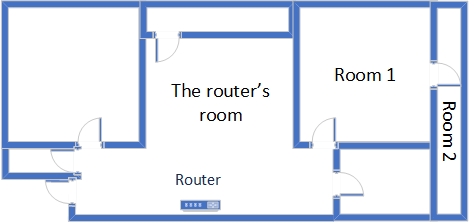
 The apartment where I tested ASUS RT-BE92U
I evaluated the quality of the wireless network managed by this router through measurements made in three different places:
The apartment where I tested ASUS RT-BE92U
I evaluated the quality of the wireless network managed by this router through measurements made in three different places:
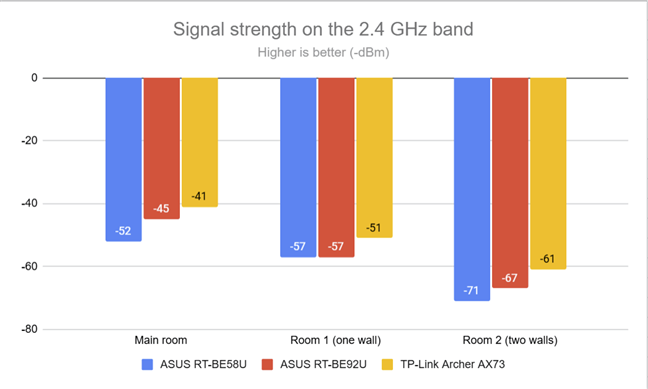
 The signal strength on the 2.4 GHz band
Then, I ran SpeedTest to measure how fast my internet connection works on the 2.4 GHz band. I was pleasantly surprised that the ASUS RT-BE92U reached download speeds of 375.64 Mbps on this band. In my experience reviewing routers, I’ve never encountered such speed on this wireless band.
The signal strength on the 2.4 GHz band
Then, I ran SpeedTest to measure how fast my internet connection works on the 2.4 GHz band. I was pleasantly surprised that the ASUS RT-BE92U reached download speeds of 375.64 Mbps on this band. In my experience reviewing routers, I’ve never encountered such speed on this wireless band.
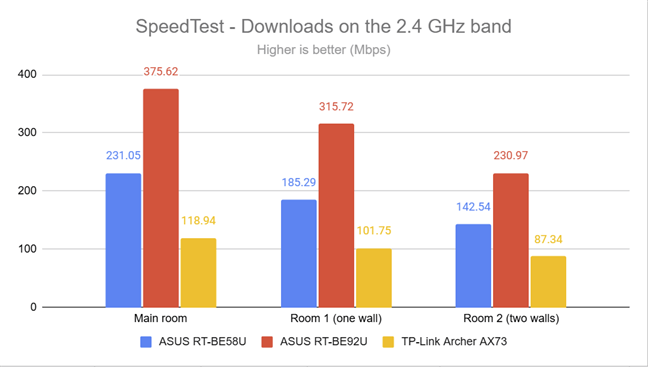
 SpeedTest - Download speed on the 2.4 GHz band
Uploads were very fast, but not as fast as the downloads.
SpeedTest - Download speed on the 2.4 GHz band
Uploads were very fast, but not as fast as the downloads.
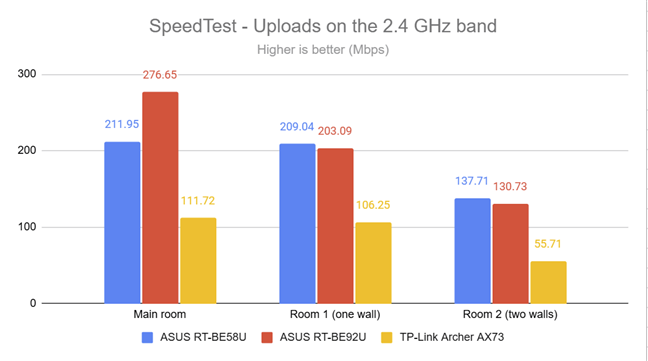
 SpeedTest - Upload speed on the 2.4 GHz band
For the next set of measurements, I used the PassMark Performance Test to transfer data between two computers connected to the network. One was the laptop I mentioned earlier, connected over Wi-Fi on the 2.4 GHz band, and the other was a desktop computer connected to the router through an Ethernet cable. Again, ASUS RT-BE92U managed to impress, delivering super fast downloads.
SpeedTest - Upload speed on the 2.4 GHz band
For the next set of measurements, I used the PassMark Performance Test to transfer data between two computers connected to the network. One was the laptop I mentioned earlier, connected over Wi-Fi on the 2.4 GHz band, and the other was a desktop computer connected to the router through an Ethernet cable. Again, ASUS RT-BE92U managed to impress, delivering super fast downloads.
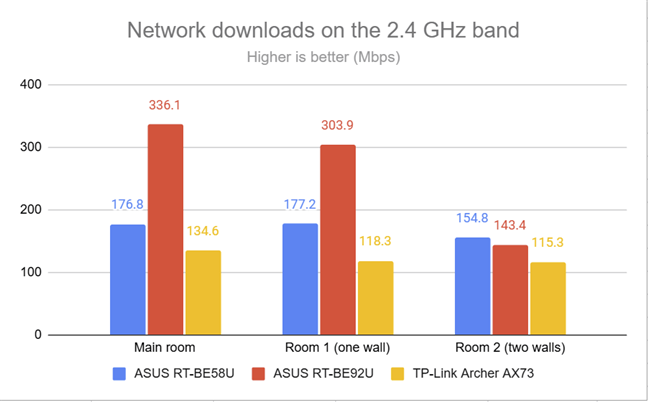 PassMark Performance Test - Download speed on the 2.4 GHz band
Uploads were made at excellent speeds, except in Room 2, where ASUS RT-BE92U was outperformed by its more affordable brother.
PassMark Performance Test - Download speed on the 2.4 GHz band
Uploads were made at excellent speeds, except in Room 2, where ASUS RT-BE92U was outperformed by its more affordable brother.
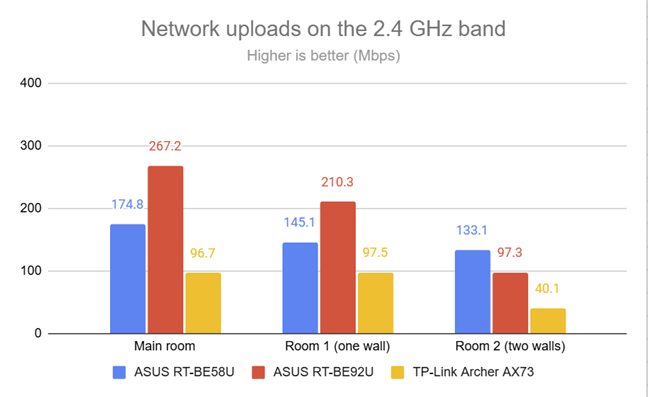
 PassMark Performance Test - Upload speed on the 2.4 GHz band
Due to its 3x3 MU-MIMO wireless transfer capabilities, the ASUS RT-BE92U is one of the fastest routers on the 2.4 GHz frequency band. Its impressive download speeds make it ideal for homes and small business offices with many IoT devices that fight for bandwidth.
PassMark Performance Test - Upload speed on the 2.4 GHz band
Due to its 3x3 MU-MIMO wireless transfer capabilities, the ASUS RT-BE92U is one of the fastest routers on the 2.4 GHz frequency band. Its impressive download speeds make it ideal for homes and small business offices with many IoT devices that fight for bandwidth.
 The signal strength on the 5 GHz band
Moving on to SpeedTest, I noticed that the ASUS RT-BE92U delivered download speeds similar to those of other routers. However, the router is held back by my internet connection, which offers a maximum download speed of 900 to 1000 Mbps. To fully utilize the ASUS RT-BE92U, you need an internet connection with 2.5 Gbps.
The signal strength on the 5 GHz band
Moving on to SpeedTest, I noticed that the ASUS RT-BE92U delivered download speeds similar to those of other routers. However, the router is held back by my internet connection, which offers a maximum download speed of 900 to 1000 Mbps. To fully utilize the ASUS RT-BE92U, you need an internet connection with 2.5 Gbps.

 SpeedTest - Download speed on the 5 GHz band
Uploads were fast too. However, ASUS RT-BE92U performed similarly to other routers.
SpeedTest - Download speed on the 5 GHz band
Uploads were fast too. However, ASUS RT-BE92U performed similarly to other routers.
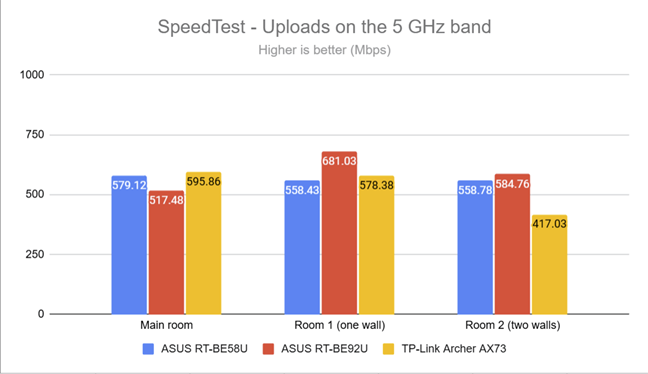 SpeedTest - Upload speed on the 5 GHz band
Switching to the PassMark Performance Test revealed the ASUS RT-BE92U's potential. It could download data over the network at a maximum speed of 1201.7 Mbps, which is an excellent result.
SpeedTest - Upload speed on the 5 GHz band
Switching to the PassMark Performance Test revealed the ASUS RT-BE92U's potential. It could download data over the network at a maximum speed of 1201.7 Mbps, which is an excellent result.
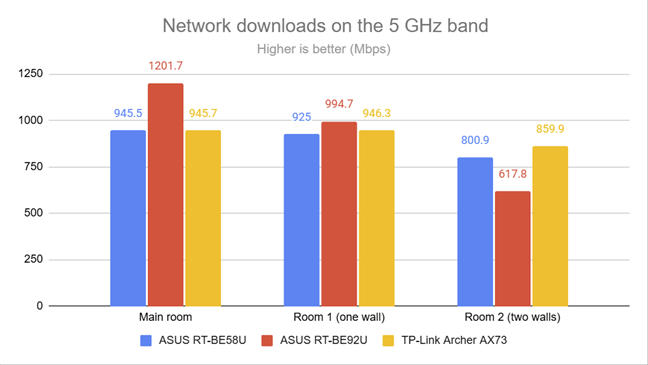
 PassMark Performance Test - Download speed on the 5 GHz band
Upload speeds were very fast, too, reaching a maximum of 1337.8 Mbps - another impressive result.
PassMark Performance Test - Download speed on the 5 GHz band
Upload speeds were very fast, too, reaching a maximum of 1337.8 Mbps - another impressive result.
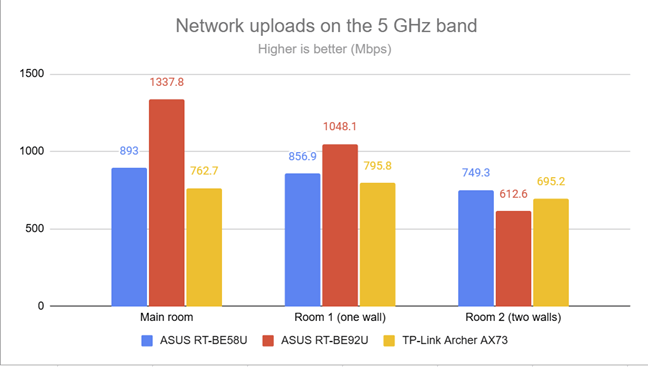 PassMark Performance Test - Upload speed on the 5 GHz band
When testing the ASUS RT-BE92U on the 5 GHz band, I noticed that this router can deliver Wi-Fi connections above 1 Gbps. However, you need an internet connection above 1 Gbps to take advantage of its power.
PassMark Performance Test - Upload speed on the 5 GHz band
When testing the ASUS RT-BE92U on the 5 GHz band, I noticed that this router can deliver Wi-Fi connections above 1 Gbps. However, you need an internet connection above 1 Gbps to take advantage of its power.
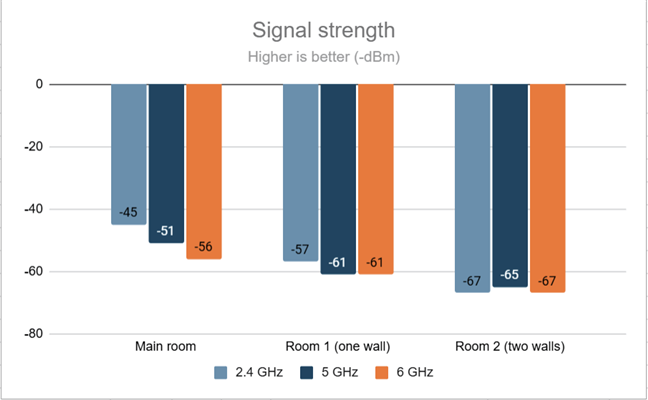
 The signal strength on the 6 GHz band
When running SpeedTest, my internet connection again limited my download speed. Therefore, the maximum download speed I measured was 876.60 Mbps. However, the ASUS RT-BE92U can deliver more if your internet connection exceeds 1 Gbps. I appreciated that download speeds were slightly higher on the 6 GHz band than on the 5 GHz band.
The signal strength on the 6 GHz band
When running SpeedTest, my internet connection again limited my download speed. Therefore, the maximum download speed I measured was 876.60 Mbps. However, the ASUS RT-BE92U can deliver more if your internet connection exceeds 1 Gbps. I appreciated that download speeds were slightly higher on the 6 GHz band than on the 5 GHz band.
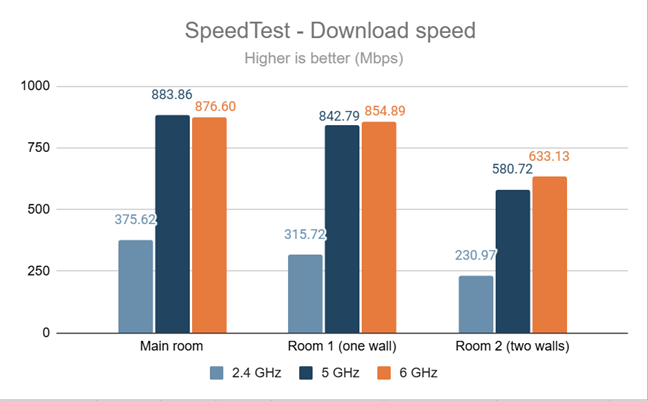
 SpeedTest - Download speed on the 6 GHz band
Uploads were close to the maximum potential of my internet connection, which acted like a bottleneck.
SpeedTest - Download speed on the 6 GHz band
Uploads were close to the maximum potential of my internet connection, which acted like a bottleneck.
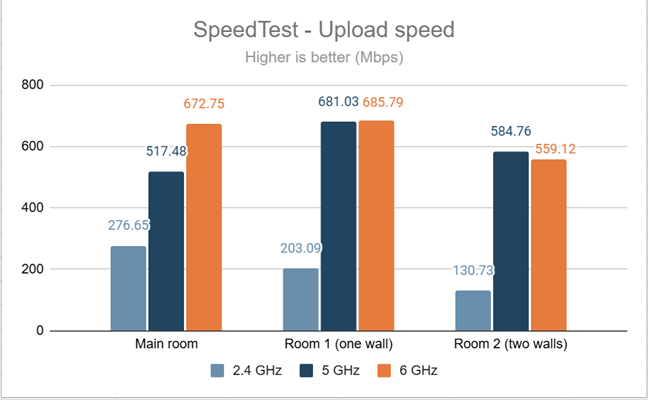 SpeedTest - Upload speed on the 6 GHz band
I moved on to the PassMark Performance Test, and ASUS RT-BE92U could go past the 1 Gbps threshold for the download speed but only in the room where it was placed. Unfortunately, the results I got on the 6 GHz band were slower than the ones reached on the 5 GHz band.
SpeedTest - Upload speed on the 6 GHz band
I moved on to the PassMark Performance Test, and ASUS RT-BE92U could go past the 1 Gbps threshold for the download speed but only in the room where it was placed. Unfortunately, the results I got on the 6 GHz band were slower than the ones reached on the 5 GHz band.
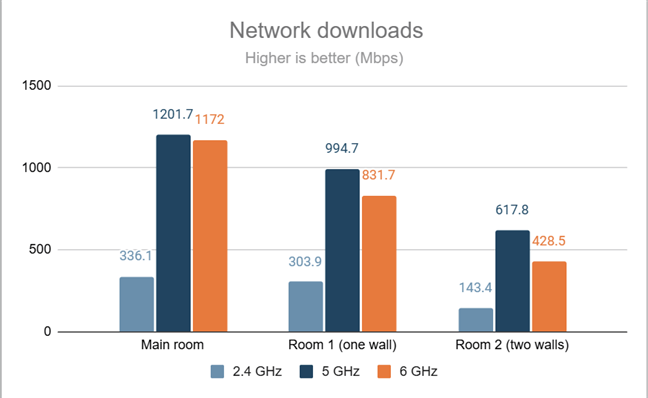
 PassMark Performance Test - Download speed on the 6 GHz band
The uploads were faster than the downloads. However, the 6 GHz band wasn’t necessarily faster than the 5 GHz band.
PassMark Performance Test - Download speed on the 6 GHz band
The uploads were faster than the downloads. However, the 6 GHz band wasn’t necessarily faster than the 5 GHz band.
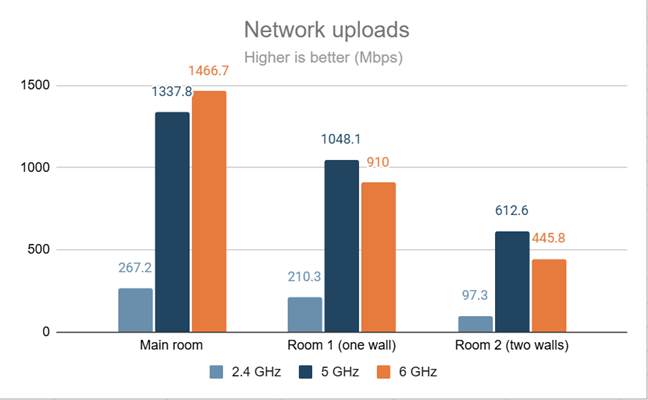 PassMark Performance Test - Upload speed on the 6 GHz band
The ASUS RT-BE92U performed well on the 6 GHz band, but it wasn’t faster than on the 5 GHz band, which is disappointing. However, users with Wi-Fi 7-compatible devices can take advantage of this additional frequency band and enjoy connections with less network congestion.
PassMark Performance Test - Upload speed on the 6 GHz band
The ASUS RT-BE92U performed well on the 6 GHz band, but it wasn’t faster than on the 5 GHz band, which is disappointing. However, users with Wi-Fi 7-compatible devices can take advantage of this additional frequency band and enjoy connections with less network congestion.
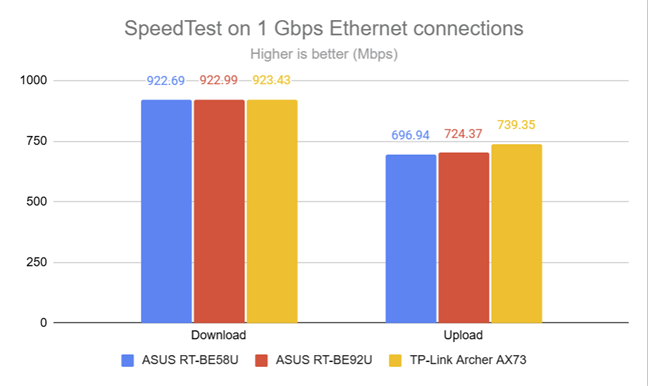 SpeedTest on 1 Gbps Ethernet connections
For the last test, I measured the speed of the USB 3.2 Gen 1 port on the back of the ASUS RT-BE92U. I transferred data to and from the SSD, achieving 1346.83 Mbps for downloading data and 853 Mbps for uploading data to the SSD.
SpeedTest on 1 Gbps Ethernet connections
For the last test, I measured the speed of the USB 3.2 Gen 1 port on the back of the ASUS RT-BE92U. I transferred data to and from the SSD, achieving 1346.83 Mbps for downloading data and 853 Mbps for uploading data to the SSD.
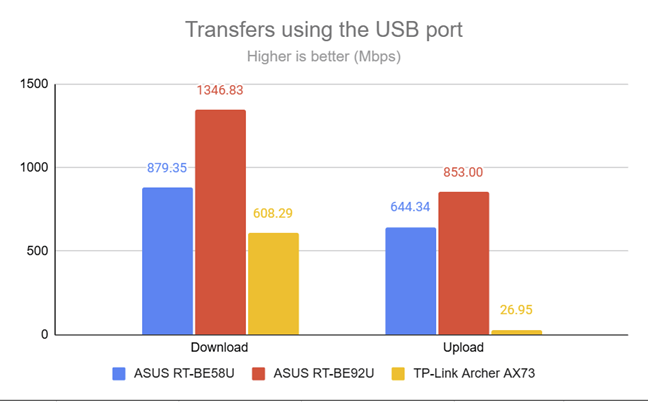 The speeds achieved through the USB port
The ASUS RT-BE92U is a fantastic router for cable-based connections. Its four LAN ports at 2.5 Gbps allow for a truly fast network, to which you can add a high-speed NAS and a few other computers and devices. Its USB port is super-fast, too, achieving data transfer rates that few routers can match.
The speeds achieved through the USB port
The ASUS RT-BE92U is a fantastic router for cable-based connections. Its four LAN ports at 2.5 Gbps allow for a truly fast network, to which you can add a high-speed NAS and a few other computers and devices. Its USB port is super-fast, too, achieving data transfer rates that few routers can match.
ASUS RT-BE92U: Who is it good for?
This wireless router is a smart choice for:- Internet connections up to 10 Gbps
- Building fast & secure home or small business networks
- Users who need multiple LAN ports at 2.5 Gbps
- Networks with a large number of IoT devices
- People who want a router they can mount on walls
Pros and cons
Here are the things I like about the ASUS RT-BE92U:- It can use 2.5 Gbps as well as 10 Gbps internet connections
- Superb performance on the 2.4 GHz wireless band
- It can be mounted on walls
- Four 2.5 Gbps LAN ports help you build a fast network
- Super-fast USB port
- Advanced firmware with tons of features
- Excellent security tools and parental controls
- Performance on the 6 GHz band could be better
Verdict
I haven’t been excited about testing a wireless router in a long time. Luckily, the ASUS RT-BE92U impressed me with its excellent performance on the 2.4 GHz wireless band, making it ideal for homes and small businesses with many IoT devices. Another great feature is that all the LAN ports on this router are working at 2.5 Gbps, which allows you to build a super-fast LAN network and connect PCs, consoles, or Network Attached Storage (NAS) systems. Imagine creating your own cloud storage and benefiting from a 2.5 Gbps connection. While the ASUS RT-BE92U is not the fastest router on the 5 GHz and 6 GHz frequency bands, it offers a well-rounded performance. This router can take advantage of super-fast 2.5 Gbps internet connections and offer you a networking experience that provides a noticeable speed boost, both when using wired and Wi-Fi connections. If you have many IoT devices and want to future-proof your home or small business network, ASUS RT-BE92U is one of the best choices you can make.Unboxing the ASUS RT-BE92U
The ASUS RT-BE92U arrives in a black cardboard box with the product name and picture on the top cover. One detail that immediately caught my attention is that this router is tri-band, meaning it has a third 6 GHz band in addition to the traditional 2.4 GHz and 5 GHz frequency bands.Hardware specifications and design
ASUS RT-BE92U is a tall wireless router with a classic design and four external antennas. It has a size of 247.18 x 101.59 x 287.47 mm or 9.73 x 4.00 x 11.32 inches in width x depth x height. It weighs 0.79 kg or 1.74 lb. Keep in mind that the image below does not depict the correct way to arrange the antennas. I kept them all vertically aligned to better fit inside my picture.🙂 However, you should orient the two side antennas at a 45-degree angle for the best performance. On the front, you have some ventilation grids, the ASUS logo, and a series of LEDs, which signal the functioning status of the router.Setting up and using the ASUS RT-BE92U
You can set up the ASUS RT-BE92U from your smartphone using the ASUS Router app or by connecting a laptop or PC to the router and navigating to asusrouter.com in your web browser. The quick setup wizard and the admin user interface are available in 25 languages, as shown in the screenshot below.Advanced features
As you would expect from an ASUS router, the RT-BE92U has numerous advanced features designed to meet the needs of a variety of users, from families with children who require effective parental controls to tech-savvy users wishing to transform their router into a VPN server or connect their entire network to third-party VPN services for access to specific online websites and services. Here’s what this router’s firmware has to offer:- AiMesh - allows you to connect other ASUS routers to the RT-BE92U and create a mesh Wi-Fi system with a larger coverage area. This is useful for multi-floor homes and large apartments, and it also works with older routers.
- AiProtection - security tools for protecting your network: a router security assessment tool, a malicious sites blocking tool, a two-way intrusion prevention system for blocking spam and network attacks, and infected device prevention and blocking. This suite was created with Trend Micro, a renowned antivirus vendor.
- Parental Controls - you can set a schedule for children's devices to control how long they remain connected to the internet. You can also set content filters so they don’t get access to inappropriate content for their age.
- Adaptive QoS - allows you to monitor how your internet bandwidth is used and set rules for prioritizing certain types of traffic in your network. For example, you could prioritize online gaming, work-from-home services, or media streaming.
- Traffic Analyzer - you can monitor outgoing and incoming traffic categorized by connection type (WAN, wired, and wireless) and see statistics for each device on your network and its internet connection usage.
- USB Applications - for connecting to the router a USB hard drive, a network printer, an Android smartphone, or a 4G or 5G USB dongle for mobile tethering.
- AiCloud 2.0 - allows you to attach USB storage to the router and use it as a cloud storage service for your devices.
- DDNS - allows you to connect to your router remotely from anywhere on the internet, even if your internet service provider assigns you a dynamic public IP address. The list of supported services is extensive (DynDNS, No-IP, TunnelBroker, Google, etc.), and it also includes ASUS’s own free offering.
- Integration with Amazon Alexa, Google Assistant, and IFTTT - you can integrate your router with voice assistants and manage it through voice prompts. You can say things like “Alexa, ask ASUS ROUTER to upgrade the firmware” to perform different tasks. You can also use IFTTT to automate tasks that might otherwise be repetitive or unable to “talk to each other.”
- Network Tools - tools for analyzing the network and troubleshooting what’s wrong when the Wi-Fi or the router doesn’t work well.
- VPN - you can set your router to work as a VPN server using the following protocols: PPTP, OpenVPN, IPSec VPN, and WireGuard VPN. You can also use VPN Fusion to turn your network-connected devices into VPN-enabled clients without additional VPN software. ASUS has built into its firmware quick-setup wizards for popular VPN services like Surfshark, NordVPN, or CyberGhost. You also get Instant Guard to connect your mobile devices to the router through VPN, even when you’re away from your network.
Wireless network performance
I’m reviewing routers in an apartment set up like the diagram below. I’ve placed the ASUS RT-BE92U in a central position to provide good coverage in as large an area as possible.- Main room - I record the maximum speeds when no walls absorb the wireless signal in the room where the router is placed.
- Room 1 - is separated by one wall from the router, so the wireless signal and the Wi-Fi speed I get should be lower here.
- Room 2 - is separated from the router by two walls absorbing the wireless signal. Also, the wall between Room 1 and Room 2 is twice as thick as the one between the Main room and Room 1. As a result, Room 2 can be a difficult challenge for many routers.
How the ASUS RT-BE92U performs on the 2.4 GHz band
As always, I start by measuring the signal strength using NetSpot. The first measurement was made for the 2.4 GHz band using the Wi-Fi 7 standard. ASUS RT-BE92U delivered good signal strength everywhere in my apartment, but its wireless signal wasn’t as strong as the one provided by the TP-Link Archer AX73 (using the Wi-Fi 6 standard). However, as you’ll soon see, this isn’t a problem.How the ASUS RT-BE92U performs on the 5 GHz band
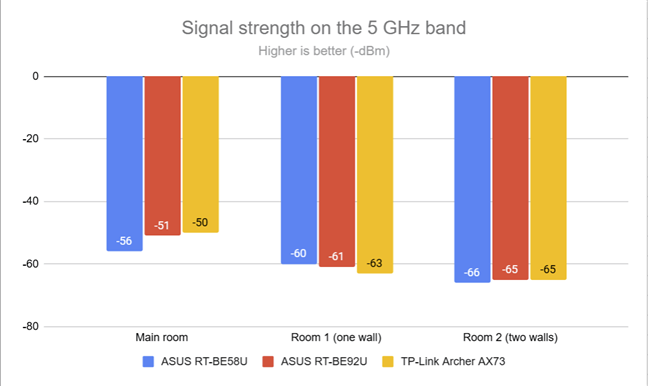
I switched to the 5 GHz band and repeated the same measurements. The signal strength delivered by the ASUS RT-BE92U was similar to that of the routers I compared it to.How the ASUS RT-BE92U performs on the 6 GHz band
The ASUS RT-BE92U is a tri-band wireless router that broadcasts its signal also on the 6 GHz band. Since I haven’t tested any tri-band Wi-Fi 7 routers before, I can’t compare it with other similar devices. Therefore, the charts in this section apply only to this router. However, to make them more useful, I also included the measurements made on the previous two bands, depicting how the 6 GHz band compares to the 2.4 GHz and the 5 GHz ones. This should give you a better idea of the strengths and weaknesses of the 6 GHz band when using the ASUS RT-BE92U. The signal strength delivered by ASUS RT-BE92U on the 6 GHz band was pretty good everywhere in my apartment, similar to what I measured on the 5 GHz band.Wired network performance & USB port
I also wanted to verify how the ASUS RT-BE92U performs when using Ethernet connections. My internet connection offers a maximum download speed of 1 Gbps and an upload speed of 800 Mbps. When tested with SpeedTest, the ASUS RT-BE92U delivered download and upload speeds that are typical for my connection. However, I would have needed a faster internet connection to showcase this router’s true potential. Unfortunately, one is not available in my area.

Discussion (1)
Hi and thanks for the article regarding the RT- BE92U router, I recently bought the router and found it to be quite good. One problem Ive noticed is that my MacBook connects to the router and I’m able to surf the web for a few minutes then it stops responding to any Web requests. As Ana example no further web pages will load. Can happily work on the Mac without internet. I have a Dell laptop and that has no issues at all – Have you experienced anything like this?