



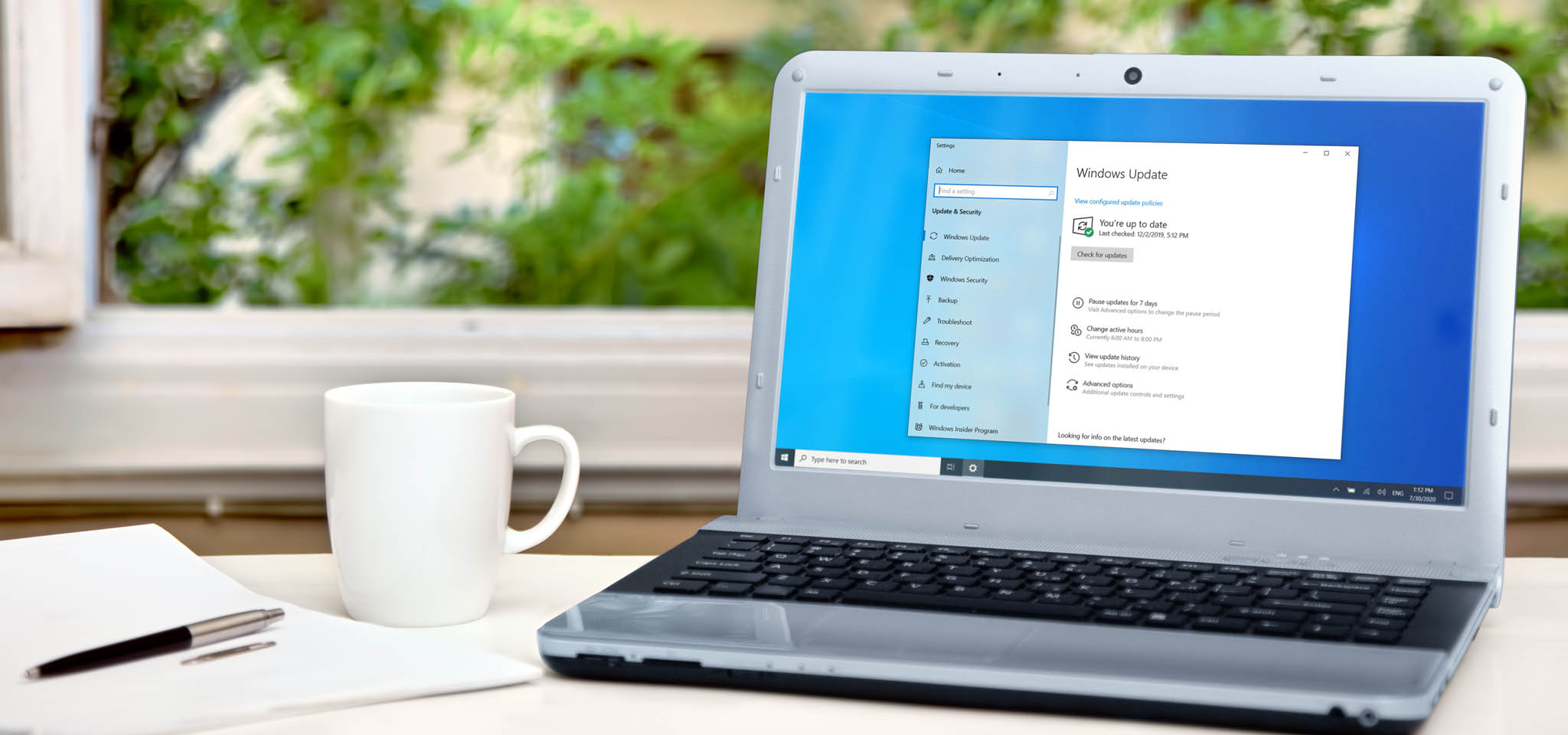
An aging PC does not always need to be replaced. Before spending money on a new laptop or desktop, you can often recover useful performance by cleaning up Windows, removing unnecessary startup apps, improving cooling or making a small hardware upgrade.
Most of these steps are free. The main paid option is moving from a hard drive to an SSD, which remains one of the most noticeable upgrades you can make to an older computer.
Ways to improve an old PC
| Method | Cost | Main benefit |
|---|---|---|
| Disable unnecessary startup apps | Free | Faster boot and lower background load |
| Remove unused software | Free | Frees resources and storage |
| Scan for malware | Free or paid | Removes threats that can slow the system |
| Clean dust from hardware | Low | Improves cooling and reduces throttling |
| Reinstall Windows | Free | Removes long term software clutter |
| Overclock or undervolt | Free | Can improve performance or reduce heat |
| Install an SSD | Moderate | Faster boot, apps and file transfers |
| Switch to Linux or ChromeOS Flex | Free | Reduces operating system overhead |
| Repurpose the PC | Free or low | Extends useful life for gaming or storage |
Reduce the number of startup programs
One of the easiest places to begin is Windows startup.
Too many applications launching automatically can slow boot times and consume memory and CPU resources before you have even started working.
Windows 10 and Windows 11 both allow you to manage startup apps through Task Manager.
Nonessential applications with a high startup impact should be the first candidates for disabling. Programs such as Steam or Adobe Reader generally do not need to start with Windows unless you use them immediately after signing in.
Security software and important hardware utilities should normally remain enabled.
Remove software you no longer use
Old PCs often accumulate applications that are rarely or never opened.
Removing them can free storage and reduce background processes.
Windows provides an Add or remove programs section where you can review installed software and uninstall anything unnecessary.
Manufacturer installed software is also worth checking because some PCs ship with programs that continue running even if you never use them.
This is also a good time to run a security scan.
Malware can reduce system performance, and Windows Security already includes tools for detecting common threats.
There is little reason to manually defragment an SSD. Modern Windows versions already handle optimization automatically, while SSDs should not be treated like traditional hard drives.
Clean dust from inside the PC
Software is only part of the problem.
Dust inside a laptop or desktop can block airflow and raise component temperatures. When CPUs and GPUs become too hot, they can reduce clock speeds to protect themselves.
That thermal throttling can make an older PC feel much slower than it should.
Cleaning fans, vents and heatsinks can therefore restore performance without changing any hardware.
The supplied article recommends cleaning the inside of a PC roughly once per year, although many systems go much longer without maintenance.
Use proper cleaning methods and avoid damaging fans or internal components while removing dust.
Reinstall Windows if software cleanup is not enough
If years of software changes have left Windows slow or unstable, a fresh installation can help.
Before reinstalling, back up important files and make sure you can recover any required licence information.
A clean Windows installation removes accumulated applications, configuration changes and other software clutter.
Manufacturer recovery images may reinstall preloaded software, so you may need to remove unwanted applications again afterward.
Reinstalling should generally come after simpler cleanup steps because it requires more preparation.
Overclocking can provide extra performance
Desktop owners may be able to gain performance without buying new components by overclocking supported hardware.
Overclocking raises CPU or GPU clock speeds beyond their standard settings.
That can improve performance, but it also increases power consumption and heat, so adequate cooling is important.
CPU overclocking support depends on the processor and motherboard. Intel generally limits conventional CPU overclocking to compatible K series processors, while some AMD CPUs also have restrictions.
Modern AMD and Nvidia graphics software can also provide automatic GPU overclocking features.
If an older GPU is already running too hot, undervolting may be more useful. Reducing voltage can lower temperatures and potentially help the card maintain stable performance for longer periods.
An SSD remains one of the best upgrades
If your old computer still boots from a mechanical hard drive, moving Windows to an SSD can produce a major improvement.
An SSD can reduce boot times, speed up application launches and make file transfers much faster.
The improvement is often more noticeable in normal everyday use than a modest CPU upgrade.
Current SSD prices are higher than they were in previous years, according to the supplied article, with 1TB models generally available around $150 to $250.
That is still much less than buying an entirely new computer.
RAM upgrades can also help some PCs, but the article notes that high memory prices currently make that option less attractive from a value perspective.
A lighter operating system can extend useful life
If Windows itself has become too demanding for the hardware, replacing it with a lighter operating system can make sense.
Linux distributions designed for low specification systems can run well on older PCs.
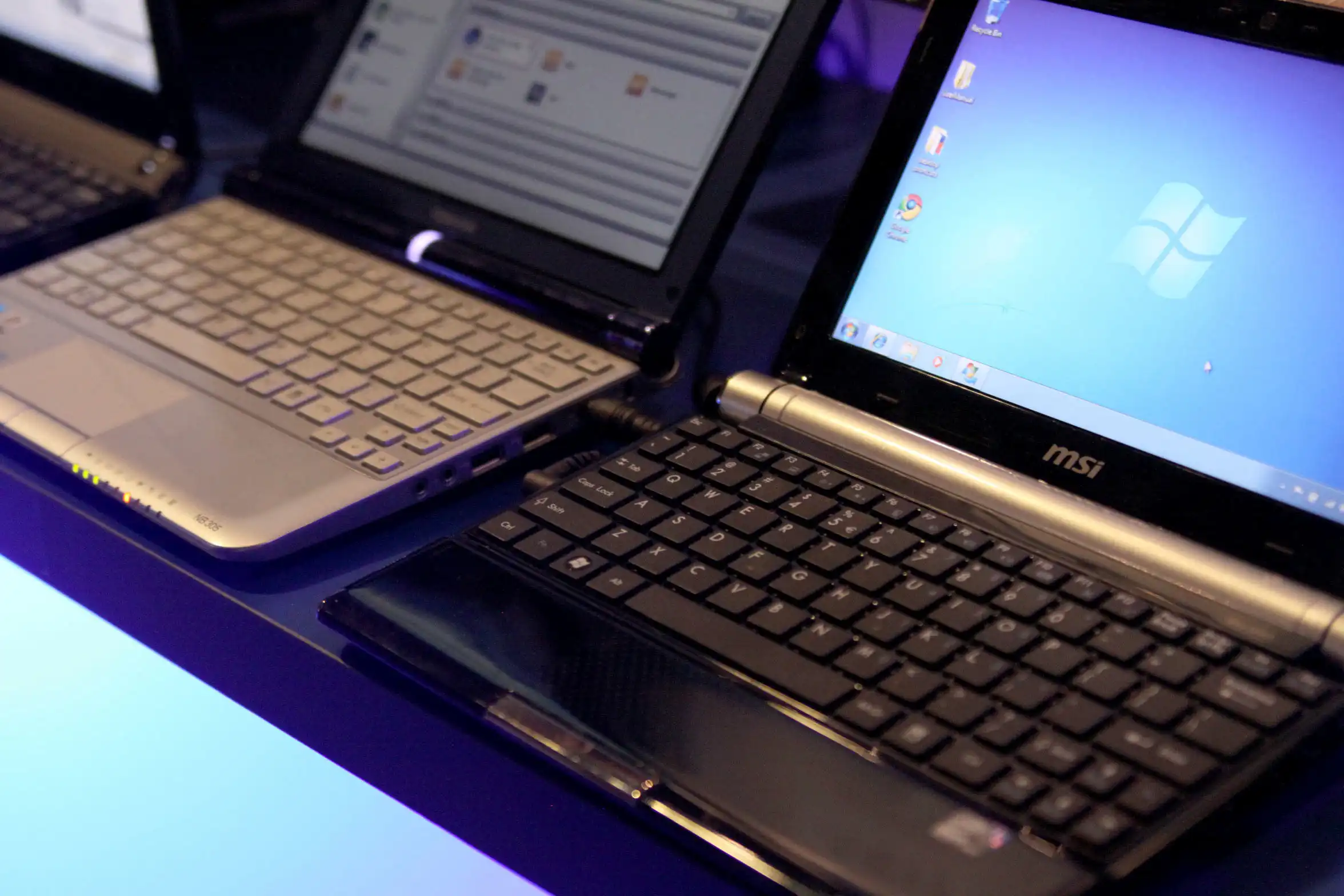
Examples include Puppy Linux, LXLE and Lubuntu.
ChromeOS Flex is another option if you mainly need web applications, browsing and cloud based services. It can turn compatible older computers into Chromebook style systems without buying new hardware.
This approach works best if you do not depend on Windows specific software.
Old PCs can still work well for cloud gaming
An old computer that cannot run modern games locally can still be useful as a streaming device.
Cloud gaming services handle the game on remote servers and stream the video back to your PC.
Services such as GeForce Now, Xbox Cloud Gaming and PlayStation Plus can therefore allow relatively weak computers to play demanding games, provided the internet connection is good enough.
Steam in home streaming provides another option if you already own a more powerful gaming PC.
The main gaming system renders the game while the old computer receives the stream over your home network.
Repurpose the PC as a server or media machine
If an older PC is no longer suitable as your primary computer, it can still perform a dedicated job.
Common options include turning it into a home theater PC or a local file server.
Media software can transform it into a living room entertainment system, while server software can provide shared storage for other devices on your network.
Giving an old system one focused task can extend its useful life even after it becomes too slow for daily productivity.
Eventually, some PCs reach the point where upgrading is no longer practical. But before replacing one, reducing startup programs, removing unused software, cleaning the hardware, reinstalling Windows or installing an SSD can often make a noticeable difference.
For many older systems, a few careful changes can add useful years without the cost of buying an entirely new PC.

Discussion (0)
Be the first to comment.