



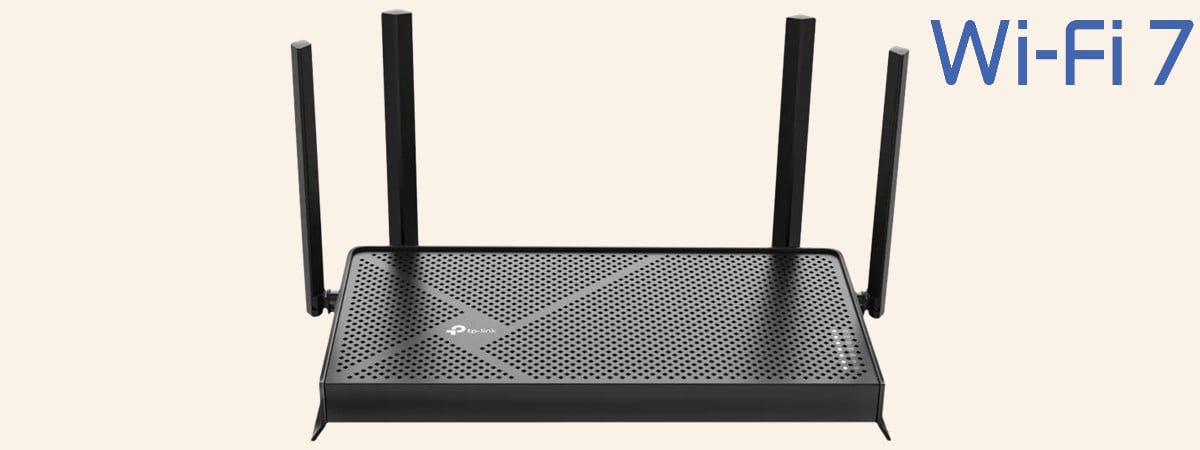
Since I started testing Wi-Fi 7 networking devices, I have been interested in reviewing affordable devices. At first, such devices weren’t available on the market, but things have changed for the better. Today, you can buy Wi-Fi 7 routers that cost less than 100 USD, marking an important milestone in the adoption rate of this wireless networking standard. TP-Link Archer BE230 (or BE3600) is one of the first affordable Wi-Fi 7 routers, and even though it doesn’t cost a lot of money, it has some solid hardware and many useful features. If you’re interested in this router and whether it’s a good choice for you, read this review:
![Verdict]()

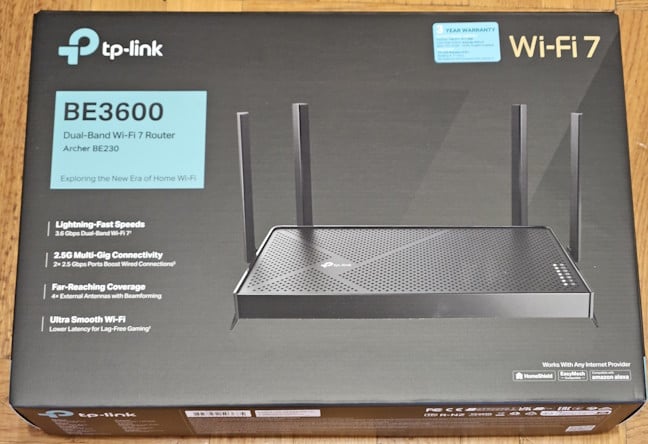
 The packaging gives you plenty of information about the Archer BE230
When you open the box, you immediately see the router in protective packaging. Take everything out to find the router’s power adapter, a Cat.6a network cable, the quick installation guide, a troubleshooting guide, details about the warranty and the product’s licensing, and a sticker with the default Wi-Fi name and password.
The packaging gives you plenty of information about the Archer BE230
When you open the box, you immediately see the router in protective packaging. Take everything out to find the router’s power adapter, a Cat.6a network cable, the quick installation guide, a troubleshooting guide, details about the warranty and the product’s licensing, and a sticker with the default Wi-Fi name and password.
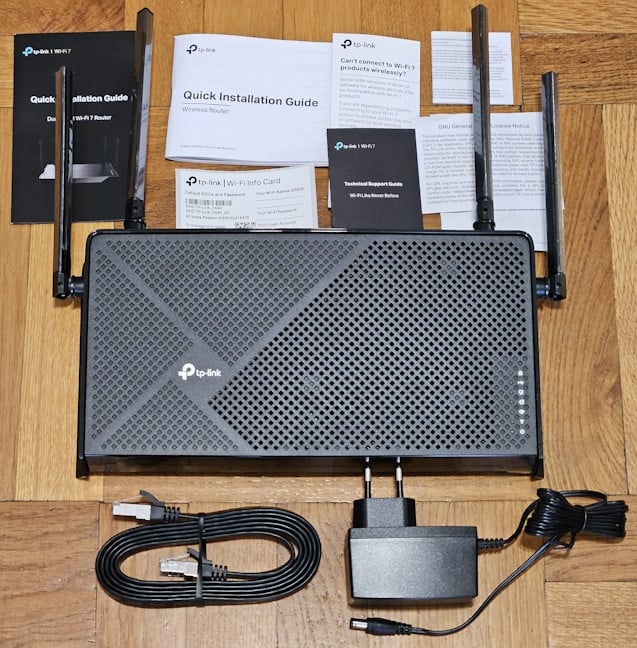
 You'll find many leaflets alongside the TP-Link Archer BE230
As you would expect when buying an affordable router like this one, unboxing the TP-Link Archer BE230 is a straightforward experience. Its packaging does a good job of protecting the product, presenting its main features and how to set it up.
You'll find many leaflets alongside the TP-Link Archer BE230
As you would expect when buying an affordable router like this one, unboxing the TP-Link Archer BE230 is a straightforward experience. Its packaging does a good job of protecting the product, presenting its main features and how to set it up.
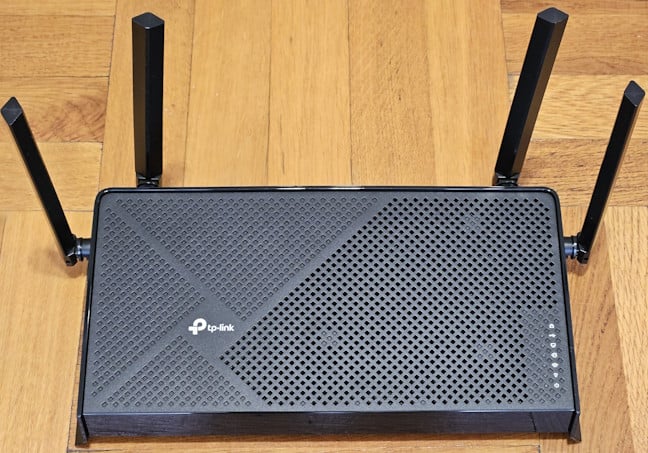
 TP-Link Archer BE230 has a body made of glossy plastic
On its back, you have the LED button, the WPS button, the Wi-Fi button, the Reset jack, the Internet port (at 2.5 Gbps), one LAN port at 2.5 Gbps, three LAN ports at 1 Gbps, one USB 3.0 port, the On/Off button, and the Power jack.
TP-Link Archer BE230 has a body made of glossy plastic
On its back, you have the LED button, the WPS button, the Wi-Fi button, the Reset jack, the Internet port (at 2.5 Gbps), one LAN port at 2.5 Gbps, three LAN ports at 1 Gbps, one USB 3.0 port, the On/Off button, and the Power jack.
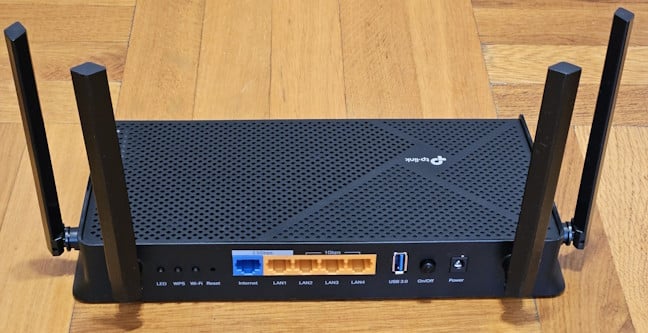
 The ports on the back of the TP-Link Archer BE230
There are no ports or buttons on the sides of the router. On its back, you can find two holes for mounting the TP-Link Archer BE230 on walls, more ventilation grids, and a sticker with information about the product (its serial number, hardware version, MAC address, and default connection details).
The ports on the back of the TP-Link Archer BE230
There are no ports or buttons on the sides of the router. On its back, you can find two holes for mounting the TP-Link Archer BE230 on walls, more ventilation grids, and a sticker with information about the product (its serial number, hardware version, MAC address, and default connection details).
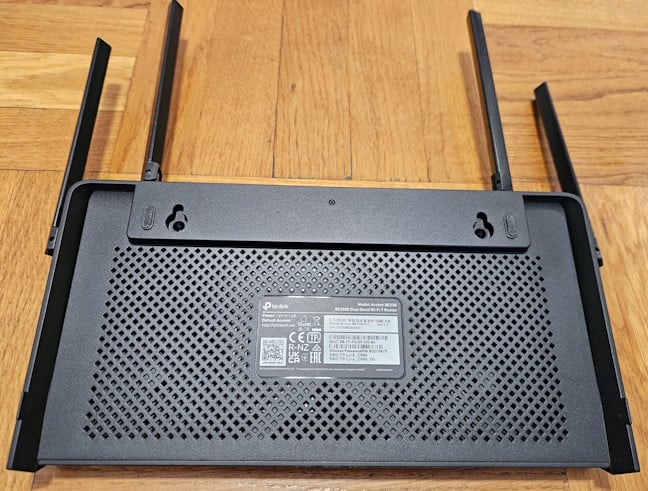
 TP-Link Archer BE23600 can be mounted on walls
Although the TP-Link Archer BE230 is an affordable router, its hardware isn’t bad. It’s powered by a Broadcom BCM6764L 2.0GHz quad-core processor, has 512MB RAM, and comes with 128MB of storage space for the firmware.
TP-Link Archer BE23600 can be mounted on walls
Although the TP-Link Archer BE230 is an affordable router, its hardware isn’t bad. It’s powered by a Broadcom BCM6764L 2.0GHz quad-core processor, has 512MB RAM, and comes with 128MB of storage space for the firmware.
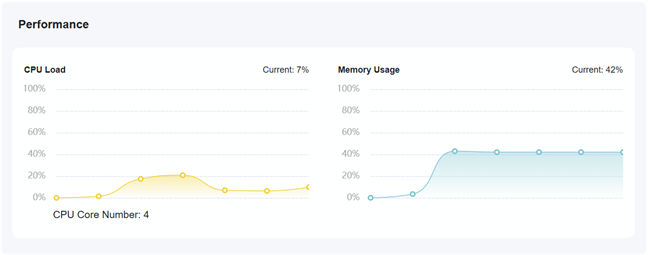
 Archer BE230 has reasonably powerful hardware
The TP-Link Archer BE3600 (as you’ll see it named in some stores) is a dual-band wireless router with a total theoretical maximum bandwidth split as follows: 688 Mbps for the 2.4 GHz wireless band and 2882 Mbps for the 5 GHz band. This bandwidth is available only if you use the Wi-Fi 7 standard on both frequency bands. Switching back to older standards leads to less bandwidth.
As expected from an affordable router, the TP-Link Archer BE230 offers 2x2 MU-MIMO wireless transfers, WP3 password encryption, and 160 MHz channel width on the 5 GHz wireless band.
Considering the TP-Link Archer BE230 costs less than 100 USD, I expected it to be underpowered. Luckily, this router features decent hardware that can handle a fast internet connection relatively well. I also appreciate that it has one 2.5 Gbps LAN port alongside the 2.5 Gbps internet port. For more technical information about this product and its specifications, visit its official webpage: TP-Link Archer BE230.
Archer BE230 has reasonably powerful hardware
The TP-Link Archer BE3600 (as you’ll see it named in some stores) is a dual-band wireless router with a total theoretical maximum bandwidth split as follows: 688 Mbps for the 2.4 GHz wireless band and 2882 Mbps for the 5 GHz band. This bandwidth is available only if you use the Wi-Fi 7 standard on both frequency bands. Switching back to older standards leads to less bandwidth.
As expected from an affordable router, the TP-Link Archer BE230 offers 2x2 MU-MIMO wireless transfers, WP3 password encryption, and 160 MHz channel width on the 5 GHz wireless band.
Considering the TP-Link Archer BE230 costs less than 100 USD, I expected it to be underpowered. Luckily, this router features decent hardware that can handle a fast internet connection relatively well. I also appreciate that it has one 2.5 Gbps LAN port alongside the 2.5 Gbps internet port. For more technical information about this product and its specifications, visit its official webpage: TP-Link Archer BE230.
 Installing the Archer BE230 isn't very complicated
The setup wizard and the admin interface are available in twenty languages, including English, French, German, Spanish, Italian, Turkish, and Vietnamese. You start by creating the administrator password for your router and selecting your time zone. Then, you select your internet connection type or ask the router to detect it for you, and you introduce the necessary connection details.
Installing the Archer BE230 isn't very complicated
The setup wizard and the admin interface are available in twenty languages, including English, French, German, Spanish, Italian, Turkish, and Vietnamese. You start by creating the administrator password for your router and selecting your time zone. Then, you select your internet connection type or ask the router to detect it for you, and you introduce the necessary connection details.
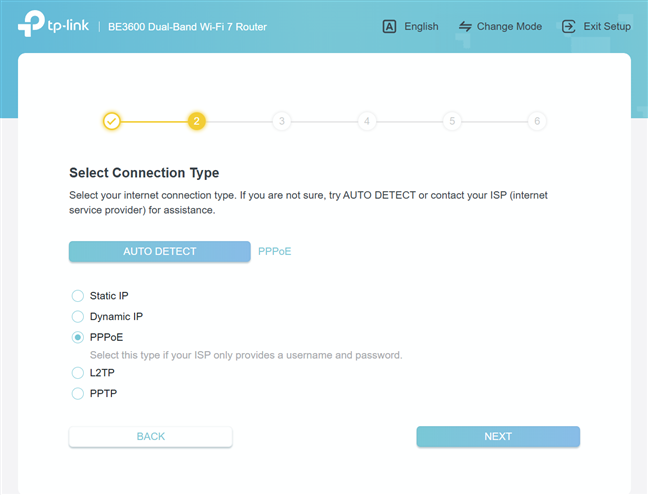
 The router can detect the type of internet connection you're using
Next, you set up the Wi-Fi emitted by the TP-Link Archer BE230, and it’s highly recommended using a different connection password for the Wi-Fi and for administering the router. The setup wizard tests whether it can connect to the internet and asks if you’d like the router to update itself automatically with the latest firmware. Enabling this feature is a good choice if you don’t want the hassle of manually upgrading the firmware every once in a while. You then see a summary of your settings and are asked to connect your router to a TP-Link ID to remotely control your router and purchase features such as a HomeShield subscription.
The router can detect the type of internet connection you're using
Next, you set up the Wi-Fi emitted by the TP-Link Archer BE230, and it’s highly recommended using a different connection password for the Wi-Fi and for administering the router. The setup wizard tests whether it can connect to the internet and asks if you’d like the router to update itself automatically with the latest firmware. Enabling this feature is a good choice if you don’t want the hassle of manually upgrading the firmware every once in a while. You then see a summary of your settings and are asked to connect your router to a TP-Link ID to remotely control your router and purchase features such as a HomeShield subscription.

 Connecting a TP-Link ID is a must to access all features
You’re also asked whether you want to join the user experience improvement program and enable a third-party service to accurately identify connecting clients. These additional features have their own privacy terms, which you should read carefully before enabling them.
Connecting a TP-Link ID is a must to access all features
You’re also asked whether you want to join the user experience improvement program and enable a third-party service to accurately identify connecting clients. These additional features have their own privacy terms, which you should read carefully before enabling them.
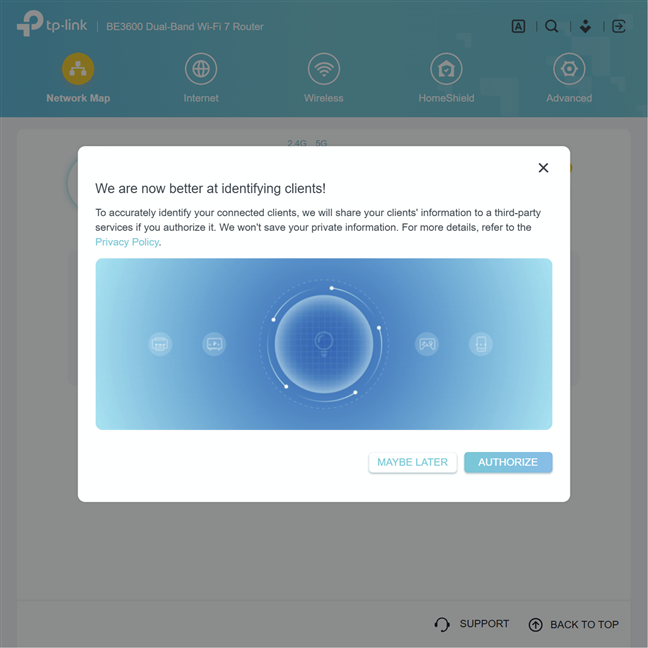
 Read all the privacy policies before enabling optional features
The web-based user interface for administering the TP-Link Archer BE230 is organized into logical sections. At first, you see only the basics most people may want to configure.
Read all the privacy policies before enabling optional features
The web-based user interface for administering the TP-Link Archer BE230 is organized into logical sections. At first, you see only the basics most people may want to configure.
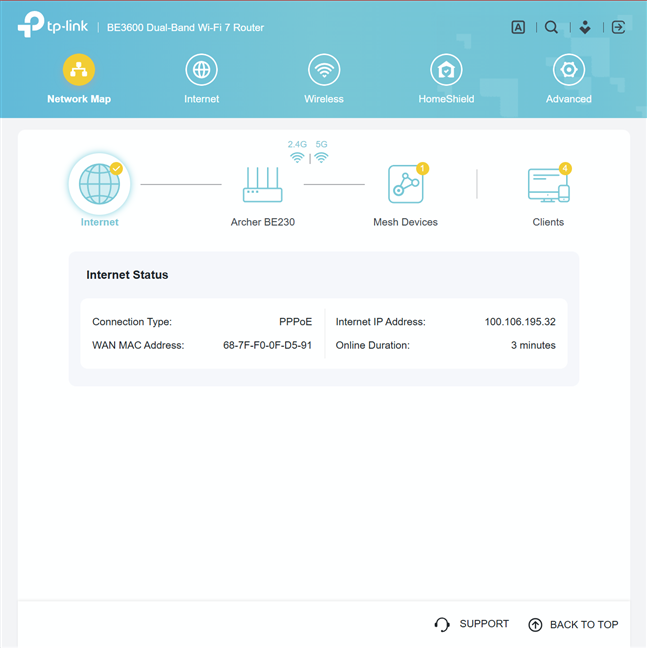 The web-based admin interface is simple to use
More experienced users who want to go into detail and configure more complex parameters and features should access the Advanced section. There, they can find a list of all the features included on the TP-Link Archer BE230 and all the settings available for this router. Even though the user interface doesn’t include help documentation, most settings are clearly explained. In addition, the Support options are available at the bottom, and it’s easy to provide feedback and get help when needed.
The web-based admin interface is simple to use
More experienced users who want to go into detail and configure more complex parameters and features should access the Advanced section. There, they can find a list of all the features included on the TP-Link Archer BE230 and all the settings available for this router. Even though the user interface doesn’t include help documentation, most settings are clearly explained. In addition, the Support options are available at the bottom, and it’s easy to provide feedback and get help when needed.
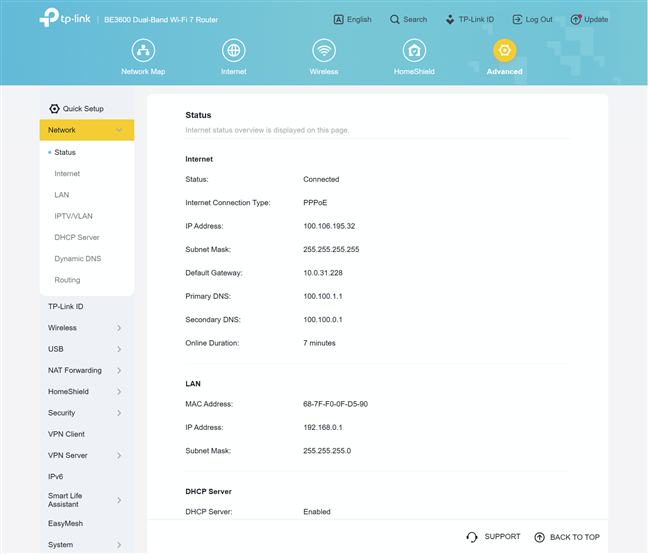
 The Advanced tab is where you find in-depth settings and configuration options
TP-Link Archer BE230 can also be managed from the Tether app, which is available for free on both Android and iOS. The app makes it easy to check the status of your router and its most important settings. However, it tends to promote mostly the paid features of the router that are included in TP-Link’s HomeShield subscription. If you are a parent or want antivirus firewall protection, you should consider purchasing HomeShield.
The Advanced tab is where you find in-depth settings and configuration options
TP-Link Archer BE230 can also be managed from the Tether app, which is available for free on both Android and iOS. The app makes it easy to check the status of your router and its most important settings. However, it tends to promote mostly the paid features of the router that are included in TP-Link’s HomeShield subscription. If you are a parent or want antivirus firewall protection, you should consider purchasing HomeShield.
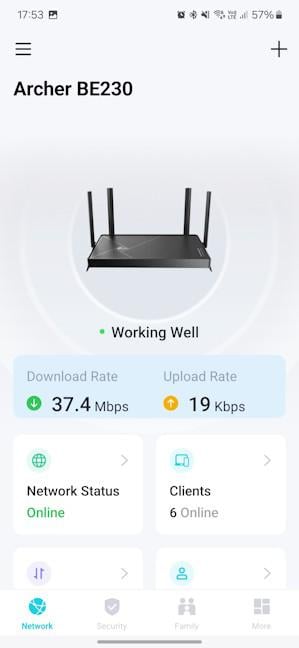
 Setting up the router from the Tether app
If you aren’t interested in this subscription, you will spend most of your time in the More section of the Tether app, where you can access a rather limited set of configuration options. From here, you can create Guest networks, a separate Wi-Fi for Internet of Things (IoT) devices, and diagnose network problems. While these settings are useful, the web-based user interface offers the best experience managing the TP-Link Archer BE230.
Setting up the router from the Tether app
If you aren’t interested in this subscription, you will spend most of your time in the More section of the Tether app, where you can access a rather limited set of configuration options. From here, you can create Guest networks, a separate Wi-Fi for Internet of Things (IoT) devices, and diagnose network problems. While these settings are useful, the web-based user interface offers the best experience managing the TP-Link Archer BE230.
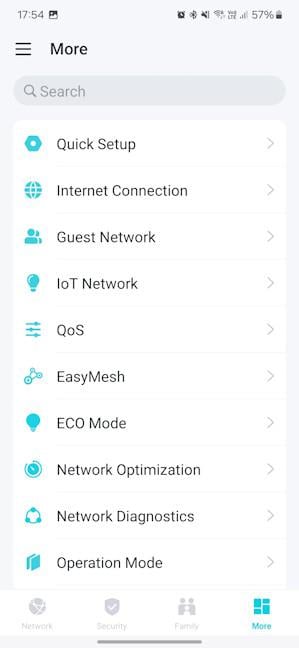 Here some of the things you can configure from the Tether app
During my time with the TP-Link Archer BE3600, I didn’t encounter any significant problems. The signal strength was good almost everywhere in my apartment, there were no connectivity issues, and the network was stable at all times.
Here some of the things you can configure from the Tether app
During my time with the TP-Link Archer BE3600, I didn’t encounter any significant problems. The signal strength was good almost everywhere in my apartment, there were no connectivity issues, and the network was stable at all times.
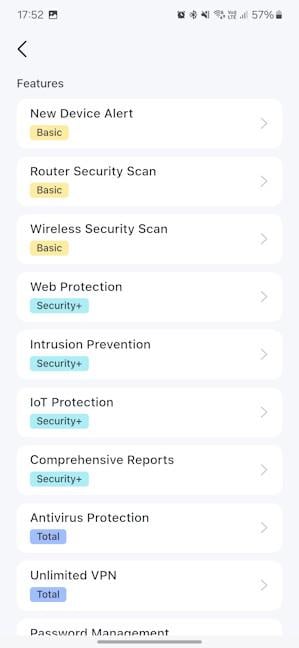 The HomeShield subscription costs extra
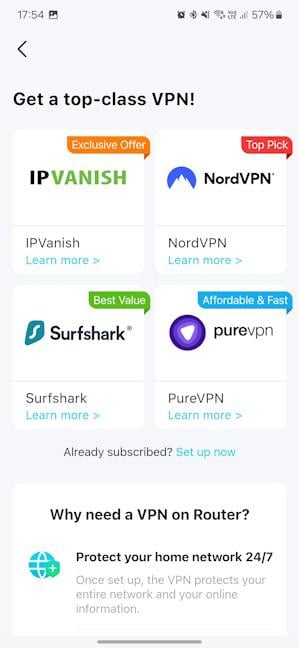 Here are the VPN services supported by TP-Link
While other vendors offer even more tools and features, what you get from the TP-Link Archer BE230 is adequate for most people. And it’s especially good for a Wi-Fi 7 router that costs less than 100 USD. I appreciate the access to advanced VPN features, EasyMesh compatibility, and integration with smart voice assistants. The HomeShield can also be useful, but the downside is that you need to pay extra, significantly increasing the cost of ownership.
Now that you know about my subjective experience with the TP-Link Archer BE230, let’s see how it fares in real-world measurements and how it compares to other routers. Click or tap on the second page of this review for more details.
Here are the VPN services supported by TP-Link
While other vendors offer even more tools and features, what you get from the TP-Link Archer BE230 is adequate for most people. And it’s especially good for a Wi-Fi 7 router that costs less than 100 USD. I appreciate the access to advanced VPN features, EasyMesh compatibility, and integration with smart voice assistants. The HomeShield can also be useful, but the downside is that you need to pay extra, significantly increasing the cost of ownership.
Now that you know about my subjective experience with the TP-Link Archer BE230, let’s see how it fares in real-world measurements and how it compares to other routers. Click or tap on the second page of this review for more details.
 The apartment where I tested TP-Link Archer BE3600
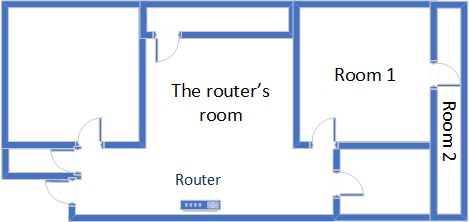
I evaluated the quality of the wireless network managed by this router through measurements made in three different places:
The apartment where I tested TP-Link Archer BE3600
I evaluated the quality of the wireless network managed by this router through measurements made in three different places:
 The signal strength on the 2.4 GHz band
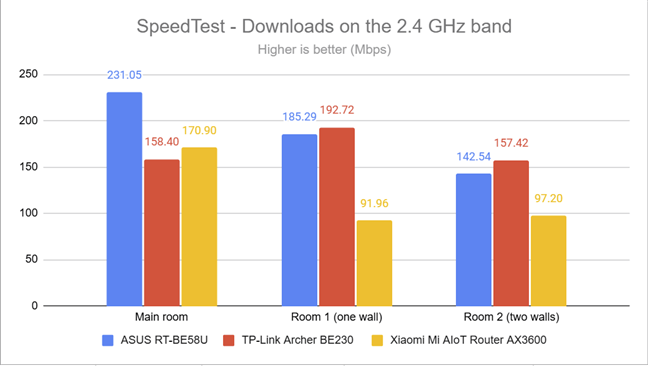
I moved on to SpeedTest and evaluated how fast internet transfers are on the 2.4 GHz wireless band. As you can see below, the Archer BE230 delivered reasonably fast downloads in the rooms farthest from the router. However, in the room where it was placed, it was the slowest router in my comparison. This is a strange result.
The signal strength on the 2.4 GHz band
I moved on to SpeedTest and evaluated how fast internet transfers are on the 2.4 GHz wireless band. As you can see below, the Archer BE230 delivered reasonably fast downloads in the rooms farthest from the router. However, in the room where it was placed, it was the slowest router in my comparison. This is a strange result.
 SpeedTest - the download speed on the 2.4 GHz band
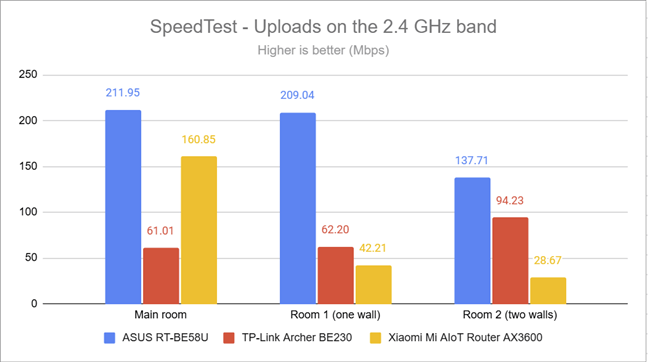
Unfortunately, the uploads were a lot slower than the downloads.
SpeedTest - the download speed on the 2.4 GHz band
Unfortunately, the uploads were a lot slower than the downloads.
 SpeedTest - Upload speed on the 2.4 GHz band
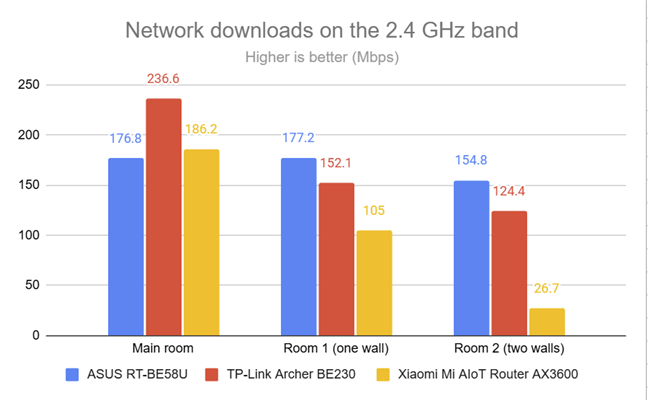
I moved on to the PassMark Performance Test and transferred data between two computers connected to the network. One was the laptop I used for testing, connected over Wi-Fi on the 2.4 GHz band, and the other was a desktop computer connected to the router through an Ethernet cable. This time, TP-Link Archer BE230 was the fastest router in my comparison in the room where it was placed. In the other rooms, it was outmatched by the ASUS RT-BE58U.
SpeedTest - Upload speed on the 2.4 GHz band
I moved on to the PassMark Performance Test and transferred data between two computers connected to the network. One was the laptop I used for testing, connected over Wi-Fi on the 2.4 GHz band, and the other was a desktop computer connected to the router through an Ethernet cable. This time, TP-Link Archer BE230 was the fastest router in my comparison in the room where it was placed. In the other rooms, it was outmatched by the ASUS RT-BE58U.
 PassMark Performance Test - Download speed on the 2.4 GHz band
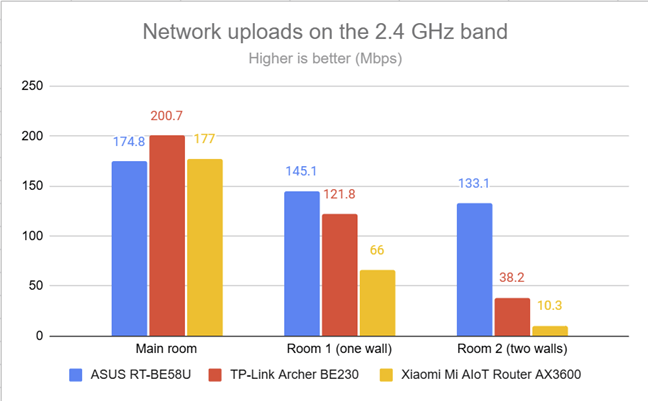
The upload performance was a tad disappointing, especially in Room 2.
PassMark Performance Test - Download speed on the 2.4 GHz band
The upload performance was a tad disappointing, especially in Room 2.
 PassMark Performance Test - Upload speed on the 2.4 GHz band
The TP-Link Archer BE230 performs reasonably well on the 2.4 GHz wireless frequency band. While its download speed tends to be OK, uploads are slower. This aspect may disappoint some users.
PassMark Performance Test - Upload speed on the 2.4 GHz band
The TP-Link Archer BE230 performs reasonably well on the 2.4 GHz wireless frequency band. While its download speed tends to be OK, uploads are slower. This aspect may disappoint some users.
 The signal strength on the 5 GHz band
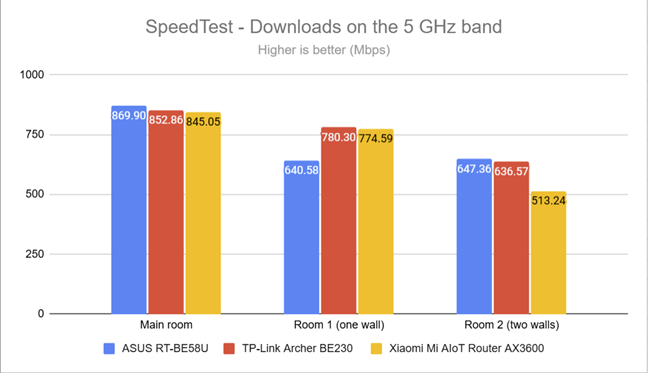
I also used SpeedTest to see what speed I could get over Wi-Fi when uploading and downloading data to and from the internet. My internet connection allows a maximum download speed of 1 Gbps (usually around 900 Mbps) and a maximum upload speed between 600 and 800 Mbps. I was happy with the download speed offered by TP-Link Archer BE230 everywhere in my apartment.
The signal strength on the 5 GHz band
I also used SpeedTest to see what speed I could get over Wi-Fi when uploading and downloading data to and from the internet. My internet connection allows a maximum download speed of 1 Gbps (usually around 900 Mbps) and a maximum upload speed between 600 and 800 Mbps. I was happy with the download speed offered by TP-Link Archer BE230 everywhere in my apartment.
 SpeedTest - Download speed on the 5 GHz band
Uploads were fast but not faster than those offered by the Xiaomi MI AIoT Router AX3600.
SpeedTest - Download speed on the 5 GHz band
Uploads were fast but not faster than those offered by the Xiaomi MI AIoT Router AX3600.
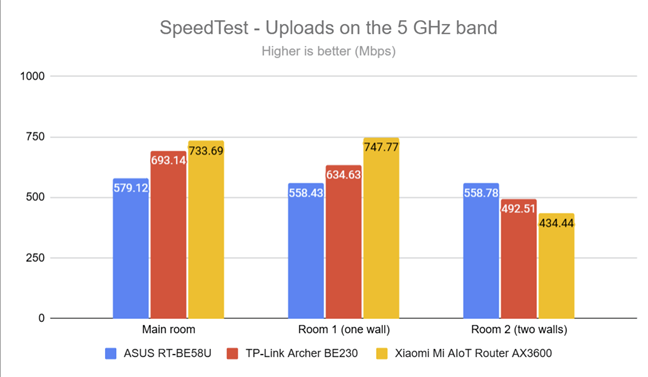
 SpeedTest - Upload speed on the 5 GHz band
Switching to the PassMark Performance Test revealed that the TP-Link Archer BE23 can offer downloads at 1149.6 Mbps on the 5 GHz band. This is an excellent result, proving that the router can handle internet connections above 1 Gbps.
SpeedTest - Upload speed on the 5 GHz band
Switching to the PassMark Performance Test revealed that the TP-Link Archer BE23 can offer downloads at 1149.6 Mbps on the 5 GHz band. This is an excellent result, proving that the router can handle internet connections above 1 Gbps.
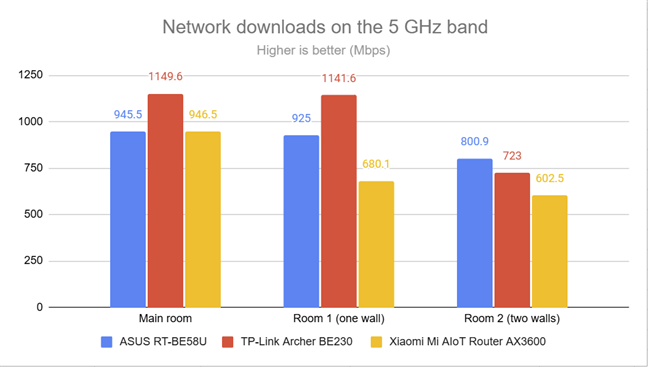
 PassMark Performance Test - Download speed on the 5 GHz band
Uploads were fast, too, going just a bit above 1 Gbps.
PassMark Performance Test - Download speed on the 5 GHz band
Uploads were fast, too, going just a bit above 1 Gbps.
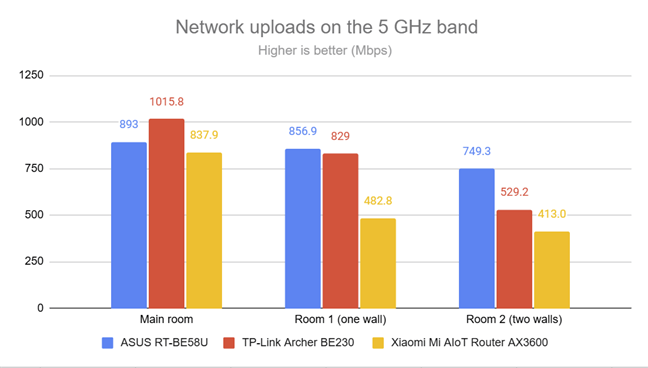
 PassMark Performance Test - Upload speed on the 5 GHz band
The performance offered by the TP-Link Archer BE230 router on the 5 GHz is pretty good. The router can reach speeds above 1 Gbps on this frequency band when using the Wi-Fi 7 standard, which is excellent for a router that costs less than 100 USD.
PassMark Performance Test - Upload speed on the 5 GHz band
The performance offered by the TP-Link Archer BE230 router on the 5 GHz is pretty good. The router can reach speeds above 1 Gbps on this frequency band when using the Wi-Fi 7 standard, which is excellent for a router that costs less than 100 USD.
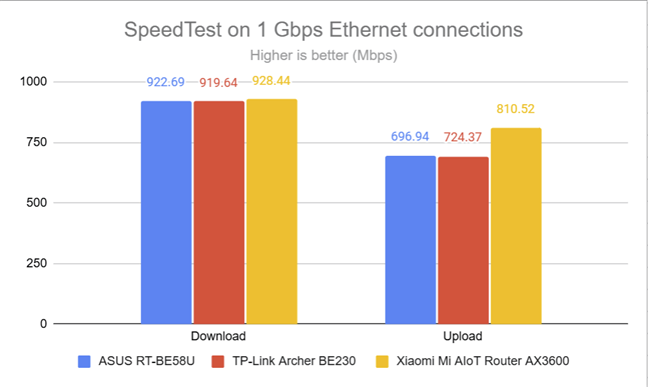
 SpeedTest on 1 Gbps Ethernet connections
For the last test, I wanted to measure the speed of the USB 3.0 port on the back of the TP-Link Archer BE230. I connected an SSD drive to it and transferred data to and from the SSD. The download speed I reached was 1325.69 Mbps, and the upload speed was 810.65 Mbps.
SpeedTest on 1 Gbps Ethernet connections
For the last test, I wanted to measure the speed of the USB 3.0 port on the back of the TP-Link Archer BE230. I connected an SSD drive to it and transferred data to and from the SSD. The download speed I reached was 1325.69 Mbps, and the upload speed was 810.65 Mbps.
 The speeds reached through the USB port
NOTE: The Xiaomi Mi AIoT Router AX3600 is not included in the chart above because it does not have a USB port.
The TP-Link Archer BE230 performs great when using Ethernet cables to connect devices to the network. Its 2.5 Gbps LAN port comes in handy to people using a Network-Attached Storage (NAS) solution to build a fast cloud storage service. The USB 3.0 port on the back of the router is also very fast and useful for those who want to attach storage to their router.
The speeds reached through the USB port
NOTE: The Xiaomi Mi AIoT Router AX3600 is not included in the chart above because it does not have a USB port.
The TP-Link Archer BE230 performs great when using Ethernet cables to connect devices to the network. Its 2.5 Gbps LAN port comes in handy to people using a Network-Attached Storage (NAS) solution to build a fast cloud storage service. The USB 3.0 port on the back of the router is also very fast and useful for those who want to attach storage to their router.
TP-Link Archer BE230: Who is it good for?
This wireless router is a smart choice for:- One-floor homes and apartments with a maximum of three bedrooms
- Internet connections with speeds of 1 Gbps or 2.5 Gbps
- People who want to extend their network using other EasyMesh-compatible devices
Pros and cons
Here are the things I like about the TP-Link Archer BE230 :- It can use 2.5 Gbps internet connections
- EasyMesh allows you to extend your network with devices from other brands
- Good performance on the 5 GHz band
- Fast USB 3.0 port
- Easy-to-use mobile app for remote administration
- It packs many useful features, including VPN capabilities
- Parental controls and advanced security tools require a subscription
- It lacks a third 6 GHz band
Verdict
If you don’t have a multi-level house or a spacious apartment but wish to create an affordable and future-proof home network, consider the TP-Link Archer BE230. Priced under $100, it's an economical way to build a Wi-Fi 7 network, providing download speeds exceeding 1 Gbps on the 5 GHz band, sufficient for 4K streaming, online gaming, and extensive internet usage. The Archer BE230 supports 2.5 Gbps internet connections, features EasyMesh for network expansion that doesn’t lock you into a specific vendor, and includes a fast USB port for shared network storage. Although it doesn't offer a third 6 GHz band, and its parental controls and security features are included only with a paid HomeShield subscription, these are acceptable compromises at this price. If you’re looking for a capable router that doesn’t cost a lot, TP-Link Archer BE230 is one of the best choices you can make.Unboxing the TP-Link Archer BE230 router
Depending on where you look for it, this wireless router may be found with two product names: TP-Link Archer BE230 (the real product name) or TP-Link Archer BE3600, where BE3600 tells you that it has support for the 802.11be (or Wi-Fi 7) networking standard and a total theoretical maximum bandwidth of 3600 Mbps. Even its packaging contributes to this confusion. As you can see below, TP-Link Archer BE230 comes in a black cardboard box with a big picture of the device on the top cover. You also see the company logo, the fact that it offers Wi-Fi 7 connectivity, and a list of its main features, including ports that work at a speed of 2.5 Gbps.Hardware specifications and design
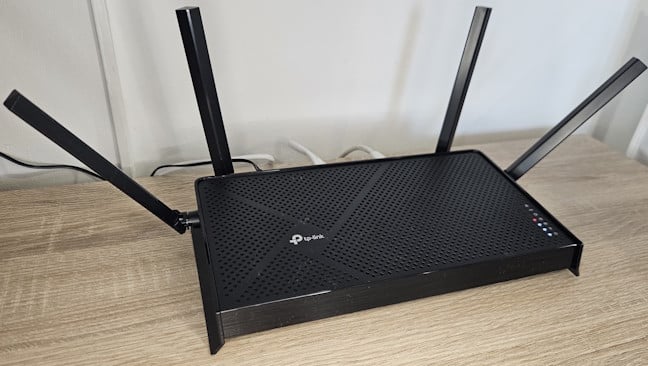
I’m reviewing the TP-Link Archer BE230 v1. At the time of writing, a v1.6 hardware version is also available in some regions. TP-Link has a tradition of creating multiple versions of its most popular products. Since the Archer BE230 is one of the first Wi-Fi 7 routers to cost less than 100 USD, it’s going to be a popular router, and it will likely get other versions in the future. This model has a classic design with four external antennas, and it’s made of glossy plastic, which tends to gather dust and fingerprints quite easily. Archer BE230 measures 10.7 × 5.8 × 1.6 inches or 272.7 × 147 × 41.7 mm in width x depth x height (without the antennas being extended), and it weighs around 550 grams or 19.4 oz. Its design is rather boring and won’t win any beauty contests. 🙂 On the router’s top side, you see the TP-Link company logo and plenty of ventilation grids, which help keep it cool. On the right side, there are the LEDs that signal the functioning status of the Archer BE230.Setting up and using the TP-Link Archer BE230
The Archer BE230 can be set up using a PC or laptop connected to the router via Wi-Fi or Ethernet or a mobile phone and TP-Link’s Tether app. I used a laptop to open my favorite browser and load tplinkwifi.net in the address bar.Advanced features
When you dive deep into the administration user interface, you find that the TP-Link Archer BE230 has many features that will likely be useful for the more demanding users. The list includes the following:- HomeShield - a cloud-based solution developed by TP-Link and Norton (Avira and Trend Micro previously made it before that), provides built-in web protection, intrusion prevention protection, IoT protection, and easy-to-use parental controls to set advanced rules for how your children use your Wi-Fi. HomeShield has a few free features, like a security scan that identifies problematic settings you may be using. Still, the HomeShield subscription costs extra and can only be activated through a TP-Link cloud ID.
- EasyMesh - the router works with other TP-Link OneMesh devices and third-party EasyMesh devices to create your own mesh Wi-Fi system. It’s an excellent feature that doesn’t lock you into using a specific vendor for your networking devices.
- USB - you can connect storage devices to your router through its USB port and share them with the network for media streaming, file storage, and other purposes. TP-Link also includes Time Machine support for Mac users.
- QoS - allows you to configure the available internet bandwidth and prioritize specific devices.
- Dynamic DNS - allows you to connect to your TP-Link Archer BE230 from the internet, even if your internet provider assigns it a dynamic public IP address. The router can work with service providers like TP-Link (it’s free), NO-IP, and DynDNS.
- Smart Life Assistant - through the Tether mobile app, you can integrate your router with Amazon Alexa and Google Assistant and control it using voice commands. You can also add your router to Google Home or IFTTT for all kinds of automation between your smart devices.
- VPN Server - The Archer BE230 can function as a VPN server using OpenVPN, PPTP, L2TP/IPSec, and WireGuard.
- VPN Client - you can set your router to connect to a third-party VPN service such as NordVPN, Surfshark, IPVanish, or PureVPN, protect all the devices in your network, and allow your devices to access content that may not be available in your country.
Wireless network performance
My test apartment is set up as shown in the diagram below. I’ve placed the TP-Link Archer BE230 in a central position to provide good coverage in an area as large as possible.- The router’s room - I record the maximum speeds when no walls absorb the wireless signal in the room where the router is placed.
- Room 1 - is separated by one wall from the router, so the wireless signal and the Wi-Fi speed I get should be lower here.
- Room 2 - is separated from the router by two walls that absorb the wireless signal. The wall between Room 1 and Room 2 is twice as thick as the one between The router’s room and Room 1. As a result, Room 2 can be a difficult challenge for many routers.
How the TP-Link Archer BE230 performs on the 2.4 GHz band
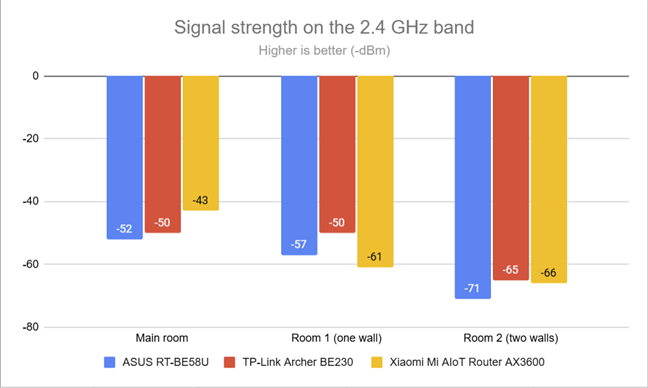
I first measured the signal strength using NetSpot when connected to the 2.4 GHz band on the Wi-Fi 7 standard (802.11be). The signal strength delivered by TP-Link Archer BE230 was excellent in all the rooms of my apartment. A good start! 🙂How the TP-Link Archer BE230 performs on the 5 GHz band
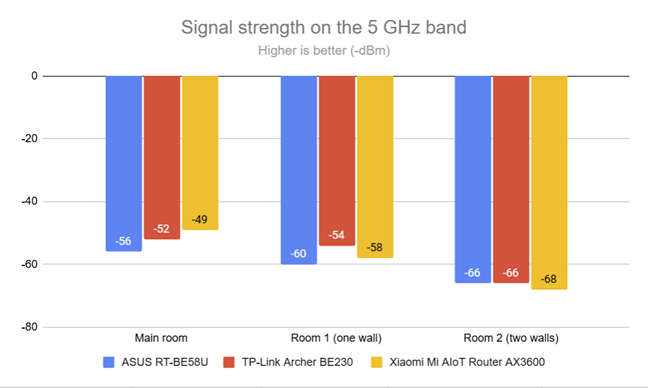
I switched to the 5 GHz band and repeated the same measurements. This time, the signal strength delivered by the TP-Link Archer BE230 was again very good everywhere in my apartment.Wired network performance & USB port
I also wanted to verify how the TP-Link Archer BE230 performs when using Ethernet connections. Again, my internet connection offers a maximum download speed of 1 Gbps and an upload speed of 600 to 800 Mbps. When tested with SpeedTest, this router achieved a maximum download speed of 919.64 Mbps and an upload speed of 724.37 Mbps—solid results. I wish I had an even faster internet connection to better measure this router's potential.
Discussion (0)
Be the first to comment.