UP

Tutorials

Tutorials and how to guides about using gadgets, hardware, and software. Our tutorials cover all major operating systems: Windows, Android, iOS and others.

tutorial How to find my Apple device(s)

How to find my Apple device(s)

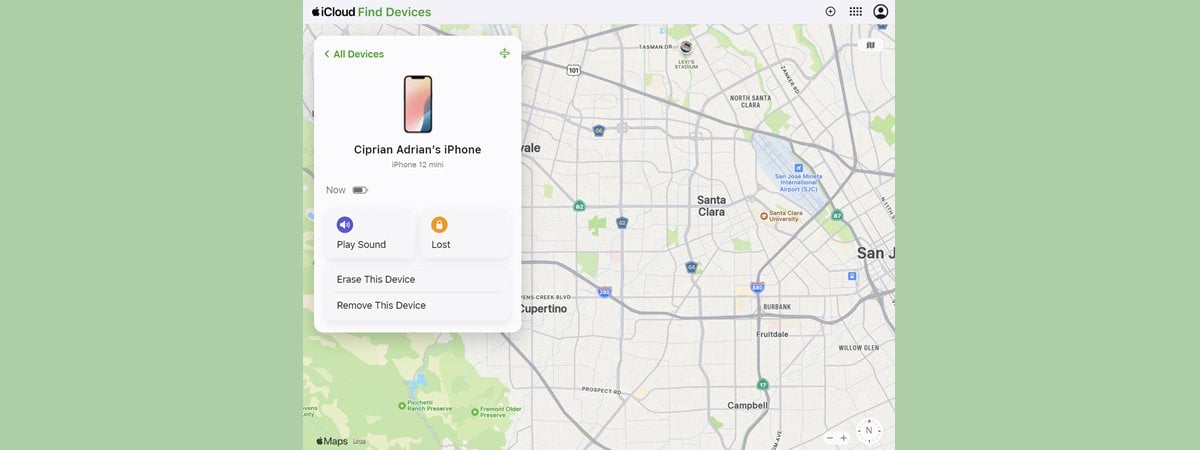
Whether it’s your iPhone, iPad, Apple Watch, or some other gadget, losing an Apple device can be a stressful experience. Thankfully, Apple provides powerful tools to help you track and recover your gadgets. It doesn’t matter if your Apple device is lost between the couch cushions or if you left it at a coffee shop. You can use the Find My app on any
tutorial How to change permissions and take ownership of files and folders in Windows

How to change permissions and take ownership of files and folders in Windows

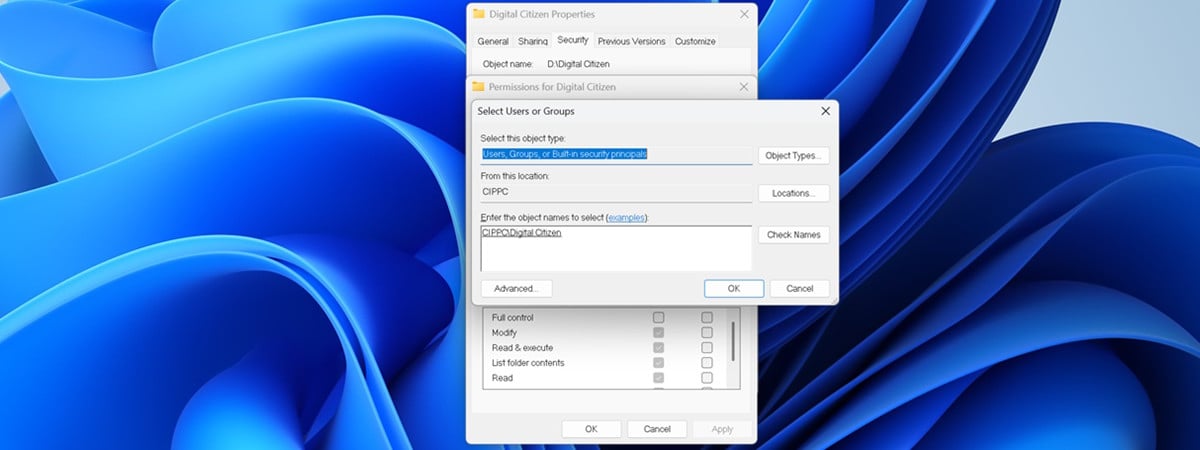
Switching to a new operating system or moving your data can sometimes cause frustrating problems when trying to access your files and folders. This usually happens because your current user account doesn’t have ownership or the correct permissions for those files and folders. To overcome such issues, in this guide, I’ll help you understand how to see, change permissions, and take ownership of files
tutorial How to check the Microsoft Edge version you’re using

How to check the Microsoft Edge version you’re using

In recent years, Microsoft Edge has evolved into a compelling browser, gaining popularity for its innovative features and robust performance. With features like vertical tabs, workspaces, seamless Copilot integration, energy efficiency, and cross-platform compatibility (spanning Windows, Android, and iOS), Edge has become the main web browser for many users. If you are using Microsoft Edge and are unsure whether you have the latest version,
tutorial How to open Photos in Windows (9 ways)

How to open Photos in Windows (9 ways)

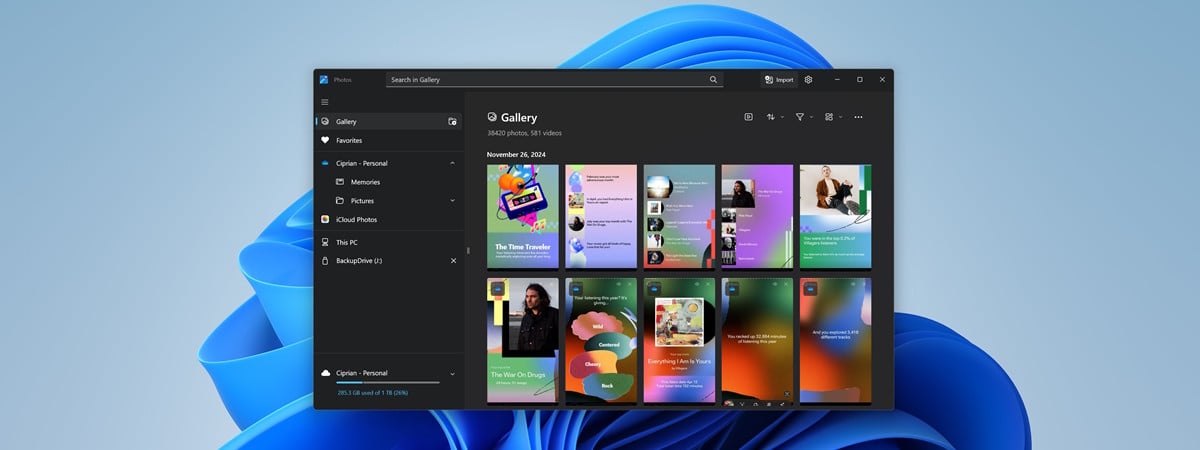
Navigating through your digital photos should be one of the easiest things to do. Fortunately, the Photos app in Windows 10 and Windows 11 is designed to make that happen. It doesn’t matter if you want to see, organize, or edit your pictures, you can do it with this app’s user-friendly interface and handy tools. If you’ve ever found yourself asking “Where is the
tutorial How to add or remove the seconds from the Windows 11 clock

How to add or remove the seconds from the Windows 11 clock

Some people want their Windows 11 clock to show the seconds, not just the hours and minutes, as it does by default. This wasn’t possible in the initial version of Windows 11, but Microsoft added this feature in an update released in July 2023. Then, the company changed how you can add the seconds to the Windows clock, when Windows 11 version 24H2 came
tutorial The iPhone Control Center: All you need to know

The iPhone Control Center: All you need to know

The Control Center on your iPhone is a powerful tool designed for quick and effortless access to your device’s essential settings and features. In iOS 18, Apple redesigned the Control Center. It now has a new look with rounder buttons, and it includes even more helpful options you can use. Furthermore, almost everything about it can be easily customized, from its number of pages
tutorial How to turn off the NVIDIA overlay (Alt + Z)

How to turn off the NVIDIA overlay (Alt + Z)

Do you own an NVIDIA GeForce graphics card and find yourself greeted by the “Press Alt + Z to open NVIDIA Overlay” message every time you launch a game? If you're looking to turn off the NVIDIA overlay message, you’ve come to the right place. In this tutorial, I explain what the NVIDIA overlay does and show you how to turn it off, so
tutorial Delivery Optimization: How to get Windows updates faster

Delivery Optimization: How to get Windows updates faster

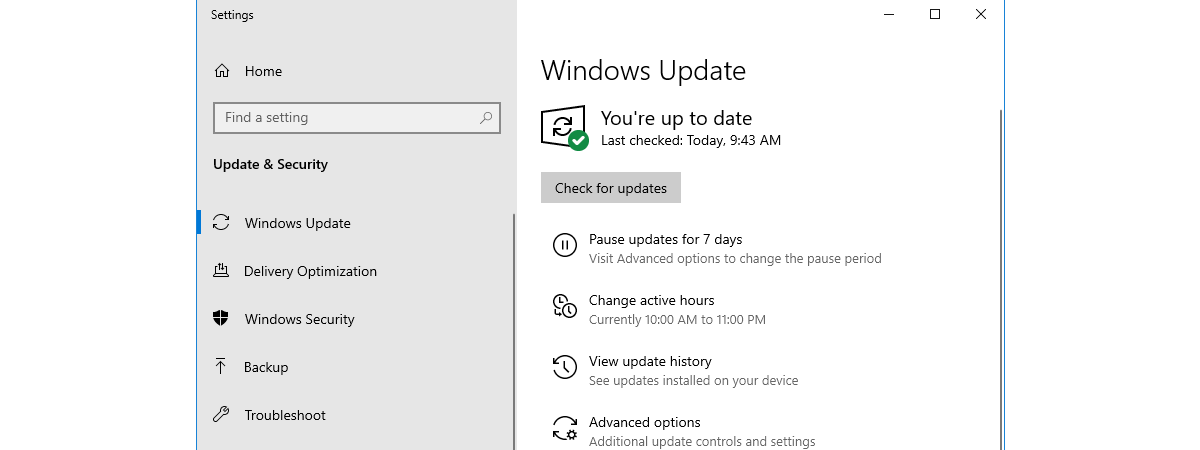
Traditionally, Windows updates were downloaded straight from Microsoft’s servers to your PC. This meant Microsoft had to have a huge infrastructure to deliver updates to millions of users worldwide, and sometimes, the speed of downloading updates was frustratingly slow. To improve the situation, Microsoft developed a feature called Delivery Optimization. Available in Windows 10 and Windows 11, it allows your computer(s) to grab updates
tutorial How to configure and test your microphone in Windows 11

How to configure and test your microphone in Windows 11

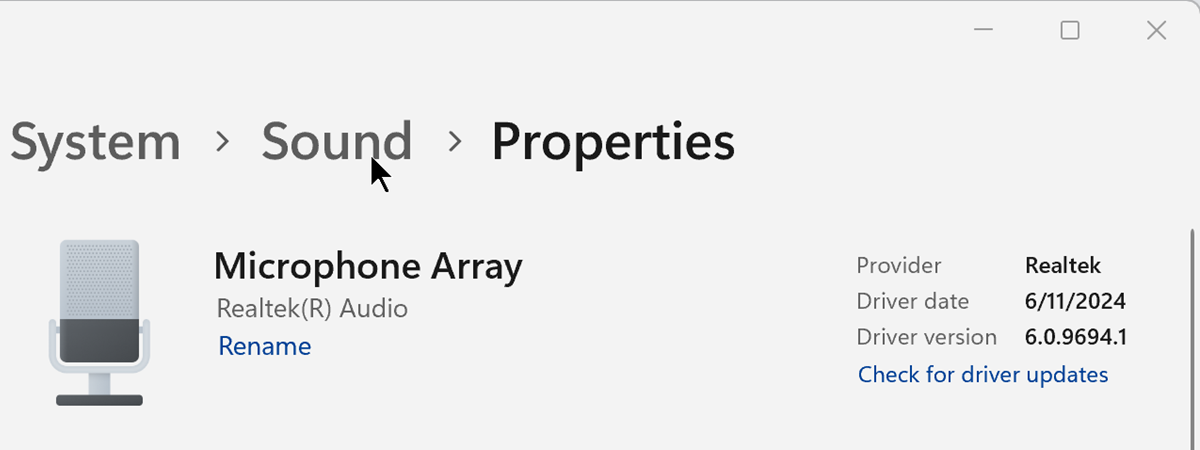
If you want to benefit from clear and high-quality audio during voice calls, video conferences, audio recordings, or while streaming content online, you need to configure and test your microphone. The good news is that Windows 11 gives you all the settings and tools you need to test your microphone, adjust mic sensitivity, and boost your microphone volume. In this guide, I’ll show how
tutorial Energy saver in Windows 11: What does it do? How to turn it On & Off

Energy saver in Windows 11: What does it do? How to turn it On & Off

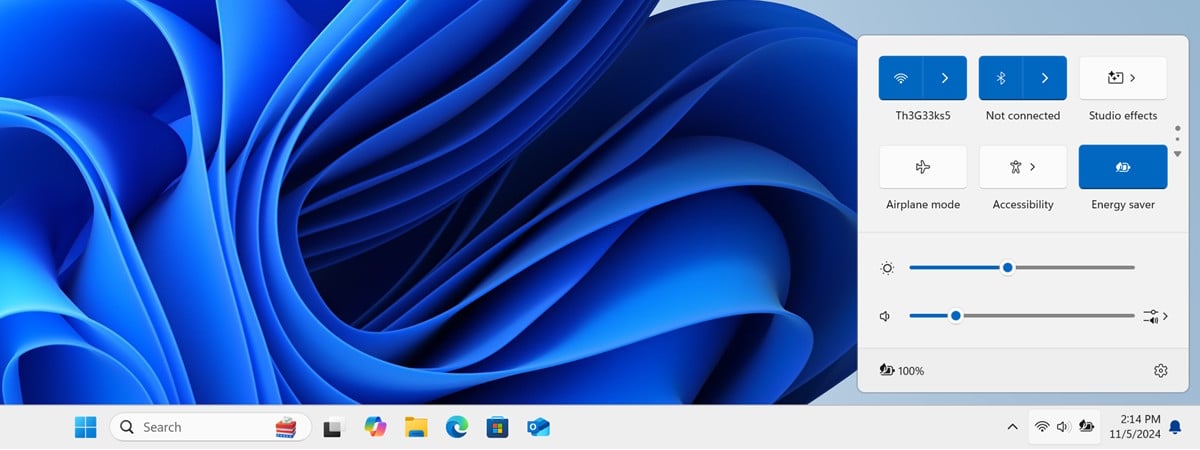
Windows 11 used to have a Battery saver, and it still does, even though you may no longer find it. That’s because, starting with Windows 11 version 24H2, Battery Saver has turned into Energy saver. While the name of this feature has been changed, it works almost the same way it did in older versions of Windows 11. However, Microsoft wanted to emphasize that
tutorial How to enter the UEFI BIOS from Windows 10 (7 ways)

How to enter the UEFI BIOS from Windows 10 (7 ways)

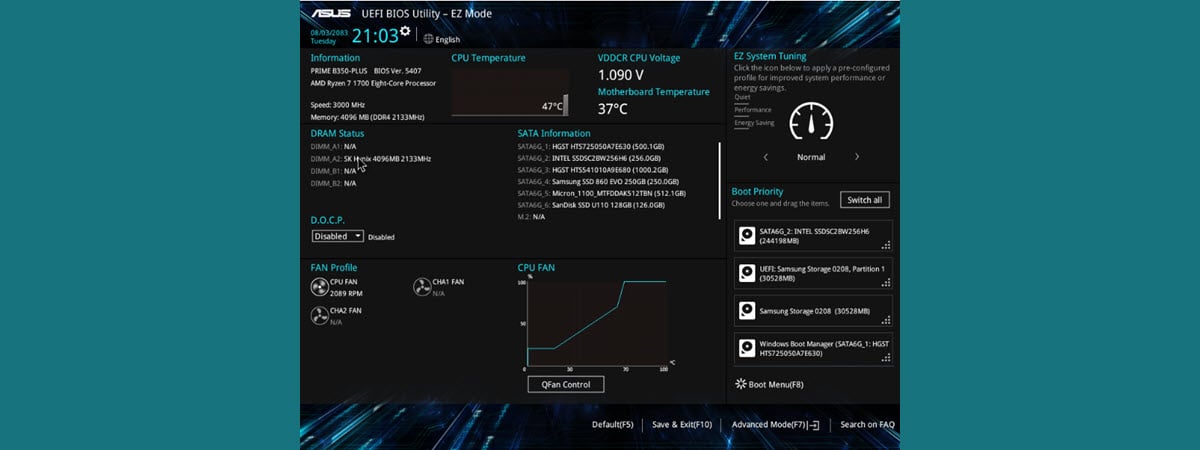
Do you need to know how to access UEFI (BIOS) on your computer, because you want or need to adjust hardware settings, manage your boot devices, or maybe even overclock your processor? If you’re wondering how to enter BIOS on a Windows 10 device, know that there are several ways to do so. In this tutorial, I’ll show you all the different methods I
tutorial How to configure and test your microphone in Windows 10

How to configure and test your microphone in Windows 10

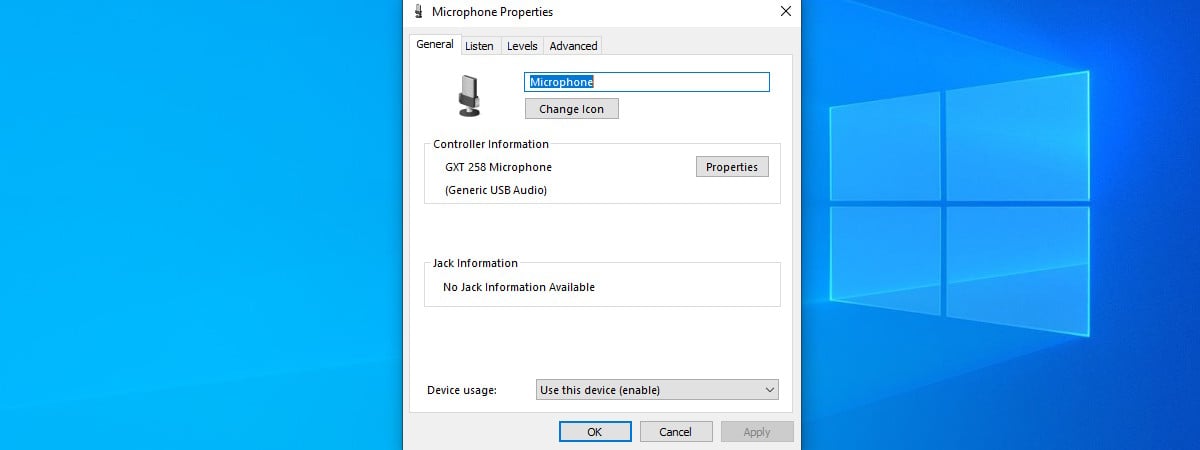
If you need to join voice calls or video conferences, or if you want to make recordings or stream content online, you have to set up your microphone. Moreover, to ensure clear, high-quality audio during such activities, you must also test your microphone. Windows 10 lets you control your microphone settings, allowing you to adjust microphone sensitivity and boost volume. In this guide, I’ll
tutorial How to use BSOD QR codes in Windows

How to use BSOD QR codes in Windows

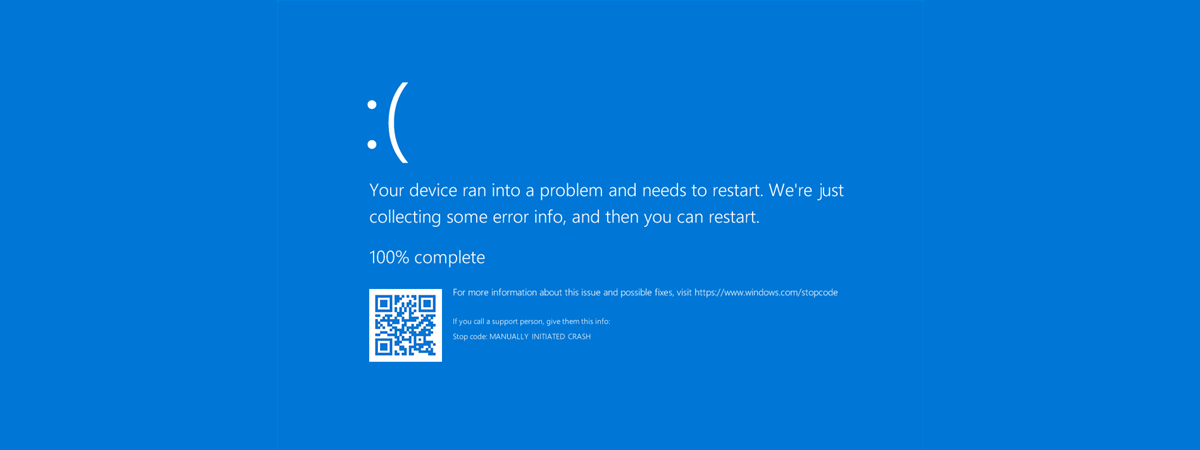
QR codes have a mixed reputation. Some users and companies find them useful, while others are wary of potential risks. Regardless of your opinion on them, if you’re using Windows 10 or Windows 11 and encounter a Blue Screen of Death (BSOD), you may notice a QR code. This feature is theoretically designed to help you understand what caused the BSOD and how to
tutorial What iOS do I have? How to check the iOS version on an iPhone

What iOS do I have? How to check the iOS version on an iPhone

Are you wondering how to check the iOS version on an iPhone? Apple releases regular updates to its iPhone operating system, periodically introducing new features, enhancements, and fixes. Hence, it comes in handy knowing how to find the iOS version if you are dying to try that new cool functionality or need help troubleshooting problems on your device. Furthermore, the latest iOS version ensures
tutorial Shortcuts for the UEFI BIOS & Windows Recovery Environment

Shortcuts for the UEFI BIOS & Windows Recovery Environment

When performing system maintenance, troubleshooting issues, or making hardware configuration changes, you may have to access your computer’s UEFI (BIOS) or the Windows Recovery Environment. Unfortunately, manually navigating through menus can be time-consuming, especially when you want or need to act as fast as possible. The good news is that in both Windows 10 and Windows 11, you can use commands and shortcuts for
tutorial How to trigger a BSOD (Blue Screen of Death) in Windows

How to trigger a BSOD (Blue Screen of Death) in Windows

Have you ever felt like you needed to consult an ancient Greek oracle to ask if your rock-solid Windows PC will ever crash? 🙂 While it’s rare to never have seen a Blue Screen of Death (BSOD), it’s even rarer to trigger one on purpose. After all, why would you intentionally crash your own system? You’d almost be like a digital arsonist, right? But
tutorial How to use the Windows 10 power slider to save battery or increase performance

How to use the Windows 10 power slider to save battery or increase performance

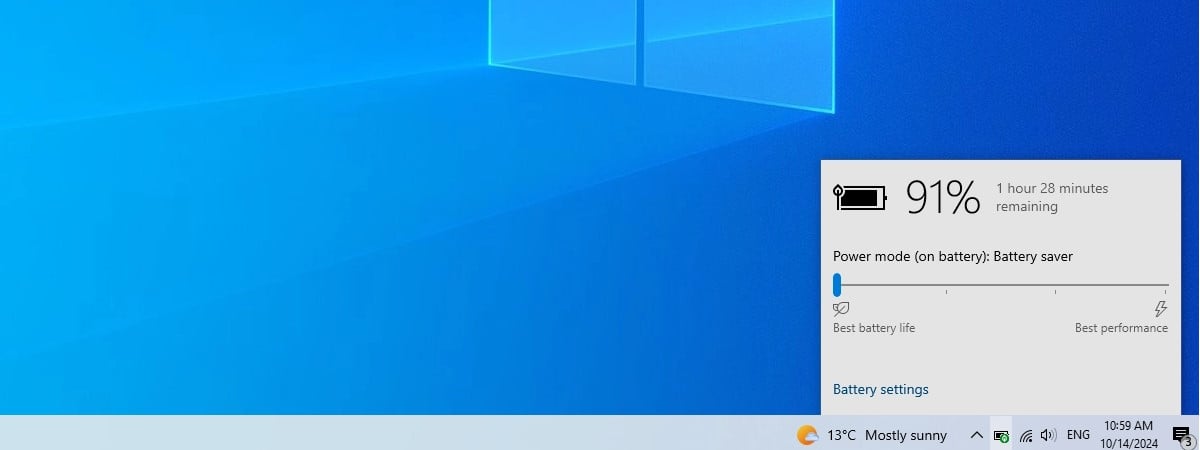
If you’re using a laptop, tablet, or 2-in-1 device, it’s likely you want to get the most out of its battery, but still have enough performance to handle whatever you’re doing. Fortunately, Windows 10 has a feature especially made for that, called the power slider. It’s found in the taskbar’s battery settings, and it lets you quickly switch between different power modes, depending on