




While Samsung makes many great phones and tablets, some of their devices have less than ideal battery life. This was the case with the Samsung Galaxy S22 I used back in 2022. Some of the people I know also complained about the autonomy of their Galaxy Flip devices. If you want to maximize the battery life of your Samsung phone or tablet, and you can’t charge it right away, the best solution is to enable the Power saving feature. With it, you can squeeze a few more hours of use, before your device shuts down completely. In this tutorial, I explain what Power saving does on Samsung devices, how to configure it, and how to quickly turn Power saving on or off:
 Power saving on Samsung Galaxy
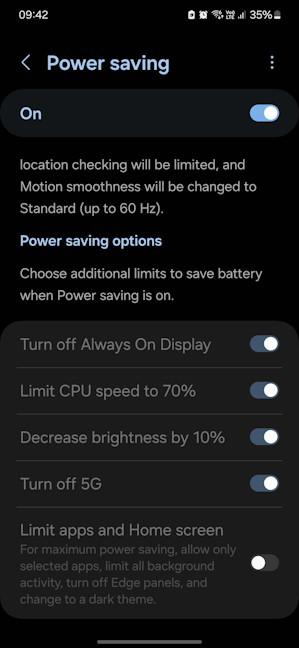
Therefore, when you turn on Power saving on your Samsung Galaxy, it does the following:
Power saving on Samsung Galaxy
Therefore, when you turn on Power saving on your Samsung Galaxy, it does the following:
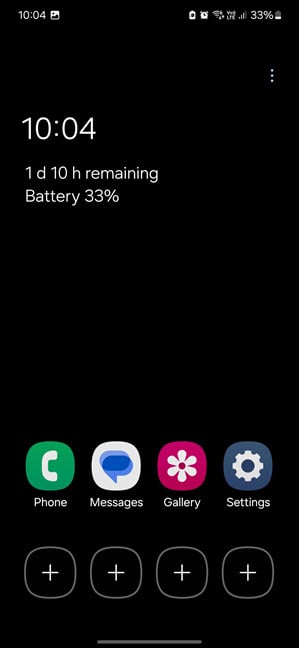 The Home Screen can be deactivated by Power saving
If you don’t like this last set of restrictions, don’t turn on the Limit apps and Home screen switch when enabling Power saving. Keep reading to learn how to turn on and turn off Power saving, and how to customize which battery saving options get enabled.
The Home Screen can be deactivated by Power saving
If you don’t like this last set of restrictions, don’t turn on the Limit apps and Home screen switch when enabling Power saving. Keep reading to learn how to turn on and turn off Power saving, and how to customize which battery saving options get enabled.
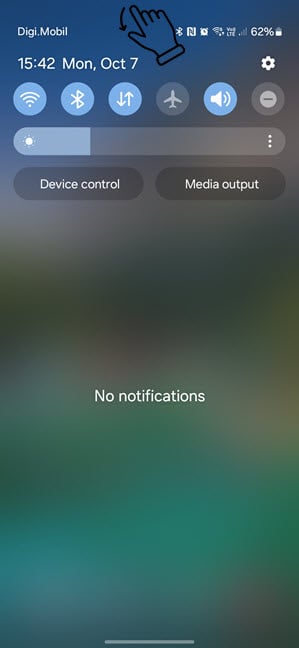 Swipe down to reveal Quick Settings
In the compact view of Quick Settings, swipe down again to access the expanded list of icons. Then, scroll through the list until you find the Power saving icon and tap it.
Swipe down to reveal Quick Settings
In the compact view of Quick Settings, swipe down again to access the expanded list of icons. Then, scroll through the list until you find the Power saving icon and tap it.
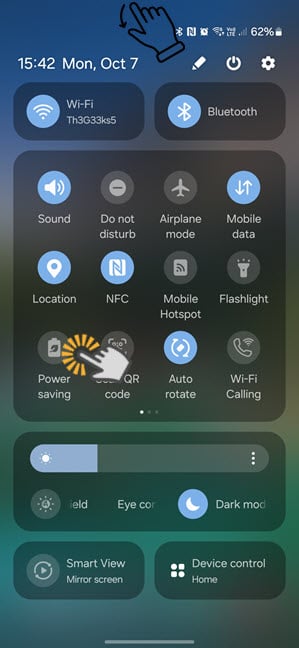 Swipe down again and turn on Power saving
Power saving is now turned on, helping increase how much time the battery lasts until you have to charge your Samsung Galaxy device again.
TIP: Here’s how to turn on or turn off Battery protection on Samsung Galaxy and increase the lifespan of your device’s battery.
Swipe down again and turn on Power saving
Power saving is now turned on, helping increase how much time the battery lasts until you have to charge your Samsung Galaxy device again.
TIP: Here’s how to turn on or turn off Battery protection on Samsung Galaxy and increase the lifespan of your device’s battery.
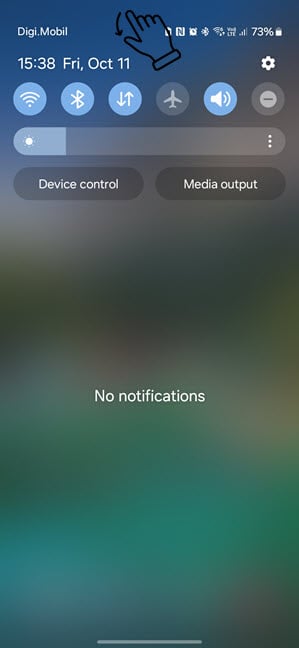 Swipe down to reveal Quick Settings
Then, swipe down again to extend the list of Quick Settings, scroll (if necessary) to find Power saving, and tap this icon.
Swipe down to reveal Quick Settings
Then, swipe down again to extend the list of Quick Settings, scroll (if necessary) to find Power saving, and tap this icon.
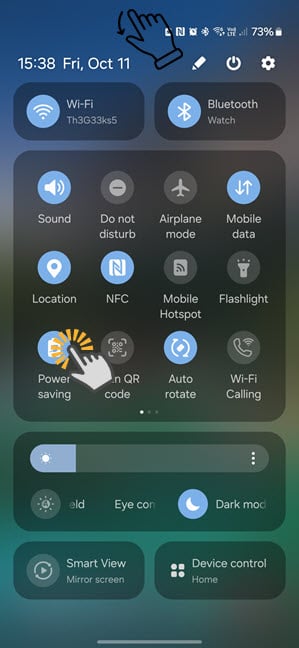 Swipe down again and turn off Power saving
Power saving is now turned off, and your Samsung Galaxy works normally, without limiting your device performance and apps.
Swipe down again and turn off Power saving
Power saving is now turned off, and your Samsung Galaxy works normally, without limiting your device performance and apps.
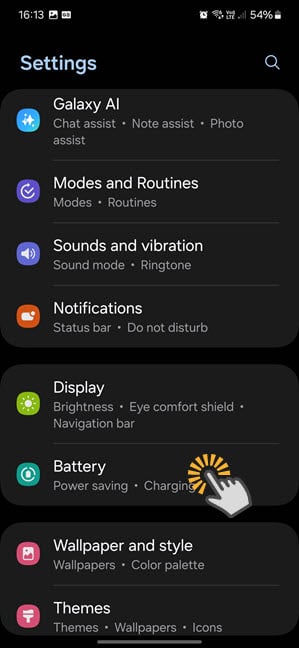 Go to Settings > Battery
You see a list of battery-related settings and information for your Samsung Galaxy. At the top, there’s a Power saving entry and a switch next to it. Tapping the switch turns this feature on or off. If you want to customize how it works first, tap the Power saving text instead of the switch.
Go to Settings > Battery
You see a list of battery-related settings and information for your Samsung Galaxy. At the top, there’s a Power saving entry and a switch next to it. Tapping the switch turns this feature on or off. If you want to customize how it works first, tap the Power saving text instead of the switch.
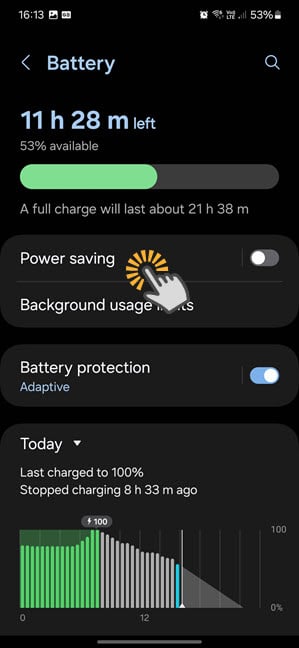 Tap Power saving
Now, you see information about Power saving and how it works, as well as several switches that can be turned on and off:
Tap Power saving
Now, you see information about Power saving and how it works, as well as several switches that can be turned on and off:
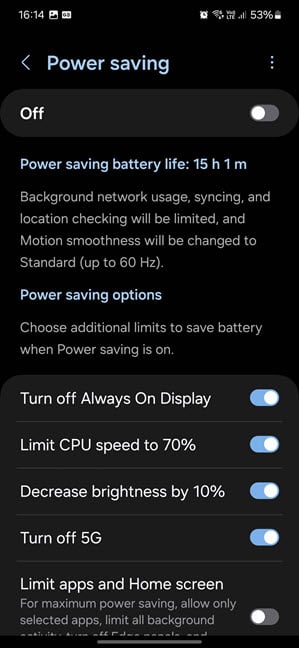 Enable the Power saving options you want
Power saving is now enabled, doing what you chose.
Enable the Power saving options you want
Power saving is now enabled, doing what you chose.
Does Samsung Galaxy have a battery saver?
Just like all Android smartphones and tablets, Samsung Galaxy devices also have a battery saving feature. However, this feature is not named Battery Saver, like it is in the standard version of Android, but Power saving. Samsung has changed not only the name of this feature, but also how it works.- If the display of your device has a high refresh rate of 90 Hz or 120 Hz, the refresh rate is lowered to 60 Hz.
- Location services (like GPS tracking) are stopped when the screen is turned off.
- Apps don’t run in the background unless you turn off Power saving. This includes background synchronization for apps like OneDrive, Google Photos, or Google Drive.
- Android apps refresh their content (email, news, weather, etc.) only when you open them.
- The Always On Display feature is disabled.
- The brightness of the screen is lowered by 10%.
- The speed of your device’s processor is lowered to 70% of its normal speed.
- 5G mobile connectivity gets turned off and replaced by 4G.
- Dark Mode is enabled, so the display consumes less energy.
- All background activity is limited, and only essential apps can run in the background.
- Samsung's Edge Panels are turned off. You must turn off Power saving to use them again.
- The normal Home Screen gets deactivated, and a simpler one is available, with four essential apps on it, like the one in the screenshot below. Unfortunately, you can only add another four apps to this list, limiting your experience.
How to enable or disable Power saving on Samsung Galaxy
You can turn on or off Power saving on Samsung Galaxy phones and tablets, both from the Quick Settings menu and the Settings app. However, the fastest procedure involves using Quick Settings, and it works as detailed in the following sections:How to quickly turn on Power saving on Samsung Galaxy
On your Samsung Galaxy phone or tablet, access the Quick Settings menu by swiping down from the top side of the display. Similar to my Samsung Galaxy S23, Power saving is probably not shown in the first row of Quick Settings icons.How to turn off Power saving on Samsung Galaxy
If Power saving is turned on, and you want it disabled, swipe down from the top side of the display to access Quick Settings.How to enable/disable and configure Power saving from Settings
If you want to customize how Power saving works on your Samsung Galaxy smartphone or tablet, it’s a good idea to open Settings, scroll down until you see the Battery category, and tap it.- Turn off Always On Display
- Limit CPU speed to 70%
- Decrease brightness by 10%
- Turn off 5G
- Limit apps and Home screen



Discussion (0)
Be the first to comment.