



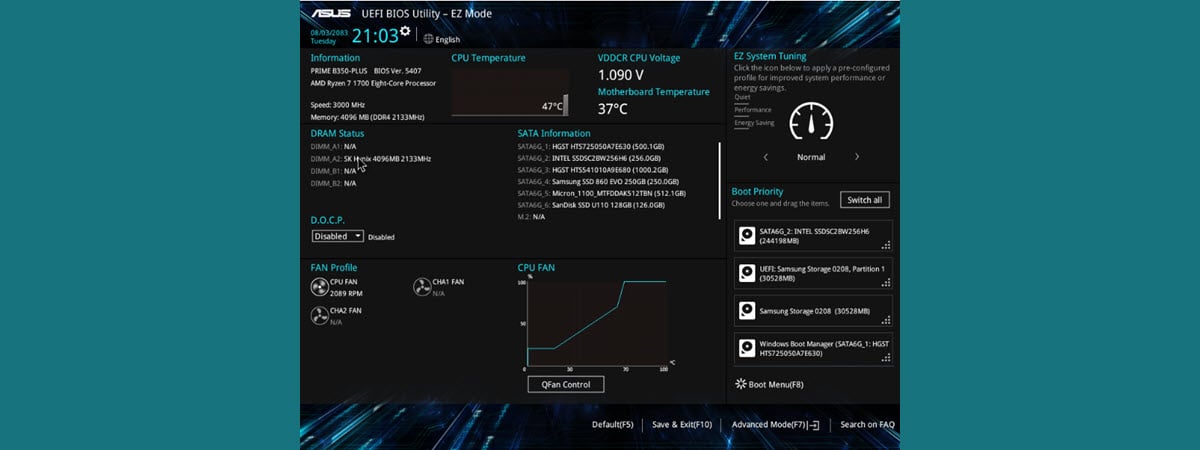
When performing system maintenance, troubleshooting issues, or making hardware configuration changes, you may have to access your computer’s UEFI (BIOS) or the Windows Recovery Environment. Unfortunately, manually navigating through menus can be time-consuming, especially when you want or need to act as fast as possible. The good news is that in both Windows 10 and Windows 11, you can use commands and shortcuts for opening the UEFI (BIOS) and the Recovery Environment. Without wasting any more time, let’s begin:
NOTE: The instructions and shortcuts for the UEFI (BIOS) provided in this tutorial work for both Windows 10 and Windows 11. Seeing that everything’s the same in both operating systems, I decided to include screenshots from Windows 10 only, in order to keep things as simple as possible. Before you go ahead, though, maybe you’d like to learn a bit more about UEFI (BIOS) and its purpose on computers.

 Open UEFI BIOS fast by running a special shutdown command
If you like the command above, but want to run it even faster, you can create a Windows UEFI/BIOS shortcut. When you do that, make sure you specify the same command…
Open UEFI BIOS fast by running a special shutdown command
If you like the command above, but want to run it even faster, you can create a Windows UEFI/BIOS shortcut. When you do that, make sure you specify the same command…

 How to create a shortcut to UEFI BIOS
TIP: If you’d like to learn all the methods of accessing UEFI (BIOS) on a computer, check out these guides on opening UEFI from Windows 11 and opening UEFI/BIOS from Windows 10.
Don’t have the time to create shortcuts? Then, you can simply download the Windows UEFI/BIOS shortcut I already created for you. It’s called UEFI BIOS (tooltip: Restart Windows and enter UEFI BIOS). To get it, download this ZIP file, extract its contents, and you can find it in there. If you need some help with that, here’s how to unzip files in Windows.
How to create a shortcut to UEFI BIOS
TIP: If you’d like to learn all the methods of accessing UEFI (BIOS) on a computer, check out these guides on opening UEFI from Windows 11 and opening UEFI/BIOS from Windows 10.
Don’t have the time to create shortcuts? Then, you can simply download the Windows UEFI/BIOS shortcut I already created for you. It’s called UEFI BIOS (tooltip: Restart Windows and enter UEFI BIOS). To get it, download this ZIP file, extract its contents, and you can find it in there. If you need some help with that, here’s how to unzip files in Windows.

 Download a shortcut to UEFI BIOS
Double-click or double-tap the shortcut, choose Yes in the UAC prompt displayed, and your Windows computer immediately restarts to its UEFI (BIOS) interface.
Download a shortcut to UEFI BIOS
Double-click or double-tap the shortcut, choose Yes in the UAC prompt displayed, and your Windows computer immediately restarts to its UEFI (BIOS) interface.

 Choose Yes in the UAC prompt
TIP: Did you know that we also made a huge library of useful shortcuts for almost anything and everything in Windows? Check it out: Download the largest collection of Windows desktop shortcuts for free!.
Choose Yes in the UAC prompt
TIP: Did you know that we also made a huge library of useful shortcuts for almost anything and everything in Windows? Check it out: Download the largest collection of Windows desktop shortcuts for free!.

 Run a special shutdown command to get to the Windows Recovery Environment
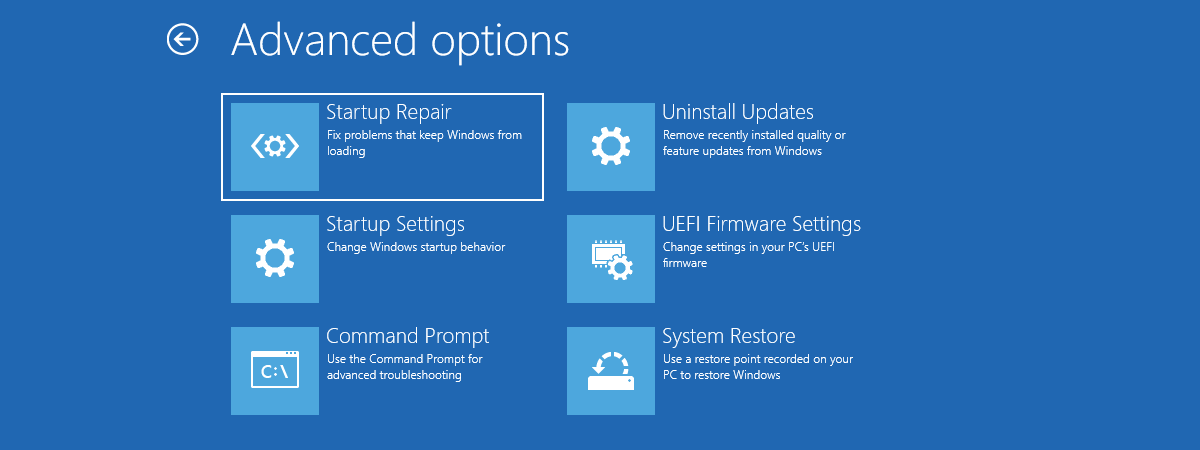
The command immediately restarts your Windows computer or device, and then takes you to the Choose an option screen. There, click or tap on Troubleshoot to get access to tools like Safe Mode, Safe Mode with Networking, and System Restore.
Run a special shutdown command to get to the Windows Recovery Environment
The command immediately restarts your Windows computer or device, and then takes you to the Choose an option screen. There, click or tap on Troubleshoot to get access to tools like Safe Mode, Safe Mode with Networking, and System Restore.

 The Advanced Boot Menu of Windows
To access the Windows Recovery Environment even faster, you can create a shortcut for it. On your desktop or anywhere you want, start the Create Shortcut wizard and type the same…
The Advanced Boot Menu of Windows
To access the Windows Recovery Environment even faster, you can create a shortcut for it. On your desktop or anywhere you want, start the Create Shortcut wizard and type the same…

 How to create a shortcut to Windows' Recovery environment
Finally, if you want lightning-fast access to the Windows troubleshooting tools from the Recovery Environment, download this ZIP file, extract its contents, and you’ll find the Advanced Boot Menu shortcut I made for you.
How to create a shortcut to Windows' Recovery environment
Finally, if you want lightning-fast access to the Windows troubleshooting tools from the Recovery Environment, download this ZIP file, extract its contents, and you’ll find the Advanced Boot Menu shortcut I made for you.

 Download a shortcut to the Recovery Mode Environment (Advanced Boot Menu)
TIP: I also have another recommendation for a useful shortcut that you can use to shut down your Windows 10 or Windows 11 PC faster. To get it, visit this article: Download the shortcut for Shut Down Windows.
Download a shortcut to the Recovery Mode Environment (Advanced Boot Menu)
TIP: I also have another recommendation for a useful shortcut that you can use to shut down your Windows 10 or Windows 11 PC faster. To get it, visit this article: Download the shortcut for Shut Down Windows.
How to restart to UEFI (BIOS) using a shortcut or command
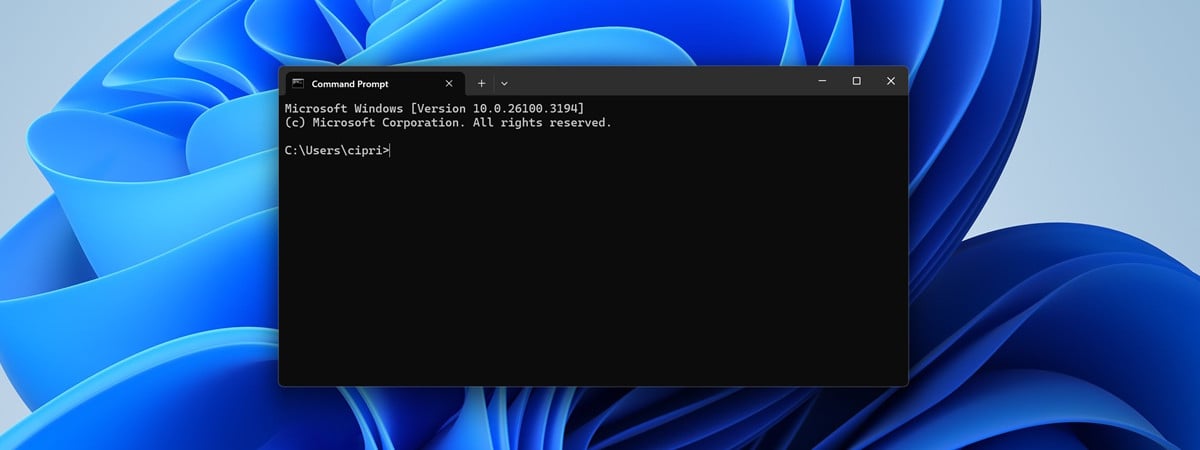
There are multiple ways to open UEFI BIOS in Windows 10 and Windows 11. However, one of the fastest ways is to run a fairly simple command. Open Command Prompt as administrator and type this command:shutdown /r /fw /f /t 0
After you press Enter on your keyboard, your Windows computer restarts and opens its UEFI (BIOS).
shutdown /r /fw /f /t 0
…in the shortcut’s location field, as illustrated below.
How to open the Advanced Boot Menu (Windows Recovery Environment) with a shortcut or command
Another useful troubleshooting place is the Recovery Environment, also known as the Advanced Boot Menu. It’s available in both Windows 10 and Windows 11, and to quickly access it, you can open Command Prompt as an administrator and run this command:shutdown /r /o /f /t 0
shutdown /r /o /f /t 0
…command in its location field.

Discussion (1)
I’ve been doing these shortcuts for a long while, especially the one for a fast shutdown. Another one that is useful is Restart your PC C:\Windows\System32\shutdown.exe /r /f /t 0
The Shutdown command has been considerably enhanced in recent years since win 10 was released. Use a Command window and do shutdown /? to see all the tricks.