Do you want a shortcut that opens the "Shut Down Windows" menu, so that you can quickly shut down or restart your Windows computer or device? Based on requests from our readers, we have created this shortcut for you to use on any Windows computer. It works on Windows 10, Windows 8.1 and Windows 7. Here is how to use it and how to download it:
CREDIT: We would like to thank Milan Benes, one of our readers, for asking us to work on this shortcut. Due to his request and help with testing, we managed to create and make this file available to all our readers.
"Shut Down Windows" in Windows 10, Windows 8 and Windows 7
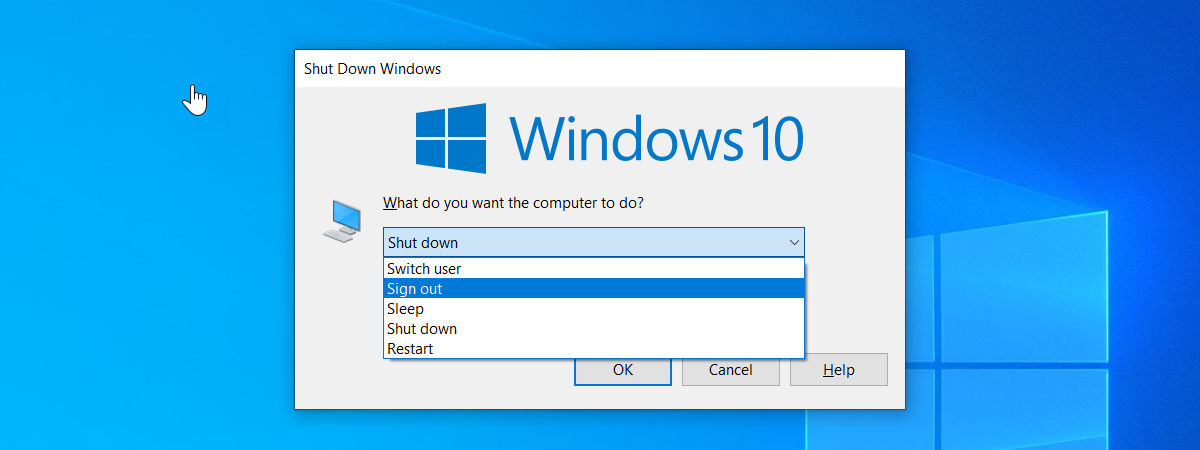
If you want to get the shortcut, scroll until the end of the article for the download link. Before we get there, you should know that the "Shut Down Windows" window is one of several ways to shut down your Windows system. When you press Alt + F4 keys on the keyboard while you have the focus on the desktop, a window pops up with a drop-down menu in the middle. This window is named "Shut Down Windows."
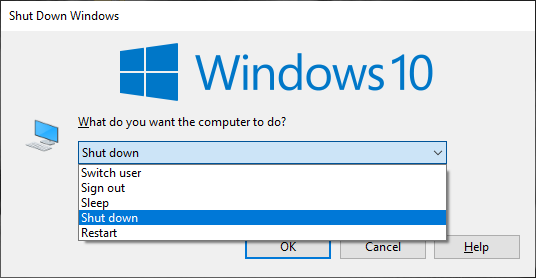
The Shut Down Windows menu in Windows 10
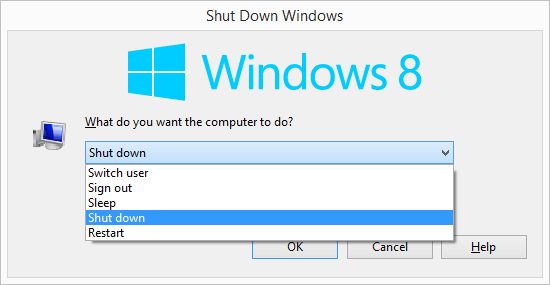
The "Shut down" option is selected by default. If you click or tap the drop-down arrow, the full list of options becomes visible with the following options in Windows 10 and Windows 8.1:
Switch user - save the existing user session and change the active user in Windows
Sign out - end the existing session in Windows and display the login screen
Sleep - put the Windows system in sleep mode
Shut down - stop the Windows system completely
Restart - shut down and then start Windows again
The Shut Down Windows menu in Windows 8.1
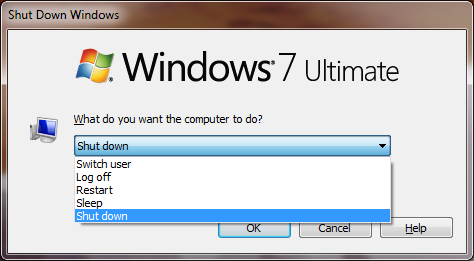
The options in Windows 7 are the same except that the order is a bit different and the Sign out option is called Log off.
The Shut Down Windows menu in Windows 7
Download the shortcut for "Shut Down Windows"
As described in the previous chapter, you can open the "Shut Down Windows" window by using the Alt + F4 keys on your keyboard when you have the focus on the desktop. This is what the executable file we have created is doing. It first puts the focus to the Windows desktop, and then sends the Alt + F4 keys to open the "Shut Down Windows" window.
The file you download from our link below is the zipped version of the executable file that we created for you. Read this tutorial to learn How to unzip a file in Windows (with built-in tools). You can unzip the file and place it on your desktop. This is what it looks like:
Try the file that we created and let us know whether it works well for you, in a comment below. Also, for more useful downloads and tips, check the articles recommended below.
Force user to see in listbox that a windows update is pending a reboot.
Thanks for the dev !!!
Ciprian Adrian Rusen ·
Happy to help. Don’t hesitate to subscribe to our newsletter.
pmshah ·
I have been using an application that allows me to add a wide variety of commands to the context menu in appropriate locations. It is called “Right Clicl Enhancer V2”. Sometimes this additions get deleted after major Win 10 updates but no problem getting them back in.
Nikos ·
Have you checked the executable with VirusTotal? It gives a Trojan warning!
Anonymous ·
Only 1 in 68 antiviruses consider this a trojan. And that is a less known antivirus. It is a false alarm. We created the file ourselves, and we did not include any crap inside. We use the file ourselves for the task we mentioned in the article.
Sakkara ·
This is great! I have issues with not being able to use Cortana or even pressing the Windows button on my refurbished ASUS 2 in 1.
Benjamin ·
Win7, only an Admin user, and this:
This operation has been canceled due to restrictions in effect on this computer. Please contact your system administer.
I checked properties, clicked “unblock”, and still this message. Tried right clicking and run as admin, still this message.
HP Pavaillion. Due to certain people clicking the retarded sleep option, I removed the shutdown menu options, but when I enabled recently, there is no shutdown option, just sleep, etc.
How do I get the shutdown option or this shortcut to work?
jff2k ·
Nice Tool, thank you very much. Maybe you could also create a vb.net program with the following code, so you don’t have to minimize all desktop windows: dim objShell As Object = CreateObject(“shell.application”).ShutdownWindows
I haven’t tried it in Metro Start Menu yet.










Discussion (8)
Wow, that’s THE tool i wanted.
Force user to see in listbox that a windows update is pending a reboot.
Thanks for the dev !!!
Happy to help. Don’t hesitate to subscribe to our newsletter.
I have been using an application that allows me to add a wide variety of commands to the context menu in appropriate locations. It is called “Right Clicl Enhancer V2”. Sometimes this additions get deleted after major Win 10 updates but no problem getting them back in.
Have you checked the executable with VirusTotal? It gives a Trojan warning!
Only 1 in 68 antiviruses consider this a trojan. And that is a less known antivirus. It is a false alarm. We created the file ourselves, and we did not include any crap inside. We use the file ourselves for the task we mentioned in the article.
This is great! I have issues with not being able to use Cortana or even pressing the Windows button on my refurbished ASUS 2 in 1.
Win7, only an Admin user, and this:
This operation has been canceled due to restrictions in effect on this computer. Please contact your system administer.
I checked properties, clicked “unblock”, and still this message. Tried right clicking and run as admin, still this message.
HP Pavaillion. Due to certain people clicking the retarded sleep option, I removed the shutdown menu options, but when I enabled recently, there is no shutdown option, just sleep, etc.
How do I get the shutdown option or this shortcut to work?
Nice Tool, thank you very much. Maybe you could also create a vb.net program with the following code, so you don’t have to minimize all desktop windows:
dim objShell As Object = CreateObject(“shell.application”).ShutdownWindows
I haven’t tried it in Metro Start Menu yet.