UP

Apps

Tutorials, articles and recommendations about apps and programs that people use on their computers, smartphones, smartwatches, and other gadgets.

9 Things you can do from the Task Manager's compact view in Windows 10

The Task Manager is an app primarily used to get more information about the processes and applications running on your PC. That is why the first time you open the Task Manager in Windows 10, you might be in for a surprise (especially if you skipped Windows 8) because there is not much to see in its window. Don't worry, this is just a compact view of the Task Manager,

article 4 ways to download PowerPoint straight from Microsoft

4 ways to download PowerPoint straight from Microsoft

PowerPoint is the most popular slideshow presentation app in the world. It is developed and sold by Microsoft as part of its Office suite, together with other productivity apps such as Word, Excel, Outlook or Access. However, it is also available online as a web app. Unless you have already worked with PowerPoint, you might wonder how and where to download it. If you

The location of Windows 10 wallpapers for the Desktop & Lock Screen

Windows 10 uses impressive pictures for the desktop background and for the Lock Screen. Some of them look great, and we especially like the new default wallpaper for Windows 10 May 2019 Update. If you want to know the location of those images, so that you can use them as wallpapers for other PCs and devices, read this article: [DC-SUMMARY-BREAK] Where to see the background pictures used by Windows 10

9 ways to manage files with File Explorer, from the Home tab

One of the best things about File Explorer in Windows 10 is its ribbon user interface, which introduces a system of tabs and buttons that make it easier for users to work with files and folders. The Home tab is where you find the tools that you need most often while browsing files and folders with File Explorer. In this tutorial, we show you nine ways to use the Home
article 4 things you can do with Windows Sandbox

4 things you can do with Windows Sandbox

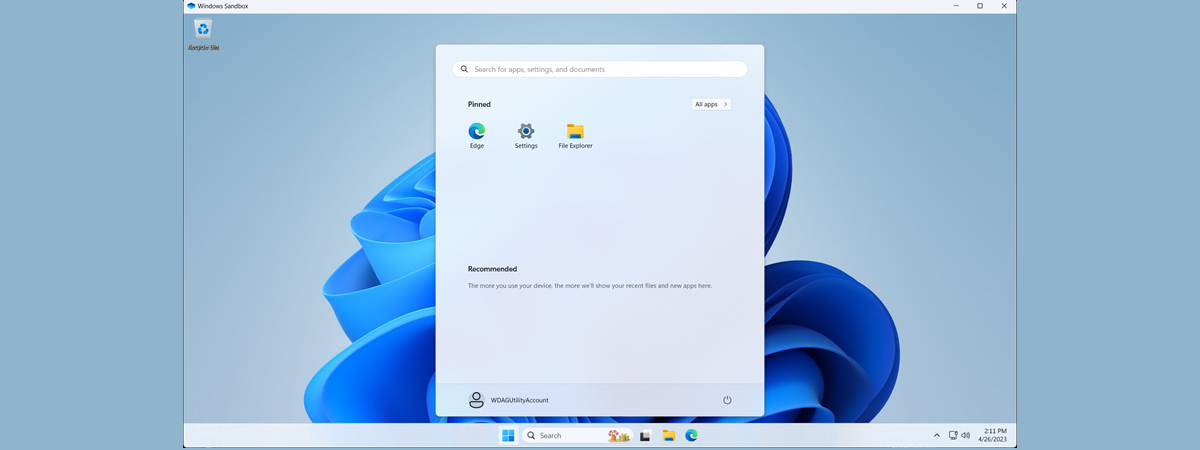
If you are running a Pro, Education or an Enterprise edition of Windows 10 with May 2019 Update, you have access to Windows Sandbox. It is a lightweight virtual machine that is easy to install and run, without paying anything for additional license fees. This app is excellent for browsing potentially dangerous websites, testing unknown apps and other things that could otherwise be hazardous.

10 ways to view files like a Pro, in File Explorer

In Windows 10, File Explorer has a ribbon interface with lots of tabs and options. The View tab is one of the most useful, as it gives you many different ways in which to browse and look at your files. You can make File Explorer show you different panes with different types of information, change the layout of your files and folders, sort them, hide them and so on. Here

5 things you can do from File Explorer's File menu

Most Windows 10 users browse the files and folders on their PCs and devices, using the File Explorer app created by Microsoft for this purpose. The app is built into the operating system and itțs found at one click away, on the taskbar. However, many users do not know all its features and capabilities, so they never use it as productively as they could. In this guide, we teach you
tutorial Stop Windows 10 from promoting apps on the Start Menu

Stop Windows 10 from promoting apps on the Start Menu

Microsoft's decision to show advertisements in Windows 10's Start menu appears to be universally disliked. So you just bought a new computer with Windows 10, for the first time, and you open the Start menu to find that it looks like the Disney channel?!? Having already paid for a Windows 10 license or a Windows 10 PC, it is not unreasonable to be bothered

Review Hydro Coach: One of the best reminders for drinking water!

The hydration of our bodies is vital for a healthy lifestyle. The modern rhythm of our lives makes us forget to drink enough liquids during the day, and we can develop health issues and a sense of tiredness by doing so. Since technology is a big part of this stress, it is welcome if it can be put to good use and help us manage our hydration better. Hydro Coach
tutorial The fastest way to remove Windows 10 bloatware

The fastest way to remove Windows 10 bloatware

Windows 10 has accustomed us to bloatware being bundled all the time, even when we make a clean installation. No longer is bloatware a lousy approach of various hardware manufacturers, but it is also Microsoft's thing now. While researching for ways to get rid of Windows 10 bloatware quickly, we found a helpful tool that does that, called Windows 10 Debloater. It runs PowerShell

How to set the default view/tab for the Windows 10 Task Manager

Starting with the Windows 10 May 2019 Update or version 1903, the Task Manager receives a few improvements. One of them is the fact that you can now set the default tab displayed by Task Manager when you open it. Today, you either see the compact view with few details, or the Processes tab. You can now set it to any tab you wish: Performance, Startup, Details or something else.
tutorial How to disable Windows Security notifications in Windows 10

How to disable Windows Security notifications in Windows 10

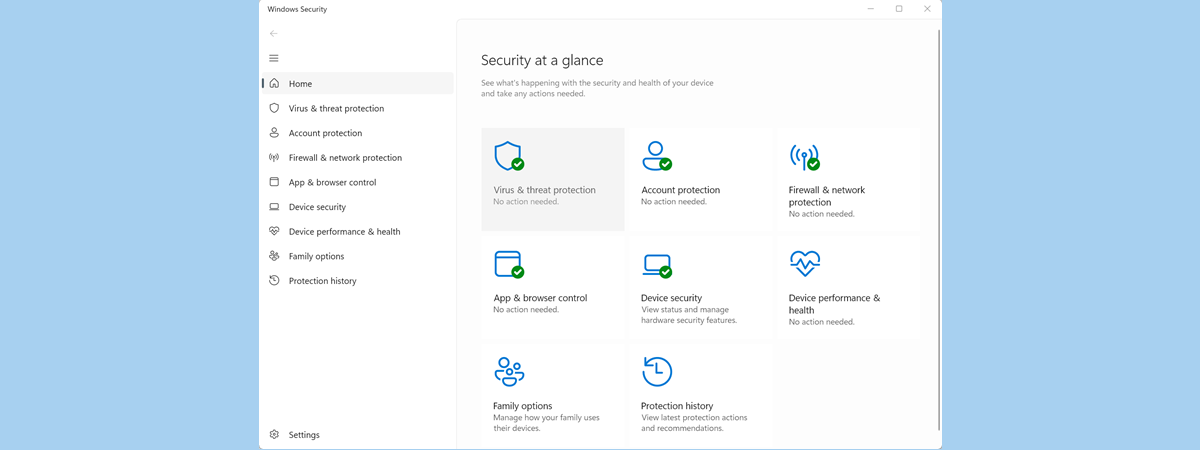
When you use Windows 10, you get notifications from Window Security about threats found, Windows Defender scan results, the Windows Defender Firewall, and more. If you want to disable some of these notifications, or all of them, you can. In this guide, we share how to personalize what notifications you get from Windows Security. Let's get started: NOTE: This guide was created using
tutorial How to configure and test the webcam in Skype

How to configure and test the webcam in Skype

Skype is one of the most used video conferencing apps in the world. People use its apps on a multitude of devices, from Windows laptops and PCs to Android smartphones, to iPhones and iPads. One of Skype's essential features is its ability to make video calls. However, before you do that, it is best to make sure that your webcam is working well before
tutorial How to add, open, and configure OneDrive on an iPhone or iPad

How to add, open, and configure OneDrive on an iPhone or iPad

If you have a Windows device of any kind, it is almost impossible for you not to have used or at least seen OneDrive. It is Microsoft's cloud storage service that comes by default in Windows 10, and which can be used on many other devices too. Microsoft provides apps for OneDrive both for Android and iOS devices, and the latter are the ones
tutorial 4 ways to uninstall Windows Media Player from Windows

4 ways to uninstall Windows Media Player from Windows

Windows Media Player has been around in Windows for ages, and it still is a capable player for all kinds of media files: music, pictures, and movies. However, you might be a fan of another media player such as VLC or Movies & TV. In that case, you might want to get rid of Windows Media Player, and save some storage space. Unfortunately, Windows
tutorial How to rip a CD with Windows Media Player, in Windows

How to rip a CD with Windows Media Player, in Windows

While dusting my home, I stumbled upon my audio CD collection with albums from awesome bands like Pink Floyd, Rush, and The Beatles. I got hit by nostalgia, and I decided that I wanted to rip some CDs and listen to excellent music, in a high-quality audio format. For those of you who do not know, ripping a CD means copying the songs from

How do I open Terminal on Mac? (3 ways)

The Terminal app is an emulator used to type commands on your Mac. macOS has a UNIX-based core and the Terminal allows you to travel from the outer world of macOS to the inner world of UNIX. Because this app is mainly used to change settings and to solve technical problems, the average Mac user does not really have many reasons to access it. Since you are here reading this,

Turn the dark mode on or off, in the Mail and Calendar app for Windows 10

The touch-friendly Mail and Calendar apps that are pre-installed in Windows 10 have been improved with a new feature: the dark mode. The dark theme has been available in Windows 10 for a while, but the Mail and Calendar apps used to apply the dark mode only partially. Now, it applies to all the display elements and gives you the flexibility to set it up independently from the rest of
tutorial How to use Snip & Sketch to take screenshots in Windows 10

How to use Snip & Sketch to take screenshots in Windows 10

Snip & Sketch is a Windows 10 screenshot tool that Microsoft has introduced with the October 2018 Update. In the future, it is going to replace the Snipping Tool, but so far both apps continue to exist in Windows 10 until Snip & Sketch reaches feature-parity with the Snipping Tools or it outperforms it. Here is how to open Snip & Sketch, the keyboard