Microsoft's decision to show advertisements in Windows 10's Start menu appears to be universally disliked. So you just bought a new computer with Windows 10, for the first time, and you open the Start menu to find that it looks like the Disney channel?!? Having already paid for a Windows 10 license or a Windows 10 PC, it is not unreasonable to be bothered when you are further monetized through ads. If you have also had it with bubble witches, dragons and wide-eyed chickens eerily staring at you, and you want to reclaim your clean, simple Start menu, read this guide and find out how to get rid of the promoted apps in Windows 10:
A bit of theory: what are promoted apps on Windows 10's Start menu?
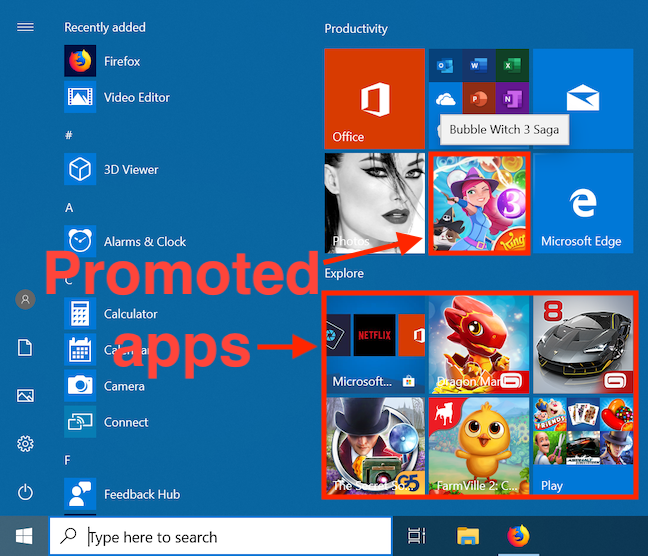
In Windows 10, Microsoft also introduced advertised or promoted apps on your Start menu, under the guise of suggestions meant to enhance the user's experience. These apps are not installed on your Windows 10 computer or device, and clicking on any of the ad tiles takes you to their respective download pages on the Microsoft Store. While I would like to give Microsoft the benefit of the doubt, I am pretty sure that Bubble Witch 3 Saga would not make me a more efficient worker in any foreseeable way, so I am suspecting clear financial motives for including it in the Productivity section of the so-called suggestions in the Start menu.
The promoted apps in the Windows 10 Start menu
Step 1. Remove promoted apps from the Start menu in Windows 10
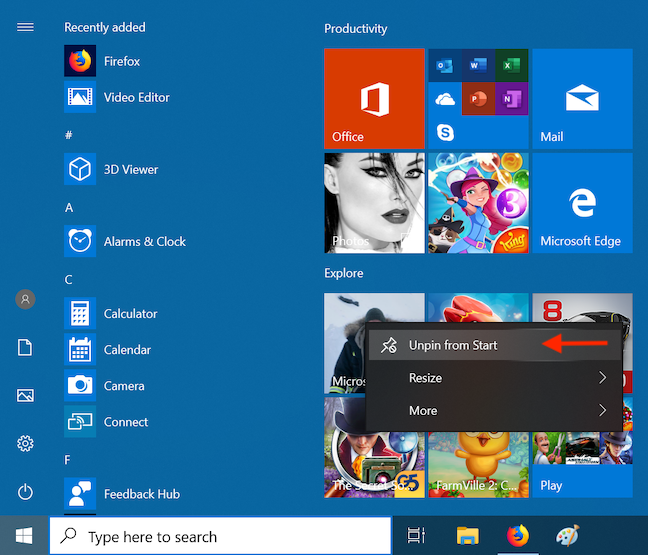
Removing promoted apps from the Start menu is easy, and anyone can do it, although it does require a bit of patience because you need to get rid of the ads one by one. As we briefly mentioned earlier, the promoted apps are nothing more than shortcuts or links to their Microsoft Store pages, and they are not apps installed on your device. Choose any of the apps that you do not want on your Windows 10 computer or device, and right click (or press and hold) on its shortcut from the Start menu. Then click or tap on "Unpin from Start," and the ad disappears.
Unpin unwanted apps from your Start menu
Once you've cleaned up your Start menu and there are no more promoted apps displayed, go to the next section of this tutorial to find out how to block Windows 10 from showing other promoted apps.
Step 2: Permanently disable apps promoted in the Start menu in Windows 10
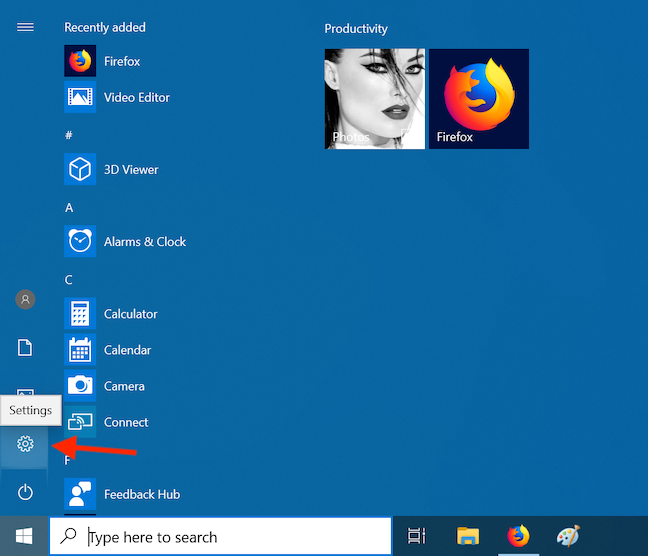
It all starts with the Settings app. To open it, click or tap on its shortcut from the Start menu, or follow any of the ways shown in this guide: 14 ways to open Windows 10 Settings.
Settings in the Windows 10 Start menu
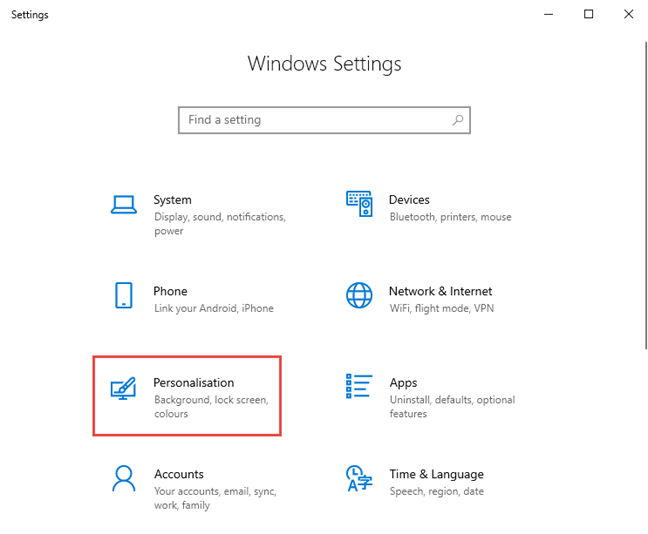
Inside Settings, click or tap on Personalization.
Go to Personalization in Windows 10 Settings
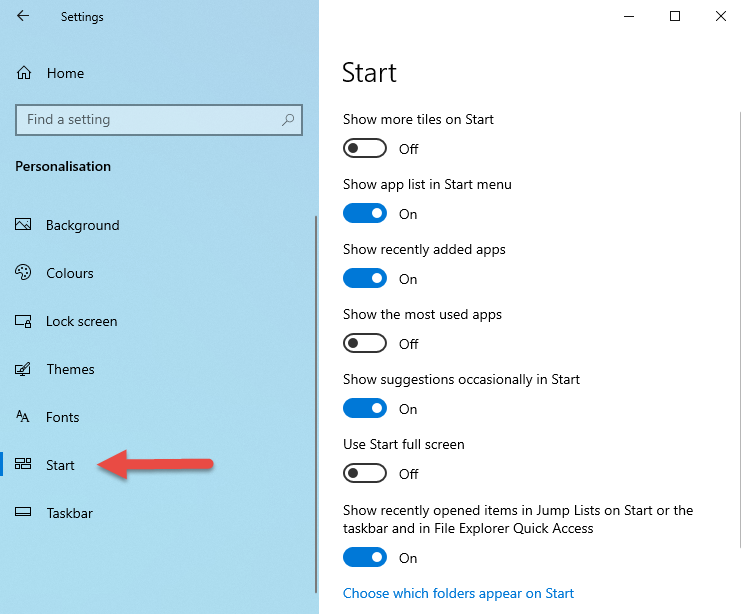
Click or tap Start in the column on the left.
The Start option under Personalization
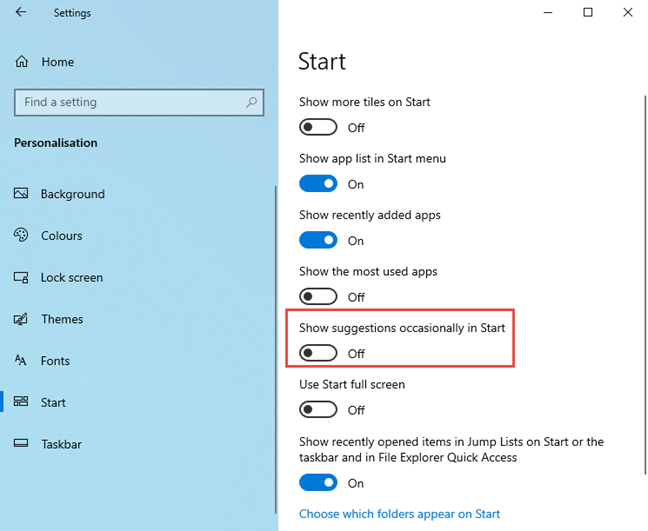
On the right side of the window, you see some settings, amongst which there's one called "Show suggestions occasionally in Start." It is turned on by default, and it lets Microsoft display promoted apps on your Start menu. Turn off the switch, and your Start menu is free of promoted apps in the future.
Turn off the switch to disable app suggestions
What other features could you do without on Windows 10?
The "suggestions" discussed above are not the only unwanted apps that Microsoft aggressively pushes on its Windows 10 users. Here at Digital Citizen, we are passionate about our Windows customization, and we are not exactly fans of clutter, so we went over the operating system with a fine-tooth comb and came up with a list of other Windows 10 bloatware that Microsoft bundles to all its users. Before you close this guide, let us know what other features, if any, you consider futile or annoying in Windows 10.









Discussion (0)
Comments are closed.