UP

Productivity

What does it mean to use technology productively? Which apps and gadgets make your work easier? How to personalize the computers and other gadgets you’re using?

tutorial Presence Sensing: Why the screen turns off when you walk away

Presence Sensing: Why the screen turns off when you walk away

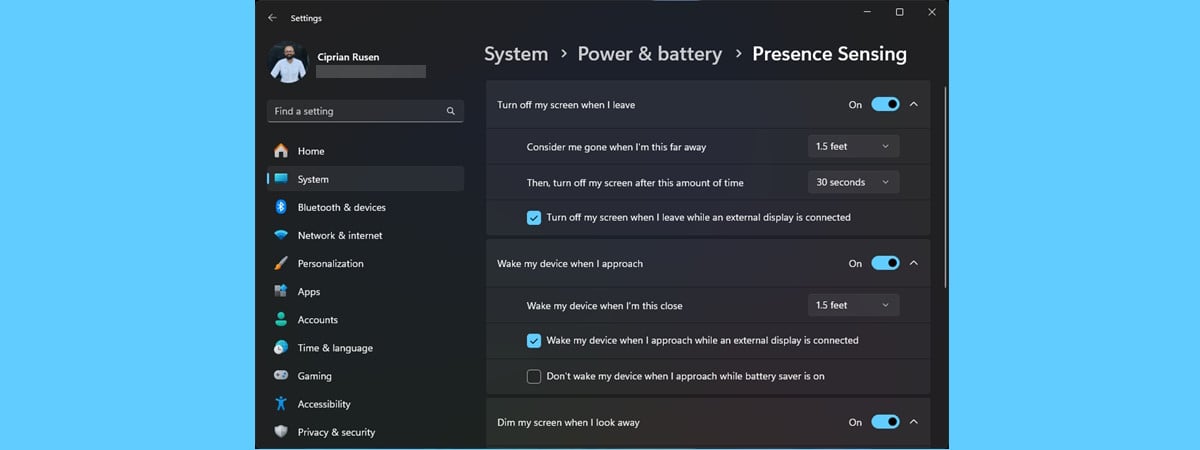
If you have a Windows 11 laptop or mini PC with a modern AI-powered processor, your computer knows when you walk away, automatically turns off the display, and locks your Windows 11 account. This is made possible by a feature called Presence Sensing, which uses sensors to detect when you leave, look away from the screen, and return. In this guide, I explain what
tutorial How to enable or turn off clipboard history and syncing in Windows 10

How to enable or turn off clipboard history and syncing in Windows 10

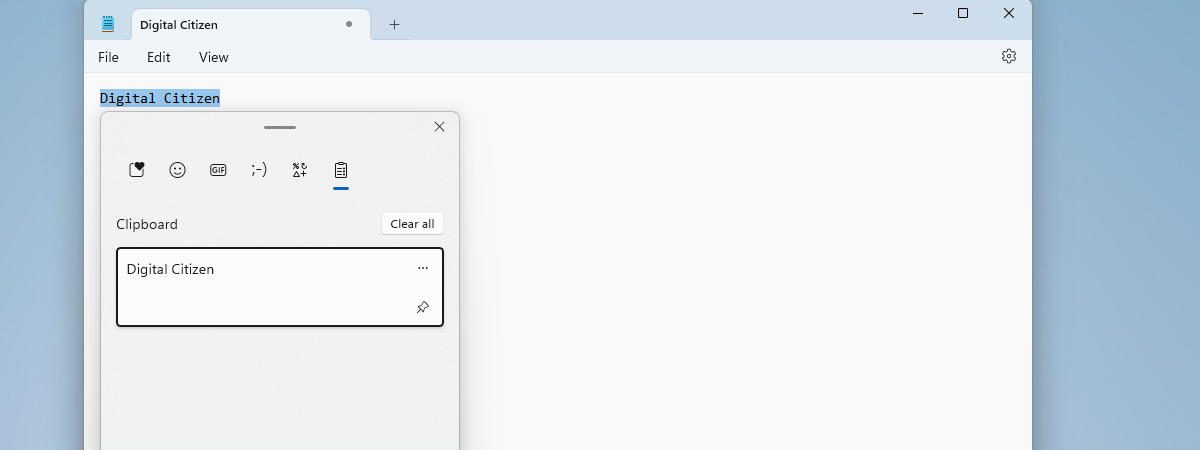
The clipboard on your Windows 10 computer can not only store copied items but also sync them across all your devices. This means that you can easily copy text, images, and other content on one computer and access it on another, thus significantly boosting your productivity when working on multiple computers. However, you might prefer the simplicity of the traditional clipboard that only stores
review ASUS Vivobook S 15 review: Is Windows ready for ARM-based laptops?

ASUS Vivobook S 15 review: Is Windows ready for ARM-based laptops?

Microsoft and Qualcomm have introduced a new generation of ARM-based laptops running Windows, and among the initial offerings is the ASUS Vivobook S 15. If it weren’t for the Snapdragon branding, this device could easily be mistaken for a conventional mid-range laptop powered by an Intel or AMD processor. However, this is a Copilot+ PC running a version of Windows 11 designed for the
tutorial How to add or remove optional features in Windows

How to add or remove optional features in Windows

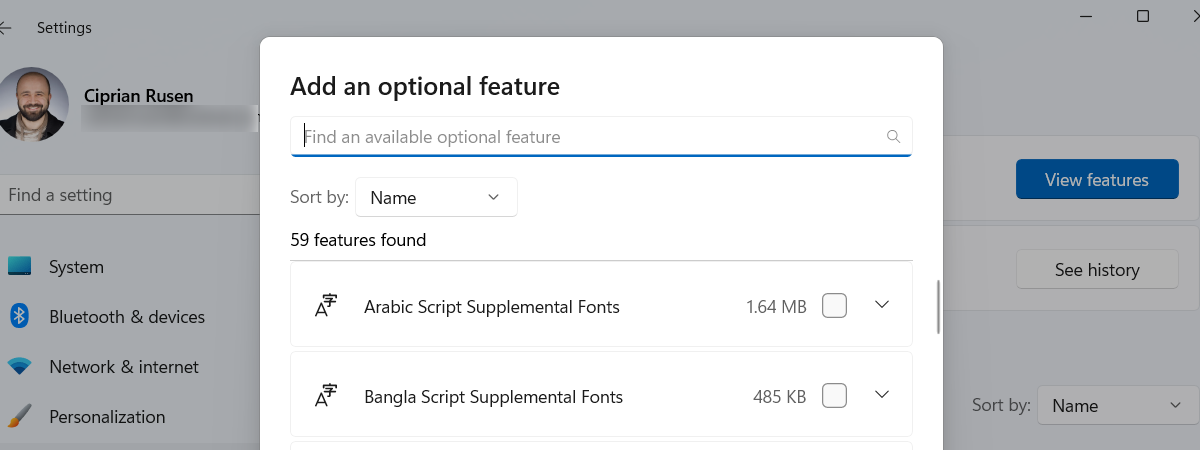
Sometimes, you might find that your computer has some features you don’t really need, or maybe you’re missing something that could make your life a bit easier. No worries, I’ve got you covered! In this tutorial, I’ll walk you through the simple steps to add or remove optional features in Windows. First, I’ll show you how to enable optional features in Windows 10 and
tutorial How to screenshot on Windows

How to screenshot on Windows

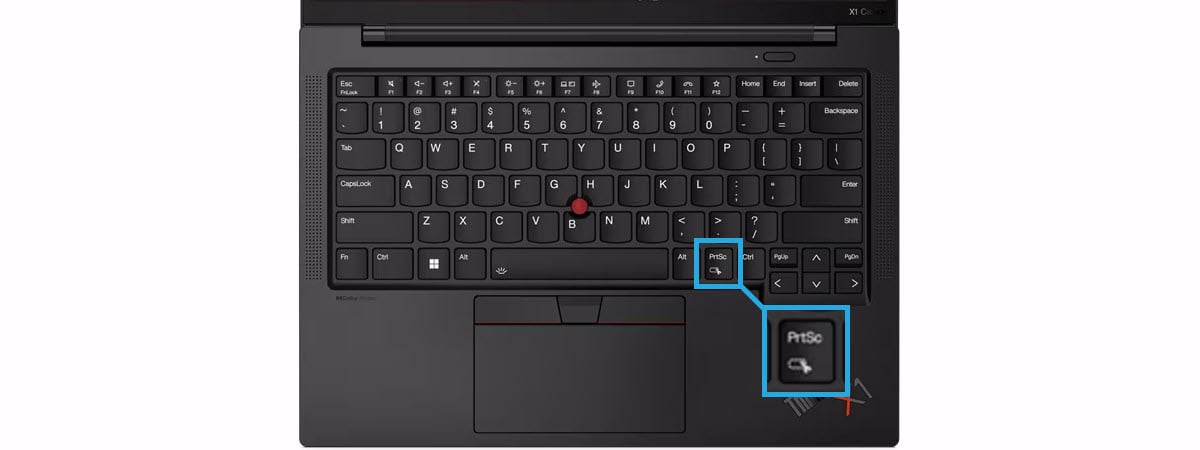
Do you use Windows 10 or Windows 11, and do you need to quickly take a screenshot? Do you have trouble finding the Print Screen key, or it’s not working, so you’re looking for a new Print Screen shortcut? Do you want to know how to take a screenshot of the active window instead of the whole screen? On the internet, there are numerous
tutorial How to sync Microsoft Edge across devices (Windows, Android, iPhone)

How to sync Microsoft Edge across devices (Windows, Android, iPhone)

Microsoft Edge has become one of the best web browsers available today. Among its many features, one that stands out as especially useful to users who work on multiple computers and devices is its ability to Sync your data across devices. This functionality can simplify your life significantly, allowing you to quickly transition between a Windows computer and browsing the web on an Android
tutorial How to split screen on multiple monitors

How to split screen on multiple monitors

Do you want to learn how to split your screen across two monitors in Windows? The Snap feature can enhance your productivity on all modern versions of Windows. Furthermore, Windows 10 and Windows 11 allow you to use Snap to split the screen on dual monitors both with the mouse and the keyboard. In this guide, I’ll show you how to snap app windows
tutorial How to get system info, view, and kill processes in CMD

How to get system info, view, and kill processes in CMD

You can easily view information about your computer using Windows graphical tools like Task Manager or System Information. However, some users prefer terminal environments like the Command Prompt or PowerShell for almost everything. If you're curious about how to get system info in CMD (Command Prompt) or want to learn how to view and manage running processes from Windows’ CMD, keep reading. I'll show
tutorial How to use Snap to split screen on Windows 11

How to use Snap to split screen on Windows 11

The Windows 11 split screen feature (Snap) is designed to make multitasking easier than ever before. You can view and access up to four app windows at the same time, saving time and increasing your overall productivity. Furthermore, the Snap layouts and Snap suggestions features let you quickly arrange your apps in different ways. Read this guide to find out how to split screen
tutorial How to enable or turn off Dark Mode in Windows 10

How to enable or turn off Dark Mode in Windows 10

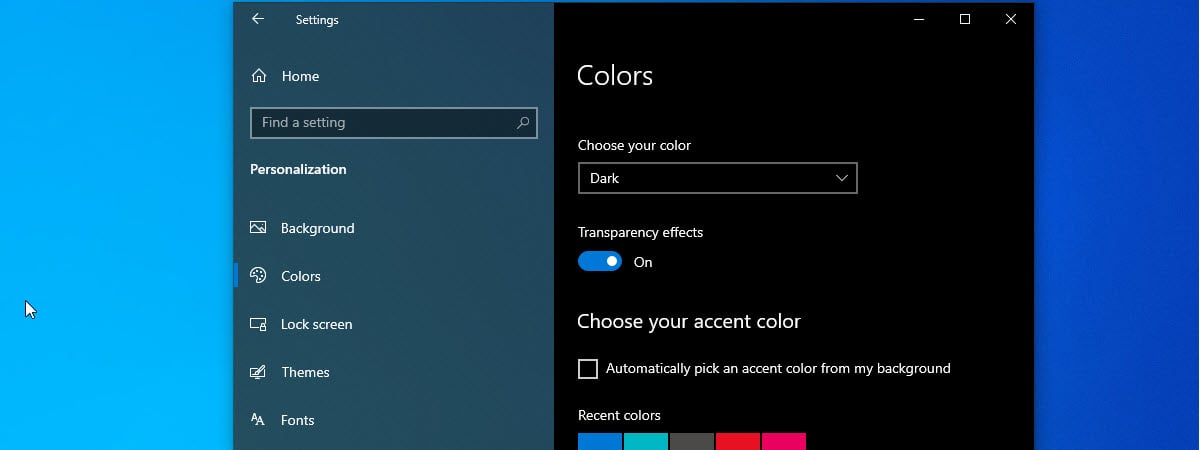
Did you know that Windows 10 has a Dark Mode? Having been present in the operating system for quite a while, it has seen significant improvements since its introduction in 2016. This mode transforms the interface from white to black, enhancing usability in low-light environments and when working during the night. It’s also great for those who simply prefer the way of the Dark
tutorial How to use disk management commands (diskpart, chkdsk, defrag) in Windows

How to use disk management commands (diskpart, chkdsk, defrag) in Windows

One of the easiest ways to manage your disks in Windows is by using the Disk Management tool. However, if you prefer command-line interfaces, you can perform several disk management tasks using Command Prompt or PowerShell. In this guide, I’ll show you how to use Diskpart and its commands to create, format, delete, hide, and unhide partitions. I’ll also show you how to use
review ASUS NUC 14 PRO+ review: Top performance and a price to match

ASUS NUC 14 PRO+ review: Top performance and a price to match

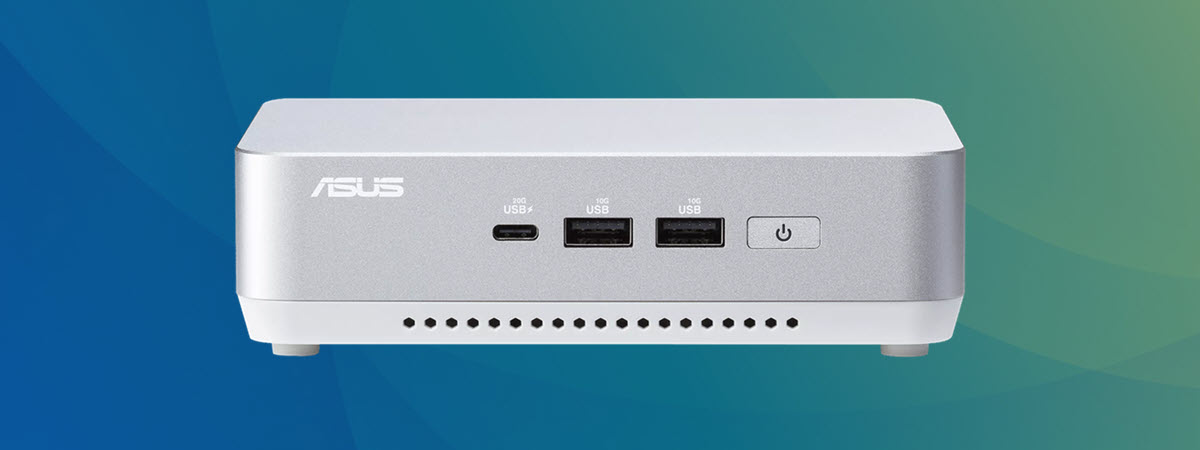
While Intel has exited the niche of small PCs when deciding to stop creating Intel NUCs, ASUS has taken the lead, continuing to innovate within this area. In this review, I’ll be taking a look at the ASUS NUC 14 PRO+, a mini PC that promises exceptional performance and fast connectivity options. If you’re searching for such a small computer, wouldn’t you want to
article The best Windows keyboard shortcuts (PDF free download)

The best Windows keyboard shortcuts (PDF free download)

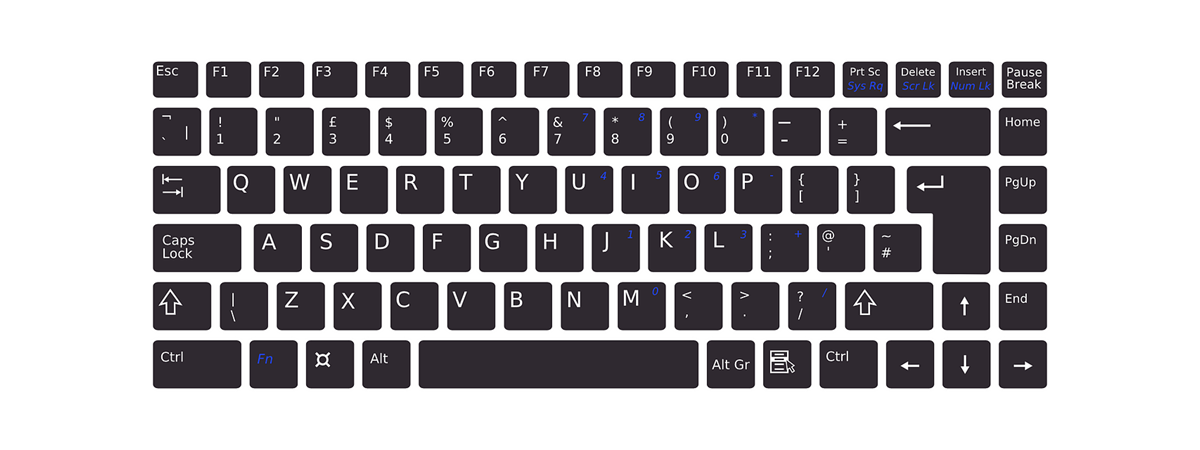
Microsoft is always working to make Windows better. Each major Windows 10 and Windows 11 update brings new features and options. That’s how we got virtual desktops, Windows Sandbox, new Start Menus, or the Copilot AI tech. While you can use a mouse or touchscreen to get around, keyboard shortcuts make things much faster. In this article, I’ll show you what are the most
article What is PPI? Does pixel density matter?

What is PPI? Does pixel density matter?

Have you ever wondered what PPI is? Maybe you’ve heard companies discussing high PPI screens and wanted to know what that is. Why are some manufacturers bragging about their high-end devices with huge pixel-density screens? Why does PPI matter so much, especially when referring to smartphones? Read this article, and you’ll find out what it means, whether PPI and DPI are the same, and
tutorial How to set up the search engine in Google Chrome

How to set up the search engine in Google Chrome

The address bar in Google Chrome can be used as a search box, and the default search engine is Google. Do you want to know how to change Chrome’s search engine from Google to something else, like Microsoft Bing, DuckDuckGo, or Qwant? Does your Chrome already use a different search engine as default, and do you want to get back to Google? Here’s how
tutorial How to boot Windows 11 in Safe Mode (8 ways)

How to boot Windows 11 in Safe Mode (8 ways)

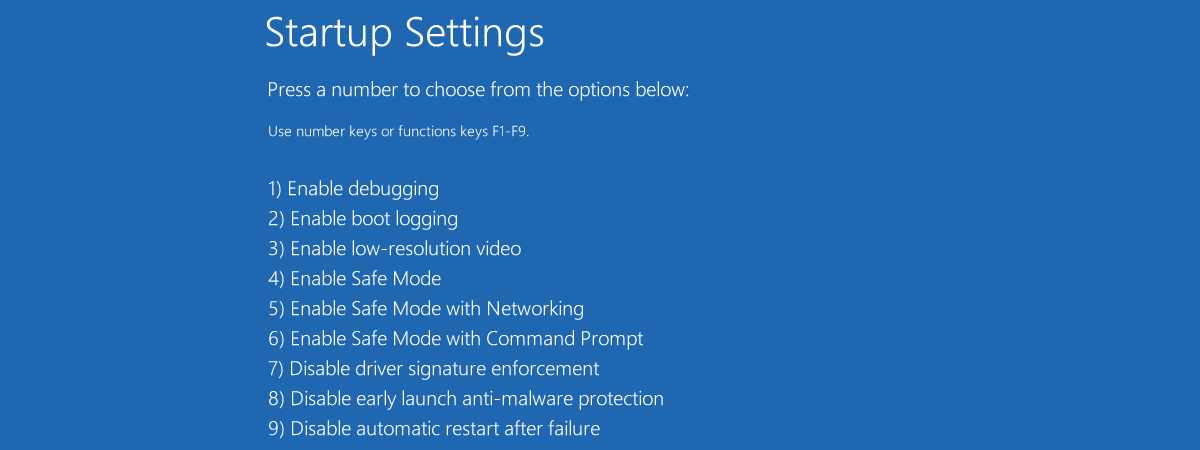
So, you have Windows 11 installed on your computer, but apps misbehave, and system features are constantly acting up, causing you headaches? If that’s the case, you’re probably looking for a way to troubleshoot and fix your system. Lucky for you, Windows 11 comes with a neat tool called Safe Mode that can help with the whole troubleshooting process. Now, you might be wondering,
tutorial How to remove the Lock screen widgets from Windows 11 and Windows 10

How to remove the Lock screen widgets from Windows 11 and Windows 10

At the end of March 2024, Microsoft started deploying a new update for Windows 11 (KB5035942), followed by Windows 10 (KB5035941). This update addressed many issues and bugs but also introduced a new feature: the ability to display widgets on the Lock screen for things like sports, traffic, and finance content, along with the weather forecast. This feature was not turned on immediately for
tutorial How to change brightness in Windows 11

How to change brightness in Windows 11

One of the things every computer user does relatively regularly is to adjust the brightness of the screen, especially when working on a laptop. That’s true for Windows 11 users, too, as many want to either increase the brightness on their laptop because of glare or reduce brightness to lessen the burden on their eyes during the night. Regardless of your reasons, here are
article Windows 10 sucks! Here are the reasons to stop using it

Windows 10 sucks! Here are the reasons to stop using it

While Windows 10 is overall a good operating system, it does have its flaws, and some of them are only going to get worse with time. These issues often lead people to frustrated remarks like “Windows 10 sucks” or leave them questioning why “Windows 10 is so bad.” Some complaints are minor nuisances, others are major concerns, and they can all become adequate reasons
tutorial How to change brightness in Windows 10

How to change brightness in Windows 10

Knowing how to turn up the brightness and lower it can be useful if you spend a lot of time on your Windows 10 computer or device. This setting is especially important when you use a laptop or a tablet because, whether you are indoors or outdoors, you might need to increase or decrease the display’s brightness according to your surroundings. Fortunately, most laptops