UP

Productivity

What does it mean to use technology productively? Which apps and gadgets make your work easier? How to personalize the computers and other gadgets you’re using?

review AMD Ryzen 5 9600X review: Affordable performance and efficiency

AMD Ryzen 5 9600X review: Affordable performance and efficiency

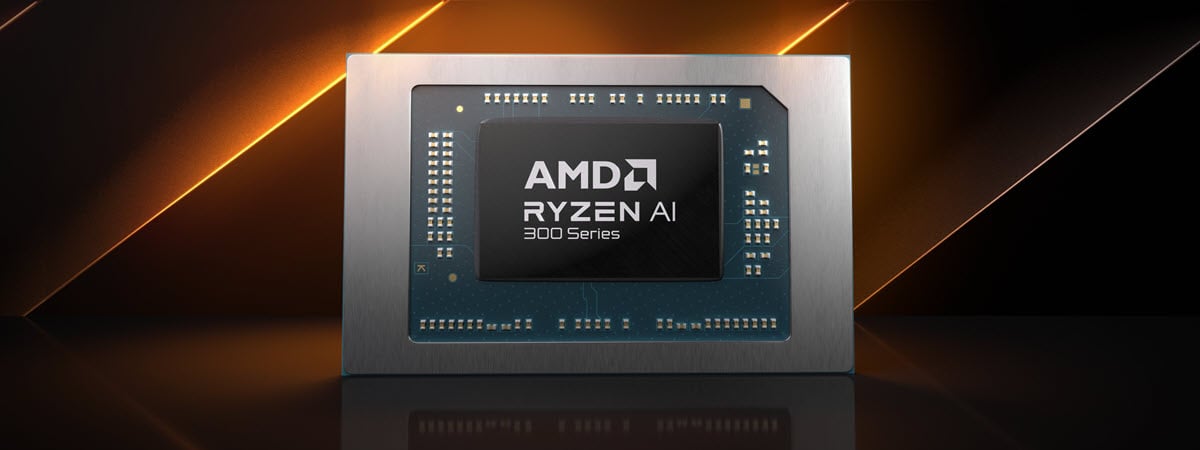
The AMD Ryzen 5 9600X is designed with budget-conscious users in mind, promising a lot. Targeted at those who want good performance while gaming, at a reasonable price, the Ryzen 5 9600X aims to offer reliable processing power while maintaining low power consumption. In this review, I’ll share this processor’s technical specifications and I’ll also show you what benchmarks have to say about it.
tutorial How to show CMD, PowerShell & Control Panel in the Windows 10 WinX menu

How to show CMD, PowerShell & Control Panel in the Windows 10 WinX menu

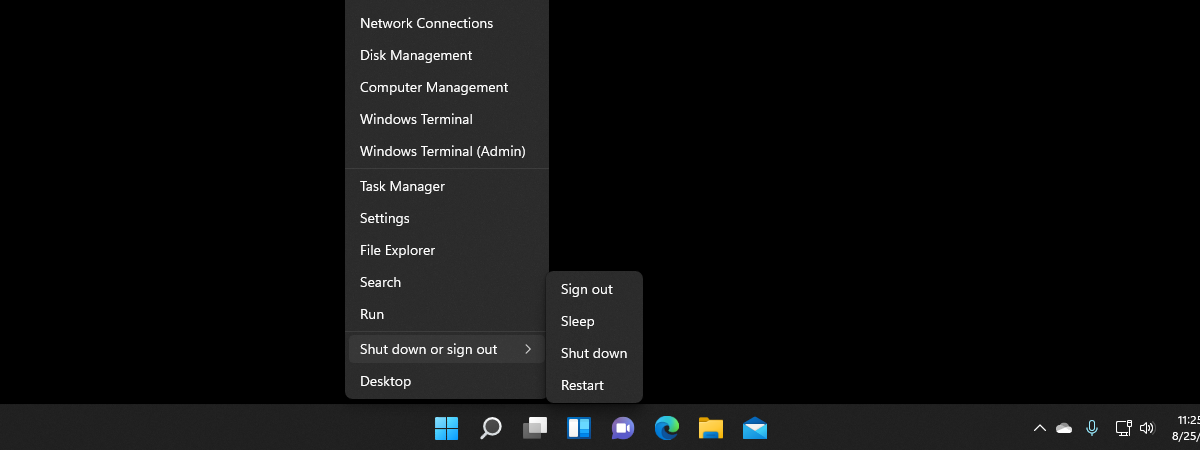
If you’re using a Windows 10 computer, you might have noticed that the Control Panel and Command Prompt are no longer available in the WinX menu - the menu that appears when you right-click the Start button. Over time, Microsoft has replaced these classic shortcuts with those for the Settings app and PowerShell. While these new tools are powerful and more in line with
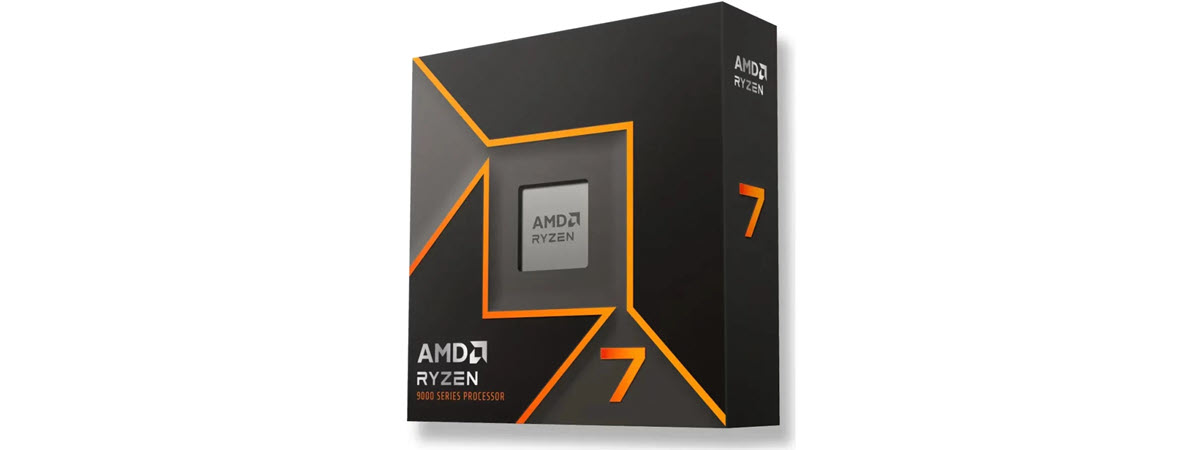
review AMD Ryzen 7 9700X review: Top-notch performance & power efficiency

AMD Ryzen 7 9700X review: Top-notch performance & power efficiency

The AMD Ryzen 7 9700X is a mid-range processor that aims to please gamers, creators, and enthusiasts alike. With AMD's bold claim of it being “The New Standard for a Gaming Processor,” the company promises to deliver exceptional performance while keeping power consumption and price in check. But does it truly live up to these expectations? In this review, I analyze the technical specifications
tutorial How to add Google Drive to File Explorer

How to add Google Drive to File Explorer

Connecting Google Drive to your computer can make accessing and syncing files much easier. That’s why I think it’s a good idea to show you how to add Google Drive to File Explorer and make your cloud storage as accessible as any of your local drives. So, if you want to link Google Drive to File Explorer, read on. I’ll walk you through all
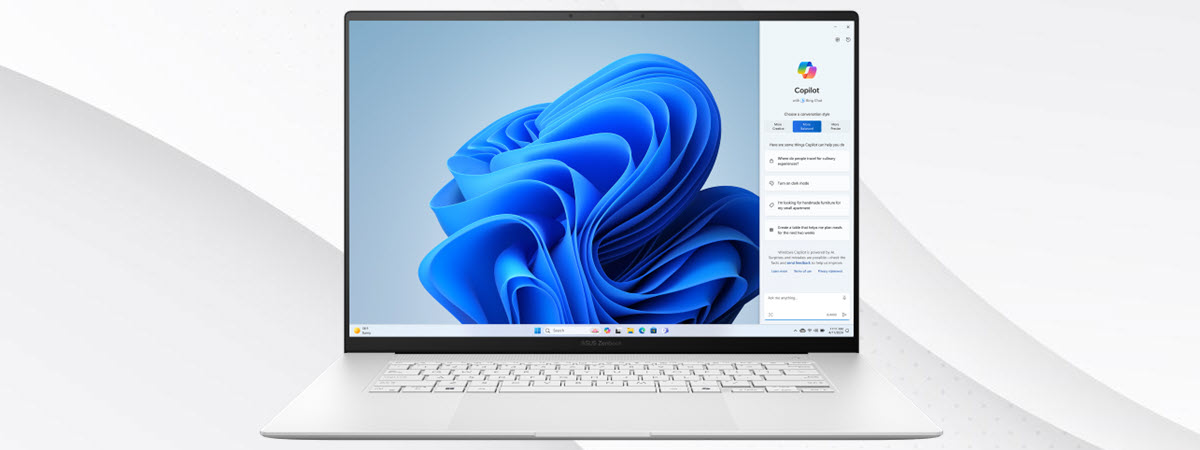
review ASUS Zenbook S 16 review: Smart, stylish, and portable

ASUS Zenbook S 16 review: Smart, stylish, and portable

Like it or not, the Copilot+ PC era is here, bringing a wave of exciting new Windows laptops. The ASUS Zenbook S 16 (UM5606) caught my eye with its stylish looks and impressive specs. Packing AMD's latest Ryzen AI processors, a crisp OLED screen, and promising all-day battery life, it's certainly intriguing and not just on paper. But the big question is: do all
tutorial How to set a homepage in Microsoft Edge

How to set a homepage in Microsoft Edge

If you’re using Microsoft Edge and want to personalize your browsing experience, setting your homepage, startup page, or new tab page is a great place to start. Whether you want to open a specific website each time you launch Edge, or simply change the default start page URL, I’ll show you how to do it in this tutorial. I’ll cover everything from setting your
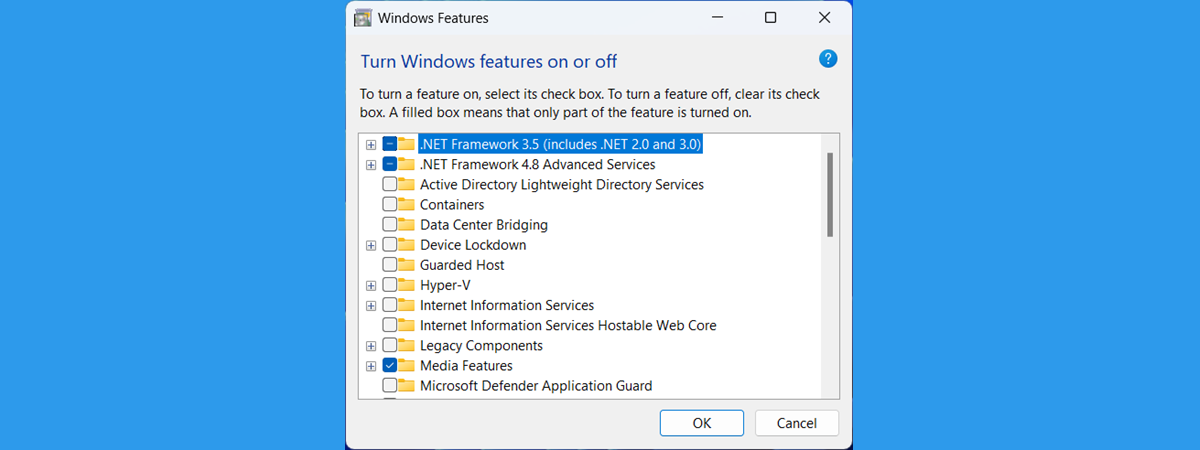
article Windows Optional Features: What are they and what do they do?

Windows Optional Features: What are they and what do they do?

Some of our readers asked us to explain all those optional features that can be added to or removed from your Windows installation. Even though all of them have some description, the information offered by Windows is either too brief or too complex to understand for most people. So I decided to publish this article and walk you through every Windows feature. I also
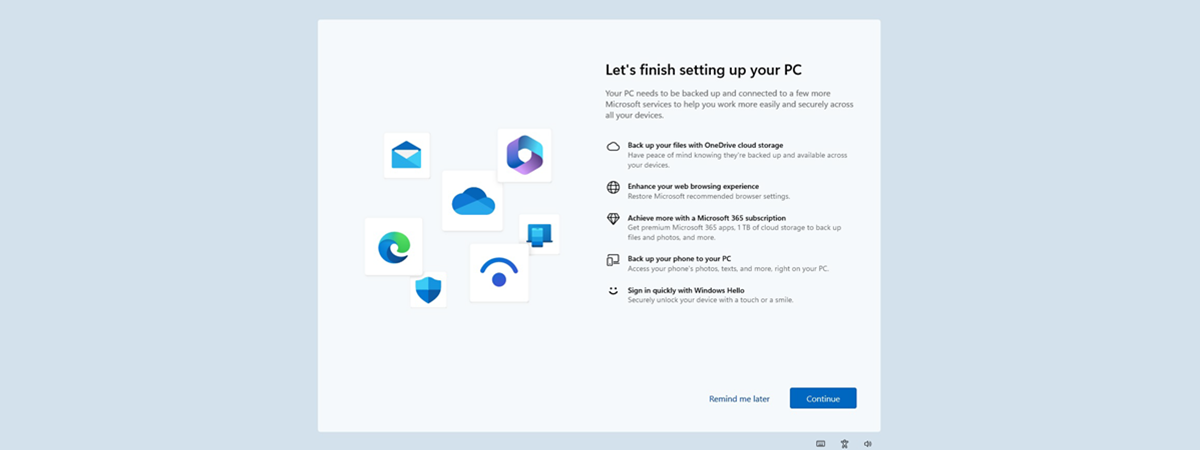
tutorial Stop Windows 10 and Windows 11 from showing unwanted Welcome messages

Stop Windows 10 and Windows 11 from showing unwanted Welcome messages

Have you noticed that your Windows 10 or Windows 11 computer shows a full-screen Welcome dialogue after installing an update or signing in? This pop-up promotes Microsoft services like OneDrive and Microsoft 365 or recommends changing your Microsoft Edge settings, enabling facial recognition, accessing your phone’s photos and texts from your PC, or backing up your phone to your computer. Even though Microsoft considers
article What is BIOS? What is UEFI? How are they different?

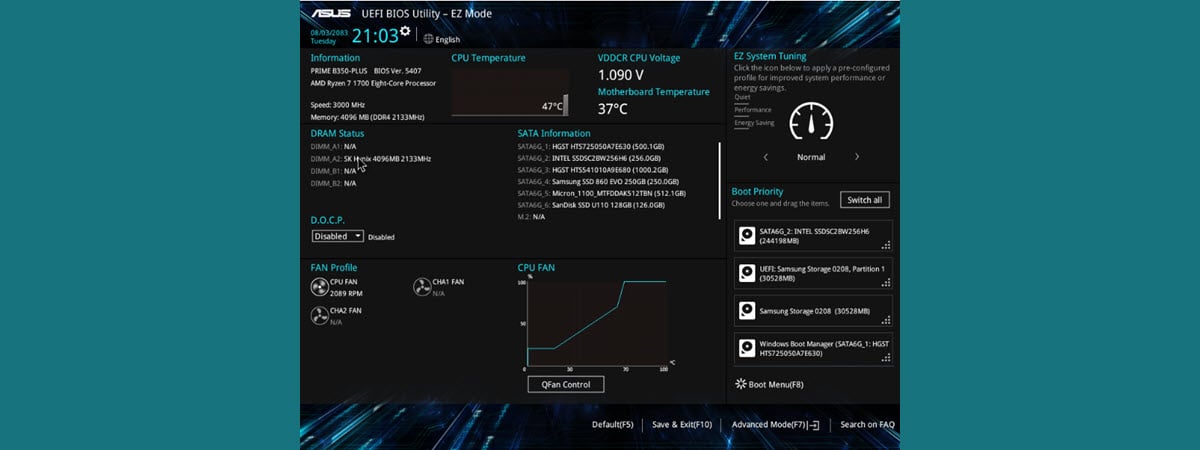
What is BIOS? What is UEFI? How are they different?

If you are a casual computer user, you may have heard about the BIOS, UEFI, BIOS failures, or Dual BIOS motherboards, but you might be wondering what these terms mean. What is a BIOS except for a weird-sounding acronym? What does BIOS do? Moreover, what is UEFI and how is it different from BIOS? Are these things really that important for the operation of
tutorial How to add Recycle Bin to File Explorer

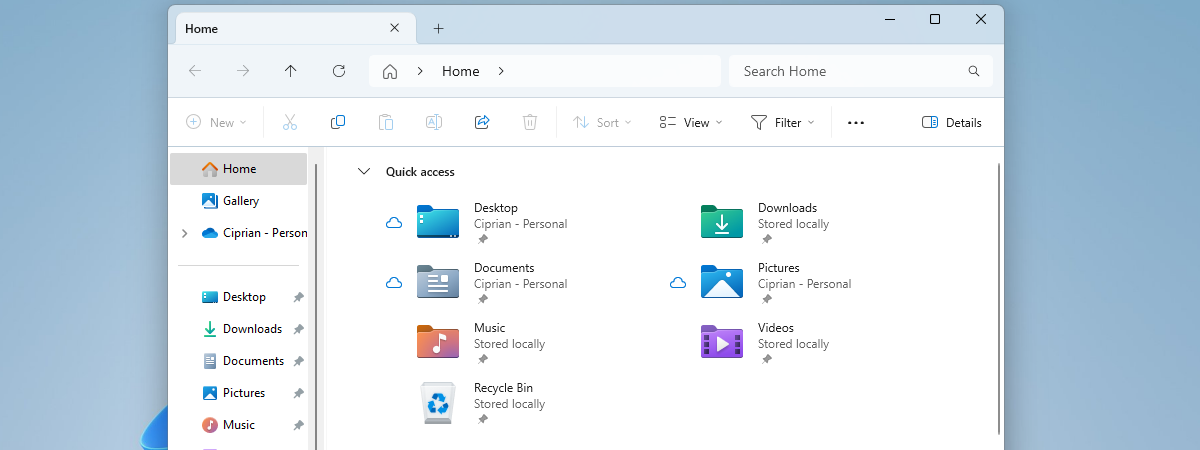
How to add Recycle Bin to File Explorer

Do you often find yourself looking for the Recycle Bin when managing your files in File Explorer? Wouldn’t it be great if you could have the Recycle Bin readily accessible within File Explorer? If your answer is yes, you’ve come to the right place. In this tutorial, I’ll guide you through all the necessary steps to show the Recycle Bin in File Explorer, regardless
article What is a clipboard? How does it work?

What is a clipboard? How does it work?

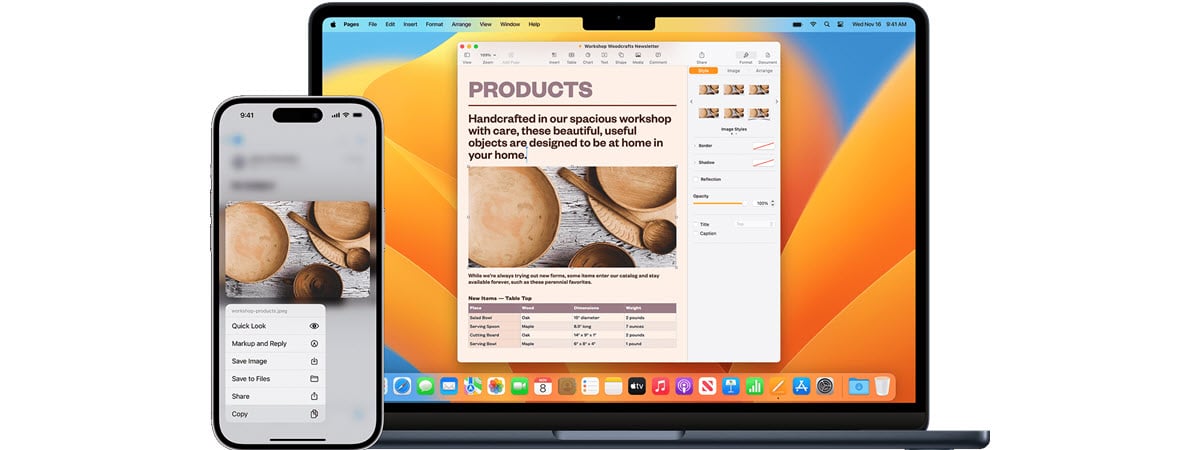
If you have used computers for a while, then you know what Copy and Paste are, and you may have also heard about the clipboard. Do you know what the clipboard is or that you can sync it on your devices? Do you want to learn how to work with it and find out what it can do? What about the differences between the
tutorial How to open Control Panel in Windows 11

How to open Control Panel in Windows 11

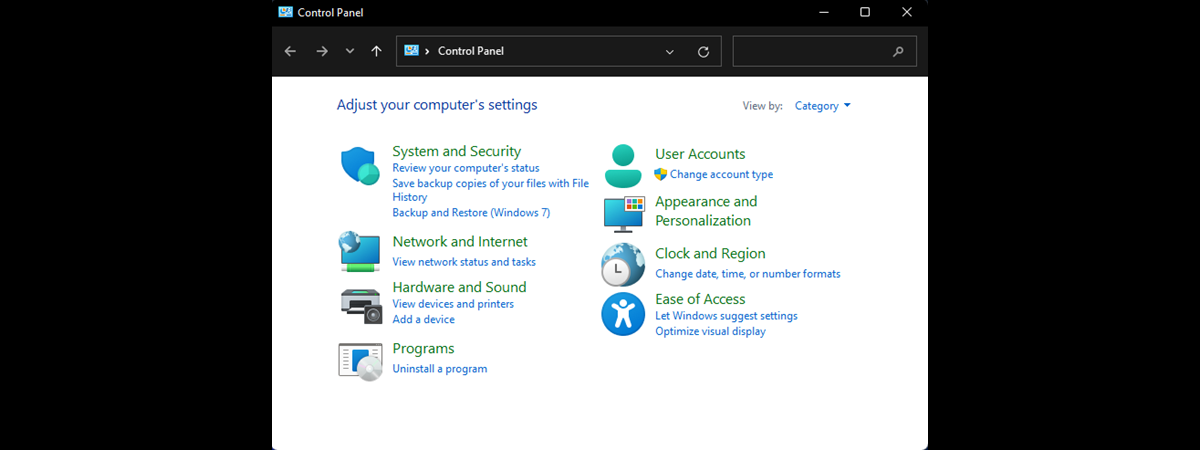
Does Windows 11 have a Control Panel? Are you looking for it because you used to rely on it on your older computers but it seems it’s nowhere to be found? This happens because the Control Panel has been somewhat obscured in Windows 11, making it less accessible than it was in previous versions like Windows 7 or even Windows 10. But don’t worry
tutorial How to open Control Panel in Windows 10

How to open Control Panel in Windows 10

Where is the Control Panel in Windows 10? How do you open it and is there any Control Panel shortcut you can use for that? To answer these questions, I did a bit of testing and experimentation. I had to do that because in Windows 10, the Control Panel is hidden compared to Microsoft’s older operating systems, like Windows 7. I managed to compile
tutorial How to use the clipboard on Android

How to use the clipboard on Android

Copying and pasting are some of the most basic and simple functions that any Android smartphone or tablet offers. It all goes through the Android clipboard, but did you know that the clipboard can store more than just the last item you’ve copied? The clipboard on Android, just like the one on Windows, is able to store multiple items, allowing you to paste any
review Logitech G515 LIGHTSPEED TKL review: Low-profile, high-performance!

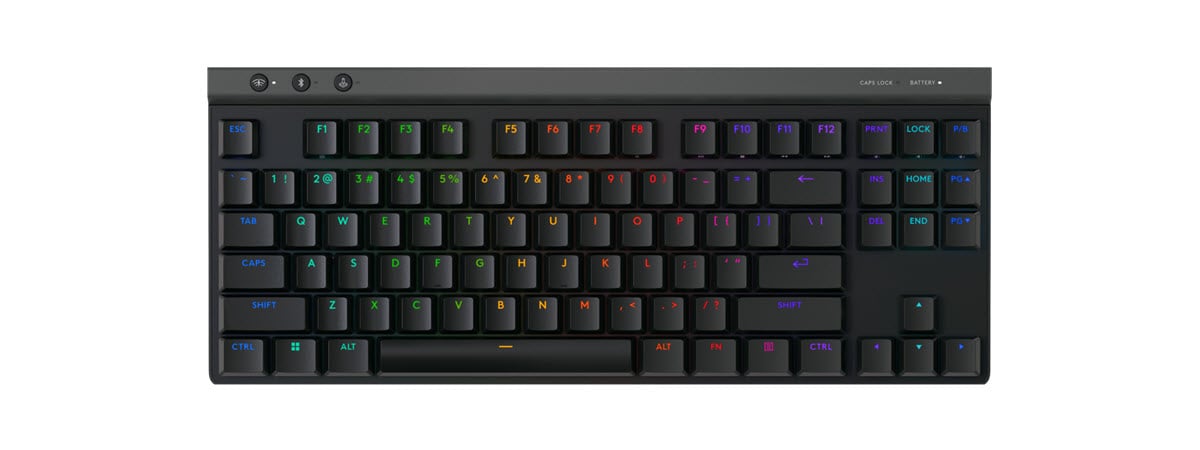
Logitech G515 LIGHTSPEED TKL review: Low-profile, high-performance!

Logitech G recently introduced two new gaming peripherals: the G515 LIGHTSPEED TKL wireless keyboard and the G309 LIGHTSPEED wireless mouse. Having previously reviewed the G309 mouse, I'll now focus on the G515 keyboard. This tenkeyless model features Logitech's LIGHTSPEED wireless technology for low-latency gaming and uses low-profile mechanical switches, resulting in a notably thin design. Like other Logitech G products, it aims to deliver
tutorial How to use the clipboard on an iPhone

How to use the clipboard on an iPhone

Are you curious to see how to use the clipboard on your iPhone? While the iPhone’s clipboard is not as feature-rich as the clipboards on Android devices or Windows computers, it’s easy to work with. Copying text replaces the entire clipboard on your iPhone with the new data, so you can only paste the last text you copied. In this tutorial, I’ll show you
tutorial How to sync the Windows 11 clipboard with other PCs and Android phones

How to sync the Windows 11 clipboard with other PCs and Android phones

One of the best features of modern Windows operating systems is the ability to save multiple items in the clipboard. An even more useful addition to that is Windows 11’s capability to also sync the clipboard across your devices. And that doesn’t mean just other Windows 11 or Windows 10 computers, but also Samsung Galaxy smartphones and other Android devices. Are you interested in
tutorial How to turn the volume up or down in Windows (10 ways)

How to turn the volume up or down in Windows (10 ways)

Are you wondering how to increase the volume on your laptop, desktop computer, or tablet in Windows 10 or Windows 11? Or perhaps you want to know how to turn the volume up on a computer with your keyboard, so you’re looking for the sound volume shortcut key on your PC? The volume control in Windows is an essential feature, regardless of the device
tutorial How to snap windows side by side and split screen on Windows 10

How to snap windows side by side and split screen on Windows 10

The split screen feature in Windows 10 is perfect for multitasking, especially on a large display. It allows you to view apps side by side, on top of each other, or in a combination of both, snapping up to four windows on the screen simultaneously. With Snap Assist, positioning each window is easier than ever. In this tutorial, I’ll show you how to split
tutorial How to open and use the clipboard in Windows 11

How to open and use the clipboard in Windows 11

Whether you’re a casual user or a seasoned professional, the clipboard in Windows 11 can significantly boost your productivity. In this guide, I’ll walk you through all the essential aspects of the Windows 11 clipboard. I’ll start with the basics, showing you how to access the clipboard and how to add text or images to it. Then, I’ll show you how to paste content