



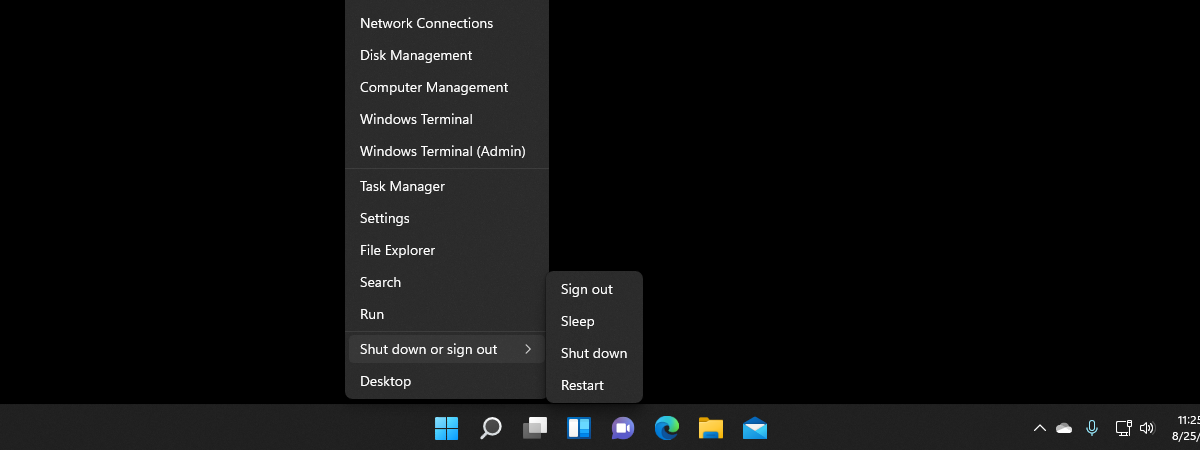
If you’re using a Windows 10 computer, you might have noticed that the Control Panel and Command Prompt are no longer available in the WinX menu - the menu that appears when you right-click the Start button. Over time, Microsoft has replaced these classic shortcuts with those for the Settings app and PowerShell. While these new tools are powerful and more in line with modern Windows features, some users still prefer the old shortcuts. If you’re among those who miss having easy access to the Control Panel and Command Prompt, read on. In this guide, I’ll show you how to bring back the classic Control Panel shortcut to the WinX menu, as well as how to switch between CMD and PowerShell shortcuts in WinX.
NOTE: This guide was created with Windows 10 version 22H2. Although you may expect my instructions to also apply to Windows 11, they don’t! Unfortunately, the steps and the tools presented in this tutorial work only in Windows 10. That’s because the settings I present in the first section aren’t available in Windows 11, while the Win+X Menu Editor application from the second section of this guide appears to not have been updated to work with the latest version of Windows 11.
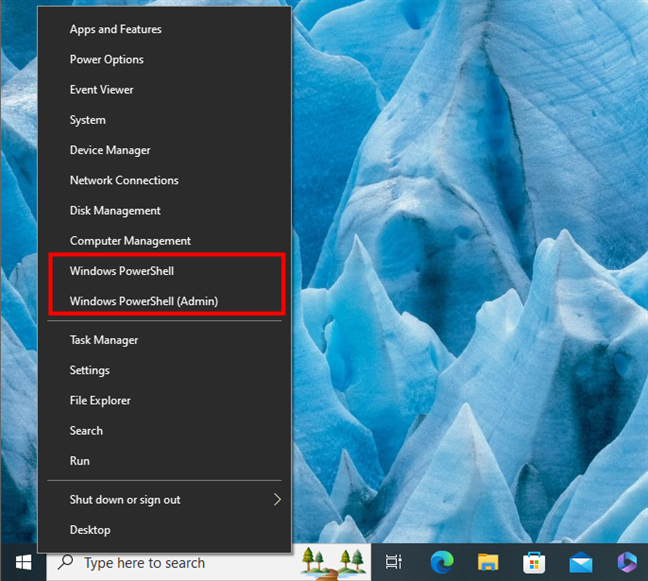
 Windows PowerShell in the WinX menu
To choose which command-line shortcuts appear in WinX, there are a few steps you need to take. First, right-click or press and hold an empty space from your taskbar. Then, in the context menu, select Taskbar settings.
Windows PowerShell in the WinX menu
To choose which command-line shortcuts appear in WinX, there are a few steps you need to take. First, right-click or press and hold an empty space from your taskbar. Then, in the context menu, select Taskbar settings.
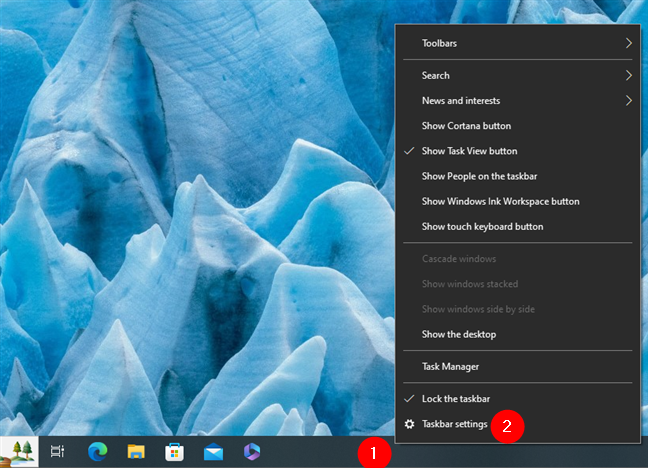
 Open Taskbar settings
This opens the Settings app and automatically takes you to the Taskbar page in the Personalization section. Here, look for the “Replace Command Prompt with Windows PowerShell in the menu when I right-click the start button or press Windows key+X” setting. By default, this option is turned On, meaning that the WinX menu lets you access PowerShell. If you’d rather have Command Prompt shortcuts in WinX, turn this switch Off.
Open Taskbar settings
This opens the Settings app and automatically takes you to the Taskbar page in the Personalization section. Here, look for the “Replace Command Prompt with Windows PowerShell in the menu when I right-click the start button or press Windows key+X” setting. By default, this option is turned On, meaning that the WinX menu lets you access PowerShell. If you’d rather have Command Prompt shortcuts in WinX, turn this switch Off.
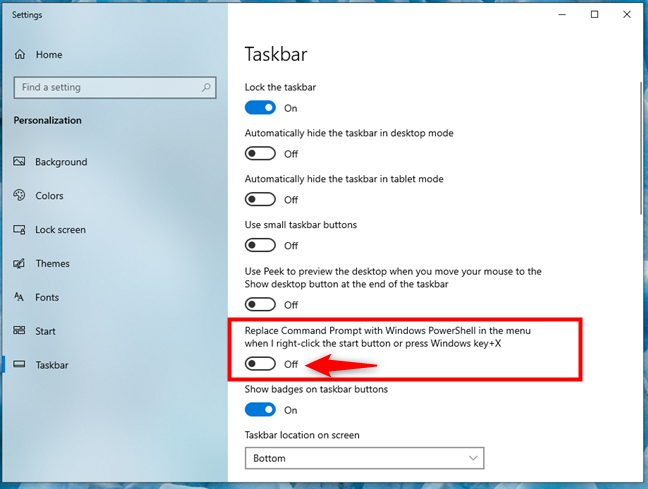
 Replace Command Prompt with Windows PowerShell in the menu when I right-click the start button or press Windows key + X
You can now close the Settings app and check the WinX menu. Depending on whether you’ve turned the switch On or Off, WinX will have shortcuts for PowerShell or Command Prompt.
Replace Command Prompt with Windows PowerShell in the menu when I right-click the start button or press Windows key + X
You can now close the Settings app and check the WinX menu. Depending on whether you’ve turned the switch On or Off, WinX will have shortcuts for PowerShell or Command Prompt.
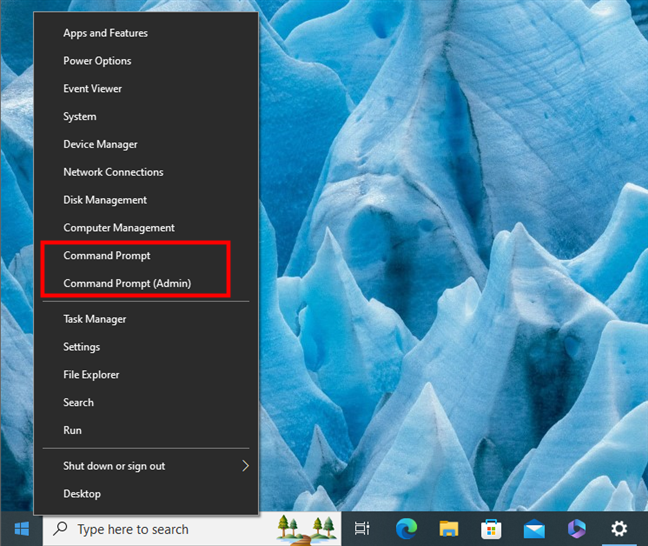
 Command Prompt in the WinX menu
What about the Control Panel? Read the next section to find out how to get it back in the WinX menu.
Command Prompt in the WinX menu
What about the Control Panel? Read the next section to find out how to get it back in the WinX menu.
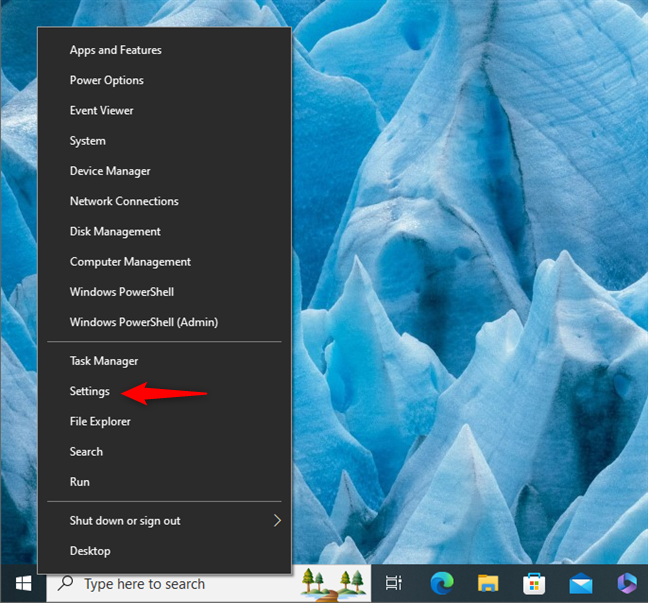
 The Settings shortcut in WinX
Unfortunately, getting the old Control Panel back in the WinX menu is not as simple as it is to get the Command Prompt back. In order to do this, you have to download and use a third-party app called Win+X Menu Editor, that lets you add custom shortcuts to the Win+X menu. Here’s how it all works:
The Settings shortcut in WinX
Unfortunately, getting the old Control Panel back in the WinX menu is not as simple as it is to get the Command Prompt back. In order to do this, you have to download and use a third-party app called Win+X Menu Editor, that lets you add custom shortcuts to the Win+X menu. Here’s how it all works:
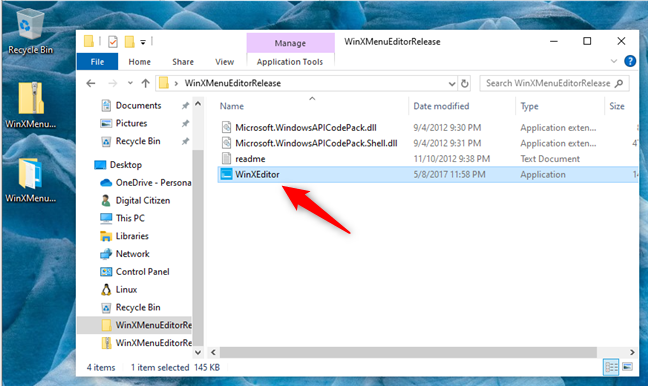
 Download and run Win+X Menu Editor
Win+X Menu Editor will open. At the time of writing, it reached version number 3.0.0.0, and its user interface looked like it does in the next screenshot.
Download and run Win+X Menu Editor
Win+X Menu Editor will open. At the time of writing, it reached version number 3.0.0.0, and its user interface looked like it does in the next screenshot.
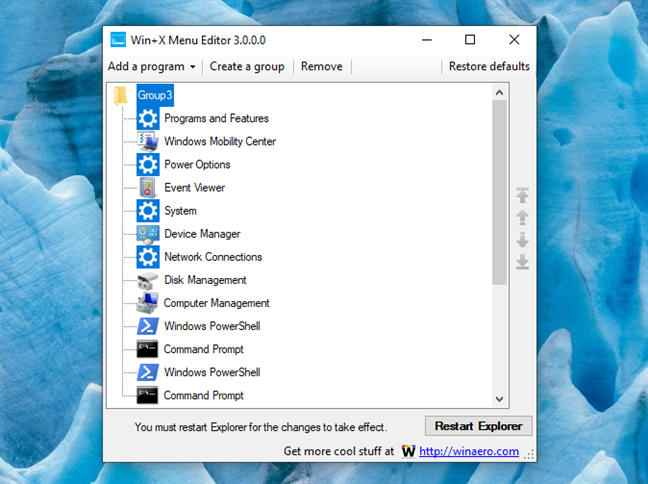
 The Win+X Menu Editor works in Windows 10
Note that, unfortunately, the app no longer works in the latest Windows 11 versions, so the next instructions only apply to Windows 10, like I’ve mentioned at the beginning of this guide. Also, for some unknown reason, you can’t make the WinX menu show both the Windows PowerShell and Command Prompt shortcuts with the Win+X Menu Editor, even on Windows 10. However, you can add the Control Panel without removing something else, so here’s how to…
The Win+X Menu Editor works in Windows 10
Note that, unfortunately, the app no longer works in the latest Windows 11 versions, so the next instructions only apply to Windows 10, like I’ve mentioned at the beginning of this guide. Also, for some unknown reason, you can’t make the WinX menu show both the Windows PowerShell and Command Prompt shortcuts with the Win+X Menu Editor, even on Windows 10. However, you can add the Control Panel without removing something else, so here’s how to…
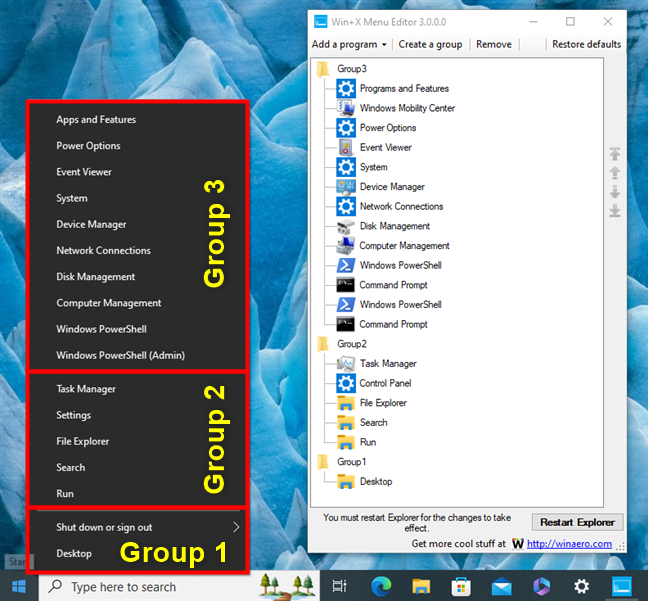
 The groups in the WinX menu
If you want to add a Control Panel shortcut to the WinX menu, first select the group where you’d like to have it. Then, click or tap Add a program in the top-left corner of the Win+X Menu Editor, and choose Add a Control Panel item...
The groups in the WinX menu
If you want to add a Control Panel shortcut to the WinX menu, first select the group where you’d like to have it. Then, click or tap Add a program in the top-left corner of the Win+X Menu Editor, and choose Add a Control Panel item...
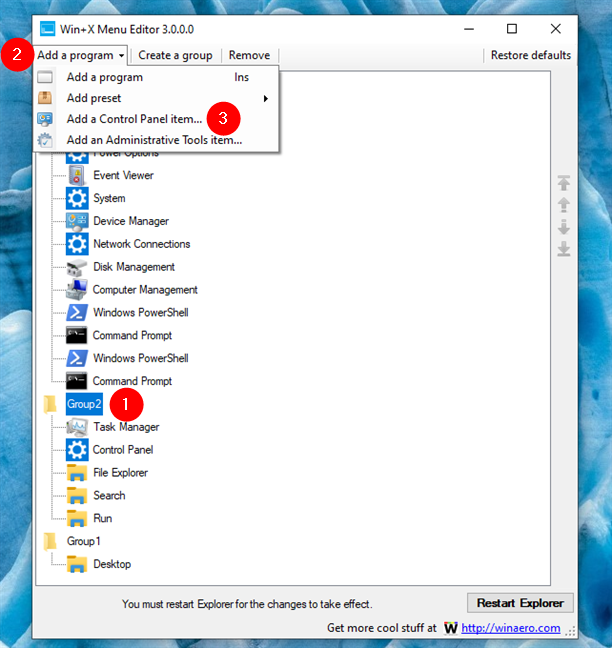
 Select a group and choose to add a Control Panel item
Win+X Menu Editor opens a dialog window, where you can select what Control Panel item you want to add. Scroll downwards until you find an option called Control Panel. Click or tap it and then press the Select button.
Select a group and choose to add a Control Panel item
Win+X Menu Editor opens a dialog window, where you can select what Control Panel item you want to add. Scroll downwards until you find an option called Control Panel. Click or tap it and then press the Select button.
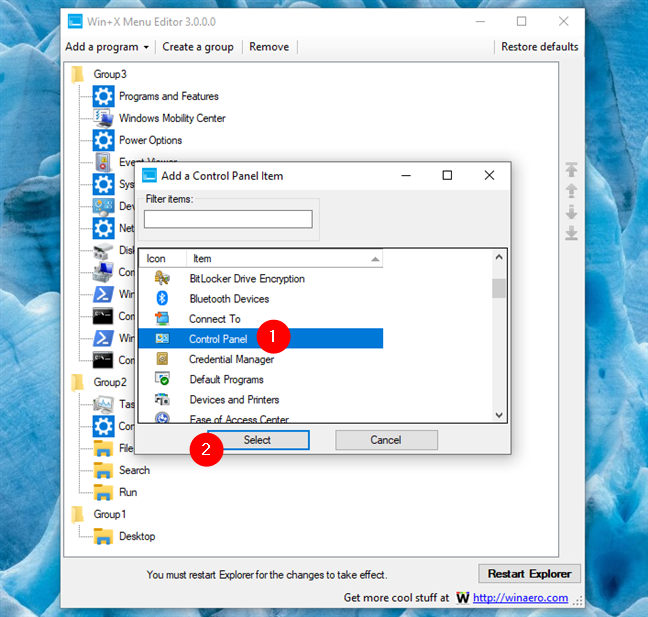
 Select Control Panel
The Control Panel shortcut is now be added to the WinX menu, in the group you selected.
Select Control Panel
The Control Panel shortcut is now be added to the WinX menu, in the group you selected.
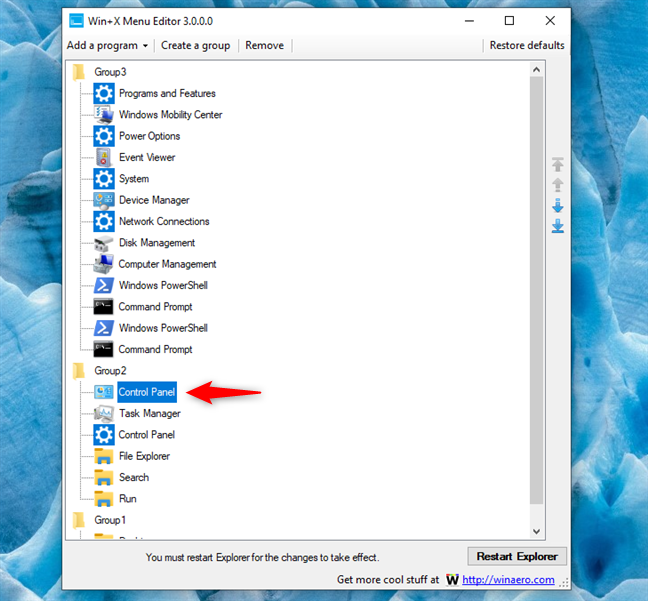 Control Panel custom shortcut in the WinX menu
Note that if you choose to add Control Panel to Group 2, where the Settings shortcut is also found, Win+X Menu Editor now shows two Control Panel shortcuts. But one of them uses the icon of the new Settings app - that shortcut is actually pointing to Settings, not to the Control Panel.
If you want to keep both apps in the WinX menu, don’t do anything. If you only want the Control Panel shortcut displayed, then select the Control Panel entry with the Settings icon, and then click or tap Remove to delete it.
Control Panel custom shortcut in the WinX menu
Note that if you choose to add Control Panel to Group 2, where the Settings shortcut is also found, Win+X Menu Editor now shows two Control Panel shortcuts. But one of them uses the icon of the new Settings app - that shortcut is actually pointing to Settings, not to the Control Panel.
If you want to keep both apps in the WinX menu, don’t do anything. If you only want the Control Panel shortcut displayed, then select the Control Panel entry with the Settings icon, and then click or tap Remove to delete it.
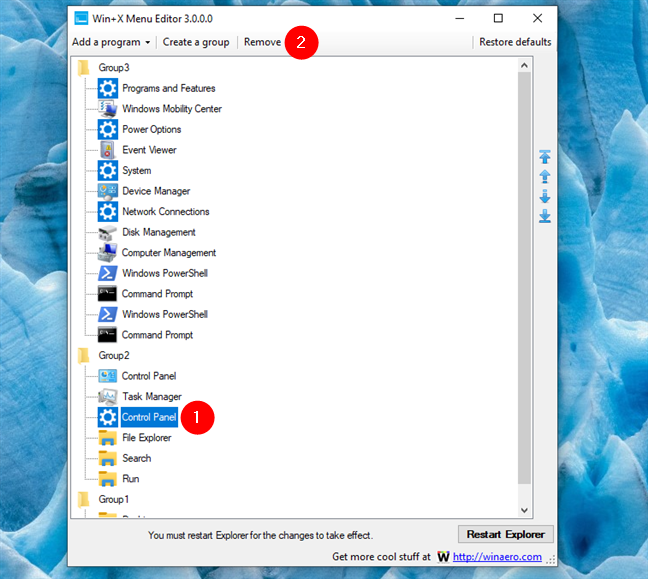
 Remove the Settings shortcut from WinX
Either way, when you’re done customizing, click or tap the Restart Explorer button to apply the changes you’ve made.
Remove the Settings shortcut from WinX
Either way, when you’re done customizing, click or tap the Restart Explorer button to apply the changes you’ve made.
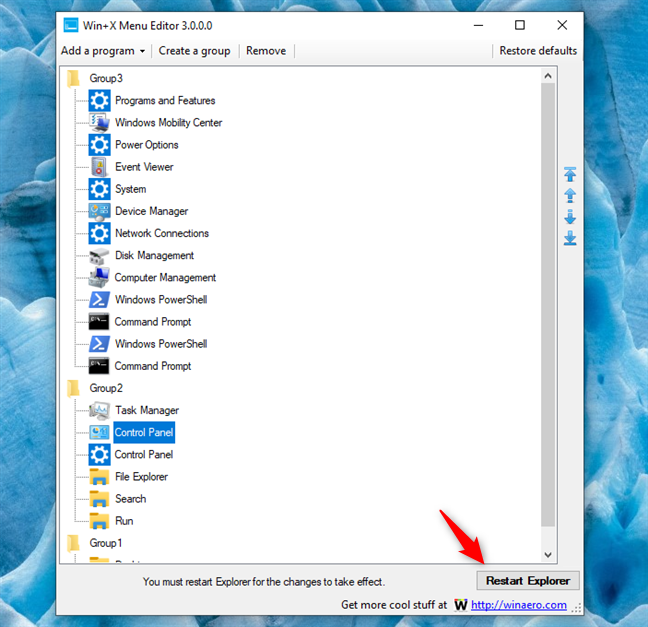
 Restart Explorer to apply the changes
Now, you have the Control Panel shortcut back in your WinX menu.
Restart Explorer to apply the changes
Now, you have the Control Panel shortcut back in your WinX menu.
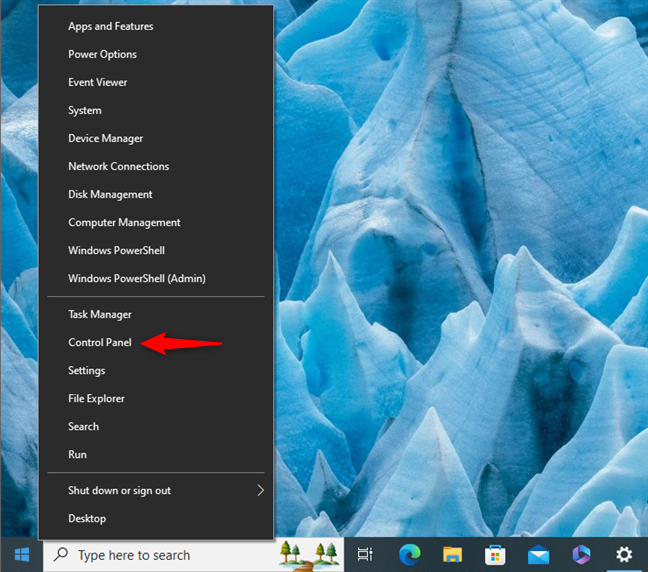
 A custom Control Panel shortcut in Windows 10's WinX menu
That was it!
A custom Control Panel shortcut in Windows 10's WinX menu
That was it!
How to choose between Windows PowerShell and Command Prompt shortcuts in the WinX menu
By default, the WinX menu in Windows 10 includes two shortcuts for Windows PowerShell and Windows PowerShell (Admin). But, if you prefer, you can make the WinX menu show Command Prompt and Command Prompt (Admin) instead.How to add Control Panel to WinX in Windows 10
In Windows 10, Microsoft decided that the Control Panel is obsolete and replaced its shortcut from the WinX menu with a shortcut that points to the newer Settings app.Step 1. Download and run Win+X Menu Editor
Download the Win+X Menu Editor app from its official webpage. You will get a ZIP file called WinXMenuEditorRelease.zip. Save it somewhere on your PC, like on your desktop, and then extract its contents. Open the WinXMenuEditorRelease folder and double-click or double-tap the WinXEditor.exe application to run it.Step 2. Add a Control Panel custom shortcut to the WinX menu
Click or tap to select the group where you want to add the shortcut to the Control Panel, in the WinX menu. By default, the WinX menu is divided into three groups:- Group 1 is the group that holds the Desktop and the Shut down or sign out option,
- Group 2 is the one with the Task Manager, Settings, File Explorer, Search, and Run,
- Group 3 is the one where you find Apps and Features, Power Options, Event Viewer, System, Device Manager, Network Connections, Disk Management, Computer Management, Windows Powershell, and Windows PowerShell (Admin).
Discussion (13)
I added Control Panel using WinAero, works great except for one thing: I like to go REALLY old-fashioned, and display control panel using ‘small icons’ instead of the default categorized view. I can switch the view, but it doesn’t save it; I have to switch the view each time it’s opened. Is there a way to have it always open in ‘small icons’ view?
Spot on and thank you
Easy and fast. Thanks a million!
You are welcome. Do not hesitate to subscribe to our newsletter, for more useful content.
Is it possible to add a keyboard shortcut though?
Placing an Ampersand in front of a letter of the program name will cause it to become a keyboard shortcut, underlined. It mustn’t conflict with other existing items.
For example…. Adding Snipping Tool, rename the shortcut to Sni&pping Tool.
Win+X,P would then launch it. But &Snipping Tool would conflict with Search… (on my machine I removed search to avoid this conflict.)
Thank you so much. 🙂
I so appreciate it. And I so hate the way MS just ups and decides what you can and can not do. There hasn’t been an update yet where they haven’t taken away a feature in order to cattle prod users into another method. If I could shove it up their nose I truly would. It irks me to no end that they decide the way I want to do things. No. I don’t want to do it that way. I want to do it the old way. And no, I don’t have time to learn all your flipping new ways. I don’t care about them. I just want to do what I want to do and not have to spend 2 hours after every update (now forced updates) trying to figure out what you decided to get rid of. I don’t have time for it, I don’t want to have time for it. I don’t care about it. Stop making arbitrary changes that suit no one but yourselves – and, I suspect, your egos.
When Control Panel Icon View is desired select the WME All Control Panel Items option instead.
Control Panel added in this fashion does not maintain the chosen View by selection (Category, Large or Small) but always reverts to Category View.
Excellent article! Thanks. 😀
I’m glad that it was useful.
I added Control Panel to the Start Menu. Search for Control Panel in Cortana, right click and Pin to Start Menu.