UP

System

Articles and tutorials about dealing with system settings, fixing bugs, and adjusting how your computer or devices works. This collection of articles includes guides for all major platforms: Windows, Android, iOS, and more.

How to turn off your activity history, and the Timeline, in Windows 10

In recent versions of Windows 10, Microsoft has introduced a new feature called the Timeline. However, most users refer to it as the Task View's app history. This feature stores the history of your activities in Windows 10, on Microsoft's cloud servers (if you want to) and synchronizes it across your Windows 10 computers and devices. If you do not use this feature and you want Windows 10 to stop
7 ways to keep tabs on your systems' performance with the Task Manager

Have you ever wanted to know how much of your processor's power is being used at a particular time? Or maybe how much free RAM was left for your favorite game to use? How about how much of your video card's power is used? All these are essential system resources without which apps and games cannot run well. If you want to see statistics as well as real-time information, you

How to free up space when the File History drive is full

If you turn File History on without configuring it correctly, you are going to learn the hard way that it keeps the saved versions of your files in its backup location forever, until you run out of space and you have to do something about it. The first time we used it, the File History drive got full in just a few weeks. Here is how to clean up the

View details about running processes with the Windows 10 Task Manager

Although Task Manager's Processes tab offers detailed information about how programs use system resources, it is the Details tab that allows you to find out everything you need to know about running processes (and more). Task Manager's Details tab provides generous data about each process running on your Windows 10 computer or device, and it can come in handy during advanced troubleshooting. In this tutorial, we go over the massive

Working with File History from the Control Panel: What you can and can't do!

File History is a useful app that is built into Windows 10 and Windows 8. It can be used to automatically back up personal files and folders, like your documents, pictures, and videos, without any user intervention, except for turning it on, and configuring how it works. If you use Windows 10, you can interact with File History both from the Settings app and the Control Panel. In each of

Use the App history from Task Manager to view your apps' resource consumption

Windows 10's Task Manager can be a gold mine of information when it comes to apps and how they use your computer's resources. While most of the tabs display real-time data, the App history tab collects and reports usage statistics for the apps and programs running on your computer or device over the last month. This feature is useful, especially for users of mobile devices, like laptops, tablets, or 2-in-1

How to manage signed-in user accounts with the Task Manager in Windows 10

  Having multiple user accounts logged in on your Windows 10 computer can make swapping between them faster, but it can also waste resources as your computer is forced to maintain two separate environments in memory. If you want the chance to weigh the benefits of this action against the costs, the Task Manager can help. Do you know which tab of the Task Manager shows you the online users?

How to connect my Android smartphone to my Windows 10 PC

Android smartphones have a USB port that you can use to charge them, but also to transfer files such as pictures or documents to your computer. Although the steps you need to take to do that are rather simple and intuitive, there are a few things to which you should pay attention. If you want to make sure that you do everything by the book when you connect your Android
tutorial The complete guide to Windows 10 updates

The complete guide to Windows 10 updates

Windows Update is an essential part of running Windows 10, regardless of which edition or version of this operating system you are using. Windows Update is the way Microsoft releases not only the so-called feature updates, but also regular bug fixes and security patches. If you want to know everything there is to know about Windows Update in Windows 10, including how to open

How to identify the Windows 10 apps that hog system resources

Regardless of how new or old your Windows 10 computer is, at times, you might find that it starts lagging and stops being responsive. That usually means that something is hogging its resources. It might be an app that takes up all your processor, one that consumes all your graphics resources, makes your hard drive spin at maximum speed, or sends massive amounts of data online. Whether it is one

How to view and disable startup programs from Windows 10's Task Manager

With Windows 10, Microsoft has improved the startup time of our PCs. However, performance degrades over time, slowing down your device. As you install more and more desktop apps, they sneak themselves or their agents onto the startup list, lengthening the list of startup applications and services. As a result, Windows 10 is forced to load more apps and background processes, before it can take input from you. The Startup

Manage, start, stop, or restart Windows 10 services from the Task Manager

A service is a special type of application intended to provide features to the user and the operating system, that launches and runs in the background, without a user interface to click on. As in previous versions, the Task Manager from Windows 10 comes with a Services tab, aimed to provide an overview of system services, their status and to handle basic management tasks. Here is everything you can do

11 ways to manage running processes with the Task Manager in Windows 10

The Windows 10 Task Manager gives you a lot of power when it comes to monitoring system resources. The Processes tab shares more information than ever before, allowing you to customize the data it shows according to your needs. Here is how to tweak the Task Manager's Processes tab in Windows 10 and become more efficient, by ensuring the data relevant to you is displayed in a way that suits

9 Things you can do from the Task Manager's compact view in Windows 10

The Task Manager is an app primarily used to get more information about the processes and applications running on your PC. That is why the first time you open the Task Manager in Windows 10, you might be in for a surprise (especially if you skipped Windows 8) because there is not much to see in its window. Don't worry, this is just a compact view of the Task Manager,
article 4 things you can do with Windows Sandbox

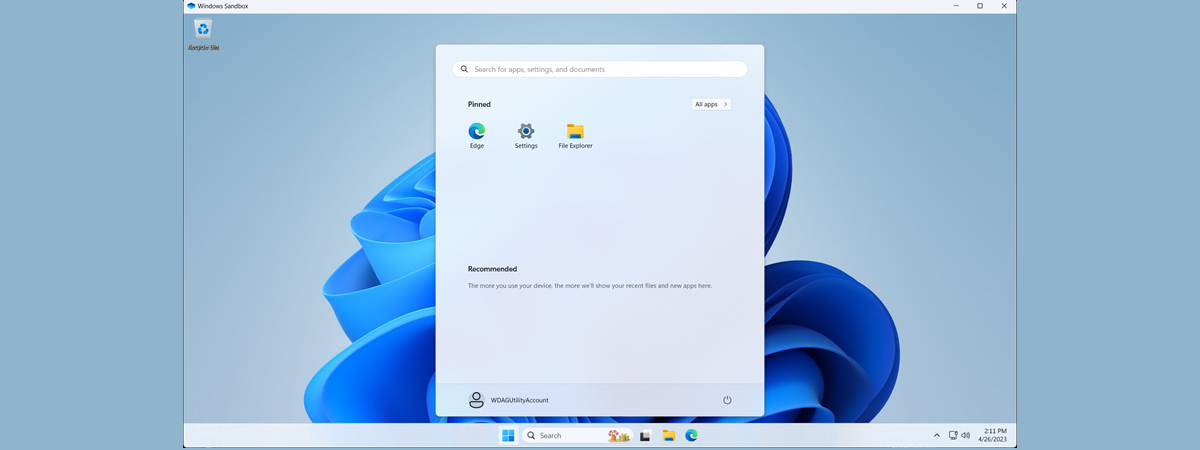
4 things you can do with Windows Sandbox

If you are running a Pro, Education or an Enterprise edition of Windows 10 with May 2019 Update, you have access to Windows Sandbox. It is a lightweight virtual machine that is easy to install and run, without paying anything for additional license fees. This app is excellent for browsing potentially dangerous websites, testing unknown apps and other things that could otherwise be hazardous.
article What's new in Windows 10 May 2019 Update? 13 new features!

What's new in Windows 10 May 2019 Update? 13 new features!

On May 21st, 2019, Microsoft released the next major update to Windows 10, called Windows May 2019 Update. It is a significant upgrade bringing several improvements to Windows 10, specifically to the user interface and the security features of the operating system. If you want to know what is new in Windows 10 May 2019 Update, and whether it is worth updating sooner rather
tutorial Windows 10 ads: How to turn them off from everywhere

Windows 10 ads: How to turn them off from everywhere

Do you see ads on the Windows 10 Lock Screen, in the Start Menu, or even in File Explorer? Are you growing tired of ads on your Windows 10 PC, laptop or Surface Pro? Do you want to have an ad-free experience in Windows 10? If you do, you are in the right place. In this tutorial, we show you how to completely turn
tutorial The fastest way to remove Windows 10 bloatware

The fastest way to remove Windows 10 bloatware

Windows 10 has accustomed us to bloatware being bundled all the time, even when we make a clean installation. No longer is bloatware a lousy approach of various hardware manufacturers, but it is also Microsoft's thing now. While researching for ways to get rid of Windows 10 bloatware quickly, we found a helpful tool that does that, called Windows 10 Debloater. It runs PowerShell

How to automatically lock Windows 10 with your smartphone

Locking your PC when you are away is a requirement in business offices. It is a standard security measure that everyone should uphold regardless of the inconvenience of clicking a few buttons to do so. The good news is that, in Windows 10, Microsoft implemented a new feature called Dynamic Lock that tries to make the locking process easier and almost unattended. All you need is a smartphone and a