File History is a useful app that is built into Windows 10 and Windows 8. It can be used to automatically back up personal files and folders, like your documents, pictures, and videos, without any user intervention, except for turning it on, and configuring how it works. If you use Windows 10, you can interact with File History both from the Settings app and the Control Panel. In each of these places, you get access to different settings and options for File History. Here is everything that you can do with File History from the Control Panel:
NOTE: This guide applies to both Windows 10 and Windows 8.1.
How to access the File History from the Control Panel
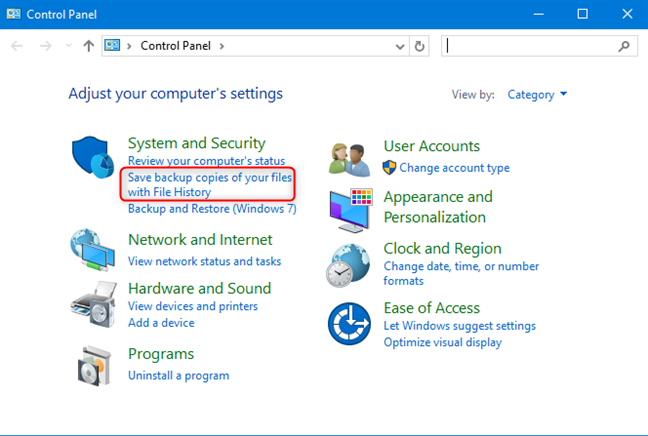
Open the Control Panel, and click the link that says "Save backup copies of your files with File History."
The Control Panel
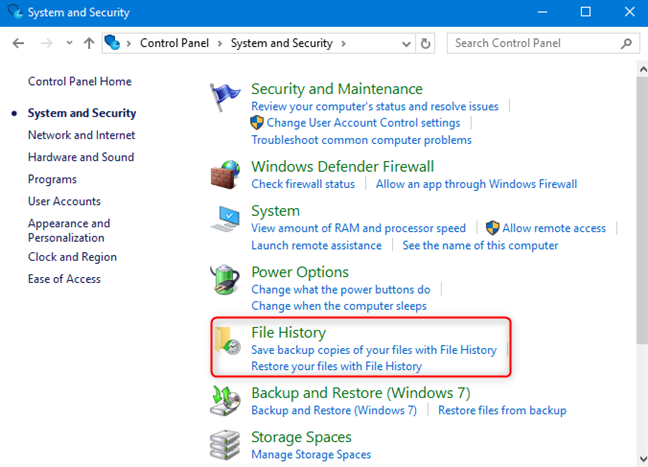
Alternatively, you can click on System and Security and then on File History.
File History in the Control Panel
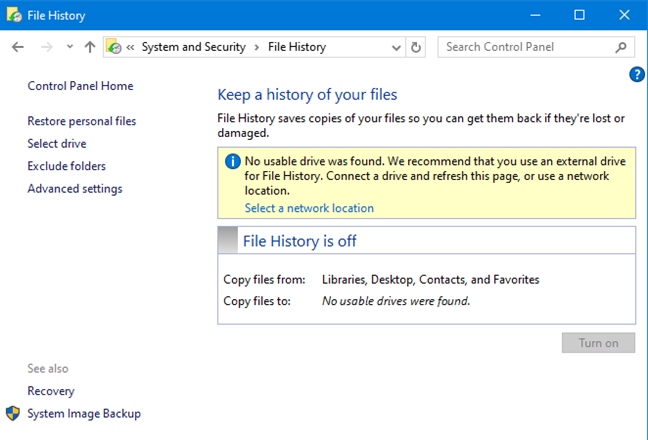
Now you should see the File History window. If there is no usable storage drive found, the window should look similar to the screenshot below.
File History is off
How to turn File History on and off in Windows 10
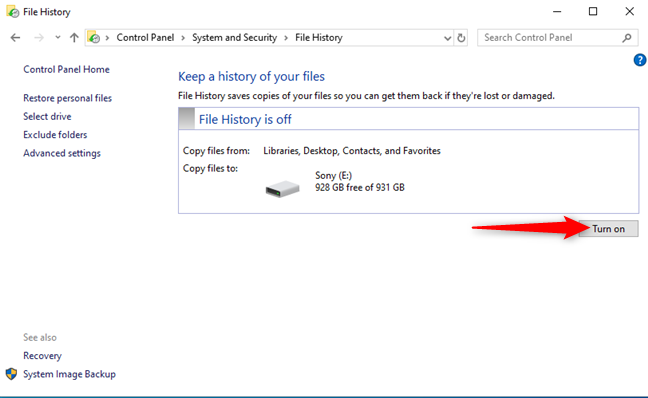
To use File History, you have to plug in an external hard drive or a large USB memory stick with plenty of free space on it. File History should detect it, and display it as the default drive for your backup. All you have to do next is click or tap the "Turn on" button, and File History starts with the first backup.
Turn File History on
NOTE: If you have set up a Homegroup in your home network, you may be asked if you want to recommend the drive to other members of your Homegroup.
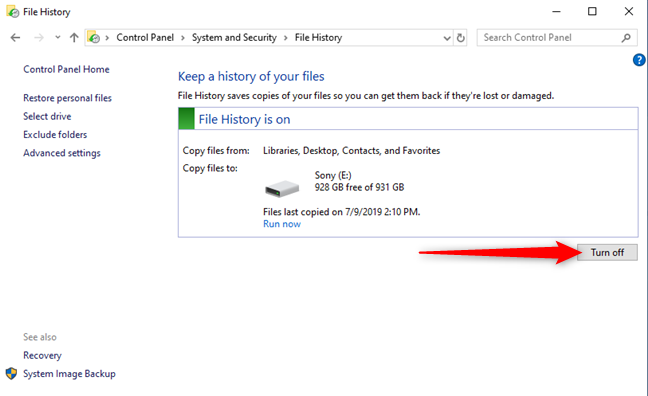
If you want to stop File History temporarily, or you want to stop using it, go to the same File History window, and click or tap Turn off.
Turn File History off
Then you can unplug your backup drive, delete the data on it, or do whatever you wish. File History is no longer working until you manually activate it again.
How to change the storage drive used for File History backups
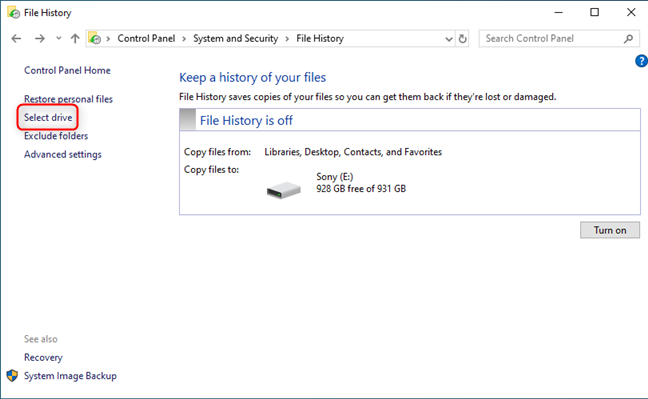
If you are not satisfied with the drive that File History has chosen, and you have more than one storage drive connected to your PC, you can choose another drive for File History. To do that, in the File History window, click or tap the Select drive link on the left.
Select the drive for File History
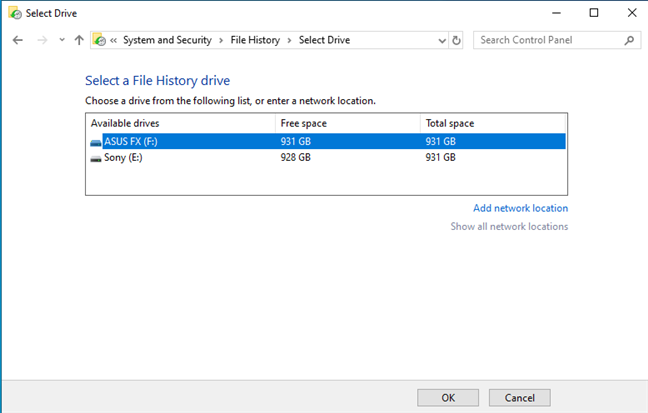
The Select Drive window opens, where you see the drives that are available for use. Select the drive that you want, and click or tap OK.
Select the drive for File History
NOTE: If the drive that you want is not shown on the list, make sure that it is connected to your Windows PC, and then click the Refresh icon or hit the F5 key on the keyboard.
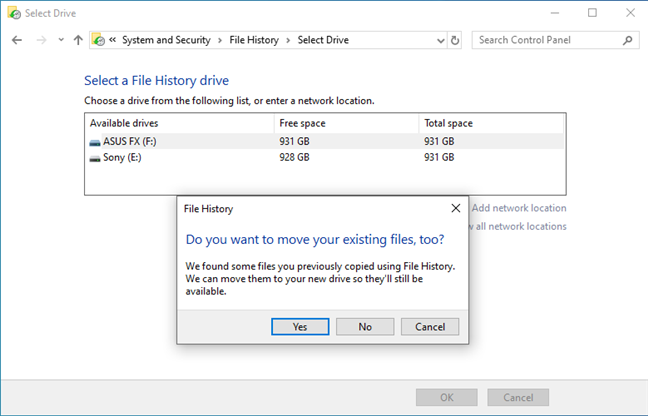
If you have used File History on another drive in the past, you are going to be asked whether you want to move your existing backup files. Answer Yes or No, depending on what you want.
Move your existing files to another drive
What data does File History backup and how long does it take to perform a backup?
File History has a predefined set of items that it backs up automatically: your user folders and libraries, the desktop, saved games, favorites from Internet Explorer, and searches. When using File History from the Control Panel, you cannot set which specific folders it can back up; you can only set what folders and libraries to exclude. For more control over this aspect of File History, you have to use this feature from the Settings app, instead of the Control Panel. For more information, see this guide: How to use File History to back up your data in Windows 10.
How to remove folders from the File History backup
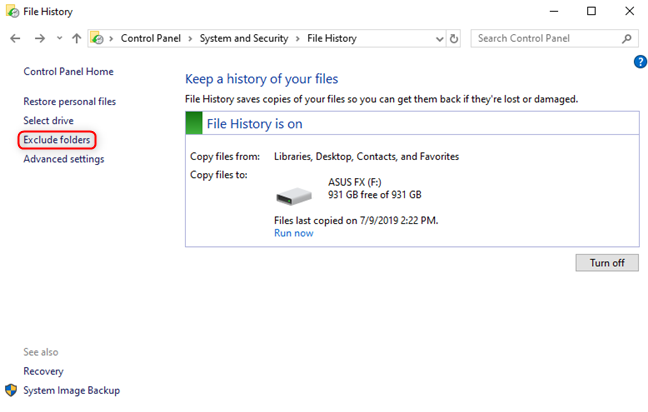
To exclude a folder from the File History backup, click or tap Exclude folders in the column on the left.
Exclude folders from File History
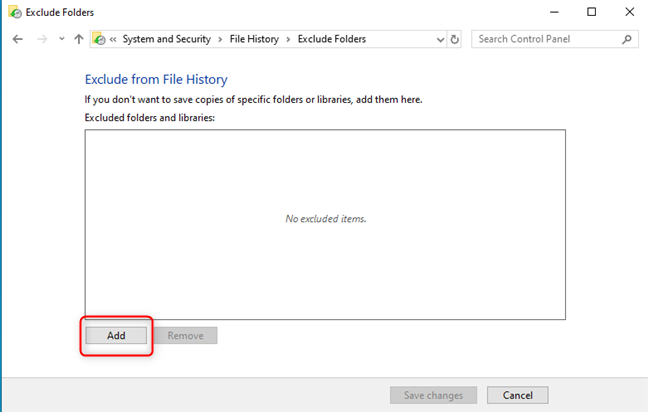
In the Exclude folders window, click or tap the Add button.
Add folders to exclude from File History
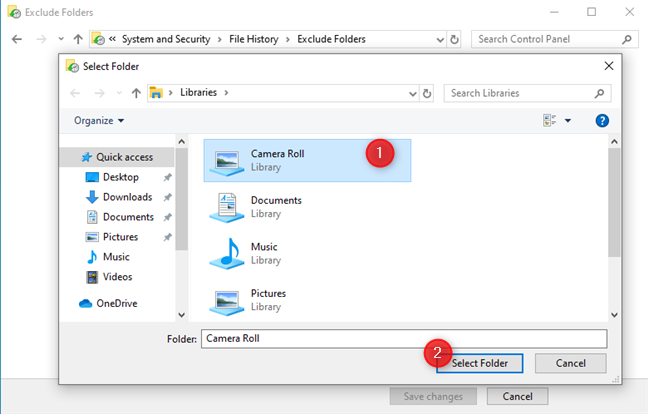
In the Select Folder window that opens, navigate your PC, choose the folder that you want to be excluded from the backup, and click or tap Select Folder.
Select a folder to exclude from File History
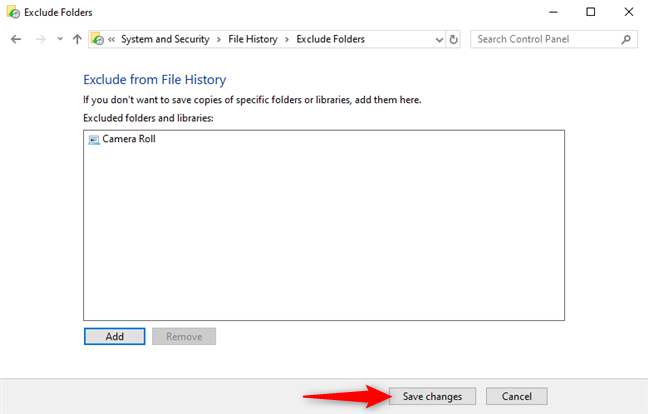
The selected folder is now displayed in the list "Exclude from File History." Continue adding as many folders to the exclusion list, as you want. When done, press Save changes.
Save your changes to exclude folders from File History
The selected folders are no longer backed up by File History.
Configure how often File History runs, and how much it stores your data
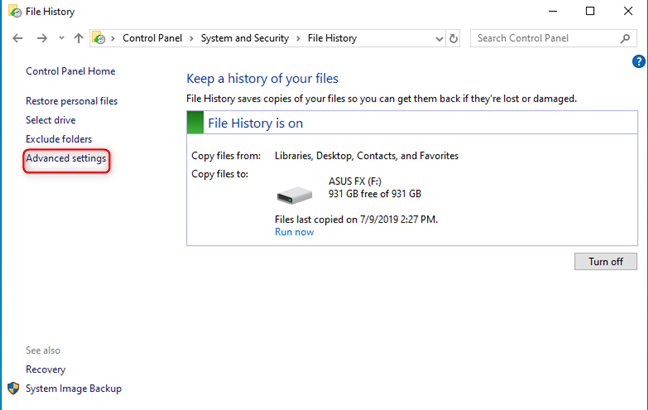
The default settings for File History are not the best for everyone. To change how File History works, click or tap the Advanced settings link on the left.
File History - Advanced settings
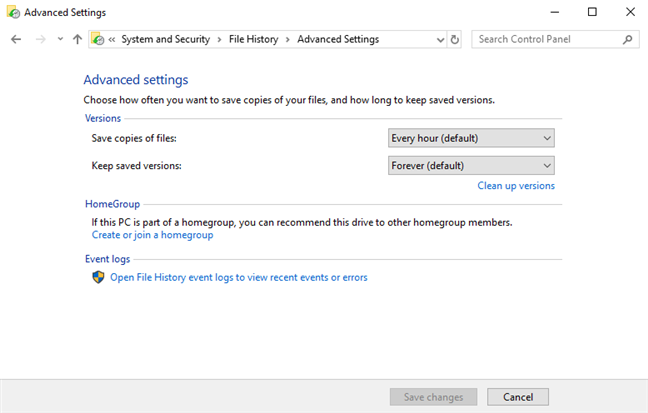
In the Advanced Settings window, you can set how often File History runs, for how long it keeps saved versions of your files, recommend its drive for backups to other Homegroup members, and open the File History event logs.
File History - Advanced settings
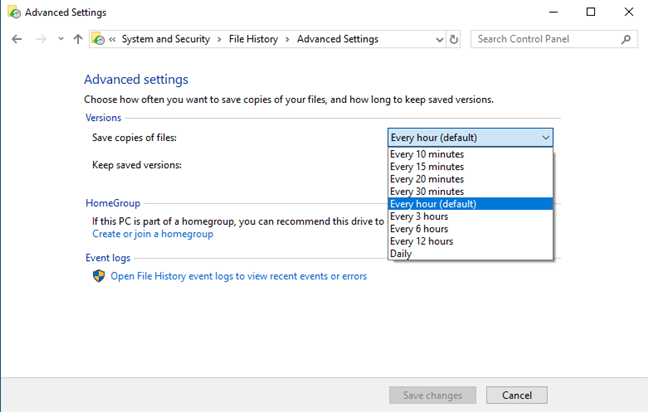
To change how often File History backups up your data, click the drop-down list for "Save copies of files," and choose the backup frequency. Running File History once every hour should be enough for most people.
How often File History saves copies of files
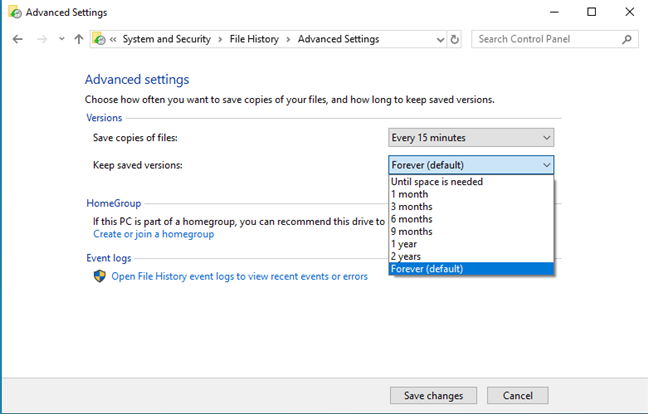
By default File History keeps saved versions of your files, forever. If you edit, add, or remove files frequently, this setting may leave you out of storage space for backups, relatively quickly. Click on the dropdown list for "Keep saved versions" and choose another time frame for keeping your old file versions. Most people should use a value between 1 month and 6 months.
How long File History saves versions of your files
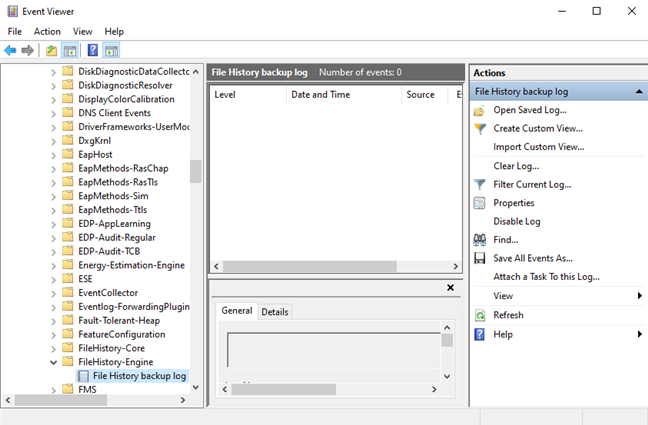
If you had problems with File History and you want to understand what is going on, in the Advanced Settings window, click or tap the link that says: "Open File History event logs to view recent events or errors." This action opens the Event Viewer, where you can see more data about your problems.
Event Viewer logs for File History
When you are done improving how File History works, do not forget to press the Save changes button, so that your changes are applied.
How to manually run a File History backup
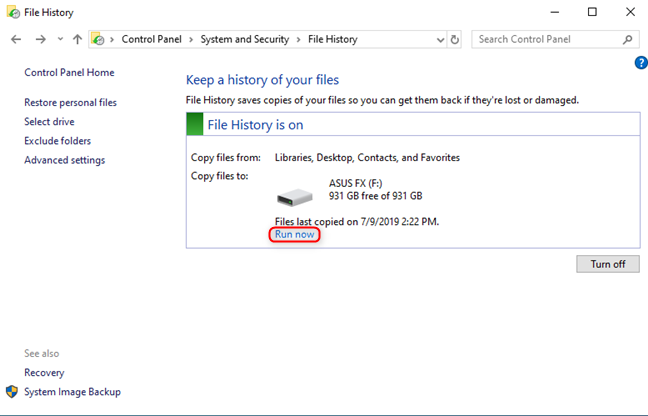
After you set it up, File History does its job in the background, automatically, as long as the storage drive that it uses is connected to your PC. However, you may need to run a manual backup, right now. To do that open the File History window as shown earlier in this guide, and click or tap the Run now button, highlighted below.
Manually run a File History backup
File History backs up your newest files from the backup locations that you chose.
What happens when you disconnect the File History backup drive
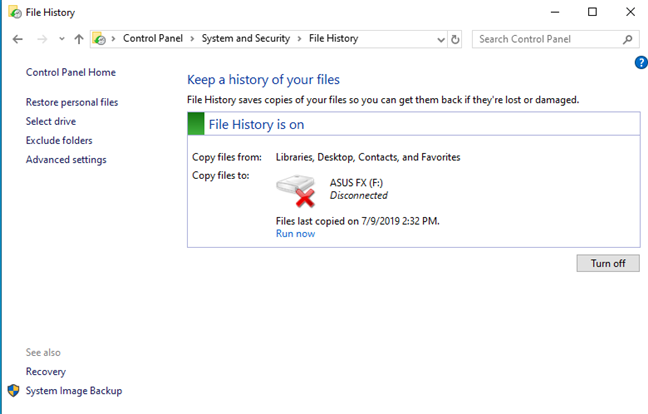
A significant feature of File History is that it works silently in the background, without taking up too much processor time and without stressing your hard disk. It takes a while for this tool to backup data, especially the first time you do it, but it works flawlessly without user input. If you unplug the backup drive, File History stops using that drive, and it backs up your data to a temporary location on your C: drive. Also, the default storage drive is highlighted as Disconnected.
File History - disconnected drive
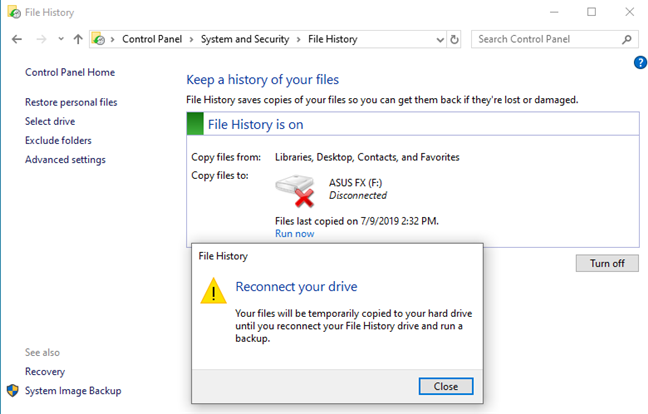
If you try to run a manual backup, while the storage drive is disconnected, File History says that: "Your files will be temporarily copied to your hard drive, until you reconnect your File History drive and run a backup."
File History asks you to reconnect your drive
After you plug the drive back in, File History resumes backing up your data to it, without any intervention on your part.
Do you enjoy using File History?
Our team at Digital Citizen uses File History for backing up personal files and folders. We also back the same files to the cloud, through OneDrive, so that we always have two copies available for recovery. Try this useful feature of Windows 10 (and Windows 8), and tell us how well it works for you, in a comment below.
Very clunky & hard to use. For example the 1st time you run it – File History will automatically add certain folders to the back up. WTH? So for the last 2 hrs I have to click 1 dumb file at a time to remove. And I have an external drive I used to back up to. I renamed File History folder to start over. Now Windows says I can’t use that drive again wth? And just poor planning. They could have given us a list of important folders in User but nope I got dozens of useless folders. And why no check boxes so I could delete the dumb ones all at once?
I don’t know how to un plug the back up drive, please,,help
Hans ·
I would enjoy the file version history, if I was able to know how to clean up old versions of the history and merge multiple instances.
Dean ·
I just wanted to know if file history can work for any file and folder which includes even media. Also how exactly do you know when to unplug your harddrive, once your done backing up. I tried file history but wasn’t exactly sure if it was working or not.
Pine Sap ·
Would you please explain the File History Configurations and Data folders? My Configuration folder currently contains Catalog1.edb, Catalog2.edb, Config1.xml, Config2.xml, etc. My Data folder now contains $0F, C, D folders. What are the purposes of these folders, how are they organized?
PAPAT ·
Thank you! Thank you! Thank you!
Finally, someone who gives clear, simple, easy to follow directions.
Pax
alan ·
I have been using File History to back up my files, but the it doesn’t use any space on my backup drive. I still have the same amount of space available as before I started using it.
saad ·
Will my external hard drive formated when i make first time back up data?
i have alot of data on that external drive.
fatima ·
i mistakenly disconnected device during backup., its not backing up my furthur data
Nata ·
Hi there, thanks a lot for this article. What happens if my computer is infected with a virus? Will my backup be infected as well? If I delete the file on my computer, will it be deleted from the backup too?
Thanks
Joolz ·
When I go to “Add folder” in file history backup, I get error code 0x80070032. All internet searches for this error code only produce results for other issues and not windows 10 file history feature. I’m backing up to a network drive and it is fully accessible and useable. It successfully backs up all the default folders to it OK it just fails to add an extra specific folder.
Also why have microsoft made file backup so complicated? If you access file history through control panel it has different features to if you access it through start menu/settings/update & security/backup. At the same time in control panel there is “Backup and restore (windows 7)” which gives you different backup options such as system image backup. Why can’t they just group all these together into one simple backup feature and give us all the options there?
helen ·
Just connected a seagate external drive and did a file history. It stored all my docs but only 5 of the picture folders how can I save the rest?
notinterested ·
this is stupid…i miss my windows 7..we don’t have a large usb on hand not everyone does…i need to backup my computer but i have to use this crap now???!!! f this
Wendy ·
I do not understand how the “Keep saved versions” works. If I have a Word document called Tutorial and I choose 3 months. Does it mean that after 3 months, this Tutorial document will disappear from my backup drive? I have no set time to run File History but do it at least 2-3 times a month. If this document is still in my computer, will the new run of File History put it back in the backup drive?
David ·
I ran File History and then did a restore. On the restore it brought in MANY files with a huge expansion of the file name. This creates a huge problem with file names being too long when you have a large file structure with depth. What are all the extra characters for and how can I prevent them in the future?
example: File named “2013 Data Center Trends.pdf” came back in as “2013 Data Center Trends (2015_02_10 23_28_09 UTC).pdf
Ron P. ·
Hello Ciprian, or others,
I’m a Dell,Wd8.1 user. Q#1: Is there any difference in using the DellBackup & Recovery app on the desktop, or going to the History Backup through the Control panel? Q#2: Is there some explanation of the Wd8.1 Filing structure? It seems redundant X 3.
Thanks to whomever can answer.
Ron
Fred Nerk ·
Microsoft has finally woken up to the Mac’s longstanding Time Machine then. They get there in the end . . .
Steve Suykens ·
Just a quick question: if you set “Keep Saved Versions” = 3 Months, then will it only remove the previous versions that were created prior to 3 months ago? Or more specifically, will the backup keep the most current version of the file even if it has not been modified in the last 3 months? Important question.
Eric S. ·
If I set “Set Saved Versions” to three months, do ALL files older than three months get erased or just multiple version (older than three months) of a document get erase?
Daniel ·
I don’t know why you guys say that File History is awesome because it’s not! You can’t change what folders to back-up! What genius thought this was a good idea? I don’t know what the guys at Microsoft are smoking…
notinterested ·
me either…i dont find this the least bit useful
Mark Peterson ·
Does File History save copies of files at the specified interval only when there are changes or added or deleted files, or always at the specified interval even if there are no changes or added or deleted files?
pam slade ·
My backing-up zipped through over 20 frames today, at speed. Much of the data seemed to be duplicated. Is there anything wrong with this? Its normally over in about 20secs
Paula Hunts ·
Can I use two separate disks alternating for File History?
Gerjon ·
Microsoft is taking the “tech” out of windows, dumbing it down for the general public – this is why linux is being used more and more by technology industries as you can still get it to do what YOU want. Backups are a simple thing to do, system recovery is different, both should be customizable to the users needs – one size here does NOT fit all.
John ·
It uses the Library concept. The back up tool backs up Libraries. To add a folder to a library, right click on the folder and then “Include In Library” and then select an existing library (e.g. “Documents”) or create a new library (e.g. “Johns Extra Stuff”).
Eric ·
What’s the motivation for Microsoft to not allow you to pick what is backed up?
Alastair ·
‘Awesome’ is not a word I would use to describe this backup function. After using Apple’s system, this is really pretty dire. I can’t choose what to back up, I don’t seem to be able to back up files on an external drive and, actually, I’m not even sure what has been backed up. It needs a complete rethink.
A.C. Ratone ·
It will do an external drive. To select which, you have to exit ‘Advanced Settings’ and go back to File History. There all connected drives will be shown and you choose which. It will immediately start backing up, so click TURN OFF. And then make all your changes to the settings and move your folder tree under the Library, exclude all you don’t want backed up. And click TURN ON. All folders you need backed up have to be moved with File Explorer to become subfolders of the Library folder. So whenever you are in an application (OFFICE, INTERNET EXPLORER, etc.) andSAVE something it has to be to library subfolders.
I believe (not sure) Google Chrome allows their bookmark folder to be moved. If so, it can be put under the Library folder, and then it would be backed up.
Microsoft long ago imagined that everyone would keep all their data into their library. Almost nobody does.
In case this link is now broken, open Bookmark Manager in Chrome, and then click: Organize>Export bookmarks to HTML file. From there create and then select a subdirectory of Libraries. Now Windows 8.1 file history will back up Chrome bookmarks.
A.C. Ratone ·
But this process must be repeated in Chrome for each backup you do, it will not be automatic. Internet Explorer Favorites will be automatically stored in Libraries, and thus stored automatically.
Ryan ·
Is it not possible to see that program to backup to OneDrive?
Mike ·
Hi. Will file back up back up my downloads as well as I wish this to happen.
Thanks
John Mertz ·
What a piece of s***. Not being able to backup a particular directory/folder – EASILY – is crap. Thank You Microsoft – again.
Dave ·
Hi, I have a query, is there anyway for you to change the default files which file history backs up. I have a set up were I have all personal files on a separate HDD to that of my OS so can’t back them up through file history. Can’t set up a raid none of my HDD’s are the same. thanks in advance
Paul ·
All the files I want to save are in folders on the C drive. I cannot figure out how you back up folders on here. The system intentionally excludes them! Who designed this system?
Stefan ·
Hi
I’ve got two users on one Laptop. I had to enable File History for both (I found that weird). Worse, it seems that it syncs now the “public” folders twice!!!
Why is this indentend?
Thanks!
Veeru ·
Hi. I want to do a windows image backup to an external hard drive which has some personnel data of mine. If i back up windows to that external hard drive, do i lose my personnel data? I mean will my external hard drive formatted before backing up system image?
Thanks in advance.
saifullah ·
hi sir i have a problem i dont know how to solve it . my question is my backup has been deleted from my latop it was an original backup of windows 8.1 so can i recover it . or not ? and what if the backup isn`t recover . ? 2nd question is can i get an original copy from another latop ? where the windows is also 8.1? i will be waiting for your answer .reply me ASAP.
Stan Weidenhammer ·
When I clicked turn on for the first time, the program started to backup to my external hard drive. I set the program to backup every 15 min. Then on my desktop I added a new folder. I waited quite a while then checked my hard drive to see the new folder. It was not on the backup. What am I doing wrong.
Edd ·
Please Help !!!
I was backing up my w8.1 in my 4tb hard disk which I have all my life in there and it was taking so long …. So I decided to stop it and suddenly the machine stop working. I was waiting for 5 minutes and I decided to take the risk for restarting the machine now after one hour the pc boots directly to the bios many several times…
Please what should I do if I lost my OS and my 4tb disk you think that will be ok?
Thanks for your help in advance…. !!!
D. Dawg ·
Don’t like it. With NTBackup I could tell it what to backup including external drives, network drives etc. I could also tell it when to backup. It appears file history won’t allow either of those options. Can I use NTBackup with 8.1?
riksen ·
It cannot find my external harddisk which is a new WD Elements. How do I get it to recognize it?
Emaan Ahmed ·
Can you create a file history backup without using hardware? I would like to create on my own drive without any other external hardware.
Monica Tett ·
My Dell desktop has “died” . System restore etc failed. 3 beeps then 4 beeps and now won’t boot. 6 years old. Have backed up to external drive. I need to buy new tower but they are running Windows 8.1 and I have Windows 7. Will I have any trouble setting up new tower from back up please? And will files transfer ok? I have huge Family Tree file I would hate to lose. Old lady needs simple advice please!!!!!!
Eddie Mann ·
I have tried to do a back up using a Dyna Store 32GB USB. My PC tells me it cannot recognise this drive. I tried another smaller drive and there is no problem with this but I run out of space. Can you suggest why the PC will not recognise the drive?
R Srivastava ·
In my external hard disk I have in F:>FileHistory>(my user name) two folders MY-PC dated 15/11/2014, and MY-PC (2) dated 16/11/2014. My question is “Can I delete folder MY-PC and if I delete it:
1. Will it create any problem?
2. After deleting MY-PC, only MY-PC (2) will remain. Will that be alright OR I have to rename it to MY-PC
Ken ·
let me get this straight “example file history continues to make copies of my pictures thus filling up my external hard drive” so you recommend only saving my files for 3 months therefore I will only delete the extra copies? So uncheck keep forever
JPD ·
I would like to use 2 external harddrives alternatively to insure everything is backed up on Windows 8.1. I turned on File History and backed up everything to a WD External Harddrive. I am now out of space and rather than delete files, I prefer to just use a flash drive (64GB) change the device in File History settings from WD External to the flash drive a save everything again. My presumption is I will have the latest records and a complete file for restoration if needed. When the flash drive is full, I would then use the WD External Harddrive, change the settings and repeat the process. Is there any problem with this approach vs deleting old files to make room on the external devices?
Ann Di Marco ·
I have just started to use this but what about the files that I created on my PC before starting to use? Are they also backed up? I don’t know how to do a complete C drive backup before I start anyway, can anyone help, if this is necessary first please
john ·
Not happy that you can’t spec other folders to backup, nor that you can’t tell it how many past versions or a time interval to retain.
Dean Judd ·
Can you use the task scheduler to schedule a file history backup in windows 8.1? If so, what I the file name of the file history utility?
rashmi ·
I purchased new Dell with windows 8.1. Do I need to have backup of windows 8.1 before doing my work? for my earlier version (windows 7) I didnot have backup. please suggest.
Billy Carter ·
8 & 8.1 are a disaster, trying to back up info so I can delete window 8.1 and reload 7. I will not create a new folder to put all my files in that I want backed up. what is the purpose of backing up to begin with. This is useless…
Hans Peter ·
If I have unplugged my backupdrive of any case I am wondering what happens with the data which I change when my drive is unplugged? Have I lost these changes when i start the drive again or does filehistory save them on my internal HD meanwhile or does filhistory check if there has any changings being made??
/hans peter
Banks Technology Services ·
Hi Hans Peter,
You can unplug your external drive and make changes to your files. When you plug your drive back in, File History will sync those changes. File History will always sync the latest “version” of the file. Hope this helps!
Hans Peter ·
Nice, now I need not worry any more :-).
Thanks!
/hans peter
Andrew McRoberts ·
Does file history back up my emails?
Lyn Gain ·
I want to know the answer to this question too.
mikebass ·
my backup drive is off I did not turn it off and I cant turn it on…. can anyone help please
Mike Abbott ·
every time file history backs up it creates a new copy of existing file. is there a way to overwrite file instead of creating another?.
Ciprian Adrian Rusen ·
I’m afraid not.
Andy P ·
Further to Simon Cartwright’s post, i am experiencing the same problem with file history not backing up all the files/folders contained within one of its default locations. They have not been excluded from the backup. The USB stick has enough capacity, but file history is only using 1Gb of the 16Gb available. What is the reason for this? Can i make it work properly?
Banks Technology Services ·
Check the Advanced Settings in File History. You can define how much space your File History backups will use. I think the default is 10%.
Mike ·
This is a great facility spoiled by toatally dumb thinking. When I can’t choose the files & folders I really want to back up, then it is about as useful as the proverbial one legged man in an ass kicking contest!!!
Simon Cartwright ·
Any ideas why it would choose to only selectively backup certain folders/files? I haven’t excluded anything, just seems to do its own thing.
When I look at the back up folder on my external wifi HDD, only some of the folders are there. Annoying!
Incidentally, I mainly back up RAW image files at 25+ mb, if that makes any difference.
chilo ·
other folders can be selected to backup…use file explorer and select directory.. then look for HISTORY in the OPEN column .. select history.. you should be able to figure rest out
DomiChi ·
I had a same probleme. File history save only 2 folders from 10 in my Documents bibliothèque
Harv ·
It does not seem to matter how I specify when to back up… 30 minutes, 2 hours, Daily… It never runs. I must “Run now” in order to have it perform a backup.
nigel ·
that is the most dumbest thing. why take out the ability to choose what files to backup. maybe i don’t want to backup everything because i don’t have enough space.
Tom Williams ·
I have multiple users on the PC. Do I need to run it for each user?
If I delete a file from My Docs (for example) does it also get deleted from file history on it’s next cycle?
Ciprian Adrian Rusen ·
Yes, you need to set it up individually, for each user account.
Whatever you do gets replicated in your File History backup location. However, File History can be customized to keep older files for a certain amount of time and you can use it to recover files you have deleted.
Don Thomander ·
Thanks for the info provided . It has helped me out greatly. I have a Dell computer with windows 8.1 and at 72 yrs.of age it is taking a while to get used to. I had trouble understanding data backup but your info was great. One question with File History do I leave my external hard drive plugged in all the time. By your info I’m thinking YES. DGT.
Ciprian Adrian Rusen ·
I’m happy were able to help you. Don’t hesitate to pay us a visit from time to time. I’m sure you will find other useful content on our website.
Val ·
Trying the use File History but running into some trouble. Bought a Western Digital 1 TB external drive… Set up two partitions,.. One to back up OS and the other to do File History. The OS backed up fine but when I try to do the File History I get the message “File History doesn’t recognize this drive”. I tried making it NTFS and exFAT but still no luck. Can you help?
Adrian ·
Thanks for this tutorial. I did not know about this tool.
















Discussion (76)
Very clunky & hard to use. For example the 1st time you run it – File History will automatically add certain folders to the back up. WTH? So for the last 2 hrs I have to click 1 dumb file at a time to remove. And I have an external drive I used to back up to. I renamed File History folder to start over. Now Windows says I can’t use that drive again wth? And just poor planning. They could have given us a list of important folders in User but nope I got dozens of useless folders. And why no check boxes so I could delete the dumb ones all at once?
I don’t know how to un plug the back up drive, please,,help
I would enjoy the file version history, if I was able to know how to clean up old versions of the history and merge multiple instances.
I just wanted to know if file history can work for any file and folder which includes even media. Also how exactly do you know when to unplug your harddrive, once your done backing up. I tried file history but wasn’t exactly sure if it was working or not.
Would you please explain the File History Configurations and Data folders? My Configuration folder currently contains Catalog1.edb, Catalog2.edb, Config1.xml, Config2.xml, etc. My Data folder now contains $0F, C, D folders. What are the purposes of these folders, how are they organized?
Thank you! Thank you! Thank you!
Finally, someone who gives clear, simple, easy to follow directions.
Pax
I have been using File History to back up my files, but the it doesn’t use any space on my backup drive. I still have the same amount of space available as before I started using it.
Will my external hard drive formated when i make first time back up data?
i have alot of data on that external drive.
i mistakenly disconnected device during backup., its not backing up my furthur data
Hi there, thanks a lot for this article. What happens if my computer is infected with a virus? Will my backup be infected as well? If I delete the file on my computer, will it be deleted from the backup too?
Thanks
When I go to “Add folder” in file history backup, I get error code 0x80070032. All internet searches for this error code only produce results for other issues and not windows 10 file history feature. I’m backing up to a network drive and it is fully accessible and useable. It successfully backs up all the default folders to it OK it just fails to add an extra specific folder.
Also why have microsoft made file backup so complicated? If you access file history through control panel it has different features to if you access it through start menu/settings/update & security/backup. At the same time in control panel there is “Backup and restore (windows 7)” which gives you different backup options such as system image backup. Why can’t they just group all these together into one simple backup feature and give us all the options there?
Just connected a seagate external drive and did a file history. It stored all my docs but only 5 of the picture folders how can I save the rest?
this is stupid…i miss my windows 7..we don’t have a large usb on hand not everyone does…i need to backup my computer but i have to use this crap now???!!! f this
I do not understand how the “Keep saved versions” works. If I have a Word document called Tutorial and I choose 3 months. Does it mean that after 3 months, this Tutorial document will disappear from my backup drive? I have no set time to run File History but do it at least 2-3 times a month. If this document is still in my computer, will the new run of File History put it back in the backup drive?
I ran File History and then did a restore. On the restore it brought in MANY files with a huge expansion of the file name. This creates a huge problem with file names being too long when you have a large file structure with depth. What are all the extra characters for and how can I prevent them in the future?
example: File named “2013 Data Center Trends.pdf” came back in as “2013 Data Center Trends (2015_02_10 23_28_09 UTC).pdf
Hello Ciprian, or others,
I’m a Dell,Wd8.1 user. Q#1: Is there any difference in using the DellBackup & Recovery app on the desktop, or going to the History Backup through the Control panel? Q#2: Is there some explanation of the Wd8.1 Filing structure? It seems redundant X 3.
Thanks to whomever can answer.
Ron
Microsoft has finally woken up to the Mac’s longstanding Time Machine then. They get there in the end . . .
Just a quick question: if you set “Keep Saved Versions” = 3 Months, then will it only remove the previous versions that were created prior to 3 months ago? Or more specifically, will the backup keep the most current version of the file even if it has not been modified in the last 3 months? Important question.
If I set “Set Saved Versions” to three months, do ALL files older than three months get erased or just multiple version (older than three months) of a document get erase?
I don’t know why you guys say that File History is awesome because it’s not! You can’t change what folders to back-up! What genius thought this was a good idea? I don’t know what the guys at Microsoft are smoking…
me either…i dont find this the least bit useful
Does File History save copies of files at the specified interval only when there are changes or added or deleted files, or always at the specified interval even if there are no changes or added or deleted files?
My backing-up zipped through over 20 frames today, at speed. Much of the data seemed to be duplicated. Is there anything wrong with this? Its normally over in about 20secs
Can I use two separate disks alternating for File History?
Microsoft is taking the “tech” out of windows, dumbing it down for the general public – this is why linux is being used more and more by technology industries as you can still get it to do what YOU want. Backups are a simple thing to do, system recovery is different, both should be customizable to the users needs – one size here does NOT fit all.
It uses the Library concept. The back up tool backs up Libraries. To add a folder to a library, right click on the folder and then “Include In Library” and then select an existing library (e.g. “Documents”) or create a new library (e.g. “Johns Extra Stuff”).
What’s the motivation for Microsoft to not allow you to pick what is backed up?
‘Awesome’ is not a word I would use to describe this backup function. After using Apple’s system, this is really pretty dire. I can’t choose what to back up, I don’t seem to be able to back up files on an external drive and, actually, I’m not even sure what has been backed up. It needs a complete rethink.
It will do an external drive. To select which, you have to exit ‘Advanced Settings’ and go back to File History. There all connected drives will be shown and you choose which. It will immediately start backing up, so click TURN OFF. And then make all your changes to the settings and move your folder tree under the Library, exclude all you don’t want backed up. And click TURN ON. All folders you need backed up have to be moved with File Explorer to become subfolders of the Library folder. So whenever you are in an application (OFFICE, INTERNET EXPLORER, etc.) andSAVE something it has to be to library subfolders.
I believe (not sure) Google Chrome allows their bookmark folder to be moved. If so, it can be put under the Library folder, and then it would be backed up.
Microsoft long ago imagined that everyone would keep all their data into their library. Almost nobody does.
Yes, Google Chrome allows you to choose where to store your bookmarks. Here is a link to show how:
https://juan2geek.com/how-to-backup-and-restore-entire-google-chrome-setting/
In case this link is now broken, open Bookmark Manager in Chrome, and then click: Organize>Export bookmarks to HTML file. From there create and then select a subdirectory of Libraries. Now Windows 8.1 file history will back up Chrome bookmarks.
But this process must be repeated in Chrome for each backup you do, it will not be automatic. Internet Explorer Favorites will be automatically stored in Libraries, and thus stored automatically.
Is it not possible to see that program to backup to OneDrive?
Hi. Will file back up back up my downloads as well as I wish this to happen.
Thanks
What a piece of s***. Not being able to backup a particular directory/folder – EASILY – is crap. Thank You Microsoft – again.
Hi, I have a query, is there anyway for you to change the default files which file history backs up. I have a set up were I have all personal files on a separate HDD to that of my OS so can’t back them up through file history. Can’t set up a raid none of my HDD’s are the same. thanks in advance
All the files I want to save are in folders on the C drive. I cannot figure out how you back up folders on here. The system intentionally excludes them! Who designed this system?
Hi
I’ve got two users on one Laptop. I had to enable File History for both (I found that weird). Worse, it seems that it syncs now the “public” folders twice!!!
Why is this indentend?
Thanks!
Hi. I want to do a windows image backup to an external hard drive which has some personnel data of mine. If i back up windows to that external hard drive, do i lose my personnel data? I mean will my external hard drive formatted before backing up system image?
Thanks in advance.
hi sir i have a problem i dont know how to solve it . my question is my backup has been deleted from my latop it was an original backup of windows 8.1 so can i recover it . or not ? and what if the backup isn`t recover . ? 2nd question is can i get an original copy from another latop ? where the windows is also 8.1? i will be waiting for your answer .reply me ASAP.
When I clicked turn on for the first time, the program started to backup to my external hard drive. I set the program to backup every 15 min. Then on my desktop I added a new folder. I waited quite a while then checked my hard drive to see the new folder. It was not on the backup. What am I doing wrong.
Please Help !!!
I was backing up my w8.1 in my 4tb hard disk which I have all my life in there and it was taking so long …. So I decided to stop it and suddenly the machine stop working. I was waiting for 5 minutes and I decided to take the risk for restarting the machine now after one hour the pc boots directly to the bios many several times…
Please what should I do if I lost my OS and my 4tb disk you think that will be ok?
Thanks for your help in advance…. !!!
Don’t like it. With NTBackup I could tell it what to backup including external drives, network drives etc. I could also tell it when to backup. It appears file history won’t allow either of those options. Can I use NTBackup with 8.1?
It cannot find my external harddisk which is a new WD Elements. How do I get it to recognize it?
Can you create a file history backup without using hardware? I would like to create on my own drive without any other external hardware.
My Dell desktop has “died” . System restore etc failed. 3 beeps then 4 beeps and now won’t boot. 6 years old. Have backed up to external drive. I need to buy new tower but they are running Windows 8.1 and I have Windows 7. Will I have any trouble setting up new tower from back up please? And will files transfer ok? I have huge Family Tree file I would hate to lose. Old lady needs simple advice please!!!!!!
I have tried to do a back up using a Dyna Store 32GB USB. My PC tells me it cannot recognise this drive. I tried another smaller drive and there is no problem with this but I run out of space. Can you suggest why the PC will not recognise the drive?
In my external hard disk I have in F:>FileHistory>(my user name) two folders MY-PC dated 15/11/2014, and MY-PC (2) dated 16/11/2014. My question is “Can I delete folder MY-PC and if I delete it:
1. Will it create any problem?
2. After deleting MY-PC, only MY-PC (2) will remain. Will that be alright OR I have to rename it to MY-PC
let me get this straight “example file history continues to make copies of my pictures thus filling up my external hard drive” so you recommend only saving my files for 3 months therefore I will only delete the extra copies? So uncheck keep forever
I would like to use 2 external harddrives alternatively to insure everything is backed up on Windows 8.1. I turned on File History and backed up everything to a WD External Harddrive. I am now out of space and rather than delete files, I prefer to just use a flash drive (64GB) change the device in File History settings from WD External to the flash drive a save everything again. My presumption is I will have the latest records and a complete file for restoration if needed. When the flash drive is full, I would then use the WD External Harddrive, change the settings and repeat the process. Is there any problem with this approach vs deleting old files to make room on the external devices?
I have just started to use this but what about the files that I created on my PC before starting to use? Are they also backed up? I don’t know how to do a complete C drive backup before I start anyway, can anyone help, if this is necessary first please
Not happy that you can’t spec other folders to backup, nor that you can’t tell it how many past versions or a time interval to retain.
Can you use the task scheduler to schedule a file history backup in windows 8.1? If so, what I the file name of the file history utility?
I purchased new Dell with windows 8.1. Do I need to have backup of windows 8.1 before doing my work? for my earlier version (windows 7) I didnot have backup. please suggest.
8 & 8.1 are a disaster, trying to back up info so I can delete window 8.1 and reload 7. I will not create a new folder to put all my files in that I want backed up. what is the purpose of backing up to begin with. This is useless…
If I have unplugged my backupdrive of any case I am wondering what happens with the data which I change when my drive is unplugged? Have I lost these changes when i start the drive again or does filehistory save them on my internal HD meanwhile or does filhistory check if there has any changings being made??
/hans peter
Hi Hans Peter,
You can unplug your external drive and make changes to your files. When you plug your drive back in, File History will sync those changes. File History will always sync the latest “version” of the file. Hope this helps!
Nice, now I need not worry any more :-).
Thanks!
/hans peter
Does file history back up my emails?
I want to know the answer to this question too.
my backup drive is off I did not turn it off and I cant turn it on…. can anyone help please
every time file history backs up it creates a new copy of existing file. is there a way to overwrite file instead of creating another?.
I’m afraid not.
Further to Simon Cartwright’s post, i am experiencing the same problem with file history not backing up all the files/folders contained within one of its default locations. They have not been excluded from the backup. The USB stick has enough capacity, but file history is only using 1Gb of the 16Gb available. What is the reason for this? Can i make it work properly?
Check the Advanced Settings in File History. You can define how much space your File History backups will use. I think the default is 10%.
This is a great facility spoiled by toatally dumb thinking. When I can’t choose the files & folders I really want to back up, then it is about as useful as the proverbial one legged man in an ass kicking contest!!!
Any ideas why it would choose to only selectively backup certain folders/files? I haven’t excluded anything, just seems to do its own thing.
When I look at the back up folder on my external wifi HDD, only some of the folders are there. Annoying!
Incidentally, I mainly back up RAW image files at 25+ mb, if that makes any difference.
other folders can be selected to backup…use file explorer and select directory.. then look for HISTORY in the OPEN column .. select history.. you should be able to figure rest out
I had a same probleme. File history save only 2 folders from 10 in my Documents bibliothèque
It does not seem to matter how I specify when to back up… 30 minutes, 2 hours, Daily… It never runs. I must “Run now” in order to have it perform a backup.
that is the most dumbest thing. why take out the ability to choose what files to backup. maybe i don’t want to backup everything because i don’t have enough space.
I have multiple users on the PC. Do I need to run it for each user?
If I delete a file from My Docs (for example) does it also get deleted from file history on it’s next cycle?
Yes, you need to set it up individually, for each user account.
Whatever you do gets replicated in your File History backup location. However, File History can be customized to keep older files for a certain amount of time and you can use it to recover files you have deleted.
Thanks for the info provided . It has helped me out greatly. I have a Dell computer with windows 8.1 and at 72 yrs.of age it is taking a while to get used to. I had trouble understanding data backup but your info was great. One question with File History do I leave my external hard drive plugged in all the time. By your info I’m thinking YES. DGT.
I’m happy were able to help you. Don’t hesitate to pay us a visit from time to time. I’m sure you will find other useful content on our website.
Trying the use File History but running into some trouble. Bought a Western Digital 1 TB external drive… Set up two partitions,.. One to back up OS and the other to do File History. The OS backed up fine but when I try to do the File History I get the message “File History doesn’t recognize this drive”. I tried making it NTFS and exFAT but still no luck. Can you help?
Thanks for this tutorial. I did not know about this tool.