



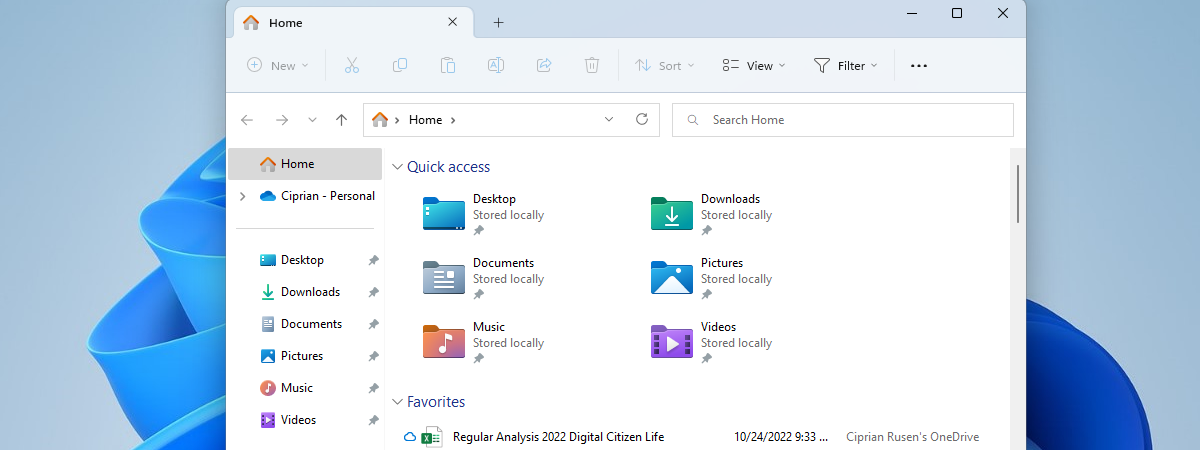
All user accounts in Windows get their separate user folder, which contains other subfolders like the ones you see in File Explorer: Downloads, Documents, Pictures, Videos, Music, and so on. These user folders are stored on the C drive by default, but their location can be changed. Transferring them may be useful on PCs with multiple drives or on laptops that don’t have a lot of storage, which you can extend using a microSD card. In such situations, moving your user folders (like Downloads) to another drive (D, E, etc.) may be a good idea. Here’s how the process works:
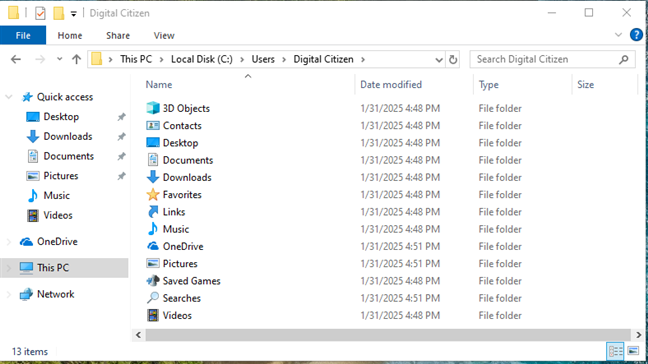
 The default user folders in Windows 10
While Windows 10 has thirteen visible user folders, Windows 11 has eleven. This operating system doesn’t include the 3D Objects folder because Windows apps no longer use it. Furthermore, the OneDrive user folder is created only for Microsoft accounts using this service. Local accounts don’t get a OneDrive user folder unless they install and configure the app.
The default user folders in Windows 10
While Windows 10 has thirteen visible user folders, Windows 11 has eleven. This operating system doesn’t include the 3D Objects folder because Windows apps no longer use it. Furthermore, the OneDrive user folder is created only for Microsoft accounts using this service. Local accounts don’t get a OneDrive user folder unless they install and configure the app.
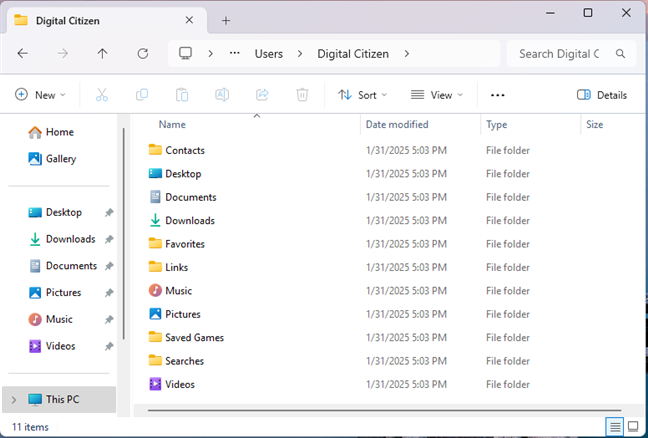
 The default user folders in Windows 11
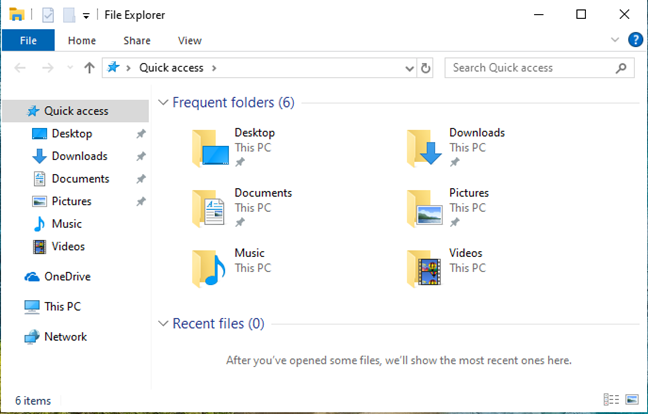
 In Windows 10, you can open the most used folders from Quick Access
The same happens in Windows 11: click or tap Home to see the Quick access shortcuts to your user folders: Desktop, Downloads, Documents, Pictures, Music, and Videos. You also see them as pinned shortcuts in the left sidebar.
In Windows 10, you can open the most used folders from Quick Access
The same happens in Windows 11: click or tap Home to see the Quick access shortcuts to your user folders: Desktop, Downloads, Documents, Pictures, Music, and Videos. You also see them as pinned shortcuts in the left sidebar.
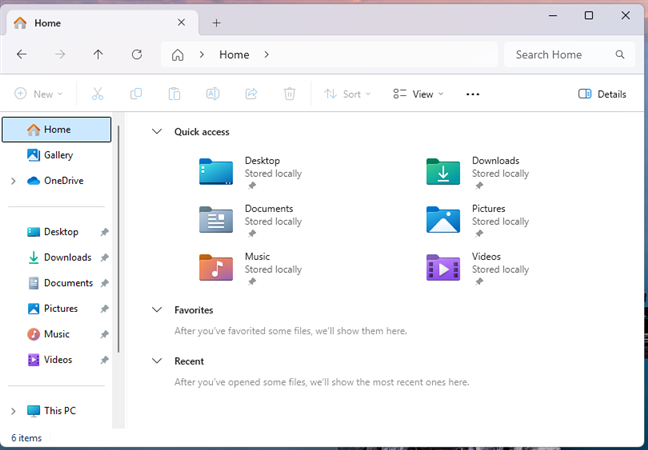
 In Windows 11, the most used user folders are also found in Home
To interact with these user folders, you don’t need to navigate to “C:\Users\Username”. All you have to do is use their shortcuts.
In Windows 11, the most used user folders are also found in Home
To interact with these user folders, you don’t need to navigate to “C:\Users\Username”. All you have to do is use their shortcuts.
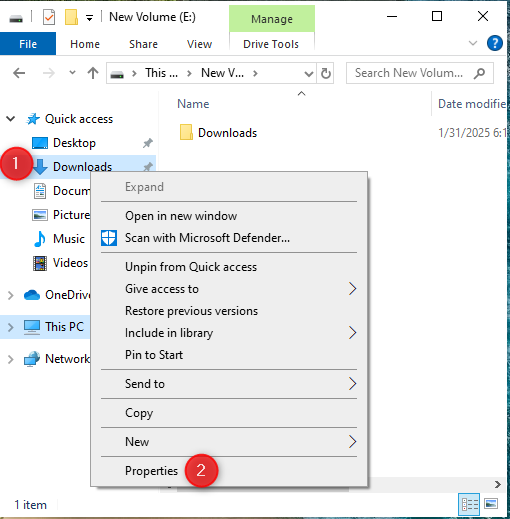
 Right-click on the user folder you want to move, and choose Properties
Things work the same in Windows 11. However, you can also find the shortcuts for your user folders in the Home section. Right-click (or press and hold) the user folder whose location you want to change and choose Properties.
Right-click on the user folder you want to move, and choose Properties
Things work the same in Windows 11. However, you can also find the shortcuts for your user folders in the Home section. Right-click (or press and hold) the user folder whose location you want to change and choose Properties.
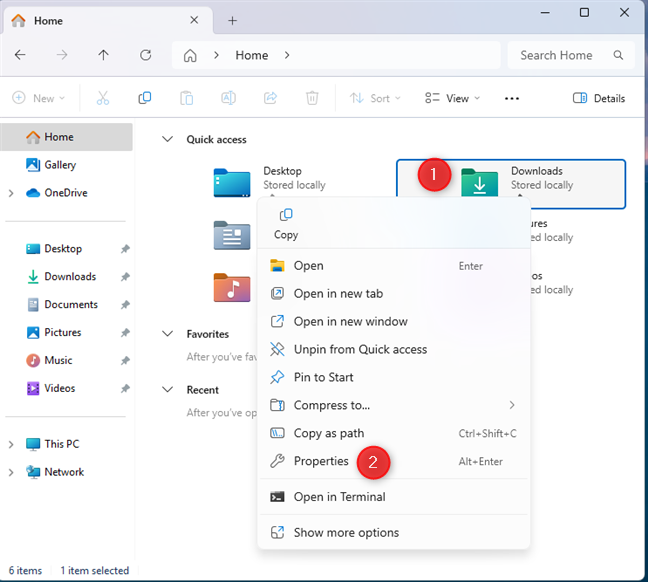
 Right-click on the user folder you want to move, and choose Properties
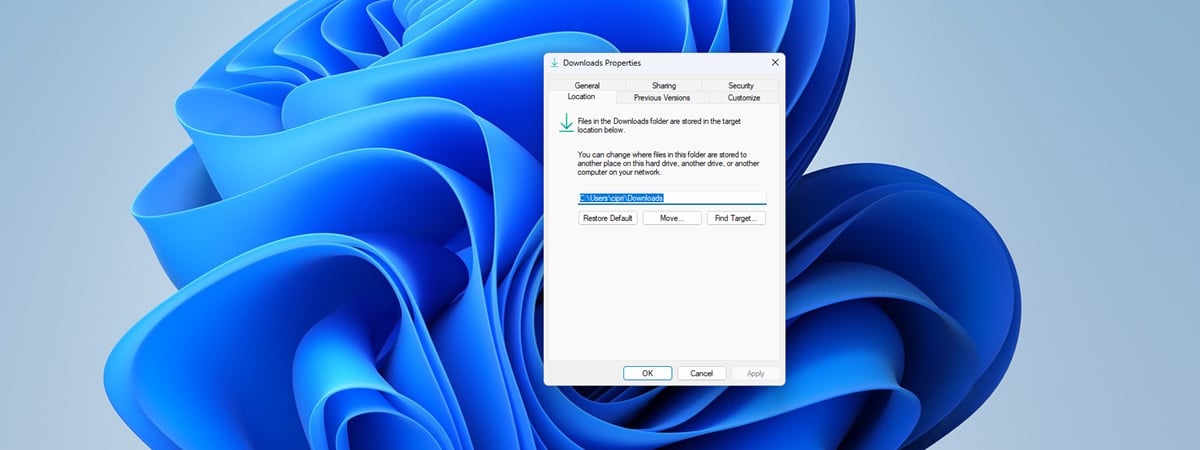
The Properties window opens for the selected user folder. In my case, it’s Downloads Properties. Click or tap the Location tab to see the current path towards the selected folder. Then, click or tap Move.
Right-click on the user folder you want to move, and choose Properties
The Properties window opens for the selected user folder. In my case, it’s Downloads Properties. Click or tap the Location tab to see the current path towards the selected folder. Then, click or tap Move.
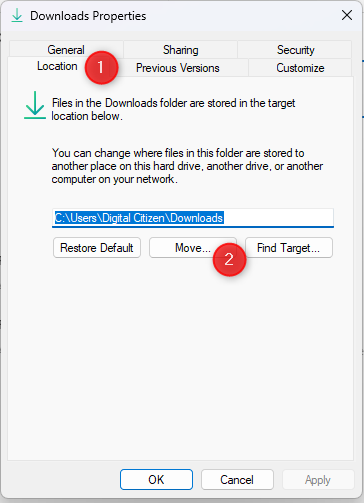
 Go to Location and click or tap Move
The Select Destination window shows up. Browse to the new location where you want to move your user folder, select the new folder, and click or tap Select Folder.
Go to Location and click or tap Move
The Select Destination window shows up. Browse to the new location where you want to move your user folder, select the new folder, and click or tap Select Folder.
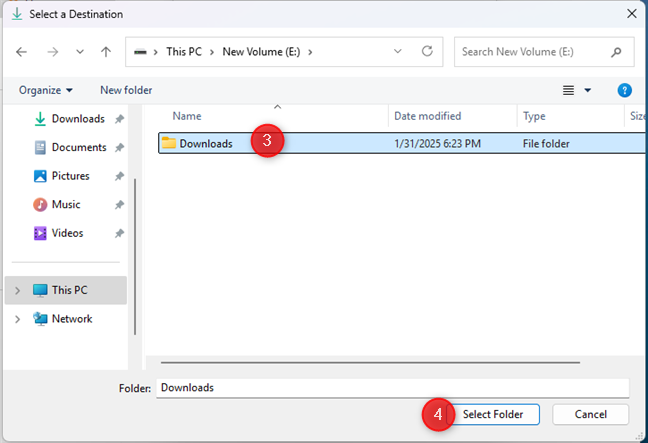
 Select the destination
The new location is now shown in the Location tab. To apply this change, click or tap OK.
Select the destination
The new location is now shown in the Location tab. To apply this change, click or tap OK.
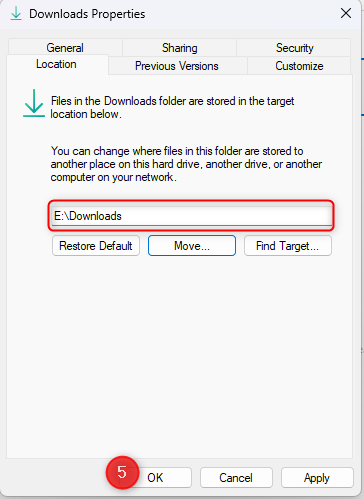
 Click or tap OK
You are asked if you want to move all the existing files from the old location to the new one. I recommend choosing Yes to ensure that everything is moved and that you don’t have issues finding the old files. These files remain in the previous location if you choose No.
Click or tap OK
You are asked if you want to move all the existing files from the old location to the new one. I recommend choosing Yes to ensure that everything is moved and that you don’t have issues finding the old files. These files remain in the previous location if you choose No.
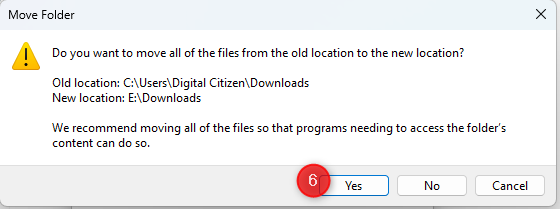
 Choose Yes and move all your files to the new location
The files are now moved over from the old location, and you see the progress of this operation. Be patient; when everything is copied, you can find that user folder in its new location.
While I showed the necessary steps for moving the Downloads user folder, the process is the same for all your user folders, including but not limited to Documents, Pictures, Videos, and Music.
TIP: If you ever encounter problems with permissions in File Explorer, here’s how to change permissions and take ownership of files and folders.
Choose Yes and move all your files to the new location
The files are now moved over from the old location, and you see the progress of this operation. Be patient; when everything is copied, you can find that user folder in its new location.
While I showed the necessary steps for moving the Downloads user folder, the process is the same for all your user folders, including but not limited to Documents, Pictures, Videos, and Music.
TIP: If you ever encounter problems with permissions in File Explorer, here’s how to change permissions and take ownership of files and folders.
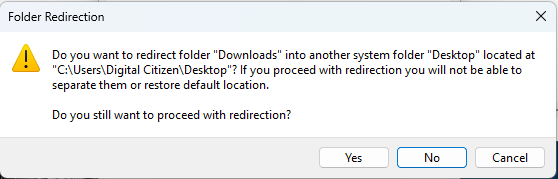
 Don't redirect a user folder into another
If you receive a similar warning, press No when asked if you are sure you want to proceed with the folder redirection and choose another location. It’s best to keep your user folders separate instead of merging them.
Don't redirect a user folder into another
If you receive a similar warning, press No when asked if you are sure you want to proceed with the folder redirection and choose another location. It’s best to keep your user folders separate instead of merging them.
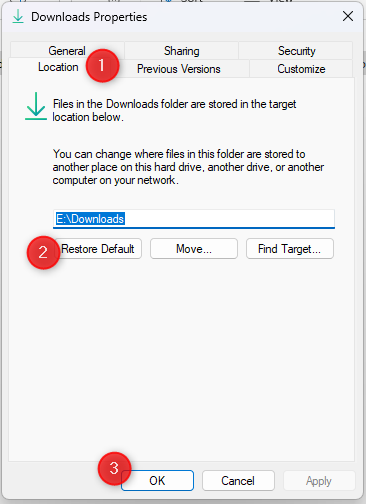
 In the Location tab, click or tap Restore Default
TIP: While you’re here, would you like the Recycle Bin to be easily accessible from the Quick Access section in File Explorer? If you do, then read our guide on how to add Recycle Bin to File Explorer.
In the Location tab, click or tap Restore Default
TIP: While you’re here, would you like the Recycle Bin to be easily accessible from the Quick Access section in File Explorer? If you do, then read our guide on how to add Recycle Bin to File Explorer.
Where are your user folders in Windows?
If you’re using Windows 10 or Windows 11, each user account has its own user folder, usually found at this location:C:\Users\Username
This user folder has many subfolders and files, some intentionally hidden by Windows. However, most subfolders and files are visible, and their location can be changed with a few clicks. Before sharing how to do that, here’s what you should find in your user account’s folder:
- 3D Objects - stores 3D files for apps like Paint 3D or Mixed Reality Portal. Unfortunately, these have been phased out by Microsoft, meaning that this folder will be empty on most computers. And while you can still find it on Windows 10 PCs, it should not be present on Windows 11 devices.
- Contacts - this folder used to be necessary for apps like Windows Contacts, where users could store contact data for people they wanted to get in touch with. This feature is no longer available in Windows, and while this user folder remains, it should be empty on most computers.
- Desktop - this is the user folder for your desktop, containing any shortcuts, files, and folders you have added to it.
- Documents - this is the folder that stores your documents by default. When you press the Save button in Word, Excel or some other app for working with documents, this is the user folder where that file is saved unless you choose another location.
- Downloads - this is the folder where your web browser and other Windows apps you’re using download files from the internet.
- Favorites - another legacy user folder that used to be necessary for storing your favorites in Internet Explorer, a web browser no longer supported by Microsoft.
- Links - this folder may be used to store a few shortcuts. For example, in Windows 7, this was the folder where the shortcuts from the Favorites section of Windows Explorer were stored. However, in Windows 10 and Windows 11, this folder doesn’t seem to serve a clear purpose, even though I found a shortcut to Bing hidden inside it on most of the computers I’ve tested.
- Music - is the folder where all music is stored by default. That is if you’re not using a streaming platform like Spotify or YouTube Music.
- OneDrive - if you are using Microsoft's cloud storage service, this is where your files are stored.
- Pictures - when you import photos from your digital camera or smartphone, Windows stores them here.
- Saved Games - the folder where some games may store your gaming data so that you can resume playing from your last saved game. However, most games, like the ones you install from Steam or Epic Games, do not use this folder to store saves. Some games installed from GOG Galaxy still store their saves in this folder.
- Searches - this is where Windows stores some data used by the operating system’s Search feature and specific to your user account.
- Videos - is the folder where videos are imported by Windows or stored by apps working with video.
Which user folders tend to be used the most? How to access them
Most people don’t need to use all the subfolders stored in their user folder. They only need a few, like the Desktop, Downloads, Documents, and Pictures. This is why Microsoft has added shortcuts to the most common user folders all over File Explorer’s user interface. For example, in Windows 10, you have shortcuts to those folders in the Quick access and This PC sections, found in the column on the left.How to move your user folder (Downloads, Documents, Pictures, etc) to another drive
Changing the location of any of your user folders can be done in just a few clicks. And even though File Explorer looks different in Windows 11 and Windows 10, the procedure is identical in both operating systems. Before moving a user folder like Downloads to a new location, open File Explorer, navigate to the drive where you want to save it, create a folder, and rename it using the name of the user folder you want to move (Downloads, Documents, Pictures, etc.). If you’re using Windows 10, right-click (or press and hold) on the Quick access shortcut of the user folder you want to move. In the menu that opens, choose Properties.Watch out for this mistake: Don’t move a user folder into another user folder!
Some people may be tempted to move one of their user folders (let’s say Downloads) into another user folder like Desktop. If you try to do this, you get an additional prompt titled Folder Redirection, which tells you that if you proceed with the redirection, you won’t be able to separate the two user folders or restore their default location. This is going to cause problems for your applications, as well as Windows itself.WARNING: Don’t move your entire user profile folder to another drive!
Some users are not content with moving a specific user folder, like Downloads or Documents, to another drive and want to move their entire user folder and all its subfolders. While this is possible through PowerShell scripts, Microsoft does not recommend or support it. If you do this, you expose yourself to many bugs and technical issues when installing Windows updates, upgrading to a newer version, or using apps that require access to the hidden files and folders usually found in your user folder. While written for Windows 8.1 back in 2013, this excellent article by Ed Bott explains the problems you expose yourself to even today, in Windows 10 or 11.How to restore the default location of a user folder
If you have moved a user folder to a new location, changed your mind, and want to return it, you can do that easily. Follow the same steps you took for changing that user folder: right-click (or press and hold) on it in File Explorer and choose Properties. Then, select the Location tab, and click or tap Restore Default. You see the location changing to the original one. Click or tap OK and confirm everything you’re asked about, such as creating a folder in the previous location and moving your files from one place to another.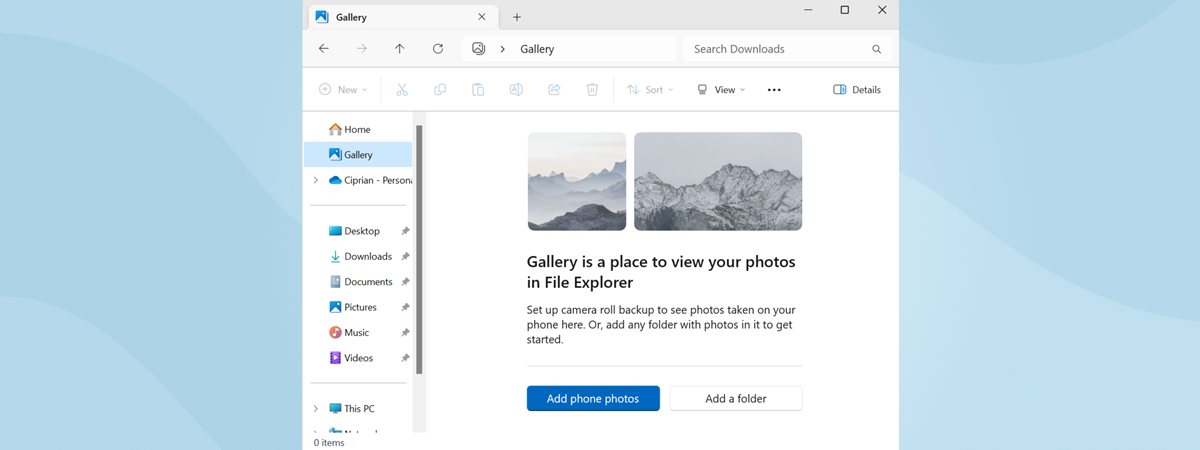
Discussion (29)
When I click properties I do not that the option to move the location. I don’t care about it but windows said my path name was too many characters. I renamed each folder and now it can’t find any of my files??
Here is a better tip..don’t use the users folders at all. Make your own folders that you can do anything you want with. Microsoft has its own rules when it comes to Users folders…even if they aren’t on your Windows partition. I learned this the hard way. I put the hard drive from my previous computer in my new one and continued using the Documents folder to store things. I created a shortcut on my desktop to it to be able to get to it quickly, since obviously, clicking on my own Users folder would take me to the one on my main drive.
Well, after Windows decided to crash on me, I ended up getting an SSD drive to reinstall it and kept both HDDs as well. In the process of rearranging folders so I could reformat and repartition those drives, I copied the entire contents of the old HDD’s Users folder thinking it would be what I needed. But nope. NONE of what I thought I was putting in that drive for the last year and a half was actually in there, even though the shortcut was clearly pointing to that drive. So I lose a year and a half’s worth of my documents. All because I stupidly used the Users folders.
Never again. They are stupid anyway. I didn’t really WANT all my documents in one folder anyway. And I sure as hell don’t want all my pictures of videos in the same folder
It worked….thank you.
Glad to hear it. Don’t hesitate to subscribe to our website, so that you receive our daily tutorials.
Excellent tutorial! Easy to understand and to the point. Thank you.
Is there anyway to create a new file of this type? a new folder where I can point the location elsewhere without having to use a shortcut folder?
so if i accidentally moved my download folder to there is there a way to change it back or am I going to have to reinstall?
I made the mistake of selecting yes for redirection. Now, I have 2 document folders. Every file in the downloads folder gets copied to documents folder. Can you please explain how to undo that??
I am currently dealing with this same shit. Did you find a fix? There is a comment on this thread that shows a regedit fix for it.
I hav unfortunately clicked on YES on the REDIRECTION PROMPT combining VIDEOS and PICTURES folders .some one please help me solve this ..
You must reset your user account by resetting Windows 10 or by creating a new user account and deleting your old one.
To change the default windows path you must look for the new virtual paths on windows 7
GUID library documents windows seven here
https://msdn.microsoft.com/en-us/library/windows/desktop/dd378457(v=vs.85).aspx
folders—like My Computer, for example—don’t have a specific “path,” they’re something that’s part of the OS itself. In those cases, that you can use the GUID of the location to make it work. For example, if you wanted it to open My Computer, you would change the target to:
%SystemRoot%explorer.exe /E,::{20D04FE0-3AEA-1069-A2D8-08002B30309D}
to my documents you must put
%SystemRoot%explorer.exe /C,::{FDD39AD0-238F-46AF-ADB4-6C85480369C7} (change the letter C to the letter of your drive)
I moved the My Documents folder to a shared drive on the server, but how do I move it back to default location, the ‘Location’ tab is gone.
Is it safe to redirect the Desktop to another partition of a hard drive (not the one used by the OS)?
why are there no responses on this thread?
There’s no location tab on the user’s folder properties. I am logged in as Administrator. I know it was there before but not now. using Win 10
same issue here. I think that the “Users” folder needs to be there permanently and cannot be moved (like trying to move the old system32). However, I might try highlighting all the folders INSIDE the user folder i want to move (for me, thats the contents of C:UsersYourName. ctrl+A, right click, and see if that works and report back.
Does anyone have a solution if you want the ENTIRE “Users” folder moved somewhere else? How can you do this without causing confusion for all the applications that reference this location for specific user application data? I could see this causing all kinds of issues so I need an answer before i will attempt this myself.
Upgraded to windows 10 from windows 7 without backing up data. All folders in B drive shifted someplace else. Downloads folder opens but the folders in it do not open or get copy pasted in another location even though videos and music can be played. Can I get back my folders somehow or is it lost forever? Please help
Please can someone clarify something for me. I am wondering where these user folders are on the hard drive. Do they slow down the computer when the get very loaded with files? My VIDEOS file is getting very full and I am thinking I need to move the folder to the C drive which has plenty of spare capacity. Can you please recommend what I should do with a bloated video folder.
Unless u have a 2nd hard drive, your video files are on the C: drive already. The best policy is always have a different location in case the C: drive fails. I recommend that you get an external hard drive (500 gig or more) to connect to the USB port on the computer or the Ethernet on your router for backup purposes.
Found a fix for the “Oops I clicked Yes”. You need to do a little Registry editing. Open Regedit, do a search for the folder you accidentally merged, so “C:UserblahDesktop”, you should find it in 4 places, the one you’re looking for was the 2nd I found: HKEY_CURRENT_USER->Software->Microsfoft->Windows->CurrentVersion->Explorer->User Shell Folders Update the errant key such as My Pictures, Desktop, or Personal (aka My Documents). I messed up Downloads which doesn’t show by name, but as a long numeric key like {xxxxxx-xxxx-xxxx-xxxx-xxxxxxxxxx}. Once you’ve corrected the path of the entry in question, you need to reboot to take effect. If for some reason that STILL doesn’t work, look for the other 3 mirrored locations (one just above in “Shell Folders”, and two under HKEY_USERS->[your user GUID]) and change them all.
Thanks Jack. I had tried that with no success so in the end transferred everything to a new account and deleted the messed up one.
I messed up when when setting up new libraries in win 7 as I have a duel boot system with Linux.I have put all user files in a separate partition so accessable from both OS’s.
Using a Zorin OS now but wanted to keep Windows for the odd app namely Serif web plus. Zorin is a great intro into Linux and would encourage anyone to give it a try.
Two years later, and this registry fix did the trick. Thank you!
How do you know which numerical number = the folder you messed up? I messed up downloads and there are three long numerical folders.
How did you know which numeric key to select?
Me also.
I can move the “My Documents” folder as in the method above but the other folders do not have a location tab in their properties.
Does any one have an answer.
I have also just found this article and wish I knew how to resolve it, I have just done the same thing. Tony, did you get an answer
I also made the mistake of clicking “Yes” on that folder redirection prompt to combine the Downloads and Desktop folders. What is the remedy for this? Re-installation of Windows? Would a system restore fix this?
I know this post is super old. But i’m wondering if you got a fix for this or did you have to reinstall?