



Is your laptop’s Wi-Fi network card no longer working correctly? Are the Ethernet settings on your Windows PC scrambled up, and you can’t make sense of anything? Do you have problems in general with network connectivity on your Windows laptop, PC, or tablet? Then, it is a good idea to reset your network adapter to its default settings and have it behave as new. Here’s how to do this both in Windows 10 and Windows 11:
IMPORTANT: All the procedures in this guide require you to log in to Windows 10 or Windows 11 using an administrator account.
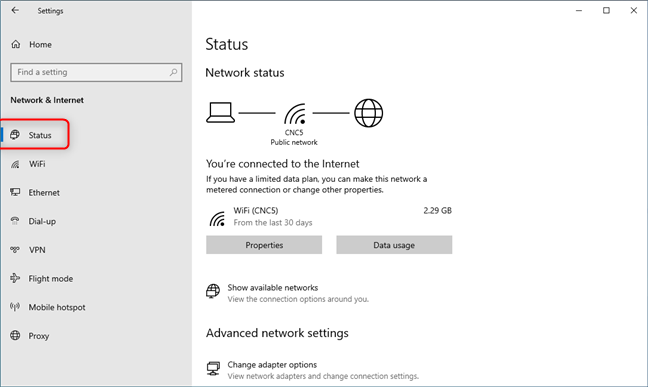
 The Network status section in Windows 10 Settings
On the right side of the Settings window, scroll down past the Advanced network settings and click or tap the Network reset link. You can find it at the bottom of the window, just above the help options.
The Network status section in Windows 10 Settings
On the right side of the Settings window, scroll down past the Advanced network settings and click or tap the Network reset link. You can find it at the bottom of the window, just above the help options.
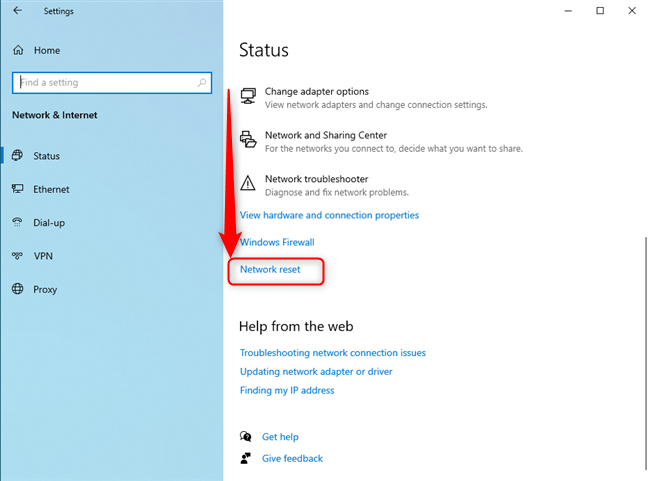
 Scroll down and click or tap Network reset
This takes you to the Network reset window. You are informed that the reset procedure will remove and reinstall all your network adapters (Ethernet and Wi-Fi) and set other networking components back to their original settings. If you’re using virtual machine software and VPN clients on your Windows PC, you might need to reinstall their virtual network adapters when the reset procedure is over. To go ahead with the process, click or tap Reset now.
Scroll down and click or tap Network reset
This takes you to the Network reset window. You are informed that the reset procedure will remove and reinstall all your network adapters (Ethernet and Wi-Fi) and set other networking components back to their original settings. If you’re using virtual machine software and VPN clients on your Windows PC, you might need to reinstall their virtual network adapters when the reset procedure is over. To go ahead with the process, click or tap Reset now.
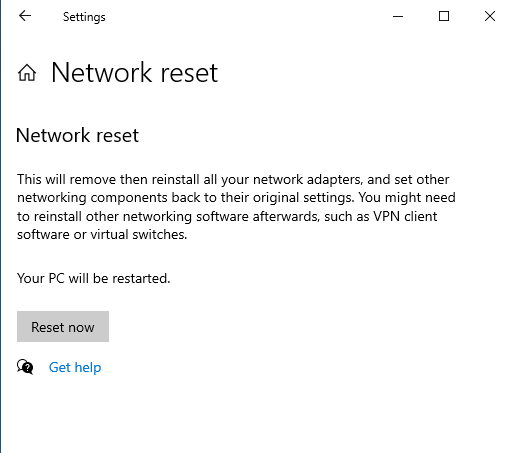
 Read what the network reset does and press Reset now
You are asked to confirm that you want to reset your network settings. Click or tap Yes.
Read what the network reset does and press Reset now
You are asked to confirm that you want to reset your network settings. Click or tap Yes.
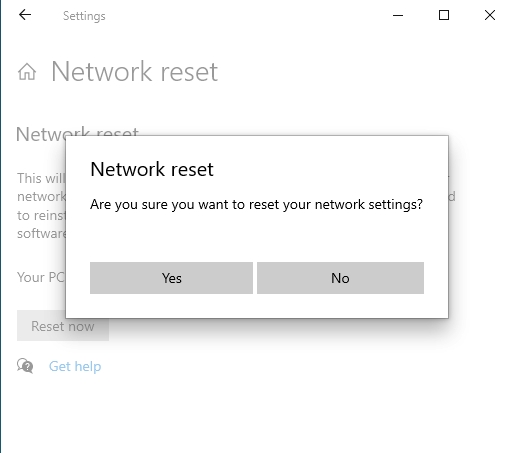
 Click or tap Yes to continue
Windows 10 informs you that you are about to be signed out, and your PC or device will shut down in five minutes. If you don’t want to wait this long, click or tap Close. Then, close any open documents or apps you’re using and restart Windows 10.
Click or tap Yes to continue
Windows 10 informs you that you are about to be signed out, and your PC or device will shut down in five minutes. If you don’t want to wait this long, click or tap Close. Then, close any open documents or apps you’re using and restart Windows 10.
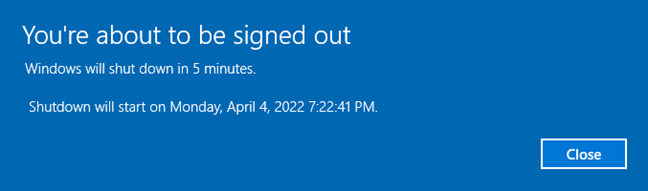
 Windows 10 will shut down in 5 minutes
The next time you sign it, all network adapters, both Wi-Fi and Ethernet, will be reset. The operating system won’t remember the connection details of your networks, the Windows 10 network profile set earlier, etc. From a networking perspective, it will be as if your computer is brand new and needs to be reconnected to all the networks you want to use.
Windows 10 will shut down in 5 minutes
The next time you sign it, all network adapters, both Wi-Fi and Ethernet, will be reset. The operating system won’t remember the connection details of your networks, the Windows 10 network profile set earlier, etc. From a networking perspective, it will be as if your computer is brand new and needs to be reconnected to all the networks you want to use.
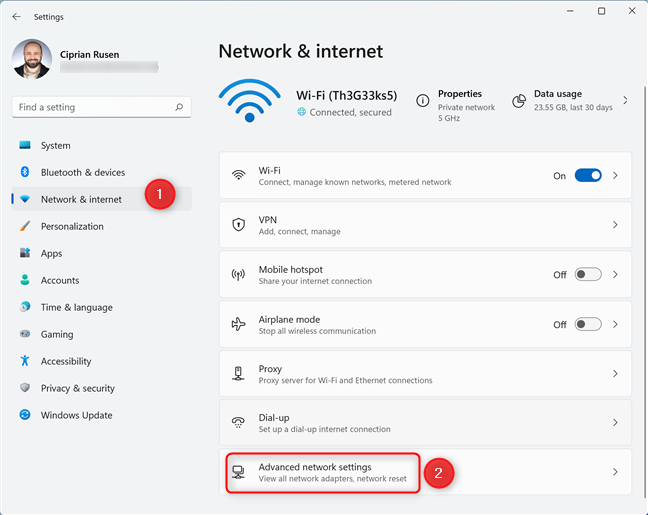
 Go to Network & internet and click or tap Advanced network settings
You see a list with all your network adapters: Wi-Fi, Bluetooth, Ethernet, virtual, etc. In the More settings section, click or tap on Network reset.
Go to Network & internet and click or tap Advanced network settings
You see a list with all your network adapters: Wi-Fi, Bluetooth, Ethernet, virtual, etc. In the More settings section, click or tap on Network reset.
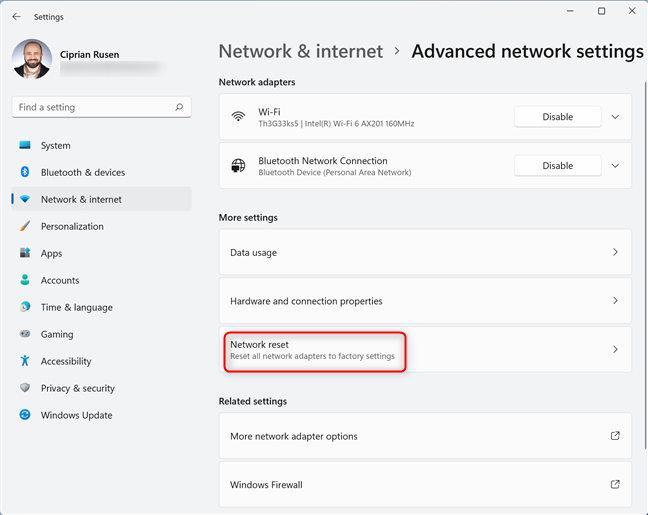 Click or tap Network reset
You are informed about what the network reset process does. Read everything carefully, and if you’re OK to go ahead, click or tap Reset now.
Click or tap Network reset
You are informed about what the network reset process does. Read everything carefully, and if you’re OK to go ahead, click or tap Reset now.
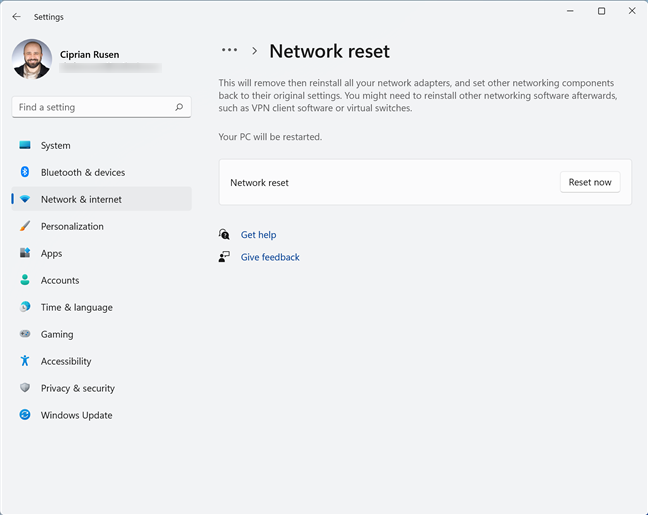 Read what the network reset does and press Reset now
You are asked to confirm that you want to reset your network settings. Click or tap Yes.
Read what the network reset does and press Reset now
You are asked to confirm that you want to reset your network settings. Click or tap Yes.
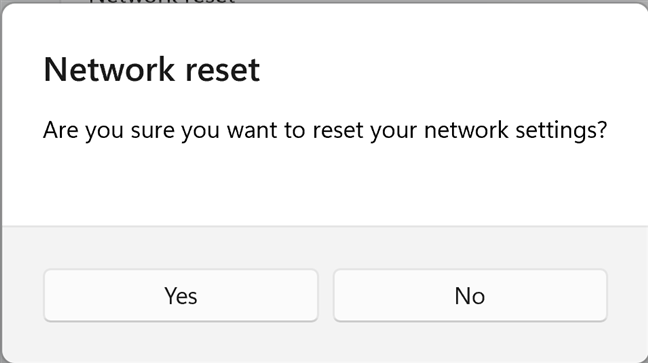
 Click or tap Yes to go ahead
Windows 11 informs you that it will shut down in five minutes. You can click or tap Close and do that yourself.
Click or tap Yes to go ahead
Windows 11 informs you that it will shut down in five minutes. You can click or tap Close and do that yourself.
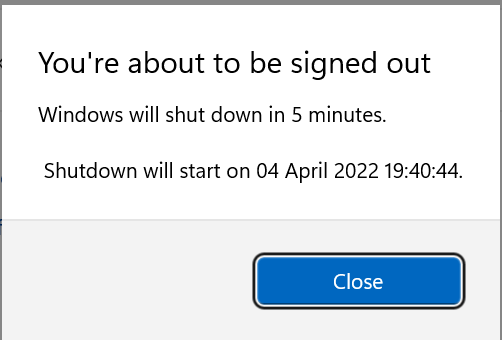
 Windows 11 shuts down in 5 minutes
After you restart Windows 11 and sign in, all network adapters will be reset, losing all their previous network settings.
Windows 11 shuts down in 5 minutes
After you restart Windows 11 and sign in, all network adapters will be reset, losing all their previous network settings.
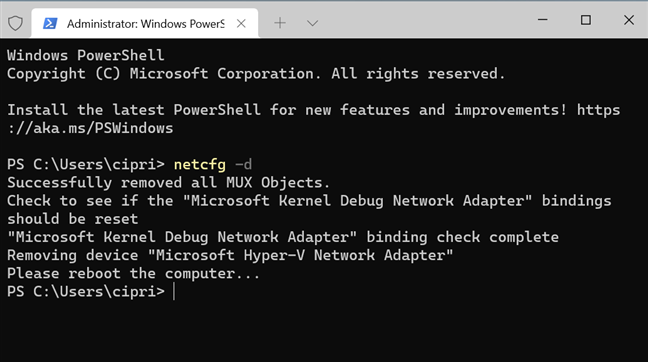
 The netcfg -d command resets all network adapters
Do as instructed, and the next time you sign in to Windows 10 or Windows 11, all your network adapters should be reset, both Wi-Fi and Ethernet adapters.
If you want to know more about the netcfg command and its -d parameter, which performs a cleanup/reset on all networking devices, go to this page: netcfg | Microsoft Docs.
IMPORTANT: Some websites on the internet also recommend you to run several commands as instructed by Intel in this troubleshooting guide in their Resetting the network stack section. Those commands DO NOT reset your network adapters, only some of their network settings. While they might help solve some problems, a full reset of your network adapters is performed only by using the command we shared above.
The netcfg -d command resets all network adapters
Do as instructed, and the next time you sign in to Windows 10 or Windows 11, all your network adapters should be reset, both Wi-Fi and Ethernet adapters.
If you want to know more about the netcfg command and its -d parameter, which performs a cleanup/reset on all networking devices, go to this page: netcfg | Microsoft Docs.
IMPORTANT: Some websites on the internet also recommend you to run several commands as instructed by Intel in this troubleshooting guide in their Resetting the network stack section. Those commands DO NOT reset your network adapters, only some of their network settings. While they might help solve some problems, a full reset of your network adapters is performed only by using the command we shared above.
How to reset network adapters in Windows 10 from Settings
If you’re using Windows 10, you can reset all network adapters and their settings by opening the Settings app (Windows + I). Then, click or tap Network & Internet. You should see the Status section selected on the left and your network status on the right, like in the screenshot below.How to reset network adapters in Windows 11 from Settings
If you’re using a Windows 11 laptop, PC, or tablet, you can also reset all network adapters from the Settings app. Obviously, the first step is to open Settings (Windows + I). On the left, choose Network & internet. On the right, click or tap “Advanced network settings” at the bottom.How to reset network adapters from CMD, PowerShell, or Terminal
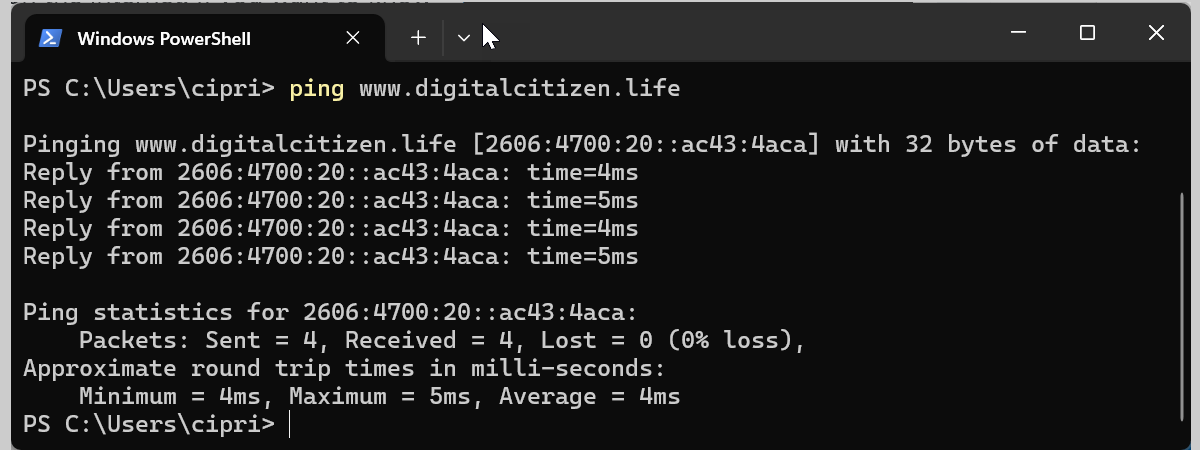
If you prefer a command-line environment to reset your network adapters, you can open as an administrator any of the following applications: Command Prompt, PowerShell, or Windows Terminal. Then, in any of them, type the following command and press Enter:netcfg -d
You should see the status of the command, like in the screenshot below. If everything is well, the last message should be “Please reboot the computer.”

Discussion (36)
Does this affect the wifi? My other devices are working on this wifi, just not my main computer.
I cannot connect to the internet and neither is it showing any icon for wireless devices. When i click on the network icon at the bottom right, it shows Network & Internet settings and also a disabled Flight mode(as in i cannot click on it. Its just a greyed out icon). If i reset the network, will it reinstall the adapters back?
Tried to fix Hotspot problem for hours, this is what finally helped. Thank you!
i have a problem with my airplane mode its grey and it wont turn off i have restarted the pc yet its still the same but the ethernet is connected i want to open my mobile hostport and bluetooth i can not because of the airplane mode, what should i do?
Thanks it worked
Thanks, that worked like a charm! My issue was my wireless was connecting, but not updating the IP config for a particular access point, so I was unable to browse, connect to any resource. Lights were on, but nobody was home. I was able to tether via my phone, but didn’t want to burn my data all day. The reset and reboot were fine and just had to reenter my wireless password.
Is there a way to save the entire network configuration (including virtual switches)?
after resetting network I can now see my PC on network but after I restart PC my PC does not show on network and I have to reset it again to get it to show . I have windows 10 1903 and it did not do this when I had 1803
Does doing a network reset on one machine effect all others on the network, or must they all be reset individualy?
It affects only the PC where the reset is done. In a network, you must reset each PC individually.
Thank you.
I have to do this every single time I restart my computer. If I restart without doing a network reset the computer is not seen on the network. Very frustrating as I have been networking computers for over 25 years and this just started a week ago.
my adapter settings was deleted somehow when I made the reset and now I have no wifi or cable internet working
I had an update in Win10 that caused my internet connections to completely stop working and found that what was needed was a driver update…in this case the Realtek PCIe GbE Family Controller gotten from the Realtek support driver site and upon installing the latest greatest got everything back to working properly.
Thanks for sharing how you solved this problem.
I updated my laptop to wondows 10 and now I can’t connect to my wifi it gives me no options. How can I fix this?
You may need drivers for your wireless network card, that work with Windows 10. See the site of your laptop manufacturer and download and install all the Windows 10 drivers for your laptop. Since you have no WiFi, you have to do this on a different PC that has an internet connection.
Thanks.
Can we do this using PowerShell?
Probably you can. Don’t know the commands you have to go through.
Good instructions…works great
Thanks
Greetings,
I’m wondering what other troubleshooting options there are before resetting my network adapter besides the tool Windows provides, which is unable to detect the problem. Last time something like this happened I found instructions for using the command line and it fixed the problem but I can’t find those instructions this time.
Your directions say: “You might need to reinstall other networking software afterwards, such as VPN client software or virtual switches.”
How does one do this?
I’m using Windows 10 and I did network reset for the No Internet issue and after the automatic reboot, it wouldn’t log in. It shows the password box for logging in after rebooting so I put my password in but it just wouldn’t log in and reboots itself automatically and repeatedly so I cannot do anything to fix this issue. I tried and restore Windows system back to after the last update but it failed. Can anybody help me with this?
How do I know how to reset the VPN? And the server etc…. I have no internet. No wifi to find discoverable.
I can’t connect to the internet either with ethernet or wifi. I tried everything including the network reset. What should i do?
Thank you – internet suddenly went off – now fixed !
I did the network adapters reset and now I have no network adapters to be found in my device manager. How do I get my adapters back?
While all networking aspects seemed OK and all the manual resets had been tried, we still could not see the shared files at all!!
I couldn’t readily remove the NICs as I am dealing with the computers remotely.
So, while I had to get reconnected, this fixed the file share visibility issue!!
After days of disabling and enabling ethernet (no ip address etc.) I came upon your site and followed your easy instructions. It worked. Back up and running. Thank you.
Awesome. Happy to help. Don’t hesitate to subscribe to our website so that you can read other helpful articles.
I don’t have a STATUS option on that settings page, and cannot find a NETWORK RESET anywhere.
You probably don’t have Windows 10 then.
Please I can’t access to any network on my Hp laptop window 10. Please how can I get back the WiFi without Internet? Thanks
I was given a second hand laptop with Windows 10 . Could not connect it until I found your instructions . THANK YOU .
Thank you very much for this post! Resolved a DNS server access issue completely when nothing else would work. Thank you much!