



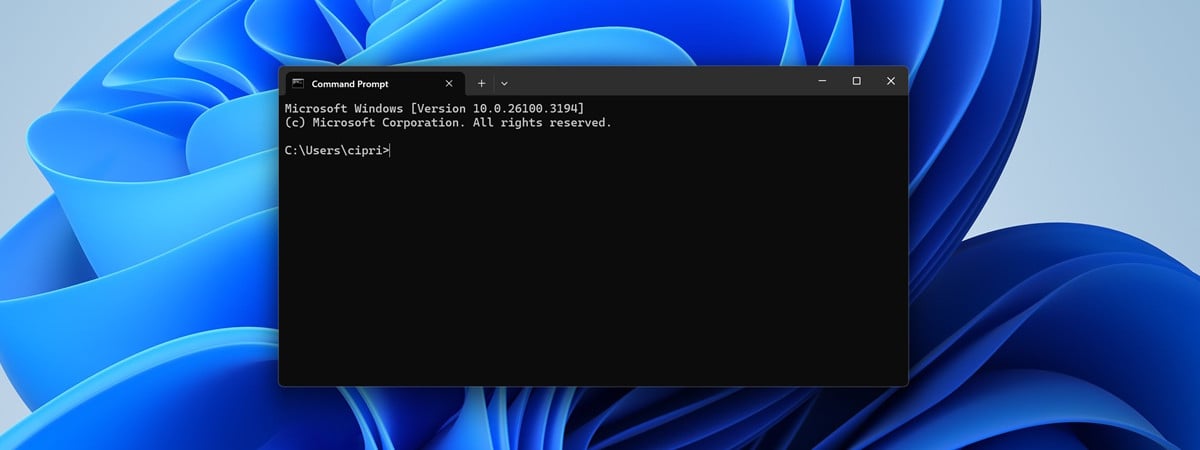
Command Prompt (or CMD) has been part of Windows since the early days, and even if it's now often overshadowed by PowerShell, it's still a quick and reliable way to get things done. Whether you want to browse through folders without touching File Explorer, copy files faster, or automate small tasks, there are some basic CMD commands worth knowing. In this guide, I'll show you how to navigate in CMD, change directory, switch drives, go back in the Command Prompt, and even create, rename, copy, or delete files and folders. Along the way, I'll give you real examples of when these commands are useful so you can start using them in everyday situations.
NOTE: The information shared in this tutorial applies to Windows 11, Windows 10, and even older Microsoft operating systems such as Windows 7. In the screenshots below, I'm using Command Prompt inside the Windows Terminal. However, keep in mind that this doesn't change the way commands work. Everything will be the same in the standalone version of Command Prompt, as well as in the CMD from Windows versions older than Windows 11, where Terminal isn't the default or isn't available at all.
1. How to change the directory in CMD (CD command)
The first command from the list is CD (Change Directory). This command enables you to change the current directory or, in other words, to navigate to another folder on your PC.
How to go to the root directory in CMD
The first iteration of the CD command you should know is CD\. It takes you to the top of the directory tree. To see how it works, after you open the Command Prompt, type:
… and press Enter on your keyboard. You should see how the CD\ command takes you to the top of the directory tree. In this case, to the C: drive.

Running the command to change the directory to root
The Command Prompt is not case sensitive, meaning that you can type commands using capital letters, lowercase, or any combination of them. The commands CD, cd, or Cd all work the same way.
How to navigate to a folder in CMD
Going back to the CD command, now you are working on the root of the C: drive. If you need to go to a specific folder from this drive, run the command CD Folder. The subfolders must be separated by a backslash character (\). For instance, when you need to access the System32 folder located in C:\Windows, type:
… as shown below, and then press Enter on your keyboard.

How to navigate to a folder in CMD
How to go back in Command Prompt
When you need to go one folder up, use the cd.. command. Let's assume that you're inside the system32 folder and want to go back to the Windows folder. Type:
… and press Enter on your keyboard.

Running the CD.. command to go up one level in the directory tree
The effect is that your current directory changes to C:\Windows.
How to change to Desktop or Documents in CMD
What about changing the directory in CMD to a personal folder, like your Desktop or Documents? You can do that the same way, using the CD command, but you need to know the location of your personal folder. In both Windows 10 and Windows 11, all user folders are found in:
For example, to change the directory in CMD to your Desktop, the command you have to run is:

Change path to the Desktop folder in CMD
Similarly, if you want to navigate to another user folder in CMD, run the same command but replace Desktop with the directory you need to get to. For example, if you want to change the path to your Documents folder, run:

Change directory to a user's Documents folder in CMD
TIP: Alternatively, instead of entering the name of your user folder manually, you can replace the path to a directory in CMD with the %userprofile% environment variable. Here's an example of how to change the directory in CMD to Desktop:

How to change directory in CMD to desktop
2. How to change drive in CMD
To access another drive, type the drive's letter, followed by :. For instance, if you wanted to change the drive from C: to D:, you should type:
… and then press Enter on your keyboard.

How to change the drive in Command Prompt
To change the drive and the directory at the same time, use the cd command, followed by the /d switch. The /d parameter is used to change the current drive to a specific folder from another disk volume.
For instance, if you are now on the D: drive and want to return to the Windows folder from the C: drive, you should type:
… and press Enter on your keyboard, as shown in the following screenshot.

Changing the drive and directory in Command Prompt
NOTE: By typing only the drive letter, you automatically move to your most recent location on that drive. For instance, if you are on the D: drive and type cd C:\Windows nothing seems to happen. However, if you type C: afterward, then the working folder changes to C:\Windows.
3. How to see what’s in a folder in CMD (DIR)
You can view the contents of a folder by using a command called DIR. To test it, I've created a folder named Digital Citizen, with several files and subfolders, on the D: drive. You can see them all in the screenshot below.

The contents of a folder found in the root of the D drive
The last time, our working folder was C:\Windows. To navigate to the folder mentioned above, I have to use the command cd /d D:\Digital Citizen. To view the contents of the folder, type:
… and press Enter. This displays a list of the files and folders contained in it, together with some details about each of them (the size and the date and time when they were last modified).

Using the DIR command to see the contents of a directory
4. How to create a folder in CMD (MD or MKDIR)
You can make a new folder using the MKDIR (Make Directory) or the MD command. The syntax of these commands is:
or
Let's say you need to create a new folder called Digital_Citizen_Life that is going to be placed in the D:\Digital Citizen folder. To do that, you need to type:
… and then press Enter, as shown below.

The MKDIR command in Command Prompt
TIP: If you want to create a folder that contains spaces in its name, make sure to wrap its name between quotes. For example, if you want to create a folder called Digital Citizen RO, run the MD command like this:

How to create a directory in CMD with spaces in its name
To test if it worked, use the DIR command again. The newly created folder appears in the list.

Using DIR to see the contents of the directory in Command Prompt
IMPORTANT: Do not forget that all these commands depend on your current location in the Command Prompt. For instance, if you are on the C: drive and type MKDIR test, the new folder is created in the root of the C: drive.
Another way to create a folder without going to the desired location for it is to type the complete path of the new folder. For example, if you are working on the D: drive and you want to create a new folder in C:, called other_stuff, type:
… and then press Enter.

Using MKDIR to create a new directory, with a full path
When you need to create a folder with subfolders at the same time, you can use this command:
For instance, if I type:
… three folders are created: Digital_Citizen_Tests, Beta, and Test1, in a tree-like structure.

Creating a folder with subfolders using MKDIR in Command Prompt
5. How to rename files and folders in CMD (REN)
To rename files and folders, you need to use the REN (Rename) command. To rename folders, type:
For example, if I wanted to rename the Digital_Citizen_Tests folder to Digital_Citizen_Final_Tests, I should run:
… and press Enter.

Renaming folders with the REN command in Command Prompt
To rename a file, use the same command, like this:
For instance, to rename the Digital Citizen Image1.bmp file to Image0.bmp, I have to run the command:

Renaming files with the REN command in Command Prompt
TIP: Keep in mind to use quotation marks ("") for any file names that include spaces.
6. How to copy files in CMD (COPY)
The COPY command allows you to copy files from one location to another. To use this command, type:
For example, let's use this command to copy the Image0.bmp file from the Digital Citizen folder located on the D: drive to the D:\Digital Citizen\Digital Citizen Tests folder. To make things more interesting, I want the file to be named testing_picture1.gif. To do all that, I must type the command:
… followed by Enter. You should also receive a confirmation of the operation, as you can see below.

Using COPY to copy files with Command Prompt
If you are copying within the same directory, you do not have to include the path in the command. As an example, let's copy Digital Citizen Notes.txt from D:\Digital Citizen in the same folder, only with a different extension: let's say Digital Citizen Notes.docx. To do that, I have to run the command:

Using the COPY command to copy files in the same directory
7. How to copy folders in CMD (XCOPY)
To copy a folder and its content from one location to another, use the XCOPY command:
Let's assume that I need to copy a folder from D:\Digital Citizen to F:\Backup Digital Citizen. To do that, I have to run the command:
The /s parameter ensures that all the directories and subdirectories are going to be copied, except the ones that are empty. The /i parameter creates a new directory (if the destination folder does not exist) and copies all the files in it.

Using XCOPY to copy folders and their contents in Command Prompt
TIP: Once you're familiar with basic commands, you might want to explore some that work with network connections. For a useful selection, read: Command Prompt (CMD): 10 network-related commands you should know.
8. How to delete files in CMD (DEL)
The DEL (Delete) is used to delete files from the folders you have created. To delete all the files from a folder, you can run the command:
For instance, let's say I want to delete all the files from the Digital Citizen Tests folder found in the D:\Digital Citizen directory. For that, I first open the Digital Citizen folder in Command Prompt and then I run this command:
Next, I must confirm the delete process by typing the letter y for Yes and then pressing Enter.
NOTE: To also delete hidden files from the folder, you must add the /h parameter. Also, note that the DEL command does not work for deleting folders - for that, you have to use the RD command, covered in the next section of this tutorial.

Using the DEL command to delete all the files in a directory in Command Prompt
If you need to delete a single file, use the DEL command followed by that file's name. For instance, to delete the file Digital Citizen Notes.txt from D:\Digital Citizen, I should run the command:

Using the DEL command to delete a single file in Command Prompt
Here is a list of useful DEL combinations that are worth mentioning:
… deletes all the files with the DOCX extension from the current folder (you can use any file extension necessary, DOCX is just an example).
… deletes all the files in the working folder whose names begin with Test.
… deletes ALL the files in the current folder.
9. How to delete folders in CMD (RD)
The DEL command cannot be used to delete folders. So, to remove any empty folder, you must use another command, RD (Remove Directory):
I've previously deleted all the files from the Digital Citizen Tests folder. It's now time to delete the directory too, by typing:

Using the RD command to delete folders in Command Prompt
10. How to open applications from CMD
To run a program from the Command Prompt, you can navigate to the folder that contains the executable and type the program's name. For example, if you want to launch Control Panel using Command Prompt, go to C:\Windows\System32, where its executable is: control.exe. Let's see how to do this if you’re in your user directory. First of all, change the working directory to the application's folder by typing:
Then, type the name of the app's executable file:
… and press Enter.

Launching an app from Command Prompt
Alternatively, you can also run an app from CMD directly, no matter what folder you're currently browsing, by specifying the app's executable file and its full path in Command Prompt. Opening Control Panel from the previous example would look like this, regardless of your current directory in CMD:
11. How to clear the screen in CMD (CLS)
As you work in Command Prompt, your screen can quickly fill up with previous commands and their results. If you want a clean slate without closing the window, use the CLS command. Simply type:
… and press Enter.

The CLS command clears the screen
Everything that was displayed before disappears, and you're left with a blank Command Prompt window, ready for new commands.

Once you use CLS, CMD is clean
This is useful when you want to focus on your next steps, avoid visual clutter, or make your screenshots look cleaner while following a guide.
12. How to get help in CMD
To access help in the Command Prompt, you can use the HELP command:
… and then press Enter. This displays a list of all the available commands, as you can see below.

The HELP command from Command Prompt
If a particular command interests you, type help followed by the name of that command. Another way to do the same thing is to type the command's name followed by the /? parameter. To test it, use:
or
… to display information about the cd command. In the picture below you can see the result:

Using the HELP command or the /? parameter to find help in Command Prompt
13. How to close Command Prompt (EXIT)
When you're done working in CMD and want to close it, there's no need to reach for the mouse or click the X button. Just type:
… and press Enter.

You can close CMD with the EXIT command
The Command Prompt window closes instantly. This works in both the classic CMD window and in Windows Terminal tabs, making it a quick way to wrap up your work.
Do you use Command Prompt in Windows?
The Command Prompt is a powerful tool for Windows users who are willing to get their hands dirty and learn new things. Learning how to navigate in CMD, go back in Command Prompt, change directory, and switch drives can save you time every day. Once you're comfortable, you'll find that certain tasks are much faster in CMD than in File Explorer. Now that CMD lives inside Windows Terminal, it's even better as you can keep multiple tabs open for different drives, projects, or even different shells entirely. If you've avoided it in the past, give it another shot. Start with the basics here, and soon enough, CMD will feel like second nature. I hope that this article was useful in helping you learn the basics of running commands in the Command Prompt. If you have any questions about it, don't hesitate to leave a comment below.
Discussion (121)
I started using computers in 1973 and purchased the first IBM 8088 computer for home using MS-DOS 2.0. I have always loved that computer, and the ability to manipulate files and directories from what is now the command line. I like the fact that most of the early MS-DOS system commands are still available in the modern operating system from the command prompt.
Greate tutorial,
Thanks for these tutorials.
I learned many things from it.
If you push the right arrow key the last keyboard entry is displayed one letter at a time. Push and hold the arrow key to re-enter the last line typed.
Thanks for posting this little manual on Line Commands. They are very useful especially when following a path in a directory tree.I “grew” up with MS-DOS but had forgotten some details of its syntax – so your article was like bringing me back to my youth.
Kind regards
Frank
Very informative and useful, than you very much!
Very useful. Thanks for sharing! 🙂
to go directly from one disk space to another disk space is not working
Hi, can you give more details?
Useful.
thank you very much
it is very useful for the beginner.
In number 2. we said that writing something like this /d terminates D drive and we write it when going to c, but in 3. we use d/ when going to D
helpful. thanks.
Very helpful, thank you!
How to move files and folders using CMD
Thanks, very clear!
very useful, thanks
I suspect one or more of my neighbors are latching on to my Wifi for their smart phones or Ipads and I would like them to stop. My service provider advises they are unable to see other users if they look at the IP address at their side. I’m sure the Command Prompt will be of good service to me. Thanks.
I dont know why a symple question like this in developers community becames so complex and even you got ridiculed for asking, thank you very much !!!
Excellent tutorial article. I have not used any DOS command for a long time. This tutorial is a great help for me to copy and rename files after downloading my videos/photos files from iCloud.
Learn a lot of thing ,thannk you.
This is great
thank you so much
Great tutorial, thnx 🙂
Here it is, February of 2020 and this article helped me add missing details to a set of instructions for how to use the command prompt in administrator mode in order to list and restore items quarantined by Windows Defender. I had to try many times to get the commands right but was finally successful. Your help was worth rubies. I should write an article on how to do it! Or, perhaps you should! Thank you!
learned a lot, thanks!
Nice wallpaper, can I have the source of your wallpaper, please? thank you
Thank you. Sure, here’s the link: Anime Girl Purple Flowers.
Thanks , specially for the simplicity
Bravo for this detailed/Clear/Well explained article….
It helps a lot in many situations to use CMD (for exp. when we need to mass rename some files)
Thank you
“PowerShell 1.0 was released in November 2006” – even before this article was originally written 10 years ago, PowerShell was already available. Can’t think of a software professional who still uses Command Prompt in Windows these days, really.
Thank you. It’s been so long that I’ve forgotten the basics.
How to do internet surfing using command prompt?
Try the Lynx browser.
Thanks!
Excellent tutorial! Can I save it as PDF files and let my students following your tutorial?
We would prefer to share with them the link to this article. Give them some of its content and then recommend that they visit the article and read more.
best command
This really helped me as I could not for the life of me get to my K: drive from my C: drive, so thank you!
It’s a really helpful article. Thanks
Thank You So Much! I fixed my problem!! 🙂
When searching on the web I saw this link. The explanations with all details are very “formidable” . They are very understanding with all details. I cannot believe it ! How it is possible. It is the best explanations I could find. Thanks to these I could take part to some studies and following lessons. THANKS A LOT.
Thank you for creating this helpful guide to the basics – it’s proven very useful for me. I’ve tinkered with computers for about 20yrs….but in the days of GUI, the basics of DOS aren’t required for Joe Average any longer…until you occasionally DO have to use it…unstuck time!! Cheers
Can you please make another article for all dos commands, because you explain in simple and easy way. Thanks and I appreciate your efforts
Hi,
Yes,article is so intresting with detailed information. Helpful during working on Windows 7 command prompt.
I hope,you share more information about programming on Windows 7.
Tech Cluz
We have other tutorials too about the Command Prompt. Just search for this term on our website.
useful article and also very clear explanation
thank you
Very nicely explained
Very nice article for a beginner to start..It was really helpful for me..
Thanks for appreciating our work. Do not hesitate to subscribe to our newsletter, so that you receive more awesome content.
Fantastic, straightforward tutorial. Thanks a lot! Exactly what I was looking for.
these triks are easy and early to use
CD was not given under CMD in keyboard shortcuts. I knew it from decades ago but needed to be reminded after all the insane W10 changes
helpful
Really a wonderful and easy to read article. Thank you so much !!
When you need to go to one folder up, use the “cd..” command. Let’s assume that you want to go back to the Windows folder. Type “cd..” and press Enter on your keyboard. You will notice that your current directory has changed to ”C:Windows”.
but whenver i use cd..
it says ‘cd..’ is not recognized as an internal or external command,
operable program or batch file.
thank you
so helpful
Without going into the ugly details, I’ll just say that you have saved me from a lot of grief!
Happy to help! 😉
thank you very much, your article helped a lot. I enjoyed learning.
This is possibly the best introduction I’ve seen to folks who’d like to learn more about the “intimidating” command prompt. Thank you for this valuable article!
Good article for head start.
Ren and rename command is not functioning in my command prompt.
Is there another command to rename a file?
Clear explanation and useful Information. Thanks for sharing.
Thanks, this helped a lot
You are welcome. Do not hesitate to subscribe to our newsletter, for more useful tutorials.
This is helpful! I’ve been wondering how to change the directory to another drive, such as an external USB drive. Thanks!
How to reboot by command promt
Read this article: 8 ways to shut down or restart a Windows 10 computer or device.
Thanx guys
Thank you for this clear and concise article. I bookmarked it because I’m trying to become a developer and need helpful texts like this.
Useful for freshers for quick learn.
Well job, great appreciate
thanks
For freshers who doesn’t know how to work in command prompt this tutorial will help a lot
Good for learning.
A handsome tutorial.i learn this in school but never grip on it because of GUI but now I am bit confident about CMD.
Happy to help. 🙂
hi, can you please help?
how can i go up in the cdm screen or scroll up, if i don’t have the bar on the side of the screen?
Well, this brings some great memories. I am old enough to remember good old MS DOS.
i appreciated it helped e a lot thanks
That was exelent and perfecr description for a new one like me…thank you…
I need to know how to recover memory card which is a raw type drive.please do the needful.
Good intro. However, it would be less confusing if you added a space after your cd command. Instead of “cd..”, it should be “cd ..”. It’s a command and an argument. The fact that Windows handles it even without space is just weird.
A very interesting piece of writing, i learnt a lot by reading this. My gcsi i.t exam is in a cupple of weeks and this page has helped me learn alot on my skills with command prompt. I would like to thank the writer for a very descripted and intresting way to see and understand command prompt which prooves he is a very bright and and patient person.
Very useful and clear article. Really nice.
xcopy doesn’t work on my windows 10…………
i got a error message such that not internal or external command provided……
Thank you for the guidance. It helps a lot 🙂
Immensely useful. Thanks
i love your everything … in xcopy command “/i” doesn’t work for me. i thought it will create the same directory at the destination if doesn’t exist, unfortunately not. could you help me please !
Helpful and right to the point. Thanks man!
okk i got it
how to change the drive i.e. from a c: drive to d: or e: drive??
thank you very much for the great tutorial, it was extremely informative and easy to follow, ive been looking for a tute on the command prompt that was directed at a lower level of understanding for ages. looking forward to reading the rest of the tutorials. keep up the good work.
yes! This is so intersting thing at all but here we have a problem i am not understanding the file copy system. plz help to more understandig……………
best tutorial so far…kudos!
Thank you so much.This post is very helpfull with me.
Thanks, very descriptive tutorial.
My question is how do i switch to desktop from C drive ?
Most interesting tutorial. I want to know about cmd. Now, this helped me very much. Thanks!
Thank you very much, this article was very clear and easy to understand unlike many others ive tried and the pictures make it easier to understand incase we feel like we didn’t do something right.
Thanks For the comprehensive tutorial about CMD
like to see command repair tools like regfix and sfc /scannow alternates for system repairs!
Thanks! I needed help in changing directory and your article helped a lot. Thumbs up 🙂
thank you!
Very good explanation. But need more commands of system32
Nice…………..
where to put the parameter /h in case for deleting the hidden files?? :/
what about the directories containing space within their name? :/
Excellent easy to understand even for a beginer.
hi! i’m new to this site and i scaned all its contents.I found everything very clear to me.Every command is discused in detail and it clarified all my doubts regarding commands i read.This info. is very helpful.
I’m looking forward to the next article.
Excellent tutorial,simple and amazing
incredible!!!!……..
Isn’t there any online guid teacher for this?
How can I get full information of command prompt by using windows 7, Example How to shutdown computer, secure data; locking PC, encrypt and decryption data etc by using command prompt.
Thank You for Help!
Can one use the command prompt for hacking purpose also. If yes, then how? what are the commands?
Use the ‘hack’ command.
Example: c:/>hack google.com
Works every time
so awesome
The information was very good i was impressed. However, if you were looking at this and had no prior knowledge of command prompt, the whole idea of paths and drives would confuse you. A better explanation of terms would have made this even better than it already is.
Hi
this is a very helpful information
Hi,
Yes,article is so intresting with detailed information. Helpful during working on Windows 7 command prompt.
I hope,you share more information about programming on Windows 7.
Maximilian,
As usual, an excellent article: very clear and exteremely detailed so one can easily follow along.
I sure hope you continue the series about the Command Prompt and then do a series on the command shell.
I am looking forward to the next article.
Thanks,
BRIAN