



To create a Gmail account, go to the Google account signup page, choose Create account, enter your name, birthday, Gmail address, password, and recovery details, then agree to Google’s terms. On mobile, you can create a new Gmail account from the Gmail app by tapping Sign in, choosing Google, and selecting Create account.
A Gmail account gives you a free email address and access to other Google services such as Google Drive, Docs, Sheets, YouTube, Calendar, and Chrome sync. You can make a Gmail account for personal use, a child, or a business, and the process only takes a few minutes.
Create a Gmail Account on a Computer
Creating a Gmail account on a desktop or laptop is the easiest method because the signup page is simple to follow. You can use any modern web browser, such as Chrome, Edge, Safari, or Firefox.
Before you start, think of a username you want to use. This will become the first part of your email address before @gmail.com.
Steps:
- Open your web browser.
- Go to the Google account sign-in page (gmail.com)
- Click Create account.
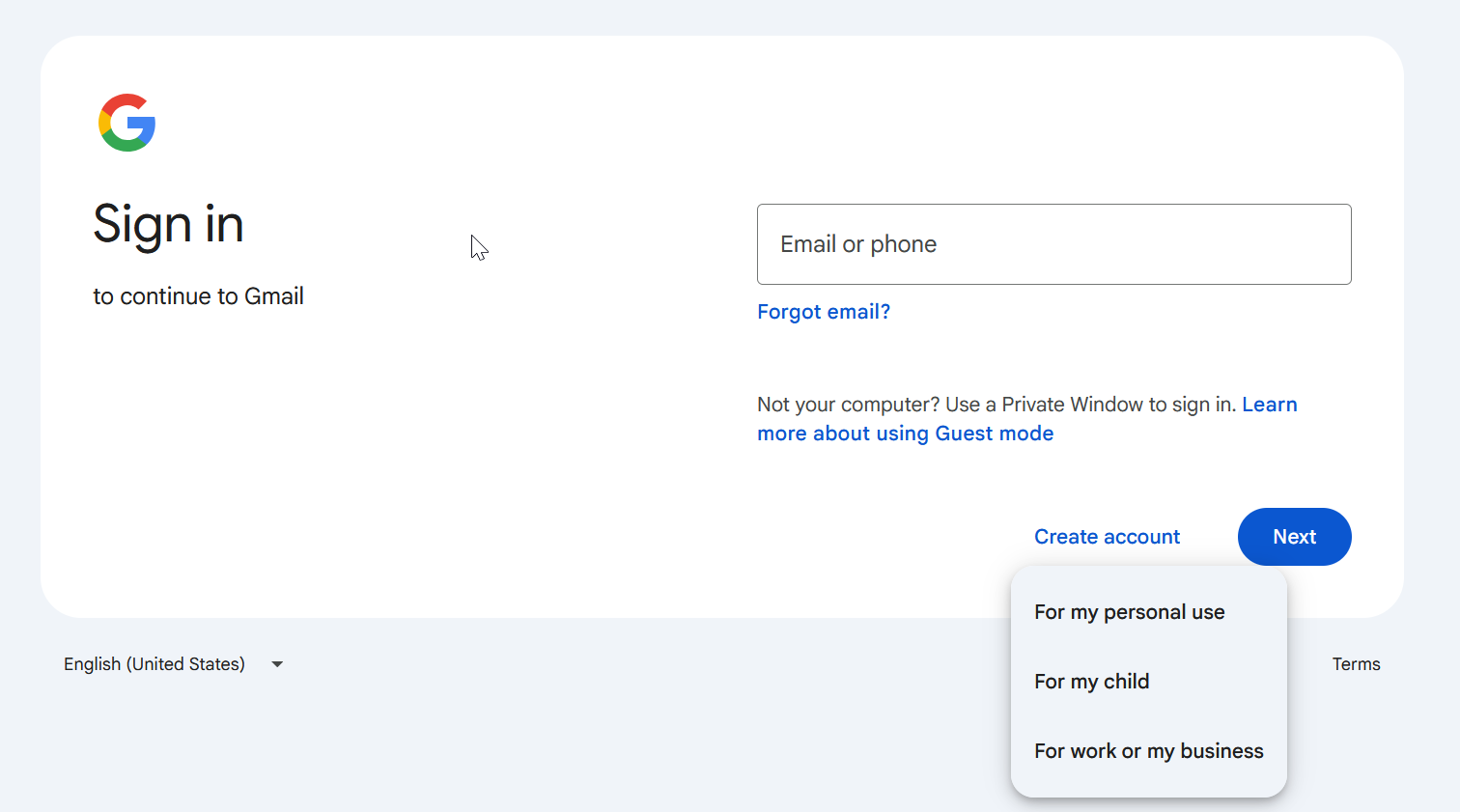

- Choose For my personal use, For my child, or For work or my business.
- Enter your first name and last name.
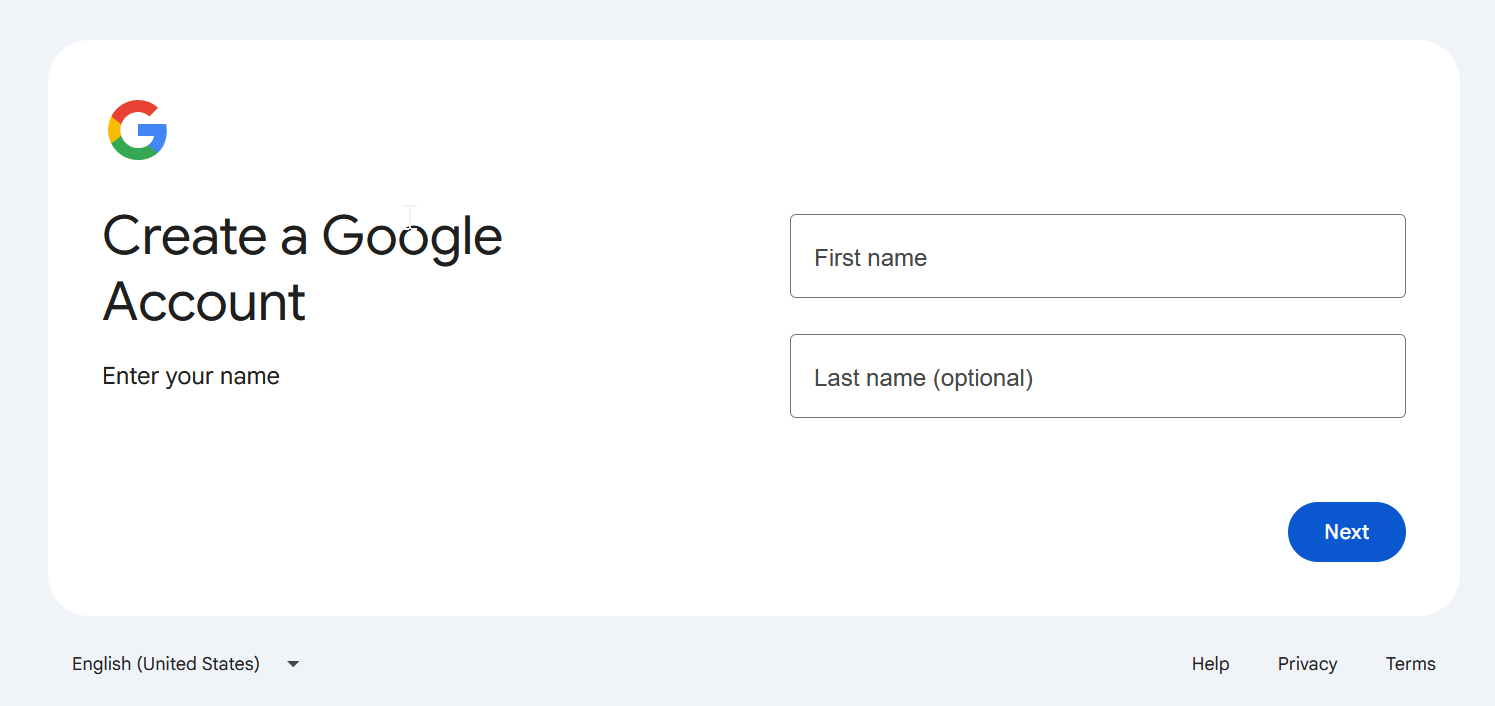

- Click Next.
- Enter your birthday and gender.
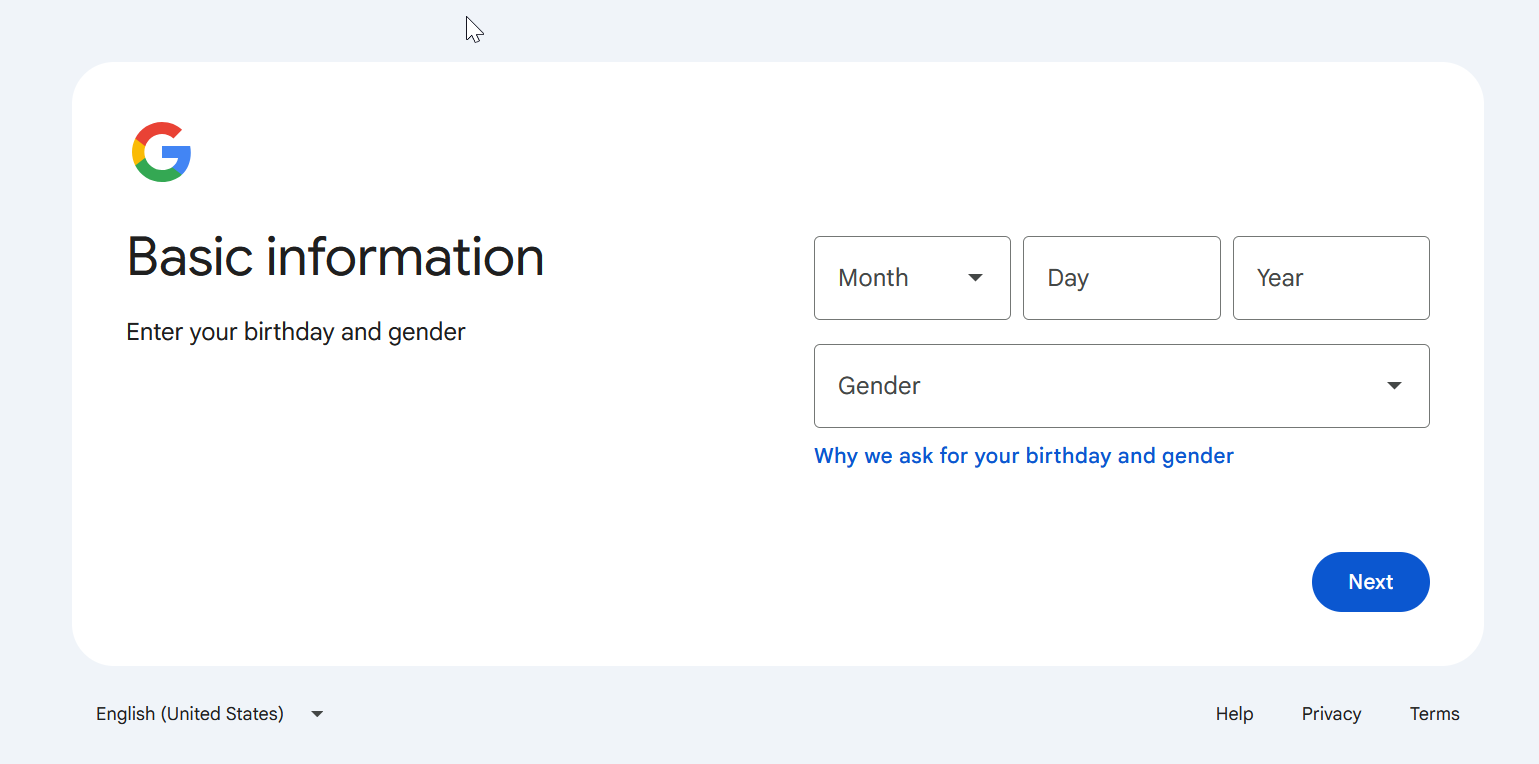

- Click Next.
- Choose one of the suggested Gmail addresses or create your own.
- Click Next.
- Create a strong password.
- Confirm the password.
- Click Next.
- Add a recovery email if you want to.
- Review your account information.
- Click Next.
- Read and accept the terms.
- Confirm your personalization settings.
- Open Gmail to start using your new inbox.
If the Gmail username you want is already taken, try adding numbers, initials, or a small variation. Gmail addresses must be unique, so two people cannot use the same address.
Create a Gmail Account on the Gmail App
You can also create a Gmail account from your phone or tablet. This works on Android, iPhone, and iPad, but the exact buttons may look slightly different depending on your device.
If you already have the Gmail app installed, you can start from there. If not, download it from your device’s official app store.
Steps:
- Open the Gmail app.
- Tap Sign in.
- Tap Google.
- Tap Continue if your device asks for permission.
- Tap Create account.
- Choose For my personal use or For work or my business.
- Enter your first and last name
- Tap Next.
- Enter your birthday and gender.
- Tap Next.
- Choose a suggested Gmail address or create your own.
- Tap Next.
- Create a password.
- Tap Next.
- Enter your phone number if Google asks for verification.
- Enter the verification code sent to your phone.
- Review your account details.
- Tap Next.
- Read and accept the terms.
- Confirm your settings.
- Open your Gmail inbox.
Once the account is created, you can send emails, receive messages, add contacts, and change your Gmail settings from the app.
Create a Gmail Account for a Child
You can create a Gmail account for a child, but Google may require parental consent and extra setup. This helps parents manage the child’s account and control certain settings.
The process is similar to making a regular Gmail account, but you may need to sign in with your own Google account to approve it.
Steps:
- Open the Google account signup page on a computer.
- Click Create account.
- Select For my child.
- Enter your child’s name.
- Add the child’s birthday and other required details.
- Choose or create a Gmail address.
- Create a password.
- Sign in with your own Google account if asked.
- Review the parental consent information.
- Complete the setup.
A child account may include family settings, supervision tools, and age-based limits depending on the child’s age and location.
Create a Gmail Account for Work or Business
You can create a regular Gmail account for work, but a business may be better served by Google Workspace. A normal Gmail address ends in @gmail.com, while Google Workspace can use a custom business domain.
For example, a regular Gmail address looks like [email protected]. A business email with Google Workspace can look like [email protected].
Steps:
- Go to the Google account signup page.
- Click Create account.
- Choose For work or my business.
- Enter your name.
- Add your birthday and gender.
- Choose your Gmail address.
- Create a strong password.
- Add recovery details if requested.
- Accept the terms.
- Finish setting up the account.
A free Gmail account is fine for freelancers, job applications, and basic work communication. A custom business email looks more professional if you run a company or brand.
Choose a Good Gmail Address
Your Gmail address is the email people will use to contact you, so it should be simple and easy to remember. For personal use, your name or a clean variation of it usually works best.
Avoid usernames that are too long, confusing, or hard to spell. If you are making a work email, keep it professional.
Good Gmail address ideas include:
- Your first and last name
- Your name with a number
- Your initials and last name
- Your name plus your profession
- A simple business or brand name
If your first choice is taken, do not use random symbols or strange spellings unless you really need to. A clean email address is easier to share and remember.
Create a Strong Gmail Password
A strong password helps protect your Gmail account from hackers and unwanted access. Since Gmail can connect to many other Google services, your password should be hard to guess.
Do not use your name, birthday, phone number, or simple passwords like password123.
Steps:
- Use a mix of uppercase and lowercase letters.
- Add numbers.
- Add symbols if allowed.
- Make the password at least 12 characters long.
- Avoid common words.
- Do not reuse passwords from other accounts.
- Save it in a trusted password manager if needed.
A strong password is one of the simplest ways to keep your email account safe.
Add Recovery Options to Your Gmail Account
Recovery options help you get back into your Gmail account if you forget your password or Google notices unusual activity. You can add a recovery email, a phone number, or both.
Skipping recovery options may make it harder to recover your account later.
Steps:
- Open your Google Account settings.
- Go to the Security section.
- Find Recovery email.
- Add an email address you can access.
- Find Recovery phone.
- Add your phone number.
- Verify the recovery details if asked.
Use recovery information that belongs to you and stays up to date. If you change your phone number or backup email, update your Google account settings.
Open Your New Gmail Inbox
After creating your account, you can open Gmail and start using your inbox. Gmail organizes messages into different areas, such as inbox, sent mail, drafts, spam, and trash.
On desktop, Gmail also shows categories like Primary, Promotions, and Social if inbox categories are enabled.
Steps:
- Open Gmail on your computer or phone.
- Sign in with your new Gmail address.
- Go to Inbox to read messages.
- Click or tap Compose to write a new email.
- Enter the recipient’s email address.
- Add a subject.
- Write your message.
- Click or tap Send.
You can also add a profile picture, create labels, import contacts, and change your inbox layout.
Add Another Gmail Account to Your Device
You can use more than one Gmail account on the same device. This is useful if you want separate accounts for personal emails, work emails, school, or family use.
Gmail makes it easy to switch between accounts without signing out every time.
Steps:
- Open Gmail.
- Tap or click your profile picture.
- Select Add another account.
- Choose Google.
- Sign in with another Gmail address or create a new one.
- Follow the on-screen steps.
- Tap or click your profile picture again to switch accounts.
Keeping separate accounts can help you stay organized and avoid mixing personal and work messages.
Sign Out of Gmail
Signing out is simple on a computer, but it works differently on mobile. In a browser, you can sign out directly from Gmail. On a phone, you may need to remove the Google account from the device to fully sign out of Gmail.
Only remove an account from a shared or old device if you no longer want that device to access your Gmail.
Steps on computer:
- Open Gmail.
- Click your profile picture in the top-right corner.
- Click Sign out.
Steps on mobile:
- Open the Gmail app.
- Tap your profile picture.
- Tap Manage accounts on this device.
- Choose the account you want to remove.
- Tap Remove from this device.
Removing the account from your phone does not delete the Gmail account. It only signs it out from that device.
Can You Use Gmail in Other Email Apps?
Yes, you can use Gmail in other email apps such as Apple Mail, Outlook, or the mail app on your phone. This is useful if you prefer managing several email accounts in one place.
You may need to sign in with your Google account and allow permission for the app to access Gmail.
Steps:
- Open your preferred email app.
- Choose Add account.
- Select Google or Gmail.
- Enter your Gmail address.
- Enter your password.
- Follow the security prompts.
- Allow access if you trust the app.
- Wait for your emails to sync.
Only connect Gmail to apps you trust. Avoid entering your Gmail password into unknown apps or websites.
Tips for Using Your New Gmail Account
Once your Gmail account is ready, take a few minutes to adjust your settings. A small setup now can make your inbox easier and safer to use.
You can change notifications, add contacts, set a profile picture, and review privacy settings.
Useful setup tips:
- Add a recovery email and phone number.
- Turn on 2-step verification for better security.
- Add important contacts.
- Create labels to organize messages.
- Check the spam folder regularly.
- Do not click suspicious email links.
- Update your password if you suspect unusual activity.
Gmail has strong spam filtering, but scam emails can still get through. Always be careful with messages asking for passwords, money, or personal information.
FAQ
Is Gmail free?
Yes. A personal Gmail account is free. Google also offers paid plans if you need more storage or business features.
Can I have more than one Gmail account?
Yes. You can create and use multiple Gmail accounts. You can also add several accounts to the same phone, tablet, or browser.
Do I need a phone number to create Gmail?
Sometimes Google asks for a phone number to verify your account or help with recovery. Whether it is required can depend on your device, location, and signup activity.
What should I do if my Gmail username is taken?
Try adding numbers, initials, a middle name, or a simple variation. Gmail usernames must be unique, so you cannot use an address already owned by someone else.
Can I create a Gmail account for my child?
Yes. Choose the child account option during signup. You may need to provide parental consent and manage the account with family settings.
Can I use Gmail for business?
Yes. You can use a free Gmail account for basic work, but Google Workspace is better if you want a custom business email address with your own domain.
How do I open my Gmail inbox?
Go to Gmail in a browser or open the Gmail app, then sign in with your Gmail address and password. Your inbox will show your received emails.
How do I send an email in Gmail?
Open Gmail, click or tap Compose, enter the recipient’s email address, write a subject and message, then click or tap Send.
How do I sign out of Gmail?
On a computer, click your profile picture and choose Sign out. On mobile, open account settings and remove the Gmail account from that device.
Can I use Gmail in Outlook or Apple Mail?
Yes. Add your Gmail account inside Outlook, Apple Mail, or another trusted email app, then sign in with your Google account.


Discussion (0)
Be the first to comment.