



To check for updates in Windows 10, open Settings, go to Update & Security, select Windows Update, and click Check for updates. Windows will search for available updates and automatically download and install important updates when they are ready.
Windows 10 normally checks for updates on its own, but manually checking is useful when you want the latest security patches, bug fixes, drivers, or feature improvements right away. Some updates may require a restart, so it is a good idea to save your work before you begin.
Open Windows Update Settings
Windows Update is built into the Windows 10 Settings app. This is where you can check for updates, install available downloads, view optional updates, and restart your PC when needed.
You do not need a separate tool to update Windows 10. Everything can be done from the main Settings menu.
Steps:
- Press Windows + I to open Settings.
- Click Update & Security.
- Click Windows Update on the left side.
- Review the update status shown on the screen.
If Windows says your device is up to date, there may be no updates available at that moment. You can still click Check for updates to search again manually.
Check for Windows Updates
The Check for updates button tells Windows 10 to search Microsoft’s update servers for available updates. This can include security updates, quality updates, driver updates, and sometimes feature updates.
Windows may begin downloading updates automatically after the scan finishes.
Steps:
- Open Settings.
- Click Update & Security.
- Select Windows Update.
- Click Check for updates.
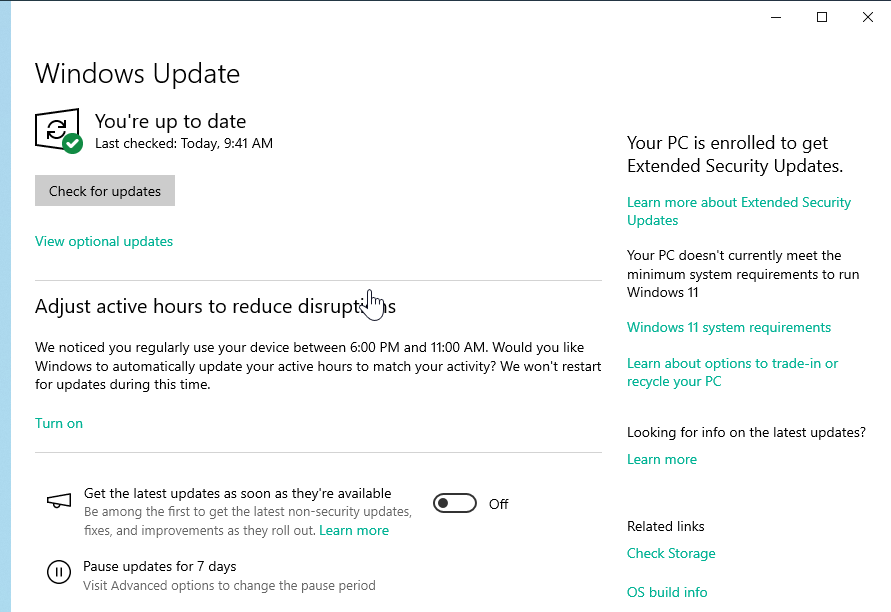

- Wait while Windows searches for updates.
- Let Windows download and install any available updates.
During this process, keep your PC connected to the internet and avoid shutting it down. If you are using a laptop, plug it into power if possible.
Install Available Updates
After Windows finds updates, it usually starts downloading and installing them automatically. Some updates install quickly, while larger updates may take more time.
Windows may show progress for each update. You may see messages such as downloading, installing, pending restart, or retry if something fails.
Steps:
- Wait for Windows to finish checking for updates.
- Let available updates download.
- Let Windows install the updates.
- Follow any on-screen instructions.
- Restart your PC if Windows asks you to.
If Windows shows a Download and install option, click it to begin installing that update manually.
Install Optional Updates
Optional updates can include drivers, feature updates, and non-security updates. You do not always need to install these, but they can help if you are fixing a hardware issue or want a specific Windows improvement.
If your PC is working normally, you can usually leave optional driver updates alone unless Windows recommends them or you need to solve a problem.
Steps:
- Open Settings.
- Click Update & Security.
- Select Windows Update.
- Click View optional updates if the link appears.
- Expand the update category you want to check.
- Select the optional updates you want to install.
- Click Download and install.
Optional updates do not always appear. If the link is missing, your device may not have any optional updates available.
Restart Your PC After Updates
Some Windows updates need a restart before they finish installing. Windows may let you restart immediately, restart outside active hours, or schedule a restart for a better time.
Restarting is important because some updates cannot fully apply while Windows is running.
Steps:
- Save your open files.
- Close your apps.
- Go to Settings.
- Open Update & Security.
- Select Windows Update.
- Click Restart now if the option appears.
- Wait for Windows to finish applying the update.
Do not turn off your PC while updates are being applied. Your computer may restart more than once during the process.
Use Active Hours to Avoid Bad Restart Times
Active hours tell Windows when you usually use your PC. This helps Windows avoid restarting automatically during your work, school, or personal computer time.
This setting is helpful if updates often interrupt you.
Steps:
- Open Settings.
- Click Update & Security.
- Select Windows Update.
- Click Change active hours.
- Choose the hours when you normally use your PC.
- Save your changes.
Windows will try to restart outside those hours when an update needs a reboot.
Schedule a Custom Restart Time
If Windows has already scheduled a restart, you may be able to choose a custom restart time. This lets you finish your work and update the PC later.
Use this option when you want control over when the update finishes.
Steps:
- Open Settings.
- Click Update & Security.
- Select Windows Update.
- Look for restart options.
- Choose a restart time that works for you.
- Save the scheduled restart.
Make sure your PC is powered on at the scheduled time so Windows can complete the update.
Check for Microsoft Product Updates
Windows Update can also update other Microsoft products, such as Microsoft Office, when the option is enabled. This can help keep more of your Microsoft software current from one place.
You may need to turn this setting on manually.
Steps:
- Open Settings.
- Click Update & Security.
- Select Windows Update.
- Click Advanced options.
- Turn on the option to receive updates for other Microsoft products.
- Go back to Windows Update.
- Click Check for updates.
After this is enabled, Windows may include supported Microsoft product updates during normal update checks.
Check Windows Update History
Update history lets you see which updates were installed, which failed, and when they were added to your PC. This is useful when troubleshooting problems after an update.
You can also use update history to confirm whether a specific update was installed successfully.
Steps:
- Open Settings.
- Click Update & Security.
- Select Windows Update.
- Click View update history.
- Review the list of installed updates.
- Check failed updates if any appear.
If an update caused a problem, update history can help you identify the update name or number.
Retry Failed Windows Updates
Sometimes an update fails because of a connection issue, low storage, a temporary Windows problem, or a required restart. Windows usually gives you a Retry button when this happens.
Try restarting your PC first if the same update keeps failing.
Steps:
- Open Settings.
- Click Update & Security.
- Select Windows Update.
- Click Retry if the option appears.
- Wait while Windows tries again.
- Restart your PC if asked.
If the update still fails, free up disk space, check your internet connection, and try again.
Free Up Space for Windows Updates
Windows updates need enough storage space to download and install properly. If your PC is low on space, Windows may stop the update and ask you to clear storage.
Removing temporary files is usually the safest first step.
Steps:
- Open Settings.
- Click System.
- Click Storage.
- Select Temporary files.
- Choose files you want to remove.
- Click Remove files.
- Return to Windows Update.
- Try checking for updates again.
You can also uninstall unused apps or move large personal files to an external drive if more space is needed.
Update Windows 10 on a Metered Connection
A metered connection limits data usage, so Windows may not download all updates automatically while that setting is active. This is common on mobile hotspots or limited data plans.
If you want updates to download on a metered connection, you may need to check manually or adjust your settings.
Steps:
- Open Settings.
- Click Network & Internet.
- Select your active connection.
- Check whether Set as metered connection is turned on.
- Go back to Settings.
- Open Update & Security.
- Click Windows Update.
- Click Check for updates.
Be careful when downloading large updates on limited data because Windows updates can use a lot of bandwidth.
When Does Windows 10 Usually Get Updates?
Windows 10 receives regular security and quality updates. Important monthly updates often arrive on the second Tuesday of each month, commonly known as Patch Tuesday.
However, Microsoft can release updates at other times too. These may include urgent security fixes, driver updates, or reliability improvements.
You do not need to remember the schedule if automatic updates are enabled. Windows will keep checking in the background and notify you when action is needed.
Should You Install Windows Updates?
In most cases, yes, you should install Windows updates. Updates help protect your PC from security threats, fix bugs, improve stability, and keep Windows working with newer hardware and software.
It is especially important to install security updates. Delaying updates for too long can leave your computer exposed to known problems.
If you are worried about a major feature update, you can wait until Windows says it is ready for your device. Monthly security updates should usually be installed as soon as possible.
Troubleshooting Windows Update Problems
Windows Update usually works without much effort, but it can sometimes get stuck or fail. Basic fixes often solve the problem without advanced repair tools.
Start with simple steps before making major system changes.
Steps:
- Restart your PC.
- Check your internet connection.
- Make sure your device has enough free storage.
- Plug in your laptop if the battery is low.
- Run Windows Update again.
- Click Retry if an update failed.
- Check View optional updates for driver-related fixes.
If updates still fail, use the Windows Update troubleshooter from Settings to search for common update problems.
FAQ
How do I manually check for updates in Windows 10?
Open Settings, click Update & Security, select Windows Update, and click Check for updates. Windows will search for available updates and begin downloading them if needed.
Does Windows 10 install updates automatically?
Yes. Windows 10 automatically checks for many updates and installs important updates. Some optional updates may need to be selected manually.
Where is Windows Update in Windows 10?
Windows Update is in Settings under Update & Security. Open Settings with Windows + I, then choose Update & Security and click Windows Update.
Why does Windows 10 need to restart after updates?
Some files cannot be replaced while Windows is running. Restarting lets Windows finish installing updates and apply system changes safely.
What are optional updates in Windows 10?
Optional updates can include drivers, feature updates, and non-security updates. They are not always required, but they can help fix certain issues.
Should I install optional driver updates?
Install optional driver updates only if you are fixing a hardware problem or Windows recommends them. If your device works fine, you can usually skip them.
Why is Windows Update stuck?
Windows Update can get stuck because of slow internet, low storage, a failed download, or a temporary system issue. Restart your PC and try checking again.
How do I stop Windows from restarting during work?
Set active hours in Windows Update settings. This tells Windows when you normally use your PC so it can avoid restarting during that time.
Can I update Windows 10 on a metered connection?
Yes, but some updates may not download automatically on a metered connection. You can manually check for updates, but large updates may use a lot of data.
How do I see which updates were installed?
Go to Settings, open Update & Security, select Windows Update, and click View update history. You can see installed and failed updates there.

Discussion (0)
Be the first to comment.