



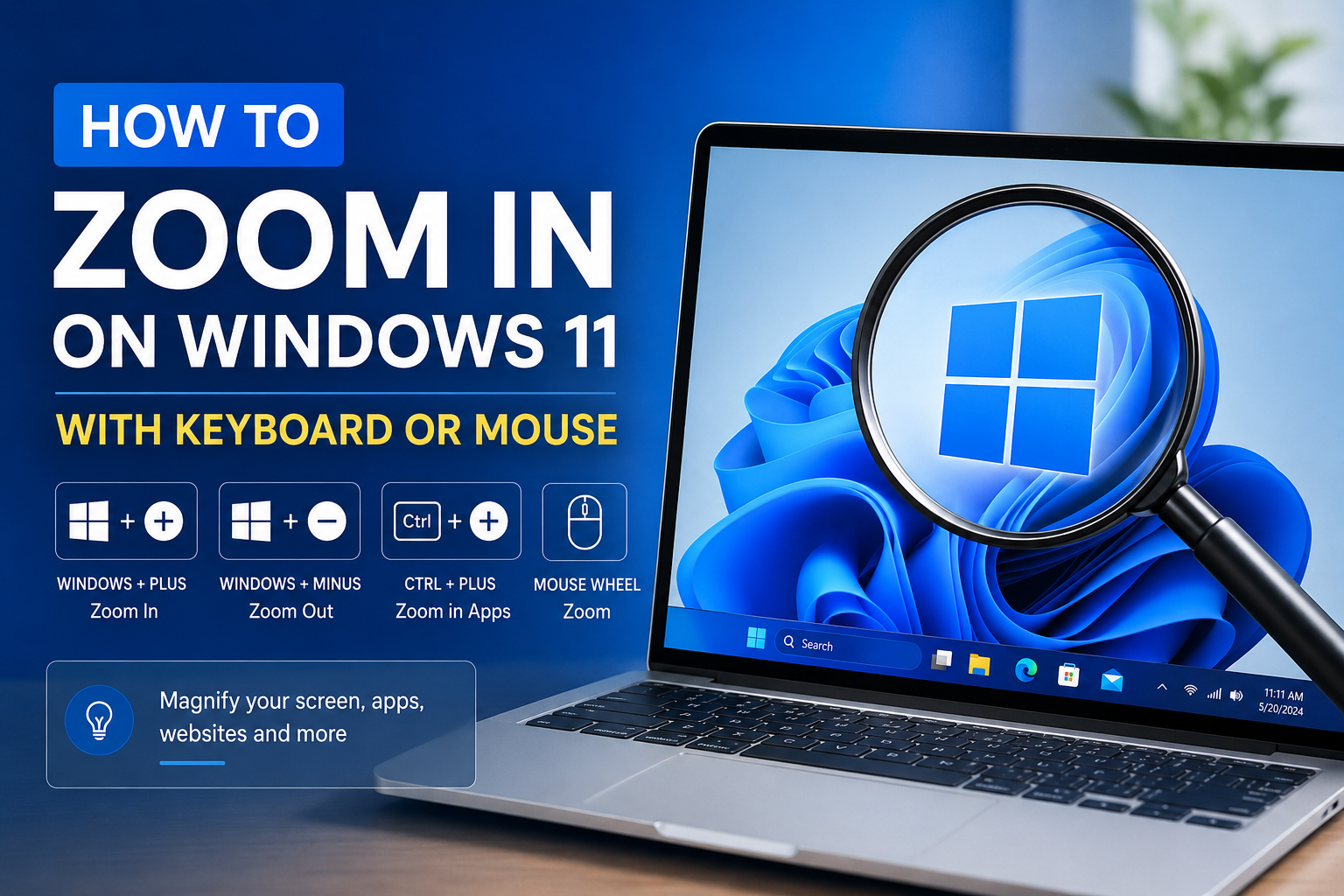
Windows has several ways to enlarge what appears on your screen. The right method depends on whether you want to magnify the entire Windows screen, zoom in on a webpage, enlarge desktop icons, or permanently increase the size of text and apps.
To zoom in on the entire Windows screen, press Windows + Plus (+). This opens Magnifier. Press the shortcut again to increase the zoom level, use Windows + Minus (-) to zoom out, and press Windows + Esc to close Magnifier. For a webpage or document, use Ctrl + Plus (+) instead. (Microsoft Support)
Quick answer
- Zoom the whole Windows screen:
Windows + Plus (+) - Zoom out:
Windows + Minus (-) - Close Magnifier:
Windows + Esc - Zoom a webpage or document:
Ctrl + Plus (+) - Return a webpage to 100%:
Ctrl + 0
Windows zoom shortcuts at a glance
| What you want to enlarge | Zoom in | Zoom out | Return to normal |
|---|---|---|---|
| Entire Windows screen | Windows + Plus (+) | Windows + Minus (-) | Windows + Esc |
| Webpage or supported app | Ctrl + Plus (+) | Ctrl + Minus (-) | Ctrl + 0 |
| Magnifier with a mouse | Ctrl + Alt + wheel up | Ctrl + Alt + wheel down | Windows + Esc |
| Desktop or File Explorer icons | Ctrl + wheel up | Ctrl + wheel down | Select a standard icon size |
| Touchpad or touchscreen | Spread two fingers apart | Pinch two fingers together | App-dependent |
The important distinction is that Windows + Plus magnifies the operating system, while Ctrl + Plus changes the zoom level inside the active browser or application.
How to zoom in on Windows with a keyboard
There are two main keyboard shortcuts, depending on what you want to enlarge.
Zoom in on the entire Windows screen
Use Windows Magnifier when you need to enlarge the desktop, taskbar, Settings app, menus, or another part of the operating system.
- Press Windows + Plus (+).
- Magnifier will open and increase the screen magnification.
- Press Windows + Plus (+) again to zoom in further.
- Press Windows + Minus (-) to reduce the magnification.
- Press Windows + Esc when you want to close Magnifier.
You can move the pointer toward an edge of the screen to view content that is currently outside the visible area. Microsoft lists these as the standard Windows Magnifier shortcuts. (Microsoft Support)
You can also open Magnifier manually:
- Press Windows + I to open Settings.
- Select Accessibility.
- Open Magnifier.
- Turn on the Magnifier switch.
- Use the plus and minus controls to set the required zoom level.
Zoom in on a webpage or document
When you only need to enlarge content inside a browser, document, or supported application, use:
- Ctrl + Plus (+) to zoom in.
- Ctrl + Minus (-) to zoom out.
- Ctrl + 0 to return to 100%.
These shortcuts are supported in Microsoft Edge and Microsoft Word, although shortcut behavior can vary in other applications. (Microsoft Support)
This method is usually better than Magnifier when you are reading a website because the page may reformat itself to fit the available width.
If Ctrl + Plus does nothing, click inside the webpage or document first. The application must be active before it can receive the shortcut.
How to zoom in on the entire Windows 11 screen
Magnifier offers three different views. You can choose the one that best matches what you are doing.
Full-screen view
Full-screen view magnifies the entire display. Move your mouse to the edges of the screen to navigate around the enlarged desktop.
With Magnifier running, press:
Ctrl + Alt + F
This is the best option when everything on the Windows screen is difficult to read.
Lens view
Lens view creates a movable magnifying area around the mouse pointer. The rest of the screen stays at its normal size.
Press:
Ctrl + Alt + L
Lens view is useful when you only need to inspect small buttons, text, images, or a particular part of a video.
Docked view
Docked view places a magnified strip in a fixed area of the display while the remainder of the desktop stays visible.
Press:
Ctrl + Alt + D
You can also press Ctrl + Alt + M to cycle through the available Magnifier views. (Microsoft Support)
How to zoom in on Windows with a mouse
A mouse can control both app-specific zoom and Windows Magnifier, but the required keys are different.
Zoom a webpage or document with the mouse wheel
In an application that supports mouse-wheel zoom:
- Place the pointer over the content you want to enlarge.
- Hold the Ctrl key.
- Scroll the mouse wheel upward to zoom in.
- Scroll downward while holding Ctrl to zoom out.
This commonly works in browsers, document applications, image viewers, and other programs with built-in zoom controls.
Zoom the entire screen with the mouse wheel
To control Magnifier with your mouse:
- Press Windows + Plus (+) to start Magnifier.
- Hold Ctrl + Alt.
- Scroll the mouse wheel upward to zoom in.
- Scroll downward to zoom out.
- Press Windows + Esc when finished.
The Ctrl + Alt + mouse wheel shortcut is specifically assigned to Windows Magnifier. (Microsoft Support)
Make desktop icons larger
If you only want larger desktop icons:
- Click an empty area of the desktop.
- Hold Ctrl.
- Scroll the mouse wheel upward.
Scroll downward to make the icons smaller again.
You can also right-click the desktop, select View, and choose Large icons, Medium icons, or Small icons. Microsoft confirms that Ctrl and the mouse wheel can resize desktop icons and File Explorer items. (Microsoft Support)
This changes the icons, not the size of the taskbar, menus, or text in other apps.
How to zoom in with a touchpad or touchscreen
On a compatible laptop touchpad or touchscreen:
- Place two fingers on the content.
- Move your fingers apart to zoom in.
- Pinch your fingers together to zoom out.
Windows supports two-finger pinch and stretch gestures for zooming. However, the application you are using must also support the gesture. (Microsoft Support)
If pinch-to-zoom does not work on your touchpad:
- Press Windows + I.
- Open Bluetooth & devices.
- Select Touchpad.
- Expand Scroll & zoom.
- Make sure Pinch to zoom is enabled.
Pinch gestures normally enlarge content inside the current application. To magnify the entire Windows desktop, use Magnifier instead.
How to make everything larger on Windows 11 permanently
Magnifier is intended for temporary zooming. If text, apps, and interface elements always look too small, increase the Windows display scale.
- Press Windows + I to open Settings.
- Select System.
- Open Display.
- Find Scale & layout.
- Open the menu next to Scale.
- Select a larger percentage, such as 125% or 150%.
If you use more than one monitor, select the display you want to adjust before changing its scale.
Windows recommends using one of the provided scaling options and keeping the display resolution set to the option marked Recommended. Lowering the resolution can make content larger, but it may also make text and images look less sharp. (Microsoft Support)
When should you use display scaling?
Display scaling is the better choice when:
- Text is consistently too small.
- App buttons and menus are difficult to select.
- You use a high-resolution laptop screen.
- You want the change to remain active after restarting Windows.
Magnifier is better when you only need to inspect something temporarily.
How to make only the text larger
You can increase text size without making icons, images, and application windows larger.
- Press Windows + I.
- Select Accessibility.
- Open Text size.
- Move the slider to the right.
- Check the preview.
- Select Apply.
Windows applies this setting to supported text across the operating system while leaving most other interface elements at their existing size. (Microsoft Support)
Use text scaling when the words are difficult to read but buttons, windows, and icons are already large enough.
How to zoom in on Windows Media Player
Windows Media Player does not use the same type of page zoom found in a web browser. To make a video appear larger, start by using the player’s Full screen button.
- Open the video in Media Player or Windows Media Player.
- Start playback.
- Click the Full screen icon in the playback controls.
- Move the pointer away from the controls to view the video without the interface covering it.
Full-screen mode enlarges the player to fill the display, but it may not magnify one specific part of the video.
To inspect a small detail in the video:
- Press Windows + Plus (+) to turn on Magnifier.
- Press Ctrl + Alt + L to switch to Lens view.
- Move the Magnifier lens over the part of the video you want to inspect.
- Press Windows + Esc to close Magnifier.
The result may look pixelated when the original video has a low resolution because Magnifier enlarges the pixels that are already present.
How to return the Windows screen to normal size
Use the method that matches the type of zoom currently active.
Magnifier is running
Press:
Windows + Esc
This closes Magnifier immediately.
You can also press Windows + Minus (-) several times if you want to reduce the zoom without closing it.
A webpage is enlarged
Press:
Ctrl + 0
This resets the active page to 100% in Microsoft Edge and many other applications.
Desktop icons are too large
Hold Ctrl and scroll the mouse wheel downward.
Alternatively:
- Right-click an empty desktop area.
- Select View.
- Choose Medium icons.
Everything stays too large after restarting
Check the display scale:
- Open Settings.
- Go to System > Display.
- Open Scale.
- Select the recommended percentage.
Also confirm that Display resolution is set to the option marked Recommended.
What to do if Windows will not zoom in
Use the correct shortcut
Press Windows + Plus for the whole screen. Pressing Ctrl + Plus only sends a zoom command to the active application.
Click inside the application first
Browser and document shortcuts may not work when the address bar, desktop, or another window has focus.
Check whether the app supports zooming
Not every Windows program responds to Ctrl + Plus or Ctrl + mouse wheel. Look for a Zoom, View, or Display option in the application’s menu.
Enable touchpad pinch-to-zoom
Open Settings > Bluetooth & devices > Touchpad > Scroll & zoom and verify that the pinch gesture is enabled.
Start Magnifier from Settings
If the keyboard shortcut is not working, open Settings > Accessibility > Magnifier and activate it manually.
Frequently asked questions
What is the shortcut key to zoom in on Windows?
Press Windows + Plus (+) to zoom in on the entire Windows screen. Press Windows + Minus (-) to zoom out and Windows + Esc to close Magnifier. To zoom in only inside a browser or document, press Ctrl + Plus (+).
How do I zoom in on Windows without a keyboard?
Open Settings > Accessibility > Magnifier and turn Magnifier on. You can then use its on-screen plus and minus buttons. With Magnifier active, you can also hold Ctrl + Alt and move the mouse wheel.
How do I zoom in on a Windows PC using a mouse?
For a webpage or supported app, hold Ctrl and scroll upward. For the entire Windows screen, start Magnifier and then hold Ctrl + Alt while scrolling upward.
Why is my Windows screen suddenly zoomed in?
Magnifier may have been activated accidentally. Press Windows + Esc first. If the screen remains enlarged, open Settings > System > Display and check the Scale setting.
How do I return browser zoom to 100%?
Press Ctrl + 0 while the browser window is active. In Microsoft Edge, you can also open the three-dot menu and change the Zoom value to 100%.
Can I permanently zoom in on Windows 11?
Yes. Open Settings > System > Display and select a larger Scale percentage. This permanently enlarges supported text, applications, and interface elements without requiring Magnifier.
Does Ctrl and Plus zoom the Windows desktop?
No. Ctrl + Plus is generally an application-level shortcut. Use Windows + Plus to magnify the Windows desktop and other parts of the operating system.
Final takeaway
Use Windows + Plus when you want to zoom in on the entire Windows screen. Use Ctrl + Plus when you only need to enlarge a webpage or document. For a permanent change, increase the display scale under Settings > System > Display.


Discussion (0)
Be the first to comment.