



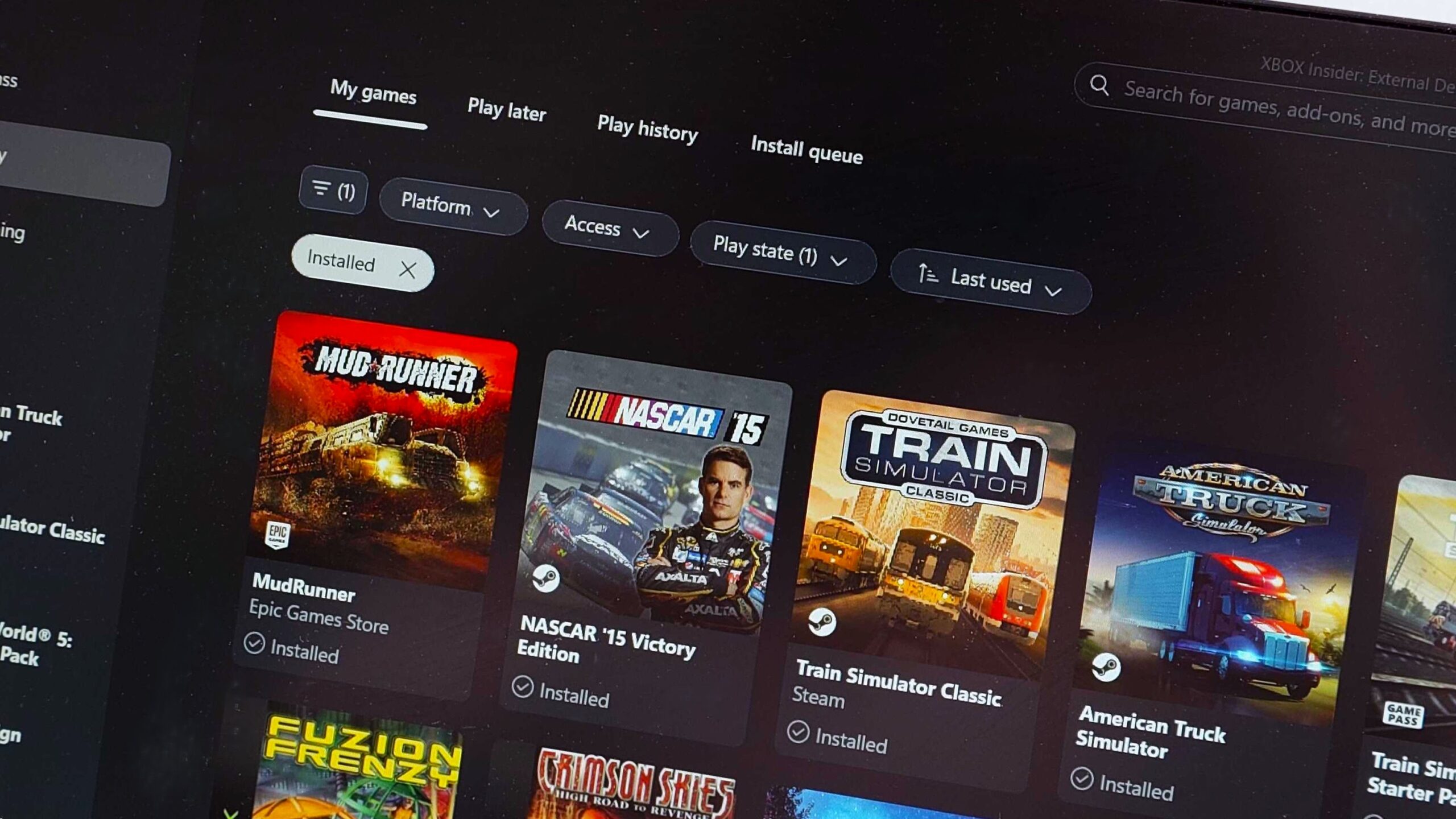
SteamGridDB can now help Windows 11 players replace poor artwork for non Xbox games displayed inside the Xbox app.
The Xbox app can include games installed through services such as Steam, Epic Games, and Ubisoft Connect, giving you one place to launch titles from several PC libraries. However, imported games may appear with low resolution icons instead of proper cover images, making the collection look inconsistent.
The SteamGridDB Game Bar widget addresses this by letting you search for custom artwork and apply it to games shown in the Xbox app. It works with older releases and titles from outside Microsoft’s ecosystem, helping them match the presentation of games installed directly through Xbox or PC Game Pass.
The widget is available through the Microsoft Store and can be opened from the Xbox Game Bar interface.
SteamGridDB replaces low quality imported artwork
SteamGridDB is a community driven database containing artwork for PC games. It is already popular among Steam Deck owners, where it can be used through plugins to customise library images.
On Windows 11, the service is delivered as a Game Bar widget rather than a traditional standalone application.
| SteamGridDB feature | What it does |
|---|---|
| Game Bar integration | Opens directly within Xbox Game Bar |
| Artwork search | Finds available images for selected games |
| Xbox app support | Updates artwork used in the Windows 11 library |
| Non Xbox game support | Works with imported Steam, Epic, Ubisoft, and other games |
| Older game coverage | Can replace basic icons for older releases |
| Microsoft Store availability | Simplifies installation |
The widget cannot integrate with the Xbox app in the same way that Steam Deck plugins connect with SteamOS. Game Bar provides an alternative method for choosing and applying artwork.
Once an image is selected, the new artwork should appear the next time you open the game library in the Xbox app.
The Xbox app can act as a wider PC game launcher
Microsoft has expanded the Windows 11 Xbox app so that it can display and launch games installed through other PC platforms.
This is useful if you regularly move between Game Pass and other stores because it reduces the need to open every launcher separately when browsing your collection.
| Supported library type | Typical source |
|---|---|
| Xbox games | Microsoft Store and PC Game Pass |
| Steam games | Valve’s Steam client |
| Epic games | Epic Games Store |
| Ubisoft games | Ubisoft Connect |
| Other PC titles | Supported external launchers |
The feature improves convenience, but artwork quality is not always consistent. Imported games may show a basic executable icon, a blurred image, or artwork that does not fit the Xbox app’s layout properly.
SteamGridDB provides a simple way to improve those entries without waiting for Microsoft or the original launcher to supply better images.
How the Game Bar widget works
After installing the widget, you can open Xbox Game Bar and select SteamGridDB from the widget menu.
You then choose a game, select the search button, and browse the available artwork. Choosing an image applies it to that game’s entry in the Xbox app.
| Step | Action |
|---|---|
| 1 | Install SteamGridDB from the Microsoft Store |
| 2 | Open Xbox Game Bar on Windows 11 |
| 3 | Launch the widget from the Widgets menu |
| 4 | Select a game from your library |
| 5 | Use the search icon to find artwork |
| 6 | Choose an image |
| 7 | Reopen the Xbox app library to view the result |
The number of available images may be smaller than the selection offered through SteamOS tools, but most games should still have at least one option that looks better than a standard low resolution icon.
Changes can be completed in a few seconds once the widget is installed.
Handheld gaming PCs may benefit the most
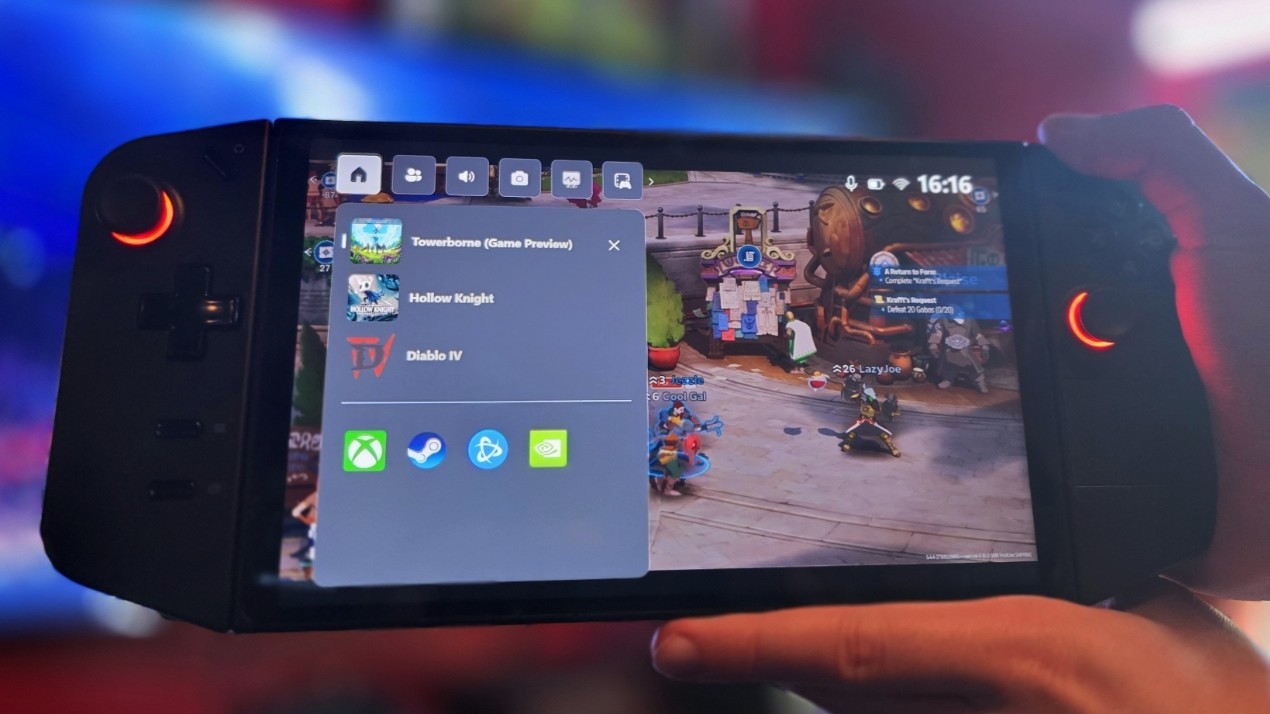
The artwork tool can be useful on desktop computers, but it may have greater value on handheld gaming PCs.
Devices such as the Xbox Ally and Lenovo Legion Go are often used with controller focused interfaces where the game library fills most of the display. Large, consistent artwork makes games easier to identify and gives the launcher a more console like appearance.
| Device type | Benefit |
|---|---|
| Desktop PC | Creates a cleaner combined game library |
| Gaming laptop | Improves browsing across several launchers |
| Handheld gaming PC | Makes controller based navigation more visual |
| Television setup | Provides clearer artwork at a distance |
Poor icons are especially noticeable on these interfaces because each library tile occupies a large portion of the screen.
A customised collection can also help distinguish between games with similar names or several entries from the same franchise.
SteamGridDB is useful beyond the Xbox app
The SteamGridDB database contains several types of community submitted artwork, including grid images, heroes, logos, icons, and other formats used by game launchers.
Steam Deck owners commonly use it with Decky Loader to customise SteamOS. The Windows widget extends part of that experience to Microsoft’s Game Bar and Xbox app.
The available images are community created or collected, so quality and style can vary. Some games may offer official looking covers, while others have alternative artwork or fan designs.
You should choose images that fit your preferred library style and display correctly inside the Xbox app.
The widget makes a combined library look more consistent
Using the Xbox app as a unified launcher is more practical when every game has clear artwork.
SteamGridDB does not change where games are installed or remove the need for their original launchers. Starting a Steam or Ubisoft title may still open the related client in the background.
Its purpose is presentation. It replaces unattractive imported icons with proper images so that games from different services look like part of one organised library.
For Windows 11 players who regularly launch non Xbox games through the Xbox app, the SteamGridDB Game Bar widget offers a quick and effective visual improvement. It is especially useful on handheld PCs, where clean artwork makes the combined library easier to browse with a controller.

Discussion (0)
Be the first to comment.