



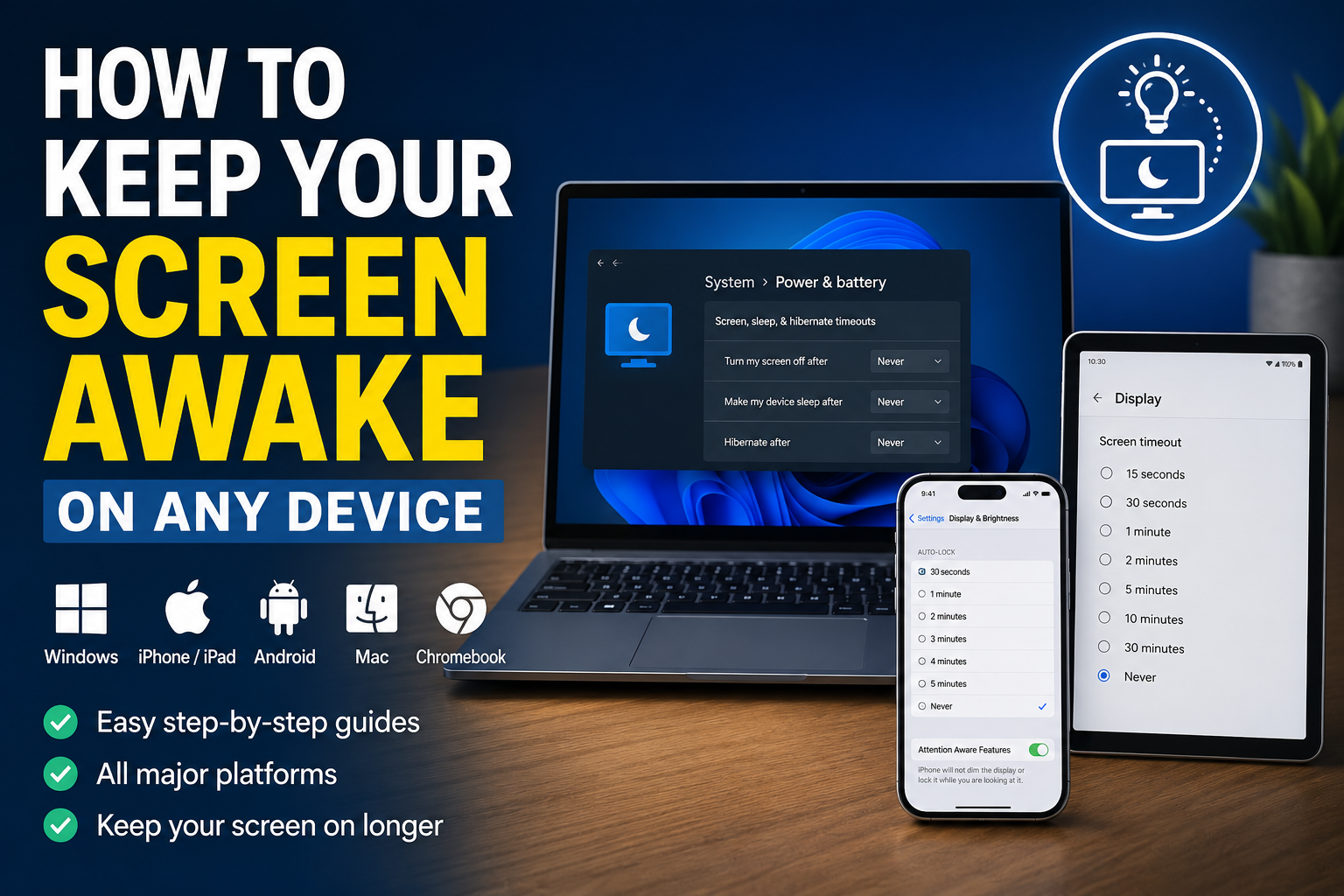
To keep your screen awake, open your device’s display or power settings and increase the screen timeout or set it to Never.
On Windows 11, go to Settings > System > Power & battery > Screen, sleep, & hibernate timeouts. On an iPhone or iPad, open Settings > Display & Brightness > Auto-Lock. Android users can usually find the option under Settings > Display > Screen timeout.
Computers normally have separate settings for turning off the display and putting the entire device to sleep. Change both settings when you need a download, presentation, monitoring dashboard, video call, or other task to continue uninterrupted.
Screen timeout settings at a glance
| Device | Open this setting | Choose |
|---|---|---|
| Windows 11 | Settings > System > Power & battery > Screen, sleep, & hibernate timeouts | Never |
| Windows 10 | Settings > System > Power & sleep | Never |
| iPhone | Settings > Display & Brightness > Auto-Lock | Never |
| iPad | Settings > Display & Brightness > Auto-Lock | Never |
| Android | Settings > Display > Screen timeout | Longest available time |
| Mac | System Settings > Lock Screen | Never or longest available time |
| Chromebook | Settings > System preferences > Power | Keep display on |
Menu names can vary slightly between device models and software versions, particularly on Android. The paths above correspond to the current settings documented by Microsoft, Apple, Google, and Samsung.
How to keep the screen awake on Windows 11
Windows 11 lets you control when the screen turns off and when the computer enters sleep mode. These are two different settings.
- Press Windows + I to open Settings.
- Select System.
- Click Power & battery.
- Expand Screen, sleep, & hibernate timeouts.
- Set Turn my screen off after to Never.
- On a laptop, configure both the battery and plugged-in options as needed.
- Set Make my device sleep after to Never when the whole computer must remain active.
Setting only the screen timeout to Never keeps the monitor visible, but the PC may still enter sleep mode. Setting both the screen and sleep timers to Never keeps the screen and computer running. Microsoft places these controls under Settings > System > Power & battery > Screen, sleep, & hibernate timeouts in current Windows 11 versions.
Should you change the screen setting or the sleep setting?
Change Turn my screen off after when you need to:
- Read a long document without touching the keyboard
- Follow instructions or a recipe
- Keep a dashboard visible
- Prevent a presentation screen from going black
Change Make my device sleep after as well when you need to:
- Download a large file
- Render or export a video
- Run a backup
- Maintain a remote connection
- Leave an application processing data
A computer can continue running while its display is off. Therefore, a long download may only require the sleep timer to be disabled, not the screen timer.
How to keep the screen awake on Windows 10
On Windows 10, open:
Settings > System > Power & sleep
Set the options under both Screen and Sleep to Never. Laptop users may see separate options for battery power and plugged-in use.
How to keep Windows awake temporarily with PowerToys
Changing the permanent power settings is unnecessary when the screen only needs to remain active for one meeting, download, or presentation. Microsoft PowerToys includes an Awake utility that can temporarily override the normal power plan.
- Open Microsoft PowerToys.
- Select Awake in the sidebar.
- Turn on Enable Awake.
- Choose one of the available modes:
- Keep awake indefinitely
- Keep awake for a time interval
- Keep awake until a selected time
- Turn on Keep screen on.
The final switch is important. PowerToys Awake can keep the computer running while still allowing the display to turn off. Enabling Keep screen on prevents that from happening. PowerToys Awake works only while you are signed in, and Microsoft notes that it does not continue operating when the Windows lock screen is displayed.
For permanent settings, or when the computer must stay awake while locked, use the Windows power settings instead.
How to keep a laptop awake when closing the lid
Windows laptops normally enter sleep mode when the lid is closed. You can change this behavior when using an external monitor, keyboard, and mouse.
- Open the Start menu.
- Search for Control Panel and open it.
- Select Hardware and Sound.
- Click Power Options.
- Select Choose what closing the lid does.
- Find When I close the lid.
- Set Plugged in to Do nothing.
- Set On battery to Do nothing only when necessary.
- Click Save changes.
The laptop will continue operating after the lid is closed, allowing an external monitor to remain active. Microsoft documents this exact path for closed-lid monitor setups on Windows 11.
Keeping Plugged in set to Do nothing is usually preferable. Using the same setting on battery can drain the laptop quickly.
Keep the laptop on a solid, ventilated surface while it is running. Do not place an active laptop inside a bag or another enclosed space, particularly when it is completing a demanding task.
How to keep the screen awake on iPhone
The iPhone screen is controlled by the Auto-Lock setting.
- Open Settings.
- Tap Display & Brightness.
- Select Auto-Lock.
- Choose Never.
Your iPhone will now keep the current app and screen visible until you press the side button or change Auto-Lock again. Apple warns that delaying or disabling Auto-Lock increases power consumption, so manually lock the phone when you have finished.
Keep the iPhone screen awake only while looking at it
On supported iPhones with Face ID, Attention Aware Features can prevent the display from dimming while you are looking at it.
Open:
Settings > Face ID & Passcode > Attention Aware Features
When enabled, the iPhone uses attention detection to determine whether you are still viewing the screen. Apple states that the phone will not dim or lock while it detects your attention.
This is a better compromise than setting Auto-Lock to Never when you mainly need more time to read.
Why is Auto-Lock stuck at 30 seconds?
Low Power Mode can force the Auto-Lock timer to 30 seconds. Disable Low Power Mode, then return to Settings > Display & Brightness > Auto-Lock and select a longer duration. Apple lists a 30-second Auto-Lock timer among the changes applied by Low Power Mode.
A work or school management profile may also prevent users from selecting Never.
Is Always-On Display the same thing?
No. The iPhone’s Always-On Display keeps a dimmed version of the Lock Screen visible on supported models. It can display the time, widgets, notifications, and wallpaper, but it does not keep the currently open app fully active on the screen. Use Auto-Lock when a recipe, document, map, or other app must remain visible.
How to keep the screen awake on iPad
The iPad uses the same Auto-Lock system as the iPhone.
- Open Settings.
- Tap Display & Brightness.
- Tap Auto-Lock.
- Select Never or a longer timeout.
Choosing Never is useful when the iPad is being used as a recipe screen, presentation display, music controller, point-of-sale device, or monitoring panel. Apple notes that delaying or preventing Auto-Lock increases power consumption.
After completing the task, return Auto-Lock to a normal interval such as two or five minutes. This reduces unnecessary battery use and prevents other people from seeing an unattended, unlocked screen.
How to keep the screen awake on Android
Android menu names vary by phone manufacturer, but the setting is normally located under Display.
- Open Settings.
- Tap Display or Display & touch.
- Select Screen timeout, Sleep, or Auto screen off.
- Choose the longest available duration.
Some Android phones offer a Never option, while others limit the timeout to several minutes. Features that detect whether you are looking at the screen can provide a longer, more adaptive solution.
On a Google Pixel
Open:
Settings > Display & touch > Screen timeout
Select a longer duration. Pixel phones may also include:
- Adaptive timeout, which can turn the display off earlier when the phone appears unused
- Screen attention, which keeps the screen active while you are looking at it
For the longest viewing time, disable Adaptive timeout and enable Screen attention where available. Google documents Screen attention on Pixel 4 and newer models.
On a Samsung Galaxy phone or tablet
Open:
Settings > Display > Screen timeout
Samsung currently allows users to choose a timeout of up to 10 minutes on many Galaxy devices. For longer viewing sessions, search Settings for Keep screen on while viewing and enable it. This feature uses the front camera to detect whether you are looking at the display.
On older Samsung software, the same feature may be called Smart Stay.
Why Android may not offer a Never setting
Manufacturers sometimes limit the maximum timeout to reduce battery consumption and prevent an unlocked phone from remaining unattended. In that case, use the longest available timeout together with Screen attention or Keep screen on while viewing.
Third-party keep-awake applications may request permission to modify system settings. Review the developer, permissions, privacy information, and recent reviews before installing one.
How to keep the screen awake on Mac
On recent macOS versions, display timeout controls are found under Lock Screen.
- Open the Apple menu.
- Select System Settings.
- Click Lock Screen in the sidebar.
- Find Turn display off on battery when inactive.
- Choose Never or the longest suitable interval.
- Find Turn display off on power adapter when inactive.
- Choose Never or the longest suitable interval.
MacBook users can configure different behavior for battery power and power-adapter use. Desktop Macs show similar controls under Lock Screen or Energy settings.
Keep the Mac running even when the display turns off
Preventing display sleep and preventing system sleep are separate actions.
On a MacBook, open:
System Settings > Battery > Options
Turn on Prevent automatic sleeping on power adapter when the display is off.
This lets the Mac continue downloads, rendering, file transfers, and other background tasks even after the display switches off. Apple documents this option for Mac laptops connected to power.
Keep a MacBook running with the lid closed
Connect the MacBook to an external display and compatible keyboard and mouse or trackpad. Once the external equipment is connected, supported MacBook models can be operated through the external display while the lid is closed.
The number and resolution of supported external displays depend on the MacBook model and processor.
How to keep the screen awake on Chromebook
ChromeOS includes dedicated options for keeping the display active.
- Select the time in the bottom-right corner.
- Open Settings.
- Select System preferences.
- Click Power.
- Next to While inactive and plugged in, select Keep display on.
- Repeat for While inactive and on battery when needed.
To keep a Chromebook operating with its lid closed, turn off Sleep when lid is closed on the same Power page. Google notes that work and school administrators may restrict access to these settings.
What to do when the screen still turns off
A screen can continue switching off even after the main timeout has been changed. Check the following settings.
1. Confirm that both timers are configured
On Windows and Mac, the display timer and computer sleep timer are separate. Set both to Never when the screen and the entire device must remain awake.
2. Check for presence detection
Some Windows 11 laptops include sensors that automatically turn off the display when you move away.
Open:
Settings > System > Power & battery > Screen and sleep
Disable Automatically turn off my screen when I leave. Microsoft notes that this option only appears on compatible devices and may also be controlled by an organization.
On Pixel phones, disable Adaptive timeout. On supported iPhones, check Attention Aware Features. Samsung users can enable Keep screen on while viewing.
3. Disable battery-saving modes temporarily
Low Power Mode on an iPhone or iPad can reduce Auto-Lock to 30 seconds. Android power-saving features may also shorten timeout behavior or dim the display.
Connect the device to power before using an indefinite timeout for a long presentation or monitoring session.
4. Check the screen saver
A blank screen saver can resemble a powered-off display.
On Windows 11, open:
Settings > Personalization > Lock screen > Screen saver
Choose None or increase the Wait time.
5. Look for work or school restrictions
Company-managed computers, phones, tablets, and Chromebooks may enforce automatic locking for security. The setting may be unavailable, greyed out, or automatically restored after you change it.
Contact the device administrator when organizational policy controls the timeout.
6. Check the application itself
Some applications have their own presentation, reading, kiosk, or cook mode that keeps the screen active only while that feature is running. Conversely, an application may pause or obscure content even though the device itself remains awake.
Frequently asked questions
How do I make my screen stay on longer?
Open the display or power settings and increase the Screen timeout or Auto-Lock duration. Select five or ten minutes for a longer timeout, or Never when the display must remain active until manually locked.
How do I keep my computer awake without touching the mouse?
On Windows, set the display and sleep timers to Never or use Microsoft PowerToys Awake. On Mac, increase the display timeout in Lock Screen settings and prevent automatic sleeping through the Battery options.
There is no need to move the mouse continuously or place an object on the keyboard.
Should I set both the screen and sleep options to Never?
Set both to Never when the screen must stay visible and the computer must continue processing. Set only the sleep option to Never when a download or background task needs to continue but the display can turn off.
Can I keep my laptop awake while it is closed?
Yes. On Windows, set When I close the lid to Do nothing through Control Panel. On supported MacBooks, connect an external display and accessories before closing the lid.
Can PowerToys keep Windows awake while the computer is locked?
No. Microsoft states that PowerToys Awake does not operate while the Windows lock screen is displayed. Change the normal Windows power plan when the PC needs to remain awake while locked.
Does keeping the screen awake drain the battery?
Yes. A longer display timeout increases power consumption, particularly when the brightness is high. Use a timed setting when possible, connect the device to power for long sessions, and restore the normal timeout after completing the task.
Is Always-On Display enough to keep an app visible?
No. Always-On Display normally presents limited Lock Screen information. It does not keep a document, browser page, recipe, or other foreground app fully visible. Change the device’s Auto-Lock or screen-timeout setting instead.

Discussion (0)
Be the first to comment.