



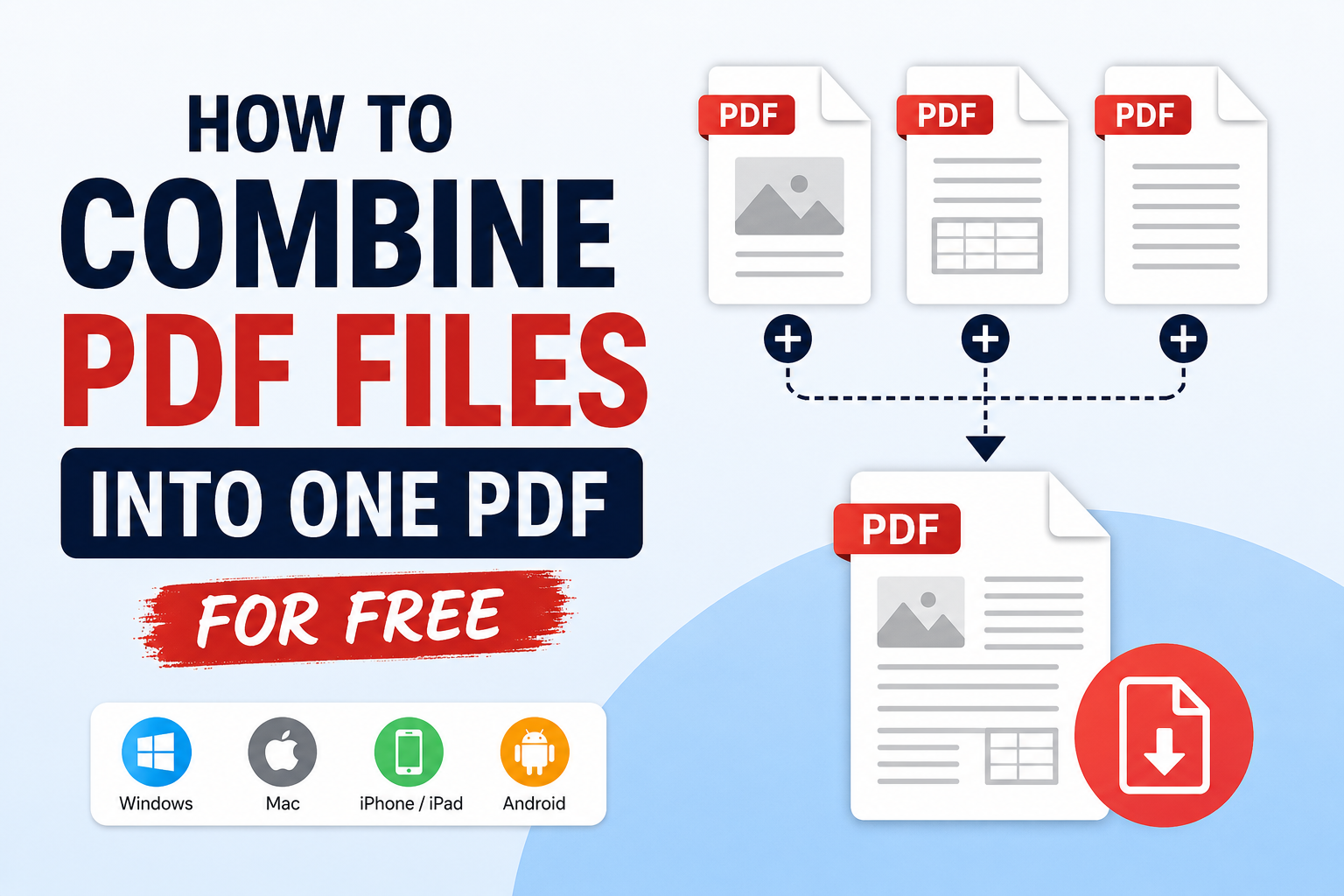
You can combine PDF files for free with an online PDF merger, an offline Windows program, or the PDF tools already installed on some Apple devices.
The fastest option is Adobe Acrobat’s online Merge PDF tool. Select your files, drag them into the right order, click Merge files, and download the new document. For confidential or particularly large documents, use an offline program such as PDFsam Basic on Windows or Preview on Mac. (Adobe)
Quick answer
- Open an online PDF merger.
- Select all the PDF files you want to combine.
- Drag the files into the correct order.
- Click Merge files.
- Download the combined PDF.
In this guide
- Which PDF-combining method should you use?
- Combine PDF files online for free
- Combine PDF files on Windows
- Combine PDF files in Adobe Acrobat
- Combine PDF files in Bluebeam Revu
- Combine PDF files on Mac
- Combine PDFs on iPhone, iPad, or Android
- Combine PDFs in OneDrive or SharePoint
- Combine only selected PDF pages
- Fix common PDF-merging problems
- Frequently asked questions
Which PDF-combining method should you use?
| Method | Best for | Free? | Upload required? |
|---|---|---|---|
| Adobe Acrobat online | The fastest one-time merge | Yes | Yes |
| PDFsam Basic | Private, offline merging on Windows | Yes | No |
| PDF24 Creator | Visual PDF organization on Windows | Yes | No |
| Apple Preview | Mac, iPhone, and iPad users | Built in | No |
| Adobe Acrobat desktop | Mixed file types and advanced editing | Usually paid | No |
| Bluebeam Revu | Plans, drawings, bookmarks, and layers | Paid | No |
| OneDrive or SharePoint | Microsoft 365 business documents | License dependent | Files remain in Microsoft 365 |
For a quick, non-sensitive document, the online method is usually the most convenient. For contracts, financial records, medical documents, or internal company files, an offline application avoids uploading the originals to a third-party server.
1. How to combine PDF files online for free
An online merger is the simplest method when you do not want to install additional software. It works through a browser, so you can use it on Windows, Mac, Linux, Android, or iPhone.
Use Adobe Acrobat’s online PDF merger
- Open Adobe Acrobat’s Merge PDF tool.
- Click Select files.
- Choose two or more PDF documents from your device.
- Drag the files up or down to place them in the correct order.
- Select Merge files.
- Download the combined PDF.
Adobe’s online tool does not require a software installation or paid subscription for a basic merge, and it does not add a watermark. Adobe states that uploaded files are handled by its servers and deleted unless you sign in and save them to your account. (Adobe)
Should you merge sensitive PDF files online?
Online PDF tools are convenient, but your documents must normally be uploaded for processing. Use an offline program when the files contain:
- Private customer information
- Contracts that have not yet been published
- Financial or tax information
- Medical records
- Passwords, identity documents, or access credentials
- Proprietary business data
For these documents, PDFsam Basic or PDF24 Creator will keep the files on your Windows computer.
2. How to combine PDF files on Windows for free
For a private and fully offline method on Windows 11 or Windows 10, use PDFsam Basic. It is free, open source, and designed specifically for splitting and merging PDF files.
Method 1: Combine PDFs with PDFsam Basic
- Download and install PDFsam Basic from its official website.
- Open the program.
- Select Merge.
- Drag your PDF files into the application window.
- Move the files up or down until they appear in the required order.
- Choose the name and location of the resulting PDF.
- Click Run.
- Open the newly created file and check the page order.
PDFsam Basic processes the documents locally rather than uploading them. It is available for Windows, macOS, and Linux, and the developer states that the free version does not add watermarks or impose a file-size limit. (pdfsam.org)
Method 2: Combine PDFs with PDF24 Creator
PDF24 Creator is another free offline option for Windows. Its interface is particularly useful when you need to see, rotate, remove, or rearrange individual pages before saving the document.
- Install PDF24 Creator.
- Open the PDF24 launcher.
- Select the tool for merging or assembling PDF files.
- Drag the documents into the workspace.
- Rearrange the files or individual pages.
- Remove any pages you do not need.
- Select Save and choose a destination.
PDF24 Creator works offline, keeps the files on your computer, and is available for Windows 10 and Windows 11. It can also add, remove, extract, rotate, sort, and move PDF pages. (PDF24 Tools)
Which free Windows option is better?
Choose PDFsam Basic when you need a simple, open-source merger with very few distractions.
Choose PDF24 Creator when you want a more visual interface or need additional tools for rotating, deleting, converting, or reorganizing pages.
3. How to combine PDF files in Adobe Acrobat
Adobe Acrobat’s desktop application provides more control than the free online merger. It can combine PDFs alongside supported Word, Excel, PowerPoint, image, and web files.
- Open Adobe Acrobat.
- On Windows, select Menu > Combine files.
- On macOS, select File > Combine files.
- Click Add Files and choose the documents you want to include.
- Alternatively, drag the files directly into the Combine Files window.
- Drag the file thumbnails to change their order.
- Expand a file if you need to view and organize its individual pages.
- Remove any pages or files that should not be included.
- Click Combine in the upper-right corner.
- Rename and save the resulting PDF.
Acrobat can preview, rearrange, move, and delete pages before producing the final sequential document. It also supports combining several non-PDF formats into the same PDF. (Adobe Help Center)
How to insert one PDF into another in Acrobat
You do not always need to rebuild the entire document.
- Open the PDF that should appear first.
- Open the page-organizing tools.
- Choose the option to insert pages from another file.
- Select the second PDF.
- Choose whether the pages should appear before or after a specific page.
- Save the updated document with a new filename.
Saving it as a new file protects the original document in case the pages were inserted in the wrong position.
4. How to combine PDF files in Bluebeam Revu
Bluebeam Revu is particularly useful for construction plans, engineering documents, drawings, and PDFs that contain bookmarks, layers, attachments, or specialized page labels.
Combine PDFs from inside Bluebeam Revu
- Open Bluebeam Revu.
- Select File > Combine.
- Click Add Open Files to include PDFs already open in Revu.
- Alternatively, select Add and browse to files on a local or network drive.
- Select a file and choose Modify if you only want to include certain pages.
- Enter a custom page range such as
1-3, 5, 9. - Move files up or down to place them in the required order.
- Enable any relevant options, such as:
- Include Bookmarks
- Include File Attachments
- Merge Document Properties
- Merge Layers
- Use Filename as Page Label
- Select OK.
- Save the combined document.
Bluebeam merges the files according to the order displayed in the Combine window. Its custom page-range option lets you include consecutive and non-consecutive pages from each source document. (Bluebeam Support)
Combine files from Windows File Explorer with Bluebeam
Bluebeam also adds a faster option to the Windows context menu.
- Open the folder containing the documents.
- Hold Ctrl or Shift and select the files you want to combine.
- Right-click one of the selected files.
- Choose Combine Files in Revu.
- Bluebeam Stapler will open with the selected files already added.
- Rearrange them as needed.
- Select One Output File.
- Enter a name for the combined PDF.
- Choose the destination folder.
- Click Create File.
This method can also convert supported non-PDF source documents while building the final PDF. (Bluebeam Support)
Important warning about signed Bluebeam PDFs
Certified PDFs cannot be combined with other documents in Revu. If a PDF has been digitally signed but not certified, combining it will remove the signature from the resulting document. Merge the original documents before collecting signatures whenever possible. (Bluebeam Support)
5. How to combine PDF files on Mac
Mac users have two built-in methods. Finder is faster when you want to combine complete files, while Preview gives you more control over individual pages.
Method 1: Create a PDF from Finder
- Open Finder.
- Select the documents you want to combine.
- Select them in the order in which they should appear.
- Control-click one of the selected files.
- Choose Quick Actions > Create PDF.
- Finder will create the new PDF in the same location.
The resulting document uses the order in which the files were selected. It is automatically named after the first selected file. (Apple Support)
Method 2: Combine PDFs using Preview
Use Preview when you need to merge individual pages rather than entire documents.
- Make copies of the original PDFs before editing them.
- Open both documents in Preview.
- In each Preview window, choose View > Thumbnails.
- Select the pages you want to transfer.
- Drag those thumbnails into the sidebar of the other document.
- Drop them at the point where they should appear.
- Drag the thumbnails again to correct the page order.
- Rename the combined PDF.
Preview saves document changes automatically, which is why Apple recommends duplicating the originals before combining them. You can drag selected pages or the entire PDF into another document’s thumbnail sidebar. (Apple Support)
6. How to combine PDF files on iPhone or iPad
Recent versions of iOS and iPadOS include the Preview app, which can insert another PDF directly into an existing document.
Combine PDFs in Preview on iPhone
- Open the first PDF in Preview.
- Tap the page count to display the page thumbnails.
- Touch and hold the thumbnail after which the next document should be inserted.
- Select Insert from File.
- Find and select the second PDF.
- Touch and hold thumbnails to drag pages into a different order.
- Rename or share the completed document.
The same menu can insert a blank page, an image, or newly scanned pages. (Apple Support)
Combine PDFs in Preview on iPad
- Open the first document in Preview.
- Tap the button that displays the thumbnail sidebar.
- Touch and hold a page thumbnail.
- Choose Insert from File.
- Select the PDF you want to add.
- Drag page thumbnails to change their order.
Preview on iPad can also insert blank pages, images, and scanned documents into the open PDF. (Apple Support)
Combine PDFs on Android
The simplest Android method is to use an online merger through Chrome or another browser:
- Open the Adobe Acrobat online Merge PDF tool.
- Tap Select files.
- Choose the PDFs from your phone or cloud storage.
- Rearrange them.
- Tap Merge files.
- Save the resulting document.
Adobe’s browser-based merger is designed to work across desktop and mobile operating systems. (Adobe)
7. How to combine PDF files in OneDrive or SharePoint
Some Microsoft 365 users can merge files directly from OneDrive or a SharePoint document library.
- Open one of the PDFs in OneDrive or SharePoint.
- Select More options, represented by three dots.
- Choose Merge.
- Select the other PDF files.
- Click Next.
- Choose a document library and save the merged PDF.
Microsoft states that availability depends on the user’s Microsoft 365, SharePoint, per-user, or pay-as-you-go licensing. The option might therefore be unavailable in a personal OneDrive account or an organization that has not enabled the relevant feature. (Microsoft Learn)
8. How to combine only selected pages from multiple PDFs
You do not have to include every page from every file.
In Adobe Acrobat
- Add the source files to the Combine Files window.
- Expand a file to display its individual pages.
- Remove unwanted pages.
- Drag the remaining pages into the required order.
- Select Combine. (Adobe Help Center)
In Bluebeam Revu
- Open File > Combine.
- Add the source PDF.
- Select it and click Modify.
- Choose Custom under the page-range options.
- Enter a range such as:
1-5for pages 1 through 52, 4, 8for separate pages1-3, 6, 10-12for a mixed selection
- Select OK and complete the merge. (Bluebeam Support)
In Preview on Mac
- Open both documents.
- Choose View > Thumbnails.
- Hold Command while selecting non-consecutive pages.
- Drag the selected pages into the other document.
- Reorder the pages and rename the result. (Apple Support)
9. Fix common PDF-merging problems
The files were combined in the wrong order
Return to the merge screen and drag the files into the correct position before creating the final PDF.
When working with a large number of files, rename them first:
01-cover.pdf02-report.pdf03-appendix.pdf
This prevents programs that sort files alphabetically from changing the intended sequence.
The merged PDF is too large
Merge the files first, then use a PDF compression tool. Select moderate compression if the document contains screenshots, diagrams, or small text. Aggressive image compression can make these elements difficult to read.
You can also reduce the output size by removing duplicate pages, unnecessary scans, attachments, and oversized images.
A password-protected PDF will not merge
Enter the correct document password before adding the file. Some tools cannot include protected files until their restrictions have been removed.
Only remove protection from a document when you own the file or have permission from its owner.
A digital signature disappeared
A digital signature is associated with a specific version of a document. Adding, removing, or reordering pages changes that document.
Bluebeam explicitly removes digital signatures when signed PDFs are combined, and certified PDFs cannot be merged at all. Keep an untouched copy of every signed file and merge documents before they are signed. (Bluebeam Support)
Bluebeam cannot combine or insert pages
Broken bookmarks, hyperlinks, or Image Spaces can interfere with page operations in Revu.
To check the bookmarks:
- Open the Bookmarks panel by pressing Alt + B.
- Open the Bookmarks menu.
- Select Audit Bookmarks.
- Look for bookmarks marked with a red X.
- Remove the broken bookmarks.
- Try combining the files again.
Bluebeam also recommends recreating the PDF when broken hyperlinks or Image Spaces are responsible for the problem. (Bluebeam Support)
The merged pages have different dimensions
This normally happens when the source PDFs use different paper sizes, such as Letter, Legal, A4, or A3.
The pages can remain different sizes inside the same PDF. When consistent dimensions are required, use a PDF editor that can normalize or resize pages before printing or sharing the document.
The online merger will not accept a large document
Split the work into smaller groups:
- Merge the first set of PDFs.
- Merge the second set.
- Combine the two resulting documents.
An offline program is generally a better choice for very large documents because it avoids browser upload limits and connection interruptions.
Frequently asked questions
Can I combine PDF files for free?
Yes. Adobe provides a free browser-based merger, while PDFsam Basic and PDF24 Creator can combine files offline on Windows. Mac users can merge PDFs with Finder or Preview without installing anything. (Adobe)
How do I combine PDF files into one document on Windows without Adobe?
Install PDFsam Basic, choose Merge, add the files, arrange them, select an output filename, and click Run. PDF24 Creator provides another free offline alternative with more visual page-management tools. (pdfsam.org)
Can I combine PDF files using Microsoft Edge?
You can open an online PDF merger in Microsoft Edge and complete the process in the browser. Microsoft 365 users may also have a separate Merge command in OneDrive or SharePoint, depending on their account and licensing. (Adobe)
How do I combine PDFs in Adobe Acrobat?
Open Acrobat, select Menu > Combine files on Windows or File > Combine files on Mac, add the documents, arrange them, click Combine, and save the result. (Adobe Help Center)
How do I combine PDFs in Bluebeam?
Open Revu and select File > Combine. Add the PDFs, choose any page ranges, arrange the files, select options for bookmarks or layers, and click OK. You can also select files in Windows File Explorer, right-click them, and choose Combine Files in Revu. (Bluebeam Support)
Does combining PDF files reduce their quality?
A standard page-level merge should retain the original PDF pages without converting them into screenshots. Quality usually decreases only when the resulting document is compressed, converted, rescanned, or printed at a lower resolution.
Can I combine Word documents, images, and PDFs into one file?
Yes. Adobe Acrobat’s desktop application can combine PDFs with supported Word, Excel, PowerPoint, image, and web files. PDF24 Creator can also import and convert Office documents and images before adding them to a PDF. (Adobe Help Center)
Is it safe to use an online PDF merger?
It depends on the sensitivity of the document and your organization’s data policy. Online tools require the files to be processed through a website or cloud service. Use an offline program for confidential, regulated, unpublished, or personally identifiable information.
Final recommendation
Use Adobe Acrobat online when you need to combine ordinary PDFs quickly without installing software.
Use PDFsam Basic for the best straightforward, free, and private Windows method. Choose PDF24 Creator when you also need to remove, rotate, convert, or visually rearrange pages.
On Apple devices, use Finder or Preview. For construction drawings and technical documents containing bookmarks or layers, Bluebeam Revu offers the most relevant controls. Adobe Acrobat’s desktop application is the strongest choice when the final PDF must include Word documents, spreadsheets, presentations, images, and PDFs in one file.


Discussion (0)
Be the first to comment.