




Many users of Android devices rely on Google’s Photos app to back up their pictures and videos. However, a minority, including myself, use OneDrive for this purpose. If you have a Samsung Galaxy device, you’re also more likely to use OneDrive because of the unique integration between Samsung’s devices and Microsoft’s services. One of the things that OneDrive does is send a daily “On this day” notification with pictures taken on the same day in previous years. Some people like these notifications and use them to remember beautiful things from their past. Others store all kinds of visual content on their devices and find those notifications and collections rather annoying. If you want to disable the “On this day” notifications from your Android device, read this guide:
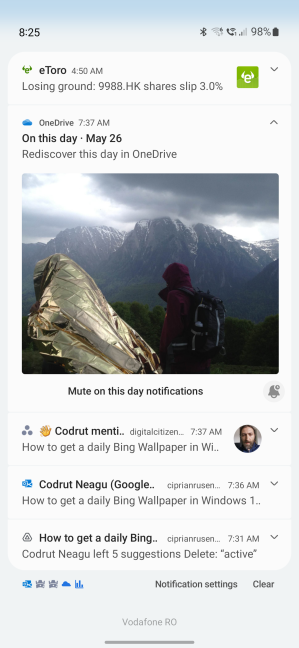
 OneDrive's On this day notification on Android devices
If you tap on it, the OneDrive app opens, showing you a collection of pictures taken on the same date stored on your OneDrive account.
OneDrive's On this day notification on Android devices
If you tap on it, the OneDrive app opens, showing you a collection of pictures taken on the same date stored on your OneDrive account.
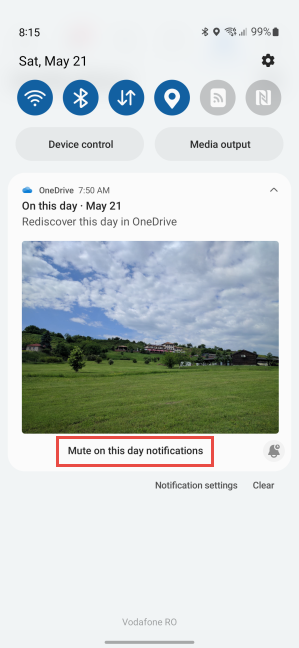 Tap Mute on this day notifications
As of tomorrow, you will stop receiving such notifications from OneDrive. If you want to disable them from your Windows computers and devices, I recommend reading this article: How to disable OneDrive’s On This Day notifications on Windows.
Tap Mute on this day notifications
As of tomorrow, you will stop receiving such notifications from OneDrive. If you want to disable them from your Windows computers and devices, I recommend reading this article: How to disable OneDrive’s On This Day notifications on Windows.
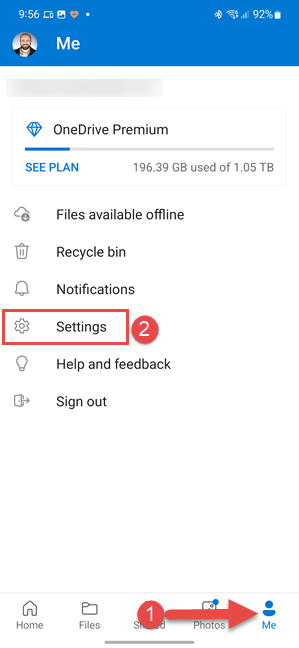 In the OneDrive app, tap Me, followed by Settings
Next, under Accounts, tap on the email address associated with your Microsoft account.
In the OneDrive app, tap Me, followed by Settings
Next, under Accounts, tap on the email address associated with your Microsoft account.
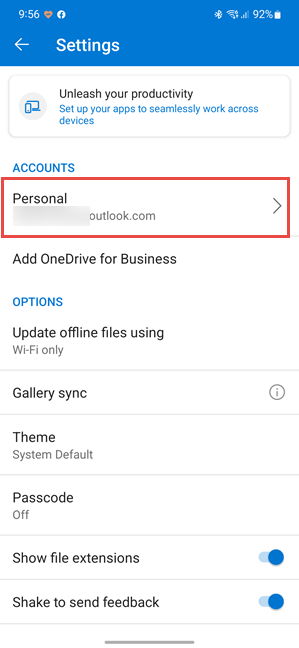 Tap on your email address
You see a long list of options that can be enabled or disabled. To disable “On this day” notifications, tap and disable the switch for “Show photos and videos from this day in previous years” or the switch for “I have memories from this day.”
Tap on your email address
You see a long list of options that can be enabled or disabled. To disable “On this day” notifications, tap and disable the switch for “Show photos and videos from this day in previous years” or the switch for “I have memories from this day.”
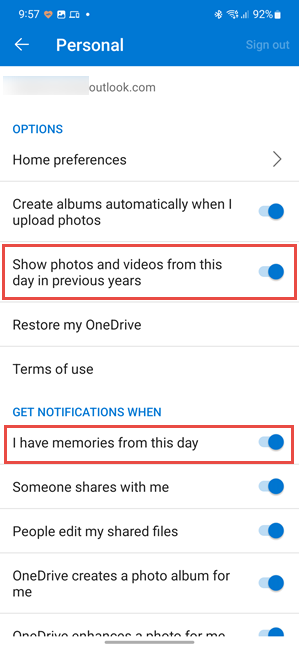 Disable On this day notifications
The first switch disables the creation of “On this day” collections and the corresponding notification. The second switch only disables the notification, but the automatic creation of “On this day collections” remains active.
Disable On this day notifications
The first switch disables the creation of “On this day” collections and the corresponding notification. The second switch only disables the notification, but the automatic creation of “On this day collections” remains active.
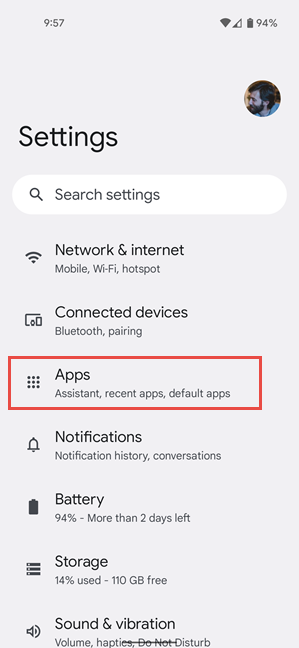 In Android's Settings, tap Apps
If you don’t see OneDrive in the list of recently opened apps, tap on “See all … apps.”
In Android's Settings, tap Apps
If you don’t see OneDrive in the list of recently opened apps, tap on “See all … apps.”
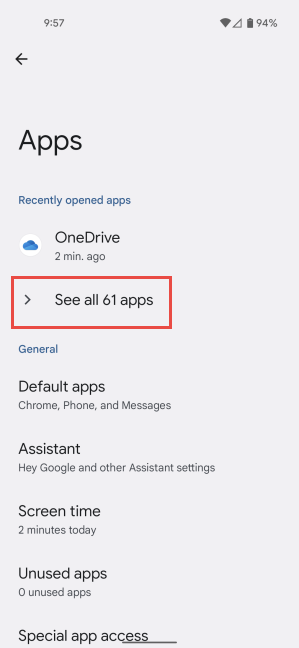 See all apps
Then, you see all the apps installed on your Android device. Samsung Galaxy devices show the app list as soon as you tap on Apps, skipping the previous step.
Now, find OneDrive and tap on it.
See all apps
Then, you see all the apps installed on your Android device. Samsung Galaxy devices show the app list as soon as you tap on Apps, skipping the previous step.
Now, find OneDrive and tap on it.
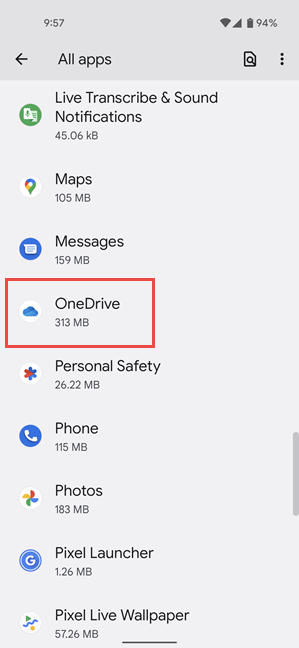 Find and tap on OneDrive
You see the App info page for OneDrive. Tap Notifications.
Find and tap on OneDrive
You see the App info page for OneDrive. Tap Notifications.
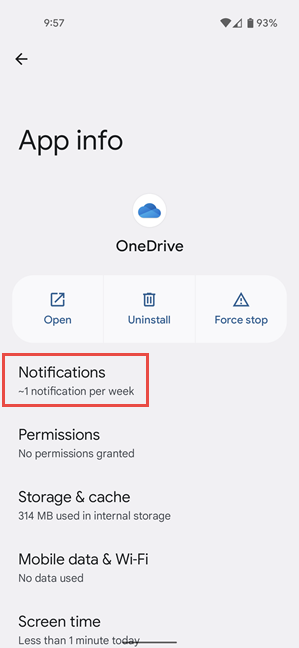 Tap Notifications
You are then shown all the types of notifications displayed by OneDrive on your Android device. Next, tap to disable the “Memories from this day” switch.
Tap Notifications
You are then shown all the types of notifications displayed by OneDrive on your Android device. Next, tap to disable the “Memories from this day” switch.
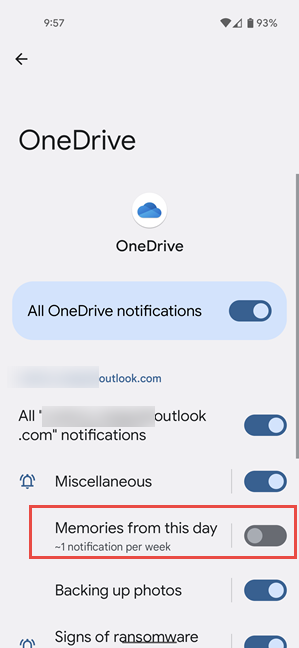 Disable Memories from this day
NOTE: If you have a Samsung Galaxy device, you must tap on Notification categories to see the screen above.
Now the “On this day” notifications from OneDrive are disabled and won’t bother you again.
Disable Memories from this day
NOTE: If you have a Samsung Galaxy device, you must tap on Notification categories to see the screen above.
Now the “On this day” notifications from OneDrive are disabled and won’t bother you again.
OneDrive’s On This Day notifications on Android devices
You’re using OneDrive to upload pictures and videos from your Android smartphone, you may see a daily “On this day” notification, as I do on my Samsung Galaxy S22, which invites you to rediscover this day on OneDrive. The notification includes a picture taken on the same date you’re on, sometime in the past.The quick way to disable On This Day notifications from OneDrive on Android
The quickest way to disable such notifications from OneDrive is to expand them when you see them on your Android smartphone and tablet. Then, tap “Mute on this day notifications.”Turn off On This Day notifications on Android from the OneDrive app
If you dismiss the “On this day” notification, you can also disable this type of alerts from the OneDrive app. The advantage of this method is that it works the same on all Android devices, including Samsung Galaxy, Xiaomi, OnePlus, Motorola, and so on. First, start the OneDrive app on your Android device and tap the Me icon, followed by Settings.Disable OneDrive’s On This Day notifications from Settings
You can also disable these notifications from the Settings app on your Android device. However, the steps involved may differ a bit, depending on the exact smartphone you’re using and the flavor of Android installed on it. For example, in this chapter, I used a Google Pixel smartphone with Android 12. If you don’t know your Android version, read this guide: How to check the Android version on your device. Now it’s time to open Settings on your Android device. Scroll down a bit and tap on Apps. If you’re using a Samsung Galaxy device, you may need to scroll toward the bottom of the Settings app.


Discussion (2)
hello, Your instructions were incredibly clear. the clearest I have ever needed to follow. However, everything you suggest for the mobile app and online to remove the wretched ‘on this day memories’ simply doesnt work on my Samsung galaxy S22ultra. I have ticked or unticked everything everyone suggests and NONE of it works. It is like I am being forced to have images I have to keep thrown back in my face though I dont want to see them. MS response is the same information as you have given.
Sorry to hear about your problem. I used the same instructions on my Samsung Galaxy phone, and they work. Unless there’s a but in the OneDrive app version you’re using, maybe you’ve missed a setting. Would it be too much to ask to read the tutorial again, and repeat all the steps, carefully, one by one? They should work.