Do you have a Windows laptop or a computer that you use for making Skype calls, but you don't have a webcam to use with it? Or maybe your laptop's built-in webcam just broke, and you must participate in an urgent online video meeting? If you have an Android smartphone, then you are in luck: you can use it as a webcam on your Windows computer. All it takes is the right Android app, a Windows software client, and a few taps and clicks here and there. In this guide, we show you all the steps required to transform your smartphone into a webcam, for your Windows PC:
NOTE: For writing this guide, we used a Huawei P20 smartphone running on Android 9 Pie, and a PC running on Windows 10 with November 2019 Update. However, even if your smartphone and computer use different versions of the operating systems, the steps are the same.
What you need if you want to use an Android smartphone as a webcam for your Windows PC
You need to download and install an app that lets you use your Android phone as a webcam for your PC. There are many such apps available in the Play Store, but after testing several of them, the one we liked best was DroidCam Wireless Webcam. The app works by creating a connection between your Android smartphone and your Windows computer either by using a wireless network or via a USB cable.
The DroidCam Wireless Webcam app is available in two versions: free and paid. The free version, which we used to create this guide, has the disadvantage of displaying ads on your smartphone. The paid Pro version offers support for high-resolution video (up to 720p), an option called "FPS Boost" which allows for up to two times higher frame rate, and more customization options for the Windows client, such as the ability to mirror video, rotate video, increase or decrease the image contrast and sharpness, and others. However, to achieve the core purpose of turning your Android smartphone into a webcam that you can use on your Windows PC, the free version of the app is enough.
Before you go further, make sure that your Android smartphone and your Windows computer are both connected to the same network. Once you've made sure of that, follow the next steps:
Step 1. Download and install the DroidCam Wireless Webcam app on your Android smartphone
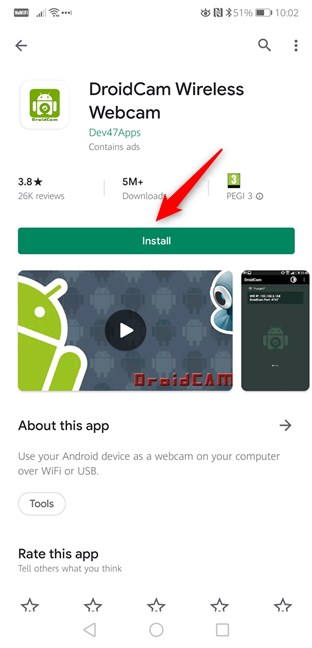
You must first download and install the DroidCam Wireless Webcam app for Android. You can find it in the Play Store here: DroidCam Wireless Webcam. On the app's Store page, tap Install and wait for the app to be installed.
Installing the DroidCam Wireless Webcam app from the Play Store
Once the app has been installed on your Android smartphone, move on to your Windows computer, and take the next step.
Step 2. Download and install the DroidCam Client app on your Windows PC
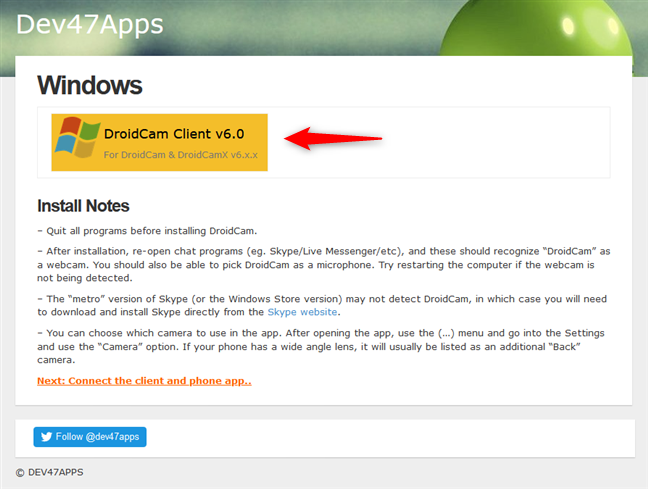
On your Windows PC, open your favorite web browser and visit this web page: DroidCam Windows Client. Once it's loaded, you should see on it a large button named DroidCam Client v6.0. Click or tap on it to download the DroidCam Client app.
The DroidCam Client download link
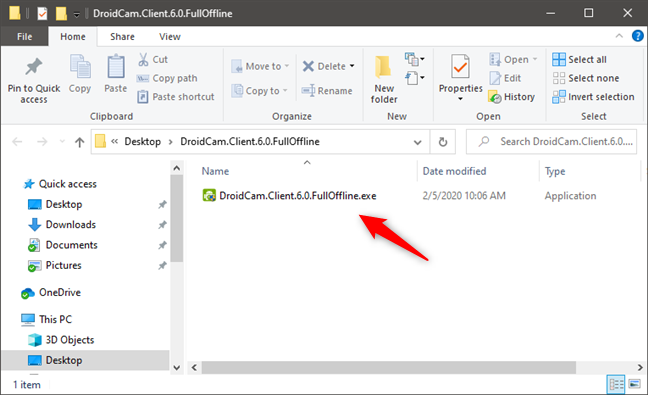
You should now get a small 875 KB file called DroidCam.Client.6.0.FullOffline.zip. Save it somewhere on your Windows computer (for example, on your desktop). Then, extract its contents, and you should get an executable file named DroidCam.Client.6.0.exe, with a size of 915 KB.
The DroidCam Client for Windows installer
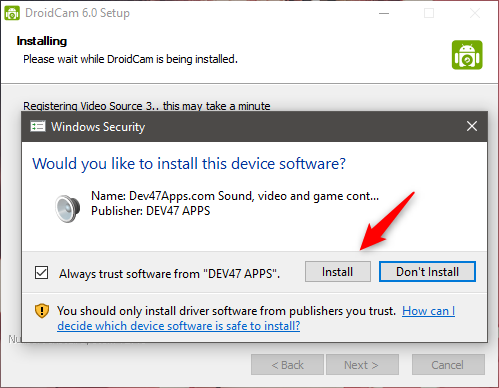
Double click/tap on the executable file and follow the wizard's instructions to install the DroidCam Client on your Windows computer. The wizard is pretty straightforward: just keep on clicking or tapping Next. There's only one thing you must pay attention to: when you are asked about whether you want to install driver software from "DEV47 APPS", choose to Install it. If you don't, the Windows client cannot connect to the app on your Android phone.
Allowing the drivers from Dev47Apps.com to be installed
When the installation is done, open the Windows client and move to the next step of this guide.
Step 3. Connect the DroidCam Wireless Webcam Android app with the Windows DroidCam Client
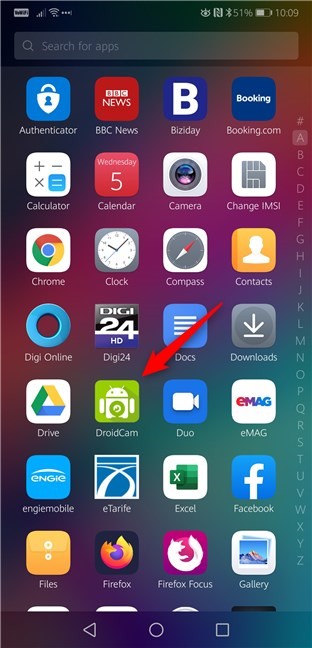
Go to your Android smartphone and open the DroidCam Wireless Webcam app. You can find it listed in your All apps list.
The DroidCam Wireless Webcam app shortcut from the All Apps list
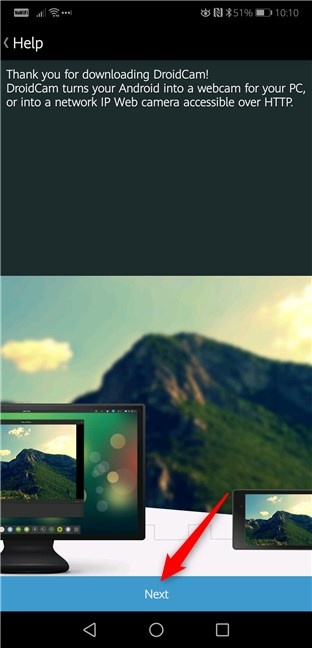
The first time you open the DroidCam Wireless Webcam app, you are greeted with a welcome screen on which you can see a quick start guide about how to use it.
Read it, tap Next, and then tap the Got it button from the bottom of the screen.
The welcome message from the DroidCam Wireless Webcam Android app
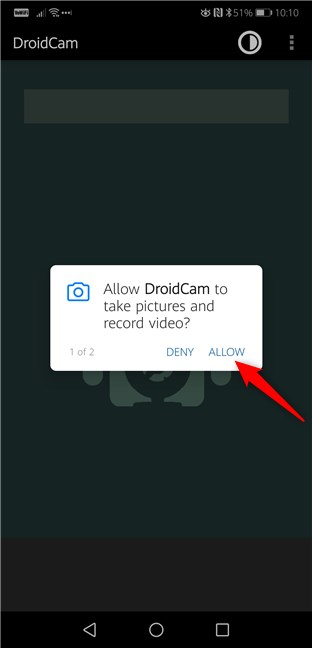
DroidCam Wireless Webcam then asks you for permission to use your Android phone's camera and microphone. Obviously, it needs to do that, so make sure that you Accept.
Camera and Microphone permissions required in Android
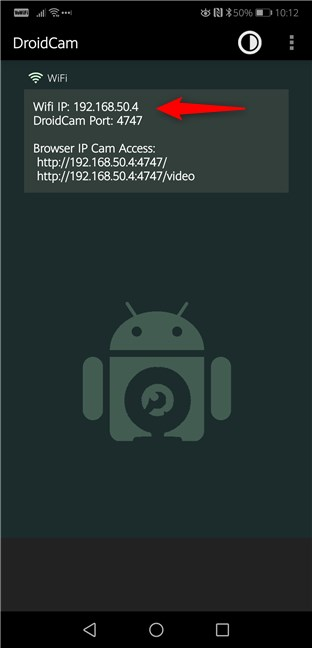
Now the DroidCam Wireless Webcam app loads a new screen, on which it shows you what WiFi network you are connected to, your Android smartphone's IP address, and the port used by the app. In our case, the WiFi IP is 192.168.50.4, and the DroidCam Port is 4747. Keep your smartphone unlocked as you're going to need this information soon.
The IP address and the Port used by DroidCam
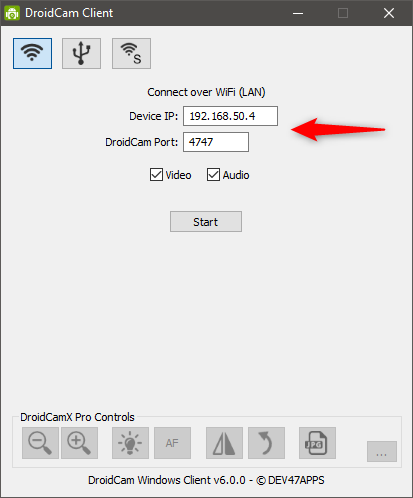
Go to your Windows computer and open DroidCam Client. In the Connect over WiFi (LAN) section, enter the Device IP and the DroidCam Port that are displayed on your Android smartphone. In our case, the Device IP is 192.168.50.4, and the DroidCam Port is 4747.
Configuring the IP address, port, video, and audio feeds in the DroidCam client for Windows
Then make sure to select the Video and, if you want, the Audio checkbox too. They control whether your Android smartphone can relay the camera video feed, as well as the sound from its microphone.
Step 4. Start the video feed from your Android phone
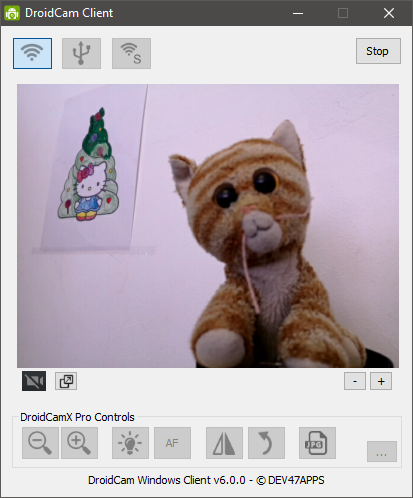
Click or tap on the Start button from the Windows DroidCam Client to begin the video data transmission. If all worked well, you should now see a preview of the video sent from your smartphone's camera. In other words, now you have a working webcam! 🙂
DroidCam shows a live preview from the Android phone camera
Step 5. Use your Android smartphone as a webcam on Skype, Facebook, and other similar apps
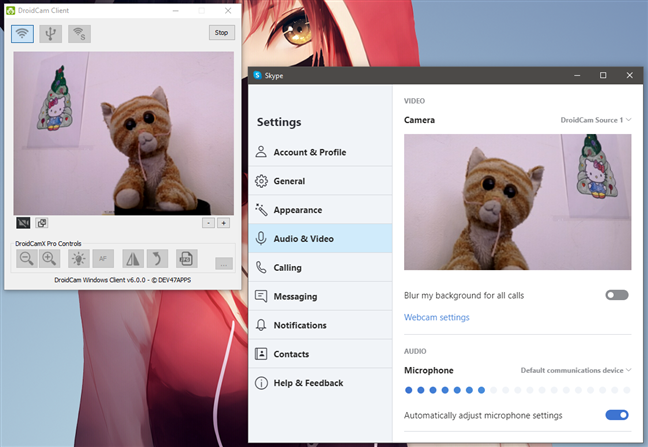
Now you can open any app that needs a webcam and configure it to use your Android smartphone, a.k.a. DroidCam Source, for that. For instance, in Skype's Video settings, you can find a webcam called DroidCam Source 3. All you have to do to use it with Skype is to select it.
Using an Android phone as a webcam in Skype on PC
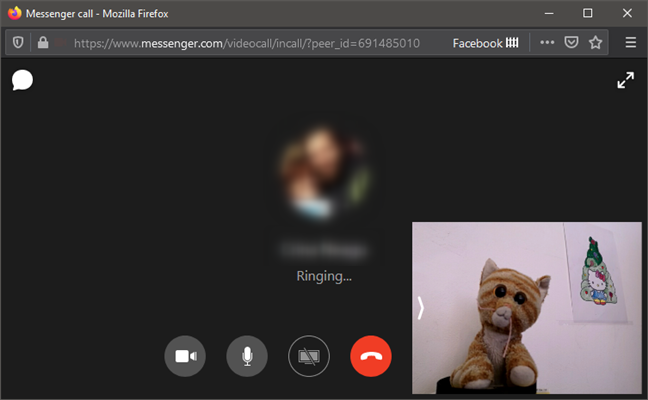
Likewise, all you have to do to use your new smartphone webcam on Facebook is to choose it when you initiate a video call.
Using an Android phone as a webcam on Facebook Messenger on PC
Unfortunately, in our test, we found that DroidCam fails to work with the Camera app from Windows 10. It is not recognized by this app. We hope, however, that the developers of DroidCam can address this issue in the future.
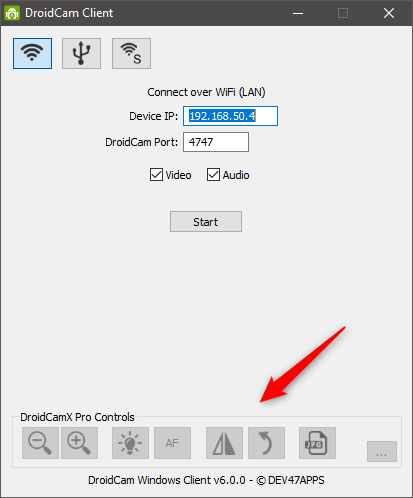
DroidCamX (paid version of DroidCam) offers additional controls
The Windows DroidCam Client also includes a few other buttons for additional options and controls. However, unless you pay for the Pro version of the DroidCam Wireless Webcam Android app, the additional controls are disabled and cannot be used.
Additional options are available in DroidCamX (paid version)
The Windows DroidCam Client app also includes two other different connection methods between your PC and your Android smartphone: via USB or by creating a direct wireless connection between your Windows PC and your Android smartphone. However, the USB method is recommended only for advanced users because it involves using the Android "Developer Options," more specifically "USB Debugging."
Why did you want to use your Android phone as a webcam for your PC?
Now that you know how easy it is to turn your Android smartphone into a webcam that you can use with your Windows computer, are you still tempted to buy yourself a dedicated webcam? Or would you rather keep on using your smartphone each time you need to make a video call on your computer? Do you like how DroidCam works? Or do you prefer another similar app from the Google Play Store? Share your thoughts with us in the comments below.
Still trying to figure out how to use this to record videos.
I have a youtube channel and I am low on budget for camera. Want to use my phone cam instead. but controlling where it is an issue. Please I need help how to record videos with this using pc and phone
ETENDRA DHAR DUBEY ·
yes
Rahul ·
that’s the way to write an article, thank you
Ramasamy ·
A neat and clear step-by-step explanation. Thanks for the good work.
ScottyUSA ·
How do we use the front facing camera with the free or paid versions?
Waffle ·
Hi, I have a desktop computer and tried connecting to to my phone using the wifi/lan method but they will not pair? Does this not work if your desktop is using wired internet?
Jo ·
Works well!
Mika ·
Hey, very useful article. One question-
Can i use the camera settings and configuration on my android phone?
I’d like to use the wide angle setting for broadcasting. Is this possible?
Steffy ·
Please add details instructions on how to detect phone via USB in droidcam
tech guy ·
Enable USB debugging in your phone settings under “Developer Settings”
Google will help you how to enable hidden “Developer Settings”
kevsan ·
really helpful . thx 🙂
Thomas H. ·
I had to get a webcam and I had to get one quickly for taking tests at home for school. This was an amazing solution!
Mrs. Bock ·
teaching 4h graders virtually
JesSay! ·
I am using it to set up my scene for YouTube live feed from my phone. That way I can set up my phone where I want it then just use the app to adjust lights , props etc without having to walk back and forth to my phone to see what it sees. Very Nifty! Thanks for the great article!!
Anonymous ·
Glad to help. For more useful guides about Windows, and Android, subscribe to our e-mail newsletter.
Kat533novel ·
I travel quite a bit due to work and training. Can I use this with my old LG phone after I hook it up , then if I leave home can I still view my phones camera at home?? Or do they need to be on the same network all the time?
Thank you
,ohsen ·
thank you for your great help
can I use my smartphone mobile data as a hotspot instead of wifi connection in case there is no available wifi ??
Kevin ·
I tried Droidcam, but It would disconnect and leave me with a black screen once in a while.
I found this kinda new app webcam4all, it’s free and is waaay more stable than other apps I tried before, also It has many features that this one lacks, like manual focus. Hope it works for you!
farel ·
very helpful! thx
mir ·
thanks it worked
Azril ·
How to get Premium Version for PC ?
bacon ·
Real questions. Where did you get that background?
m7hm2od ·
THANK YOUUUUUU!!!
William ·
My PC failed to install the App. Unsure why, apparently not the only person with this problem.
nancy ·
THANK YOU, WHAT A THOROUGH AND GREAT ARTICLE. AND ALL THE LINKS WORKED TOO!!
Paul ·
Nice and easy.
Sylvain ·
Exactly what I was looking for. The paid version is almost mandatory to use it properly. Thank you.
djayandy ·
Brilliant app, ideal to use with an old phone… bit of a faff sorting out hte sound, otherwise very pleased
Chip ·
you said it could also be done using USB cable but failed to explain how to do it this way. maybe you could do so. I travel a lot and am in hotels a lot. I would much rather use this option on a USB connection rather than through the hotel wifi.
Harry Chapman ·
You should address the latency issue with the app and offer suggestions on how to correct them. I found the three second delay for the video to make using the phone with the app unusable.
geo ·
For Church – religious service live broadcasting.
I Will check the image and – more important! – the sound quality.
With this option
“Connect via Internet Browser or another Device (IP Camera)”
is possible to do live streaming and send the link to people to watch?
mini ·
can i use it for google meet?
Anonymous ·
It should work with Google Meet. Try it out. 🙂
Shannon ·
Anyone know if this app will work with external microphone sources? IOW, I want to use my external Blue mic or my Sennheiser lav mic while streaming live video using my Android as a webcam. I am streaming through Vimeo’s Livestream software and I cannot seem to get an audio level from the external mics after disabling the default mic listed within the app.
George ·
“Why did you want to use your Android phone as a webcam for your PC?”
Due to the COVID-19 pandemic, there is a quarantine imposed in my country, as in many other. Among other things, all educational establishments of all levels have turned to distance learning. Consequently, all students need some kind of electronic device with a microphone and a camera, that (hopefully) supports all the different distance learning platforms, to be able to participate in classes. As most students with desktop computers have discovered, much to their dismay, web camera prices have sky-rocketed in such hard times, due to profiteering. Unfortunately, the state has done little about it, and it has now become the norm for many goods.
So, in this case, being able to use your phone’s camera as a web camera on your PC is like a blessing, and an answer to pandemic profiteering.
I wish you and your readers all the best and, please, remember NOT to support all those profiteering on this pandemic when it’s all over.
Anonymous ·
Glad to help. For more useful guides, subscribe to our e-mail newsletter.
Sue Livingston ·
This is great. My Galaxy camera is much higher quality than my HP webcam. Also, using Zoom, I use a big TV screen to see everyone but look at it rather than my little laptop. I’m therefore looking down as far as all the students are concerned. Now I can have my phone camera just above the big screen and look like I’m making eye contact. Thanks so much for your excellent instructions!
Maciej ·
Works just great. Save me few bucks on new web cam and can keep my old Android phone utilised.
Paul Smith ·
All fine so far except that I have to have the phone facing away from me!
Not tested the mike yet.
Next problem is getting the smart phone stuck to the top of my desktop!
Paul
Luis ·
Iriun is better, it allows 1920×1080
I was looking for an app, via a cable that allows 2k or 4k (since my phone is able to do it)
Diane ·
Any talk of updating so we can use a front facing phone?
Thanks for the help.
Ian ·
I think this is a great piece of work. But I too would like to use it with a front facing camera on my Samsung Tab 6. Any chance of having that feature please?
Ian
George Zipfel ·
I have a Nokia 7.2 which has a wide angle camera. Can I use the wide angle camera? If so, how do I select it?
Vitaliy ·
—” Before you go further, make sure that your Android smartphone and your Windows computer are both connected to the same network.”—
I have Verizon FIOS. My Windows 10 computer has a wired internet connection and my Android phone uses Wi-Fi. Does this qualify as “the same network”? Thank you very much!
Debissy ·
The installation worked great but I could not get any audio. Checked my settings and they seemed in order. Any tips?
Mike ·
I had the same issue.
In the app settings I unchecked the Microphone box and fixed the issue.
Hugo ·
Awesome. This is great
Sam ·
Hell no! You just saved me $30 for a piece of hardware I no longer need. Thanks!
Georgios Gkaras ·
unfortunately skype communicates only with the microphone on my android. not with camera
kpt123 ·
Hi, I had this issue as well but fixed by downloading the desktop version of Skype directly from the Skype website. Apparently the desktop version downloaded from the Microsoft store is slightly different and will not recognize the camera. I downloaded the version direct from Skype and it worked!
Jac ·
This tutorial is really helpful! I didn’t think that it was possible at first. This will save me money from purchasing a web cam. Thanks so much!
Miles ·
It is late for more than 2 seconds.
Saadman Omar Siddique ·
Perhaps using USB connection can reduce the lag.
Andualem ·
how can i record the video ?
Anonymous ·
Use a video recording app in Windows, and the smartphone as the source of the video feed.
Prince Aryan ·
In my mobile IP showing is 0.0.0.0 please help
Tony ·
Thanks. This was really helpful.
Bett ·
CAN I RECORD AND SAVE THE DROID CAM VIDEO?
Tikolu ·
You can use the built in Camera app in Windows 10.
Robert Morse Roseth ·
I have followed all the instructions and have a problem: Windows Camera does not recognize my Android as a camera that the app can use. This is disconcerting, as the phone image is visible on my PC and DroidCam is available as on option on Skype. What am I doing wrong?
Anonymous ·
Sorry, I don’t know why that happens. Did you try contacting the developers of the DroidCam app? Maybe they have a solution for that.












Discussion (61)
Still trying to figure out how to use this to record videos.
I have a youtube channel and I am low on budget for camera. Want to use my phone cam instead. but controlling where it is an issue. Please I need help how to record videos with this using pc and phone
yes
that’s the way to write an article, thank you
A neat and clear step-by-step explanation. Thanks for the good work.
How do we use the front facing camera with the free or paid versions?
Hi, I have a desktop computer and tried connecting to to my phone using the wifi/lan method but they will not pair? Does this not work if your desktop is using wired internet?
Works well!
Hey, very useful article. One question-
Can i use the camera settings and configuration on my android phone?
I’d like to use the wide angle setting for broadcasting. Is this possible?
Please add details instructions on how to detect phone via USB in droidcam
Enable USB debugging in your phone settings under “Developer Settings”
Google will help you how to enable hidden “Developer Settings”
really helpful . thx 🙂
I had to get a webcam and I had to get one quickly for taking tests at home for school. This was an amazing solution!
teaching 4h graders virtually
I am using it to set up my scene for YouTube live feed from my phone. That way I can set up my phone where I want it then just use the app to adjust lights , props etc without having to walk back and forth to my phone to see what it sees. Very Nifty! Thanks for the great article!!
Glad to help. For more useful guides about Windows, and Android, subscribe to our e-mail newsletter.
I travel quite a bit due to work and training. Can I use this with my old LG phone after I hook it up , then if I leave home can I still view my phones camera at home?? Or do they need to be on the same network all the time?
Thank you
thank you for your great help
can I use my smartphone mobile data as a hotspot instead of wifi connection in case there is no available wifi ??
I tried Droidcam, but It would disconnect and leave me with a black screen once in a while.
I found this kinda new app webcam4all, it’s free and is waaay more stable than other apps I tried before, also It has many features that this one lacks, like manual focus. Hope it works for you!
very helpful! thx
thanks it worked
How to get Premium Version for PC ?
Real questions. Where did you get that background?
THANK YOUUUUUU!!!
My PC failed to install the App. Unsure why, apparently not the only person with this problem.
THANK YOU, WHAT A THOROUGH AND GREAT ARTICLE. AND ALL THE LINKS WORKED TOO!!
Nice and easy.
Exactly what I was looking for. The paid version is almost mandatory to use it properly. Thank you.
Brilliant app, ideal to use with an old phone… bit of a faff sorting out hte sound, otherwise very pleased
you said it could also be done using USB cable but failed to explain how to do it this way. maybe you could do so. I travel a lot and am in hotels a lot. I would much rather use this option on a USB connection rather than through the hotel wifi.
You should address the latency issue with the app and offer suggestions on how to correct them. I found the three second delay for the video to make using the phone with the app unusable.
For Church – religious service live broadcasting.
I Will check the image and – more important! – the sound quality.
With this option
“Connect via Internet Browser or another Device (IP Camera)”
is possible to do live streaming and send the link to people to watch?
can i use it for google meet?
It should work with Google Meet. Try it out. 🙂
Anyone know if this app will work with external microphone sources? IOW, I want to use my external Blue mic or my Sennheiser lav mic while streaming live video using my Android as a webcam. I am streaming through Vimeo’s Livestream software and I cannot seem to get an audio level from the external mics after disabling the default mic listed within the app.
“Why did you want to use your Android phone as a webcam for your PC?”
Due to the COVID-19 pandemic, there is a quarantine imposed in my country, as in many other. Among other things, all educational establishments of all levels have turned to distance learning. Consequently, all students need some kind of electronic device with a microphone and a camera, that (hopefully) supports all the different distance learning platforms, to be able to participate in classes. As most students with desktop computers have discovered, much to their dismay, web camera prices have sky-rocketed in such hard times, due to profiteering. Unfortunately, the state has done little about it, and it has now become the norm for many goods.
So, in this case, being able to use your phone’s camera as a web camera on your PC is like a blessing, and an answer to pandemic profiteering.
I wish you and your readers all the best and, please, remember NOT to support all those profiteering on this pandemic when it’s all over.
Glad to help. For more useful guides, subscribe to our e-mail newsletter.
This is great. My Galaxy camera is much higher quality than my HP webcam. Also, using Zoom, I use a big TV screen to see everyone but look at it rather than my little laptop. I’m therefore looking down as far as all the students are concerned. Now I can have my phone camera just above the big screen and look like I’m making eye contact. Thanks so much for your excellent instructions!
Works just great. Save me few bucks on new web cam and can keep my old Android phone utilised.
All fine so far except that I have to have the phone facing away from me!
Not tested the mike yet.
Next problem is getting the smart phone stuck to the top of my desktop!
Paul
Iriun is better, it allows 1920×1080
I was looking for an app, via a cable that allows 2k or 4k (since my phone is able to do it)
Any talk of updating so we can use a front facing phone?
Thanks for the help.
I think this is a great piece of work. But I too would like to use it with a front facing camera on my Samsung Tab 6. Any chance of having that feature please?
Ian
I have a Nokia 7.2 which has a wide angle camera. Can I use the wide angle camera? If so, how do I select it?
—” Before you go further, make sure that your Android smartphone and your Windows computer are both connected to the same network.”—
I have Verizon FIOS. My Windows 10 computer has a wired internet connection and my Android phone uses Wi-Fi. Does this qualify as “the same network”? Thank you very much!
The installation worked great but I could not get any audio. Checked my settings and they seemed in order. Any tips?
I had the same issue.
In the app settings I unchecked the Microphone box and fixed the issue.
Awesome. This is great
Hell no! You just saved me $30 for a piece of hardware I no longer need. Thanks!
unfortunately skype communicates only with the microphone on my android. not with camera
Hi, I had this issue as well but fixed by downloading the desktop version of Skype directly from the Skype website. Apparently the desktop version downloaded from the Microsoft store is slightly different and will not recognize the camera. I downloaded the version direct from Skype and it worked!
This tutorial is really helpful! I didn’t think that it was possible at first. This will save me money from purchasing a web cam. Thanks so much!
It is late for more than 2 seconds.
Perhaps using USB connection can reduce the lag.
how can i record the video ?
Use a video recording app in Windows, and the smartphone as the source of the video feed.
In my mobile IP showing is 0.0.0.0 please help
Thanks. This was really helpful.
CAN I RECORD AND SAVE THE DROID CAM VIDEO?
You can use the built in Camera app in Windows 10.
I have followed all the instructions and have a problem: Windows Camera does not recognize my Android as a camera that the app can use. This is disconcerting, as the phone image is visible on my PC and DroidCam is available as on option on Skype. What am I doing wrong?
Sorry, I don’t know why that happens. Did you try contacting the developers of the DroidCam app? Maybe they have a solution for that.