If you own a Windows desktop PC, laptop, or tablet and need to enter a video call, you must also have a webcam. However, if you did not buy a webcam for your PC or if you find yourself in the unfortunate situation where your laptop's webcam is not working, you must find an alternate way of making video calls. One of them is to use your iPhone or iPad as a webcam on your Windows 10 PC. Fortunately, it is an easy thing to do, if you have the right tools: a specialized app and some drivers on your Windows 10 PC. If you want to turn your iPhone or iPad into a webcam, here are all the steps you need to take:
NOTE: Because we wanted to use an iPhone as a webcam for a Windows 10 PC, the screenshots in this guide are made on an iPhone SE with iOS 13.4 and on a Windows 10 computer running November 2019 Update. However, you should be able to use your iPhone (or iPad) as a webcam on older versions of Windows too.
What you need to use an iPhone or an iPad as a webcam on a Windows PC:
To be able to turn your iPhone or iPad into a webcam for your Windows PC, you need a few things:
First of all, you need an iOS app that can make your iPhone or iPad work as a webcam. There are many such apps in the App Store, both free and paid. After trying and testing several of them, the one that we liked best is EpocCam. The app is free to use, but it has a few limitations: the maximum resolution supported is 640 x 480 pixels, and the iPhone's or iPad's microphone, the manual focus, and the flashlight are disabled. It also shows a watermark and advertisements on the images. If you buy the Pro version of the app, the maximum resolution you can use is up to 1920 x 1080 pixels (1080p), the microphone, manual focus, and flashlight are enabled, and the watermark and advertisements are removed.
Before going ahead, you must also make sure that both your Windows 10 PC and the iPhone or iPad that you are going to use as a webcam are connected to the same network.
Step 1. Download and install the EpocCam app on your iPhone or iPad
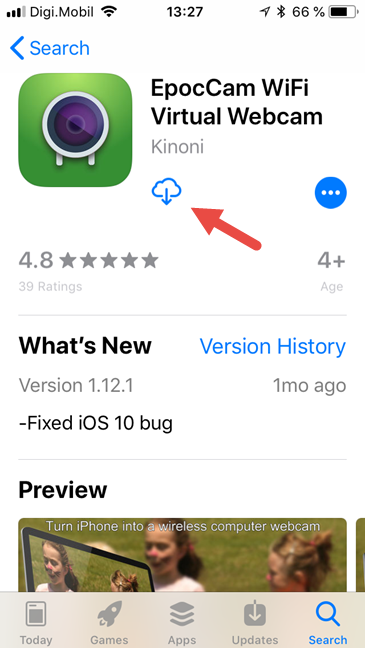
On your iPhone or iPad, open the App Store and use it to search for EpocCam. The full name of the app is EpocCam WiFi Virtual Webcam, and its developer is called Kinoni. When you find it, tap the Install or Get button and wait for the app to download and install.
The EpocCam WiFi Virtual Webcam app in the App Store
After you install the app on your iPhone or iPad, go to your Windows 10 PC and take the next step.
Step 2. Download and install the EpocCam drivers on your Windows 10 PC
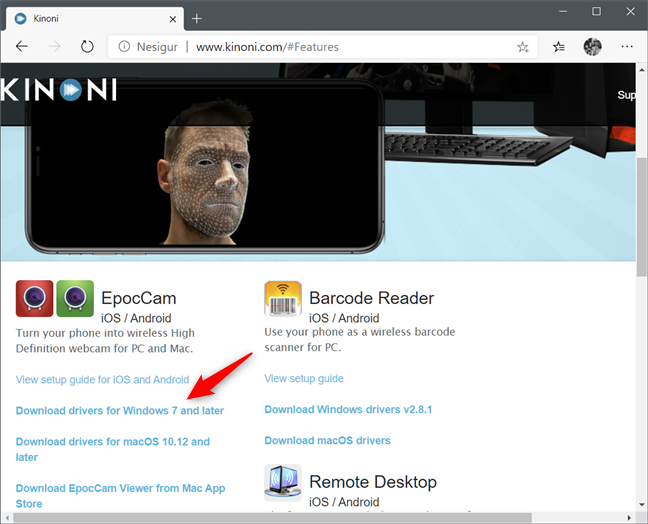
On your Windows PC, open a web browser and visit this website: Kinoni. Once it is loaded, look for the section called EpocCam iOS / Android. In it, there are several links with drivers: click or tap on Download drivers for Windows 7 and later link.
Downloading the Windows drivers from Kinoni's EpocCam website
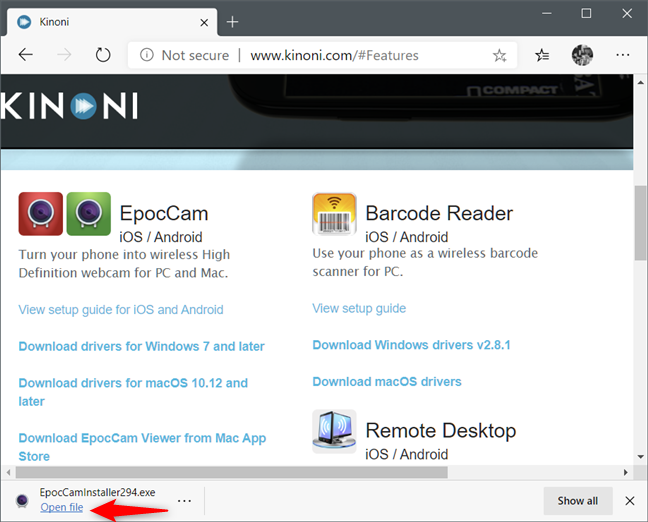
You should now get a small executable file called EpocCamInstaller[version_number].exe. Download and save it somewhere on your Windows 10 PC.
Click or tap on Open file or use File Explorer to navigate to where you saved the executable and double-click (or double-tap) on it.
Opening the executable file with the drivers
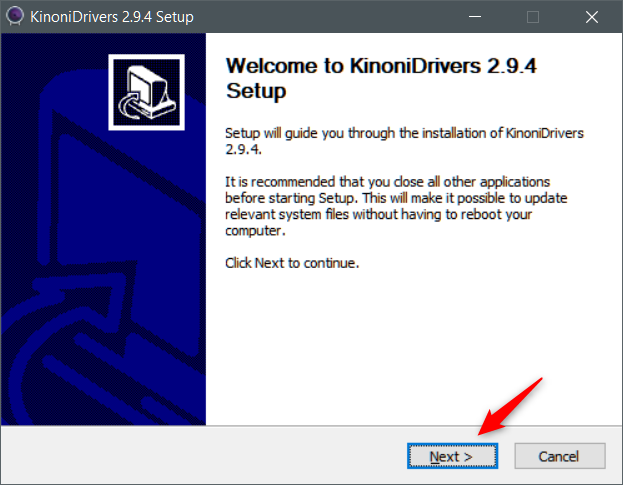
The driver installation wizard only has a few easy steps, which you go through by pressing Next a few times.
Running the driver installation wizard
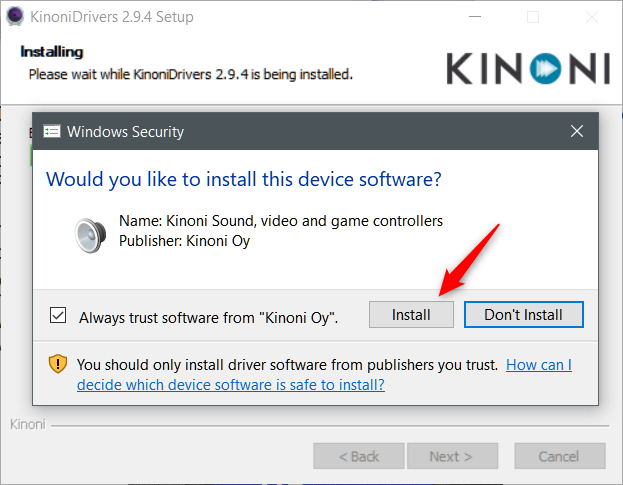
During the installation, the wizard asks you to install a device driver from Kinoni. Make sure you approve the driver installation by pressing Install. Otherwise, you cannot use your iPhone as a webcam on your Windows 10 PC.
Installing the Kinoni drivers
When the installation is finished, we recommend that you restart your computer to make sure that every driver loads appropriately. However, it is not a mandatory thing to do.
Step 3. Connect the EpocCam app on your iPhone or iPad to your Windows 10 PC
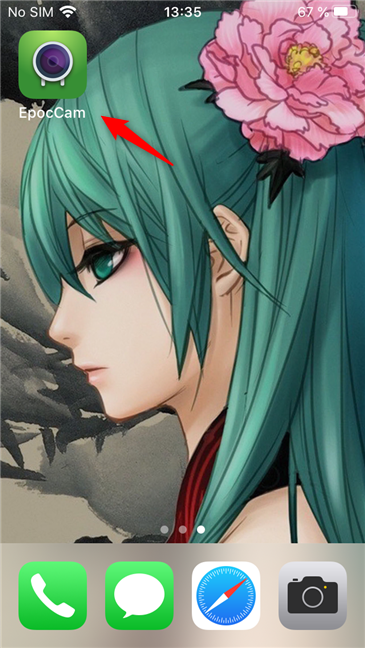
On your iPhone or iPad, open the EpocCam app.
The EpocCam app on an iPhone
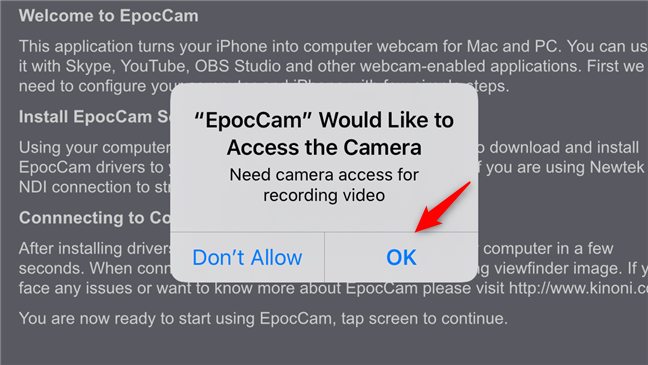
Allow EpocCam to access your iPhone's or iPad's camera; otherwise, it can't turn your iPhone into a webcam for your PC. Tap on OK and then read the welcome message. Once you're done reading, tap anywhere on your screen.
Allowing EpocCam to access the camera on an iPhone
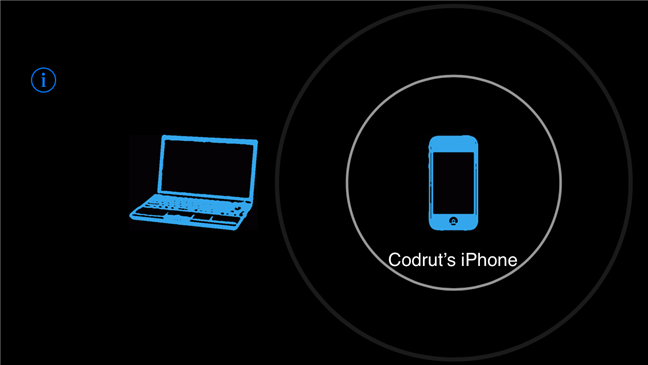
For a brief moment, the app might show a screen on which your iPhone or iPad is searching for Windows 10 PCs that are connected to the same network.
An iPhone looking for the Windows 10 PC to stream video
Once it finds your Windows 10 PC, EpocCam immediately starts streaming video to it. If you are using the free version of the app, it is also a time when advertisements are shown on your iPhone or iPad. On your Windows 10 PC, the connection is also signaled by a desktop notification the first time it's made.
EpocCam connected via WiFi
Step 4. Check if the connection between your iPhone or iPad and your Windows 10 PC works correctly
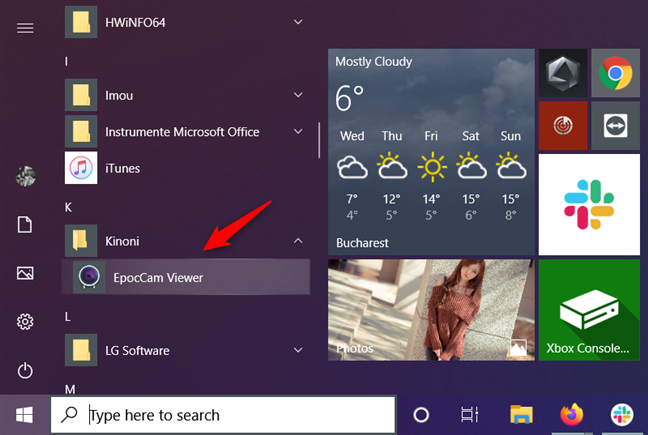
The EpocCam drivers that you installed on your Windows PC also include an app called EpocCam Viewer. This app is useful if you want to check whether the connection between your iPhone or iPad and your Windows 10 PC is working correctly. Find EpocCam Viewer on your Windows 10 PC: use the search to look for it, or open the Start Menu and navigate to All apps -> Kinoni -> EpocCam Viewer.
EpocCam Viewer shortcut on the Start Menu
If the EpocCam Viewer app shows the video feed from your iPhone or iPad, then it means everything is set up and working as it should.
EpocCam Viewer showing live video from the iPhone
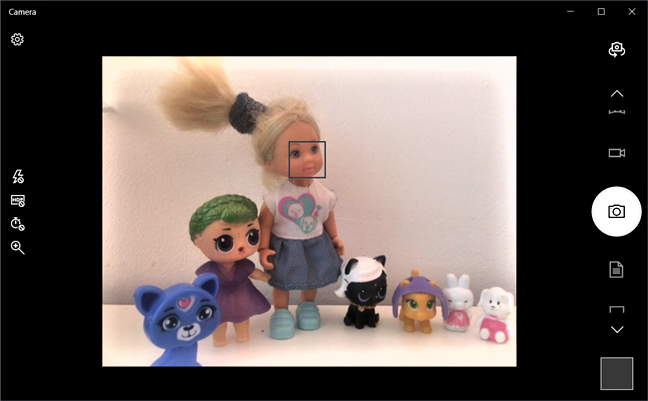
Now you can start using your iPhone as a webcam on your Windows 10 PC. For instance, it's automatically detected by the Camera app from Windows 10.
Using an iPhone as a webcam in the Windows 10 Camera app
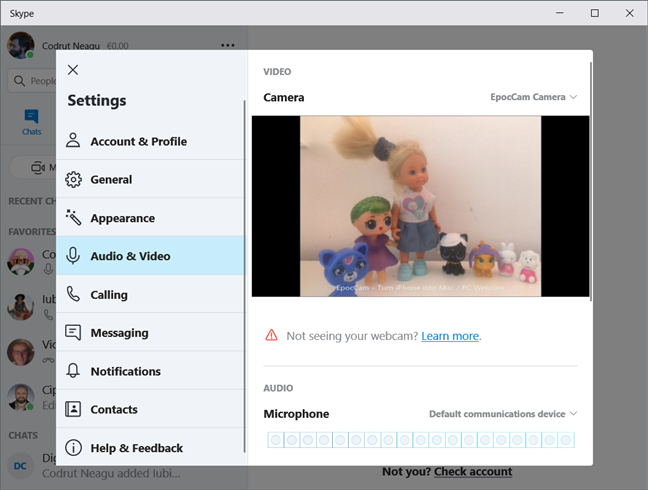
You can now also use your iPhone as a webcam for Skype on your Windows 10 PC.
Using an iPhone as a webcam in the Windows 10 Skype app
Theoretically, EpocCam now lets you use your iPhone or iPad as a webcam on your Windows 10 PC in any apps that need and support webcams. However, there might be issues with some apps; if you have trouble using this app, check the next article section too.
What to do if my iPhone or iPad doesn't work correctly as a webcam for my Windows 10 PC?
Like anything else that involves wireless connections and some kind of emulation, the EpocCam app might not always work as expected. Some people are satisfied, and others are not, and you can immediately see that if you are looking through the app's reviews section in the App Store. However, even if you encounter problems, you should not abandon using it immediately: you should check the troubleshooting guide created by EpocCam's developers. You can find it here: Kinoni EpocCam Troubleshooting.
Are you using an iPhone as a webcam on your Windows 10 devices?
Now you know how easy it is to use an iPhone or iPad as a webcam on a Windows 10 computer. Do you like EpocCam and how it works? To be honest, we believe there is room for improvement, but, as far as we can tell, EpocCam is the only "pretty good" app of its kind in the App Store. If you know others that work better than it, please let us know in the comments section below.
















Discussion (1)
Is it possible to use USB cable, rather than WIFI, to send video from iPhone to Windows 10?