



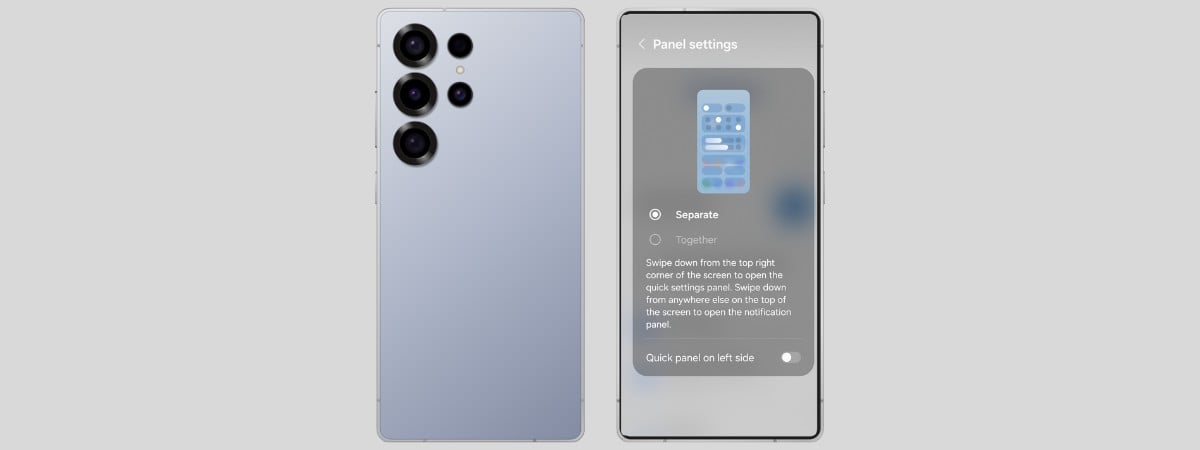
In its latest One UI 7.0 software update for Galaxy devices, Samsung decided to copy an iPhone feature that nobody asked for, separating Quick Settings from notifications. If you bought a Samsung Galaxy device with One UI 7.0 or newer, or you have an older smartphone or tablet that was updated to One UI 7.0, when you swipe down from the top-right corner of the display, you see the Quick Settings, WITHOUT your notifications. To access those, you must swipe down anywhere else from the top edge of the screen. And if you’re viewing your notifications, you must swipe from right to left to view Quick Settings. I don’t know about you, but I’m a longtime Android user and find this change unnecessary. This is one of those things that Samsung shouldn’t have copied from Apple or Xiaomi. If you, too, are frustrated and want the Quick Settings bundled together with your notifications, here’s what you have to do:
NOTE: This tutorial works for all new Samsung Galaxy devices, including the Galaxy S25 series, Galaxy A56, A36, etc. It also applies to Samsung Galaxy tablets and older smartphones that have received the One UI 7.0 update. For example, this guide was created on a Samsung Galaxy S23. For those of you who prefer a video summary, watch the YouTube clip below. The written tutorial continues below the clip.
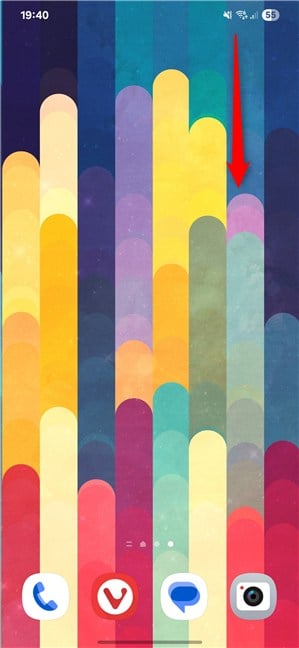
 Swipe down from the top right
Then, tap the pencil icon in the top-right corner, next to the Power button.
Swipe down from the top right
Then, tap the pencil icon in the top-right corner, next to the Power button.
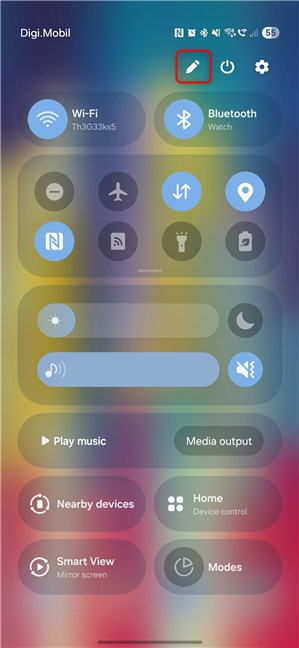 Tap the Pencil icon
You see several options for changing the order of the different quick settings available on your Samsung Galaxy. Tap the Panel settings button in the top left.
Tap the Pencil icon
You see several options for changing the order of the different quick settings available on your Samsung Galaxy. Tap the Panel settings button in the top left.
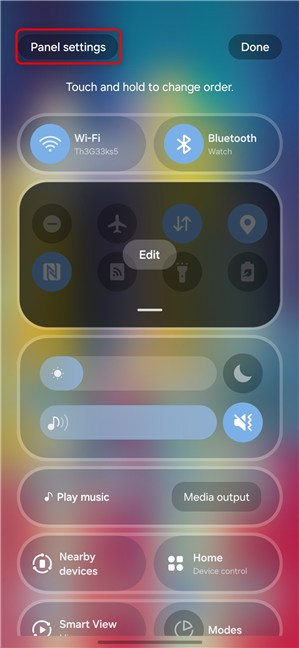 Go to Panel settings
TIP: You can also read how to customize the Android Quick Settings panel.
You see the Panel settings window, which includes options for customizing its behavior. By default, Separate is selected.
Go to Panel settings
TIP: You can also read how to customize the Android Quick Settings panel.
You see the Panel settings window, which includes options for customizing its behavior. By default, Separate is selected.
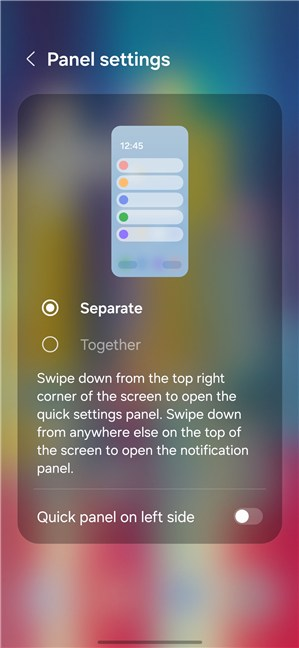 Your Samsung Galaxy Panel settings
Select Together, and tap the Back arrow in the top-left corner.
Your Samsung Galaxy Panel settings
Select Together, and tap the Back arrow in the top-left corner.
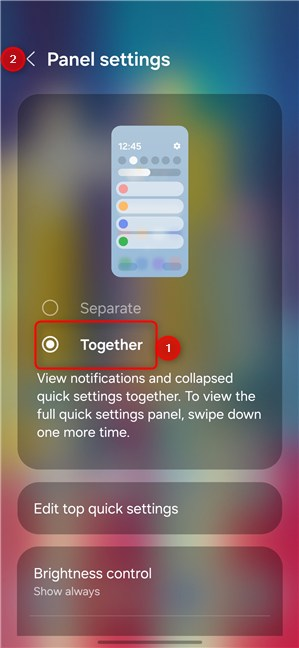 Select Together and go Back
Remember to tap Done to apply your settings and then swipe up to minimize the Quick Settings panel.
Select Together and go Back
Remember to tap Done to apply your settings and then swipe up to minimize the Quick Settings panel.
 Tap Done
That’s it! Enjoy accessing your notifications and Quick Settings in the same panel, with a simple swipe down from the top of the screen.
Tap Done
That’s it! Enjoy accessing your notifications and Quick Settings in the same panel, with a simple swipe down from the top of the screen.
How to group the Quick Settings and Notification panels on Samsung Galaxy
First, unlock your Samsung Galaxy and swipe from the top-right corner to open the Quick Settings.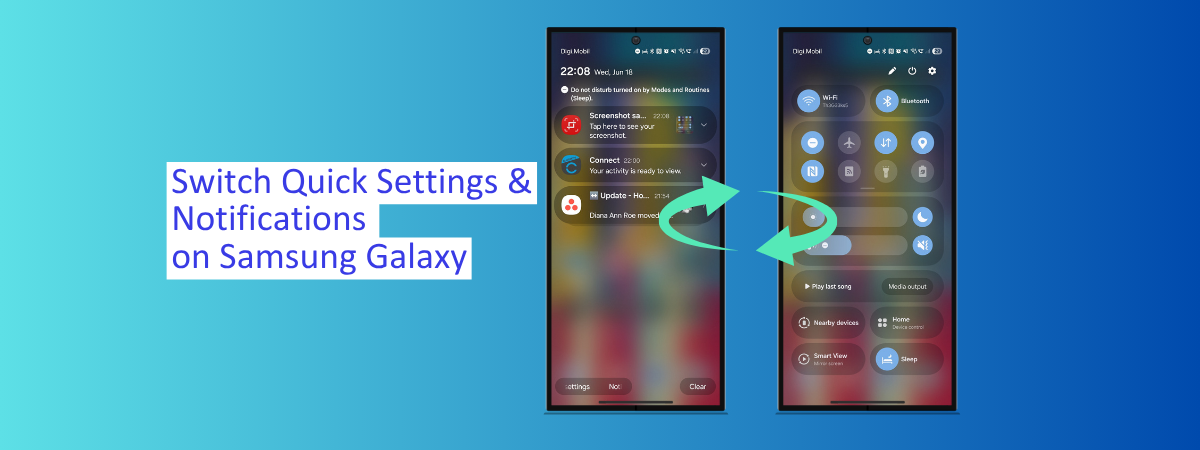


Discussion (0)
Be the first to comment.