UP

Tutorials

Tutorials and how to guides about using gadgets, hardware, and software. Our tutorials cover all major operating systems: Windows, Android, iOS and others.

Notification area cleaner: 2 ways to reset the notification area icons in Windows

Do you need to remove obsolete icons from the notification area on the Windows taskbar? Do you see icons for apps that are no longer installed, and you want to get rid of them? While you can do this with dedicated apps, a simple trick is to remove two registry values and then restart the explorer.exe process in Windows. Here are two methods for cleaning the icons shown in the
tutorial 2 ways to find out when a partition was created in Windows

2 ways to find out when a partition was created in Windows

Have you ever needed to know when an NTFS partition was created or when Windows first initialized a drive and made it available for use? Although there are no easy, user-friendly ways to find out, we know two different methods by which you can find this information, by yourself. If you are curious to learn, read on: 1. Find out when a partition

How to track which apps use the most data in Windows 10

Do you need to find out which apps use the most data on your Windows 10 laptop, tablet, or desktop PC? Few people know that Windows 10 stores such data for the last 30 days, for WiFi, Ethernet, and Cellular connections. This data is automatically logged, and accessing it is easy. Here is how to track how much data is used by your apps in Windows 10: [DC-SUMMARY-BREAK] NOTE: This

How to turn off your activity history, and the Timeline, in Windows 10

In recent versions of Windows 10, Microsoft has introduced a new feature called the Timeline. However, most users refer to it as the Task View's app history. This feature stores the history of your activities in Windows 10, on Microsoft's cloud servers (if you want to) and synchronizes it across your Windows 10 computers and devices. If you do not use this feature and you want Windows 10 to stop

How to use Windows advanced sharing to share folders with specific users

Modern versions of Windows, such as Windows 10 and Windows 7, allow users to share folders with other computers and devices from the local network, using a wizard that is supposed to make things easy. However, it does not allow for the same level of customization that the old-school Advanced Sharing feature does. If you want to share folders with specific users, limit the number of users who have access

7 ways to keep tabs on your systems' performance with the Task Manager

Have you ever wanted to know how much of your processor's power is being used at a particular time? Or maybe how much free RAM was left for your favorite game to use? How about how much of your video card's power is used? All these are essential system resources without which apps and games cannot run well. If you want to see statistics as well as real-time information, you

How to free up space when the File History drive is full

If you turn File History on without configuring it correctly, you are going to learn the hard way that it keeps the saved versions of your files in its backup location forever, until you run out of space and you have to do something about it. The first time we used it, the File History drive got full in just a few weeks. Here is how to clean up the
tutorial How to make PowerShell and the Command Prompt transparent

How to make PowerShell and the Command Prompt transparent

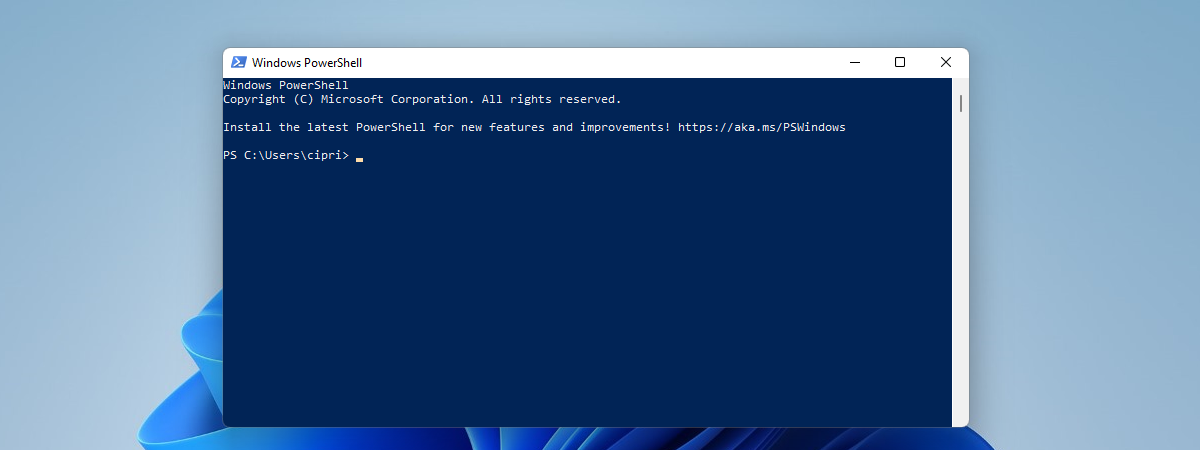
If you frequently use the Command Prompt or PowerShell, you may be tired of their opaque app windows. They are functional, useful, but also dull. Another issue is that when you work in a busy office, people can easily see what you type, due to their opacity. If you are a Windows 10 user, one neat little personalization that you can perform is to
tutorial How to use the Voice Recorder in Windows 10 to record audio

How to use the Voice Recorder in Windows 10 to record audio

The free Voice Recorder app bundled with Windows 10 is great in its simplicity, allowing you to make quick and clear audio recordings, without the use of a professional program or recording device. Whether you need to practice the acceptance speech for winning your Hearthstone Tournament, decide to interview your favorite pet or want to figure out if you are good enough for American
tutorial Fix problem: Windows 10 apps are not shown in the Start Menu

Fix problem: Windows 10 apps are not shown in the Start Menu

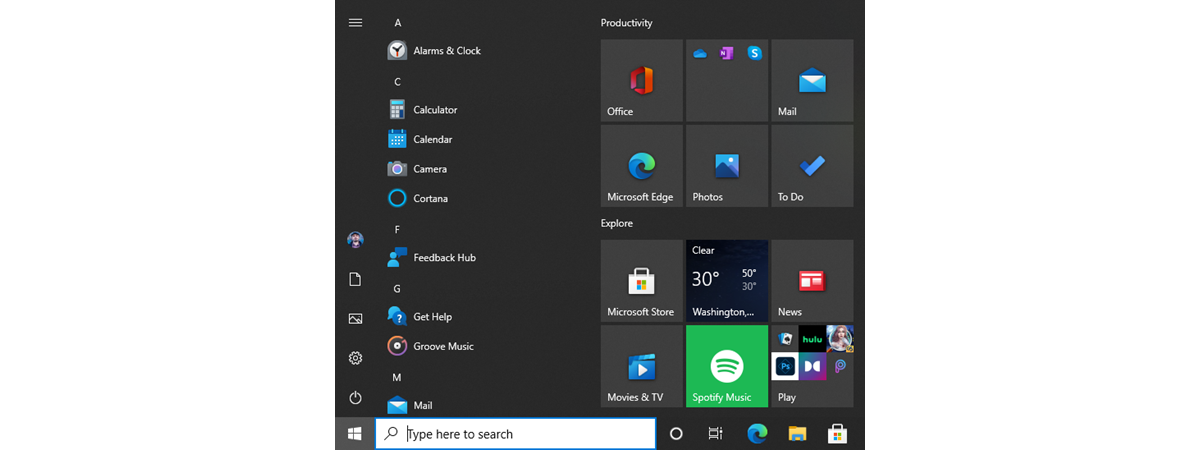
At times, the Windows 10 Start Menu may be populated with what appears to be invalid tiles, with download icons, and which do not work. This happens after you install Windows 10, or after a major feature update such as the May 2019 Update, or when you create and log in with a new user account. Here's more information about this problem, what is

The Quick actions in Windows 10: access them, use them, customize them!

On top of constantly keeping you informed on what is happening on your device, Windows 10's Action Center includes, at the bottom of its panel, a set of buttons aptly named Quick actions. They offer you a fast and easy way to access apps and settings, without having to memorize complicated keyboard shortcuts. Here is everything you need to know about Quick actions and what they can do to make

View details about running processes with the Windows 10 Task Manager

Although Task Manager's Processes tab offers detailed information about how programs use system resources, it is the Details tab that allows you to find out everything you need to know about running processes (and more). Task Manager's Details tab provides generous data about each process running on your Windows 10 computer or device, and it can come in handy during advanced troubleshooting. In this tutorial, we go over the massive
tutorial Four ways to forget a WiFi network in Windows 10

Four ways to forget a WiFi network in Windows 10

When you connect to a wireless network in Windows 10, the operating system creates a profile for that connection, in which it stores information like the network name (or SSID), the password, and the type of encryption that it uses. When you travel a lot, Windows 10 may end up storing lots of WiFi networks, so that it can easily connect to them the
tutorial How can I make my Skype theme dark (or light)?

How can I make my Skype theme dark (or light)?

You might be asking yourself: Is there a dark theme for Skype? Yes there is, and there's also a light theme, just like in Windows 10 May 2019 Update. Both themes are available in Skype for Windows 10, Android, and iOS. In this guide, we share how to change your Skype theme to dark or light, depending on what you want, on all platforms:

Working with File History from the Control Panel: What you can and can't do!

File History is a useful app that is built into Windows 10 and Windows 8. It can be used to automatically back up personal files and folders, like your documents, pictures, and videos, without any user intervention, except for turning it on, and configuring how it works. If you use Windows 10, you can interact with File History both from the Settings app and the Control Panel. In each of
tutorial Hide or show your e-mail address on the Windows 10 sign in screen

Hide or show your e-mail address on the Windows 10 sign in screen

When Windows 10 was first launched, it displayed the email address of your Microsoft account each time you accessed the sign in screen. This was annoying for laptop users who traveled a lot because, when using their Windows 10 laptops in public areas, like airports, cafes or events, others could easily see their email address. Fortunately, Microsoft listened to feedback, and newer versions of

Use the App history from Task Manager to view your apps' resource consumption

Windows 10's Task Manager can be a gold mine of information when it comes to apps and how they use your computer's resources. While most of the tabs display real-time data, the App history tab collects and reports usage statistics for the apps and programs running on your computer or device over the last month. This feature is useful, especially for users of mobile devices, like laptops, tablets, or 2-in-1