Do you need to write documents in Microsoft Word and want to split all or just some of your text into separate columns? You do not know how to write text in two columns? Or maybe you'd like to have three or even more columns in your Word document? What if you want to choose where a column begins, and the other ones end so that the text doesn't just flow from one column to another? If these are your questions, read this guide. We have the answers.
How do I write in two columns at the same time in Word?
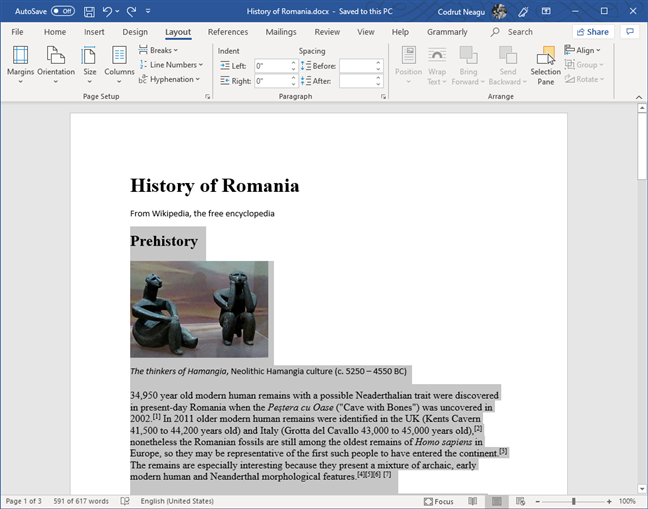
To split your text content into two columns, you must first open your Word document or create a new one and add some text to it. Only then can you create the columns. How do you do that? It is simpler than you might think: select the text that you have typed in your Word document.
Selected text in Microsoft Word
TIP: If you want to select all the text in your Word document, press the Ctrl + A keys on your keyboard.
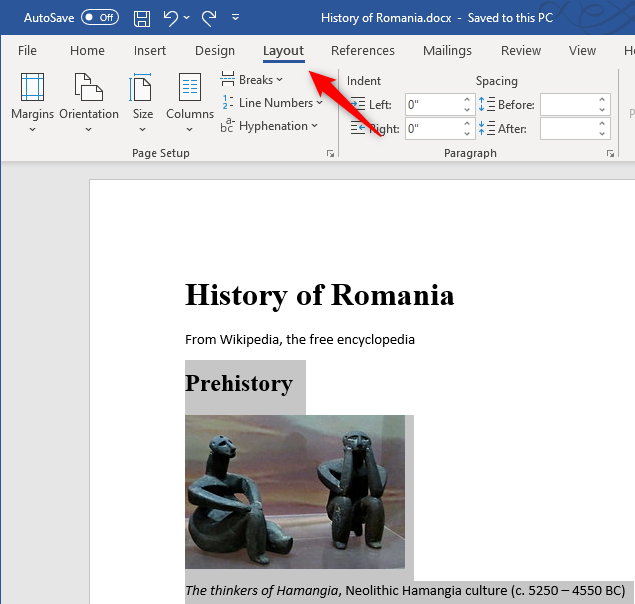
Once you have selected the text that you want to split into columns, click or tap the Layout tab from the ribbon interface in Microsoft Word.
The Layout tab from Microsoft Word
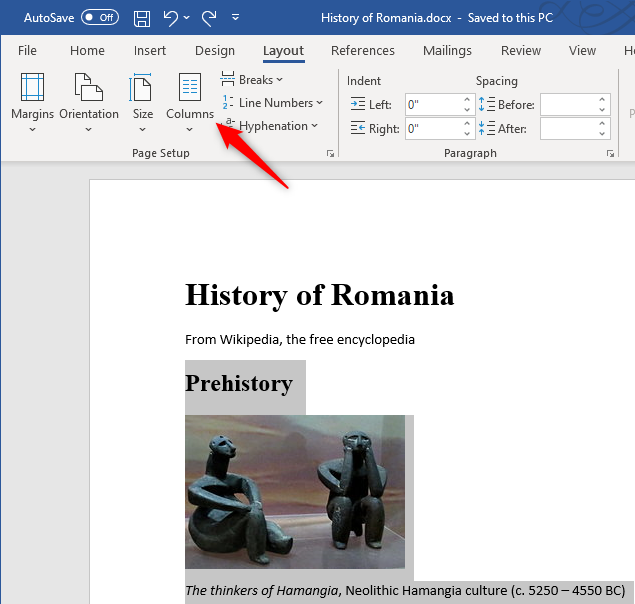
Then click or tap on the Columns button from the Page Setup section of the Layout tab.
The Columns button from the Page Setup section of the Layout tab
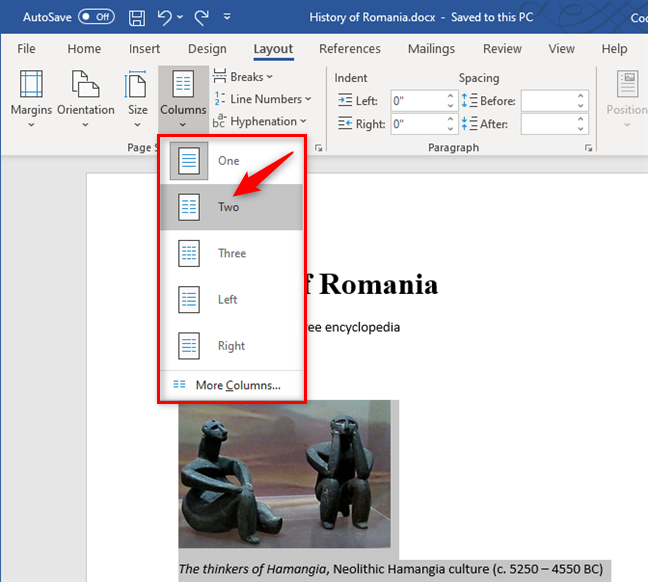
This opens a list of options from which you can choose into how many columns you want to split your text. Click or tap on Two.
Creating two columns in a Word document
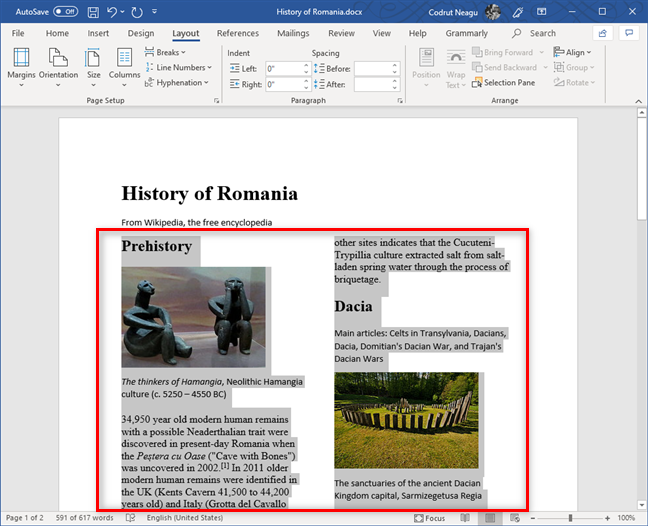
Word immediately creates the two columns and makes your text flow from one to the other, as you can see in the screenshot below.
Text split into two columns, in Word
Next, you can write new text anywhere in the document's columns: the text is going to flow from one column to the other. However, you might not like this flow. If you want to specify exactly when a new column starts, check the last section of this tutorial, where we'll show you how to add column breaks.
How do you make 3 columns (or more) in Microsoft Word?
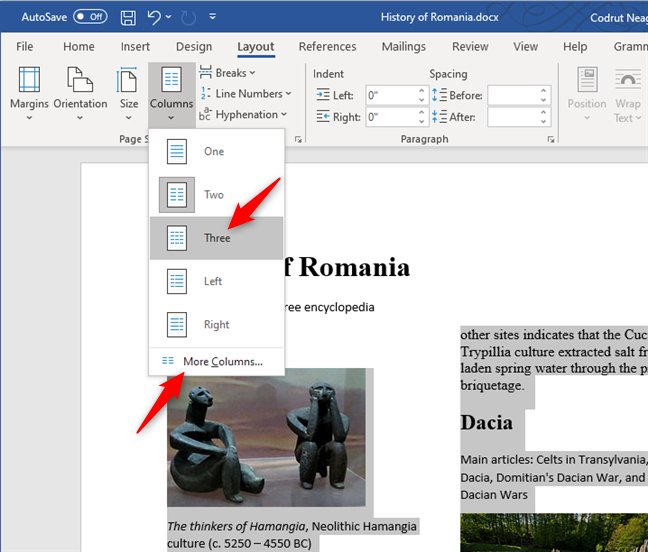
If two columns are not enough, you can also create three or even more columns in your Word document. Write your text, select it, and go to the Layout tab. Click Columns, and choose Three or click or tap More Columns if you need even more.
Creating three columns, or more, in a Word document
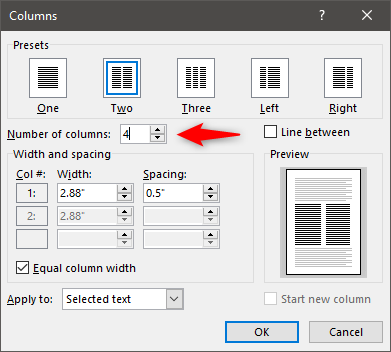
If you choose Three, the text you have selected is immediately split into three columns. If you need even more columns and you chose to click or tap the More Columns option, then Word opens a new window with additional settings, called Columns. In it, look for the setting called "Number of columns." Type the number of columns that you want, and press OK.
Choosing the Number of columns to create in Word
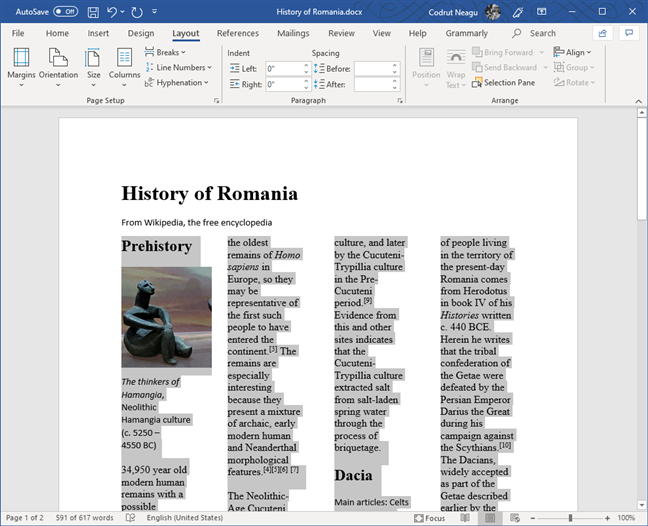
Word immediately splits the selected text into as many columns as you specified. For example, this is what we got when we chose to split the text into four columns:
Text from a Word document, split into four columns
How do you choose where a column begins?
If you want to control exactly where a column begins and another one ends, you can. Word has something called column breaks, which does exactly that.
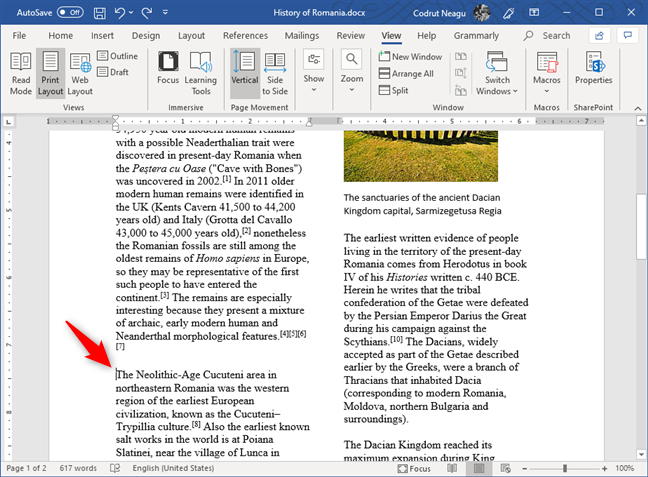
To add a column break, first, click or tap at the beginning of the text that you want to start on the next column.
Choosing where a new column begins in Word
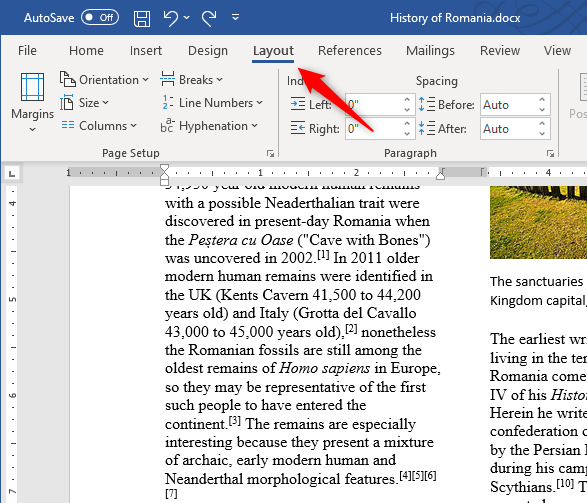
Then, click or tap on the Layout tab from the ribbon interface in Microsoft Word.
The Layout tab from Word's ribbon interface
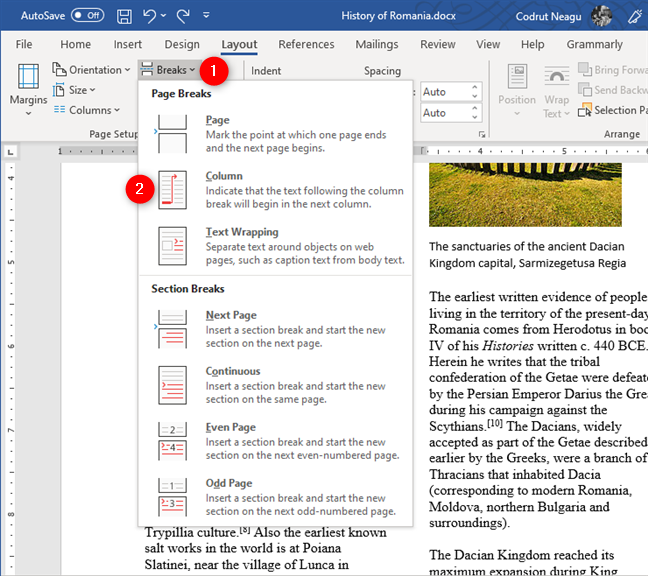
In the Page Setup section from the Layout tab, click or tap on Breaks. This action shows a list of layout options for Page Breaks and Section Breaks. In it, click or tap Column.
Choosing to insert a Column break
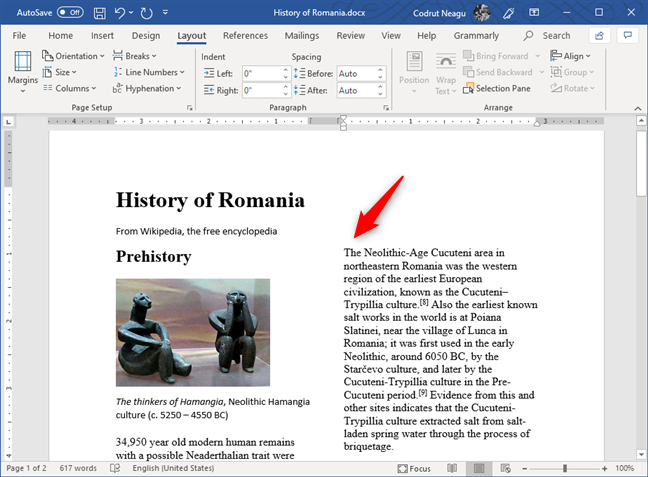
As you can see in our example, once you do the above, Word immediately makes the next column start where you chose.
When adding a column break, the next column starts from where you wanted it to
You can repeat this process as many times as you want, to choose where each of your existing columns starts.
Did you find it easy to create columns in your Word documents?
Now you know how to split your Word documents into columns of two, three or more. You also know how to make them start exactly where you want them to. Did you find it easy to do all that, or did you encounter problems? You can ask for help or leave us a reply, using the comments section below.















Discussion (4)
Hi, thank you very much for this article, I followed your Column Break instructions and they worked perfectly!
How about using only mobile phone???
This was great. First article I came across that mentioned Column Break which is what I needed! Thank you!
Happy to help. Do not hesitate to subscribe to our newsletter, for more useful tutorials.