Another useful new feature in Windows 8.1 is that you can set in detail which apps can use devices like the webcam, microphone and others. This tutorial shows how this configuration is performed. As you will see, it is very quick and painless. 🙂
NOTE: The settings detailed detailed in this tutorial apply only to apps from the Windows Store. Desktop applications are not influenced in any way by these settings. If you would like to learn more about the difference between apps and traditional applications, read this article: What is a Windows 8 App? How is it Different from a Desktop Application?.
How to Set Which Apps May Use the Webcam, Microphone, etc
First, open PC Settings. If you don't know how, read this guide: Five Ways to Access PC Settings.
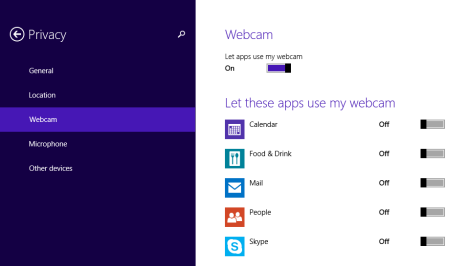
In PC Settings, go to Privacy. You will find several sub-sections. If you want to set which Windows 8.1 apps can access your webcam, click or tap Webcam, on the left column.
You'll see a global switch that says "Let apps use my webcam". If you set it to Off, all apps won't be allowed to use your webcam. If you set it to On, you can configure one by one, the apps that can use your webcam.
Below the global switch there is a list with all the apps that can use your webcam, if you let them.
Windows 8.1, privacy, settings, devices, webcam, microphone
Turn their switches to On or Off depending on which apps you want to use your webcam.
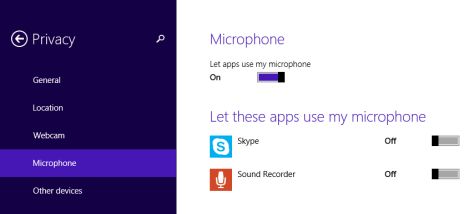
In the Microphone section you will find similar options. The switch that says "Let apps use my microphone" is also global. If you set it to Off, all apps won't be allowed to use your microphone. If you set it to On, then you can configure one by one, the apps that can use the microphone.
Windows 8.1, privacy, settings, devices, webcam, microphone
The Other Devices section works using the same principles.
Conclusion
The improvements brought to PC Settings in Windows 8.1 provide more control to users and improve their computing experience. Having a way to quickly review and edit which apps can use which devices, helps troubleshoot problems with apps that don't seem to be doing what you expect.
I want my Windows to give Chrome access to my webcam. But Chrome is not on the given list. I am not asking how to allow “websites on Chrome”, I am asking about “Chrome” itself.
katsuofish ·
What if I want my camera to have access to my USB microphone? It is not on the list.
kubaak ·
What if program isn’t in list? Desktop programme.
Ciprian Adrian Rusen ·
This is for apps in the Windows Store, not for desktop programs.






Discussion (4)
I want my Windows to give Chrome access to my webcam. But Chrome is not on the given list. I am not asking how to allow “websites on Chrome”, I am asking about “Chrome” itself.
What if I want my camera to have access to my USB microphone? It is not on the list.
What if program isn’t in list? Desktop programme.
This is for apps in the Windows Store, not for desktop programs.