Windows 8.1 introduces a neat little feature, named Quiet Hours. As the name implies, quiet hours are an interval within the day when you don't want to be interrupted by notifications, by any Windows app, not even the Mail app. You can also set that, during those quiet hours, you won't even take calls through Skype. Here's where to find this feature in Windows 8.1 and how to configure it.
Where to Find the Settings for Quiet Hours in Windows 8.1
The settings related to Quiet Hours can be found only in PC Settings. To learn how to open PC Settings, read this article: Five Ways to Access PC Settings.
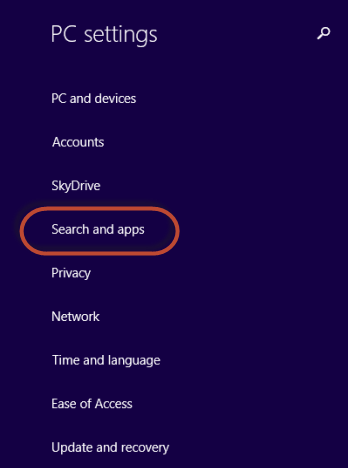
Then, go to Search and apps.
Windows 8.1, quiet hours, time, notifications, calls, turn off
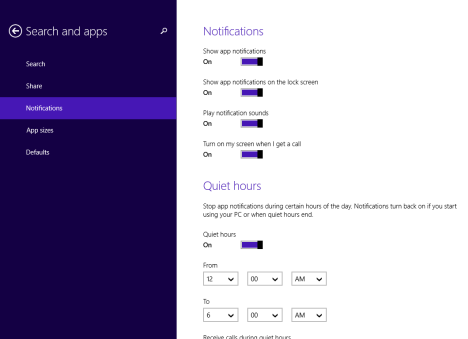
There are several sections available, each with its own set of settings. Click or tap Notifications.
Windows 8.1, quiet hours, time, notifications, calls, turn off
Here you will find all Windows 8.1 settings related to how Windows Store apps display notifications. Scroll down a bit, to find the Quiet hours section.
How to Set the Quiet Hours in Windows 8.1
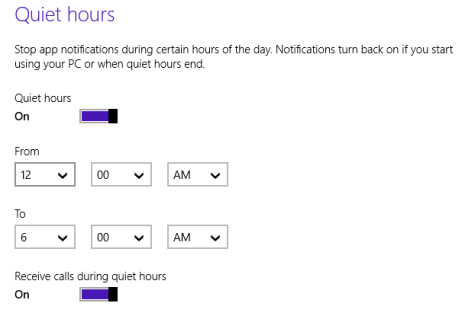
You can turn this feature On or Off, using the Quiet hours switch.
Windows 8.1, quiet hours, time, notifications, calls, turn off
If you enabled this feature, then set the From and To interval. This interval applies to each day of the week.
Last but not least, you will find a switch named "Receive calls during quiet hours". If it is set to On, then you won't receive notifications from apps that can be used to take calls, like Skype. That is, during the Quiet hours you have set.
Conclusion
As you can see, setting your Quiet hours is really easy. This feature is very useful if you keep your computer or device turned on while you sleep. Also, it is highly useful when you want to have a couple of quiet product hours for doing work that matters. Whatever the reason, don't hesitate to use this feature. You will love it.







Discussion (0)
Comments are closed.