



One of the changes made by Microsoft in Windows 8.1 is that, due to user feedback, anyone can change the Start screen with a Start Menu. It's not the old Start Menu from Windows 7, but it sure is close enough. But how do you enable it? Here's how:
The Start Screen vs. The Start Menu in Windows 8.1
In Windows 8.1, just like in Windows 8, the Start screen is filled with both shortcuts and tiles for all kinds of apps. You can add or remove items on it.
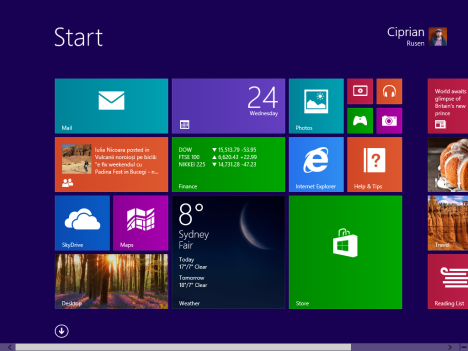
If you would rather have something similar to the old Start Menu, you can. The only difference is that it is going to be a full-screen Start Menu. Here's how it looks:
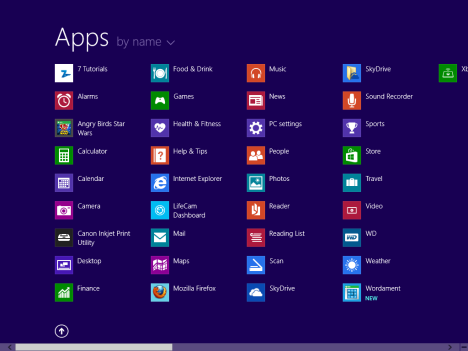
As you can see, there are no more tiles. Only shortcuts. Also, programs and apps are have their shortcuts split into folders, just like in the old Start Menu.
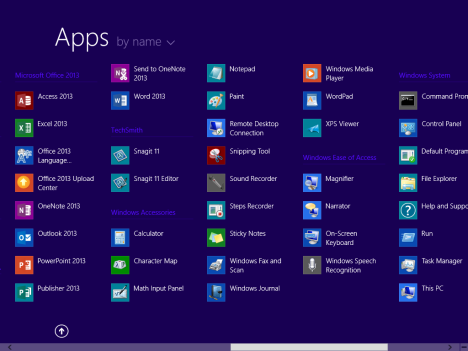
And, to make things better, you can also set Windows 8.1 to boot to the Desktop. From there, you can access the full-screen Start Menu only when you press the Windows key or the Start button.
How to Turn the Start Screen Into a Start Menu
How do you do this? Well... luckily, it is easy. First, go to the Desktop. Then, right click on the taskbar and select Properties.
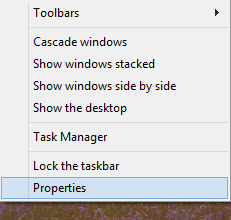
The "Taskbar and Navigation properties" window opens. There, go to the Navigation tab.
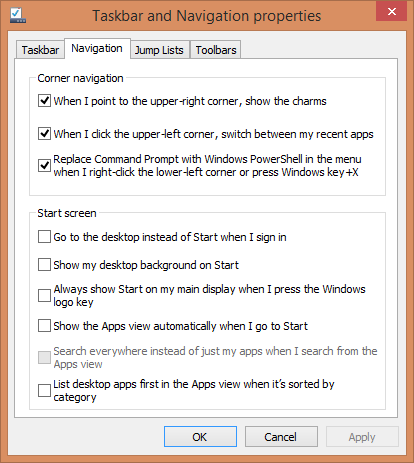
All the important settings are found in the Start screen section. Logical, isn't it?
Check the following options:
- "Go to the desktop instead of Start when I sign in" - if you change the Start screen into a Start Menu, you will want to enable this setting.
- "Always show Start on my main display when I press the Windows logo key - this setting should be enabled so that it is easier to access the new Start Menu using the keyboard.
- "Show the Apps view automatically when I go to Start" - this is the most important setting. It changes the Start screen into a full-screen Start Menu.
- "Search everywhere instead of just my apps when I search from the Apps view" - this setting is optional and it allows Windows 8.1 to search also on the web when you make searches.
- "List desktop apps first in the Apps view when it's sorted by category" - if you don't want to use the default Start screen then, most probably, you are a PC user who installs many desktop applications. Enabling this will help find your applications faster.
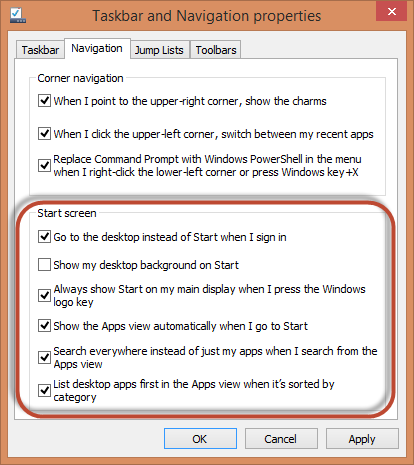
After you have set things the way you want to, click OK and you are done. Enjoy the new Start Menu.
Conclusion
Luckily, Microsoft has listened to feedback and made the transition to Windows 8.1 easier for PC users. After you try the full-screen Start Menu, let us know what you think about it. Is it better than the Start screen? Do you plan to use it for a long time?
Discussion (8)
Many persons including myself lament the loss of the windows Start Menu in windows 8 and 8.1. There are several Programs which have been written to return the Start Menu. I have tried a couple of them and they might work for you. They didn’t for me. I however did find a simple work around and now have a fully functional start menu. The files used to create the Start Menu are still around and by simply locating them and creating a Taskbar Toolbar you can completely reinvent Your Start Menu. The new location will be on the right end of the taskbar. But every thing is there. You will still need to rightclick on the original location at the left end of the taskbar for those functions. The location of the start menu file is as follows: C:/ProgramData/Microsoft/Windows/StartMenu. To create the toolbar rightclick on the taskbar, and select Toolbars and then New toolbar… Browse to the StartMenu File, select it and then click Select Folder. The new Toolbar Start Menu will appear on your Taskbar at the right end. Clicking on the double arrow will produce a satisfying replacement for the original Start Menu. It is Free and easy Enjoy!!
As P_Cezar states, Classic Shell is great. It is fully customizable, allowing all the loose shortcuts on the Programs menu or desktop to be arranged categorically in folders. The appearance (skin, number of columns, background, Aero effects etc.) is also easily altered. This is what MS _should_ have done from the “Start”.
I too use Stardock’s Object Desktop (Start8). My take on it is, Microsoft built Windows 8. Stardock put the finishing touches on it.
Its great.
Classic Shell (https://sourceforge.net/projects/classicshell) does the job for me.
I’ve been a subscriber to Stardock’s Object Desktop for over a decade and they’ve added their Start8 program (plus their MetroMix and Decor8 programs) to the subscription – I tried the Start Screen for a while but I’ve installed the start menu replacement and haven’t looked back. The Modern/Metro Start Screen maybe suitable for a tablet or smart phone OS, but it’s not more useful than the old Start Menu and on a laptop or desktop system that is not touch based it’s more trouble than it’s worth.
Not gonna change for now…
What a half-baked solution!
It would be much easier (and a lot better) just adding ONE item: “Start Screen? No, thanks. Just give me the Start Menu”
Honestly, the Start Screen is better than the Start Menu. Try it out and see how well it works for you. If it doesn’t, then you can use third-party software to bring back the old Start Menu.
Start Screen better than the Start Menu? Sorry, not for me. I work in the desktop most of the time. Those flat blocks look awful in a big monitor and the transition adds no value, so let’s agree to disagree 🙂