



Microsoft did not provide any support for setting Windows 8 to boot straight to the Desktop and skip the new Start screen. There was no registry setting available, no group policy and most of the hacks that worked with the test versions of Windows 8 do not work in the final version. Since many people want this feature in Windows 8, Microsoft gave in and, in Windows 8.1 is can be done with just a few clicks. Here's how to set both Windows 8.1 and Windows 8, to boot to the Desktop.
How to Boot to the Desktop in Windows 8.1
NOTE: If you are using the original Windows 8 release, skip this section and read the ones below it.
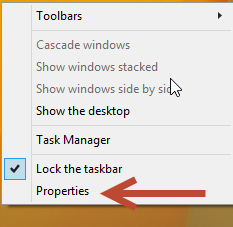
In Windows 8.1, the appropriate setting is found in the "Taskbar and Navigation properties" window. To open it, you have several options. The fastest is to go to the Desktop and right click on the taskbar (or tap and hold). In the contextual menu, click or tap Properties.
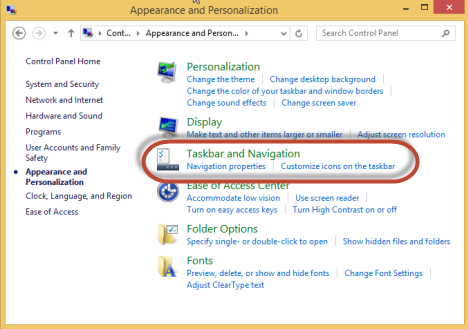
Alternatively, you can open the Control Panel and go to "Appearance and Personalization". There, click or tap "Taskbar and Navigation".
In the "Taskbar and Navigation properties" window, click or tap the Navigation tab.
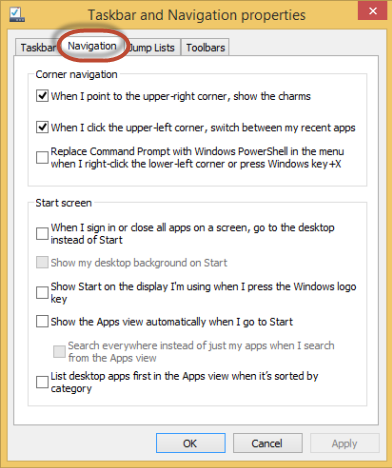
In the Start screen section, check the box which says "When I sign in or close all apps on a screen, go to the desktop instead of Start". Another setting that is worth enabling is "Show Start on the display I'm using when I press the Windows logo key", so that you have a quick way to access the Start while on the Desktop.
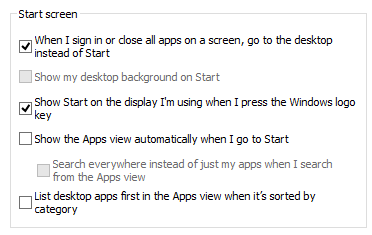
Then, click or tap OK and you are done. The next time you log into Windows 8.1, it will take you straight to the Desktop.
Previous Solutions for Windows 8 Don't Work or Have Side Effects
Many websites published several solutions for making Windows 8 take you straight to the desktop. One of the few that still works was shared by our friends from How-To Geek: How to Boot to the Desktop & Skip Metro in Windows 8. However, this solution has some side effects.
First of all, it doesn't really take you to the Desktop but to File Explorer. Also, some Windows 8 apps (e.g. SkyDrive) stopped working because File Explorer was launched with administrator permissions.
Other hacks and tools that used to work with the test versions of Windows 8 no longer work at all.
Our Solution(s) for Windows 8 - No Side Effects
We created a special .exe file that must be set to run at log on. This file sends the command to load the Desktop as soon as the Start screen starts loading. Therefore, in a matter of seconds, you are automatically taken to the Desktop.
Below you can see a video of how things work.
The great thing about our solution is that it has no side effects and it should continue to work even if Microsoft makes further updates to block solutions that make Windows 8 boot directly to the Desktop.
We also have an alternate solution, shared at the end of the article, just in case the first doesn't work that well for you.
Download & Use Our Special File for Windows 8
Similarly to the solution from How-To Geek, you need to create a scheduled task that runs at every log on and launches a special file we provide. But first, download the archive found at the bottom of this article and extract the file inside.
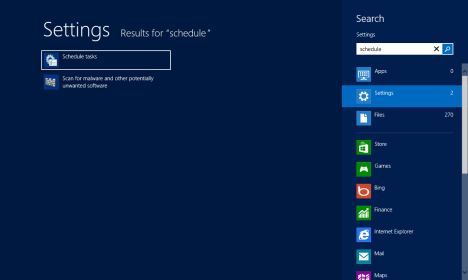
On the Start screen type the word schedule. Click or tap Settings to open the appropriate list of results and then click or tap Schedule tasks.
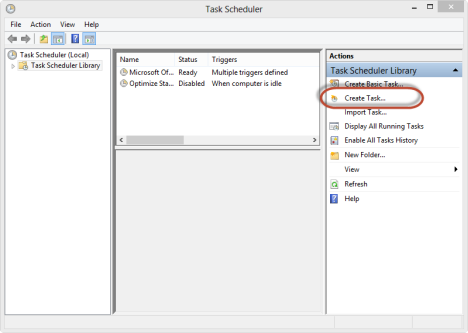
In the Task Scheduler window, click or tap on Create Task. The button is found in the Actions panel, on the right.
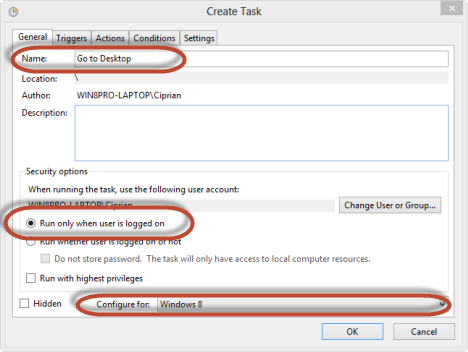
The Create Task window is opened. In the General tab, provide a name for the task, check only the box which says "Run only when user is logged on" and in the "Configure for" drop down box, select Windows 8. All the other settings in this tab should be unchecked.
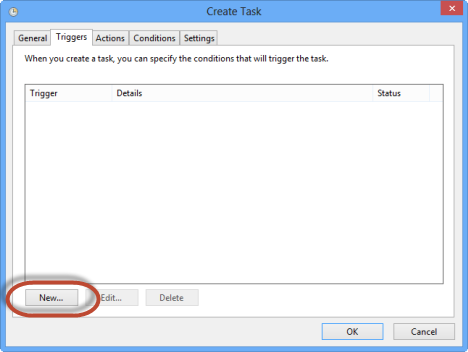
Then, go to the Triggers tab and press New.
Now you set when the file will be run. In the "Begin the task" drop down list, select "At log on".
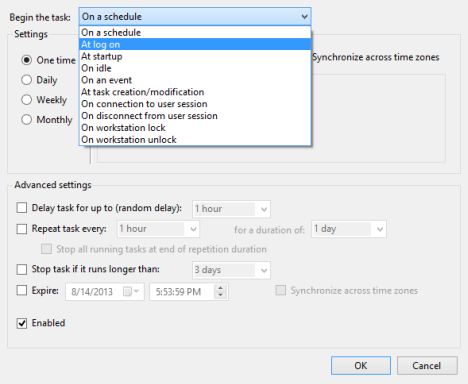
In the Settings section select Any user and make sure the trigger is Enabled. All the other settings should be unchecked. When done setting the trigger click or tap OK.
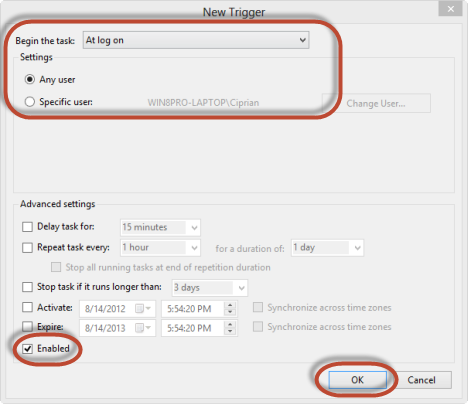
This is how the Trigger tab looks like once the trigger has been set.
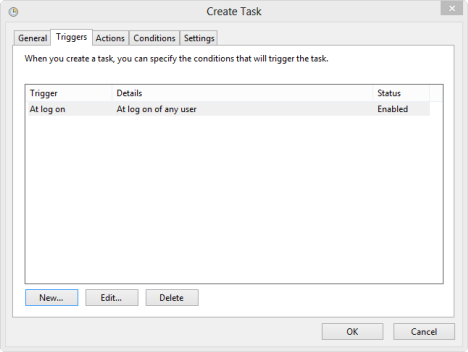
Go to the Actions tab and press New.
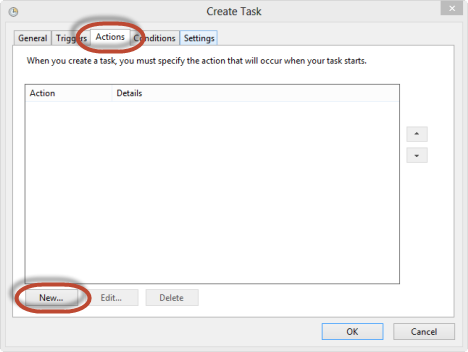
Now you need to set the task to run the file we provided, once the trigger you just set is activated. In the Action drop down list, select "Start a program". In the Program/script field, press Browse and select the executable file we provided. Make sure you select the exe file, not the shortcut file included in the archive.
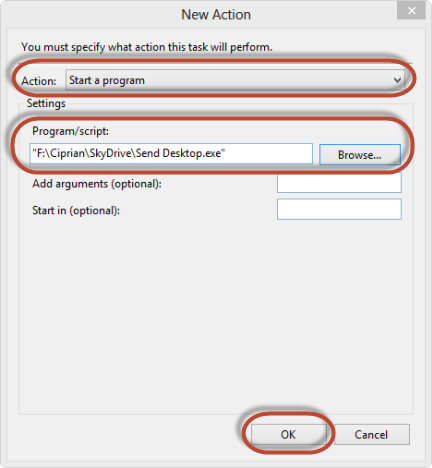
Then, press OK and go to the Conditions tab. Here uncheck the box for the "Start the task only if the computer is on AC power" setting.
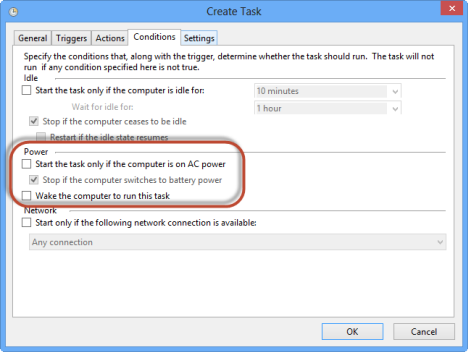
When done making all the settings, press OK. The task is now created and runs at each log on.
Alternate Solution for Windows 8
Another solution is to use the Send Desktop file we included in the archive (not the executable) and copy it to the drive where Windows 8 is installed, in the following folder: ProgramDataMicrosoftWindowsStart MenuProgramsStartup.
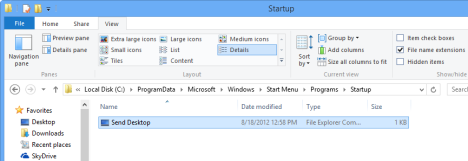
This file will be run at the end of the logon procedure. It will first way for the Start screen to load and then take you to the Desktop. This way, the Desktop will be loaded later than with the previous solution. However, it can be a good alternative if the first solution doesn't work too well for you.
Another Elegant Solution for Windows 8 - The Bypass Modern UI Tool
A german programmer has developed a free tool that you can use for the same effect. In certain situations it works better than our solution. The application makes a few changes to the Windows 8 licensing system to cut the restriction that forces users to boot to the Start. Below you can find a video of how Windows 8 works once this tool is used.
However, there are side effects and important things to consider:
- A recent update from Microsoft - KB2770917 - undoes the fix applied by this application. Therefore, you will need to rerun the tool and maybe even take care of annoyances like re-activating your copy of Windows 8.
- Installing this on an activated machine may result in a "Not Activated" state. Therefore, you have to re-activate Windows 8.
The tool can be downloaded from here: Login directly to Desktop (Bypass Modern UI). The download link is at the end of the referenced article.
Extract the archive file. Inside you will find two files: one with x64 at the end (for 64-bit editions of Windows 8) and one with x86 (for 32-bit editions of Windows 8).
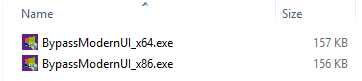
Run the file that's appropriate for your edition of Windows 8. If you need some help with that, check this tutorial: How to Determine What Version of Windows You Have Installed.
Running the tool might trigger a Windows SmartScreen warning. To learn more about it, read this tutorial: What is the SmartScreen Filter & How Does it Work?.
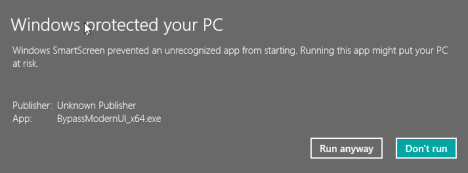
Choose "Run anyway" and install the changes made by the tool.
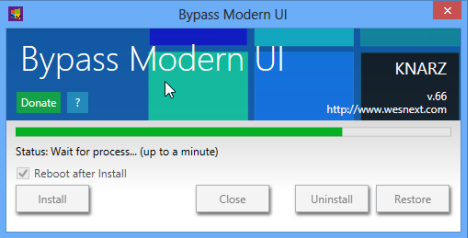
Your Windows 8 computer is automatically restarted. The next time you log it, you are taken straight to the Desktop.
Conclusion
Our solutions should work on all Windows 8 and Windows 8.1 computers and devices. If you encounter issues, don't hesitate to let us know. We will try to help and update the files, if needed. For other cool tips and tricks about Windows 8, check the articles we recommend below.
Download Link: send_desktop.zip
Discussion (47)
why i only see takbar in the control panel rather that Taskbar and Navigation? How will i boot to desktop then?
Best OS : Windows 7 & XP
Unfortunately your special stops OneDrive from loading in Windows 8. Any way around this?
You say we need to download your special .exe file to make this work…but for the life of me I cannot find a link to do so. Where is it?
Just upgrade to 8.1 and it will do it by itself.
External hdmi no longer works in windows 8.1 on ultrabooks (I am a yoga 13 user).
Stop urging people to go on 8.1. After one week of frustration
I have returned back to windows 8 close all updates other than office.
Task Scheduler didn’t like using that SCF file, and the entire command invoked seemed to do nothing from removing the initial Start Menu for me (Only Worked mid-use). Sendkeys (CTRL+ESC) on startup worked fine.
Make a VBS file (Named something like”%Userprofile%ShowDesktop.vbs”):
Dim WS: SET WS = WScript.CreateObject(“WScript.Shell”)
WS.SendKeys “^{ESC}”
This might work to get it off rip if scripting is block. I just converted it to an EXE:
Create a REG_SZ named Win8LeaveStart in the key:
HKCUSOFTWAREMicrosoftWindowsCurrentVersionRun
%WINDIR%System32rundll32.exe url.dll,FileProtocolHandler “%UserProfile%ShowDesktop.vbs”
Or maybe you can just stumble forward into the 21st century and boot to the Start Screen. If you need the desktop, it is a single click away.
Instead of going through all that, I simply “hibernate” my computer. It is not much different than shutting down your computer. And the advantage of hibernating is that the state of your desktop and programs open are preserved.
Upon resuming from hibernation, you boot straight into your desktop and you resume your work as if you had never shut down.
PS: If you make a habit of closing down all your programs before hibernating, the next time you resume from hibernation, you’ll be greeted with the desktop. There’s absolutely nothing that you need to tweak on your Windows 8 or 8.1; well, maybe you need to enable Hibernation if haven’t already done so. That’s all.
Boot To The Desktop – For Windows 8 and 8 Pro
Make sure you have “Hide extensions for known file types” unchecked in Folder Options. Just for file verification purposes.
Re-check it afterwards if you want.
Create the “Show Desktop” file:
Open a text editor like Notepad. (not Word or Wordpad)
Copy and Paste or type the following into the text editor:
[Shell]
Command=2
IconFile=explorer.exe,3
[Taskbar]
Command=ToggleDesktop
Do not have any extra spaces at the top and do not “Carriage Return” (enter) to next line at the end.
Save the file as – Show Desktop.scf (actually any name you want, just remember it)
When you see the file it will have the Desktop icon but it will not have .scf at the end even with “Hide extensions for known file types” unchecked. Right click the file and go to properties. It should have “Type of file: File Explorer Command (.scf)” and the name should be just “Show Desktop” with no extension.
Copy the file to the “Start MenuProgramsStartup” folder.
There are more than one “Startup” folders in Windows 8 and 8 Pro. Put it in this one:
C:ProgramDataMicrosoftWindowsStart MenuProgramsStartup
Close everything down. Restart your computer.
When it boots up, it will pause at the “Start” screen until it reads the contents of Startup.
It will then go to the Desktop with nothing opened up.
Side note: If you want something to open automatically when you boot up, put it in this same Startup folder after Show Desktop.
Thanks.
a very good trick.
I also received an email however it also appears that if anyone posts on this tutorial you’ll get notified. Notify me below is automatically checked…which I missed which is also why I probably got the same email.
your .exe from “Send Desktop.zip” is trying to send mail… looks like a hack to me
How did you determine this? I removed it shortly after trying it and have since upgraded to 8.1. So I would be interested to know: did you actually get an email from me?
First of all – this file doesn’t do any harm to your computer and it doesn’t send any emails.
Second – you might be confused by our automatic comment notifications. When you make a comment on our website, the default setting (which you can change yourself) is to receive notifications via email when new comments are posted on the same article where you posted.
If this bothers you, let me know and I can quickly unsubscribe you from receiving these notifications.
Just did this on a Dell XPS tablet-PC with Win8. The first method described for Win8 worked like a charm. There is a slight delay, 1-2 seconds that you see the Metro Desktop but then it pops right to Desktop. We can live with this as the person that will be using it will not have to remember to do anything special. He’ll just be at his desktop like normal. Thanks a bunch!
This did not work on my Win 8 x64 Pro. I believe there is a policy somewhere preventing going straight to the desktop. It will work with send desktop.exe in the startup menu.
Note: You can also add it as a key to the Local machinesoftwareMicrosoftwindowscurrent versionrun ei:
Stringvalue key: SendToDesktop
data: “(path to program)send desktop.exe”
I have logins for: Administrator, My Microsoft account, and my local machine account that I use the most. Putting it in the local machine, causes it to happen for all accounts.
you don’t need any tool or exe or script!
just create a task as mentioned above (start at log on of the user…) and enter:
explorer shell:::{3080F90D-D7AD-11D9-BD98-0000947B0257}
instead of Send Desktop.exe crap.
this will bring you to desktop without any error or problem, because it’s an already built in function of windows 8.
works fine with win 8 pro x64
Use the following 2-line AutoIt script in a basic task scheduled at log on (Task Scheduler):
Sleep(500)
Send(“desktop{Enter}”)
absolutely 100% *** advice ‘if you are using original version of windows 8 (uh, how many are there?) skip this section …’ uh, yeah – skip to where? are we supposed to magically figure out where the instructions begin again? thanks for **** – that’s all it was worth
What about reading the last 4 sections and without offending the people who put lots of work into finding the best solutions to this problem?
I got it to work but now my Office 2013 crashes all the time it won’t even let me open any Office docs???What the hell??!!
Which Windows version are you using? 8 or 8.1?
Just use “control userpasswords2” and Go! 🙂
The Send Desktop.exe in the task scheduler didn’t work!?
The other file does take awhile to switch when in startup
Windows key is easy enough. But put the desktop tile in the left top spot. Just press enter when you see the Start Menu tiles. Presto!
where can i download the desktop.exe file? I can’t find it on this page… Please Help!
The file is found at the very end of the article.
Cool work around, but unnecessary. You don’t need an .exe file in order to boot to the desktop instantly and without “side effects” (such as the Libraries window opening on boot).
Instead of pointing to the .exe file, instead point to a file we all already have: %windir%explorer.exe shell:::{3080F90D-D7AD-11D9-BD98-0000947B0257}
(Add the shell bit as an extension in the task)
That’ll do the trick.
No, it’s not hard to press Win+D. However, if you are a Media Center user, it’s rather annoying that you have to grab a keyboard to switch from Metro to the Desktop to watch TV.
so hard to press win+D ?
Windows 8 has been booting straight to the desktop since install last week, that is until yesterday I set up an offline profile, and now it boots to the apps screen or whatever it’s called.
I have the reverse problem. Contrary to most other users I actually really like the new startscreen on my tablet. Unfortunately windows has done a “windows” on me, and have started booting up to the desktop with no warning or explanation. So how do I ho back?
Cheers A
Why not just press the ‘Windows’ key? This simply toggles you between the Start (Metro) Screen and the Desktop.
If you organise the Start Screen tiles to suit your PC usage then when you have booted into the Start Screen you just click the tile of the Desktop app that you were going to run and it takes you to the Desktop and runs the application straight away. Having used Windows 8 for a short while it’s just as convenient to boot into the Start Screen as it is to the Desktop, if not more convenient.
“Not working.
Just open Start and type(“Desktop”) search box automatically.
Maybe this is about a different language? I think.
Everything else settings from Scheduler task is shipshape.
What’s wrong?”
Same issue on my PC, but I don’t know if it was caused by the solution above. I installed some programs, that make Windows boot to desktop and one of them could do it.
My language version is polish (Windows 7 RTM evaluation copy)
Not working.
Just open Start and type(“Desktop”) search box automatically.
Maybe this is about a different language? I think.
Everything else settings from Scheduler task is shipshape.
What’s wrong?
I will try.
Thank You!
there’s another tool that does the same well: NoTilesPlease
unfortunately it is only available in German…
https://quadsoft.org/moredownloads.php
wow… what a hack.
Sleep(500)
Send(“d”)
Send(“e”)
Send(“s”)
Send(“k”)
Send(“t”)
Send(“o”)
Send(“p”)
Send(“{ENTER}”)
Also – if you knew autoit better, you could actually embed this in another autoit – and that one can have the xml and command for importing the scheduled task. Download, run – everything would already be set. Step up your game.
I have this set up on an old desktop and the combination of the Classic Menu, Send Desktop.exe, and Control userpasswords2 set to automatically start without the password in order to give me a seamless arrival at the Windows 8 desktop.
I support older users and they will need some time to get used to the “Modern” interface. I cannot decide if this approach will help them adjust or just allow them to function as they always did without learning the new OS. Since so many of my clients just want to do simple things without being confused about the interface, I have decided to make it simple.
I am interested in everyone’s opinion about this.
I don’t know why, but the solution does not work on my Windows 8 90-day trial (installed on VMPlayer 4.0). I’ve surely set everything like in your description, but I see Satrt Modern UI screen. Maybe that’s because I use WIndows on virtual machine? Or maybe the autologin option, which I turned on is the problem?
None of the two solutions work? At least the second one is not “instant”. It takes a few seconds.
I have the same setup that you describe. Make sure you have the latest version of Classic Shell which is 3.6.1. The d/l site is:https://classicshell.sourceforge.net/ Select the ‘skip metro screen’ setting from either the ‘Basic Settings’ or the ‘Windows 8 settings’ tabs. N.B. There are several similar programs out there. This one is open source and works well.
Using Classic Shell brings the start button back, right? Or maybe there’s an option, which wouldn’t add it? I want to try using new Windows without classic start button.
On the other hand it’d be better if I didn’t need additional software for auto-desktop-boot
No, there’s no option for disabling the start orb, but as far as I can tell, it doesn’t stop you from using all the Windows 8 features. I understand about not wanting to add other software. But it is helping me get used to the new features without too much of a learning curve.
If you say so, I’ll try Classic Shell and inform you if it works.
ClassicShell menu works also and gives you back your start orb. I have v3.6 installed and working on the RTM version of W8