



Some people do not like the universal apps installed by default In Windows 10 or Windows 11 and want to get rid of them. They can manually uninstall most of them using the Settings app or PowerShell. Apps like Calendar, Mail, Camera, Photos, or Candy Crush Soda Saga can be gone from a Windows 10 or Windows 11 computer in no time. So how do you get all the default apps back when you learn that you need them or when they are broken and no longer work correctly? In this tutorial, we show you how to reinstall and re-register all the default apps shipped with Windows 10 or Windows 11. Don’t worry, this is a straightforward process. Let's get started:
NOTE: If you’ve arrived here looking for ways to uninstall Windows apps with PowerShell, check this guide instead: How to uninstall Windows apps with PowerShell.
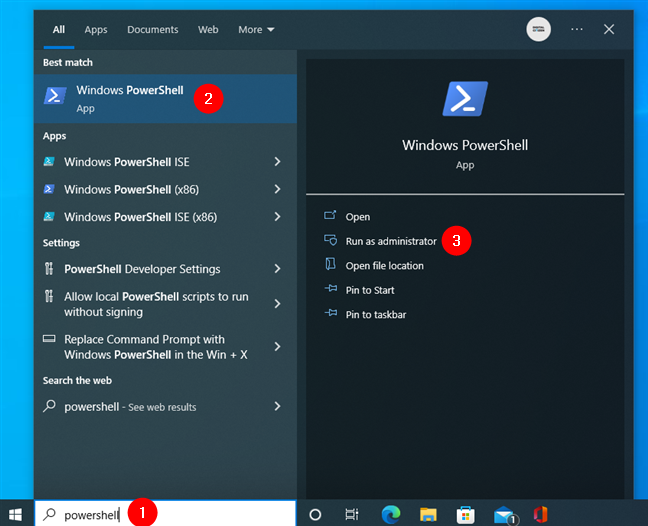
 Open Windows PowerShell in Windows 10 as admin
If you’re using Windows 11, press the Search button on the taskbar and type “powershell” in the search box. Then, select the Windows PowerShell result on the left and click or tap “Run as Administrator” on the right-hand panel.
Open Windows PowerShell in Windows 10 as admin
If you’re using Windows 11, press the Search button on the taskbar and type “powershell” in the search box. Then, select the Windows PowerShell result on the left and click or tap “Run as Administrator” on the right-hand panel.
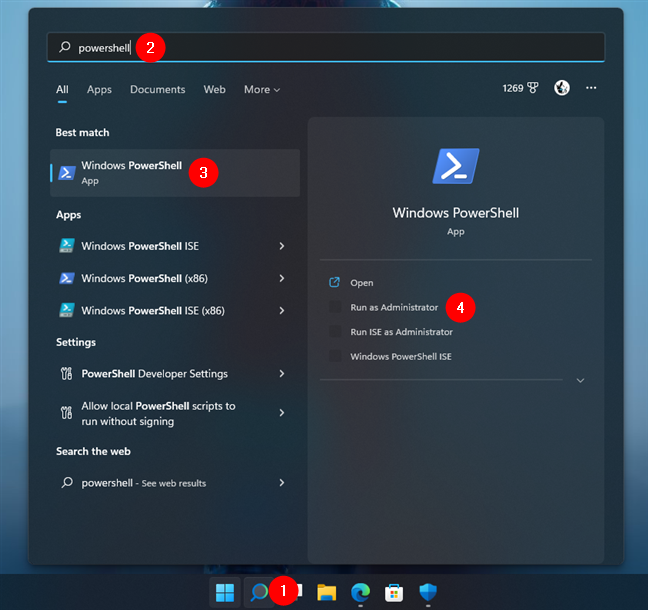
 Open Windows PowerShell in Windows 11 as admin
TIP: You can find many other ways of opening PowerShell in this tutorial: 9 ways to open PowerShell in Windows (including as administrator).
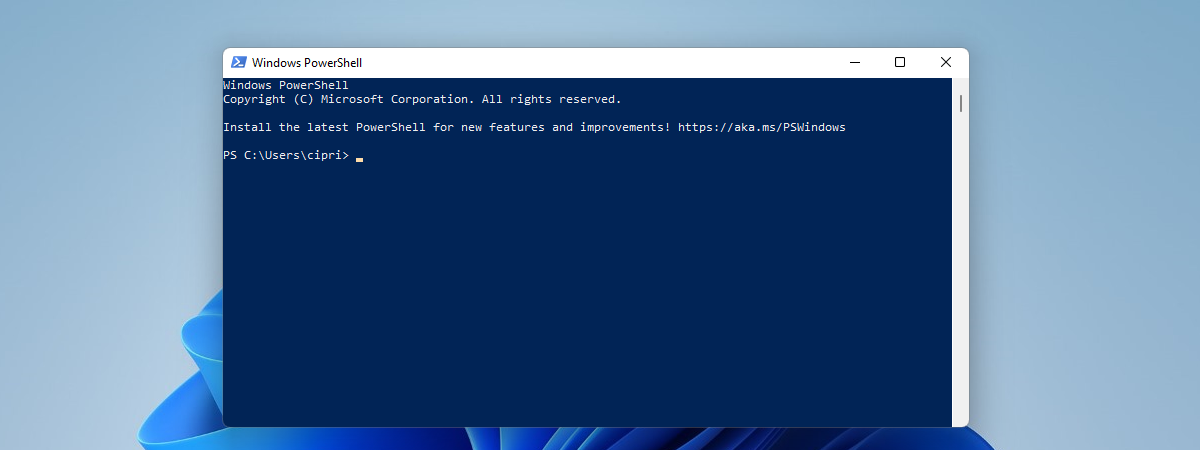
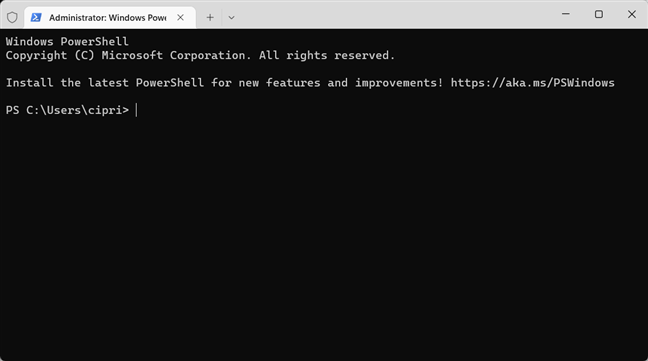
Once PowerShell is launched, you should see a window similar to this one:
Open Windows PowerShell in Windows 11 as admin
TIP: You can find many other ways of opening PowerShell in this tutorial: 9 ways to open PowerShell in Windows (including as administrator).
Once PowerShell is launched, you should see a window similar to this one:
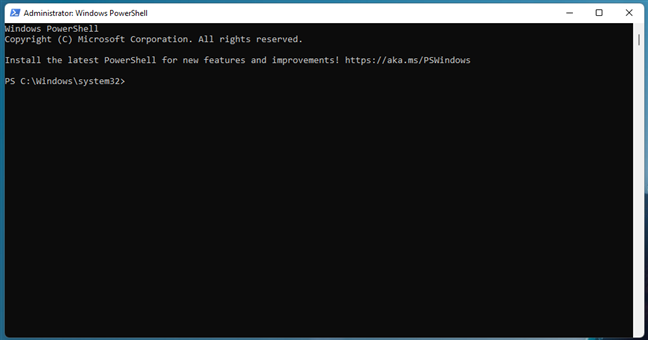
 The PowerShell window
TIP: You can also start Windows Terminal as an administrator and run a PowerShell tab.
The PowerShell window
TIP: You can also start Windows Terminal as an administrator and run a PowerShell tab.
 Opening a PowerShell tab in Windows Terminal works just as well
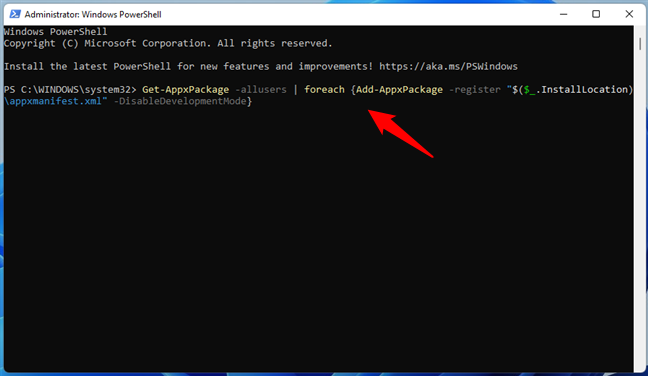
 The PowerShell command for reinstalling all Windows apps
After you’ve entered the above command in PowerShell, press Enter. Then, your Windows 10 or Windows 11 PC begins reinstalling and re-registering all their default built-in apps. Note that this step might take a while, depending on the speed of your PC.
The PowerShell command for reinstalling all Windows apps
After you’ve entered the above command in PowerShell, press Enter. Then, your Windows 10 or Windows 11 PC begins reinstalling and re-registering all their default built-in apps. Note that this step might take a while, depending on the speed of your PC.
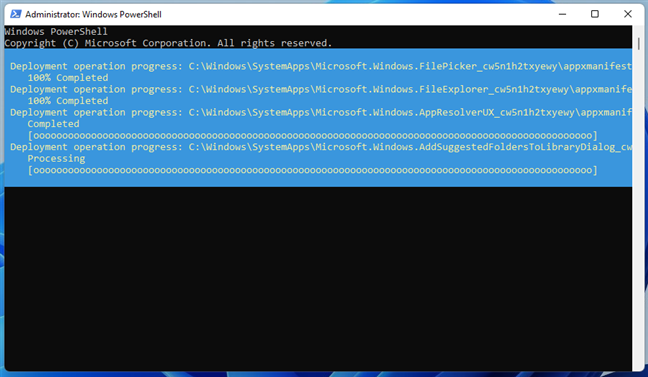
 Default Windows apps are reinstalled in PowerShell
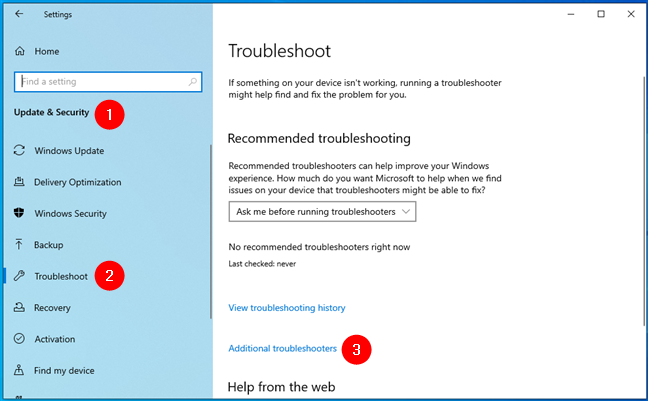
 Additional troubleshooters in Windows 10
Then, scroll down to the end of the list and click or tap on Windows Store Apps.
Additional troubleshooters in Windows 10
Then, scroll down to the end of the list and click or tap on Windows Store Apps.
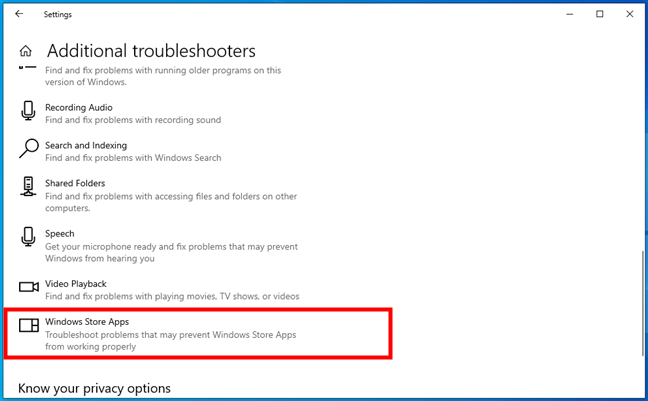 The Windows Store Apps troubleshooter in Windows 10
In Windows 11, launch Settings (Windows + I) and navigate to System > Troubleshoot > Other troubleshooters. Then, scroll down, and you’ll find the Windows Store Apps troubleshooter towards the end of the list. When you do, click or tap the Run button to its right.
The Windows Store Apps troubleshooter in Windows 10
In Windows 11, launch Settings (Windows + I) and navigate to System > Troubleshoot > Other troubleshooters. Then, scroll down, and you’ll find the Windows Store Apps troubleshooter towards the end of the list. When you do, click or tap the Run button to its right.
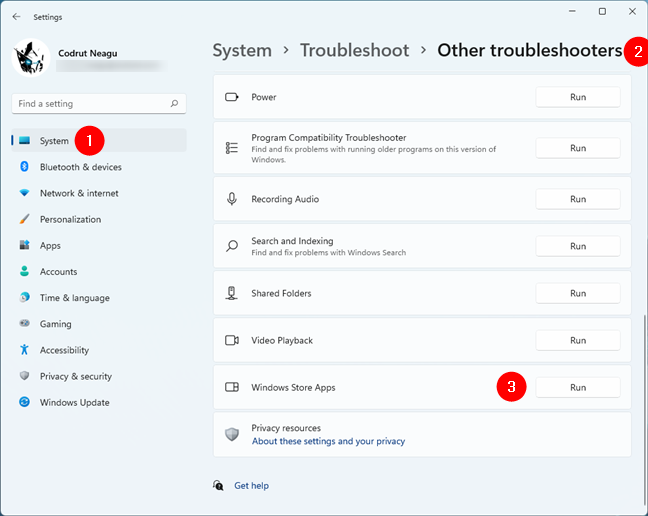
 Run the Windows Store Apps troubleshooter in Windows 11
Whether you’re using Windows 10 or Windows 11, once you start the Windows Store Apps troubleshooter, it will begin to detect potential problems.
Run the Windows Store Apps troubleshooter in Windows 11
Whether you’re using Windows 10 or Windows 11, once you start the Windows Store Apps troubleshooter, it will begin to detect potential problems.
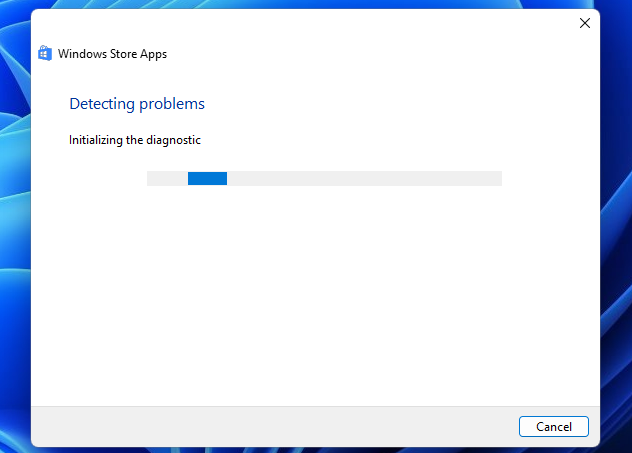
 Using the Windows Store Apps troubleshooter
If it finds anything that could affect how the Windows apps run on your PC, it makes the necessary repairs. When that process is done, it might ask you to reboot your Windows 10 or Windows 11 computer or device. If that happens, restart it and check whether your apps are working correctly. If they still don’t, we’re sorry, but the best thing you can do is reset or reinstall each app on its own or even try resetting Windows altogether. If you need help with that, you might like these guides:
Using the Windows Store Apps troubleshooter
If it finds anything that could affect how the Windows apps run on your PC, it makes the necessary repairs. When that process is done, it might ask you to reboot your Windows 10 or Windows 11 computer or device. If that happens, restart it and check whether your apps are working correctly. If they still don’t, we’re sorry, but the best thing you can do is reset or reinstall each app on its own or even try resetting Windows altogether. If you need help with that, you might like these guides:
Things you should know about reinstalling Windows apps with PowerShell
The steps in this tutorial help you reinstall all the default apps from Windows 10 or Windows 11, including the Microsoft Store. Furthermore, they also allow you to reinstall Windows apps without the Store. However, note that everything we show is tested and confirmed to work only in the latest versions of Windows 10 and in Windows 11. If you have an older version of Windows 10, you can follow the steps we show for getting the built-in apps back, but you might not be able to also re-install the Microsoft Store. The only proven way to get the Microsoft Store back in older versions of Windows 10 to then be able to install other apps is to reinstall Windows 10.Step 1. Open PowerShell as Administrator
First of all, you must open PowerShell with administrative rights. The fastest way to do that in Windows 10 is to use the search bar on the taskbar. Type “powershell,” and then click or tap on “Run as administrator” on the panel to the right of the Windows PowerShell search result.Step 2. Run the reinstall and re-register command for built-in Windows 10 or Windows 11 apps
To reinstall all the Windows apps that you uninstalled over time, all you have to do is run a specific command. Type or copy-paste the following command inside your PowerShell window:Get-AppxPackage -allusers | foreach {Add-AppxPackage -register “$($_.InstallLocation)\appxmanifest.xml” -DisableDevelopmentMode}
Step 3. Reboot your Windows PC
Once the command has finished running, PowerShell displays the current folder path. There are no messages or additional confirmations displayed. Close PowerShell and reboot your Windows 10 or Windows 11 PC or device. You should find all your missing Windows 10 or 11 default apps when you log in.What if the Windows apps I reinstalled still don’t work well?
If your Windows 10 or Windows 11 built-in apps are reinstalled but still do not work correctly, you should try one more thing before losing hope: run the Windows Store Apps troubleshooter. On Windows 10, open the Settings app (Windows + I), head to Update & Security > Troubleshoot, and click or tap Additional troubleshooters on the right.- How to reset apps in Windows 10 and clear their data
- How to reset Windows 10 without losing your files
- How to reset Windows 11 without losing your files

Discussion (54)
Get-AppxPackage -allusers | foreach {Add-AppxPackage -register “$($_.InstallLocation)\appxmanifest.xml” -DisableDevelopmentMode}
You need to add the backslash behind appxmanifest, I had it come up with ItemNotFound for all apps.
The above fixed it for me.
I just fixed the issue. Thanks for sharing your observation. 🙂
Add-AppxPackage : Cannot find path ‘C:\Program Files\WindowsApps\Microsoft.XboxGamingOverlay_5.420.11032.0_x64__8wekyb3d8bbweappxmanifest.xml’ because it does not
exist.
At line:1 char:38
+ … | foreach {Add-AppxPackage -register “$($_.InstallLocation)appxmanif …
+ ~~~~~~~~~~~~~~~~~~~~~~~~~~~~~~~~~~~~~~~~~~~~~~~~~~~~~~~~~
+ CategoryInfo : ObjectNotFound: (C:\Program File…ppxmanifest.xml:String) [Add-AppxPackage], ItemNotFoundException
+ FullyQualifiedErrorId : PathNotFound,Microsoft.Windows.Appx.PackageManager.Commands.AddAppxPackageCommand
Can you please help me? This happened with almost every app.
THANKS FOR SOME REASON THE SEARCHUI.EXE WAS REMOVED THANKSSSSSSSSSS
this is a good article for those wanting to re-install for the currently logged on user. Any other new user profile that logs on to the win10 box will not have access to the app.
God bless you u very much. It has been my greatest headache bringing back removed apps on my windows 10..But with ur guide I’ve been able to do it with ease. Thank you
It worked! Your clear and accurate advice is greatly appreciated.
removing apps for all users:
Get-AppxPackage -allusers | foreach {Remove-AppxPackage -allusers -package $_}
and after that, you surely can’t add packages pack with that your add all back line because none user has those packages, so you can’t list get-packages which to add. you have to list those packages in manifest or something which tells all the default packages, and add them all to all users by somehow.. not sure yet how to do that..
Nothing of the above helped.
in my case it says that ths poweshell is runnin so it cannot be modified
Add-AppxPackage : Deployment failed with HRESULT: 0x80073D02, The package could not be installed because resources it modifies are currently in use. error 0x80073D02: Unable to install because the following apps need to be closed InputApp_1000.18890.1000.0_neutral_neutral_cw5n1h2txyewy. NOTE: For additional information, look for [ActivityId] c87932c9-47c2-0001-f5b7-79c8c247d501 in the Event Log or use the command line Get-AppPackageLog -ActivityID c87932c9-47c2-0001-f5b7-79c8c247d501 At line:1 char:38 + … | foreach {Add-AppxPackage -register “$($_.InstallLocation)appxmani … + ~~~~~~~~~~~~~~~~~~~~~~~~~~~~~~~~~~~~~~~~~~~~~~~~~~~~~~~~~ + CategoryInfo : NotSpecified: (C:WindowsSyst…ppxmanifest.xml:String) [Add-AppxPackage], Exception + FullyQualifiedErrorId : DeploymentError,Microsoft.Windows.Appx.PackageManager.Commands.AddAppxPackageCommand Add-AppxPackage : Deployment failed with HRESULT: 0x80073D02, The package could not be installed because resources it modifies are currently in use. error 0x80073D02: Unable to install because the following apps need to be closed
Microsoft.Windows.StartMenuExperienceHost_10.0.18890.1000_neutral_neutral_cw5n1h2txyewy.
NOTE: For additional information, look for [ActivityId] c87932c9-47c2-0000-53ff-79c8c247d501 in the Event Log or use
the command line Get-AppPackageLog -ActivityID c87932c9-47c2-0000-53ff-79c8c247d501
At line:1 char:38
+ … | foreach {Add-AppxPackage -register “$($_.InstallLocation)appxmani …
+ ~~~~~~~~~~~~~~~~~~~~~~~~~~~~~~~~~~~~~~~~~~~~~~~~~~~~~~~~~
+ CategoryInfo : NotSpecified: (C:WindowsSyst…ppxmanifest.xml:String) [Add-AppxPackage], Exception
+ FullyQualifiedErrorId : DeploymentError,Microsoft.Windows.Appx.PackageManager.Commands.AddAppxPackageCommand …///… this is what i get…can you help me ?
Have you resolved the problem?
Does not work. Powershell downloads but fails to install apps because newer versions are already installed.
Thank you, you fixed my problem. One quick command which does what it should. GREAT. Wish all guides were as useful as this one.
Thanks!
Hi, thank you.
I entered the command, and this is the error I get. The apps didn’t come back.
Add-AppxPackage : Cannot find path ‘C:appxmanifest.xml’ because it does not exist.
At line:1 char:38
+ … | foreach {Add-AppxPackage -register “$($_.InstallLocation)appxmani …
+ ~~~~~~~~~~~~~~~~~~~~~~~~~~~~~~~~~~~~~~~~~~~~~~~~~~~~~~~~~
+ CategoryInfo : ObjectNotFound: (C:appxmanifest.xml:String) [Add-AppxPackage], ItemNotFoundException
+ FullyQualifiedErrorId : PathNotFound,Microsoft.Windows.Appx.PackageManager.Commands.AddAppxPackageCommand
Add-AppxPackage : Deployment failed with HRESULT: 0x80073D02, The package could not be installed because resources it
modifies are currently in use.
error 0x80073D02: Unable to install because the following apps need to be closed
Microsoft.Windows.Cortana_1.10.7.17134_neutral_neutral_cw5n1h2txyewy.
NOTE: For additional information, look for [ActivityId] da34d5ee-98a3-0002-6b4c-35daa398d401 in the Event Log or use
the command line Get-AppxLog -ActivityID da34d5ee-98a3-0002-6b4c-35daa398d401
At line:1 char:38
+ … | foreach {Add-AppxPackage -register “$($_.InstallLocation)appxmani …
+ ~~~~~~~~~~~~~~~~~~~~~~~~~~~~~~~~~~~~~~~~~~~~~~~~~~~~~~~~~
+ CategoryInfo : NotSpecified: (C:WindowsSyst…ppxmanifest.xml:String) [Add-AppxPackage], Exception
+ FullyQualifiedErrorId : DeploymentError,Microsoft.Windows.Appx.PackageManager.Commands.AddAppxPackageCommand
When I run the command, I get the error message 0x80073cf9. Help?
Thanks!! Full name package install was the needed lock combination. Once I figured out how to enable ‘Run as Administrator’ on the PowerShell (with a Right click – clever, sneaky devils), I entered the complete code and voila! my apps were back. Wish I had backed up all my lost contacts, notes, etc. 🙁
Get-AppxPackage -allusers | foreach {Add-AppxPackage -register “$($_.InstallLocation)appxmanifest.xml” -DisableDevelopmentMode}
sir/maam
thank you very much. this info was very useful and it helped my computer to use the non working apps again..
THANK YOU…
Worked! I had removed xbox overlay and not only got an annoying pop up when trying to play games, but also i wanted to use the game bar! This brought it back and fixed the errors , thank you!
Thank you for the method that you have shown above,it helped me to resolve my problem but there is a mistake in the command that you have given
Get-AppxPackage -allusers | foreach {Add-AppxPackage -register $($_.InstallLocation)appxmanifest.xml” -DisableDevelopmentMode}
here in the above command you have missed the starting qoutes before $ i.e, the correct command is as below
Get-AppxPackage -allusers | foreach {Add-AppxPackage -register “$($_.InstallLocation)appxmanifest.xml” -DisableDevelopmentMode}
Thank you.
Thank you for your feedback. We have fixed the mistake that you mentioned. Appreciate!
My Apps still do not work, calculator, camers, photos, ms store – zilch. So frustrating. Any other way to fix?
Thanks.
I am testing on Windows 1- Version 1803.
During installation I removed all Apps with Remove-AppXPackge.
Now I can not restore any of the Apps.
Thanks a lot man! That’s work for me! I was really confused about it 🙂
Hello, I’ve tried running Powershell with your command line, but when I restart the computer, the missing apps are not restored. What can I do to fix this?
The comments scared me so i didn’t continue
I followed the steps bt it displays an error or something different from yours. What shuld i do niw
Adding -ForceApplicationShutdown can also be helpful.
I tried it many times but it doesn’t work.
thanks guys this worked finally after seeing so much shit on internet this thing worked
No it wasn’t helpful at all.
Yep, not working… Probably because I deleted some directory but still. Can you make a fix for using DWS?
Easy even for me
I am working with Microsoft.
I wanna update you, there is a way to reinstall the store app.
Can you share how to reinstall the Store app?
how ? i accidentally uninstalled my camera
Would this work for applications like AMD Catalyst and HP software that was installed before use?
Rubbish it didn’t work.
Wow
Thanks
It worked for me
somebody is laughing at me because this never worked i tried it 3 times. and each time it came back with a differant msg
Thanks Sir, Thank you very much
I have tried every way to get the apps to run. For some reason the Movie app stopped. When I start it up it comes on and vanishes in a split second. As does store and solitaire collection. I tried this fix and it now comes on for about 3 seconds then stops again. Please help. Laptop only 1 month old.
It didn’t work. End of story.
It does not work for me.
After updating from Office 10 to Office 13, all my win10 apps went missing. I tried you script to install them again, but no dice, they are not showing up. Any suggestions except install Win 10 again. I have the latest latest update with creators version X64 Pro.
Thanks Tom
They are still on the computer and can be seen in the list of applications and even run from their. I can drag them back to the display window and they will then show up.
Tried this but only got the following message:
Get-AppXPackage : The dependency service or group failed to start.
The dependency service or group failed to start.
At line:1 char:1
+ Get-AppXPackage | Foreach {Add-AppxPackage -DisableDevelopmentMode -R …
+ ~~~~~~~~~~~~~~~
+ CategoryInfo : NotSpecified: (:) [Get-AppxPackage], Exception
+ FullyQualifiedErrorId : System.Exception,Microsoft.Windows.Appx.PackageManager.Commands.GetAppxPackageCommand
Thanks, I just uninstalled all the preinstalled apps on my PC.
Never do it it deleted all my app licenses and now none of the default apps are opening
I was getting ready to wipe! Several sites had these directions, but the strings was incorrect.
Thank you very much!
Happy to help!. Don’t hesitate to subscribe to our website and discover more useful guides.
did what it told me to do, still no apps, they are like permanently gone
I uninstalled mail and calendar app with this powershell method. I did it just to reset it as i was trying to change my microsoft account email. When i entered the command to reinstall all apps as shown above and rebooted my pc the mail app came back but almost all the other built in apps lost their path or something, they won’t run anymore anymore.