Sometimes, things break or no longer work well, for no apparent reason. That can happen to Windows 10 apps from the Microsoft Store, not only to the operating system. Luckily, there is more than just one way to make your apps behave, and one of them is to reset your Windows 10 apps to their default state, and clear their app data so that they are "like new." Although you lose your preferences and sign-in details from the Windows 10 app that causes you problems, resetting it can be helpful. In this tutorial, we show you how easy it is to reset an app in Windows 10:
When a Windows 10 app from the Microsoft Store, like Mail and Calendar, Skype, or OneNote starts working poorly, a quick way to repair that misbehaving app is to reset it. Resetting an app in Windows 10 means that it is going to be brought to its initial state and settings, acting like it did when it was first installed on your Windows 10 PC or device.
Resetting a Windows 10 app
It is a similar process to that of uninstalling and reinstalling the app, but it is done automatically and much faster. One important thing that you should keep in mind is that we are referring to modern apps that are distributed through the Microsoft Store, and not to desktop apps that are distributed through other means. If you feel confused and you don't know what we are talking about, read: What is a Windows app? What is a desktop application? How are they different?
How to reset Windows 10 apps and clear their data
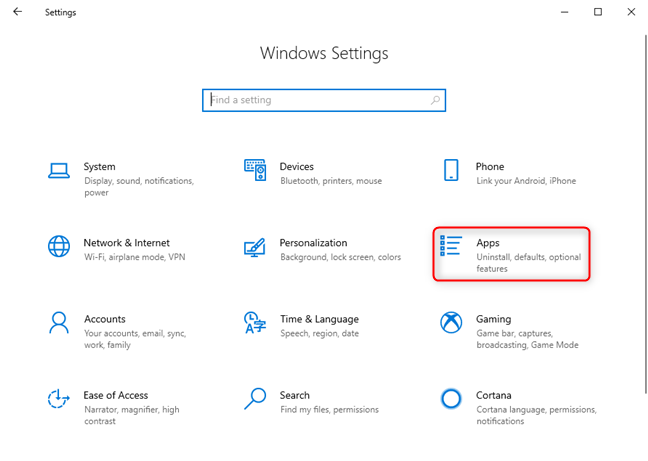
Start by opening the Settings app. A quick way to do that to click or tap on its shortcut from the Start Menu or to press the Windows + I keys simultaneously. Inside Settings, click or tap on Apps.
Windows 10 Settings - Go to Apps
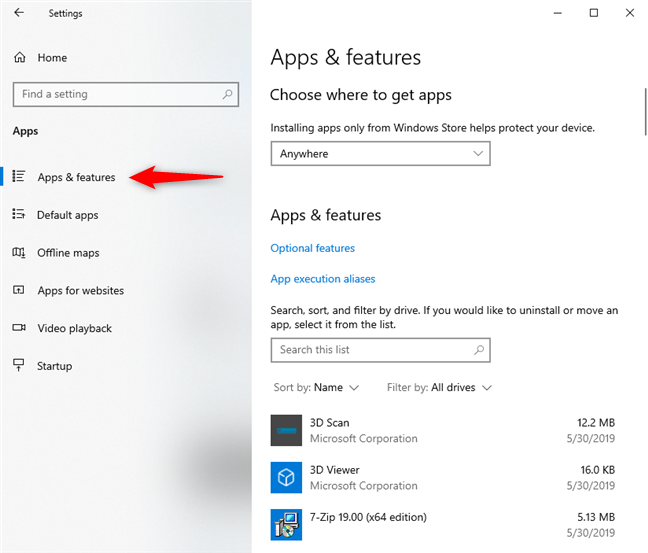
On the left side of the window, Apps & features should already be selected. If it is not, click or tap on it.
Windows 10 Settings - Go to Apps & features
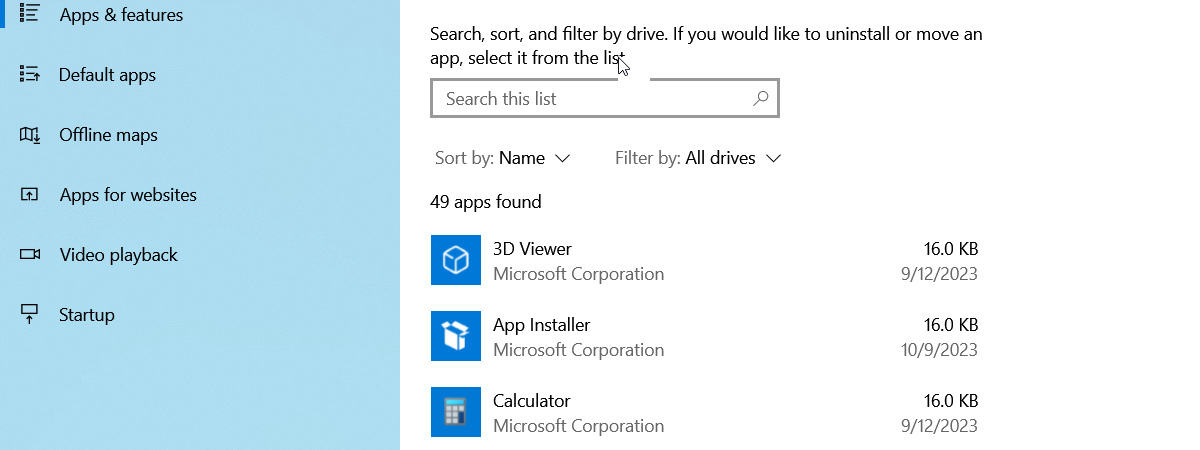
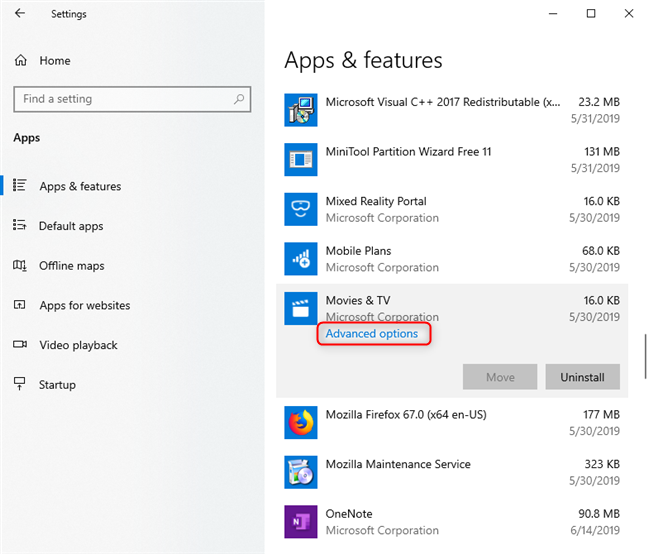
On the right side, you see all the apps and programs that you have installed in Windows 10. Scroll down until you find the app that you want to reset, and tap on its name. Then, beneath its name, you see a link for "Advanced options." Click or tap on it.
Click or tap Advanced options
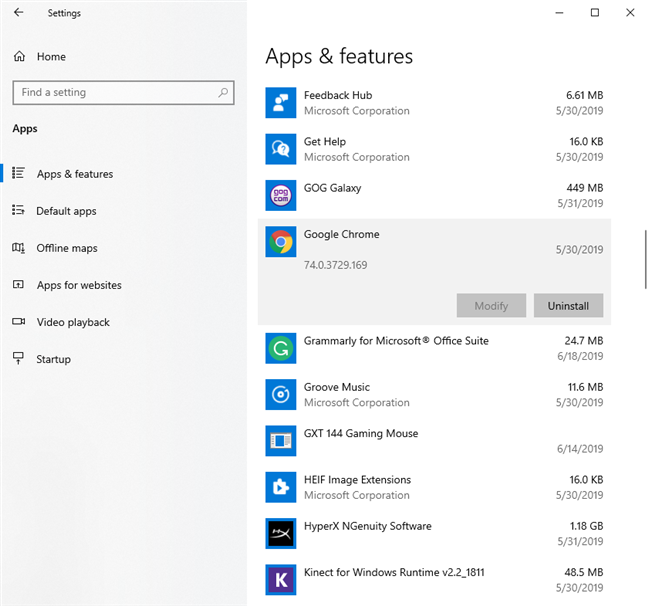
If you do not see this link beneath the name of the app, when you click or tap on it, then you cannot reset the app using this method, as the app in question is a desktop app or program. To reset desktop apps, check their settings for any reset options, or uninstall them and reinstall them manually.
Desktop apps do not have a link to Advanced options
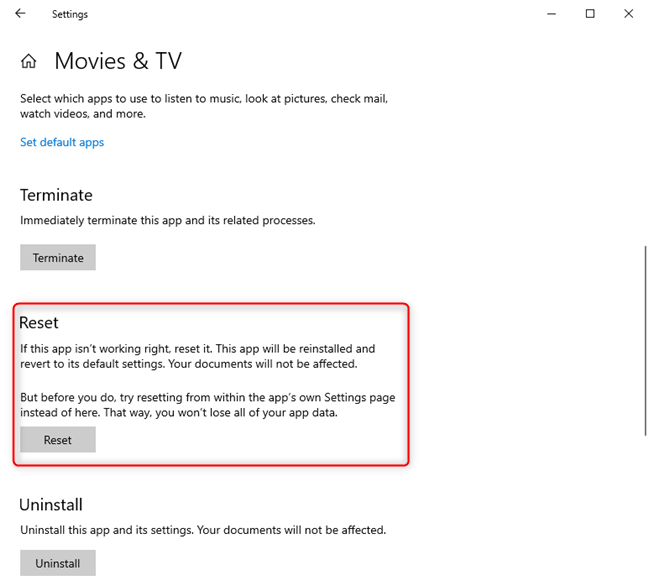
Moving on with resetting Windows 10 apps: after you click or tap "Advanced options," a new window opens with several buttons and settings. Scroll down to the Reset section.
The reset section for a Windows 10 app
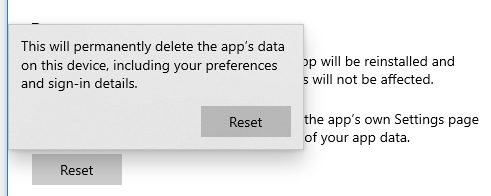
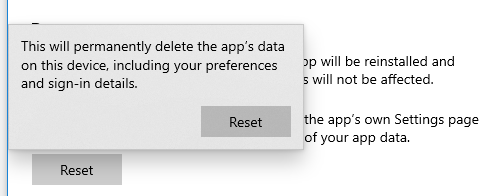
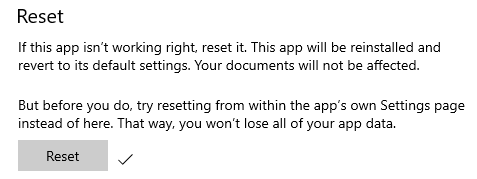
Windows 10 tells you that "If this app isn't working right, reset it." If you to go ahead with this process, click or tap Reset, and confirm by pressing Reset one more time.
Resetting a Windows 10 app
One second later and you see that the app has been reset, and a checkmark is displayed near the Reset button.
The Windows 10 app has been reset
Now your app is clean and smooth as a baby's bottom! 🙂 The next time you start that app, you have to configure it again from scratch, because all its app data and settings have been deleted.
Which Windows 10 app did you reset?
When things go wrong, and there is no easy way of telling why an app does not work as it should, Windows 10 offers you an easy way to start over. Reset that app and see if things get better. If it still doesn't want to work, or if you have questions, write us a comment below. Also, we are curious to know which app you chose to reset.
I wished to continue playing Solitaire Klondike on the easy level one with a zero score. The instructions given in the article achieved this goal for myself.
Hi. Forgive me, but I’m a bit confused still. My Windows 10 Video Editor is glitching a lot. I want to reset it per your advice but I’m terrified if I do when I re-open it all of my video projects in it will be deleted. Is that true, or just that app settings, data, etc…Thanks so much. Mike
Ciprian Adrian Rusen ·
It won’t delete your video projects, just its app settings.
Kathy ·
I want to thank you because, I do not have an Xbox and it was wanting my password for the Xbox, wanted me to reset the time and date to Pacific while I on East coast, and then given me that code for the Xbox. All this is on the computer.
K!k3 ·
Well, not all apps haves the “reset” option.
How can it here?
And, how can in W7, W8, WXP? Thanks
Ron S ·
My Windows Store applet hangs, displaying the clock
I followed your reset instructions, no help.
I tried using the WSReset.exe Store Reset tool, trying to run it both normally and as Admin. no help.
I tried running the MS Store apps Trouble shooter. It found one problem with a redirected temp folder. I let it fix the problem, re-ran with clean result. Sill no help.
My next move would be to uninstall and re-install it. But I can’t find a way to re-install the MS Store.
Anonymous ·
That is one buggy experience you’re having. ;(
Good luck!
Mohamed ·
How to show app after reset in windows 10 because the is hidden?
mmf iranian ·
this doesnt work on another app(like download apps)
hanieh ·
thank u!
Franck ·
Thanks a lot, this is very useful !
Anonymous ·
Glad to help. Do not hesitate to subscribe to our newsletter, for more useful tutorials.
elaine ·
hi i have followed your advice and reset the mail and calander but it’s still not working have you any advice,thanks
carol wagner ·
Have reset Magic Jigsaw Puzzles several times and it does not work. It opens for a few seconds and then disappears.
Patricia ·
I reset an app and now the app is gone (as Window warned me it would be). I tried to reinstall it and now I am constantly getting an error. I followed all the steps in this guide so I am not exactly sure what went wrong.
nate ·
Same thing happened to me. now I cant reinstall a game. constantly getting error messages.











Discussion (19)
I wished to continue playing Solitaire Klondike on the easy level one with a zero score. The instructions given in the article achieved this goal for myself.
Happy to have helped. Don’t hesitate to subscribe to our newsletter, for more useful tutorials: https://www.digitalcitizen.life/newsletter/
Hi. Forgive me, but I’m a bit confused still. My Windows 10 Video Editor is glitching a lot. I want to reset it per your advice but I’m terrified if I do when I re-open it all of my video projects in it will be deleted. Is that true, or just that app settings, data, etc…Thanks so much. Mike
It won’t delete your video projects, just its app settings.
I want to thank you because, I do not have an Xbox and it was wanting my password for the Xbox, wanted me to reset the time and date to Pacific while I on East coast, and then given me that code for the Xbox. All this is on the computer.
Well, not all apps haves the “reset” option.
How can it here?
And, how can in W7, W8, WXP? Thanks
My Windows Storeapplet hangs, displaying the clock
I followed your reset instructions, no help.
I tried using the WSReset.exe Store Reset tool, trying to run it both normally and as Admin. no help.
I tried running the MS Store apps Trouble shooter. It found one problem with a redirected temp folder. I let it fix the problem, re-ran with clean result. Sill no help.
My next move would be to uninstall and re-install it. But I can’t find a way to re-install the MS Store.
That is one buggy experience you’re having. ;(
Good luck!
How to show app after reset in windows 10 because the is hidden?
this doesnt work on another app(like download apps)
thank u!
Thanks a lot, this is very useful !
Glad to help. Do not hesitate to subscribe to our newsletter, for more useful tutorials.
hi i have followed your advice and reset the mail and calander but it’s still not working have you any advice,thanks
Have reset Magic Jigsaw Puzzles several times and it does not work. It opens for a few seconds and then disappears.
I reset an app and now the app is gone (as Window warned me it would be). I tried to reinstall it and now I am constantly getting an error. I followed all the steps in this guide so I am not exactly sure what went wrong.
Same thing happened to me. now I cant reinstall a game. constantly getting error messages.
what if your settings app doesn’t work
Use this guide: How to reinstall all the Windows 10 default apps with PowerShell.