



Both Windows 11 and Windows 10 come with quite a few pre-installed universal apps, such as Calendar, Mail, Camera, or Photos. While some people like them and find them useful, others don’t. If you don't want some of these bundled apps on your Windows computer, you might wonder if they can be removed from your system. While a few of the built-in apps can be uninstalled by right-clicking on them and selecting the Uninstall option, some of them don't offer this option. That’s because Microsoft considers them to be core apps, essential for Windows to offer you the intended user experience. Here’s how to remove Windows 11 and Windows 10 apps with PowerShell, one at a time or all at once, for your user account or for all the users on your PC:
IMPORTANT: Keep in mind that removing certain built-in apps may break some Windows features and lead to unwanted errors. Follow the instructions in this guide and do so of your own accord, and only if you’re sure you’re OK with the possible problems you’ll encounter later on. And, if Windows fails to run properly after uninstalling essential apps, get them back by following the steps in this tutorial: How to reinstall all the Windows default apps with PowerShell.
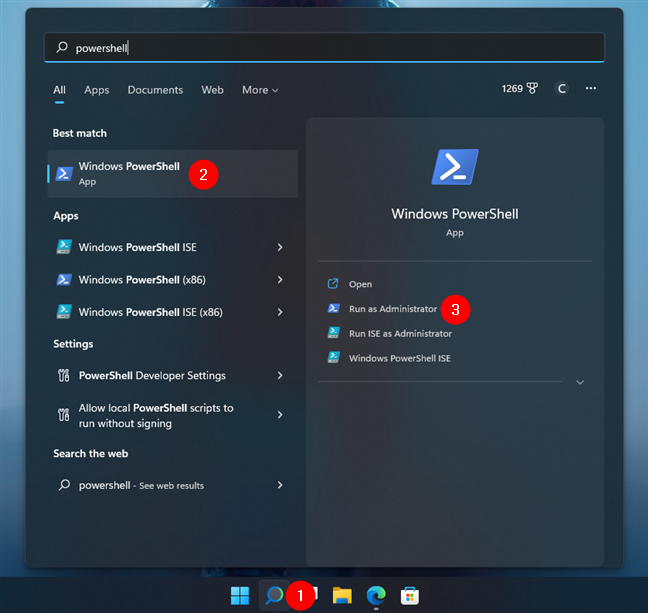
 Search and start PowerShell in Windows 11
If you’re using Windows 10, the steps are similar. Click or tap inside the search box found on your taskbar. Then, type “powershell,” select the Windows PowerShell search result, and click or tap “Run as administrator” on the right-hand panel.
Search and start PowerShell in Windows 11
If you’re using Windows 10, the steps are similar. Click or tap inside the search box found on your taskbar. Then, type “powershell,” select the Windows PowerShell search result, and click or tap “Run as administrator” on the right-hand panel.
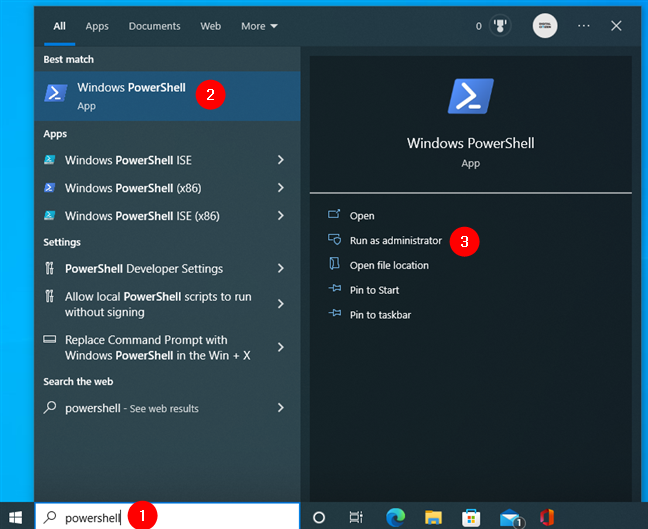
 Search and start PowerShell in Windows 10
NOTE: Note that from here on, all the steps are identical in Windows 11 and Windows 10. Although we’re using screenshots taken in Windows 11, everything’s the same in Windows 10 too.
If a UAC (User Account Control) notification pops up, approve the execution of PowerShell by clicking or tapping Yes.
Search and start PowerShell in Windows 10
NOTE: Note that from here on, all the steps are identical in Windows 11 and Windows 10. Although we’re using screenshots taken in Windows 11, everything’s the same in Windows 10 too.
If a UAC (User Account Control) notification pops up, approve the execution of PowerShell by clicking or tapping Yes.
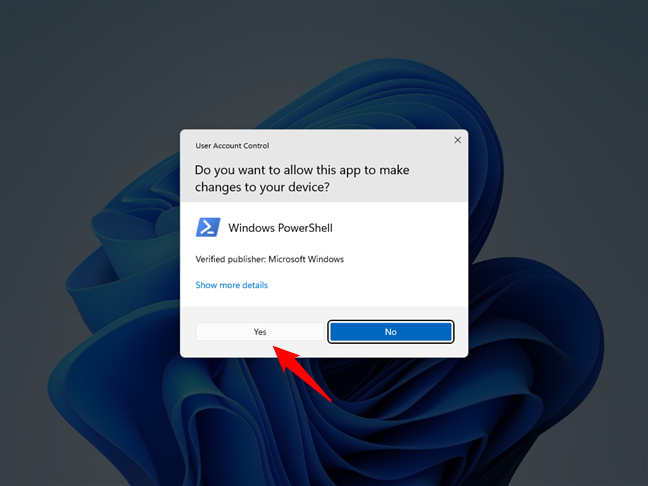
 UAC notification for running PowerShell as admin
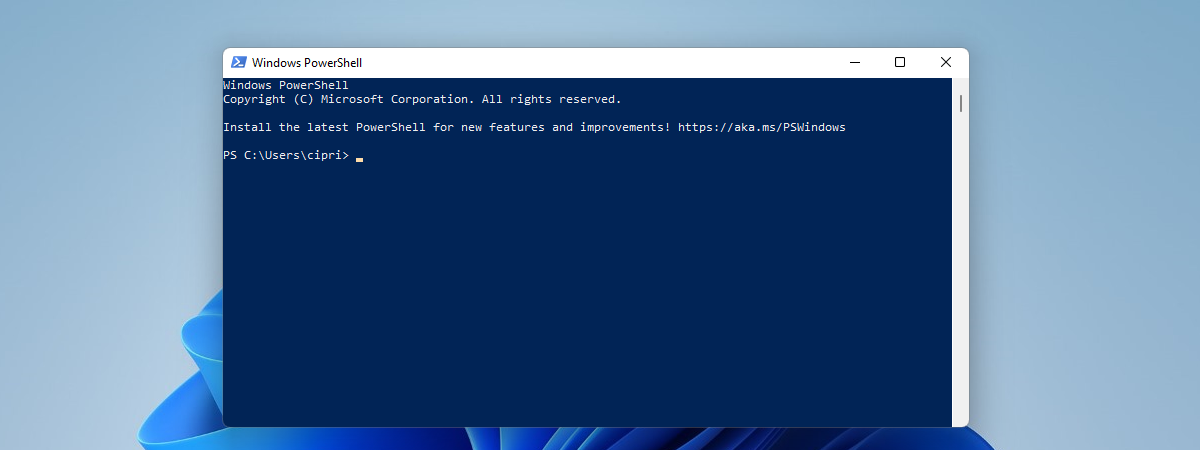
Once PowerShell is launched, you should see a window similar to the one in the image below.
UAC notification for running PowerShell as admin
Once PowerShell is launched, you should see a window similar to the one in the image below.
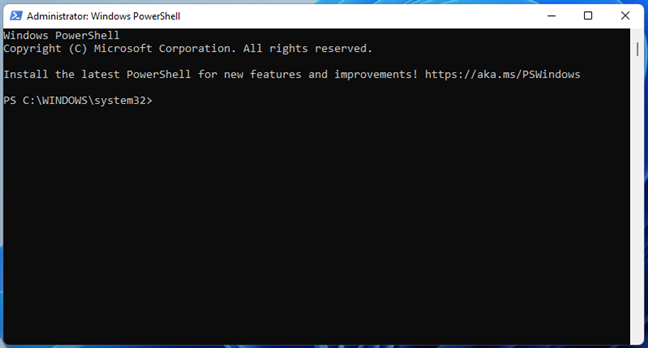
 Running PowerShell as an administrator
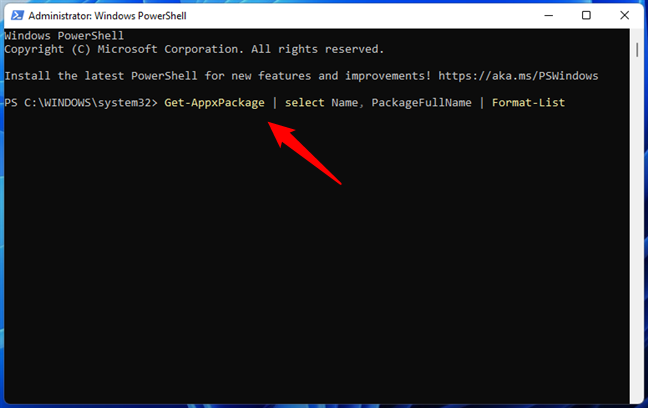
 Use this PowerShell command to get the list of Windows apps
PowerShell starts displaying the apps installed on your Windows 11 or Windows 10 computer.
Use this PowerShell command to get the list of Windows apps
PowerShell starts displaying the apps installed on your Windows 11 or Windows 10 computer.
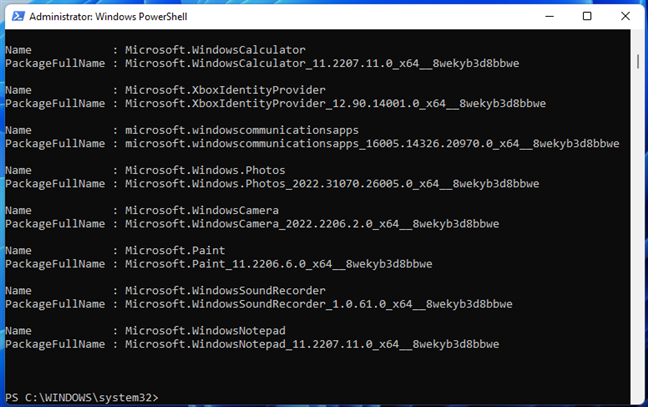
 PowerShell outputs the list of Windows apps
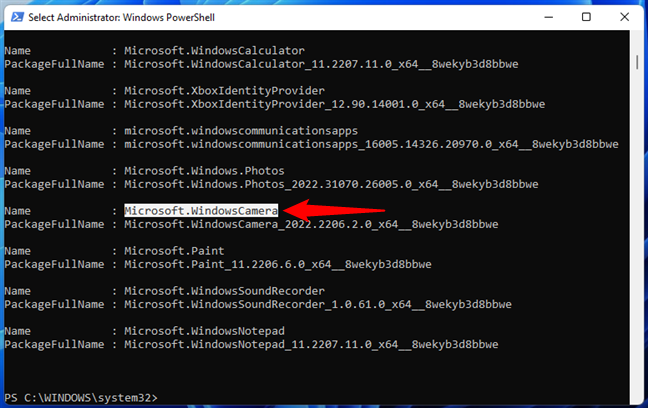 The Microsoft Windows Camera app
Alternatively, you can search for the app's name using PowerShell’s Find tool: right-click on the title bar of the Powershell window and go to “Edit > Find.”
The Microsoft Windows Camera app
Alternatively, you can search for the app's name using PowerShell’s Find tool: right-click on the title bar of the Powershell window and go to “Edit > Find.”
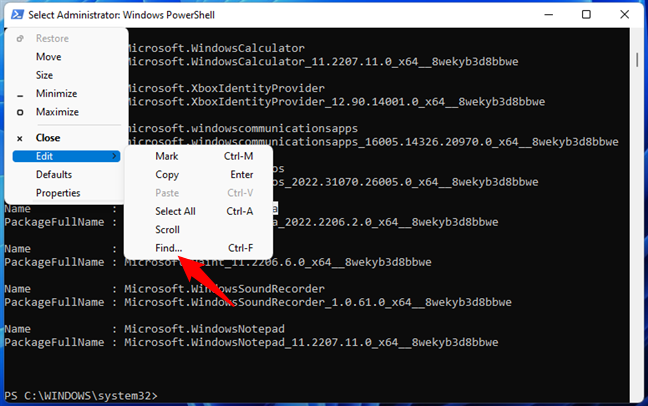
 The Find command in PowerShell
Type in the box part of the app’s name (in our case, “camera”) and click or tap Find Next until you get the name of the app you are searching for.
The Find command in PowerShell
Type in the box part of the app’s name (in our case, “camera”) and click or tap Find Next until you get the name of the app you are searching for.
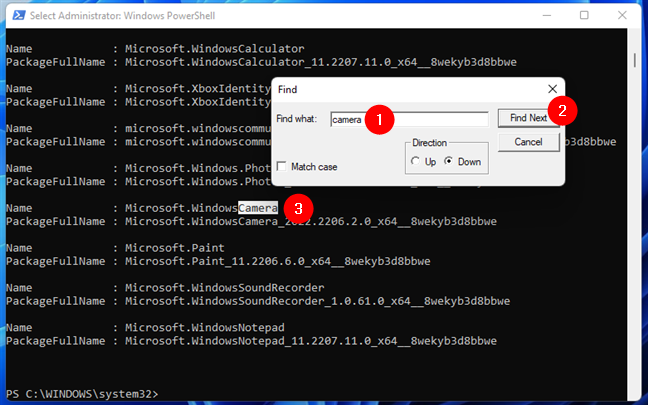
 Finding an app’s name in PowerShell
However, to run the uninstall command properly, you don’t need the Name of the app but the PackageFullName. Copy it to the clipboard, Notepad, or write it down, and move to the next step in this guide.
Finding an app’s name in PowerShell
However, to run the uninstall command properly, you don’t need the Name of the app but the PackageFullName. Copy it to the clipboard, Notepad, or write it down, and move to the next step in this guide.
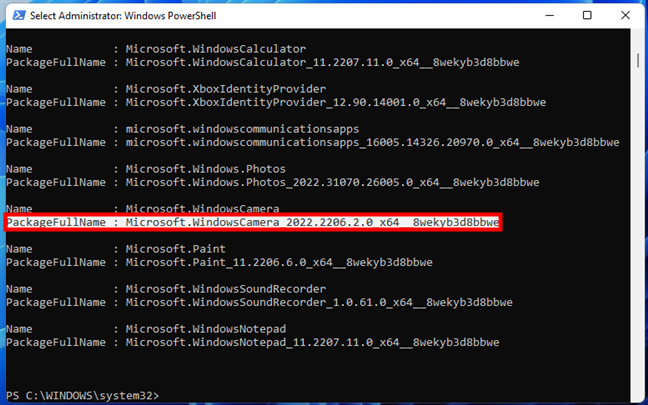 The PackageFullName of a Windows app
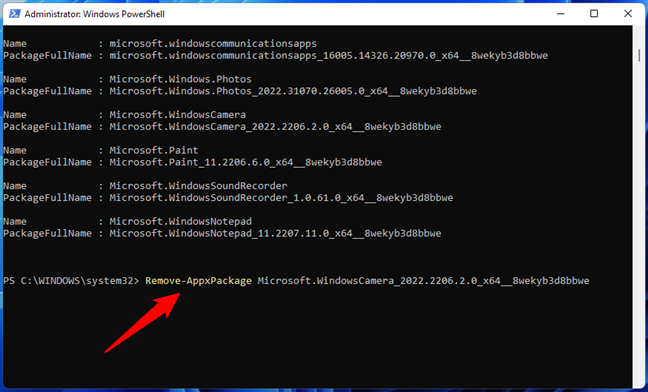
 The app uninstall command in PowerShell
Note that the previous command removes the Windows app only for your current user account. If you want to uninstall that app for all the user accounts on your Windows 11 or Windows 10 PC, add -allusers to the command like this:
The app uninstall command in PowerShell
Note that the previous command removes the Windows app only for your current user account. If you want to uninstall that app for all the user accounts on your Windows 11 or Windows 10 PC, add -allusers to the command like this:
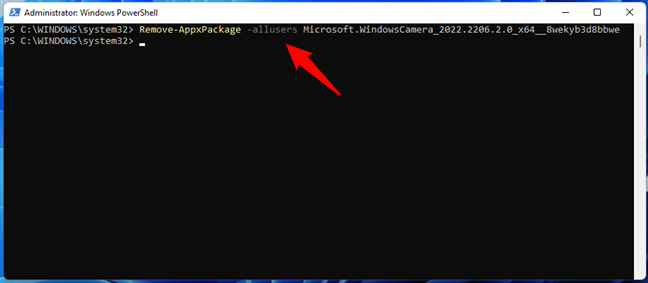
 How to remove an app with PowerShell for all users
Fortunately, though, to make things simpler, Powershell allows the use of keywords for the app names, and this is what we’ll show you in the next section of this guide.
How to remove an app with PowerShell for all users
Fortunately, though, to make things simpler, Powershell allows the use of keywords for the app names, and this is what we’ll show you in the next section of this guide.
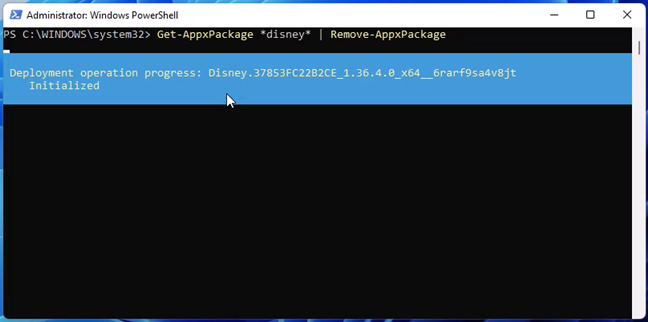
 Removing an app using a PowerShell command
When the process is done, the PowerShell window removes the uninstall progress information from the screen and returns control to the command line.
Removing an app using a PowerShell command
When the process is done, the PowerShell window removes the uninstall progress information from the screen and returns control to the command line.
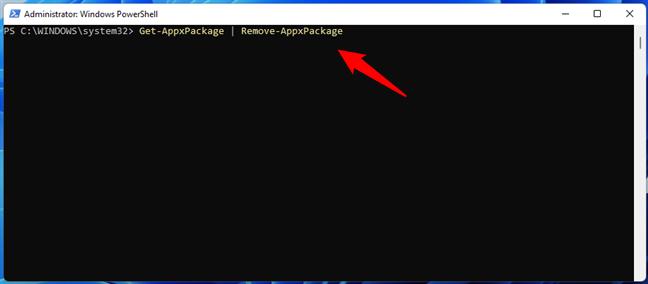
 How to remove all default apps with PowerShell
When running the command, you’ll see a lot of messages in PowerShell. Some will say that apps are removed, while others will be printed in red. The latter ones are errors triggered by Windows when encountering core apps that can’t be removed without crashing the system completely. However, all the apps that can be uninstalled will be removed.
How to remove all default apps with PowerShell
When running the command, you’ll see a lot of messages in PowerShell. Some will say that apps are removed, while others will be printed in red. The latter ones are errors triggered by Windows when encountering core apps that can’t be removed without crashing the system completely. However, all the apps that can be uninstalled will be removed.
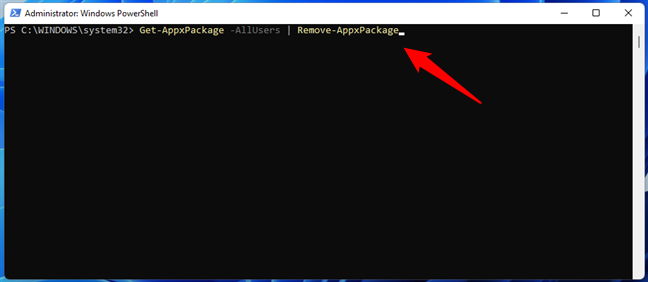
 How to remove all Windows built-in apps with PowerShell for all users
Ignoring all the red alerts shown in PowerShell, once the command is done, all the default apps from either Windows 11 or Windows 10 will be history.
How to remove all Windows built-in apps with PowerShell for all users
Ignoring all the red alerts shown in PowerShell, once the command is done, all the default apps from either Windows 11 or Windows 10 will be history.
How to remove a Windows app from PowerShell
PowerShell allows you to uninstall Windows apps independently, one by one, but it also allows you to uninstall all the apps at once with a single command. Furthermore, you can also choose to remove Windows apps only from your user account or from all the user accounts on a computer. As promised, we’ll show you how to do all these things but first, let’s see how to uninstall a single Windows app from PowerShell:Step 1. Launch PowerShell as an administrator
First of all, you have to launch PowerShell as an administrator, and a fast way to do so is to use search. If you’re using Windows 11, click or tap the search button on the taskbar. Then, type “powershell,” select the Windows PowerShell result, and click or tap “Run as administrator” on the right.Step 2. Get the list of Windows apps from PowerShell
To uninstall a Windows app, you’ll have to run a specific command for it. The problem is that to properly run this command, you must know the full package name of the app you intend to uninstall. And to find its name, you must get the list of apps installed on your Windows computer. To do that, run the following command:Get-AppxPackage | select Name, PackageFullName | Format-List
Step 3. Identify the Windows app to uninstall from PowerShell
Scroll through PowerShell to find the app that you want to uninstall. You can quickly identify it by looking at the Name field of each app in the list. For instance, the Camera app bears the name “Microsoft.WindowsCamera.”Step 4. Remove the Windows app from PowerShell
We’ve reached the point where we can finally answer the main question: “How do I remove a Windows app from PowerShell?”. The PowerShell command you must run to uninstall a Windows 11 or Windows 10 app is this:Remove-AppxPackage [App Name]
In the above command model, replace [App Name] with the full package name of the app you want to remove, the one you noted in the previous section of this tutorial. For instance, if you want to remove the Camera app, you should run a command similar to this one:
Remove-AppxPackage Microsoft.WindowsCamera_2022.2206.2.0_x64__8wekyb3d8bbwe
Remove-AppxPackage -allusers [App Name]
For instance, to remove the Camera app for all the users on my Windows computer, I need to run this command:
Remove-AppxPackage -allusers Microsoft.WindowsCamera_2022.2206.2.0_x64__8wekyb3d8bbwe
Silent uninstall commands for Windows 11 and Windows 10 default applications
Here’s the list of silent uninstall PowerShell commands for common Windows 11 and Windows 10 default apps:- Uninstall 3D Builder: Get-AppxPackage *3dbuilder* | Remove-AppxPackage
- Uninstall ACG Player: Get-AppxPackage *acg* | Remove-AppxPackage
- Uninstall Alarms and Clock: Get-AppxPackage *alarms* | Remove-AppxPackage
- Uninstall AV1 Codec: Get-AppxPackage *AV1VideoExtension* | Remove-AppxPackage
- Uninstall Calculator: Get-AppxPackage *calculator* | Remove-AppxPackage
- Uninstall Calendar and Mail: Get-AppxPackage *communications* | Remove-AppxPackage
- Uninstall Cortana: Get-AppxPackage *Microsoft.549981C3F5F10* | Remove-AppxPackage
- Uninstall Camera: Get-AppxPackage *camera* | Remove-AppxPackage
- Uninstall Disney+: Get-AppxPackage *disney* | Remove-AppxPackage
- Uninstall Dolby Access: Get-AppxPackage *dolbyaccess* | Remove-AppxPackage
- Uninstall Feedback Hub: Get-AppxPackage *WindowsFeedbackHub* | Remove-AppxPackage
- Uninstall Fitbit Coach: Get-AppxPackage *fitbitcoach* | Remove-AppxPackage
- Uninstall Office: Get-AppxPackage *officehub* | Remove-AppxPackage
- Uninstall Get Started: Get-AppxPackage *getstarted* | Remove-AppxPackage
- Uninstall Music: Get-AppxPackage *zunemusic* | Remove-AppxPackage
- Uninstall HEIF image support: Get-AppxPackage *HEIFImageExtension* | Remove-AppxPackage
- Uninstall Get Help: Get-AppxPackage *GetHelp* | Remove-AppxPackage
- Uninstall Maps: Get-AppxPackage *maps* | Remove-AppxPackage
- Uninstall Microsoft Edge: Get-AppxPackage *MicrosoftEdge* | Remove-AppxPackage
- Uninstall Microsoft Solitaire Collection: Get-AppxPackage *solitairecollection* | Remove-AppxPackage
- Uninstall Microsoft To-Do: Get-AppxPackage *Todos* | Remove-AppxPackage
- Uninstall Microsoft Teams: Get-AppxPackage *Teams* | Remove-AppxPackage
- Uninstall Money: Get-AppxPackage *bingfinance* | Remove-AppxPackage
- Uninstall Movies & TV: Get-AppxPackage *zunevideo* | Remove-AppxPackage
- Uninstall News: Get-AppxPackage *bingnews* | Remove-AppxPackage
- Uninstall Notepad: Get-AppxPackage *WindowsNotepad* | Remove-AppxPackage
- Uninstall OneNote: Get-AppxPackage *onenote* | Remove-AppxPackage
- Uninstall OneDrive: Get-AppxPackage *OneDriveSync* | Remove-AppxPackage
- Uninstall Paint: Get-AppxPackage *Paint* | Remove-AppxPackage
- Uninstall People: Get-AppxPackage *people* | Remove-AppxPackage
- Uninstall Phone Companion: Get-AppxPackage *windowsphone* | Remove-AppxPackage
- Uninstall Phototastic Collage: Get-AppxPackage *phototastic* | Remove-AppxPackage
- Uninstall Photos: Get-AppxPackage *photos* | Remove-AppxPackage
- Uninstall PicsArt: Get-AppxPackage *picsart* | Remove-AppxPackage
- Uninstall Plex: Get-AppxPackage *plex* | Remove-AppxPackage
- Uninstall PowerAutomate: Get-AppxPackage *PowerAutomateDesktop* | Remove-AppxPackage
- Uninstall Screen and Sketch/Snipping Tool: Get-AppxPackage *ScreenSketch* | Remove-AppxPackage
- Uninstall Skype: Get-AppxPackage *skypeapp* | Remove-AppxPackage
- Uninstall Store: Get-AppxPackage *windowsstore* | Remove-AppxPackage
- Uninstall Sticky Notes: Get-AppxPackage *MicrosoftStickyNotes* | Remove-AppxPackage
- Uninstall Spotify: Get-AppxPackage *SpotifyMusic* | Remove-AppxPackage
- Uninstall Sports: Get-AppxPackage *bingsports* | Remove-AppxPackage
- Uninstall Voice Recorder: Get-AppxPackage *soundrecorder* | Remove-AppxPackage
- Uninstall Weather: Get-AppxPackage *bingweather* | Remove-AppxPackage
- Uninstall WebP image support: Get-AppxPackage *WebpImageExtension* | Remove-AppxPackage
- Uninstall Windows Terminal: Get-AppxPackage *WindowsTerminal* | Remove-AppxPackage
- Uninstall Xbox: Get-AppxPackage *xbox* | Remove-AppxPackage
- Uninstall Your Phone: Get-AppxPackage *YourPhone* | Remove-AppxPackage
How to remove all Windows apps for your user account with PowerShell
If you’d rather uninstall all the preinstalled apps from your user account on a Windows 11 or Windows 10 computer, there’s a simple command for that too. But be wary of the fact that this can break Windows for your user account. If you’re sure you want to continue, in PowerShell, run this next command, exactly as it is, to remove all the default Windows apps:Get-AppxPackage | Remove-AppxPackage
How to remove all Windows apps for all users with PowerShell
Similarly, you can adjust the previous command to remove all default Windows apps for all users on your computer. Again, remember that this can break Windows for all the user accounts configured on it. If you’re sure you want to continue, this is the PowerShell command you’ll have to run:Get-AppxPackage -AllUsers | Remove-AppxPackage

Discussion (8)
I get error msg saying ” Remove-AppxPackage” is not recognized as a function, script file or operable program
Boo! Windows won’t let me uninstall Cortana
I would suggest moving this paragraph ABOVE #1 in your list: A Very Important Safety Aspect You Should NOT Ignore
You can restore the Microsoft Store using the following…
Get-AppxPackage -allusers Microsoft.WindowsStore | Foreach {Add-AppxPackage -DisableDevelopmentMode -Register “$($_.InstallLocation)AppXManifest.xml”}
Thank you so much! It worked and was clearly explained.
Thanks for the help! One thing however, I am currently using the latest version of Windows 10, Version: 1709, of the Fall Creators Update. I followed the instructions you provided via Powershell running it as Administrator. I entered the command through the CLI. For example….
Get-AppxPackage *maps* | Remove-AppxPackage
After pressing enter, I did not receive any message an output as you quoted, “Deployment operation progress: yada yada yada yada….” It just returned to ” PS C:WINDOWS|system32> ” Did the operation complete?
I administrate 14 computers for my club – and we have three user accounts on each one. Your write-up is similar to others I’ve found on the web. Your instructions ‘appear’ to work for the user account I’m using at the moment, if I run PowerShell as the administrator. I copy and paste the commands into PowerShell, and the proper green bars come up. After I complete the list, I close everything and then do a re-start. Is there another way that I can format the commands so that I enter them just once to be effective for all three user accounts?
Now the issue: the process doesn’t seem to work! The entries appear right back in the ‘all apps’ listing of the user account I just used to delete them. So, is there another way that I can dump this stuff – like a registry entry or deleting the libraries where the programs are?
Thank you so much for making my computer life so much easier and more organized. I ♥ this site!