



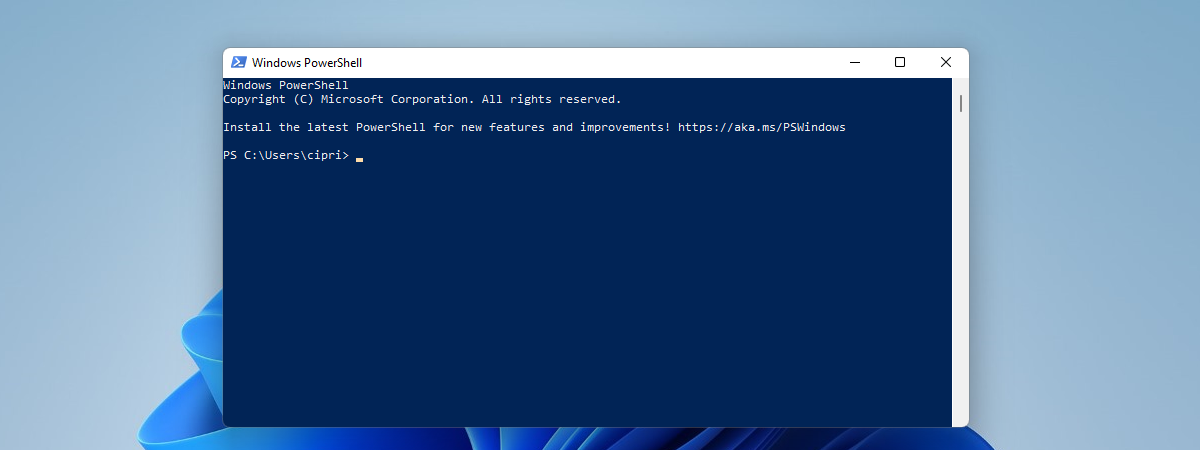
While many casual users know about the Command Prompt, only a few have heard about Windows PowerShell. PowerShell is not the same as Command Prompt - it’s a much more powerful tool that was created to replace Command Prompt, delivering more power and control over the operating system. Would you like to get a better understanding of what PowerShell is, why it’s such a powerful tool, and see what you can do with it? Then read on:
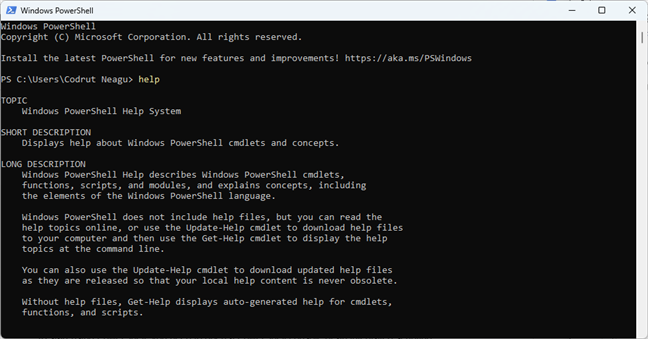
 PowerShell in Windows 11
A shell is usually command-line based, but it can also include a graphical user interface (GUI).
Initially, Windows PowerShell was developed by Microsoft for the purposes of task automation and configuration management. Nowadays, PowerShell is open-source, and you can use it on Windows, macOS, and Linux platforms.
PowerShell in Windows 11
A shell is usually command-line based, but it can also include a graphical user interface (GUI).
Initially, Windows PowerShell was developed by Microsoft for the purposes of task automation and configuration management. Nowadays, PowerShell is open-source, and you can use it on Windows, macOS, and Linux platforms.
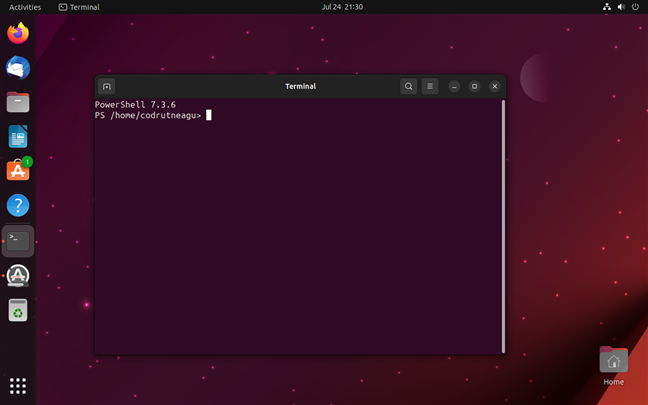
 Using PowerShell on a Linux machine
PowerShell is based on the .NET Framework, which means it can access many libraries and features of the Windows operating system, as well as interact with various services and applications, including Azure, Microsoft 365, and SQL Server.
The first version of PowerShell was released in November 2006 for Windows XP, Windows Server 2003, and Windows Vista. The most recent version is Windows PowerShell 7.3.6, although the latest stable builds of Windows 11 and Windows 10 still come with PowerShell 5.1. Microsoft chooses the latter still, although plans for including newer versions of PowerShell in Windows operating systems apparently do exist.
Using PowerShell on a Linux machine
PowerShell is based on the .NET Framework, which means it can access many libraries and features of the Windows operating system, as well as interact with various services and applications, including Azure, Microsoft 365, and SQL Server.
The first version of PowerShell was released in November 2006 for Windows XP, Windows Server 2003, and Windows Vista. The most recent version is Windows PowerShell 7.3.6, although the latest stable builds of Windows 11 and Windows 10 still come with PowerShell 5.1. Microsoft chooses the latter still, although plans for including newer versions of PowerShell in Windows operating systems apparently do exist.
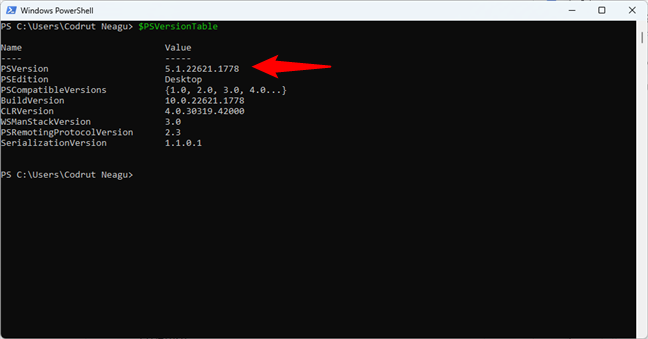 Windows PowerShell version 5.1
TIP: As you might have noticed in the previous screenshot, you can check what version of PowerShell you have on your PC by running this command:
Windows PowerShell version 5.1
TIP: As you might have noticed in the previous screenshot, you can check what version of PowerShell you have on your PC by running this command:
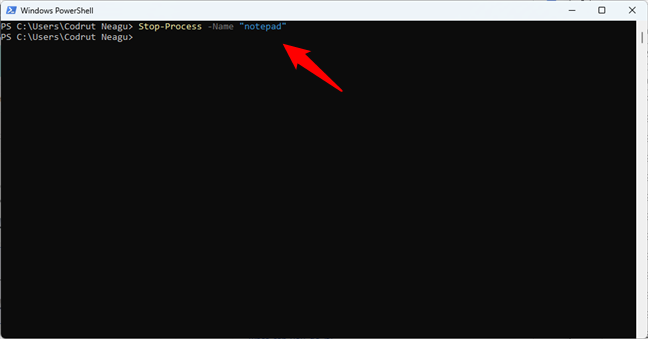 How to stop a process with PowerShell
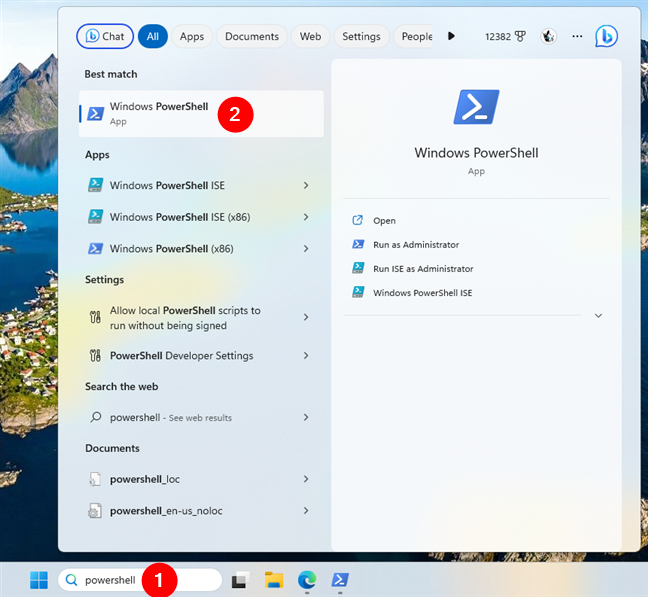
 How to open PowerShell in Windows
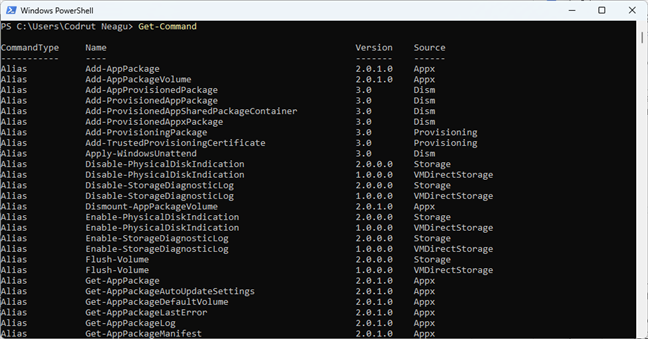 How to see the list of commands in PowerShell
TIP: If you want to see all the available cmdlets in your PowerShell, you can use this command:
How to see the list of commands in PowerShell
TIP: If you want to see all the available cmdlets in your PowerShell, you can use this command:
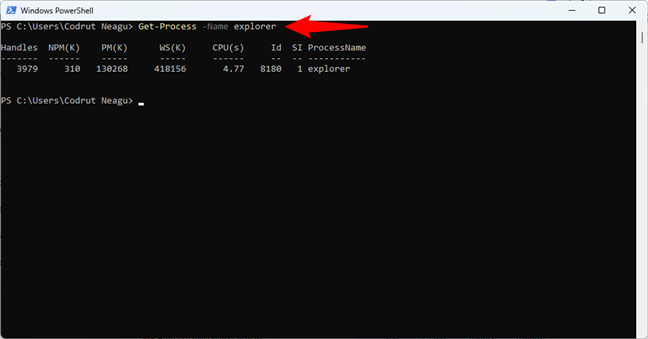 How to get a process by name in PowerShell
A PowerShell cmdlet can output results on the screen, store them in variables, or directly send them to other cmdlets. Similarly, PowerShell also allows you to create and use variables to store values or objects. Variables are marked by the $ (dollar) sign, followed by their names. For instance, $digitalcitizen=“Life in a digital world!” or $sample= “Hello world!”.
How to get a process by name in PowerShell
A PowerShell cmdlet can output results on the screen, store them in variables, or directly send them to other cmdlets. Similarly, PowerShell also allows you to create and use variables to store values or objects. Variables are marked by the $ (dollar) sign, followed by their names. For instance, $digitalcitizen=“Life in a digital world!” or $sample= “Hello world!”.
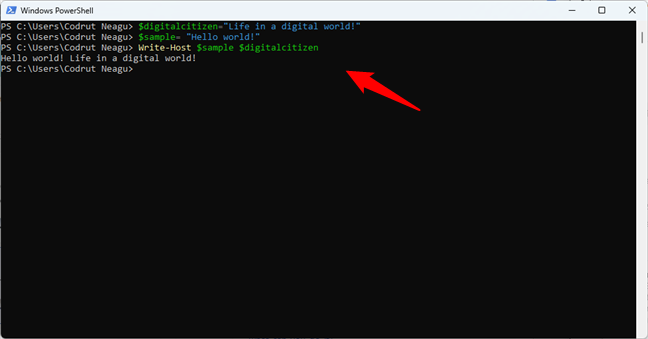 How to set variables in PowerShell
TIP: Use this cmdlet to see all the variables in your PowerShell session:
How to set variables in PowerShell
TIP: Use this cmdlet to see all the variables in your PowerShell session:
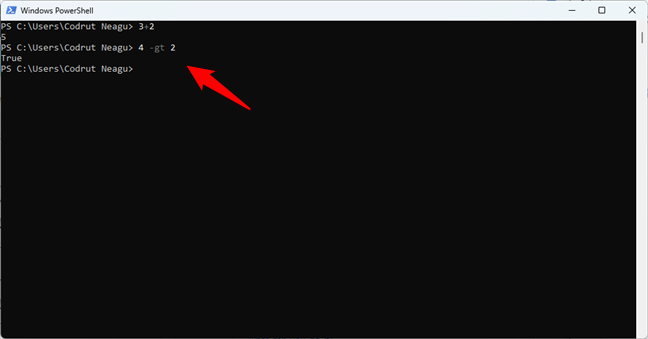 How to use operators in PowerShell
TIP: You can use the next command to find all the available operators in PowerShell:
How to use operators in PowerShell
TIP: You can use the next command to find all the available operators in PowerShell:
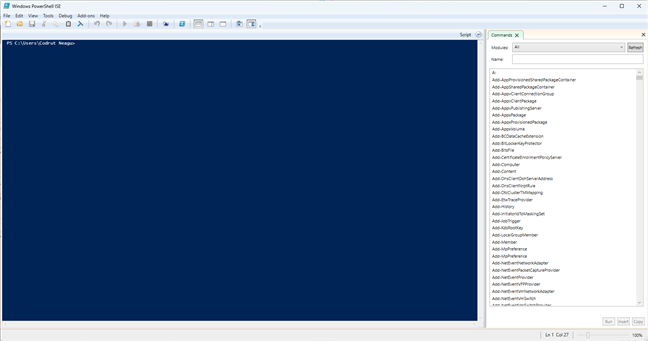
 PowerShell ISE (Integrated Scripting Environment)
For users with previous experience in Command Prompt and Linux, PowerShell has a list of aliases that associate names familiar to these users with the PowerShell commands. Here are a few examples: cat, dir, mount, rm, chdir, erase, sort, cls, del. For a full list of these aliases, run this command in PowerShell:
PowerShell ISE (Integrated Scripting Environment)
For users with previous experience in Command Prompt and Linux, PowerShell has a list of aliases that associate names familiar to these users with the PowerShell commands. Here are a few examples: cat, dir, mount, rm, chdir, erase, sort, cls, del. For a full list of these aliases, run this command in PowerShell:
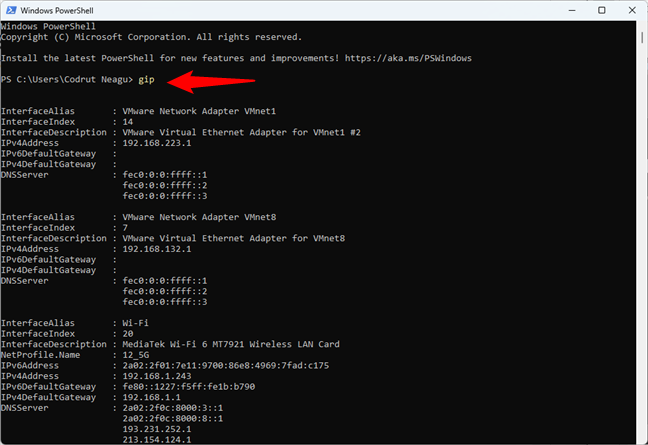
 How to get the IP address in PowerShell
PowerShell is often the weapon of choice for IT admins, as it can significantly simplify the management of operations in corporate networks. To give you an example, let’s say you are managing a large network containing over five hundred servers, and you need to implement a new security solution that is dependent on a specific service that has to run on those servers. You could, of course, log in to each server and see if they have that service installed and running. It is possible, but it’s also likely that you take too long to finish the task. If you use PowerShell, you can complete that task in just a few minutes since the whole operation can be done with only one script that gathers information about the services running on the servers you specify and dumps them into a text file, for instance. Now that’s productivity!
How to get the IP address in PowerShell
PowerShell is often the weapon of choice for IT admins, as it can significantly simplify the management of operations in corporate networks. To give you an example, let’s say you are managing a large network containing over five hundred servers, and you need to implement a new security solution that is dependent on a specific service that has to run on those servers. You could, of course, log in to each server and see if they have that service installed and running. It is possible, but it’s also likely that you take too long to finish the task. If you use PowerShell, you can complete that task in just a few minutes since the whole operation can be done with only one script that gathers information about the services running on the servers you specify and dumps them into a text file, for instance. Now that’s productivity!
What is PowerShell?
PowerShell is a powerful scripting language and command-line shell that you can use to automate tasks, manage systems, and perform various operations. That’s the definition of PowerShell in a nutshell; excuse the intended pun :). However, to better understand what PowerShell is and what it’s used for, you should first know what a shell is. In computer science, a shell is a user interface that gives you access to various services of an operating system.$PSVersionTable
What is PowerShell used for?
Microsoft designed Windows PowerShell as a tool that helps you automate and quickly solve tedious administration tasks. For example, you can use PowerShell to display all the USB devices installed on one or multiple computers in a network, or you can set a time-consuming task to run in the background while you do other work. You can also identify and kill processes that are not responding or filter specific information about computers in a network and export it in HTML format.How to use PowerShell
In order to start using PowerShell, you must first open a PowerShell console or an integrated scripting environment like PowerShell ISE. Both are available by default on Windows operating systems. On other platforms, you have to download PowerShell and install it in order to get access to the scripting language and its console.How to open PowerShell in Windows
In Windows 11 or Windows 10, you can launch the PowerShell console by following any of these methods. One of the easiest ways is to look for PowerShell with Windows’ integrated search feature.How to use PowerShell commands
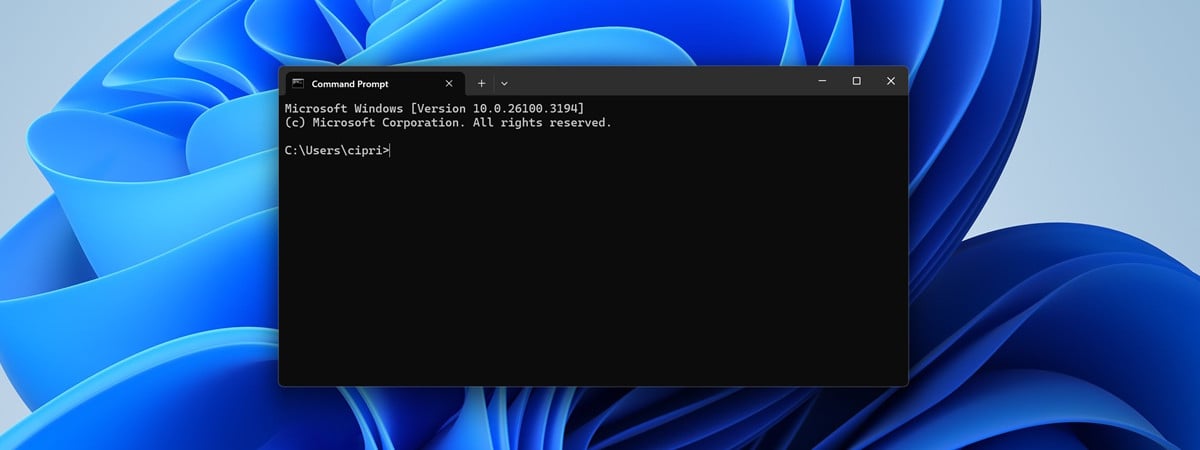
PowerShell commands are called cmdlets. Their names are usually easy to understand and even memorize, as their syntax is similar to that of a regular sentence. For instance, I bet it’s easy for anyone to remember and immediately know what a PowerShell cmdlet, such as Get-Process or Copy-Item, is all about. Unlike the commands in ancient operating systems of old-style shells (DOS and Command Prompt instantly come to mind), PowerShell cmdlets are quite user-friendly. In a PowerShell vs. CMD showdown, the former will always win in terms of usability, not to mention efficiency and performance.Get-Command
Most PowerShell commands can also be used with parameters, which are options that modify the behavior of the executed cmdlet. For example, the -Name parameter can be added to the Get-Process cmdlet if you want to specify the process to get.
Get-Variable
To continue, PowerShell also supports operators, which you can use when you need to make calculations or comparisons between different values or objects. For example, the + operator allows you to add numbers, while -gt tells you whether the first value is greater than the second.
Get-Operator
Last but not least, you should also know that PowerShell supports control structures (based on conditions or loops) such as if or foreach, as well as functions. But this is already advanced scripting territory, and the scope of this article isn’t to list all the cmdlets you can run and use in PowerShell. Still, if that’s what you’re looking for, I recommend reading Ed Wilson’s Windows PowerShell Step by Step book or browse Microsoft’s official PowerShell Documentation to learn all the ins and outs of using PowerShell. You could also check this guide from Microsoft for sample scripts that give you a good idea of how to use PowerShell efficiently.
PowerShell vs. PowerShell ISE
On top of the standard command-line shell, you can also find the Windows PowerShell ISE. ISE stands for Integrated Scripting Environment, and it’s a graphical user interface that allows you to run commands and create, modify, and test scripts without having to type all the commands in the command line. The tool allows the development of scripts which are collections of commands where you can add complex logic for their execution. The ISE tool is designed to help Windows systems administrators who repeatedly need to run sequences of commands that manipulate the configuration of these systems.Get-Command -Type Alias
Why use PowerShell? Is Windows PowerShell needed?
PowerShell is a tool that can be incredibly useful both for home users and IT administrators. For instance, a home user can take advantage of PowerShell in order to do all kinds of things that would otherwise take a long time to perform manually: uninstall unwanted Windows apps, count files and folders, print lists of running processes, etc. Furthermore, other tasks can sometimes be performed faster and easier with PowerShell than by using the plain user interface of Windows. I can think of things like finding your IP or MAC address and even deleting partitions.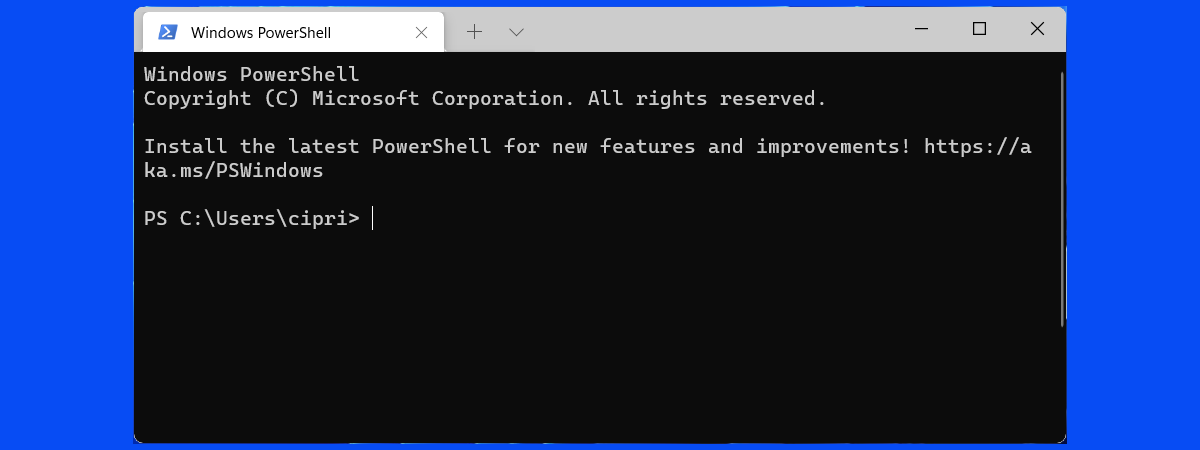
Discussion (37)
Is this program necessary for individual everyday use? I find it a pain when I start my computer & it comes up in triplicate, and I can’t begin to use my computer ’til I can manage to close all three windows of it. I want it gone.
Power shell is opening at startup. How do I stop it?
does powershell allow remote access from someone hacking my computer? Several copies of Powershell come up whenever i turn on my computer. This started about a year ago when my debit card was used for several unauthorized purchases without my knowledge for over $1200.00. I got an error message with a loud alarm with a tollfree number, warning me that my computer was hacked. I called and someone claiming to be a Windows fraud tech used a remote view program to access my computer.He saw the fraudulant charges and told me to pay $250.00 to Western Union and he would get all my money back.
This sounded fishy to me, but a made the payment anyway. Then i called my bank and was told to cancell the transaction, so I did and I deleted my WU password. I found the Remote View app and uninstalled it. my bank eventually got me my money back…I now have Mcaffee Virus Protection.
BUT, just a few days ago, I got an email from Amazon telling me of a suspicious charge for $1200.00 fo an Iphone. I did not authorize this and I declined the purchase, via email. I also called them.
in the process, I found that my debit card was deactivated when i tried to make an in-store purchase.
When I called my bank a few days later, I learned of several other attempted unauthorized, charges which I denied. They are sending me a new debit card…I have since tried to find the Remote View app, but i can’t find it.
I shop alot & pay bills online.
My question is…how can i insure that I won’t be hacked again…I was thinking of purchasing, PC Matic…What should I do. Does Powershell have anything to do with this and can i disable it if need be?
Sorry to be so long winded, but I wanted to be precise.
Any info will be well appreciated,
Debbie
I want to learn how to run a computer system and I want to broaden my knowledge in IT will be of help me to achieve that and I want you to be my tutor in all I need to know about INFORMATION TECHNOLOGY
Can someone help me with this. I don’t know how to fix it
This came up after running
CMD sfc /scannow
CSI 000001a7 [SR] Cannot repair member file [l:19]’MSFT_MpThreat.cdxml’ of Windows-Defender-Management-Powershell, version 10.0.18356.1, arch amd64, nonSxS, pkt {l:8 b:31bf3856ad364e35} in the store, hash mismatch
2019-10-14 17:16:11, Info CSI 000001a8 Hashes for file member [l:26]’MSFT_MpThreatCatalog.cdxml’ do not match.
I powered up this morning on my 5 moniter dell desktop and found that I had one moniter down and one moniter with a ton of blue screens that read “Administrator Power Shell” at the top of the screen. My mouse pointer was moving on it’s own. After 5 minutes or so 4 of the 5 moniters displayed the desktop. When I attempted to log on my VPN the VPN window is not responding. I also cannot move the window from one moniter to the next. What is going on?
We have given you great information, we hope that you will continue to provide such information even further. Read More…NetKiDuniya
I have learned a lot from your post. Thanks for sharing all the PowerShell information it is really appreciated. Not a lot of people would chose to write about this particular topic so I just wanted to personally thank you the author for doing so. A more expanded presentation is appreciated some time in the new year.
I absolutely loved this tutorial. It was so simple to understand for a beginner like me, much appreciated!
Please keep on making easy tutorials like these for beginners like us! 🙂
Subscribe to our newsletter, for more tutorials like this. 😉
i am a student from department of mech. eng. . i was intrested to know more about powershell, is it possible for me to learn it from the book, if yes then which? what could i do more with the power of powershell or command prompt
?
Short but very informative. Thanks
Thanks for appreciating our work.
Powershell may be a powerful tool for developers and a novel little toy for techies, but let’s face it: it’s completely useless to the average user and never needed to be elevated to the place it now occupies on our computers. For those of us with just a simple knowledge of cmnd, trying to replace it with powershell is just going to make things more daunting. Furthermore, powershell is being single out as a highly vulnerable part of Windows. I can’t tell you how many times I’ve heard someone advising a user that the symptoms they’re describing indicates a nasty virus, and powershell is often the means of delivery. It’s just one more sign that Windows is ignoring the average consumer so they can cater to a select few. This is why Microsoft needs to go back to their old model of having multiple versions of Windows instead of this one-size-fits-all mentality.
want to know what all can i automate.. i am very new to powershell,
want to know if i can automate a flush process in server and send the email to my team if flush was successfull or not
its amazing tool for analyze the perfomance
It is sooo cool to know that Powershell can solve my daily IT problems/ meets IT needs. Thank you for the useful and thoughtful information!!
easily define and very useful information get from your site
thanks
What will senior citizens who only surf the net, do email, maybe order a few items, read the news, watch the radar going to do with PowerShell? You are shoving us all off the road. You even moved Control Panel. A lot of seniors can’t keep up with you geeky stuff and are shutting down their pc’s. Thanks for thinking about us.
The article ends with, “As you can see from this article, Windows PowerShell is an incredibly powerful tool”. Uhhh?
Yes, the title was, “What You Can Do With It”, but very little actually talked about the different things you can do with it and how it’s so powerful enough to make that your closing point.
The article was mainly talking about technical terms for it, different versions of it on different computers, how to pull it up in different systems . . . but very little of that whole article was actually about explaining what you can do with it.
And most of it was technical…I feel like people who could understand that level of jargon, would ALREADY know what it can do (at least to the depth that the article described it to).
I have only begun looking into shells and I have concluded after your article that there are simply more important things to learn right now for me. Thanks for the overview though.
You are welcome.
Thanks for explaining what powershell is/does.
Would be ok to “disable” powershell.exe at startup? I’d like to have only my internet security enabled upon startup, or is that too confining?
It should be ok to disable powershell.exe at startup, unless it is running some scripts that must run at startup.
Will powershell open a download that I cannot open because I get the windows script host error.It says document undefined,error800a1319 (or something like that) and runtime error.I really need this download.
i have virus version of powershell it is cool it kills explorer.exe and makes my computer unusable it is funny when it gives me BSoD how do i get rid of it?
If it is a virus you can use cmd to remove it or go to run and press Windows Key + R to open the run dialogue box and type in PowerShell or right click the taskbar (on windows 8.1) and click properties and then select replace cmd with PowerShell then right click the start menu *BUT* if you have Classic Shell you will need to Shift + Right Click to do this.
I still dont know how it works can someone plz explain to me how it works i really wanna know
How to get rid of Powershell?
You can’t. Its built right in to your PC.
Better way to access powershell for Windows 10 and 8.1:
Rightclick on the taskbar and click on properties. Go to the tab ‘navigate’ and enable ‘replace command prompt with powershell’ option. The press OK to close.
Now whenever you want to use powershell just rightclick on the start button and you will see it listed there. With both as user and admin shortcuts.
And yes there is an amazing menu hidden there, enjoy.
windows power shell is going to appear on my screen when i start my computer from 3 days what should i do make it normal
great work man
Do I need Powershell? I keep getting a warning popping up on my new Windows 8.1 computer which states: Windows Powershell has stopped working. What should I do about it? Any non-turtle-like answers/comments will be appreciated.
No, most average “non-geeky” people don’t need to use PowerShell. When do you get this warning? If it happens when you just start up your computer this means that some program is trying to access PowerShell, so this could mean it is a virus, or probably some program, such as Windows7 gadget, is using it during start-up. The way it is, it should not cause any harm, but if it becomes too “unholy” you might be able to find it via Task Manager, by “rightclicking” the taskbar, and clicking “Start Task Manager” and go to “Processes”. You will see a bunch of weird stuff, but that does not matter, for unless you are a computer “wiz” (like me :D), you would have no need to use this. Just find some thing there that has a name related to “PowerShell” or something like “C//Win32/PowerShell.exe open. Then click it and click “Close”. (You might have to right click it to see the close option) If you see nothing related to that, you might now be out of luck just yet. Click on “Services” and see of there is any like what PowerShell again. *BE Careful, because messing with this kind of stuff could render your computer worthless. Like ending to process called “Power” can totally ruin your computer. Still nothing? Go to “Applications” and see anything with the words “PowerShell” or with the PowerShell logo. If nothing works, just live with it, as it will not harm your computer *UNLESS* it is a virus, which you should use a scanner for. PS. HerdProtect is a great piece of software…And free too :D. Remember when this started to happen? If you installed any new software, it could have a bug in it that could cause PowerShell to crash. If you find some “unstable” or software that you never remember installing, uninstall it and see if that works. You could also try to re-install PowerShell, because maybe your version of PowerShell might be defective somehow. I hope that something works for you, if not, it really wont matter too much, if it is not degrading your performance. Hope this help, and please reply
-AshtonKiros
No Ashton, Your wrong
This is happening because you did not power your turtle’s shell. Plug its tail in a power outlet, and then you have “Fried-Turtle” Erm I mean, a powered shell.