



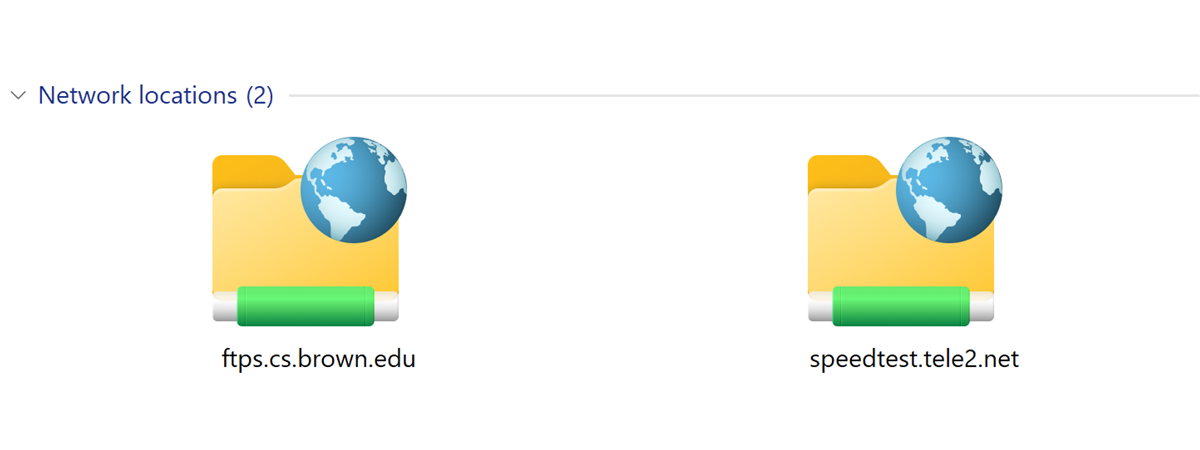
Mapping network drives and other locations on your Windows laptop or computer is a good way of keeping remote data at hand in your local area network. However, at some point, you might also want to delete some of these drive mappings and keep only those that you regularly use. In this article, we show you exactly how to do that. Here are five methods for deleting mapped drives and network locations from Windows 10 or Windows 11:
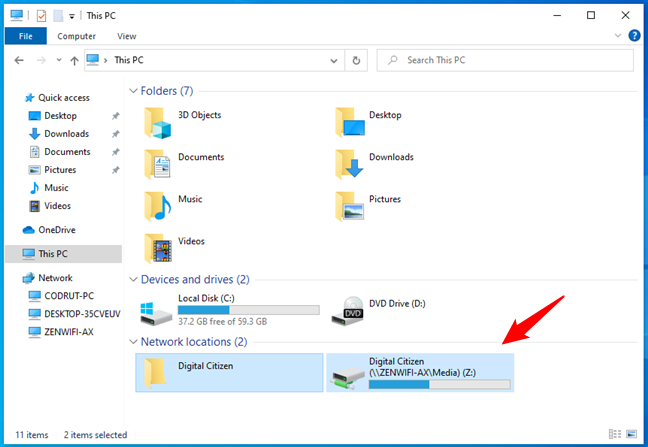
 The mapped network drives are shown in File Explorer
To delete a drive mapping toward a network location, right-click (or press-and-hold) on it and select Disconnect.
The mapped network drives are shown in File Explorer
To delete a drive mapping toward a network location, right-click (or press-and-hold) on it and select Disconnect.
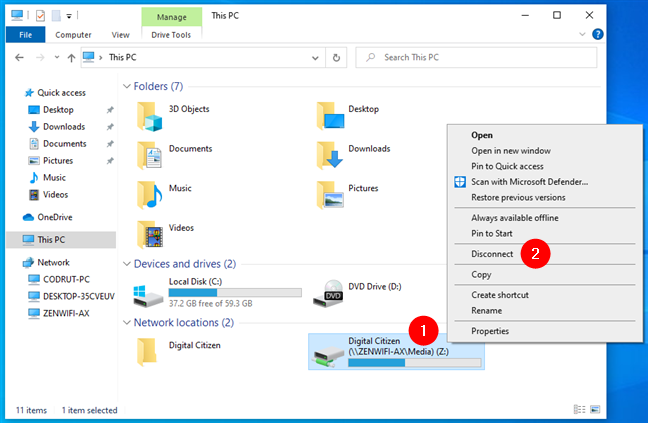
 Disconnect a mapped network drive from Windows 10
To remove a drive mapping towards a network folder or FTP site, select it and press Delete on your keyboard. Alternatively, you could also right-click (or press-and-hold) on it and choose Delete in the context menu.
Disconnect a mapped network drive from Windows 10
To remove a drive mapping towards a network folder or FTP site, select it and press Delete on your keyboard. Alternatively, you could also right-click (or press-and-hold) on it and choose Delete in the context menu.
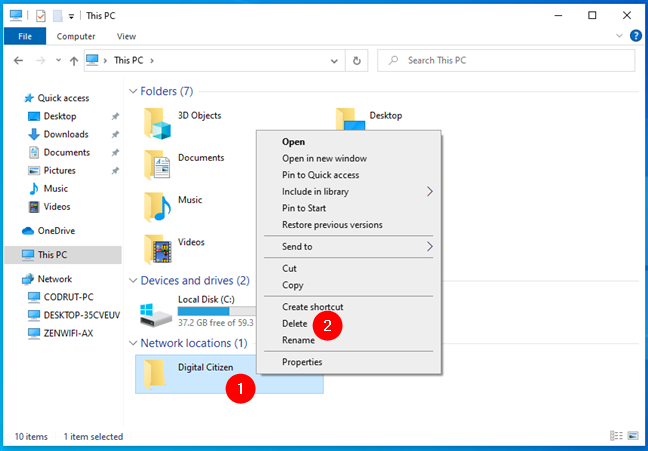
 Delete a network location from Windows 10
The deleted mapped drives then stop showing. If you want to restore them, you have to recreate them, using this guide: How to map FTP drives, network drives, and web shares, in Windows 10.
Delete a network location from Windows 10
The deleted mapped drives then stop showing. If you want to restore them, you have to recreate them, using this guide: How to map FTP drives, network drives, and web shares, in Windows 10.
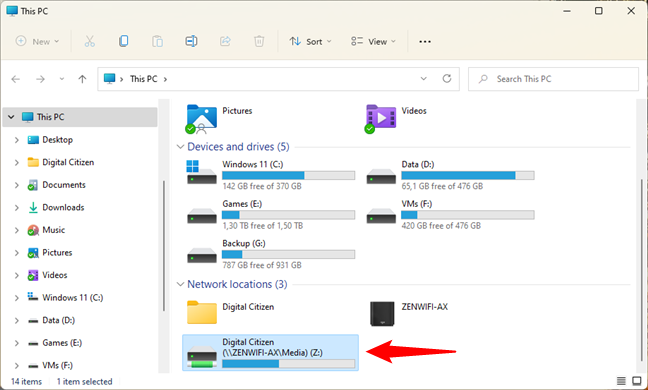
 Mapped network drives are listed in Windows 11's File Explorer
To unmap a network drive from Windows 11, select it, click or tap on the … (See more) button from the top toolbar, and press “Disconnect network drive” from the menu displayed.
Mapped network drives are listed in Windows 11's File Explorer
To unmap a network drive from Windows 11, select it, click or tap on the … (See more) button from the top toolbar, and press “Disconnect network drive” from the menu displayed.
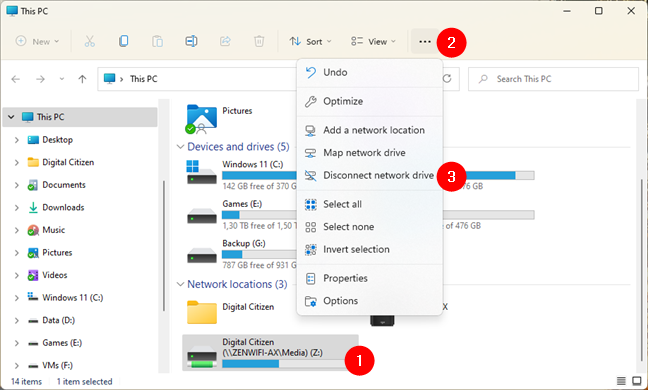 How to remove a mapped network drive from Windows 11
Alternatively, you can also use File Explorer’s context menus to remove a network drive from Windows 11. First, right-click or press-and-hold on the mapped network drive that you want to disconnect and select “Show more options.”
How to remove a mapped network drive from Windows 11
Alternatively, you can also use File Explorer’s context menus to remove a network drive from Windows 11. First, right-click or press-and-hold on the mapped network drive that you want to disconnect and select “Show more options.”
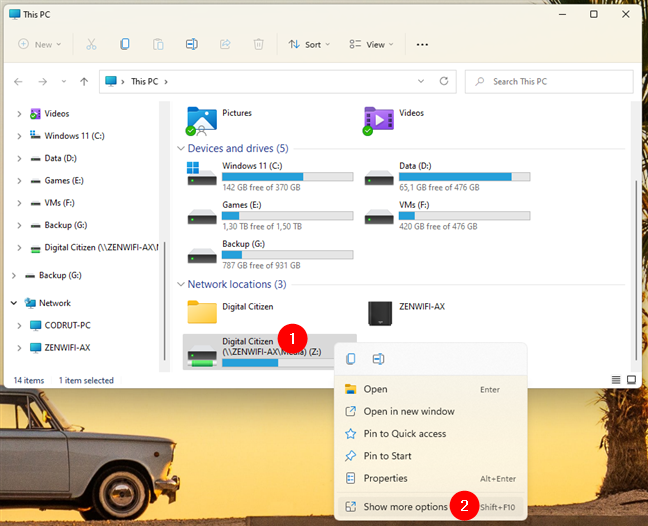
 Show more options in the context menu
Then, in the expanded context menu shown, select Disconnect to remove the mapped network drive.
Show more options in the context menu
Then, in the expanded context menu shown, select Disconnect to remove the mapped network drive.
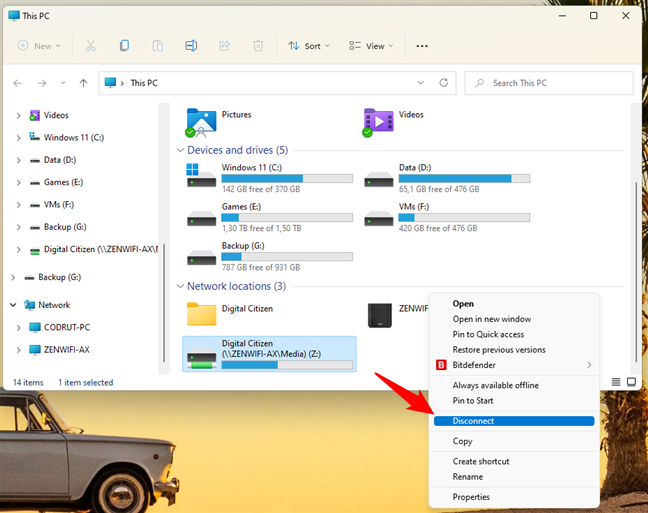
 Disconnect a network drive from Windows 11
If what you wanted was to delete a network location mapped towards a network folder or FTP site, things couldn’t be simpler. Select it, and either press Delete on your keyboard or the Delete button from the top toolbar of File Explorer. Alternatively, you can also right-click (press-and-hold) on the network location and click or tap Delete in the context menu.
Disconnect a network drive from Windows 11
If what you wanted was to delete a network location mapped towards a network folder or FTP site, things couldn’t be simpler. Select it, and either press Delete on your keyboard or the Delete button from the top toolbar of File Explorer. Alternatively, you can also right-click (press-and-hold) on the network location and click or tap Delete in the context menu.
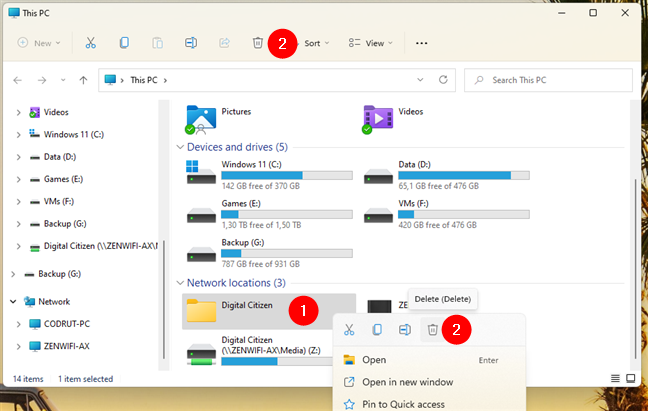
 How to remove a network location from Windows 11
Once you delete a mapped drive or network location, File Explorer no longer displays it. If you want them back, you’ll have to recreate them using this tutorial: How to map network drives and add FTP locations in Windows 11.
How to remove a network location from Windows 11
Once you delete a mapped drive or network location, File Explorer no longer displays it. If you want them back, you’ll have to recreate them using this tutorial: How to map network drives and add FTP locations in Windows 11.
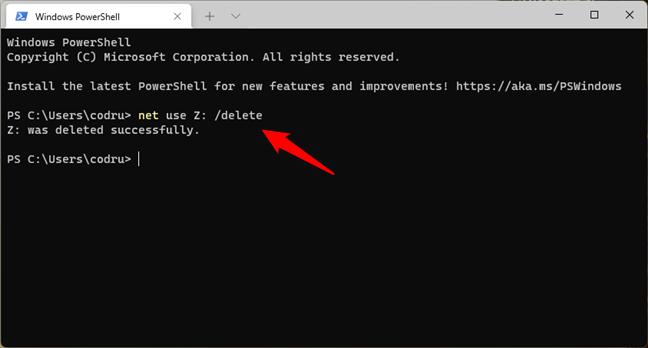
 Using the net use /delete command to remove a mapped network drive
Once you run the net use /delete command, you are informed that the mapped drive has been deleted successfully, and the network drive disappears immediately from File Explorer.
IMPORTANT: The net use /delete command only works for drive mappings that have a letter assigned. It doesn’t work for network location mappings such as FTP servers or web servers.
Using the net use /delete command to remove a mapped network drive
Once you run the net use /delete command, you are informed that the mapped drive has been deleted successfully, and the network drive disappears immediately from File Explorer.
IMPORTANT: The net use /delete command only works for drive mappings that have a letter assigned. It doesn’t work for network location mappings such as FTP servers or web servers.
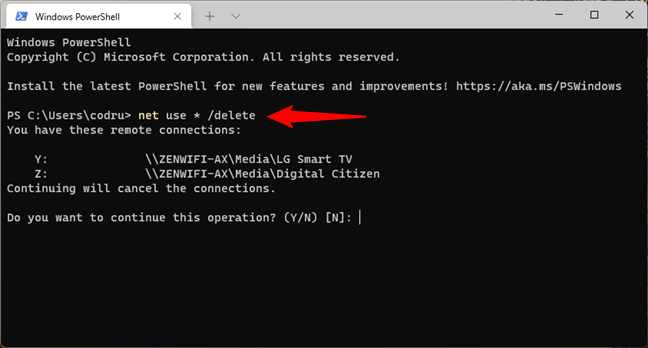 Running the net use * /delete command to remove all the mapped network drives
CMD (or, depending on what you're using, Windows Terminal or PowerShell) then shows you all the active network connections that are going to be canceled. It might also ask whether you are sure that you want to continue. Type in Y if you do, or N if you don’t.
Running the net use * /delete command to remove all the mapped network drives
CMD (or, depending on what you're using, Windows Terminal or PowerShell) then shows you all the active network connections that are going to be canceled. It might also ask whether you are sure that you want to continue. Type in Y if you do, or N if you don’t.
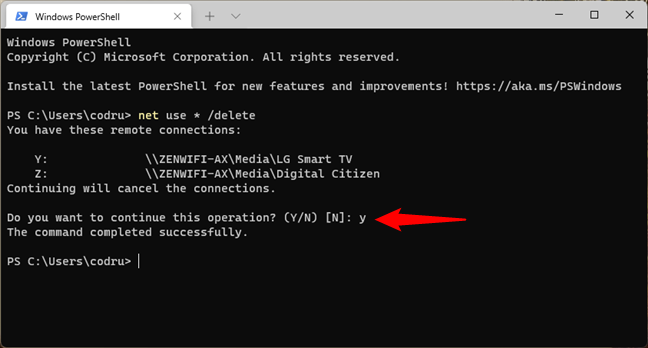 Typing Y to confirm the removal of all the mapped network drives
TIP: If you want to use the net use to disconnect all the mapped network drives, and you want to force the process to go on without asking for any confirmations, add the /y parameter to the command, like this:
Typing Y to confirm the removal of all the mapped network drives
TIP: If you want to use the net use to disconnect all the mapped network drives, and you want to force the process to go on without asking for any confirmations, add the /y parameter to the command, like this:
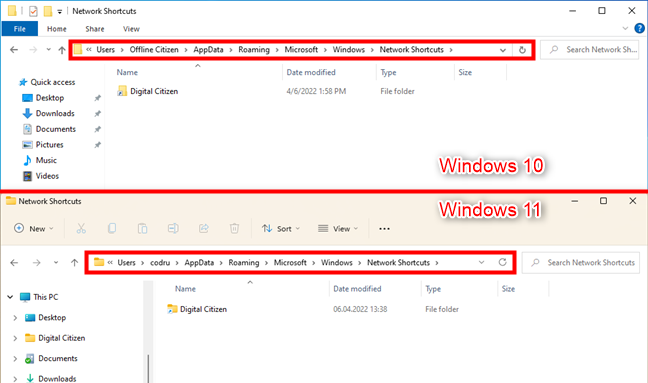
 The Windows folder where network location shortcuts are saved
In the Network Shortcuts folder, you can find all network location mappings. Select the ones you no longer want to use. Then, if you’re using Windows 10, right-click (or press-and-hold) on them and select Delete or press the Delete key on your keyboard.
The Windows folder where network location shortcuts are saved
In the Network Shortcuts folder, you can find all network location mappings. Select the ones you no longer want to use. Then, if you’re using Windows 10, right-click (or press-and-hold) on them and select Delete or press the Delete key on your keyboard.
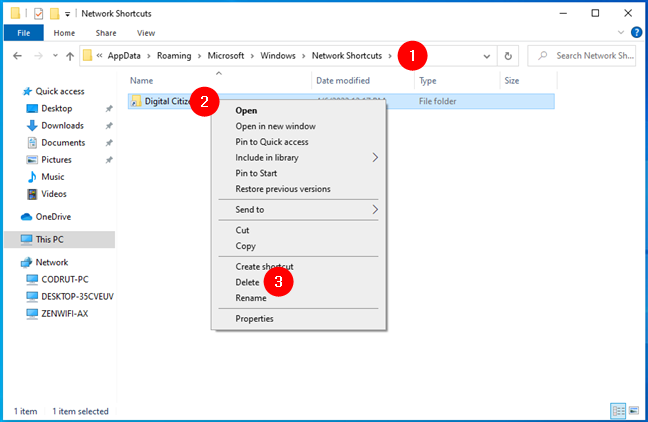
 How to unmap a network location by deleting its shortcut from Windows 10
In case you’re using Windows 11, select the network location(s) you want to unmap, and then press Delete on your keyboard. Alternatively, you can also right-click (or press-and-hold) on the network locations and select Delete in the context menu.
How to unmap a network location by deleting its shortcut from Windows 10
In case you’re using Windows 11, select the network location(s) you want to unmap, and then press Delete on your keyboard. Alternatively, you can also right-click (or press-and-hold) on the network locations and select Delete in the context menu.
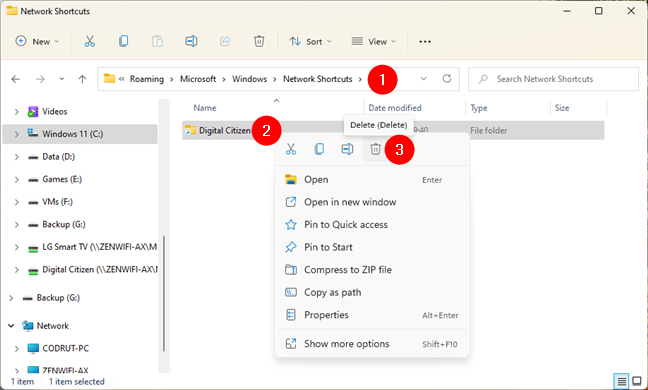 How to unmap a network location by deleting its shortcut from Windows 11
Regardless of whether you’re using Windows 11 or Windows 10, the selected network mappings are deleted immediately, without additional confirmation.
How to unmap a network location by deleting its shortcut from Windows 11
Regardless of whether you’re using Windows 11 or Windows 10, the selected network mappings are deleted immediately, without additional confirmation.
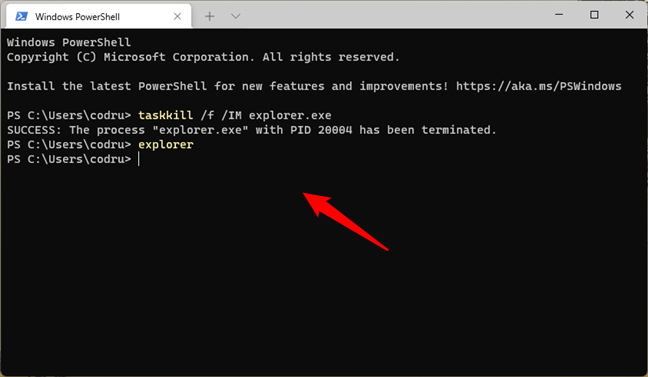
 Using taskkill to stop and then restart the explorer.exe process
1. How to delete a mapped network drive from Windows 10 using File Explorer
If you’re using Windows 10 and you need to delete a previously created drive mapping, the first thing you must do is open File Explorer. Then, on the left side of the window, select This PC. All of the mapped drives are available in the Network Locations group, beneath your solid-state drive, hard-disk drives, and other similar devices such as CD/DVD units or USB memory sticks.2. How to delete a mapped network drive from Windows 11 using File Explorer
The steps to remove a network drive from Windows 11 using File Explorer are similar to the ones in Windows 10. Start by opening File Explorer (Windows + E) and, on the navigation section from the left of the window, select This PC. Then, you’ll see all your mapped network drives listed under Network Locations.3. How to unmap a network drive in Command Prompt, PowerShell, or Terminal with the “net use /delete” command
If you prefer command-line environments, you can use the net use command to delete mapped network drives. Net use works in Command Prompt, PowerShell, and also in the new Terminal app, both in Windows 10 and Windows 11. Open CMD or the command-line interface you like best and run this command:net use [Mapped Drive Letter] /delete
For example, I had a drive mapping to which I assigned the letter Z, so the command I needed to run to unmap the drive was:
net use Z: /delete
4. How to delete all mapped network drives with the “net use /delete” command
If you have more than one mapped network drive configured and you want to delete them all at once, you can use the same net use command to disconnect them all at once. Open Powershell, Windows Terminal, or start Command Prompt and run the following command:net use * /delete
net use * /delete /y
5. How to remove a network location (FTP, web server) from Windows by erasing its shortcut
A network location mapping is a shortcut stored as a file on your Windows computer. If you can’t delete it using the first method we’ve shown, you can try others. One of them is to use File Explorer to delete its shortcut. Open File Explorer and navigate to%appdata%\Microsoft\Windows\Network Shortcuts
which is the same as
C:\Users\Your_User_Name\AppData\Roaming\Microsoft\Windows\Network Shortcuts
… where Your_User_Name is the name of your Windows user account.
Troubleshoot network drives and locations that won’t go away
There are times when none of the methods we described above work as they should. What if you just cannot remove a disconnected network drive from Windows 10 or Windows 11? How do you unmap a drive in Windows in such a situation? Well, if you stumble upon such an issue, here are a few things you could try to disconnect and delete mapped drives:- If you disconnect a mapped network drive or delete a network location, but it doesn’t disappear from File Explorer, the reason might be that File Explorer didn’t get to refresh its contents. Try pressing the F5 key on your keyboard or click/tap on Refresh in the right-click menu inside File Explorer.
- If you tried to remove a network mapping from your Windows 10 or Windows 11 PC, but you get an error about that location no longer being available, your Windows operating system is likely outdated. We’ve tested to see what happens when the PC with the mapped network drives and locations is disconnected from the network or when the network resources are no longer available (target devices are shut down or are no longer part of the network), and all the methods illustrated in this article worked correctly.
- Sometimes, even though you disconnected or deleted a network drive or location from your Windows PC, the operating system hangs and doesn’t remove these links on the fly. A good idea in such a situation would be for you to restart Windows. You can also restart the explorer.exe process by using Terminal, Powershell, or Command Prompt to run these two commands, one after the other:
taskkill /f /IM explorer.exe
explorer.exe
Discussion (40)
Net use * /delete worked for me. Cheers!
Brilliant! Worked the treat, as advertised. Hello, Codrut. I have been trying for some months – if not a few years – to figure out how to prevent disconnected drives from showing up in Windows 10 File Explorer. I have NO intention of manually editing the registry on my PC, and none of the other methods seemed of any use. I finally stumbled across you post re: executing the following commands in Powershell:
taskkill /f /IM explorer.exe
explorer.exe
Many Thanks,
Larry O.
Thank u so much. It worked for me! My laptop was constantly freezing due to this. U saved me. TYSM!
Nothing works for me. Especially taskkill – because my drive is not a process and it does not have a pid. It is a network drive yhat does not have a letter, just the name. It is not listed in the list of networks, and “net use * /delete” does not work, because the list of networks is empty.
Nothing else was worked except taskkill. That did the trick. Thank you
Glad to help
Hello, I have a some not trivial configuration: a network drive with a usb drive connected to it. In my windows 10 I can see both the network drive ans the another drive connected to it. For some reason the icon for this additional drive starts to repeat itself with additional numbers attached to it. First it was Seagate 1, then Seagate 1 and Seagate 2 and so on. Currently 14 of them with only the last actually working. I do not know why this happened and even less how to delete all this phantom icons. They are not mapped to a letter: I see them in the File Explorer/Network. I actually dismounted and physically removed them from my network drive using WD My Cloud administrative panel. However they are still visible in Windows. Please help.
Lev Tannen
mapped folder from an old server gets freezed on a Win10 system . All other win10 systems in the network are able to connect. Removing using the above steps helps but again the same thing happens with the next update of win 10!!!
Can anyone help???
Thanks. Restarting the explorer helped me.
One more comment regarding article. You can replace path to appdata with:
%appdata%\Microsoft\Windows\Network Shortcuts
You’re absolutely right. We recently moved our website from Drupal to WordPress and backslashes from posts seem to have been lost during the process. We fixed it for this article and we’ll soon check all the others. Thank you for pointing this out!
This will NEVER be a valid path:
UsersYour_User_NameAppDataRoamingMicrosoftWindowsNetwork
In “Map Network Drive” under the “Folder:” down arrow, there are drives that are no longer available. How does one delete these from that list?
working thanks
amazing, method 4 worked for me!
No matter what I try, Windows will not let me map a network drive to drive letter Z. Any other letter is fine, just not Z. I had no issues with Z before today. In the Map Network Drive window, as soon as I click on Finish, a dialogue box flashes too fast to be able to read. Nothing seems to give me the ability to re: use the drive letter Z again.
That’s a weird bug alright.
Hi, if you’re comfortable using the Registry Editor (regedit), you might want to check whether the Z letter is shown at this location: ComputerComputerHKEY_CURRENT_USERNetworkZ. If it shows up in there, backup your registry, then delete the Z key folder from the registry, reboot your computer, and try remapping the drive.
How about instructions to remove mapped drives that are not available?
What an embarrassment to the blog-o-sphere.
We have an entire section called: “Troubleshoot network drives and locations that won’t go away”
I tried everything in order suggested in this post and still, the network icons remained in the “network locations” section. When I arrived at the very last suggestion, I tried it and finally, the icons disappeared!
“restart the explorer.exe process by using Powershell or Command Prompt to run these two commands: taskkill /f /IM explorer.exe and explorer.exe.”
Thanks!
You wanna add /y for yes confirmation or in batch file or it will ask no idea why it does’t when manually typing it into cmd
You can use the following to force close a network drive:
Net use x: /delete /y
X being your drive letter
is it possible to delete the mapped drive in my remotely located system?
Does disconnecting a mapped drive erase its contents? I mapped mine from my OneDrive account and am worried it will wipe it out.
I mapped a network drive inside of my home but when I took my laptop to the office, the drive had a red X on it. I deleted the mapped drive. When I tried to remap the drive, I receive an error stating “Network path not found”. However, I mapped the network drive on another computer and it worked perfectly. How can I get my original computer to map the drive again?
I have a mapped drive and can not delete it. It is not connected and has a red x on the icon. If i select it I get “O: refers to a location that is unavailable…” If I right click it does not have an option to “Delete”. I looked in the directory mentioned and it does not show up, I ran the command line to delete and got the message “The network connection could not be found”
From all indications it is not there but I still see it in Explorer. How do I get rid of it? (I did do a restart)
I don’t know about y’all, but I added a drive to my Windows 7 SP1 laptop, but Windows Explorer froze every time I attempted to access it, right-click on it, or anything. I just disconnected from the internet, clicked on the server, and pressed the delete key on my keyboard. Just like that, it worked.
I HAVE A \MYBOOKLIVE THAT SHOWS UP IN SEARCH I CANNOT REMOVE. THE DRIVE WAS LONG AGO REMOVED. I HAVE TRIED METHODS HERE TO NO AVAIL. I GET CANNOT ACCESS ERRORS.
I wasn’t able to delete a Network Shortcut too. Nothing worked from your list.
I did it like this to remove it:AppDataRoamingMicrosoftWindowsNetwork Shortcuts
Go to: C:Users
Move the file with CTRL+x to another location.
😉
Thanks a lot !
You are welcome. Do not hesitate to subscribe to our newsletter, for more useful tutorials.
Had some issues and then noticed that the shortcuts are placed on your computer but the files are stored on the other computer. For my computer since it is XP, I had to go into the registry and delete the files
so the path would look like this
HKEY_LOCAL_MACHINE/SYSTEM/CurrentControlSet/Services/LanmanServer/Shares/
Here you will select all shares that you would like to get rid of and hit delete. Then restart the computer and check your network share. Hope this helps someone.
This worked for me! Also went into the current0001 as suggested by another user. Whichever one of these was The Way, I took both paths, and my problem got solved. Thanks, y’all
None of the situations described above work for me.
Didn’t help me either… Come on Drobo!
None of the above worked for me. The option to disconnect the drive did not appear.
Finally, I found it lurking in
HKLMSYSTEMControlSet001servicesLanManServerShares
I deleted it from there, restarted the PC, and at last the phantom was gone.
Nope, not helpful. My drive is not available, and in Microsoft’s infinite wisdom, you cannot disconnect a network drive that is NOT there anymore. Wrap you head around that one. Of course there’s probably some other way around it, but come on really???
Please use the instructions found in the sections about using the Command Prompt.
Sadly in order to delete the network connection in any of the above scenarios I have to still be connected to the network connection for it to be disconnected, otherwise it just tells you that the network connection is unavailable and leaves the connection in the network connection location.
Hi,
i am unable to disconnect/delete the map drive even though i am using above settings…
pls help me